How to Fix OBS Studio NVENC or AMD Encoder Errors?
OBS Studio can show a working preview but refuse to record or stream, displaying “Starting the output failed. Please check the log for details.” The recording timer stays at zero, or the stream never starts, even though OBS itself remains responsive.
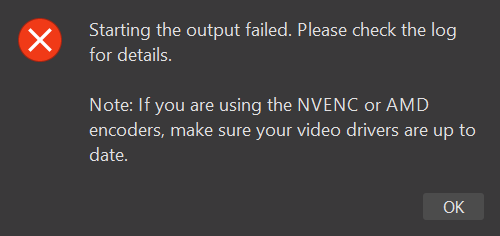
The note about NVENC or AMD drivers is generic. OBS needs both video and audio encoding to start the output; a missing audio encoder can trigger this message too. The log from the failed attempt provides more useful information than the popup alone.
These steps cover recording and streaming startup failures on Windows, not footage that becomes choppy after recording has already begun.
Keep Your Settings and Check the Log
- Open Profile, note the selected name, and choose Export. Keep that export private. Then select Duplicate and name the copy Encoder test.
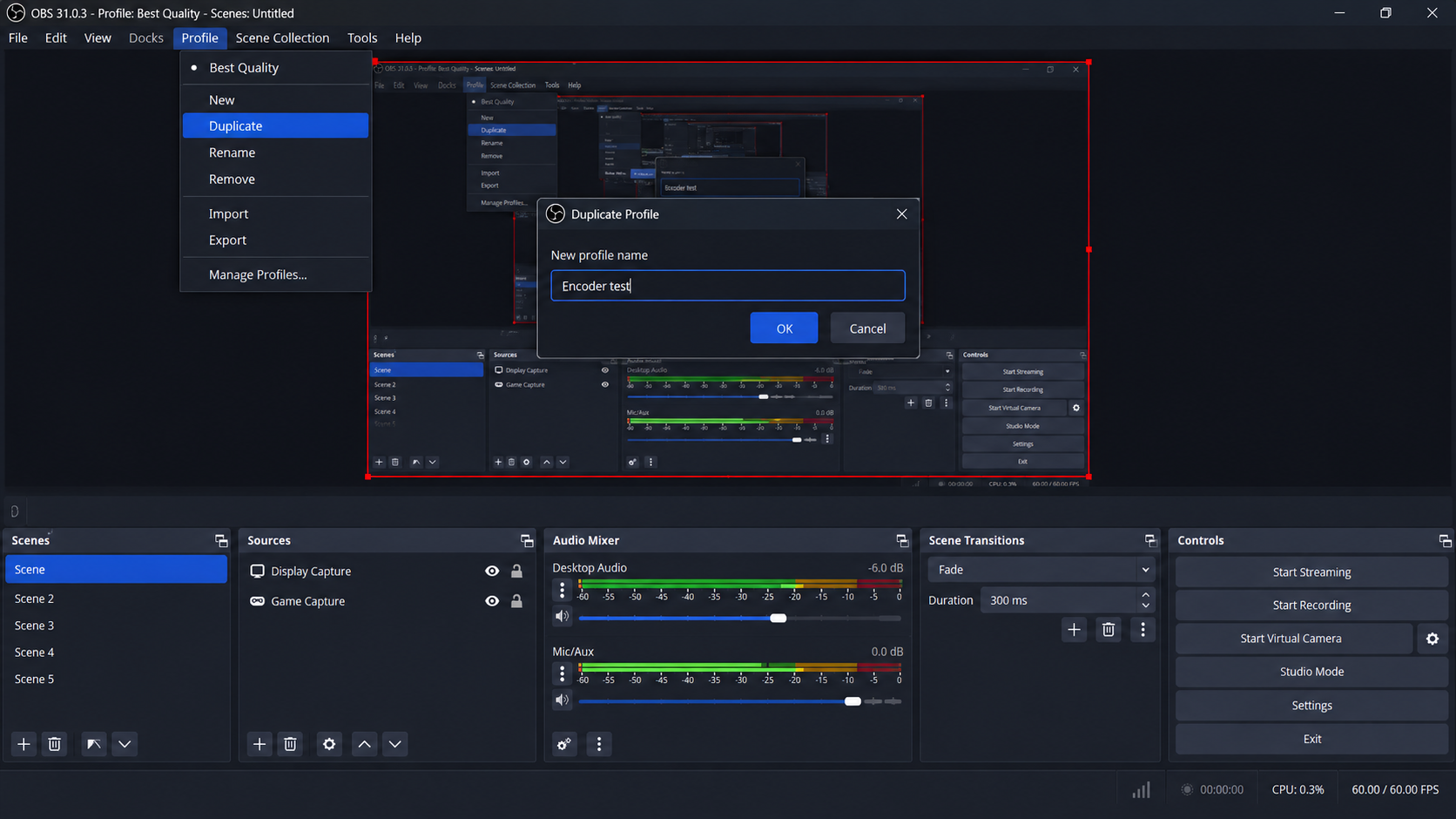
Export the original profile, then make changes in a duplicate. A profile stores output settings, not your scenes. Make the changes below in the duplicate; to undo them, stop outputs and select the original profile. Your scenes do not need rebuilding.
- Open Help > Log Files > View Current Log and find the entries at the time of the failure. After restarting OBS, use Show Log Files to find the session with the matching date and time.
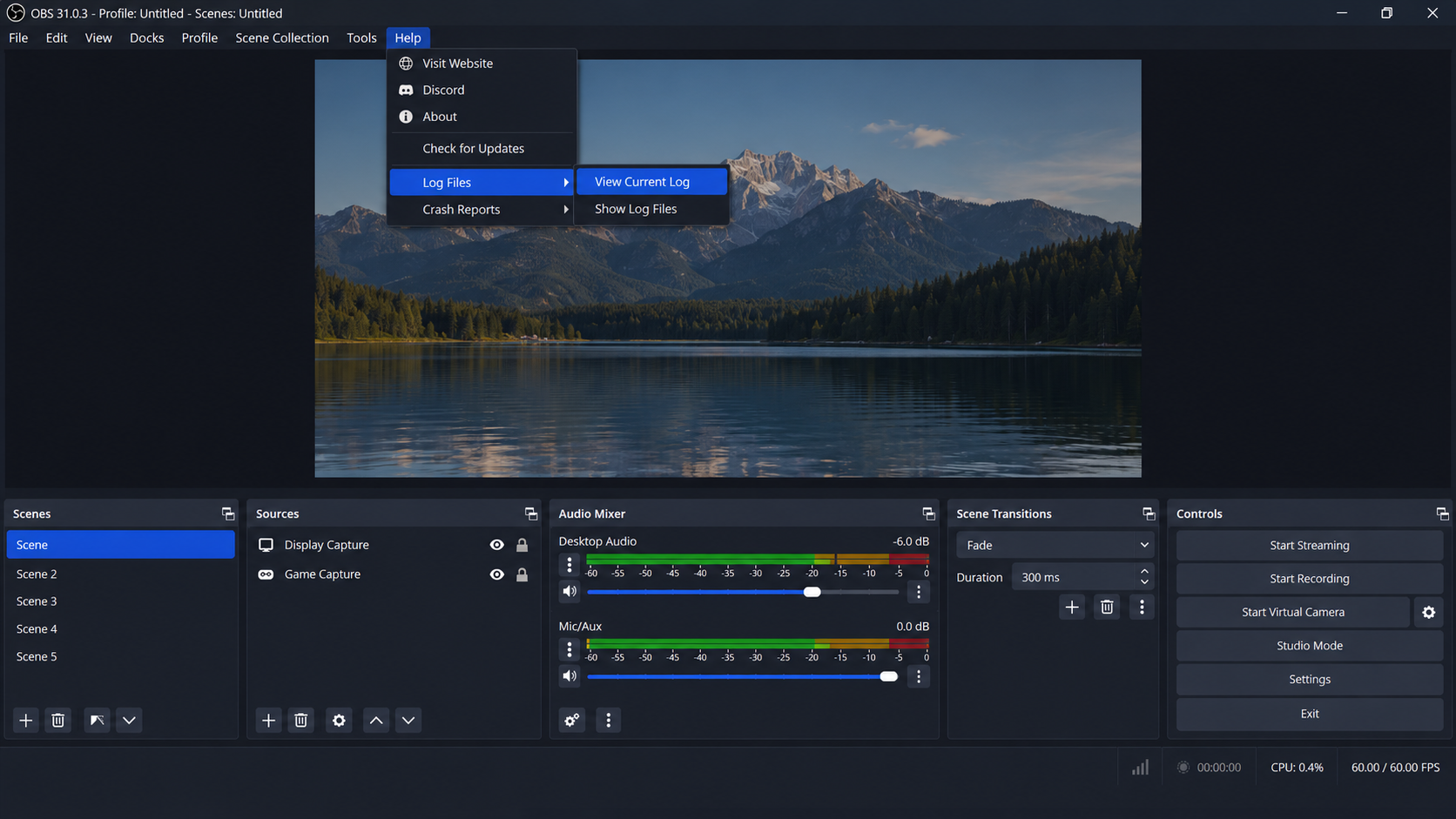
Use the log for the session in which recording or streaming failed. A failed attempt still creates log entries. Reproduce it once, when safe, if it is missing. Earlier messages about optional components are not necessarily related.
| What the failed-attempt log reports | What needs attention |
|---|---|
A missing audio encoder, such as CoreAudio_AAC | The audio selection in Output settings. |
| An unsupported driver or unavailable NVENC, AMF, or QSV encoder | GPU/driver compatibility; x264 can provide an SDR fallback. |
AMF_INVALID_ARG with AMD AV1, P010, and HQVBR recording | The specific HDR rate-control combination described below. |
| A named recording-file access error | Check Output > Recording > Recording Path for an accessible folder and enough free space. |
| A specific server connection or authentication error | Check Settings > Stream and OBS’s connection troubleshooting, not an unrelated encoder setting. |
A generic rtmp_output failure alone does not prove a network problem. Read the nearby error details.
For hardware errors, check the selected GPU against OBS’s hardware-encoding requirements. Match any driver update to your GPU and Windows version; ask IT on a managed PC.
Our OBS NVENC initialization guide includes driver checks for NVIDIA-specific errors.
1. Select an Available Audio Encoder
Updating the graphics driver will not restore an empty audio selection. Without an available audio encoder, OBS cannot complete output startup, even when its video encoder works.
- Open Settings > Output. Keep the current Output Mode and find the settings for the action that failed. In Advanced mode, choose the Recording or Streaming tab; Simple mode groups them into sections.
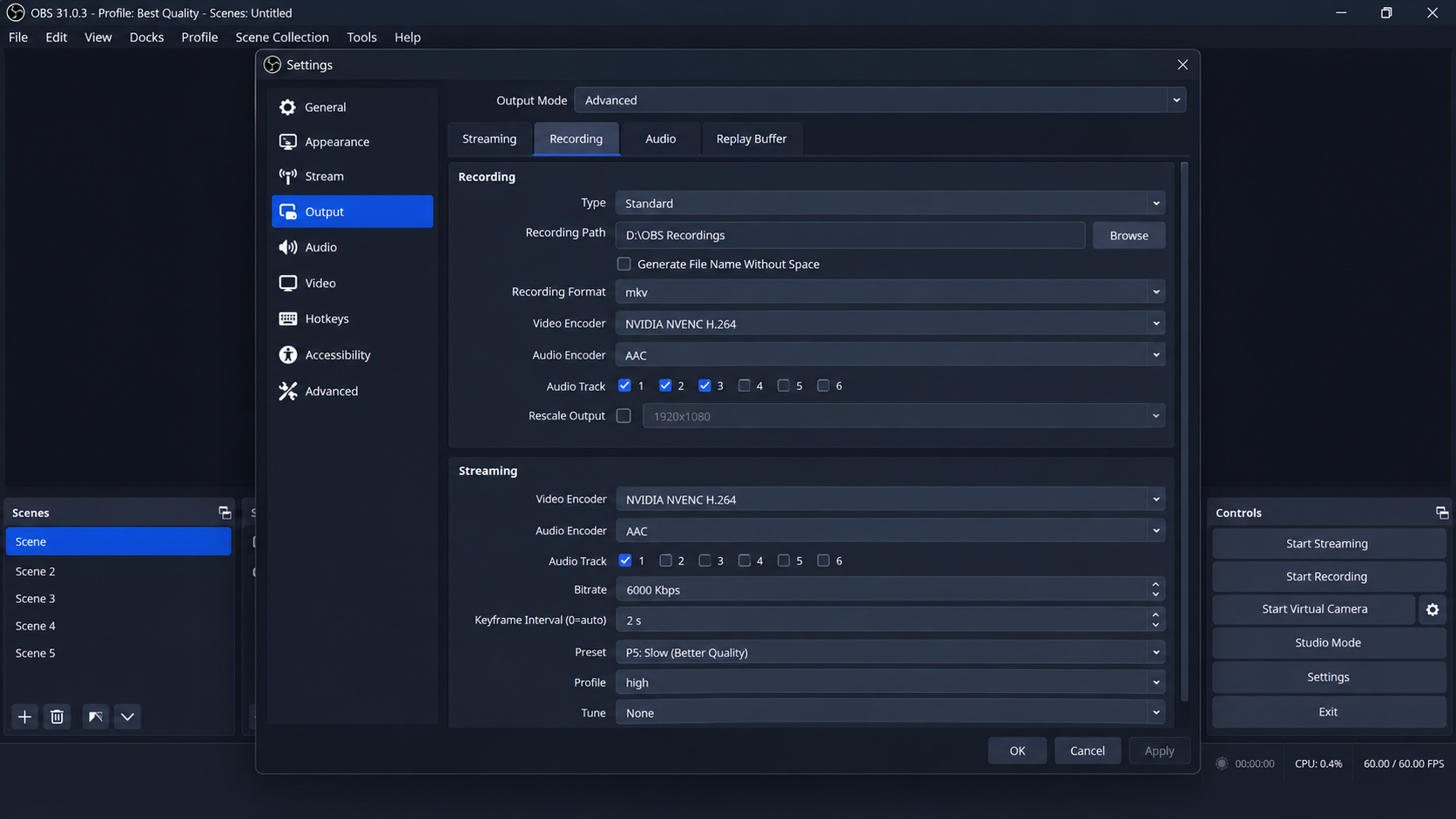
Recording and streaming can use different encoders. - Check Audio Encoder. Replace an empty or unavailable selection with an installed, compatible option, such as FFmpeg AAC for AAC output when listed. Leave a working selection unchanged.
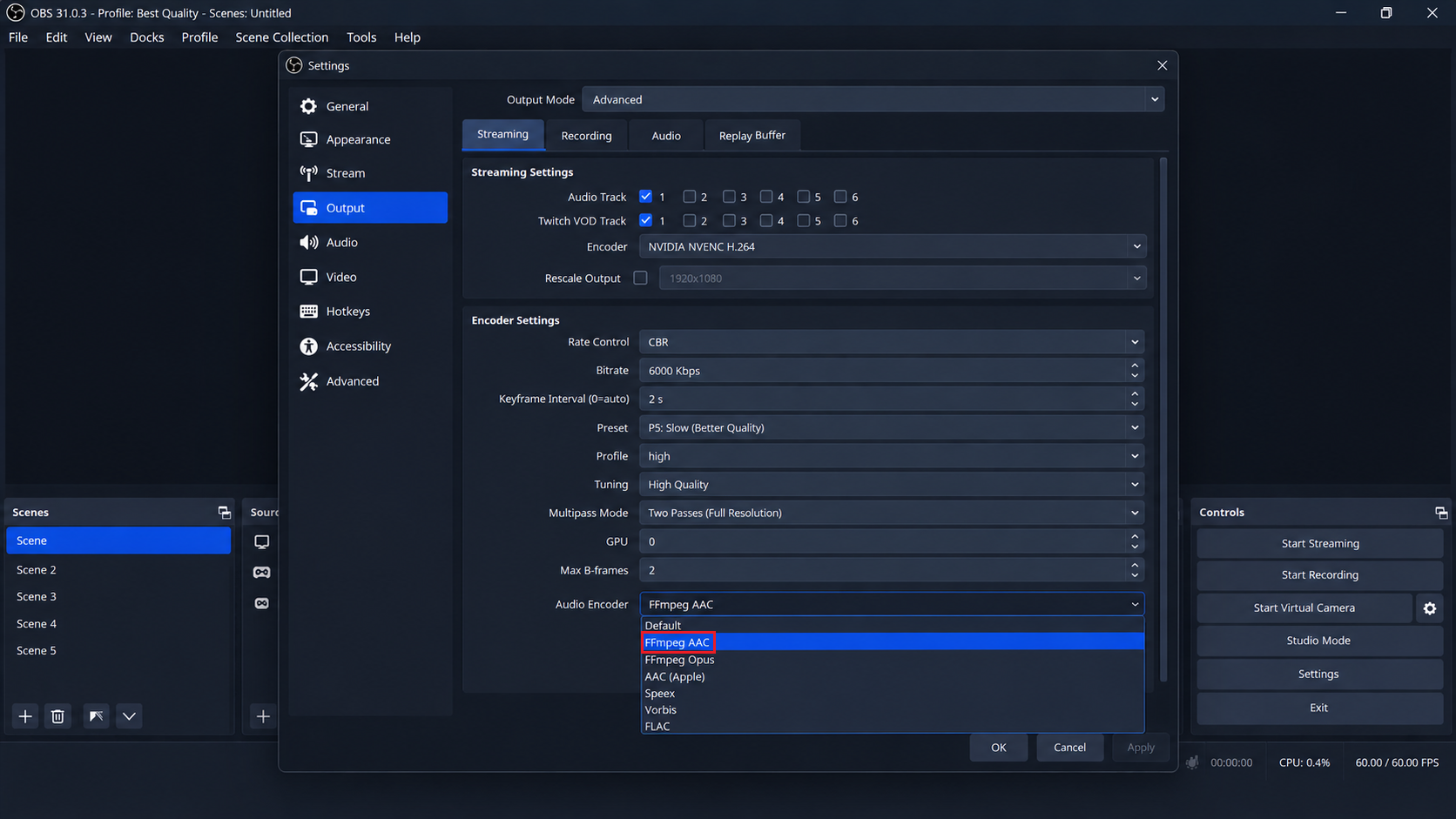
Select a compatible encoder that is present in your installed OBS build. Keep your intended audio tracks selected. When recording reuses streaming settings, check the streaming audio selection too. If no compatible audio option can be selected, retain the log for OBS support rather than changing the video encoder.
- Select Apply > OK and retry the same output. For recording, stop a short test and play it back to confirm video and the intended audio are present.
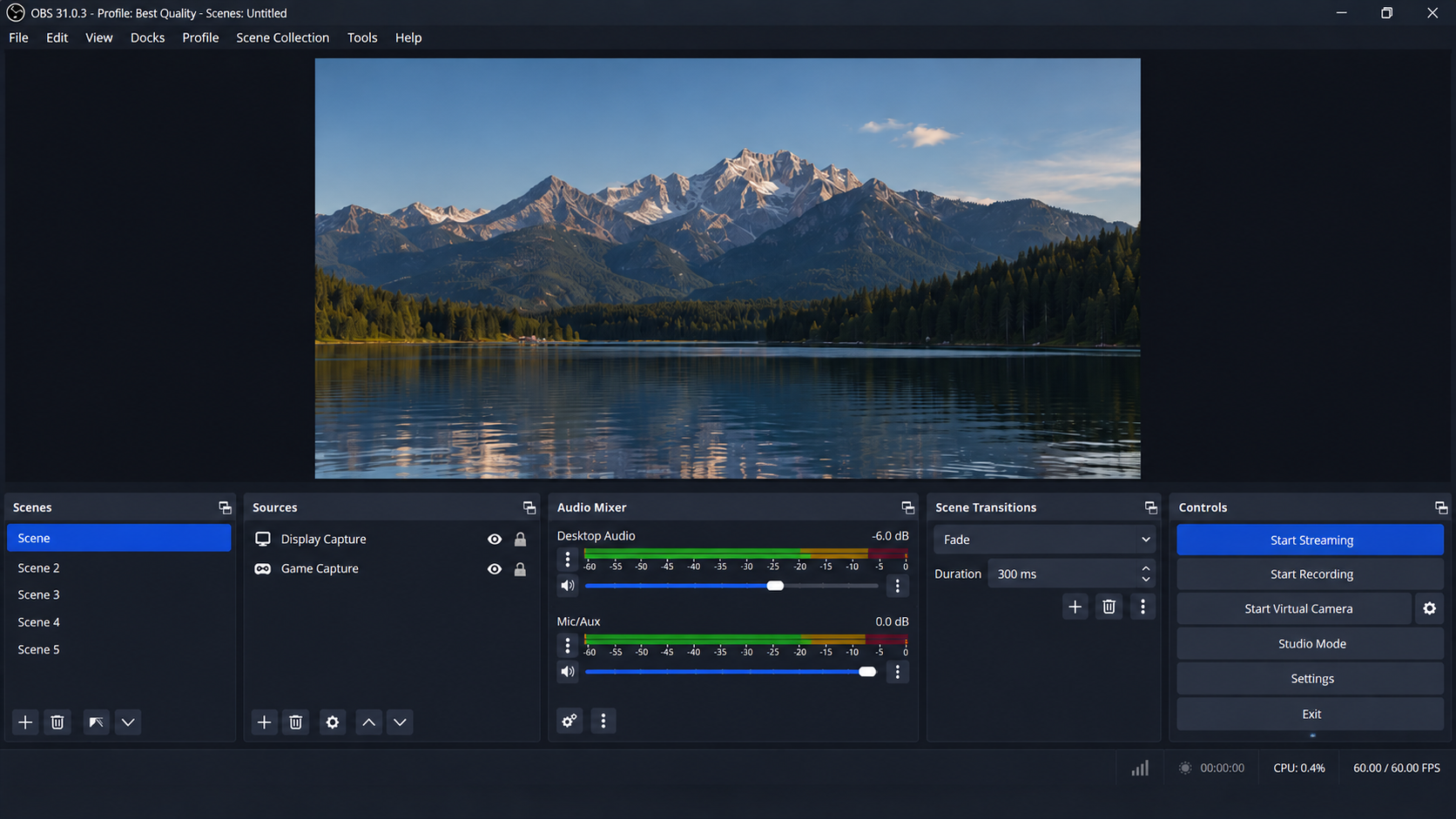
For recording, stop the short test and check that the file contains video and the intended audio.
A successful recording does not verify separate streaming settings. Retest the affected output; keep the corrected audio selection if it now starts normally.
2. Try x264 When Hardware Encoding Will Not Start
x264 uses the CPU to encode video instead of NVENC, AMF, or QSV. It can get an SDR recording or stream running while hardware encoding remains unavailable, but it increases CPU load and does not repair the GPU encoder.
This test changes video to H.264; it is not a replacement for an intentional HDR or AV1 workflow.
- In the duplicate profile, check Settings > Advanced > Video. An existing NV12 / Rec. 709 SDR setup is suitable for this test. Preserve intentional P010/HDR settings rather than converting them for this workaround.
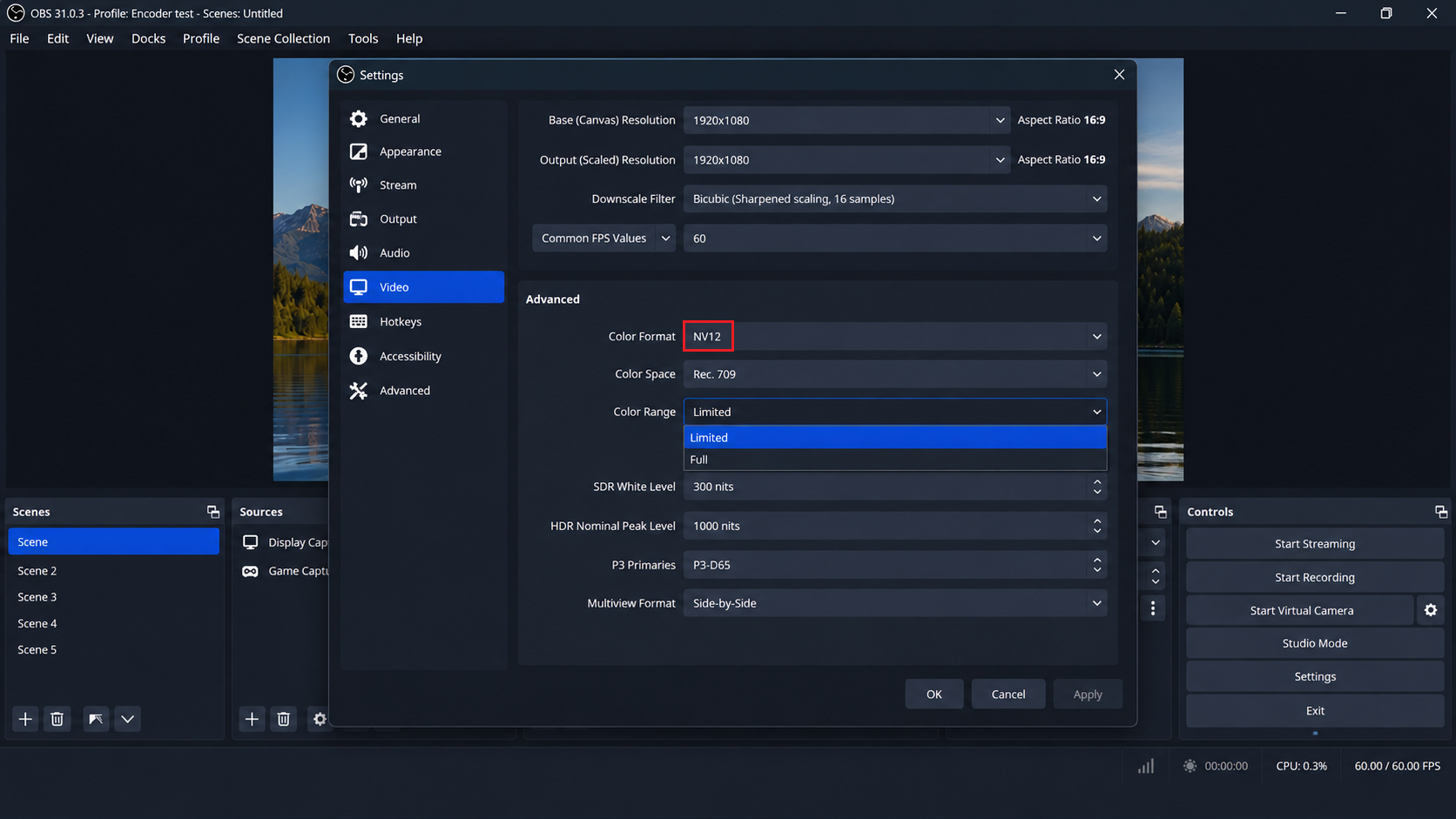
Keep an intentional HDR configuration intact. - Return to Output and select Software (x264) or x264 as the failing output’s Video Encoder. For a recording-only test, select it explicitly rather than Use stream encoder.
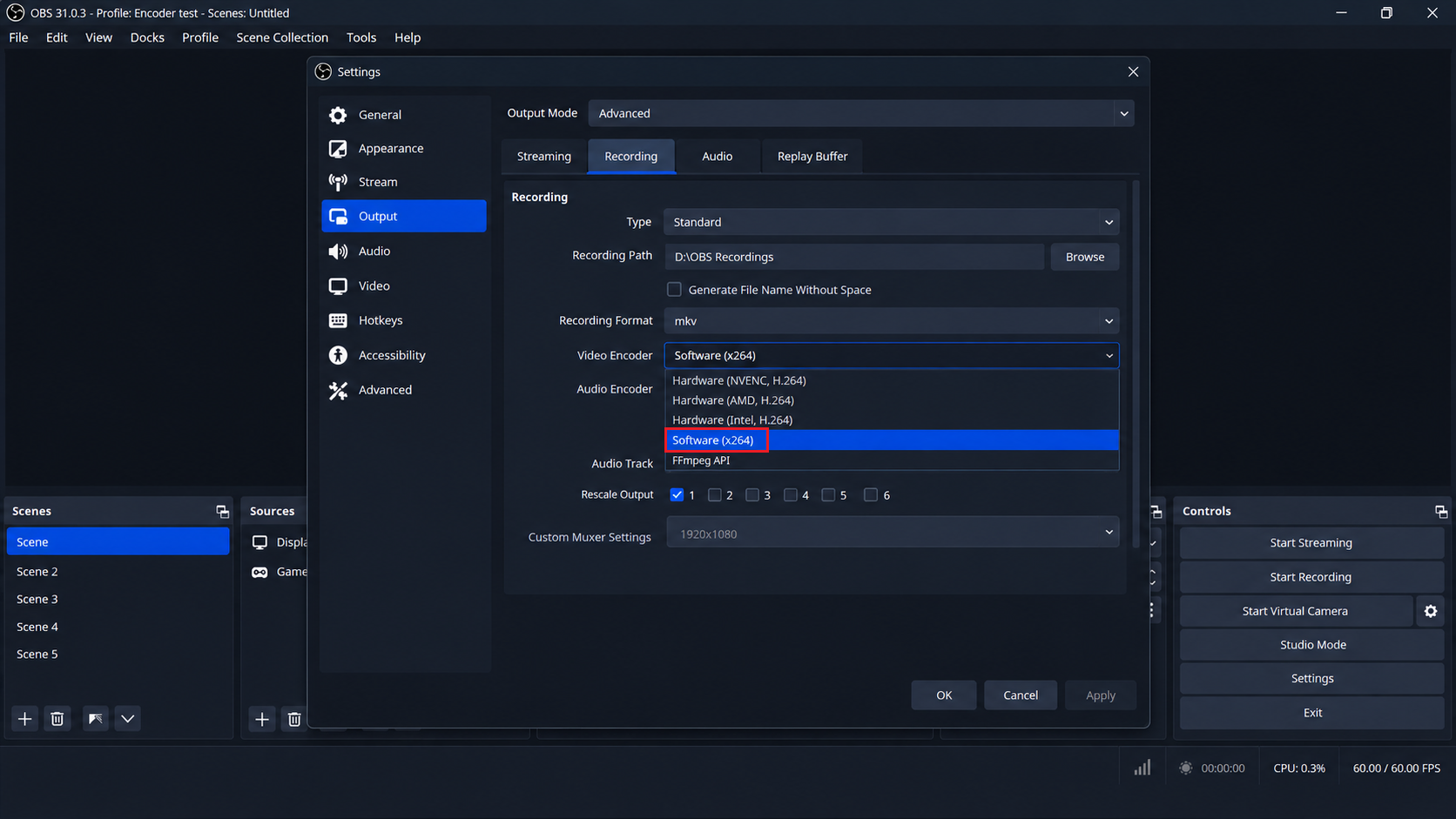
x264 uses the CPU and can restore output while hardware encoding remains unavailable. - Keep compatible audio and recording-format selections. For the first short test, leave the displayed CPU preset unchanged and avoid Lossless in Simple recording mode. Streaming must retain your service’s required bitrate and keyframe interval.
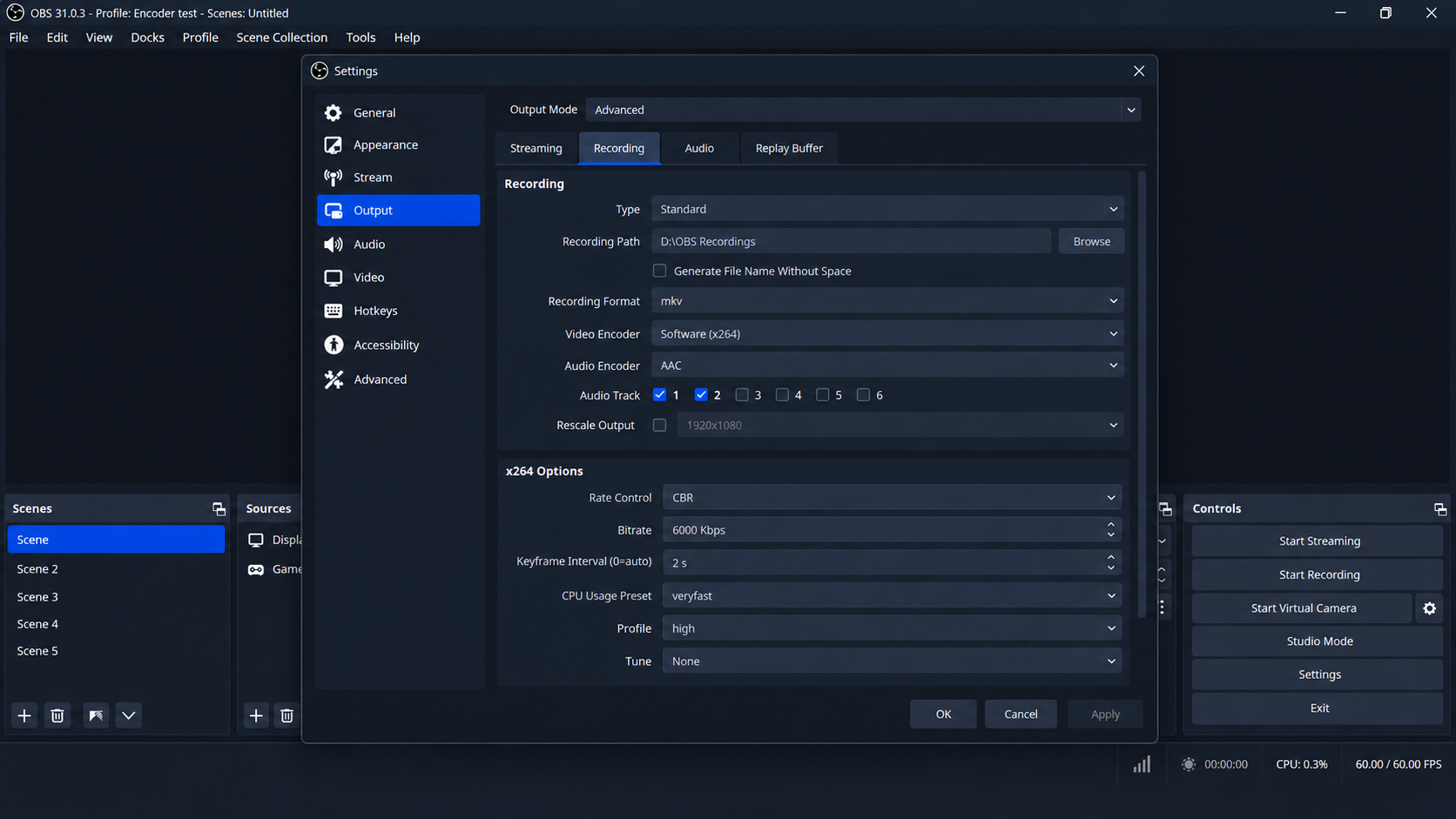
Use the initial x264 settings for a short test before adjusting recording quality. Select Apply > OK. OBS’s advanced recording settings provide a baseline for later quality adjustments; they are not streaming presets.
- Retry the affected output with your normal scene and activity. For recording, stop a short clip, open File > Show Recordings, and play it. Check motion and audio, not just whether the timer ran. For streaming, confirm your service receives the test broadcast.
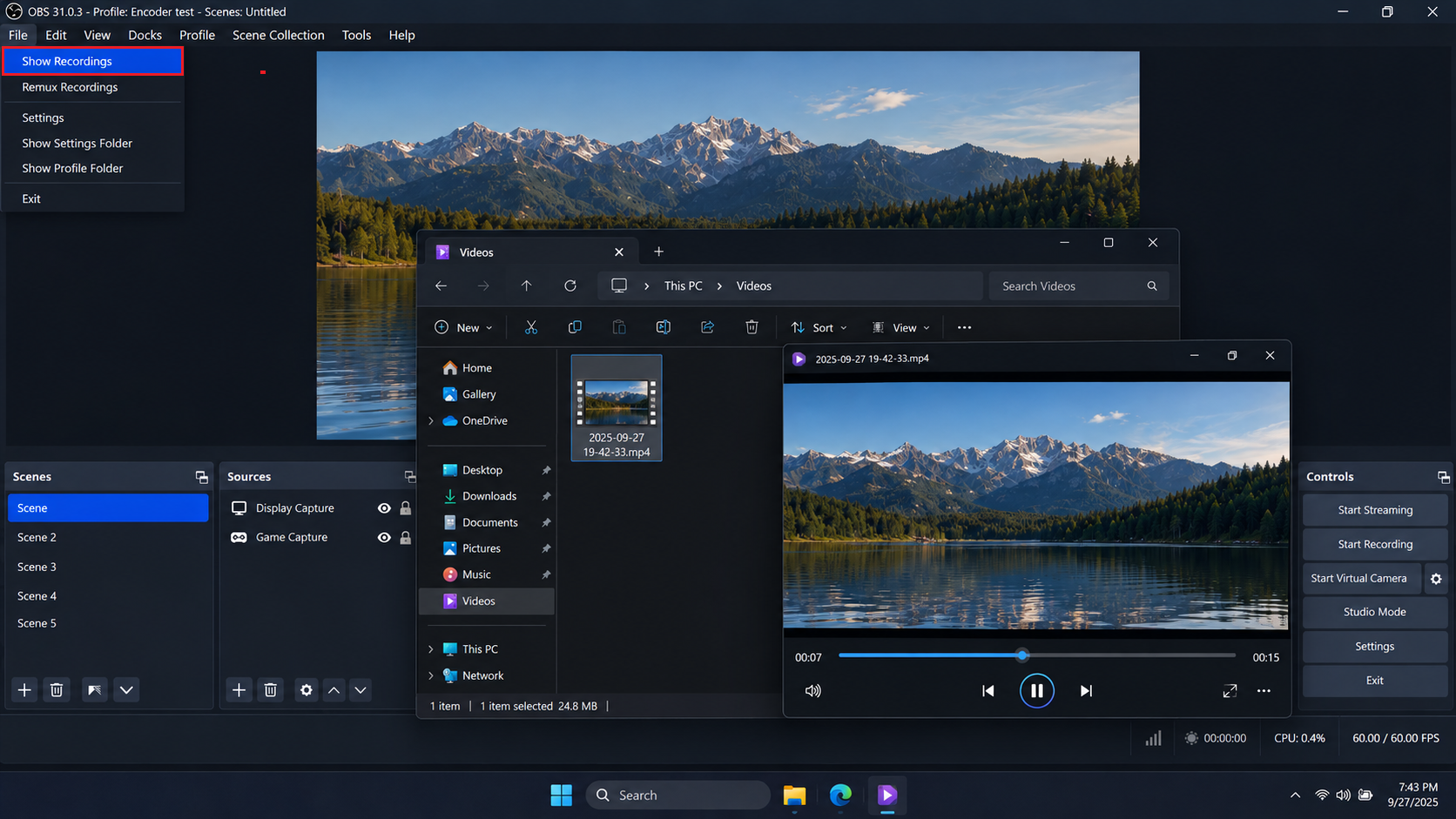
Look for smooth motion and confirm the expected audio is present. - During the test, open View > Stats. A steadily increasing Skipped frames due to encoding lag count means encoding is not keeping up.
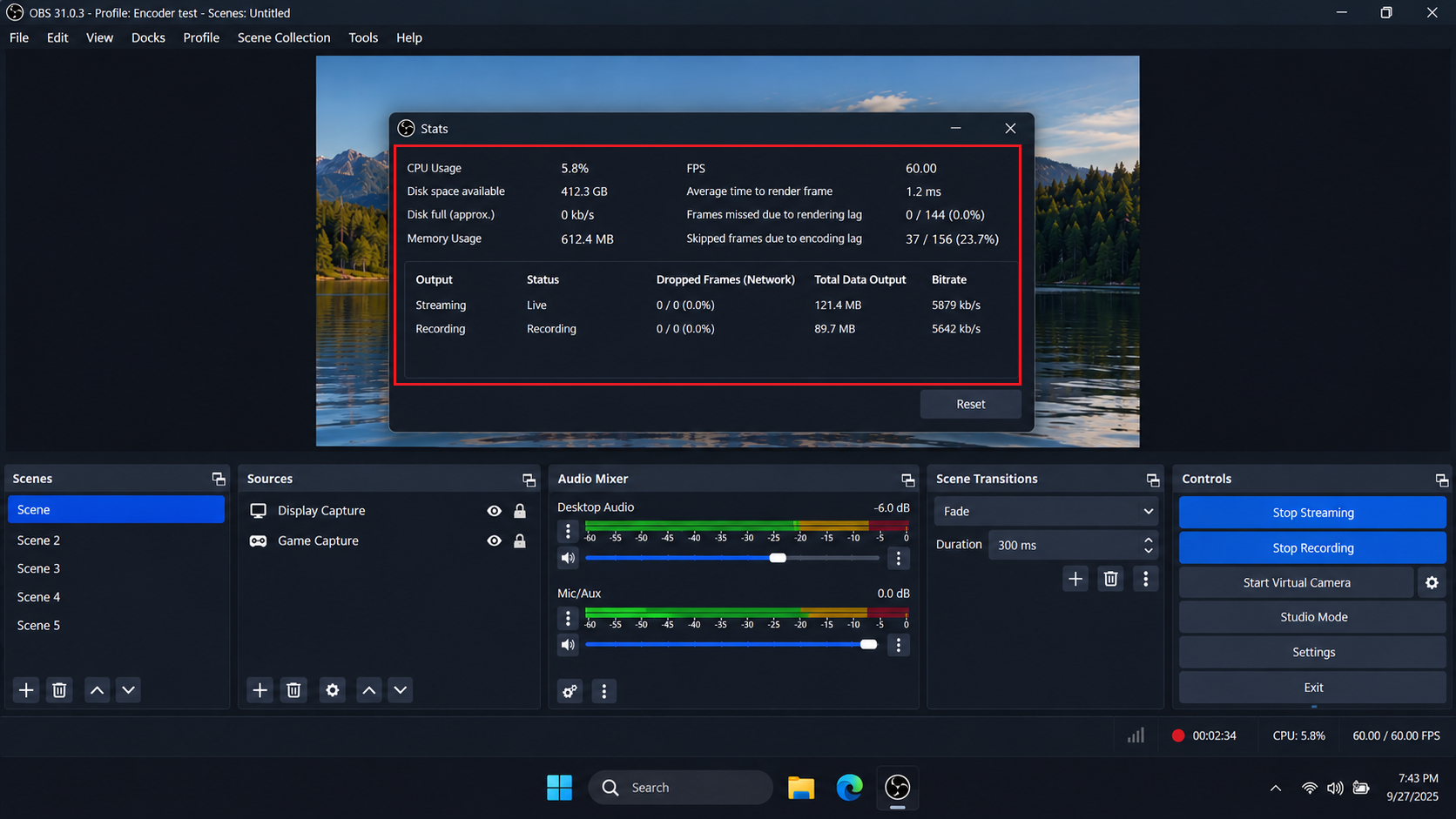
A recording that starts can still be unusable if encoding lag keeps increasing.
Smooth output makes x264 a usable temporary fallback. Choppy output needs the OBS encoding overload checks before a longer session. Network-dropped frames are separate from encoding lag.
3. Test CQP for an AMD AV1 HDR Recording Error
An AMD AV1 recording can work in SDR but fail with P010 and HQVBR, logging AMFComponent::Init failed: AMF_INVALID_ARG. CQP has resolved this specific combination without removing HDR; that error code alone does not establish the cause.
CQP changes how the encoder controls quality without changing the HDR color format.
- With outputs stopped, check for a stable OBS update and a compatible AMD driver. After applicable updates and a restart, reproduce the failure. Test CQP only if the same encoder, settings, and log error remain.
- Use a duplicate of the original HDR profile, not the SDR test profile. Under Settings > Advanced > Video, keep the existing P010 format and intended HDR color space, such as Rec. 2100 (PQ).
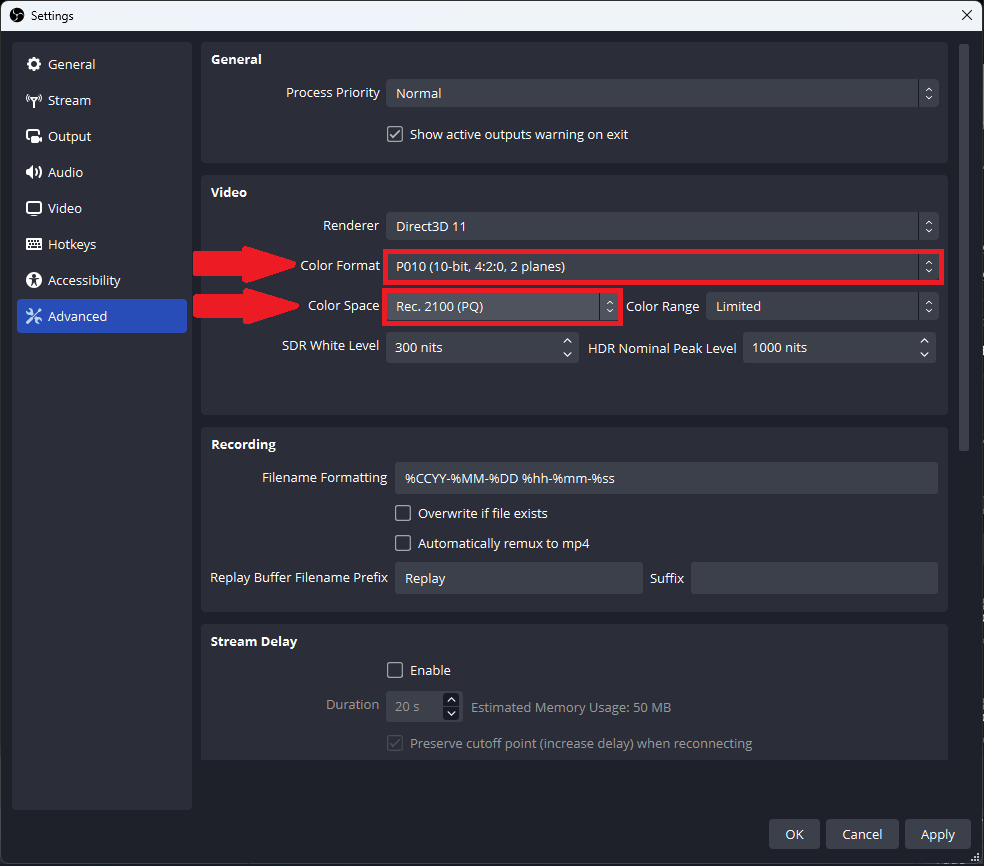
This adjustment applies to a matching AMD AV1 initialization error while recording HDR. - Open Settings > Output > Advanced > Recording. Confirm AMD HW AV1 and Rate Control: HQVBR in your own settings.
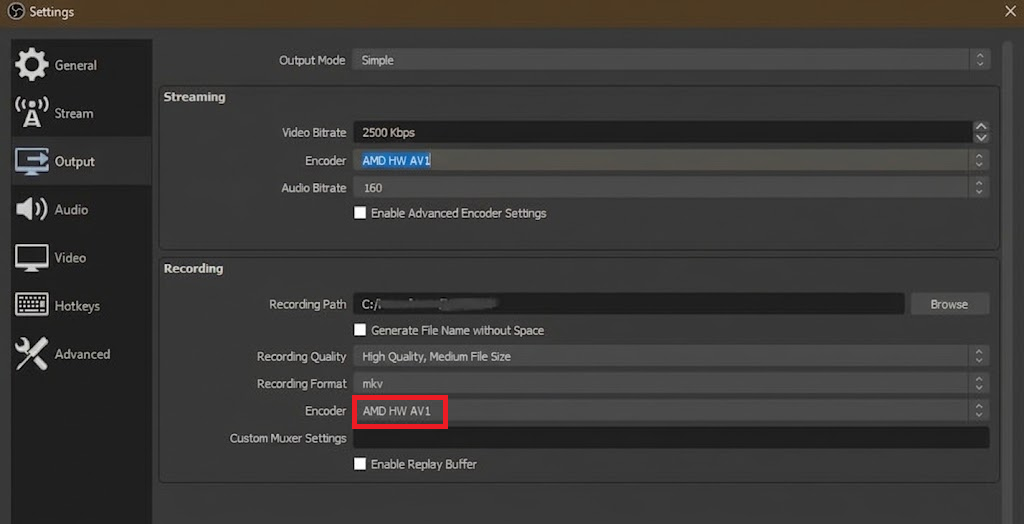
An HQVBR and P010 combination can fail even when SDR recording works. - Change Rate Control to CQP and select Apply > OK. Leave the initial quantizer values for a short test. CQP varies bitrate and file size; it is not a substitute for fixed-bitrate streaming.
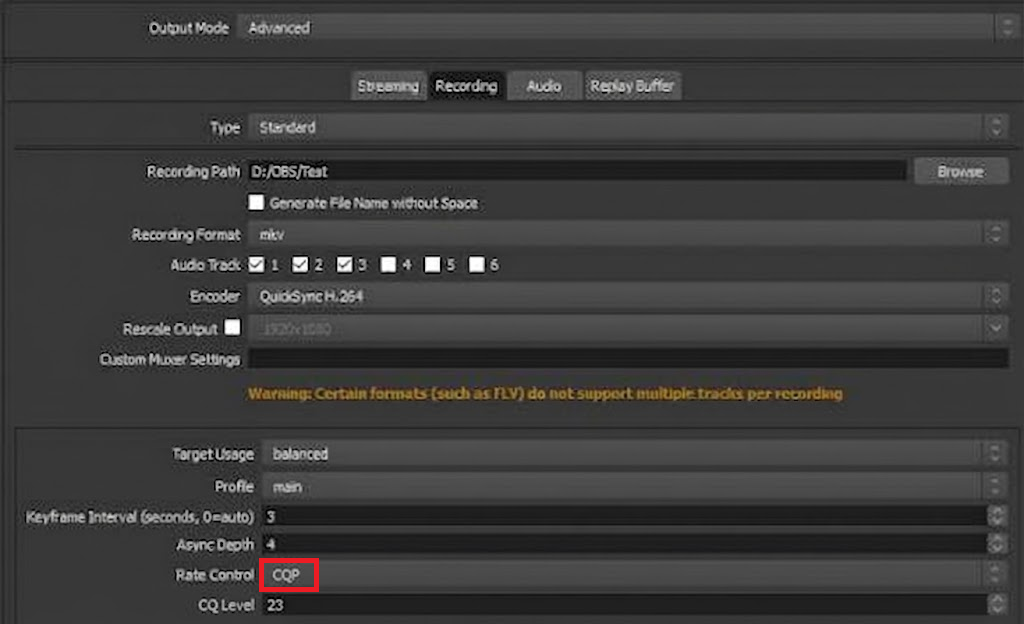
Keep the HDR color settings and review file size after the short test. CQP appears on several encoders. Keep AMD HW AV1 selected; switching to Intel QuickSync is not part of this fix.
- Record briefly and play the file in an AV1/HDR-capable player. Check motion, audio, color, and file size before a long recording. Starting successfully does not establish that the source itself was captured in HDR.
Keep CQP in this recording profile only if the test is usable. Otherwise, restore the previous rate control or the original profile with outputs stopped.
If Output Still Will Not Start
Keep a log containing the latest failed attempt. Before uploading, review it and any screenshots for personal file locations, source URLs, or credentials. Do not post profile exports or stream keys. If redaction is needed, share a sanitized copy and retain the original privately.
For a log you have checked and are comfortable sharing, use Help > Log Files > Upload Current Log File. Upload Last Log File refers to the previous OBS session, not automatically the last failed attempt.
Send the link through the official OBS support channels with your OBS/Windows versions, GPU and driver, selected audio/video encoders, and whether recording or streaming fails. Include any x264 test result; the generic popup screenshot alone cannot identify the failed component.


