How to Fix the AutoCAD FlexNet License Finder Error?
AutoCAD stops at FlexNet License Finder instead of opening a drawing, asking you to Specify the License Server System or Specify the License File. Entering a server name can bring the same dialog back without starting the program.
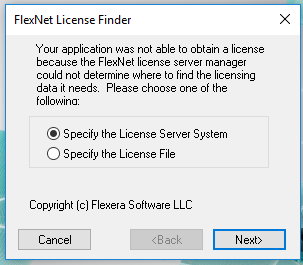
A valid Autodesk subscription can still show this prompt if AutoCAD is configured for Network licensing instead of account sign-in. For an actual network installation, the dialog means AutoCAD has not obtained the license it needs from the company’s server.
Confirm Your License Type First
On Windows, check your assigned license before changing AutoCAD’s settings. A license server is your organization’s computer, not an Autodesk website or a license file to download from another user.
- Sign in to Autodesk Account. Under All Products and Services, find AutoCAD and open View Details > License details. Ask your license administrator if the details are unavailable.
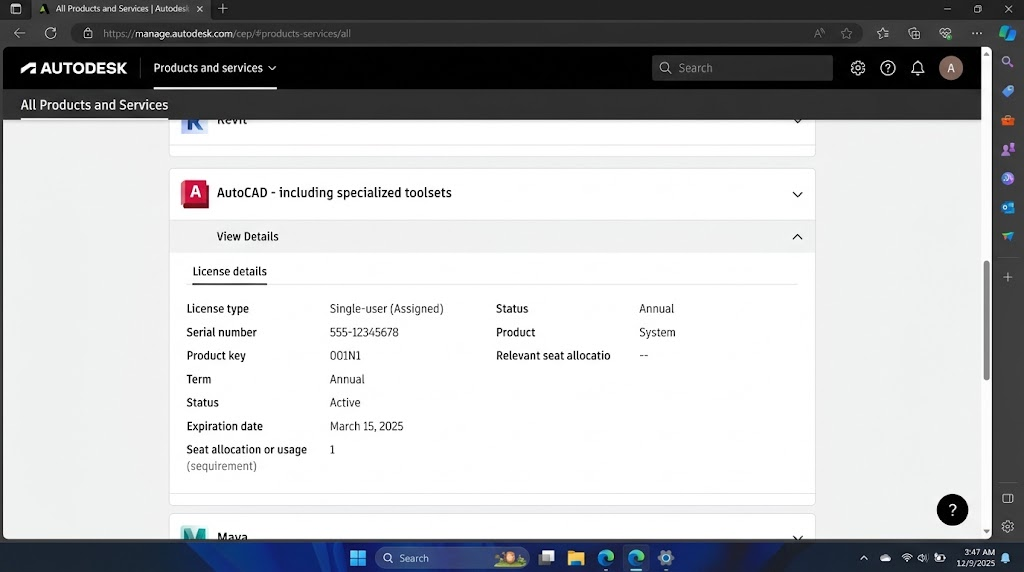
The assigned license type determines whether AutoCAD should contact a license server. - Confirm that the license is active and covers your installed AutoCAD release. Save your work and close Autodesk applications before making changes. On a managed PC, have IT perform changes that require administrator approval.
| Assigned license | Correct setup |
|---|---|
| Sign-in / User | Account-based activation; no company license server is needed. |
| Network / Multi-user | Your administrator’s server details and the office network or required VPN. |
1. Use Account Sign-In for Your Assigned License
AutoCAD cannot activate through your account while it is searching for a network server. Autodesk’s helper can change the affected release to User without reinstalling AutoCAD.
This workflow covers AutoCAD 2020 or newer with a confirmed sign-in license. Keep your sign-in details available. A genuine network license should remain Network.
- Download Autodesk’s Licensing and Sign-in Helper and extract the ZIP. Choose Windows x86_64; check platform support with IT if your PC is ARM-based.
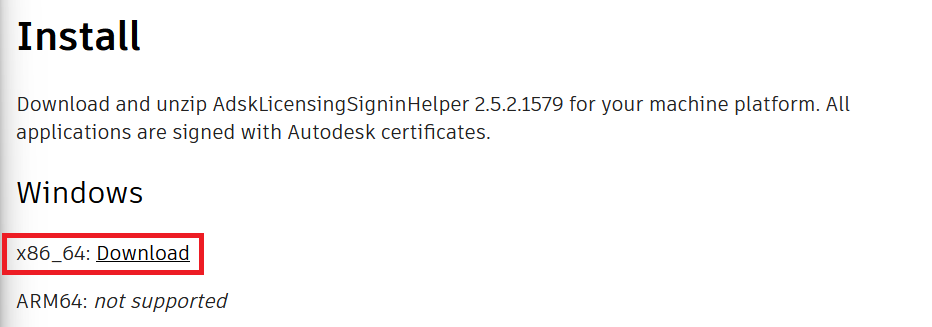
Use Autodesk’s download for the supported Windows platform. - In the extracted AdskLicensingSupportToolUI folder, run AdskLicensingSupportToolUI.exe, identified as an Application. The highlighted HTML document in the image is documentation, not the program. Extract the files before running it.
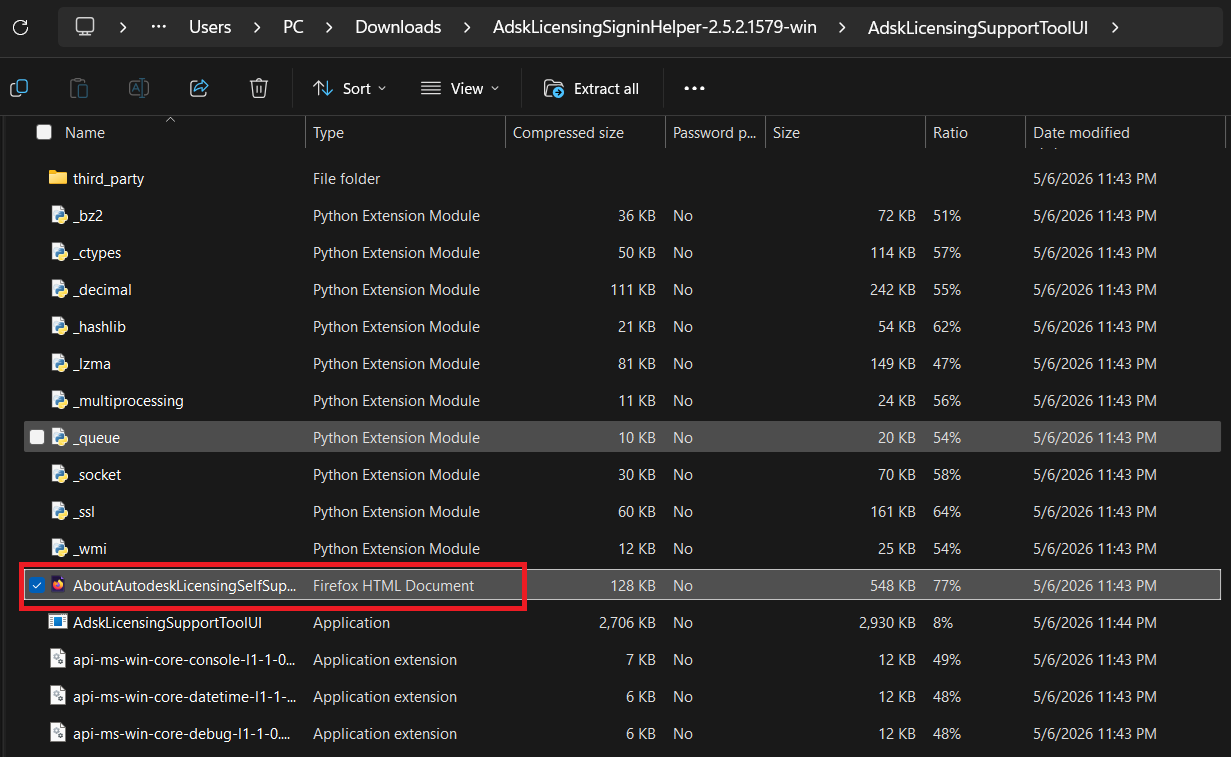
Run the tool from the extracted folder. - Open Installed Products and select the affected AutoCAD release. Record its current license method. If the release is missing, stop and ask IT to check its licensing registration.
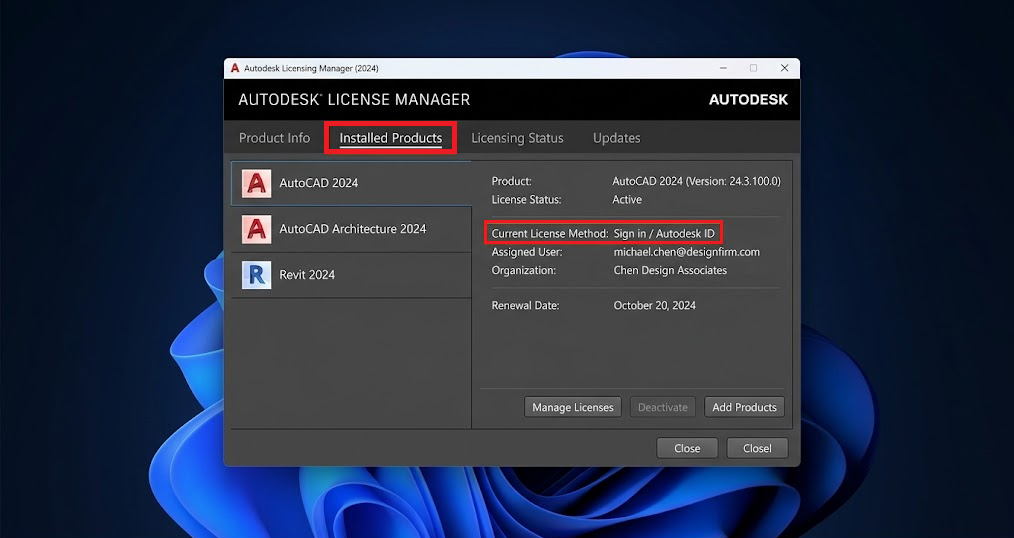
Check both the product name and release year before changing its license method. - If that release is incorrectly set to Network, choose User under Select license method and click Apply changes. Change only the affected product and release.
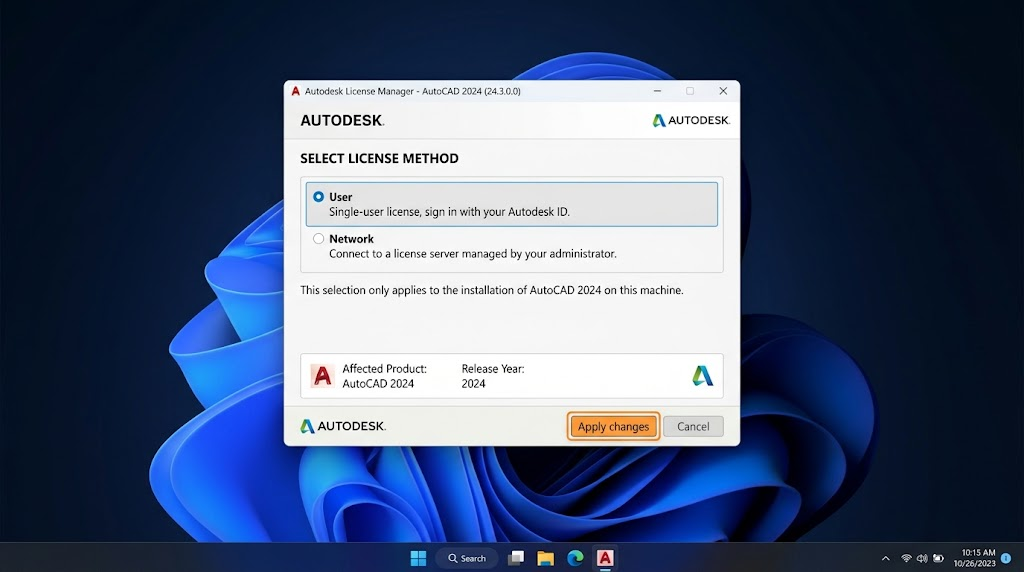
Select User only when your assigned license uses Autodesk account sign-in - Close the helper and launch AutoCAD. Sign in with the account assigned to the product, then confirm that the drawing window opens.
The illustrations include License Manager layouts, not only the helper. Check the method shown on your PC; the pictured Sign-in status does not show an incorrect Network selection.
If sign-in still fails, have the administrator verify the assignment. A Requested Service Not Available message concerns the sign-in connection, not a missing network server.
Restore the recorded method if it was changed incorrectly. For older AutoCAD releases, use Autodesk’s version-specific license-change instructions with IT. Avoid clearing shared licensing folders to change one product.
2. Configure the Correct Network License Server
A valid network license can remain unreachable because AutoCAD still points to an old server. The ADSKFLEX_LICENSE_FILE variable specifies the server and overrides cached server settings.
This procedure follows Autodesk’s server-variable instructions for single or distributed servers. For a redundant three-server setup, have IT configure licpath.lic instead.
- Connect to the office network or required company VPN. Search Windows for Edit the system environment variables, open it, then select Advanced > Environment Variables.
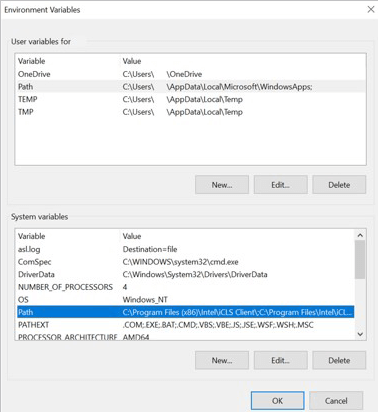
Network-license settings are configured on the client PC. - Find ADSKFLEX_LICENSE_FILE in both lists and record any existing values. If both scopes contain it, or other active servers are listed, have IT reconcile them before editing.
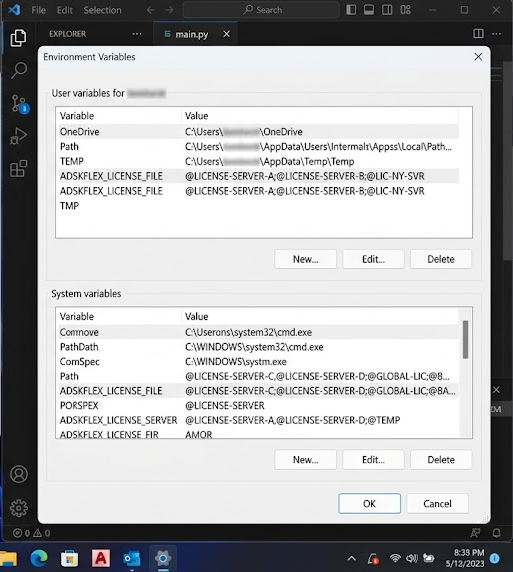
Preserve the old value and its scope before editing - Under System variables, edit the existing entry or select New. Set the name to ADSKFLEX_LICENSE_FILE and the value to the administrator’s exact port@server setting.
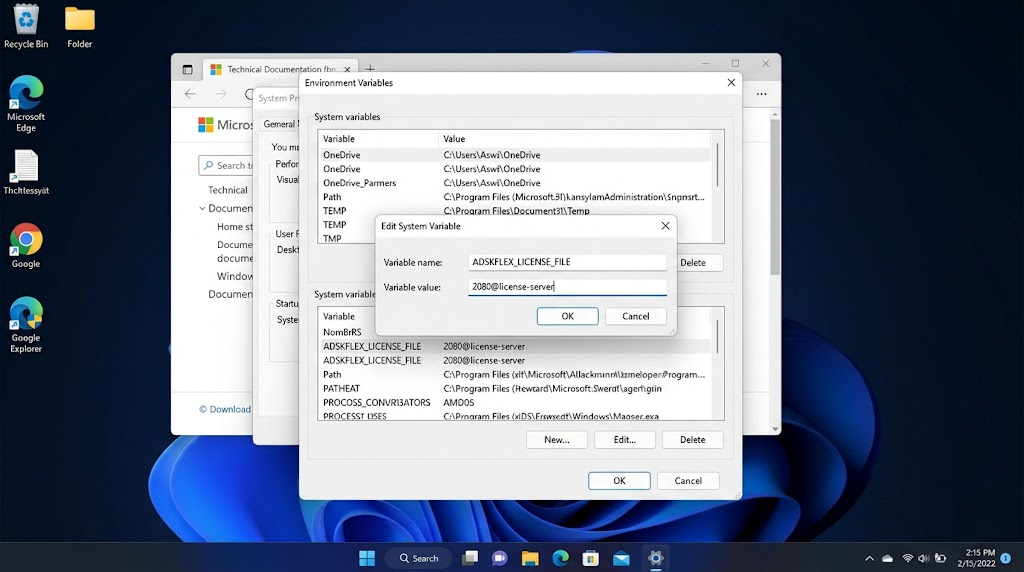
Use the server and port supplied by your license administrator. - For example,
2080@YOUR-LICENSE-SERVERuses Autodesk’s default adskflex vendor port. Replace the hostname and use a custom port if configured. Separate approved distributed servers with semicolons; do not enter a website or file-share address. - Click OK through the dialogs. Close and reopen AutoCAD with the required network connected, then check whether it reaches the drawing window.
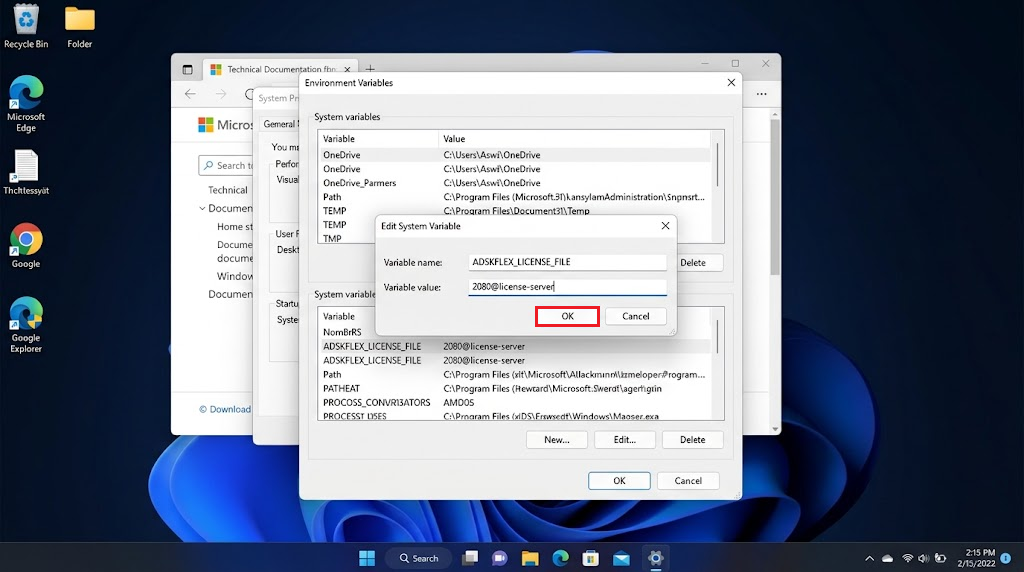
Close AutoCAD normally and reopen it to check that the prompt stays resolved
The last image shows saving the variable, not a successful AutoCAD launch. Confirm the result in AutoCAD itself. If it still reads an old value, restart Windows once and retest.
Restore the recorded value, or remove the entry you added, if the change was incorrect. A slow response from a reachable server warrants a timeout test; a wrong or unavailable server does not.
3. Test a Longer Network License Timeout
AutoCAD working in the office but failing over a slower connection can indicate that the license request expires too soon. FLEXLM_TIMEOUT gives it more time, but cannot create an available license or repair a blocked connection.
Keep the required VPN connected. Have IT confirm a running server and usable AutoCAD license first. This variable can also affect other FlexNet-based applications.
- Ask IT to test the configured licensing ports from this PC. This read-only Windows PowerShell example tests port 2080; replace the hostname and port with the actual settings:
Test-NetConnection -ComputerName "YOUR-LICENSE-SERVER" -Port 2080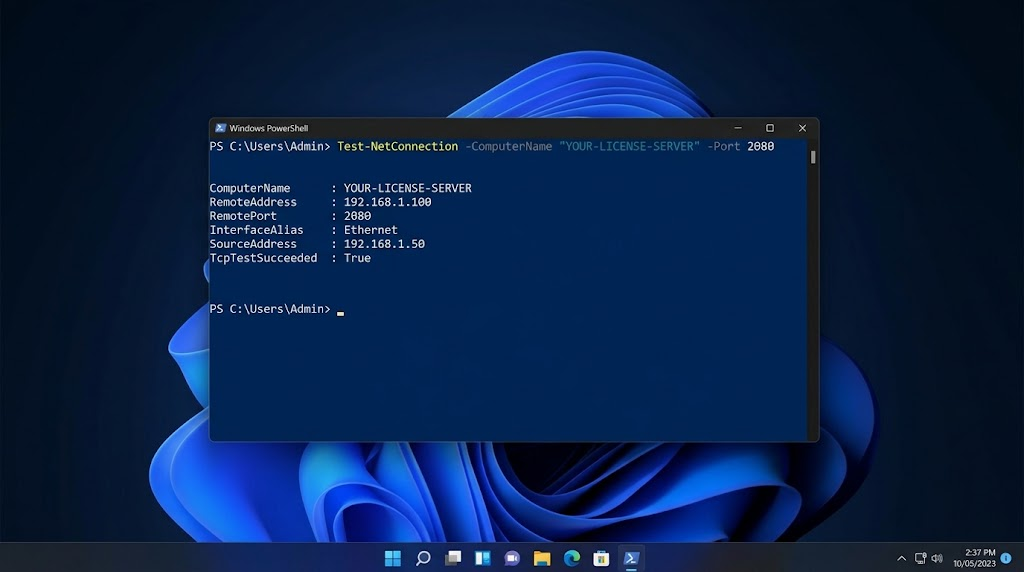
A successful TCP test confirms a connection to that port, not an available license. - Check TcpTestSucceeded. False needs a connectivity investigation; True confirms only a TCP connection. Test both configured licensing components, commonly 2080 for adskflex and one port in 27000-27009 for lmgrd.
- Return to Environment Variables. Check both lists for FLEXLM_TIMEOUT and record its value and scope. Have IT resolve conflicting entries; do not copy the illustration’s duplicate rows.
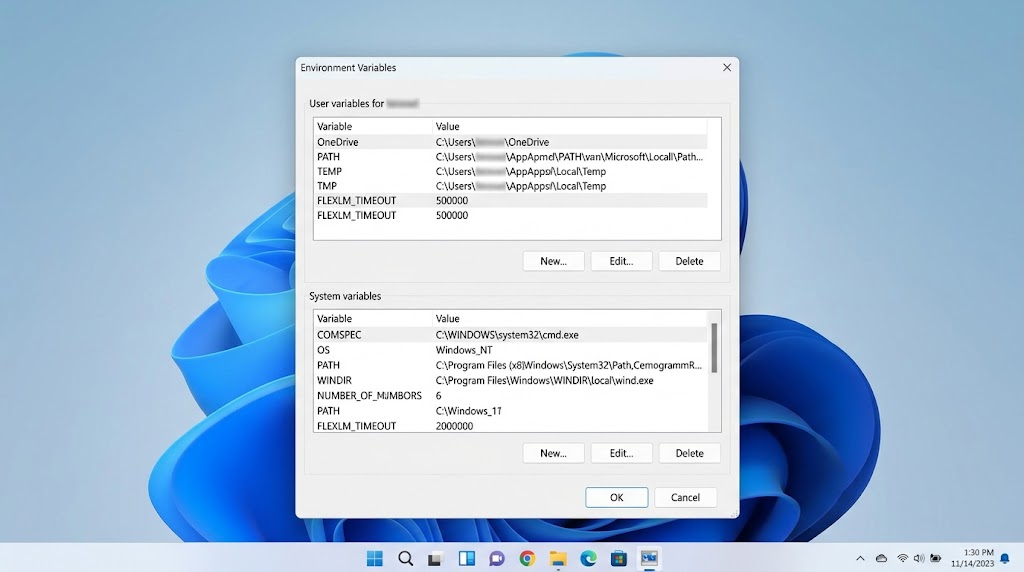
A successful TCP test confirms a connection to that port, not an available license. - Under System variables, create or edit FLEXLM_TIMEOUT. If absent or lower, test 3000000: all seven digits, equal to three seconds. Leave an existing higher value unchanged.
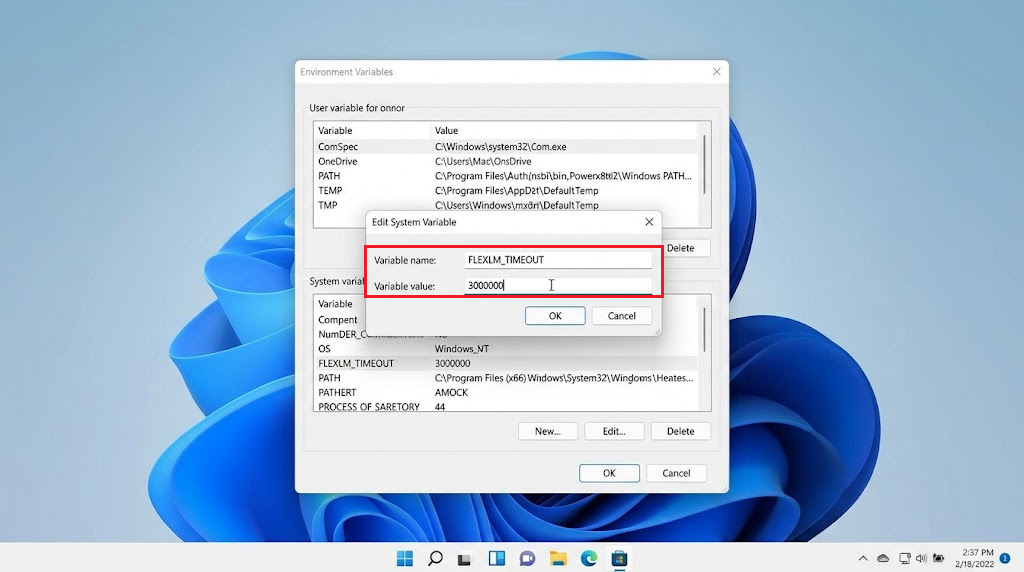
The value is measured in microseconds; 3000000 equals three seconds. - Save with OK and reopen AutoCAD on the connection that failed. IT can test up to 10000000 (ten seconds) if needed. Further increases are not a substitute for investigating a persistent failure.
Autodesk’s timeout instructions use microseconds, not milliseconds. Enter the written value rather than copying other values pictured.
Keep the IT-approved value only if AutoCAD opens reliably on the affected connection. Otherwise restore the original value or remove your new entry.
If the Dialog Still Appears
Have the administrator compare another workstation using the same AutoCAD release. For a network license, inspect the actual server rather than repeating client-side changes.
- On the server, open LMTOOLS > Server Status > Perform Status Enquiry. Look for license server UP and adskflex: UP, then check the requested product/version and available seats.
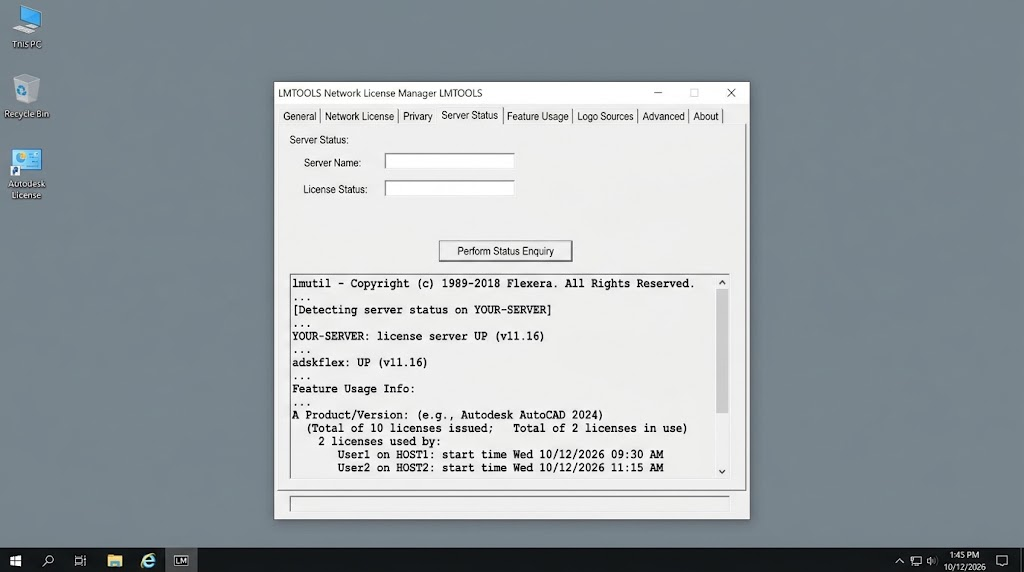
Check the correct product, release and available seats as well as the two running services
Autodesk’s LMTOOLS report explanation covers the expiry and usage details.
| Report result | What needs attention |
|---|---|
| Either UP line is missing | The licensing service, server configuration or license file. |
| The requested release is absent or expired | The correct product/version entitlement and a valid license file. |
| All matching seats are in use | Wait for a seat or review usage with IT. Client settings cannot add licenses. |
Give IT the AutoCAD release, complete error code, connection used, server/ports and test results. Share license files and logs privately with IT or Autodesk Support; they can contain organization and user details.
Have IT verify that Network License Manager supports this AutoCAD release and review VPN routing and specific firewall rules. Keep security protection enabled.
A changed message saying the license manager is not functioning needs the separate local licensing-service checks.