How to Fix Plugins Not Showing in After Effects?
After Effects still cannot find the plug-in you installed, even after a restart. Its name is absent from Effects & Presets, or an existing project labels the effect Missing and no longer renders it.
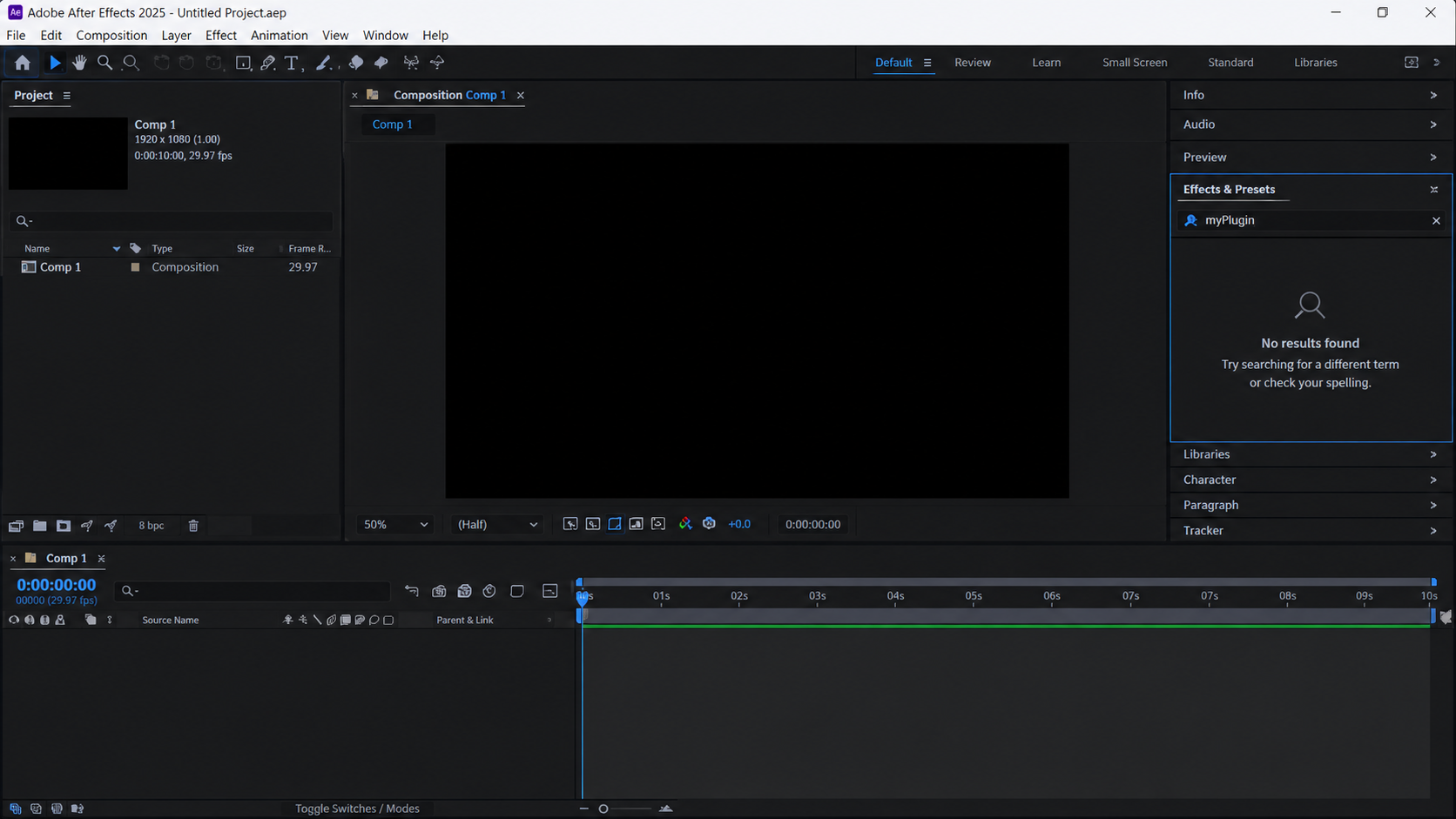
The files can be on your computer without being loaded by the After Effects version you opened. A script or panel may already be available, but in a different menu rather than the effects list.
| What you installed | Where to look |
|---|---|
Effect plug-in: .aex on Windows, commonly .plugin on Mac | Effect menu and Effects & Presets |
Animation preset: .ffx | Effects & Presets, under Animation Presets |
Regular script: .jsx or .jsxbin | File > Scripts |
| ScriptUI panel: a script written as a dockable panel | Near the bottom of Window |
| Extension, utility or companion app | Developer’s launch instructions; CEP extensions normally use Window > Extensions |
1. Check the Effect Menu and Search Filters
An effect that appears under Effect but not in the search panel is already loaded. Panel filters can hide it without uninstalling or disabling it.
- Open Window > Effects & Presets.
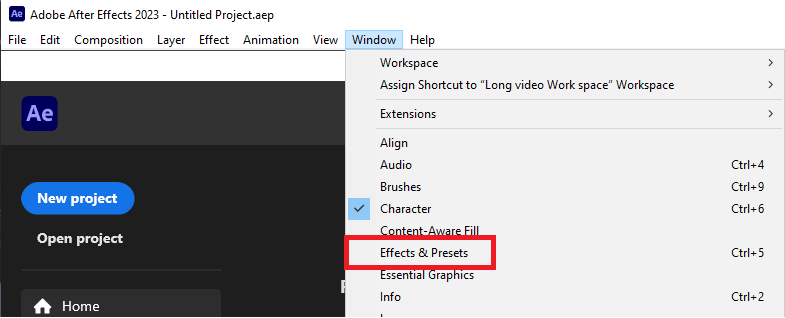
- Open the panel’s menu. Enable Show Effects and, for presets, Show Animation Presets. Disable Show GPU Capable Effects Only; enable Show Effects for All Color Depths when available.
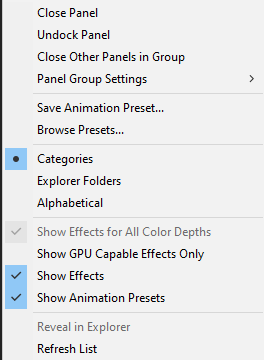
Show Show Effects enabled, Show GPU Capable Effects Only disabled, and the relevant color-depth option. Labels can vary by After Effects release. - Clear the search field. Choose Refresh List for a newly added preset, then search for the effect or preset name rather than only the developer’s name.
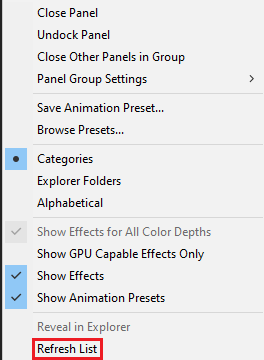
Capture Refresh List before selecting it. Effect plugins still require a full After Effects restart to reload. - For an
.ffxpreset, check the current release’s user folder, normallyDocuments/Adobe/After Effects [version]/User Presets. Copy it there and refresh the list.
Adobe distinguishes preset refreshes from effect loading: new effect plug-ins require a full After Effects restart. An .ffx file stores settings; it does not install the third-party effects those settings use.
If the effect is absent from both lists, changing display filters will not install it. Check whether After Effects disabled it or whether its files belong to another release.
2. Restore an Effect Disabled After a Crash
After Effects can offer to disable an effect after a crash. Accepting that option removes it from the effect lists, and projects using it show Missing. Reinstalling the application is not the first remedy.
- Open Effect > Manage Effects.
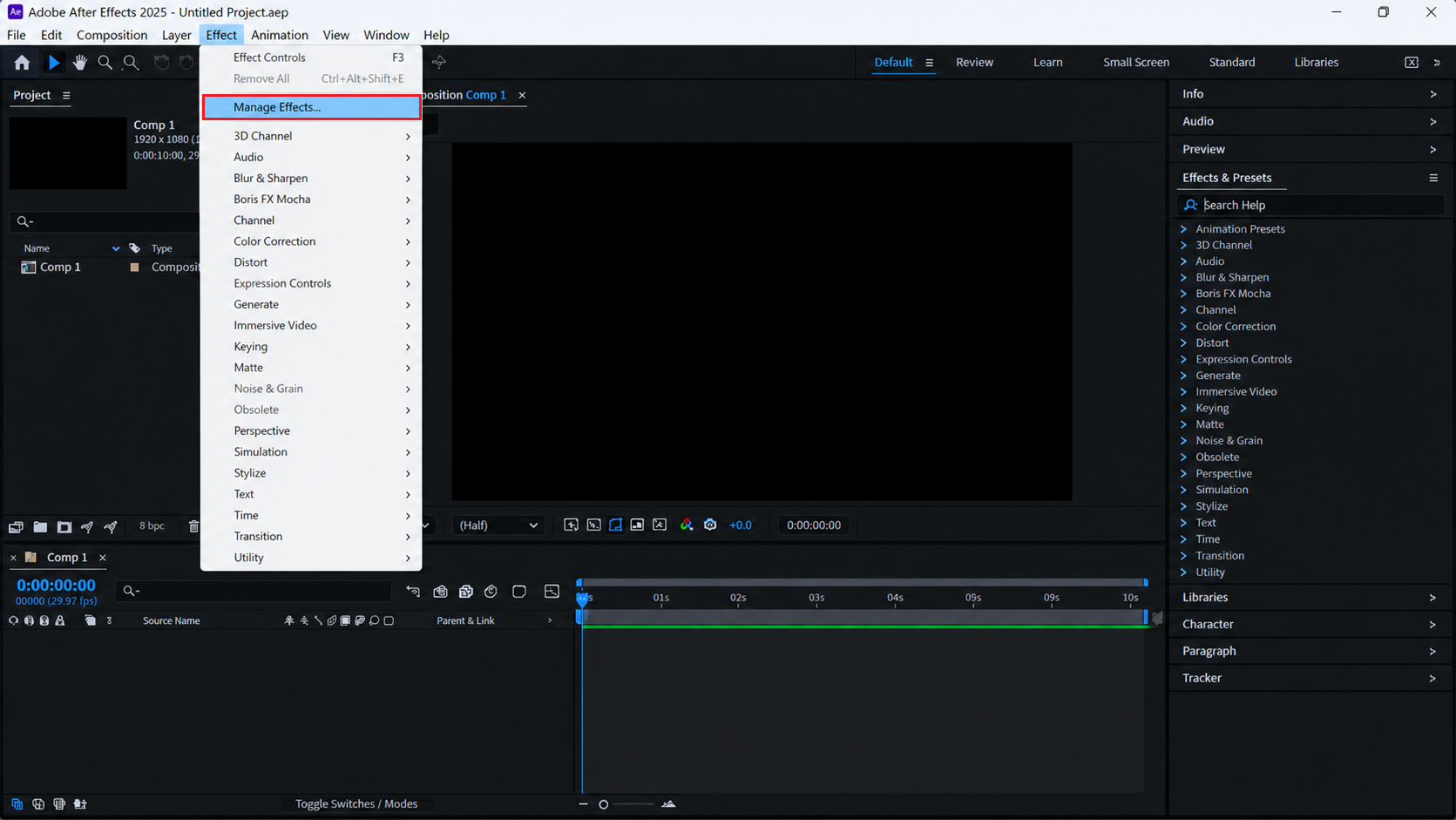
Show Effect > Manage Effects without exposing a client project. - Find the effect and inspect Enabled, Last Crashed and its file location. Enable that effect if it was disabled, then select OK.
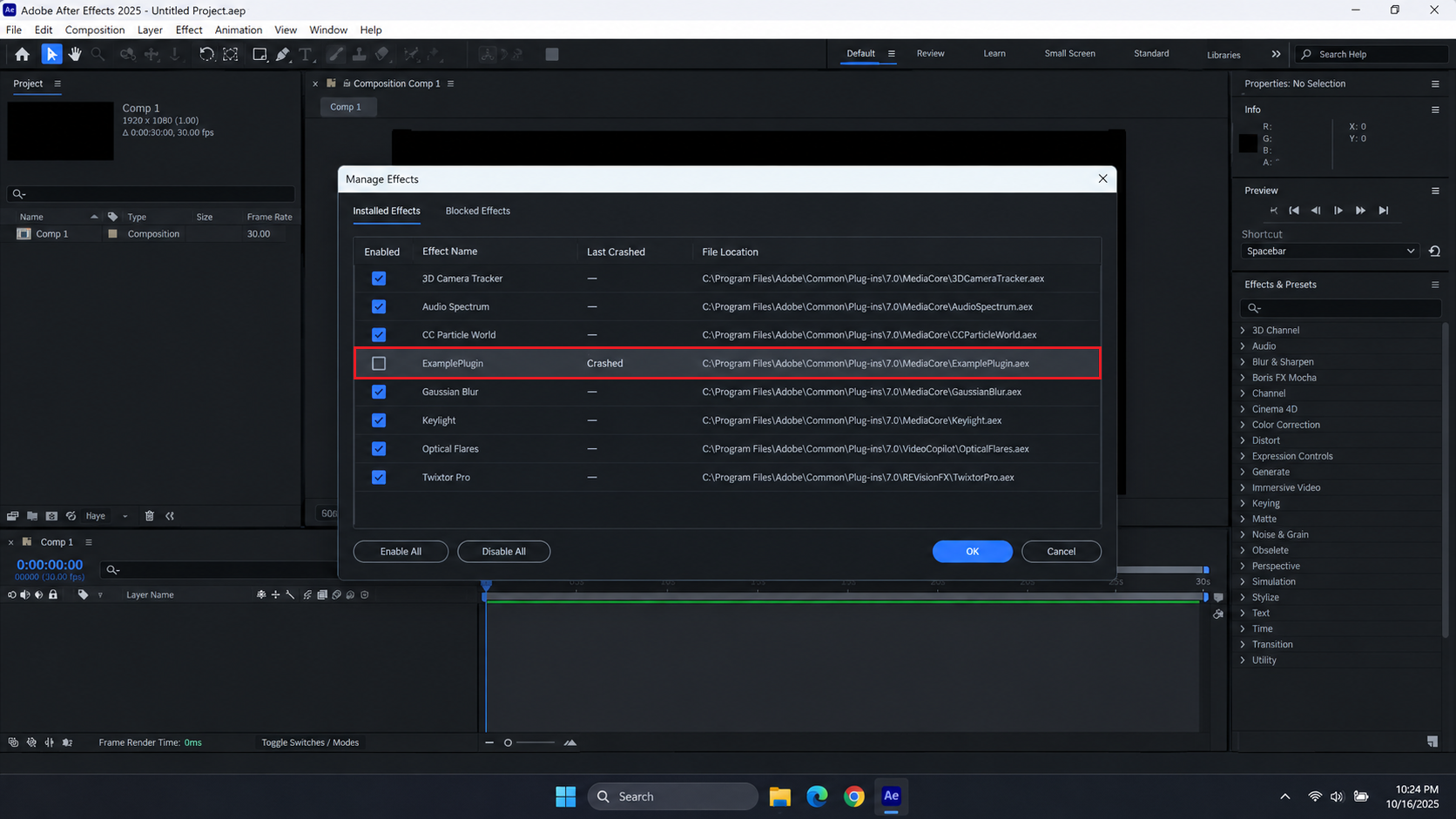
Show the missing effect, Enabled status, Last Crashed column, and file location. Hide license or user information. - Quit and restart After Effects. Apply the effect to test media in a blank project before reopening important work.
Adobe’s Effect Manager instructions explain this enabled state. A missing entry is different from a disabled checkbox: there is nothing to re-enable until the correct plug-in is installed and recognized.
Older releases may not offer Manage Effects. In that case, follow the developer’s installation and compatibility instructions rather than searching for a hidden menu.
When After Effects crashes before you can reach the manager, the After Effects crash checks address that separate startup problem.
3. Install into the After Effects Version You Use
A plug-in installed for one major release may not be installed for another. Use the developer’s installer or manager where provided; copying a single file can leave its support files or licensing components behind.
- Record the version and build from Help > About After Effects on Windows, or After Effects > About After Effects on Mac.
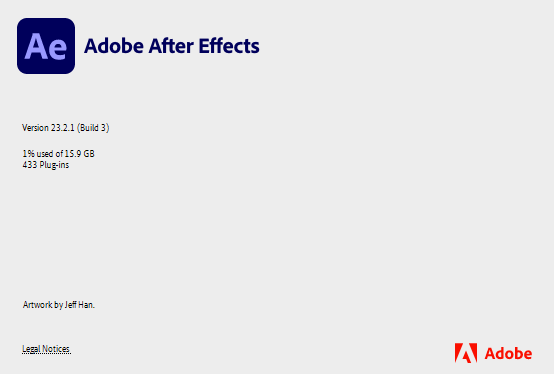
Capture the exact After Effects version and build before reinstalling a plugin. Do not expose account identifiers. - Close After Effects and other Adobe video apps. Extract downloaded ZIP packages before following their installation instructions.
- For a Marketplace add-on, open Creative Cloud > Stock & Marketplace > Plugins. Find its card and select More actions > Where to find it.
- Check its compatible app and launch location. For vendor-managed products, update the manager and install the supported build for the exact After Effects release you recorded.
Adobe’s Where to find it details help distinguish a successful installation from looking in the wrong app or menu. If the manager still reports an absent product as installed, reinstall that product through the manager.
For a manually installed effect, follow its developer’s instructions. Default application-specific folders are:
| System | Effect plug-in folder |
|---|---|
| Windows | C:\Program Files\Adobe\Adobe After Effects [version]\Support Files\Plug-ins |
| macOS | /Applications/Adobe After Effects [version]/Plug-ins |
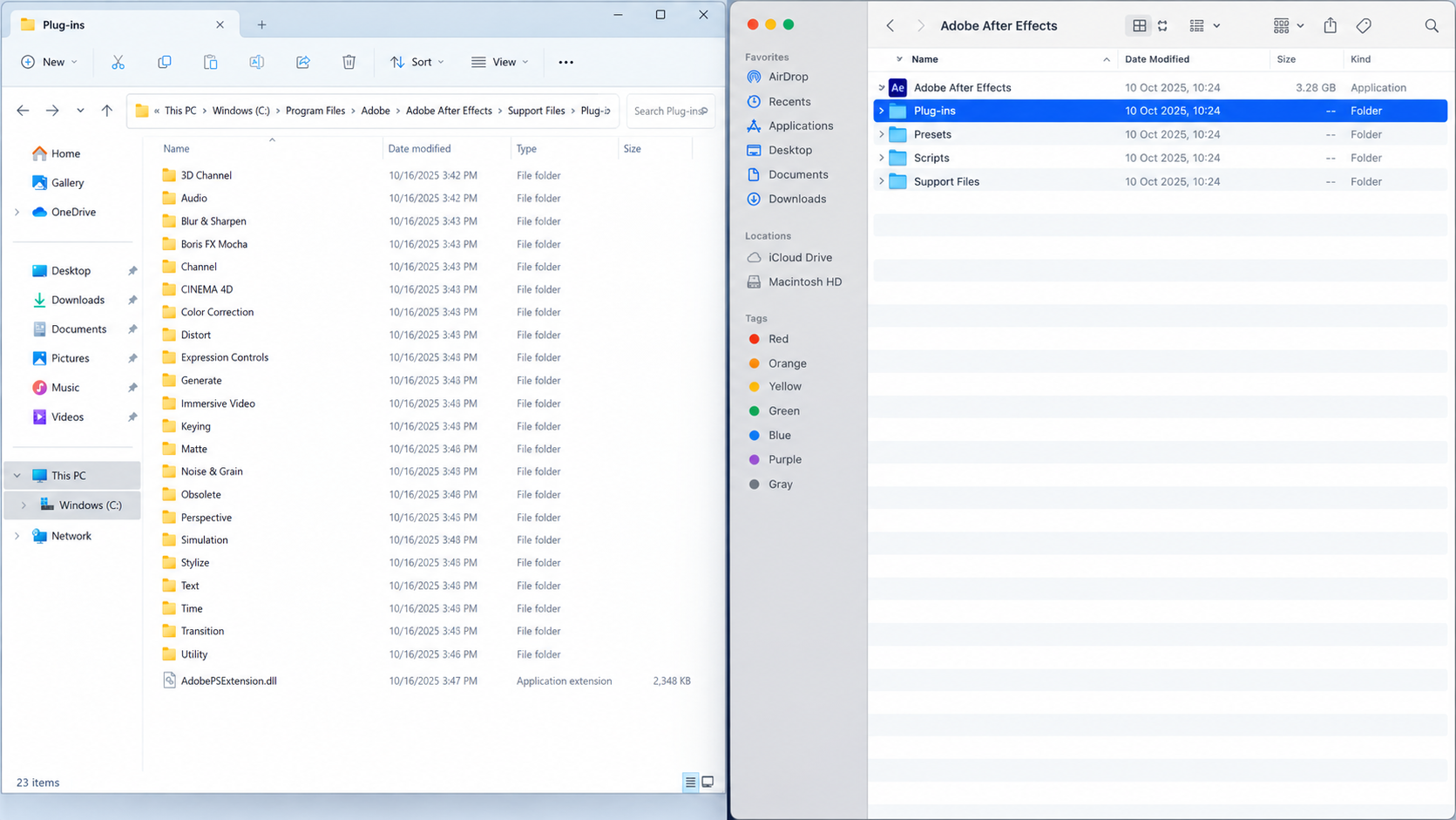
Some installers use Adobe’s shared MediaCore folder instead. Keep the vendor’s intended location; do not create extra copies in every folder. After Effects also ignores folders named like (disabled), so those are not suitable installation targets.
Restart After Effects and check the documented menu. On a managed computer, ask IT to install the product rather than changing folder permissions or organization policies.
4. Install Scripts and Open Panels from the Right Menu
A script will not become an effect by placing it in Plug-ins. Regular scripts appear under File > Scripts; dockable ScriptUI panels appear under Window.
- Test a trusted standalone script with File > Scripts > Run Script File. For a dockable panel, use Install ScriptUI Panel in the same submenu when available.
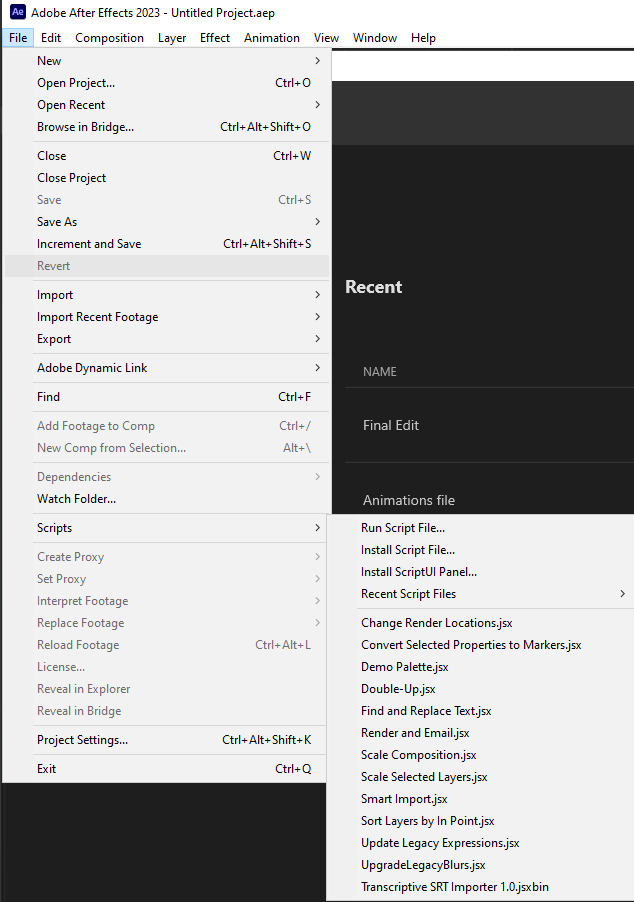
Show File > Scripts for a regular JSX or JSXBIN script. - If the developer requires manual installation, close After Effects and keep the supplied package together. Put a panel in the active release’s Scripts/ScriptUI Panels folder.
| System | Manual ScriptUI panel folder |
|---|---|
| Windows | C:\Program Files\Adobe\Adobe After Effects [version]\Support Files\Scripts\ScriptUI Panels |
| macOS | /Applications/Adobe After Effects [version]/Scripts/ScriptUI Panels |
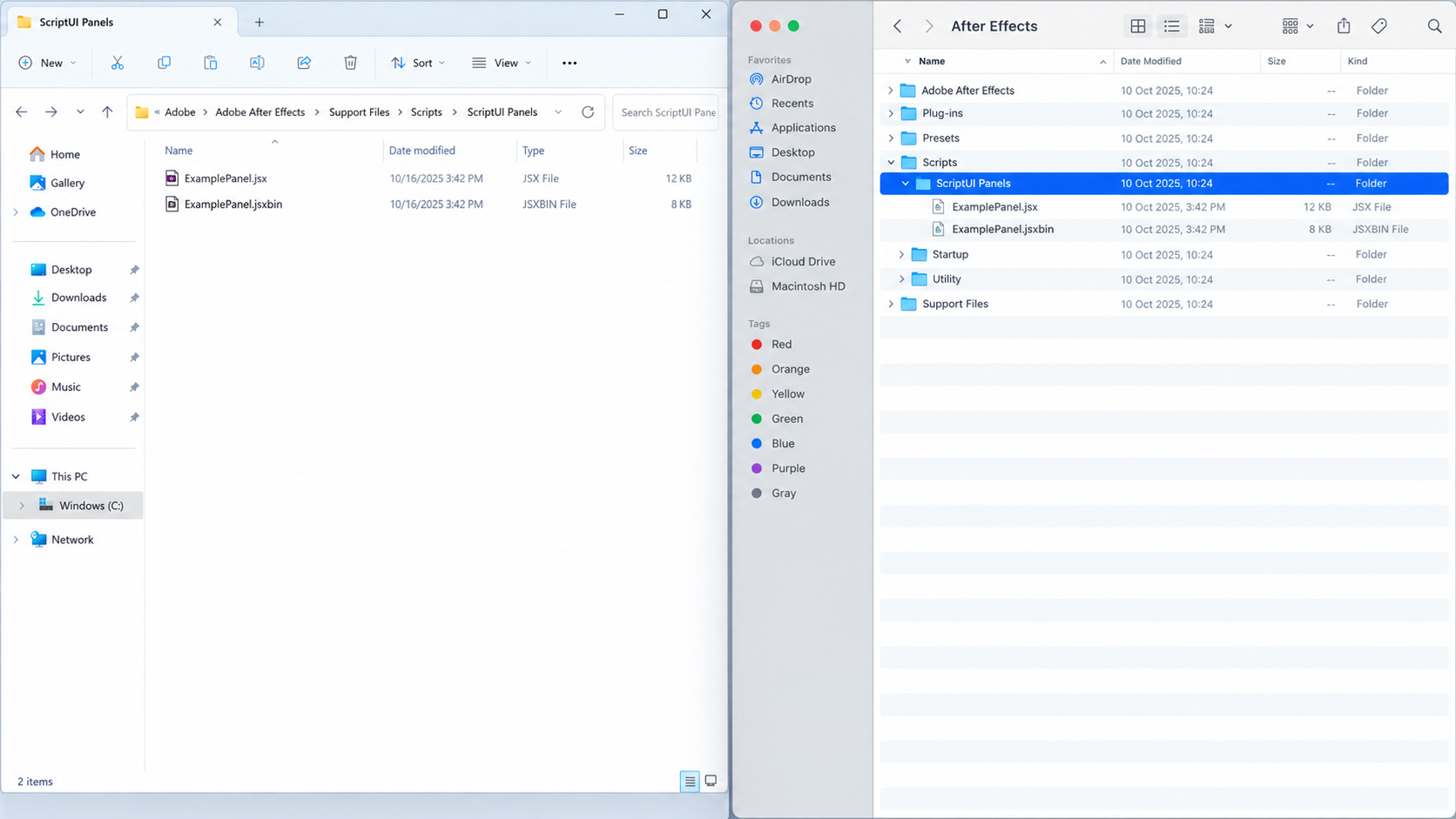
- Restart After Effects and open the panel near the bottom of Window.
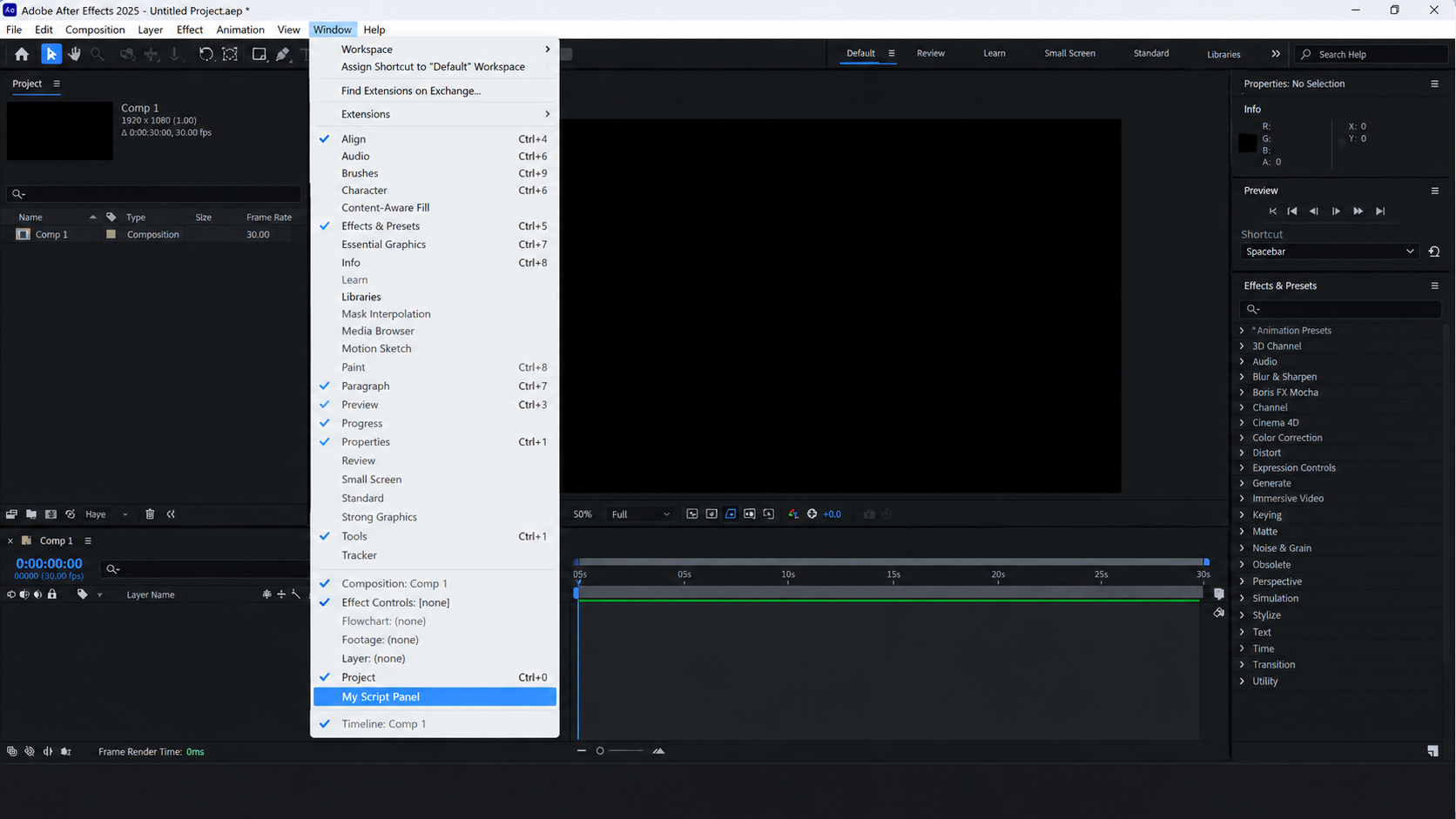
Show the panel entry near the bottom of Window after restarting After Effects.
The built-in installer may use a per-user folder instead; an empty application folder does not prove installation failed. Run Script File can test a script, but does not make a panel dockable.
Once a trusted script opens, file-writing or licensing failures may require Scripting & Expressions > Allow Scripts to Write Files and Access Network. Enable this only if its developer requires it; it does not make a missing script appear.
Adobe’s script settings are under Edit > Preferences on Windows and After Effects > Settings on Mac; older Mac releases may call this Preferences.
5. Match the Plug-in to Your System and After Effects Version
The correct folder cannot make an incompatible plug-in load. Check the developer’s supported After Effects versions, operating systems and processor types, especially after a major application update or a move to Apple silicon.
- Record the exact startup warning, plug-in version, After Effects build, operating system and processor type.
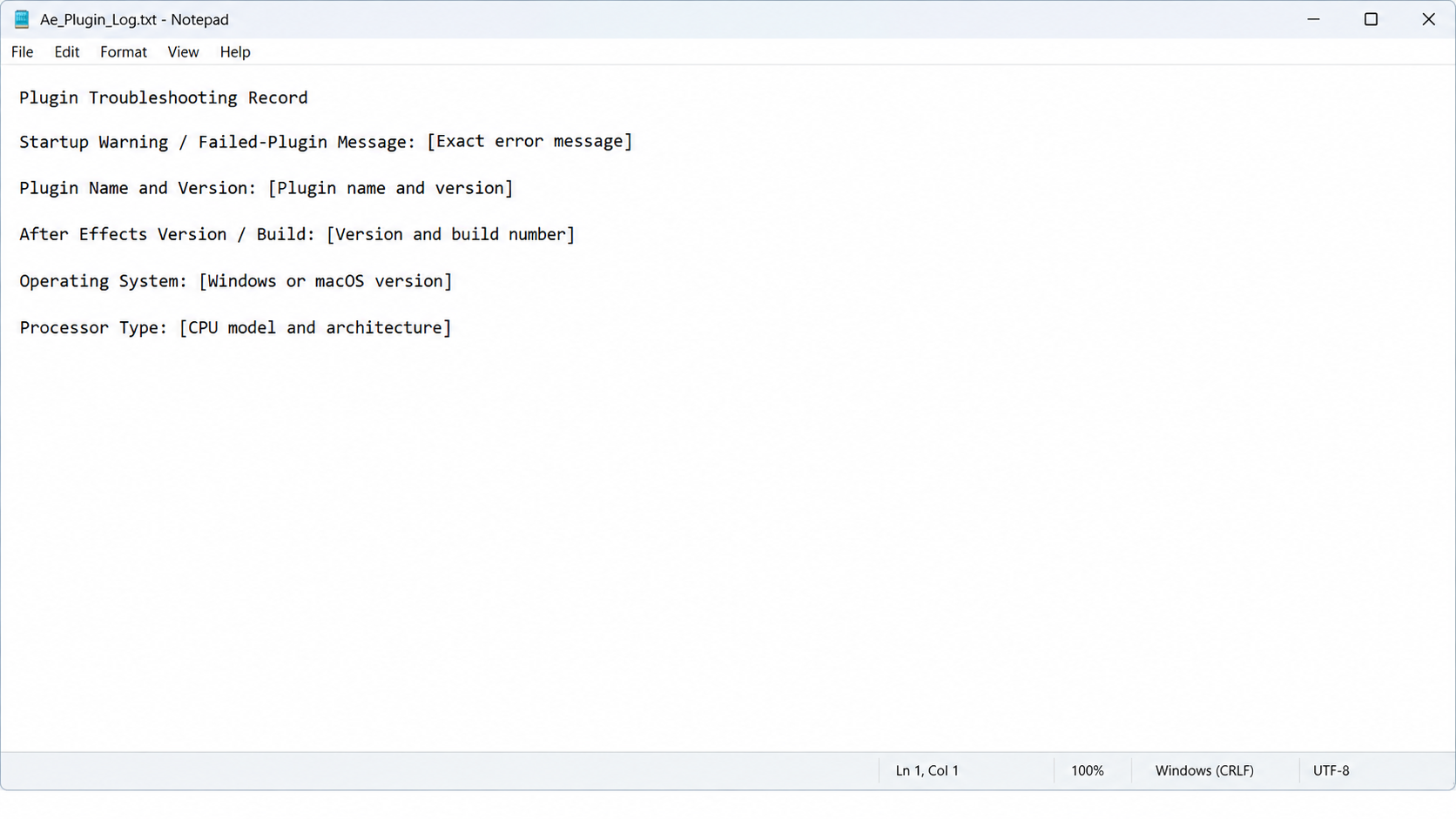
Capture the exact warning, After Effects version, macOS version, and plugin name. Hide user and license information. - Install the developer’s supported build for that combination. On Apple silicon, use a native or universal build; After Effects 24.0 and later do not support Rosetta emulation.
- Test a project duplicate: confirm the effect no longer says Missing, apply it, save, close After Effects and reopen the duplicate.
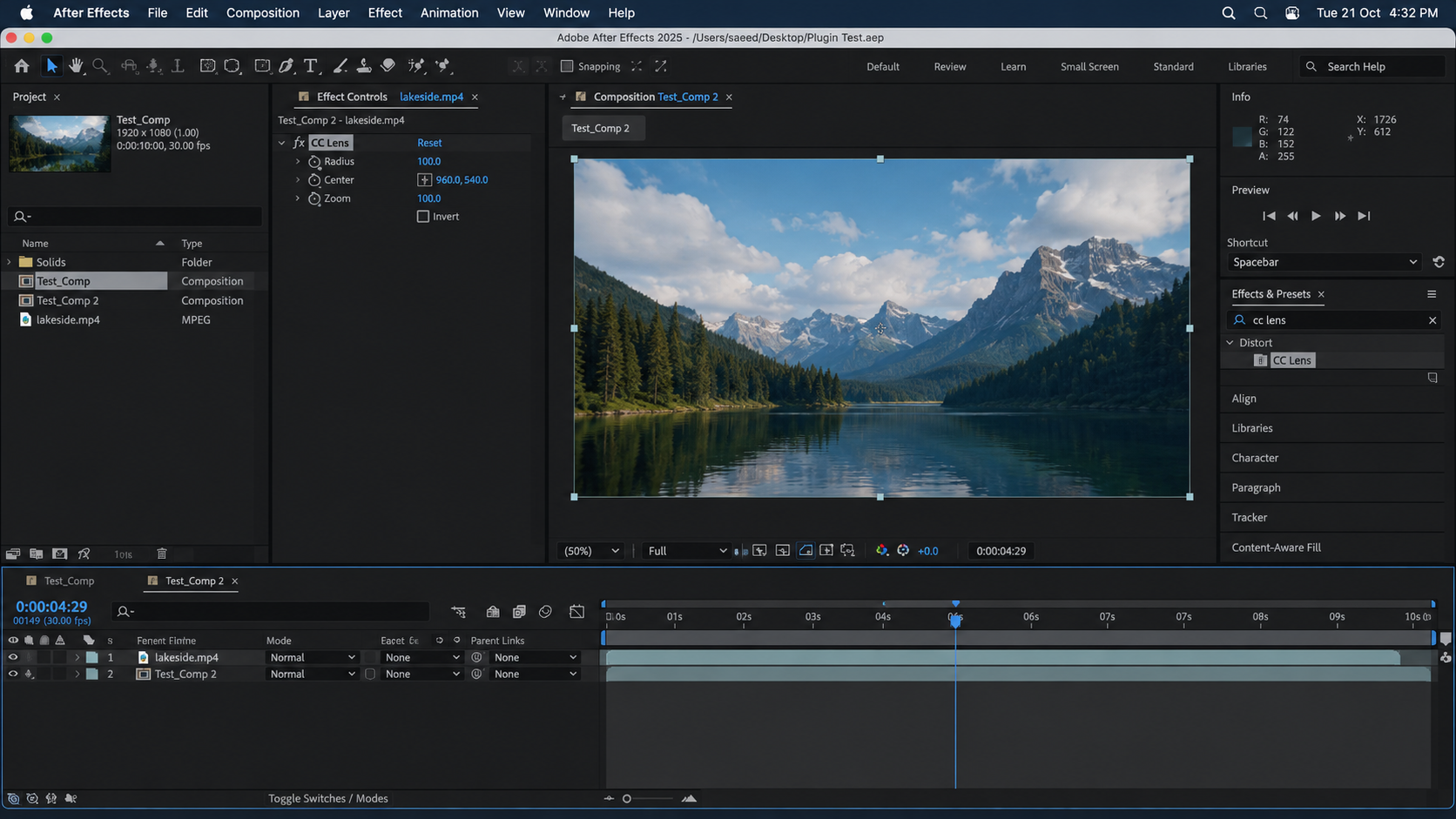
Show the plugin in its expected menu and, on expendable test media, confirm it opens without a Missing warning.
Adobe documents the Apple silicon compatibility limits. If no supported build exists, keep a previously working, licensed setup only where its application, OS and plug-in remain compatible. Replacing the effect will not automatically reproduce the original result.
An effect that loads but reports This effect requires GPU acceleration needs the GPU acceleration checks, not another installation-folder change.
For a plug-in still absent, send its developer the recorded versions, warning, installer source, installed folder and Effect Manager result. Redact license keys and personal paths. Keep the original project unchanged while testing.