How to Fix After Effects Error Code 5070?
After Effects error code 5070 appears when a 3D renderer cannot finish the frame being previewed or exported. Your project may still open, but the affected composition will not render.
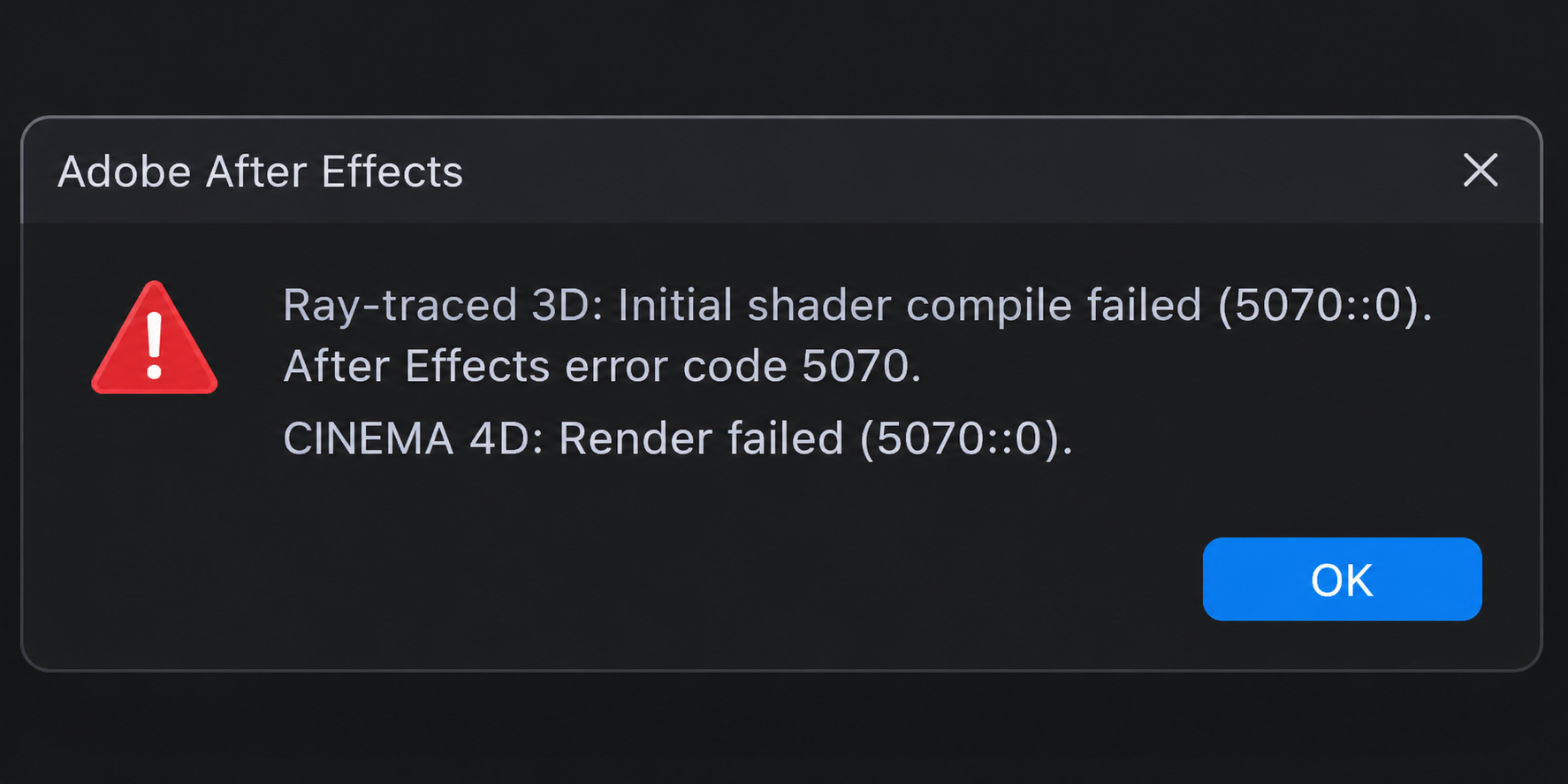
A missing Cinema 4D installation can trigger this even with extruded text, because After Effects uses that engine without needing a separate .c4d file.
1. Check the Full Warning and the Composition’s Renderer
The words before 5070::0 identify which renderer failed. They matter more than the number alone.
- Save a separate project copy with File > Save As. Keep the original unchanged.
- Open the failing composition, then select Composition > Composition Settings > 3D Renderer. Record its renderer and the complete warning, including any message that appeared first.
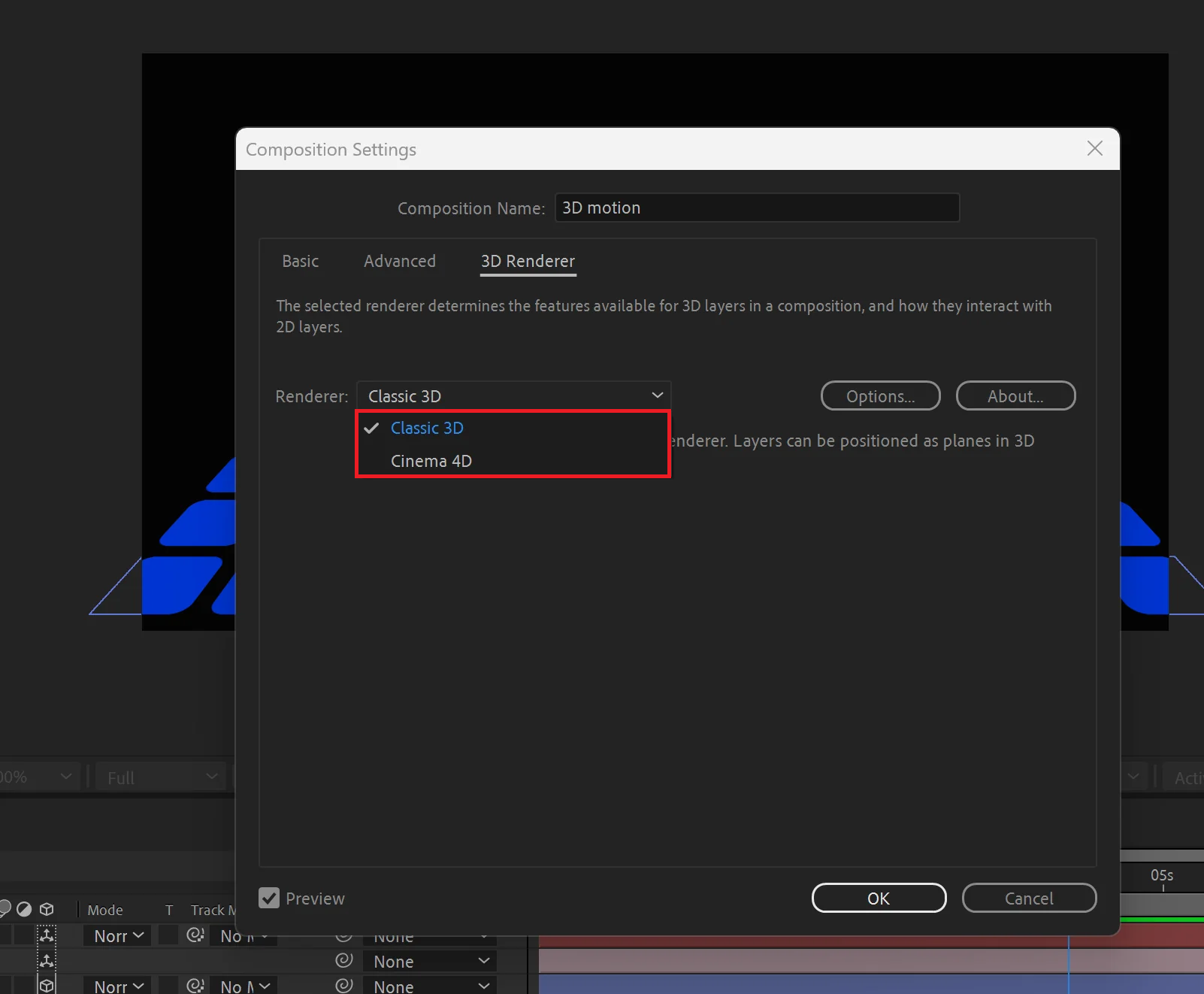
The selected renderer decides whether the fix should target Ray-traced 3D Cinema 4D Cineware GPU drivers or cache.
| Warning text | What to check |
|---|---|
| Ray-traced 3D: Initial shader compile failed | The retired renderer and its hardware compatibility, not Cinema 4D installation. |
| CINEMA 4D: Render failed | Cinema 4D installation and renderer selection, especially after a missing-installation or 5027::12 warning. |
| Ray-traced 3D: Out of paged mapped memory | Legacy renderer compatibility and memory use. This wording does not establish a disk-cache problem. |
A composition using Classic 3D may work while Cinema 4D remains broken. If the application closes without a 5070 warning, the separate After Effects crashing guide covers that symptom.
2. Replace the Legacy Ray-traced 3D Renderer
Adobe no longer develops Ray-traced 3D. Its initial shader compile warning documents unsupported GPU combinations; a newer or faster card does not necessarily support this old renderer.
- In the project copy, open Composition Settings > 3D Renderer.
- Replace Ray-traced 3D with Classic 3D for flat 3D layers, or test Cinema 4D for extruded text and shapes. Click OK.
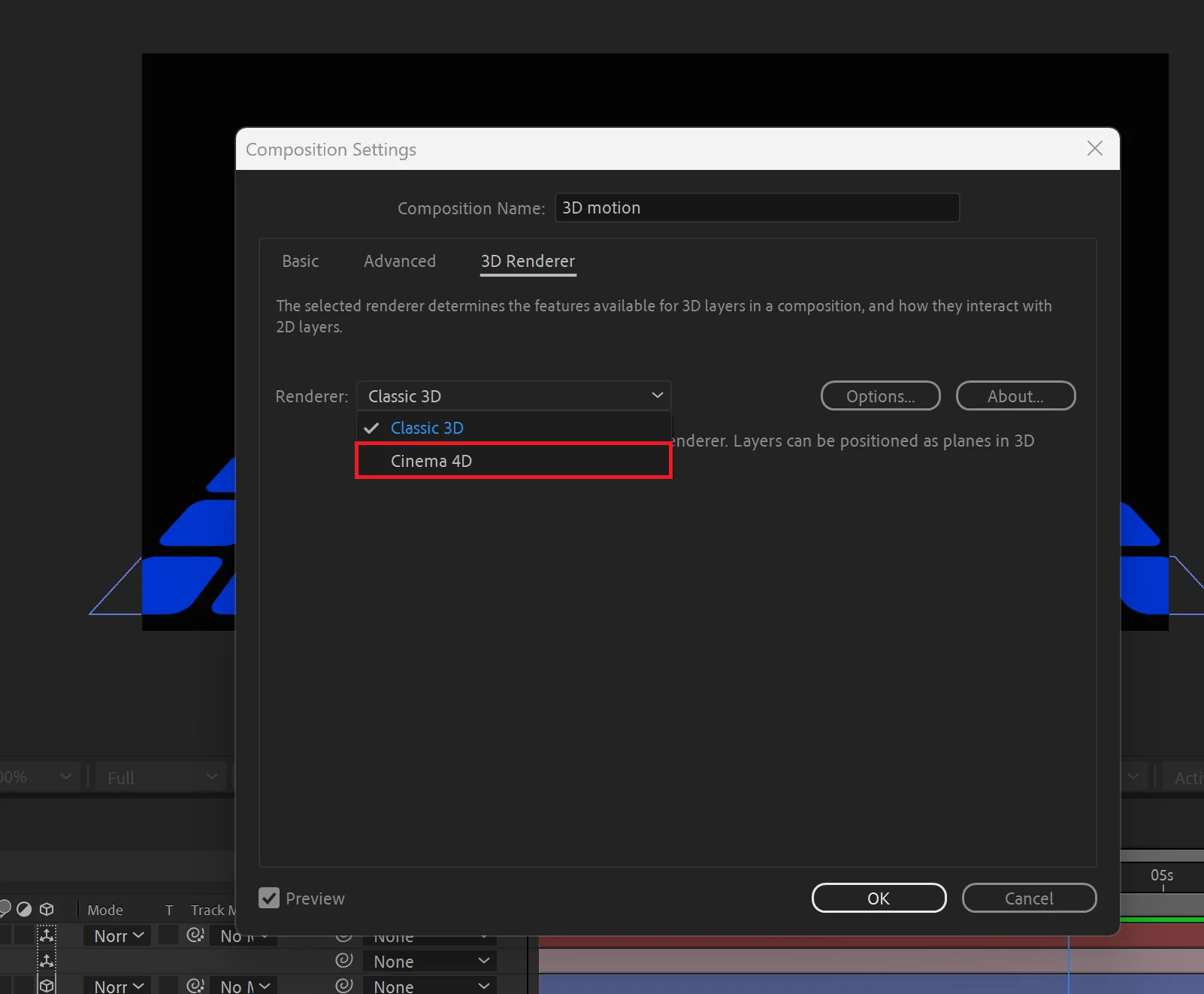
Switching away from the old Ray-traced 3D renderer is the main fix for initial shader compile failed 5070 errors. - Preview the failed frame and compare the result with the intended design.
Extrusion, reflections, transparency and materials can behave differently after switching. Rebuild unsupported features in the copy; do not accept a changed appearance just because the warning disappears. Avoid GPU allow-list edits or obsolete CUDA packages suggested for legacy systems.
3. Restore the Cinema 4D Installation and Renderer Selection
A No Cinema 4D installation was found message before 5070 is a useful clue. After Effects cannot render with an engine that is missing or selected from the wrong installation.
- Close After Effects. In Creative Cloud > Apps, find After Effects, open its three-dot menu, and choose Get add-ons > Cinema 4D by Maxon > Install.
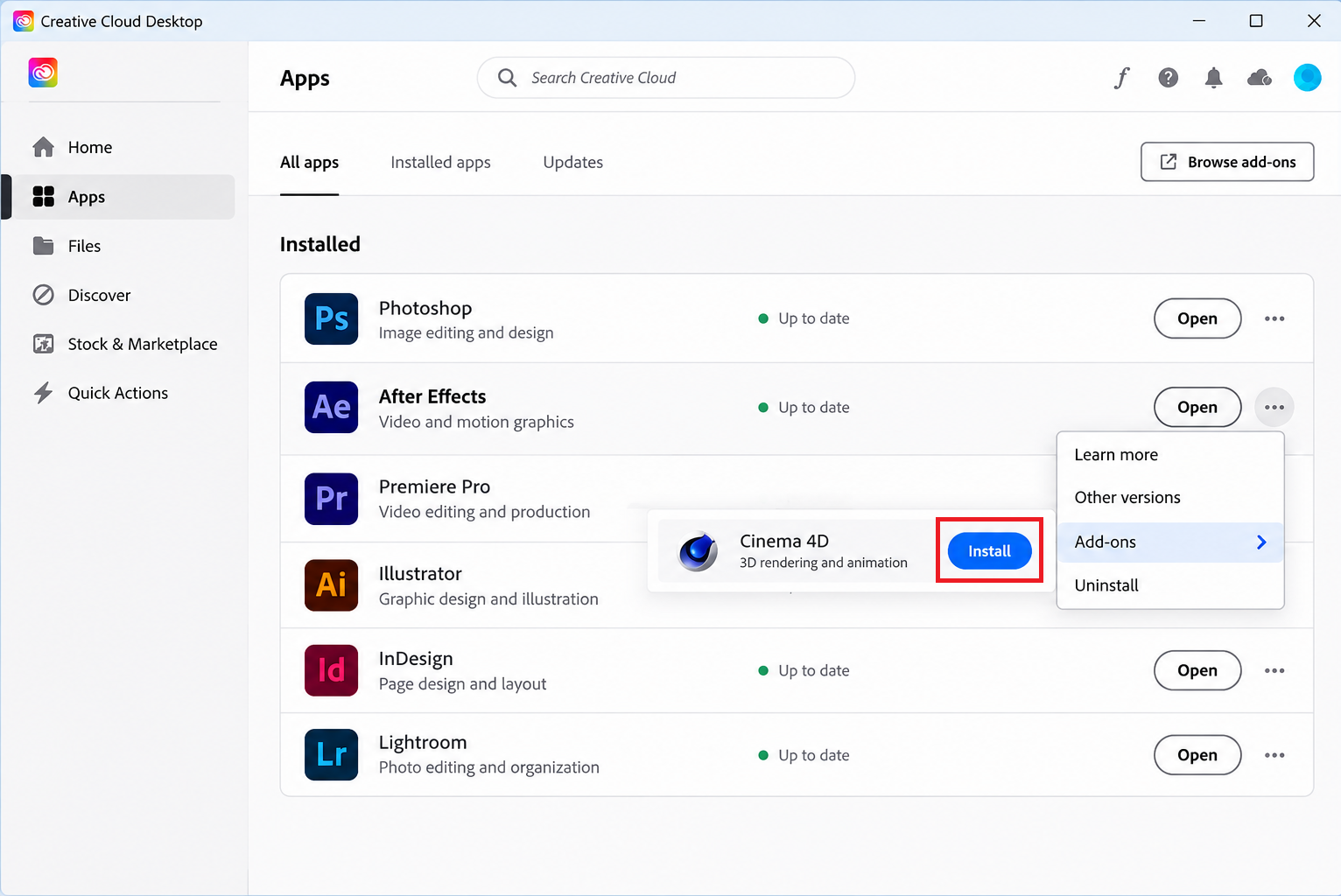
Cinema 4D render failures can happen when the C4D engine that After Effects uses is missing damaged or mismatched. - Reopen After Effects. Select Composition Settings > 3D Renderer > Cinema 4D > Options > Choose Installation. For an imported
.c4dlayer, open Effect Controls > Cineware > Options instead. - Record existing custom locations. Where available, choose Defaults to restore the bundled renderer, or select the compatible Cinema 4D application you intentionally installed. The Rendering location controls rendering; Editing controls Edit Original.
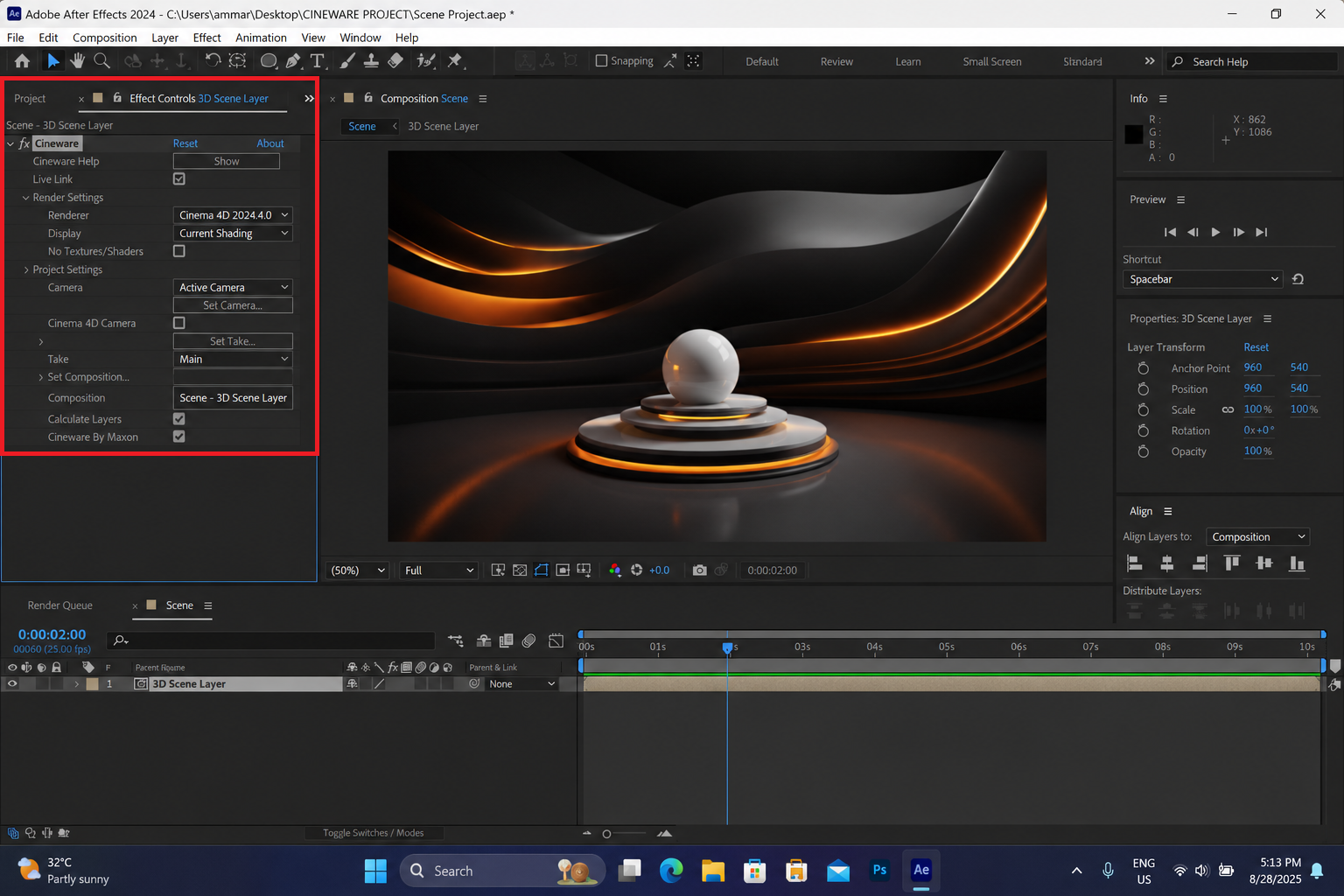
Opening Cinema 4D once can clear setup prompts that prevent After Effects from using the C4D renderer. - Preview the failed frame again. These installation settings are shared with Cineware, so check other C4D work after changing them.
If installation warnings remain, preserve scenes and custom settings. Follow Adobe’s Cinema 4D installation instructions to uninstall normally and reinstall the bundled add-on. Reinstalling After Effects has resolved reported cases where its C4D integration remained broken.
Do not delete Maxon program folders or install an arbitrary retail release. Cinema 4D Lite editing may request a free MyMaxon account; buying Cinema 4D or starting a trial is not a general 5070 fix.
Retest the same frame after component repair. If installation warnings persist, keep their exact text for Adobe Support rather than deleting more folders.
4. Compare a Lower-quality Cinema 4D Render
When simple frames work but a complex frame fails, a lower-quality comparison can help isolate the problem. This is a diagnostic test, not a confirmed cure for every 5070 error.
- Record the current quality. Open Composition Settings > 3D Renderer > Options and lower the Quality slider toward Draft.
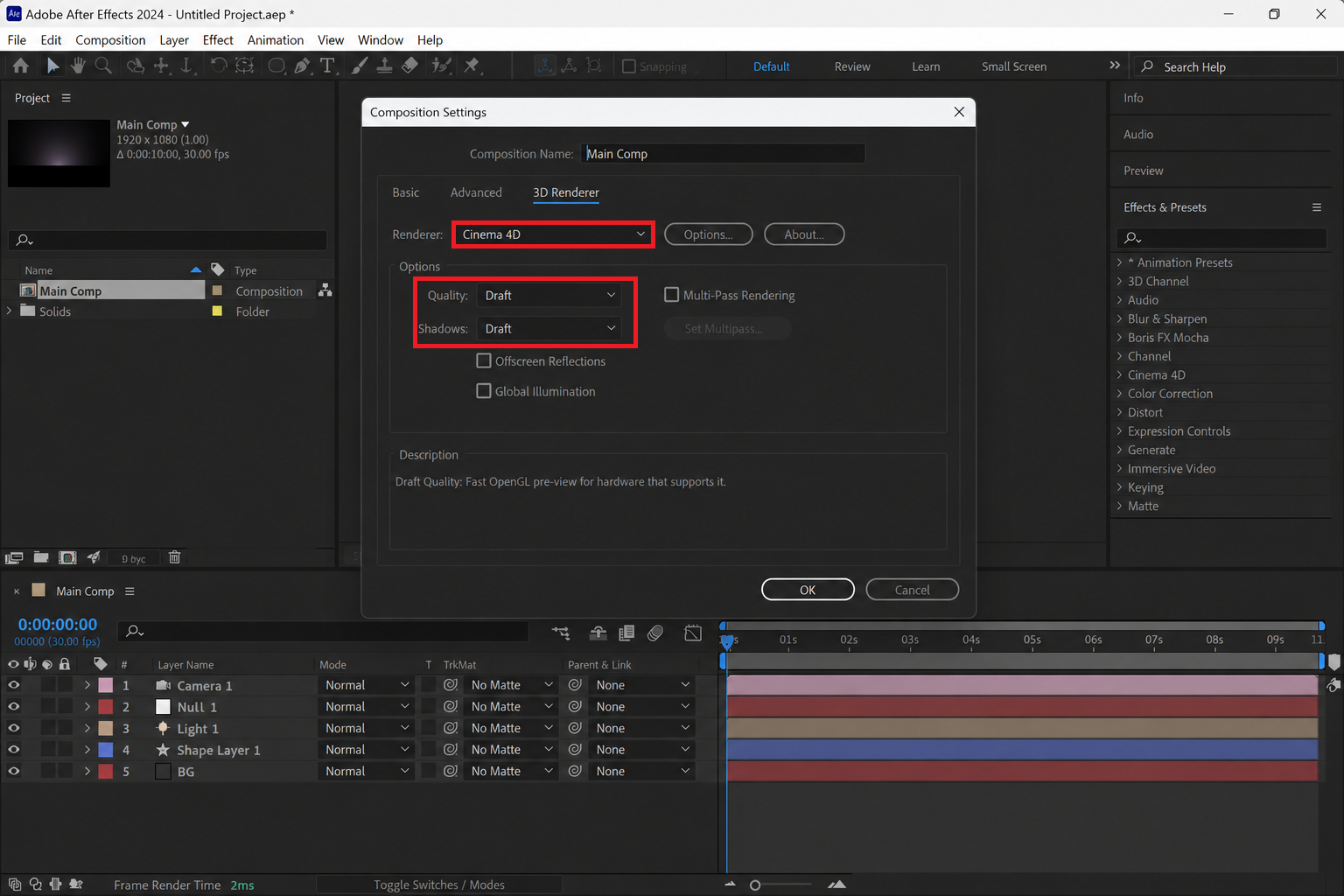
Reducing C4D quality can get a heavy 3D frame past the renderer without changing the whole project. - Render the failing frame. If it works, test individual reflections, shadows or bevel settings in the copy.
Adobe’s Cinema 4D renderer controls explain these settings. Restore ineffective changes, and verify final-quality output before delivery. Lower quality cannot restore a missing engine.
5. Check Cache Storage Without Repeated Purges
A cache-location change has helped a reported legacy Ray-traced 3D case, but mapped-memory wording alone does not prove cache corruption. Treat this as a limited check when previews are inconsistent or cache storage is unavailable.
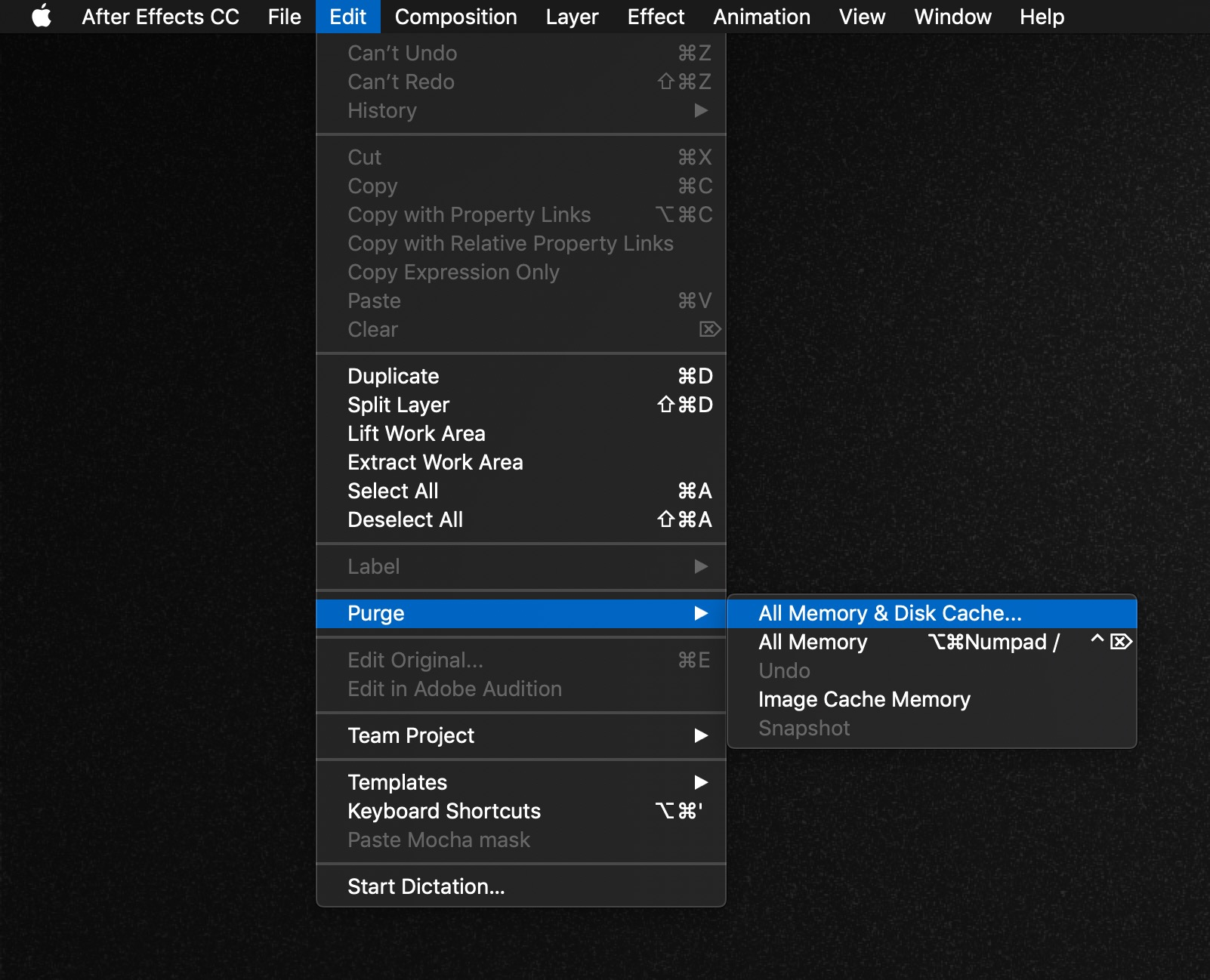
- Save the project, then select Edit > Purge > All Memory & Disk Cache and confirm.
- Open Edit > Preferences > Disk on Windows or After Effects > Settings > Disk on Mac. Older releases call this Media & Disk Cache.
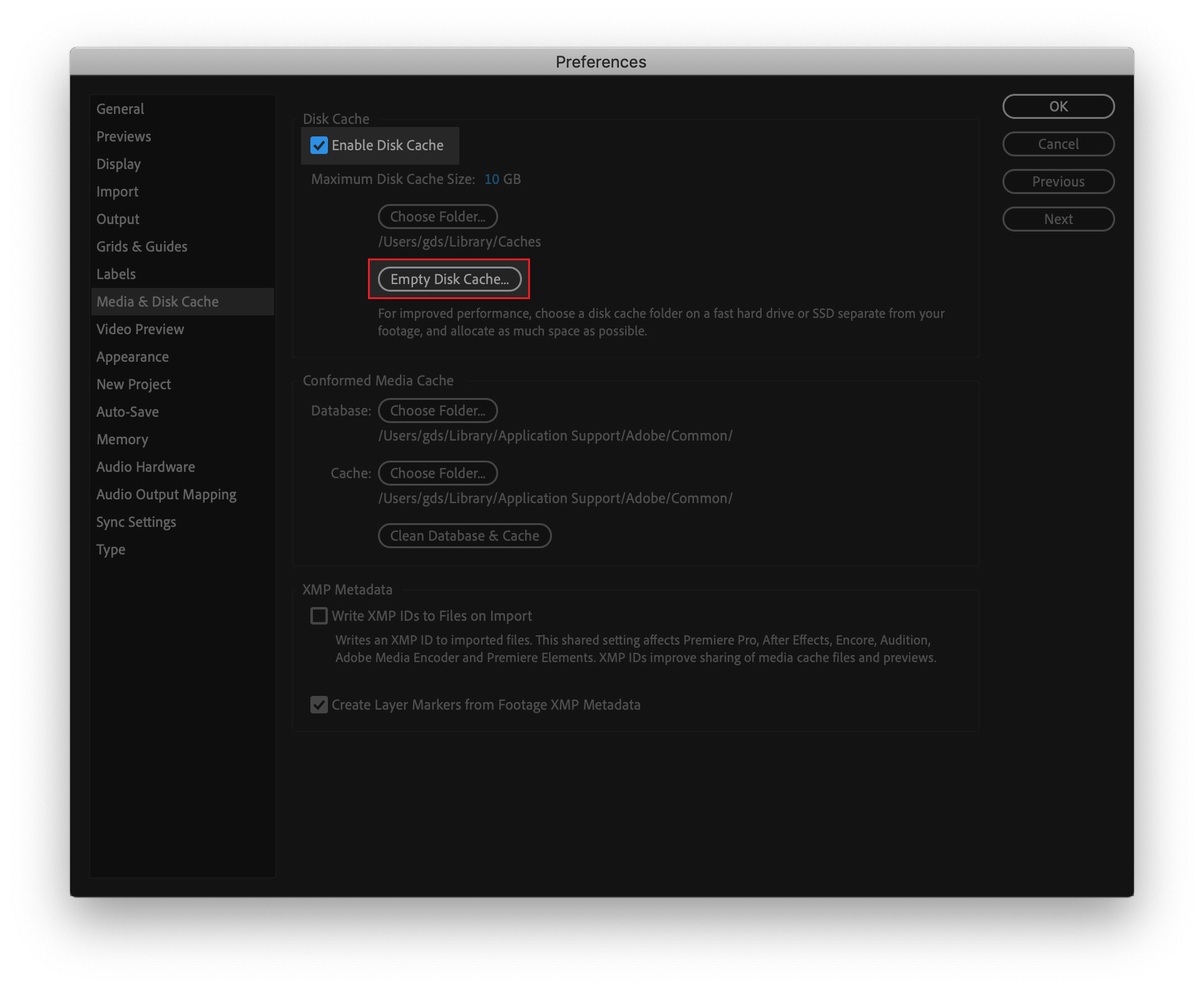
A fresh cache prevents After Effects from reusing damaged 3D preview or render frames. - Check the cache folder is writable and has free space. If necessary, use Choose Folder to select a dedicated folder on a fast local drive. Restart and retest.
The purge already clears disk cache; Empty Disk Cache need not repeat it. Adobe notes that disk cache cannot replace the RAM needed to render one frame.
Stop purging if the same frame fails unchanged.
6. Check Application Compatibility Before Changing Drivers
Version-specific Cinema 4D bugs have produced 5070 before. An update is worth checking, but the code does not prove that your graphics driver is faulty.
- Record the After Effects and Cinema 4D versions. In Creative Cloud, check for an After Effects update compatible with your OS and plugins; retain the compatible bundled C4D component.
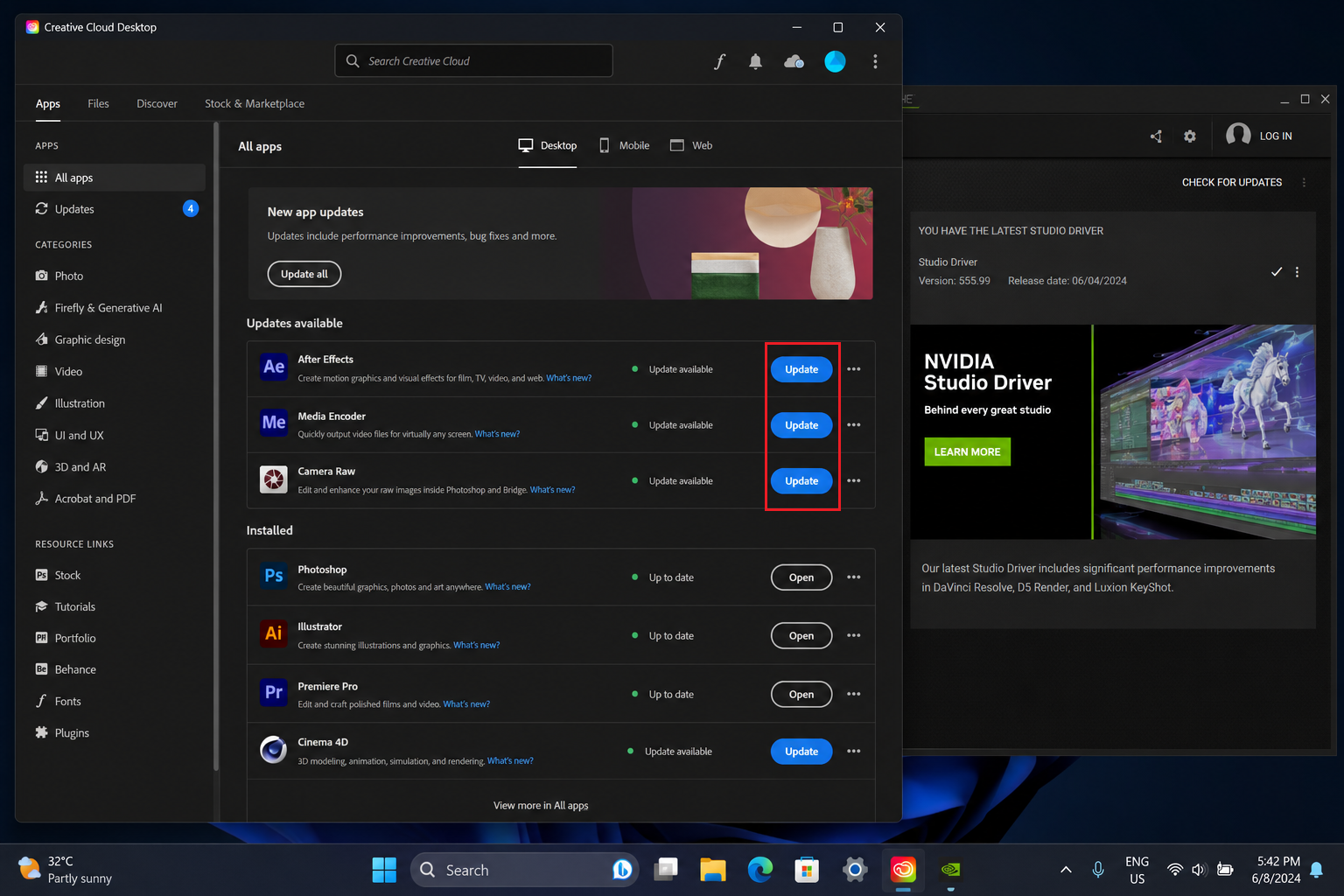
After Effects Cinema 4D and the GPU driver need to agree before heavy 3D comps render reliably. - Test the saved copy after updating, without changing several other components at once. On managed computers, ask IT to handle installation changes.
Do not downgrade the OS or replace drivers solely because of 5070. A separate This Effect Requires GPU Acceleration warning needs its own GPU-setting checks.
7. Compare a Safe Mode Session
Safe Mode temporarily changes preferences and can disable third-party plugins. It can narrow an unresolved problem, but success does not identify a particular plugin by itself.
- Open Preferences on Windows or Settings on Mac, then Startup & Repair > Start in Safe Mode. Select the third-party plugin disabling option if offered.
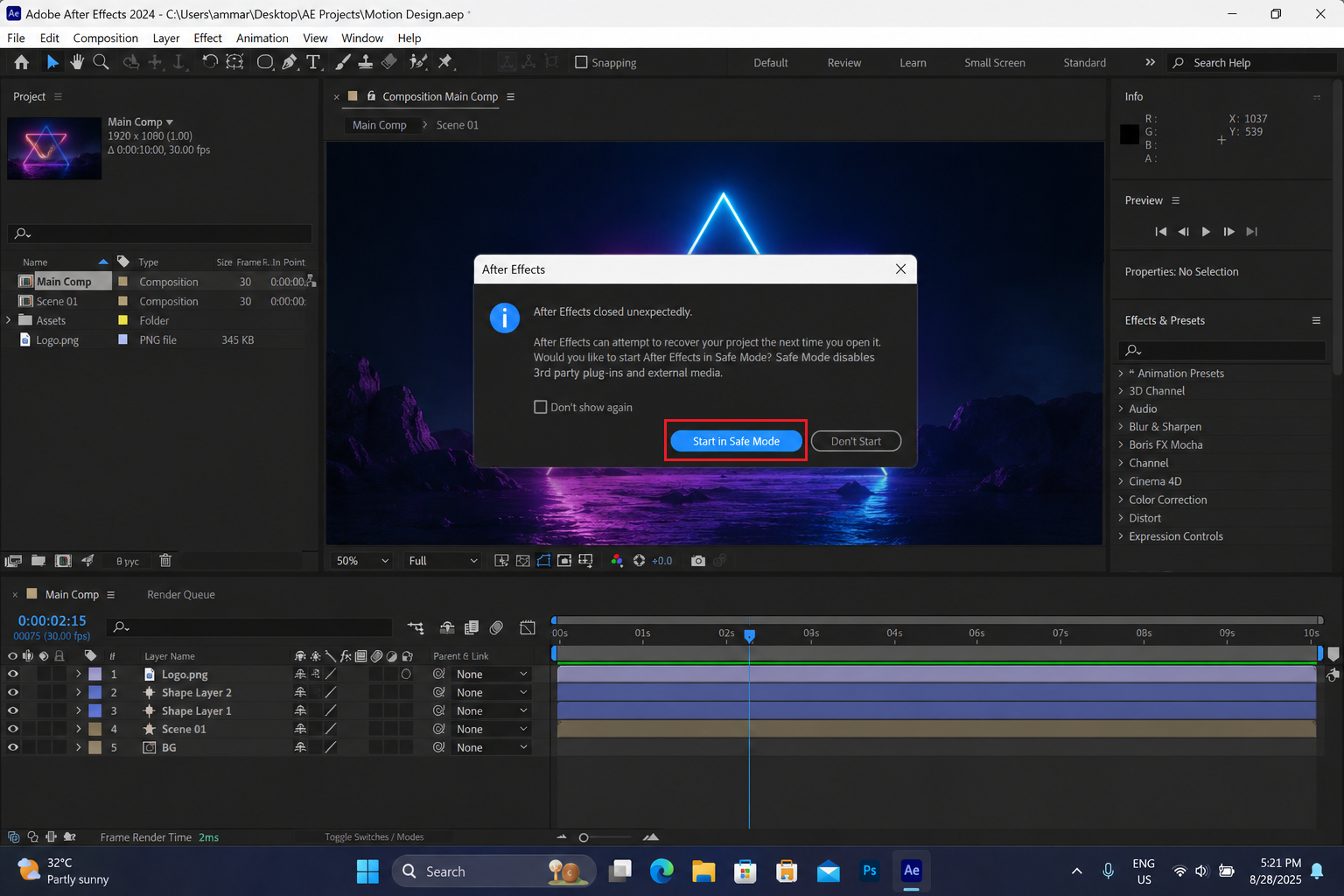
Safe Mode helps confirm whether a plugin or extension is breaking the 3D renderer. - Test the same frame in the project copy. Missing effects can change its appearance; do not overwrite the original or use this as final output.
- Restart normally. If the error was absent, compare suspect effects individually in the copy to distinguish a plugin problem from preference changes.
Restore changes that make no difference. Keep an identified incompatible effect disabled only in the test copy until its developer provides a suitable update.
8. Preserve Completed Frames with an Image Sequence
An image sequence is an optional export workflow, not a renderer repair. It saves completed frames separately, but a frame that cannot render will still need attention.
- Select a duplicate composition and press Ctrl + M on Windows or Command + M on Mac to add it to the Render Queue. In Render Settings, set the required time span and composition frame rate.
- Open Output Module and choose a suitable sequence: PNG for ordinary output, or TIFF/EXR where the project requires their depth or range. Preserve required alpha and color settings.
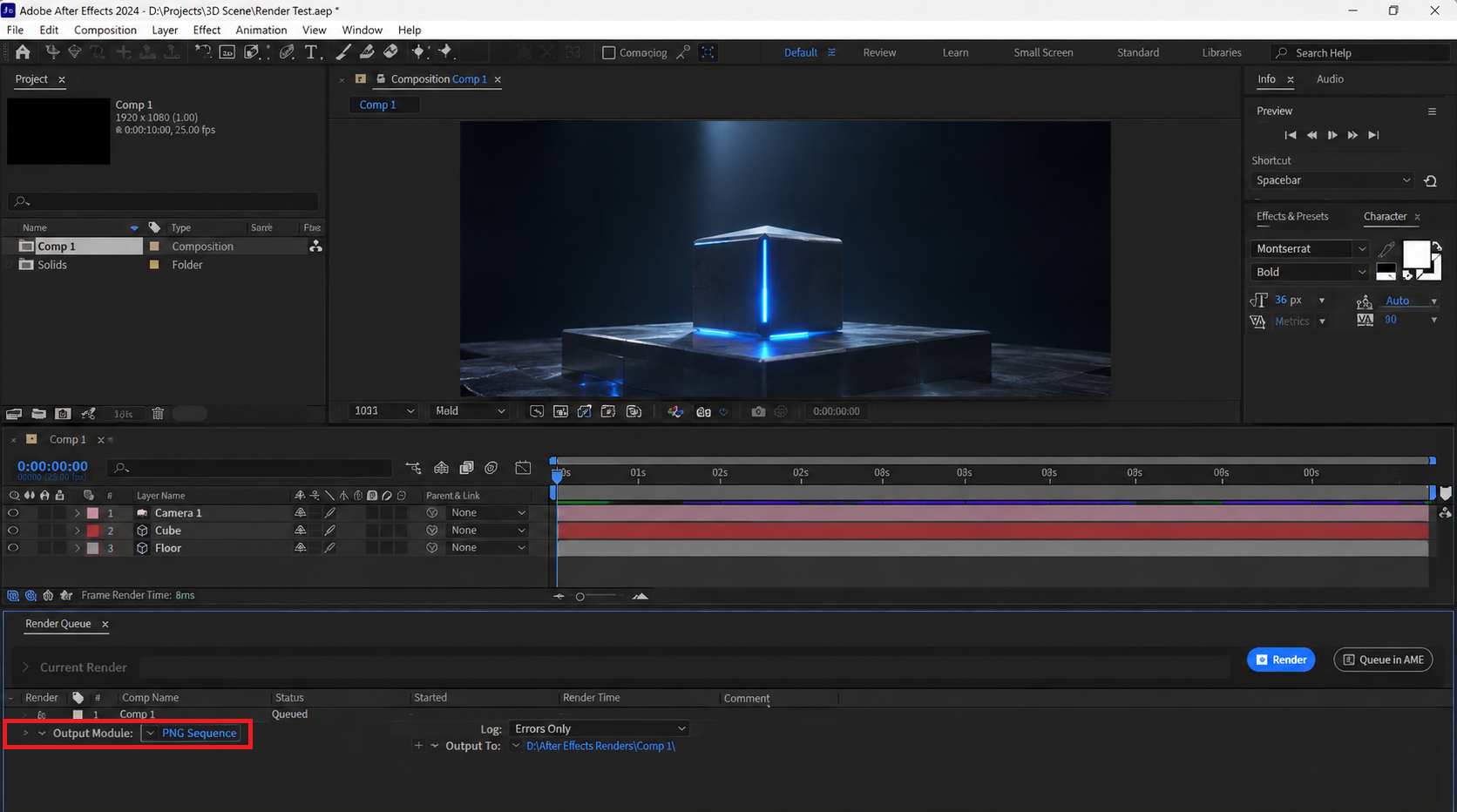
Image sequences make stubborn 3D render failures easier to isolate and resume frame by frame. - Choose an empty local folder under Output To and render. For a rerun, Skip Existing Files in Render Settings preserves completed frames. Keep the sequence name, frame numbers, time span and frame rate unchanged. Changed visuals or output settings require a fresh sequence.
- Import the completed sequence through File > Import > File, selecting its first image and the sequence checkbox. Select it in the Project panel, then open File > Interpret Footage > Main and match the rendered frame rate. Verify duration and start position before replacing the live section.
Image sequences contain no audio. Keep the original audio, retain the live composition, and check the finished export. Adobe’s image-sequence documentation covers numbered output files.
9. Compare a Fresh Project Before Resetting Preferences
Importing into a blank project is another comparison, not proof that the old project is corrupt.
- Create a new project, select File > Import > File, and import the saved
.aepcopy.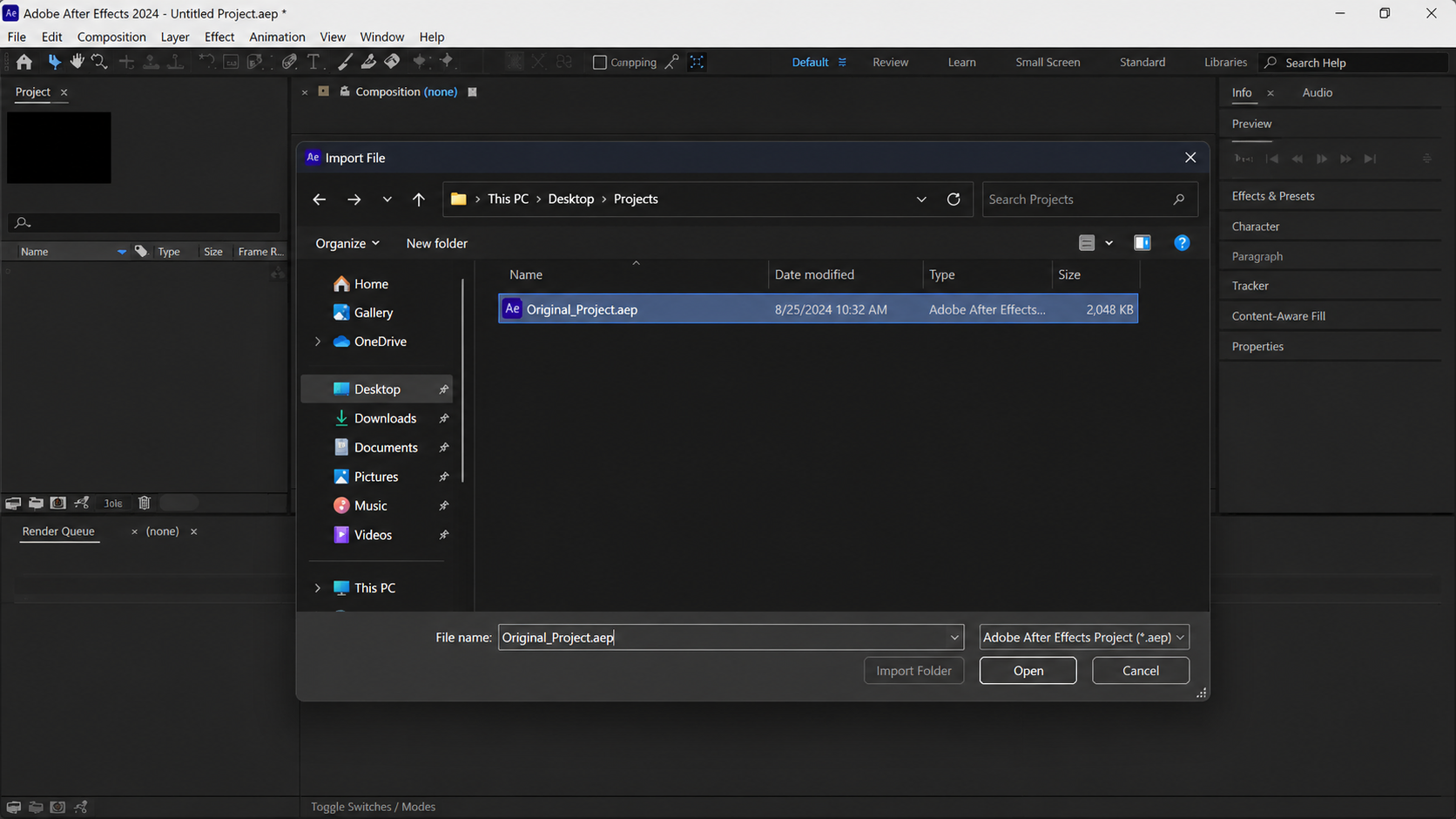
A clean project removes old project-level references that can keep a 3D comp failing. - Expand the imported folder in the Project panel, open the affected composition and test the same frame. Save separately if it works; importing can also carry the original fault into the new project.
A preference reset has helped a reported legacy Ray-traced 3D case, but is not a general C4D repair. Consider it after a useful Safe Mode comparison, not because project import failed.
Without Startup & Repair, back up the matching version folder directly: %APPDATA%\Adobe\After Effects\[version] on Windows or ~/Library/Preferences/Adobe/After Effects/[version] on Mac. Do this before using the startup reset keys.
- Where Startup & Repair is available, use it to reveal the preferences folder and back up the version-specific folder before resetting.
- Select Reset All Preferences To Defaults and restart. This also resets workspaces. Older releases provide a startup reset with Ctrl + Alt + Shift on Windows or Command + Option + Shift on Mac.
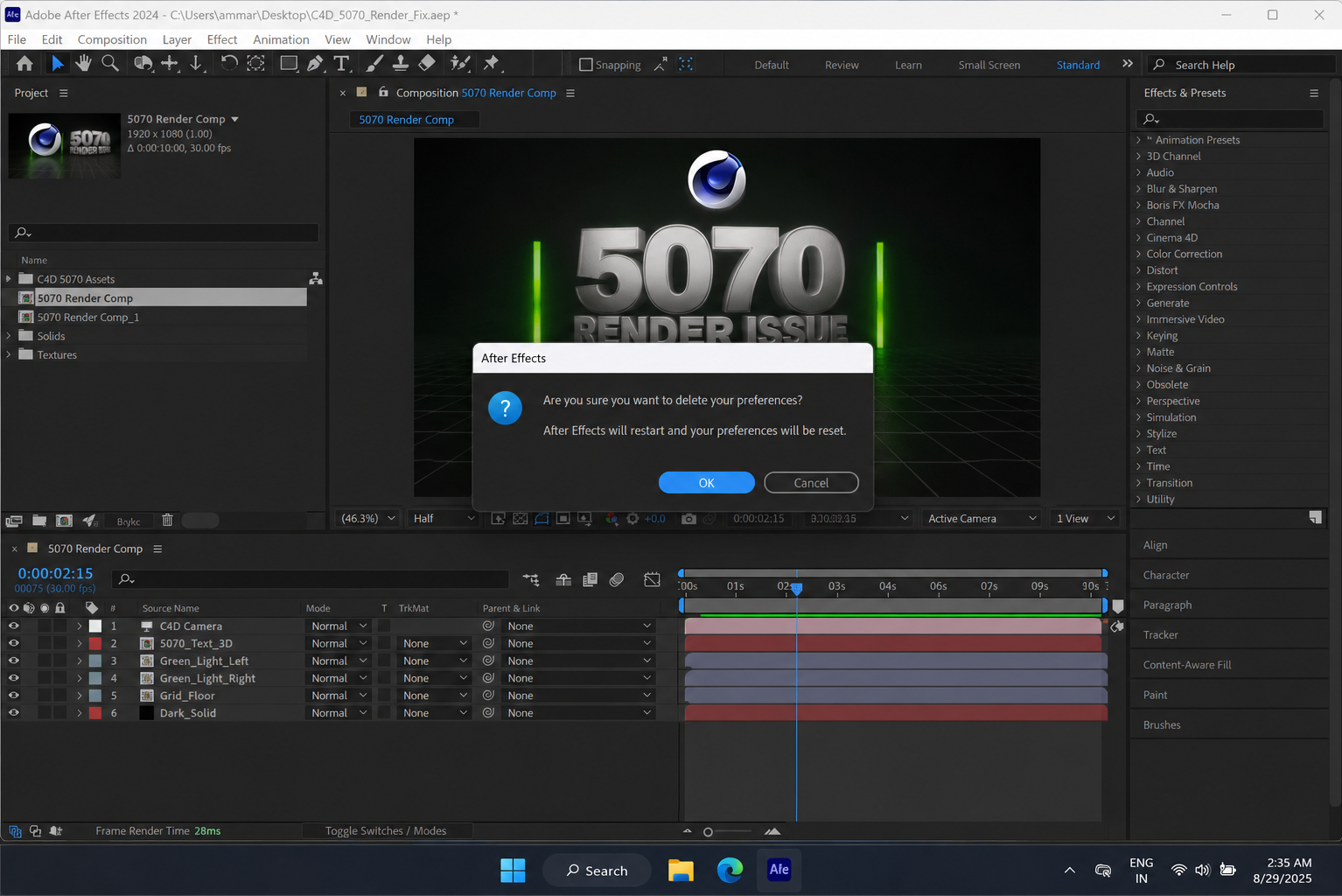
Preference reset and renderer reinstall are late steps for local settings or damaged C4D components.
Follow Adobe’s preference-management instructions. If defaults help, restore settings gradually; restoring the whole backup may restore the fault.
Still failing? Give Adobe Support the full warning, application versions, renderer, failing frame, hardware details and comparison results. A small reproducible project is more useful than another reinstall; remove confidential media before sharing.


