How to Fix Premiere Pro Error Retrieving Frame?
Adobe Premiere Pro can show “Error retrieving frame” even when the footage opens and most of the edit plays normally. At the named frame, Premiere cannot read or decode the picture correctly and may substitute another frame, show black video, or interrupt rendering and export.
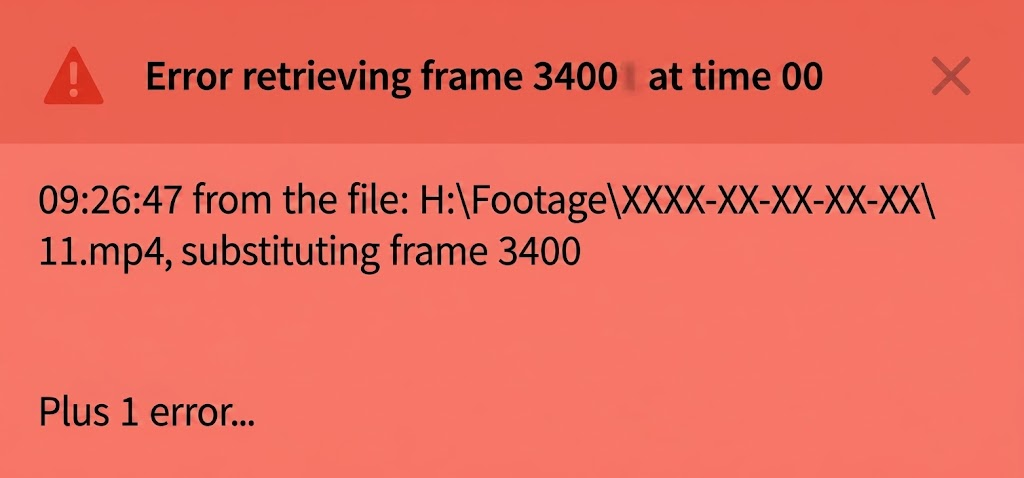
The filename matters as much as the timecode. The warning can refer to an original clip or a generated file, so it does not automatically mean your recording is damaged. A completed export can still contain repeated or black frames.
| Where it fails | What to check |
|---|---|
| The named clip also fails in the Source Monitor. | Its local copy, decoder, and media format. |
| Playback works until proxies or rendered previews are used. | The generated files, not just the originals. |
| Only an effects-heavy section or export fails. | The applied effects and a short export of that section. |
1. Identify the Clip Named in the Warning
The Events panel identifies the file Premiere could not read. Finding that file avoids changing settings for clips that are working.
- Open Window > Events and read the newest entry. Note the full filename, frame number, and timecode.
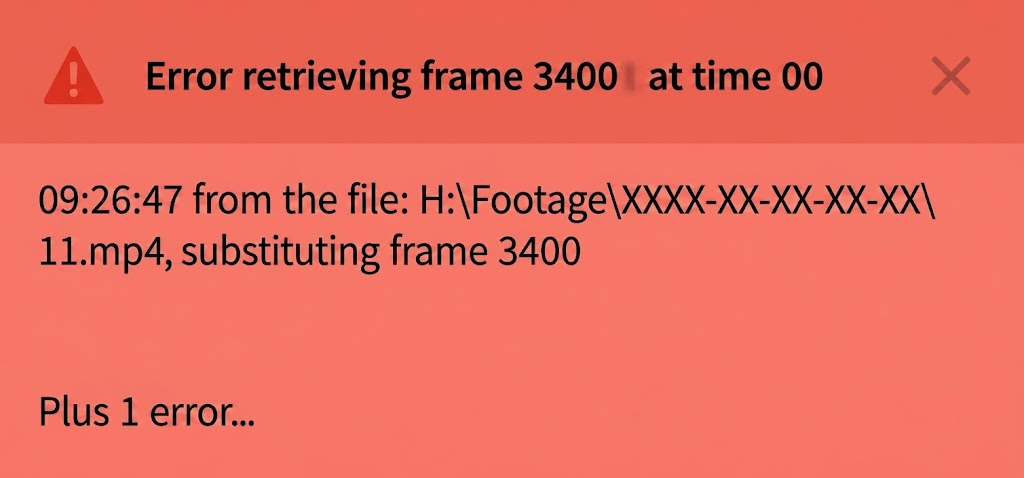
The file name and timecode narrow the repair to the clip or sequence section that Premiere cannot read. - Open the named original in the Source Monitor from the Project panel, with proxies off and the original online. Its reported timecode may differ from the edited sequence position after trimming or speed changes.
- Compare source playback with the affected timeline section. For overlapping clips, toggle track visibility one track at a time, then restore it.
If the original also stops at that point in another player or cannot be converted, copy it again from the camera or original download before altering the edit. Playback in another app alone does not prove every frame is intact.
2. Rebuild Cache and Existing Previews
Premiere can reuse generated data after the source or application changes. Cache files and rendered previews are separate; rebuilding them does not repair missing footage.
- Save, close Adobe video/audio apps, and reopen Premiere without a project. Open Edit > Preferences > Media Cache on Windows, or Premiere Pro > Settings > Media Cache on Mac. Older Mac versions call Settings Preferences.
- Select Delete beside Remove Media Cache Files, then Delete all media cache files from the system. Adobe explains the cache deletion options.
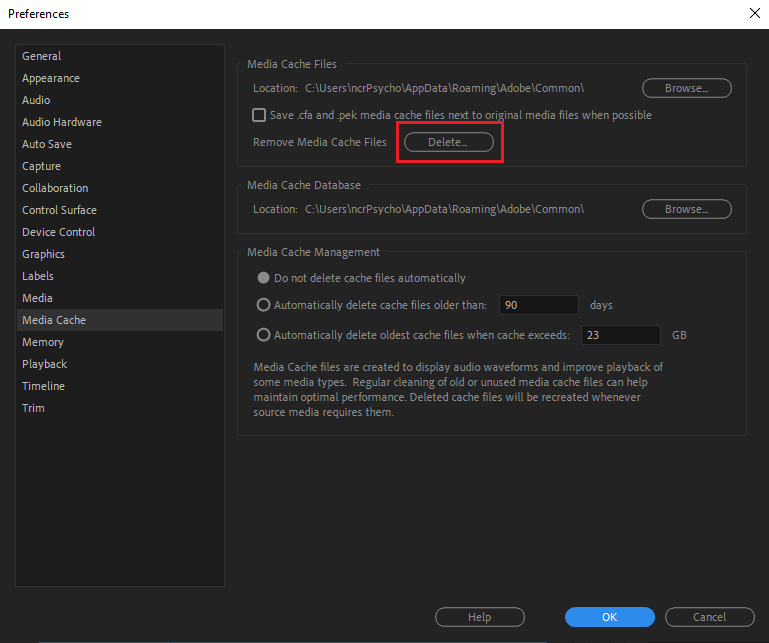
Cache files can become stale or damaged, and Premiere recreates them after they are removed. - Reopen the project, let Premiere finish processing media, and retest. If existing previews remain suspect, activate the timeline and choose Sequence > Delete Render Files. This removes previews, not source clips; an unavailable command may mean none exist.
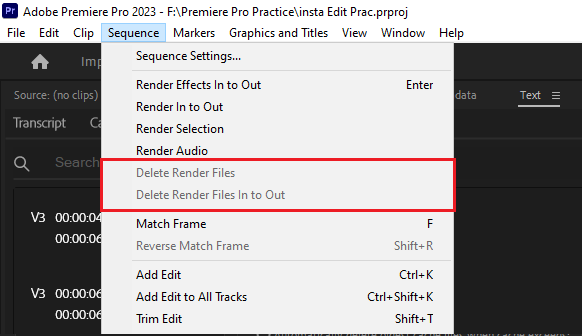
Damaged render previews can cause frame substitution errors even when the original clip is usable. - Mark the problem section with I and O, then choose Sequence > Render In to Out.
A clean rebuild is useful; repeated cache clearing is not if the same source frame continues failing.
3. Compare a Fully Local Media Copy
A disconnected drive or cloud-only file can leave Premiere unable to read a frame. Copying the affected media locally tests access without moving the only original.
- Copy the project and affected media to a local SSD outside cloud-synced folders. Finish the download or transfer first; preserve camera-card folder structure.
- Open the copied project. To redirect an existing link, select the clip in the Project panel, choose Make Offline > Media Files Remain On Disk, then Link Media > Locate and select the local copy. Never choose media deletion.
- Under File > Project Settings > Scratch Disks, set video/audio previews to a writable local folder. Some versions expose Scratch Disks directly under File. Retest.
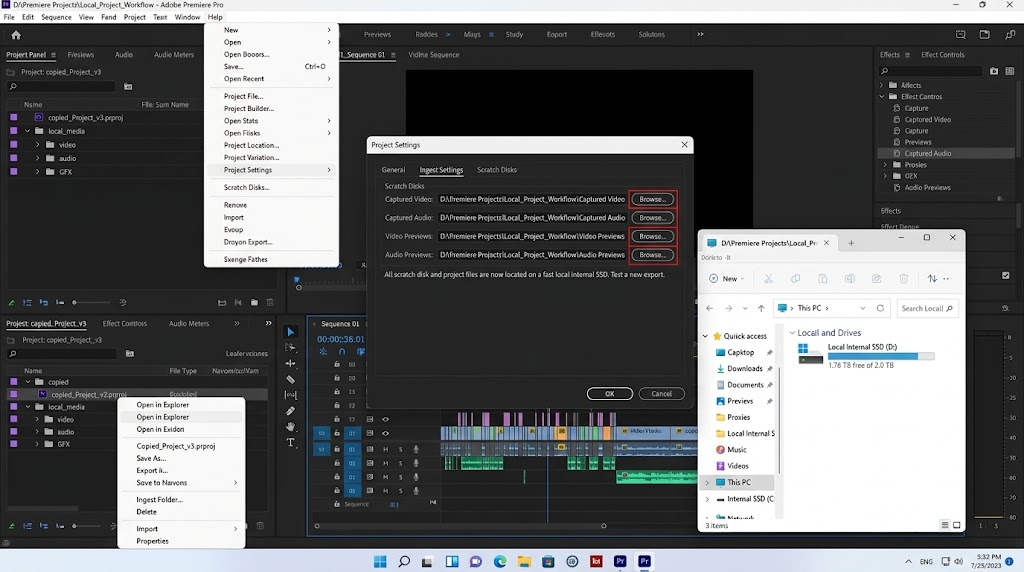
Local SSD storage reduces dropped reads from external, network, or cloud-synced media during render and export.
If only the local copy works, investigate the original drive or sync connection. If nothing changes, storage has not been established as the cause.
4. Test Hardware Decoding and Check Driver Warnings
H.264/HEVC footage can fail during GPU-assisted decoding even when the file is complete. Disabling that option tests software decoding without changing the timeline renderer or export encoding.
- Open Preferences/Settings > Media, disable H.264/HEVC hardware accelerated decoding, and restart Premiere. Change decoding only, not both highlighted controls in the older screenshot.
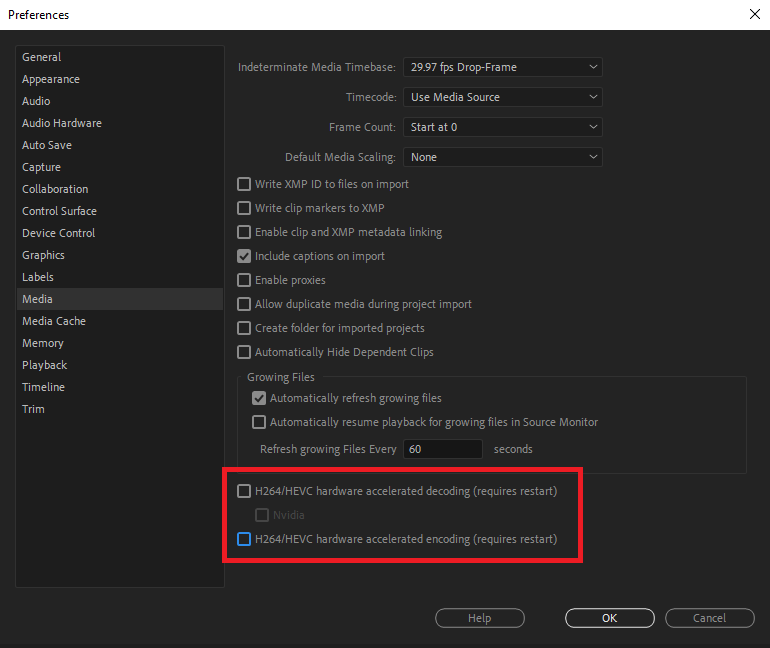
Turning off hardware decoding helps confirm whether the GPU decode pipeline is failing on one codec or clip. - Test the same frame. Restore decoding if it makes no difference; software decoding can be slower.
- Open Help > System Compatibility Report. On Windows, follow guidance for the named GPU and a compatible manufacturer driver; the unsupported video driver guide covers integrated GPUs too. Mac graphics drivers arrive through macOS updates.
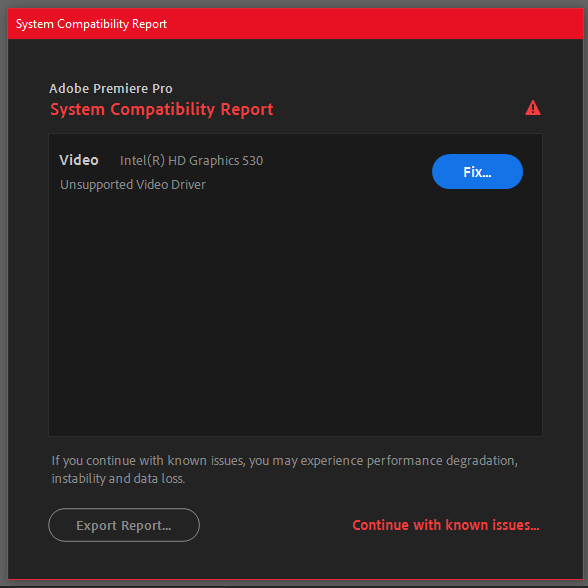
Driver warnings can explain why hardware decoding or GPU rendering fails on specific frames.
Check Creative Cloud > Apps > Updates for compatible Premiere and Media Encoder patches, keeping their versions matched. If disabling decoding helps, that alone does not prove the GPU is faulty.
Software Only rendering was removed in Premiere 25.2 and later; Apple silicon never offered it. Its absence is not an installation fault.
5. Convert Only the Problem Clip First
Variable-frame-rate (VFR) recordings and some camera formats can be difficult to decode reliably. A new encode can help, but cannot recover pictures missing from the original.
- Right-click the timeline clip and choose Reveal in Project, as illustrated. Check the Project item’s Properties for Variable Frame Rate Detected.
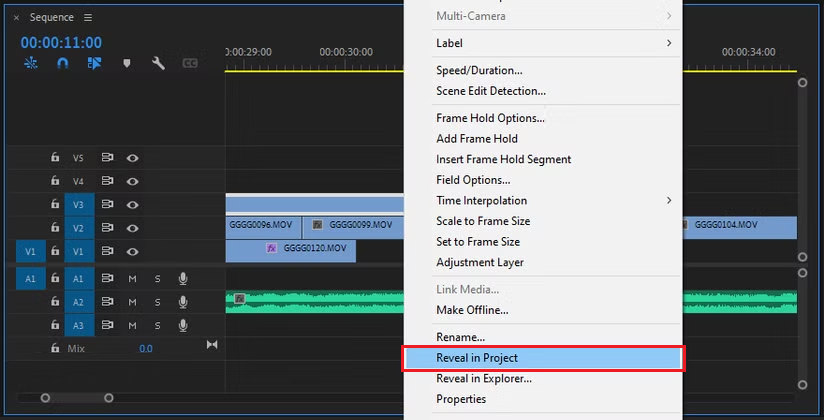
A clean constant-frame-rate transcode often fixes clips that Premiere cannot seek or decode reliably. - For VFR footage, open a copy in HandBrake with an MP4/H.264 preset. On Video, set Framerate to Same as source and select Constant Framerate. Set a new filename and select Start Encode; HandBrake explains these controls.
- For an editing intermediate, use Media Encoder if it reads the source: add the file, choose QuickTime with a suitable ProRes preset, set an output filename, and start the queue. Preserve frame size, timing, audio, and color settings.
- In the saved project copy, select the original Project item and choose Clip > Replace Footage. Select the converted file and check edit points, sound sync, and color before rendering.
Changing Interpret Footage or the sequence frame rate is not a CFR conversion. If Premiere rejects the file during import instead, check the unsupported compression type error.
6. Compare Proxies With the Originals
A proxy is a separate editing copy. A working proxy can hide an original-file problem, while a bad proxy can disrupt otherwise usable media.
- Confirm the original is online. Turn Toggle Proxies off in the Program Monitor; add the button using its + button editor if needed. Compare playback.
- If only proxy playback fails, right-click the Project item and choose Proxy > Detach Proxies. Keep the old files until the replacement works.
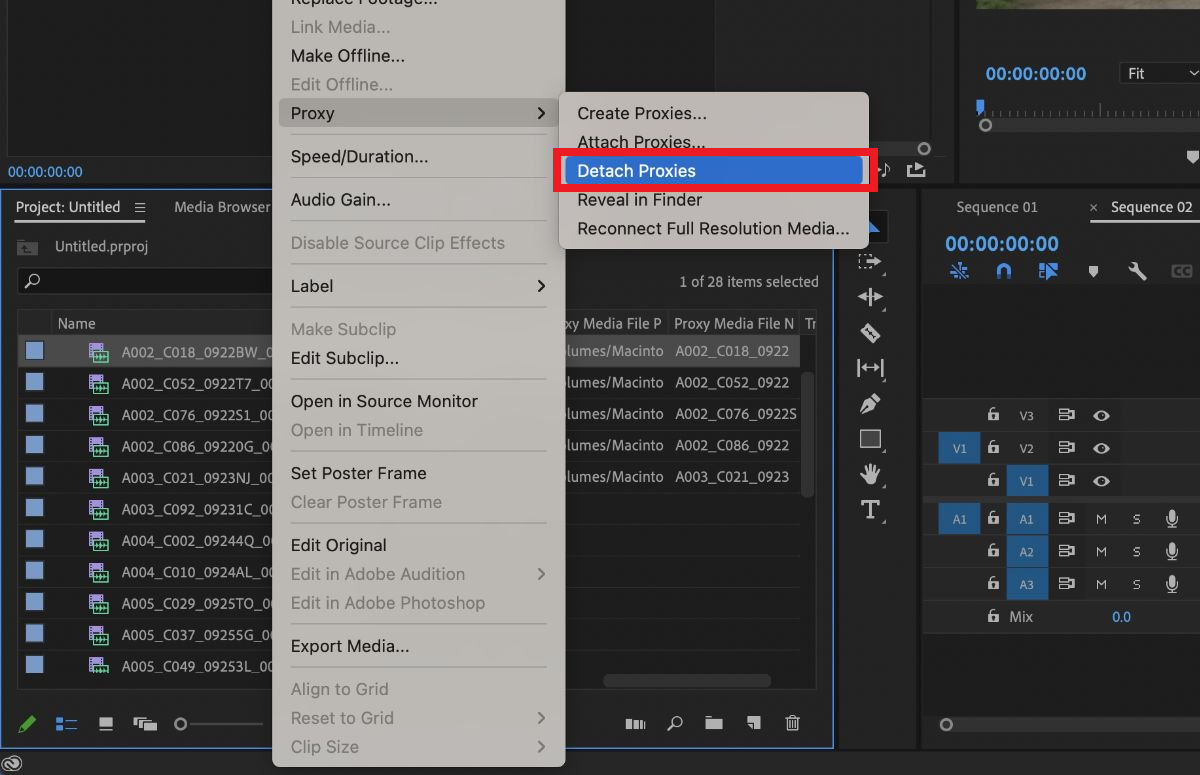
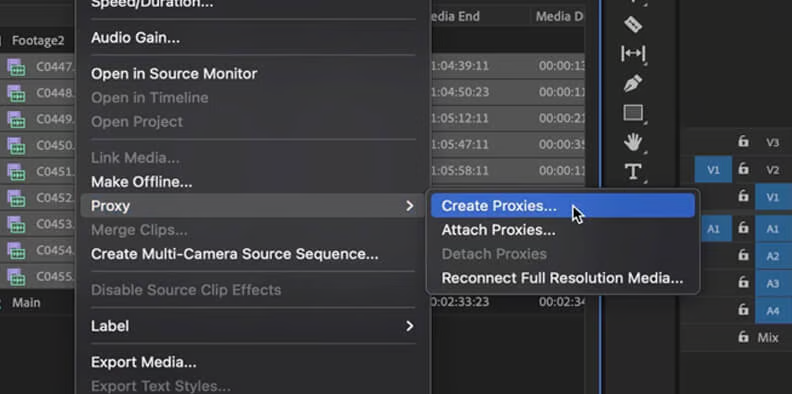
A damaged proxy can trigger the same frame retrieval error as a damaged source clip. - Choose Proxy > Create Proxies, select a ProRes proxy preset and a new local destination, then let Media Encoder finish. Premiere-created proxies attach automatically. Enable them and retest.
Exports normally use online originals regardless of the playback toggle. Check Export > General > Use Proxies separately; Adobe documents this export behavior.
Proxy creation failing requires checking the source, not repeatedly attaching an incomplete proxy.
7. Isolate Effects Before Rendering Them
Effects that request neighboring frames can expose decoding problems. Rendering a failing effect into another file is not a substitute for identifying it.
- Duplicate the sequence. In Effect Controls, disable applied effects with their fx switches. If playback recovers, re-enable them individually to identify the failing effect.
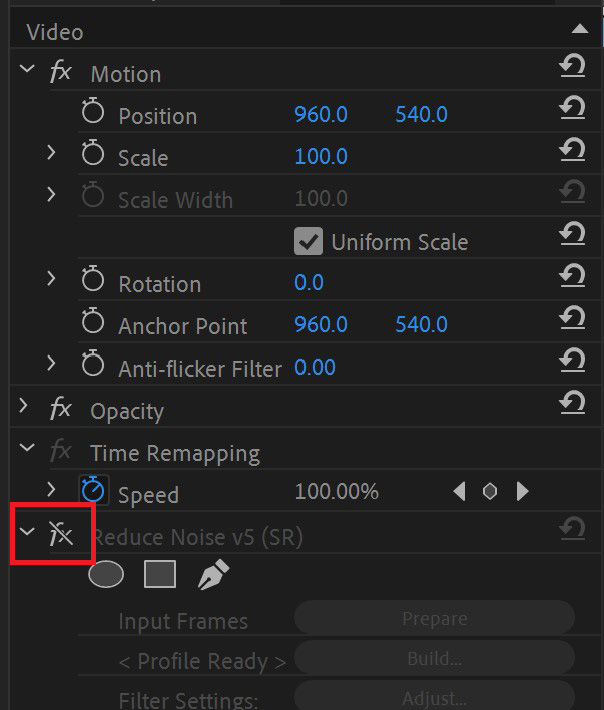
If a clean clip plays correctly, the failing frame may be coming from an effect, plugin, nested sequence, or dynamic link. - Update or replace an incompatible plugin. For a working but demanding clip or After Effects composition, select Clip > Render and Replace. Choose a matching preset and output location. Select Include Video Effects only when baking supported effects (unchecked below), then OK.
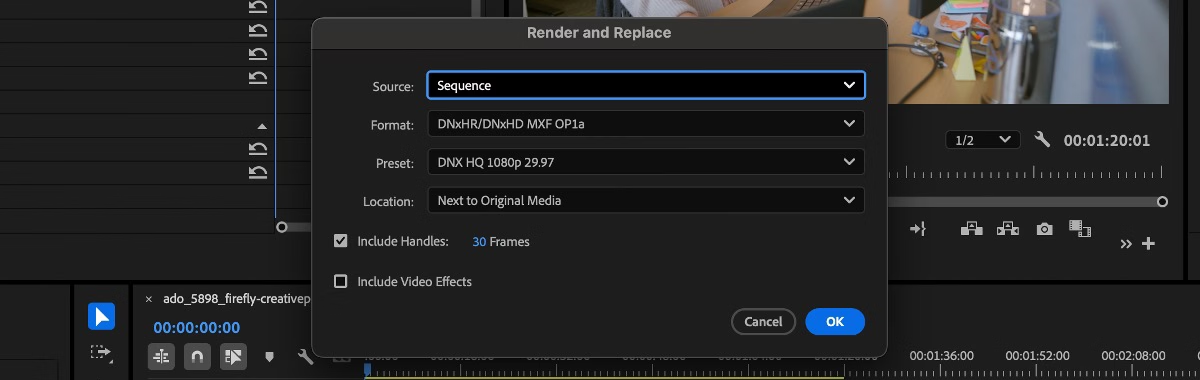
Render and Replace does not support nested sequences or adjustment layers.
Use Restore Unrendered to return to the original clip. Recheck the section before keeping the change.
8. Test the Export Without Previews or Proxies
Playback success does not guarantee export success: the export can read different media or fail elsewhere in the sequence.
- Mark a short sequence range around the failure. In Export, select Source In/Out as the range. Disable Use Previews and Use Proxies with originals online.
- For H.264/HEVC, test Video > Encoding Settings > Performance > Software Encoding if available. Restore it if ineffective.
- For a full-length workaround, switch the range back to the entire sequence and try a QuickTime/ProRes master, then encode it to the delivery format. Do not select the illustrated HEVC entry for this intermediate.
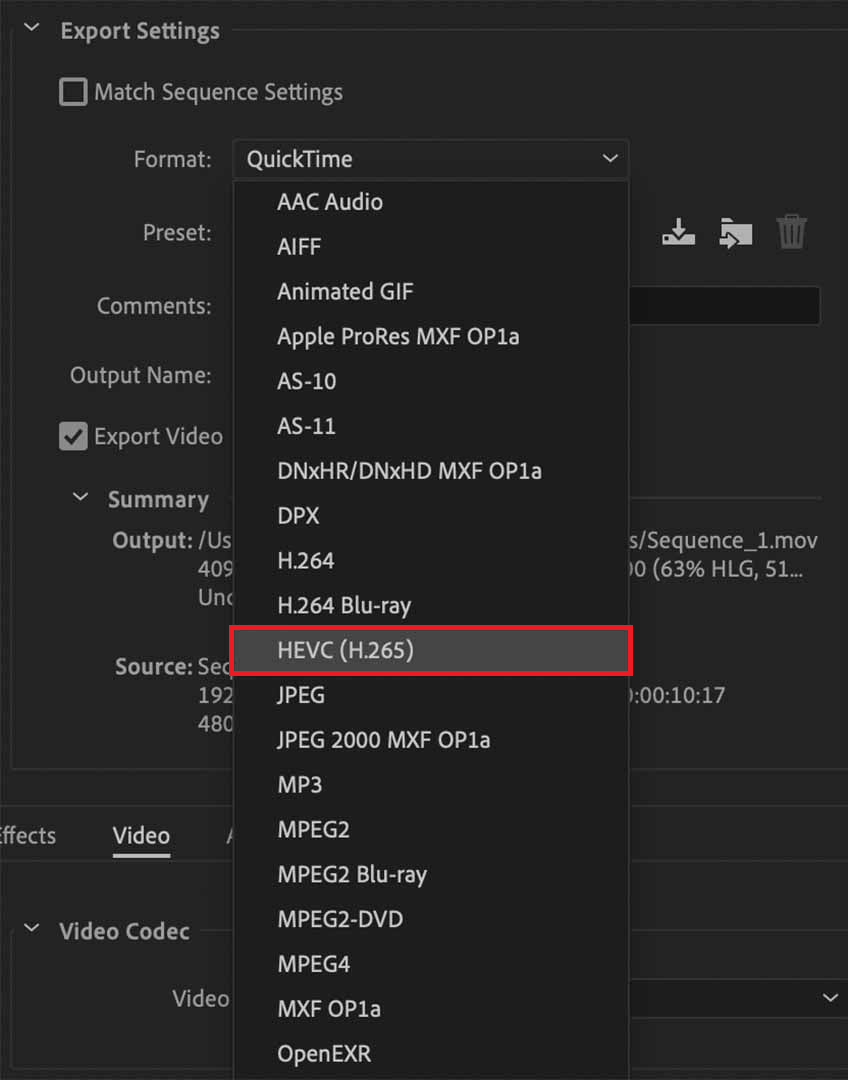
Exporting a small range around the timecode shows whether the failure is tied to one timeline section or the final delivery path.
Compare direct export with Queue to Media Encoder once. A short success does not validate the full timeline. Watch the output for repeated or black frames and check sound sync before delivery.
9. Compare a Fresh Project Before Resetting Preferences
When the same media works separately but this project keeps failing, importing the sequence into a fresh project provides a useful comparison without overwriting the edit.
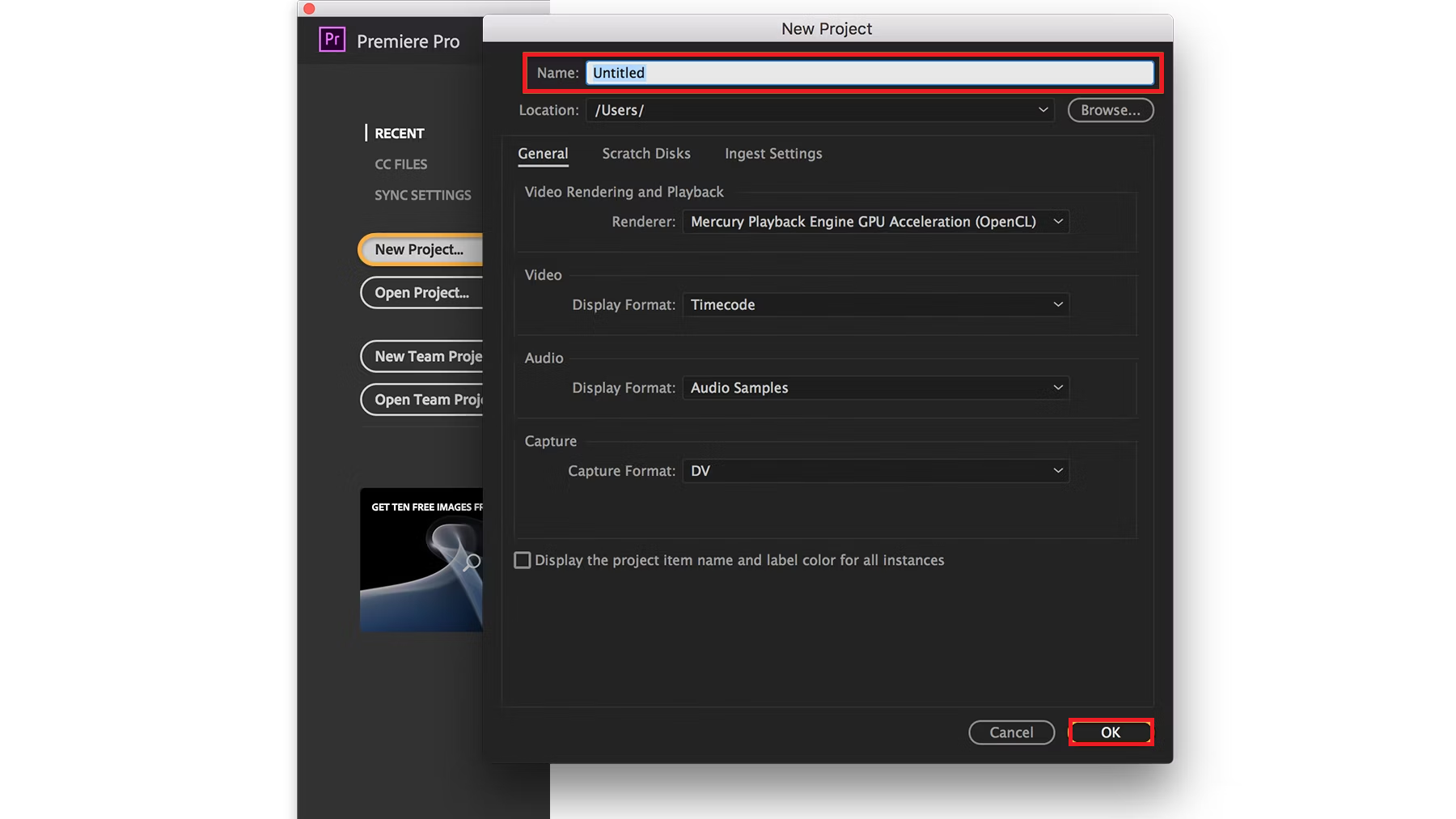
- Create and name a new local project. Older screenshots may show a different creation screen.
- Choose File > Import.
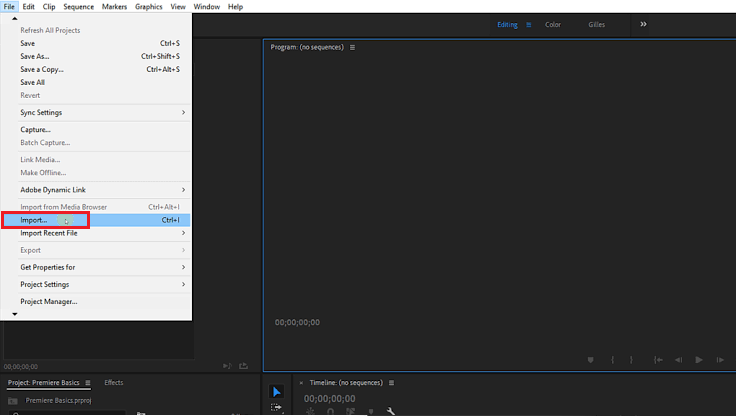
- Select the saved .prproj file, then choose Import Selected Sequences and the affected sequence.
- Save under a new name and test the same section with the same settings.
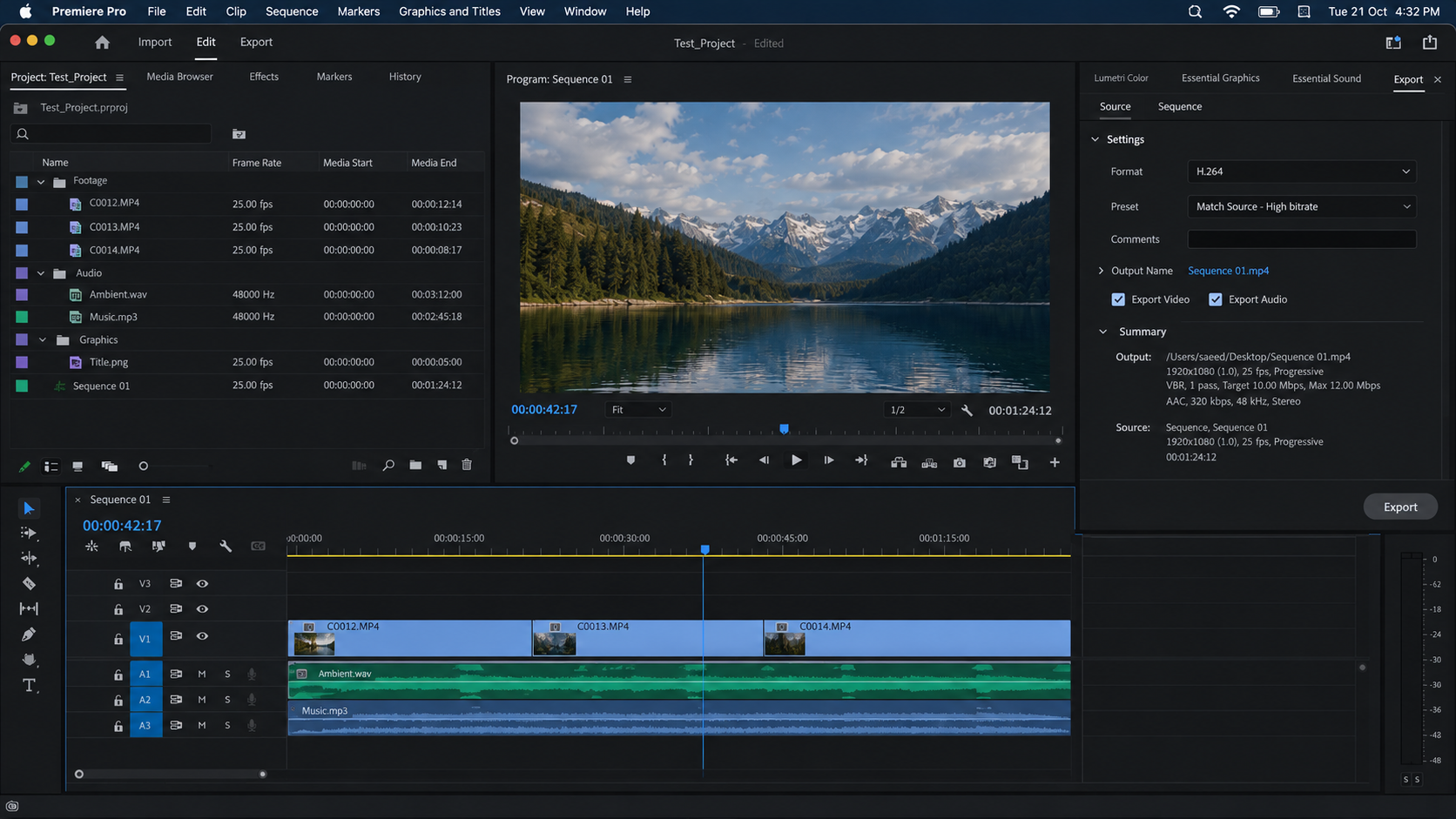
For Adobe’s preference reset, quit Premiere, hold Alt (Windows) or Option (Mac) while launching, select Reset app preferences, and confirm. Reopen and retest.
For persistent failures, send Adobe Support the Events text, Premiere/OS versions, codec, failing timecode, driver details, and comparison results. Remove private project paths from public reports. Keep originals and the earlier project until the full export is checked.


