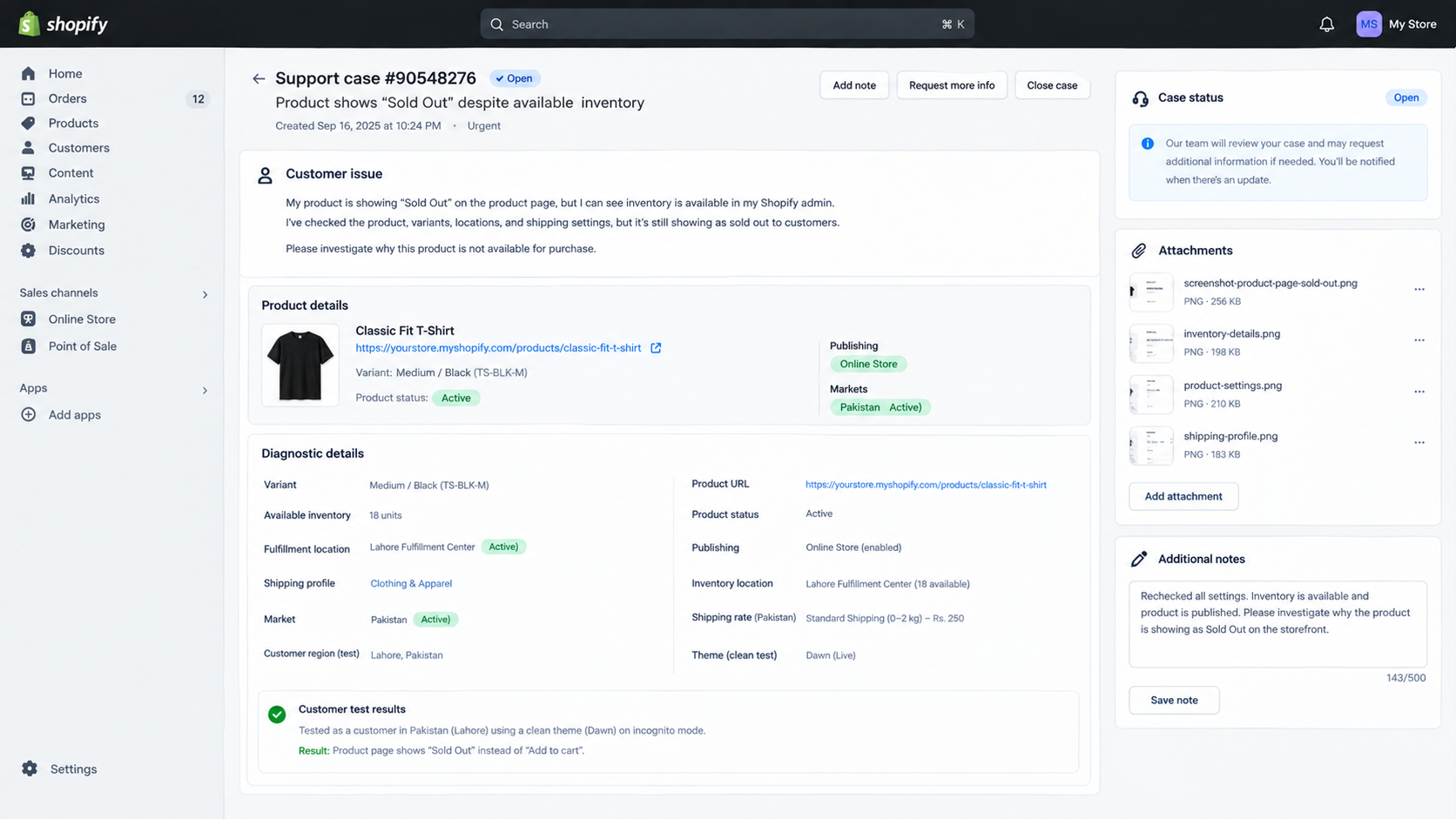
How to Fix Shopify Product Has Inventory but Shows Sold Out?
Shopify can show stock in admin while the product page still says Sold Out. The number you see may include other sizes, units reserved for orders, or stock at a warehouse that cannot ship to that customer.
A product that customers can add to their cart, but whose collection card says Sold Out, has a different problem: the label is not reflecting its actual availability. Changing inventory to correct that label can create stock errors.
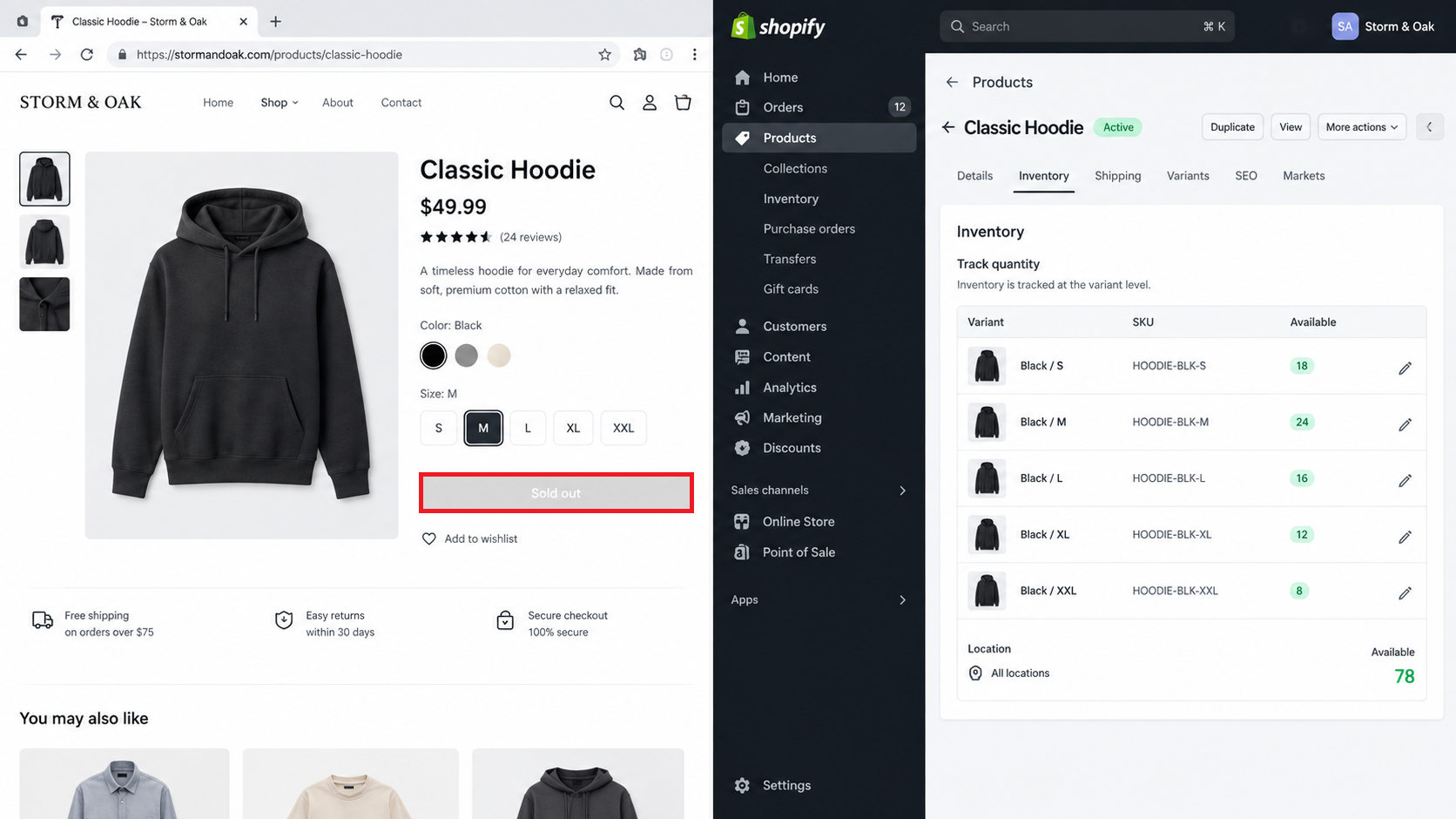
1. Match the Storefront Variant to Its Inventory Record
Stock in one size does not make every size available. A duplicate product listing can also leave you editing inventory that belongs to a different page.
- Open the affected storefront page. Note its URL, selected size or color, and customer country.
- In Shopify admin, open Products and find that exact product and variant. Compare the SKU where available.
- Check Publishing: Online Store and the intended product status. Use Active for a normal listing; an intentionally Unlisted product can still sell by direct URL. Publish a draft only when it is ready for sale.
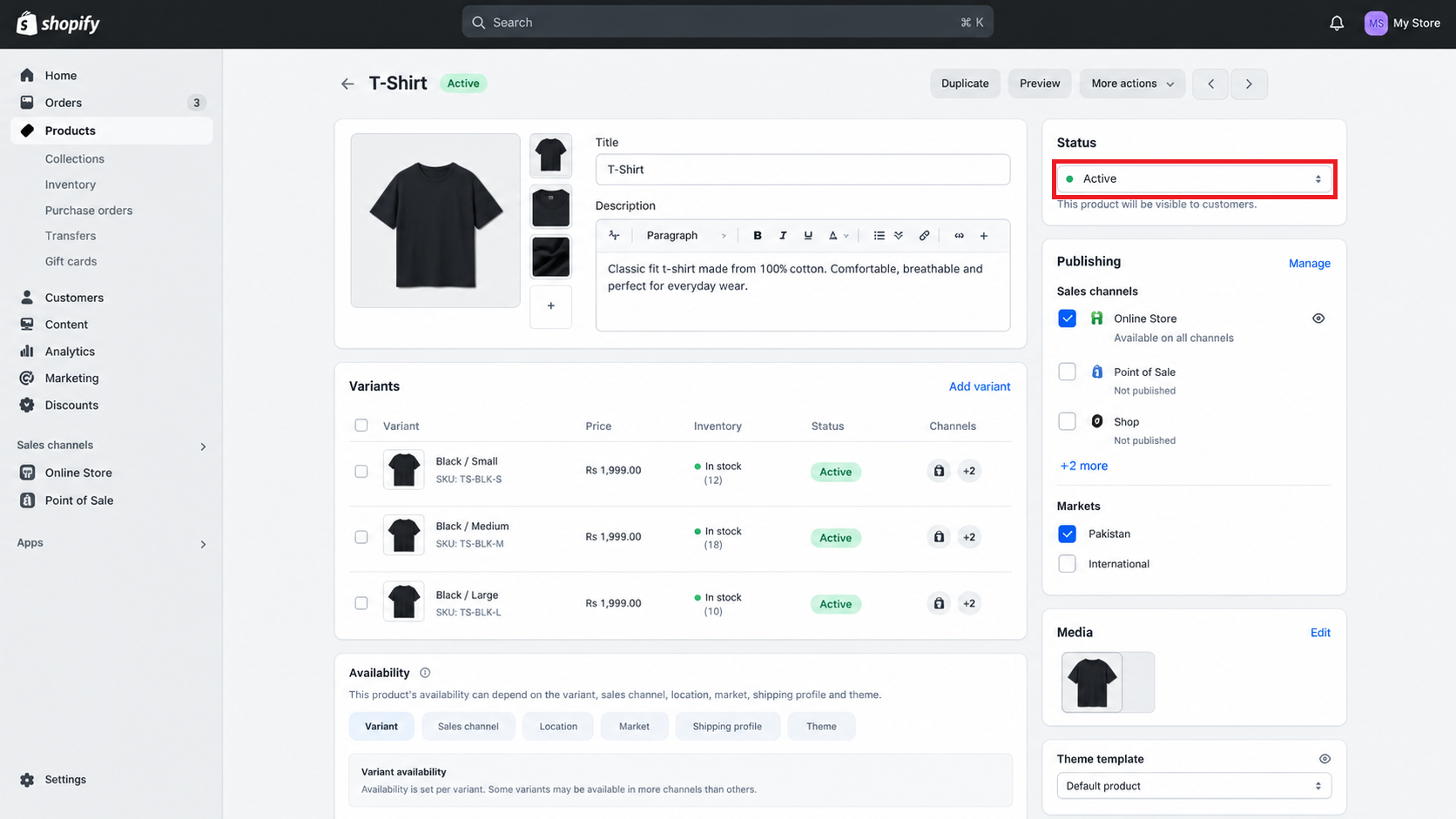
Shopify availability depends on the variant, location, market, shipping profile, and theme.
Try another in-stock option on the same page. If it works, check the unavailable variant rather than changing the whole product’s stock.
2. Check Available Stock, Not Just On Hand
For tracked inventory, On hand includes units committed to orders or held as unavailable. Shopify’s Available quantity is the amount left to sell.
- Open the affected variant’s Inventory section.
- Read Available separately for each location, not only the total.
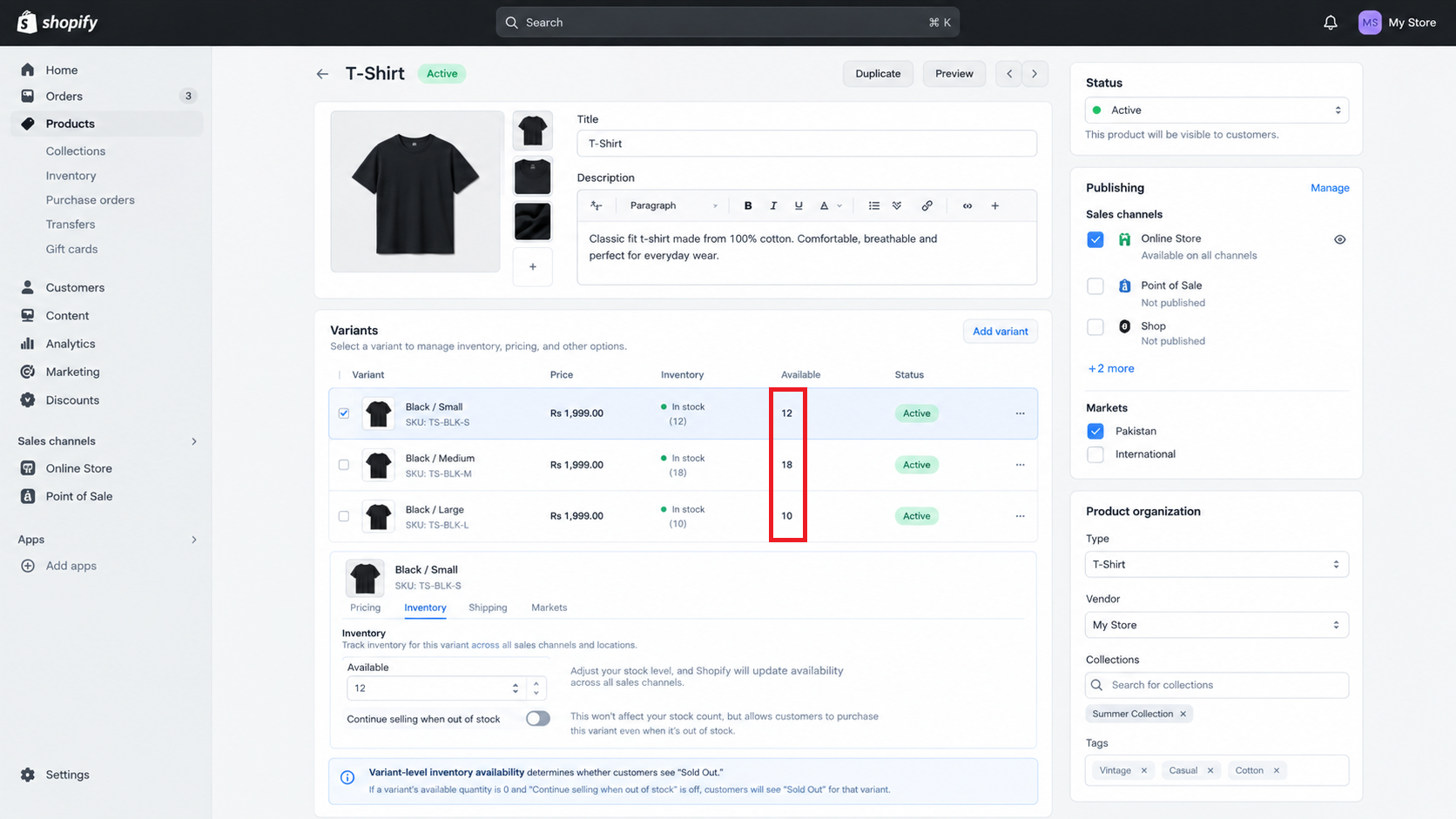
The sellable variant needs available inventory, not only stock recorded somewhere in the admin.
| Inventory shows | What to check |
|---|---|
| On hand above zero, Available at zero | Units may be committed to orders or held for damage, inspection, or other reasons. Correct only mistaken counts or holds. |
| Incoming stock | It is not available until received. Record receipt only when the goods actually arrive. |
| A dash under Available on the product’s inventory card | The variant is not active for fulfillment at that location. Check its location assignment below. |
Save any legitimate correction and refresh the same storefront option. Positive Available stock still needs a location that can fulfill the customer’s order.
When tracking is already off or Continue selling is intentionally enabled, a zero quantity alone does not explain the label. The theme comparison below remains useful.
3. Confirm the Stocked Location Fulfills Online Orders
Units at a retail-only location can appear in admin without being available online. Both the location and the product’s assignment need to allow fulfillment.
- Open Settings > Locations and select the location holding the stock.
- Confirm it is active. Review Use inventory at this location to fulfill online orders; enable it only if this location can actually pack and ship orders.
- Return to the product’s Inventory > Edit locations and check that the variant is assigned to the correct stocked location. Save changes.
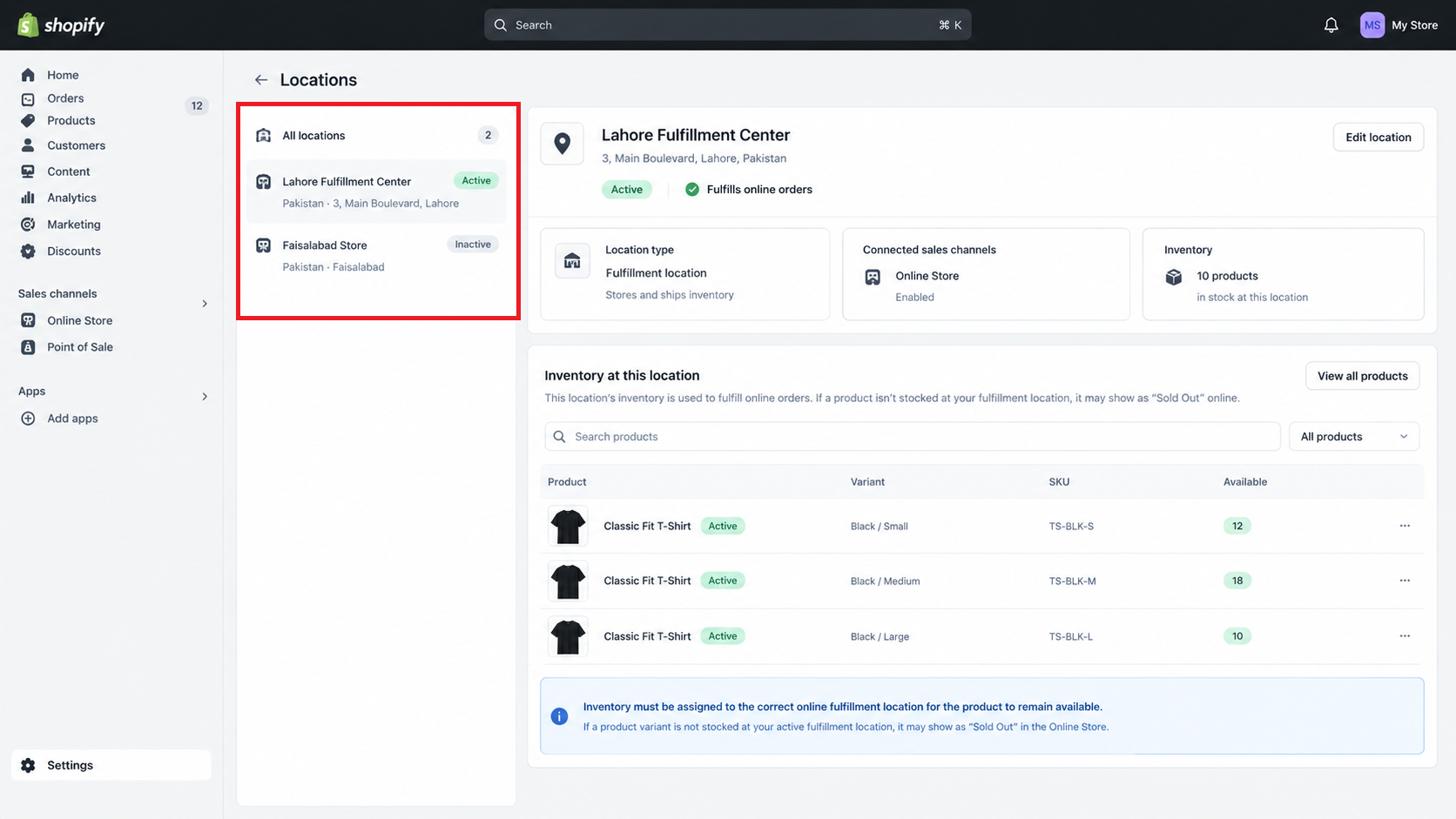
Inventory has to sit at a location that can fulfill the online order.
Follow Shopify’s location fulfillment guidance rather than enabling every warehouse. If stock must move to an online warehouse, arrange a real transfer; do not duplicate the quantity at both locations. Retest the same variant after correcting the assignment.
4. Check Whether That Location Ships to the Customer
A product may be available in one country but sold out in another because its stocked location does not serve both. Shopify calls this fulfillable inventory.
- Open Settings > Shipping and delivery, then the product’s shipping profile.
- Confirm the product and stocked Shipping from location belong to that profile.
- Check that the location has a shipping zone covering the customer’s address and a suitable rate. Add coverage only where you actually intend to deliver.
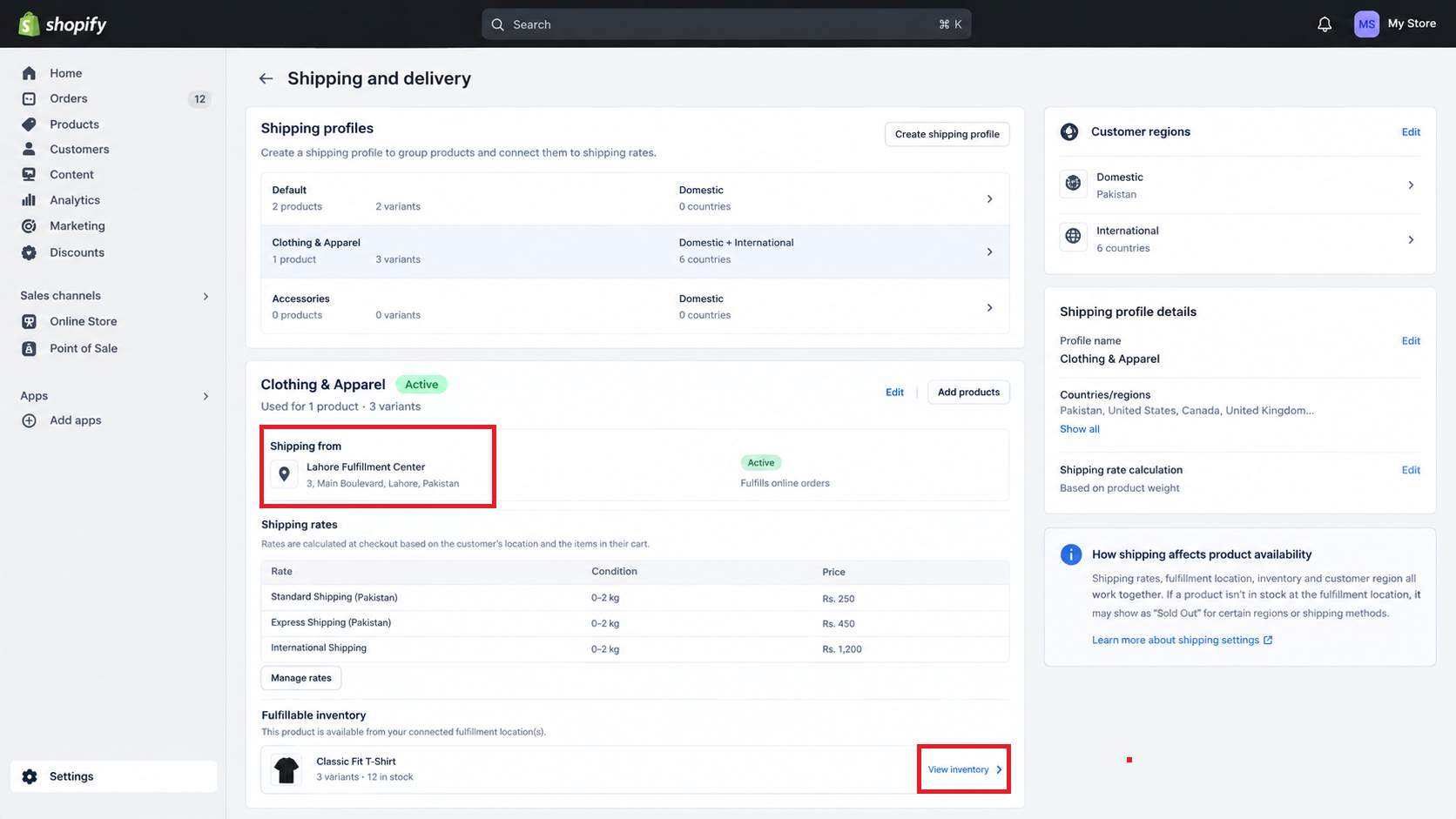
Shopify can mark stocked products unavailable when no stocked location ships to that buyer. - Save changes. Select the affected country on the storefront and retry the same variant. Check shipping at checkout without placing an order.
If your settings show Shipping options by market instead of profiles, review the corresponding product and location conditions in Markets. Shopify explains this alternative shipping setup.
Some stores also show a Fulfillable inventory display setting. Choosing Show all products does not make unshippable stock purchasable. Leave pickup-only items pickup-only.
If Add to cart works but checkout has no delivery option, check shipping-rate conditions, including cart weight or value. That is a checkout problem, not necessarily an incorrect Sold Out label.
5. Review Publishing When an Option Is Missing
Publishing matters when a product or variant disappears for a particular market. An unpublished option is generally hidden, so this check alone will not fix a visible variant with no sellable stock.
- Open the product’s Variants section and inspect the affected variant’s Publishing column.
- Click its channel or catalog icons, or select the variant and choose Manage publishing. Enable only the intended channels and catalogs, then save.
- Under Markets, confirm the customer’s market is active and its applicable catalog includes the product and variant.
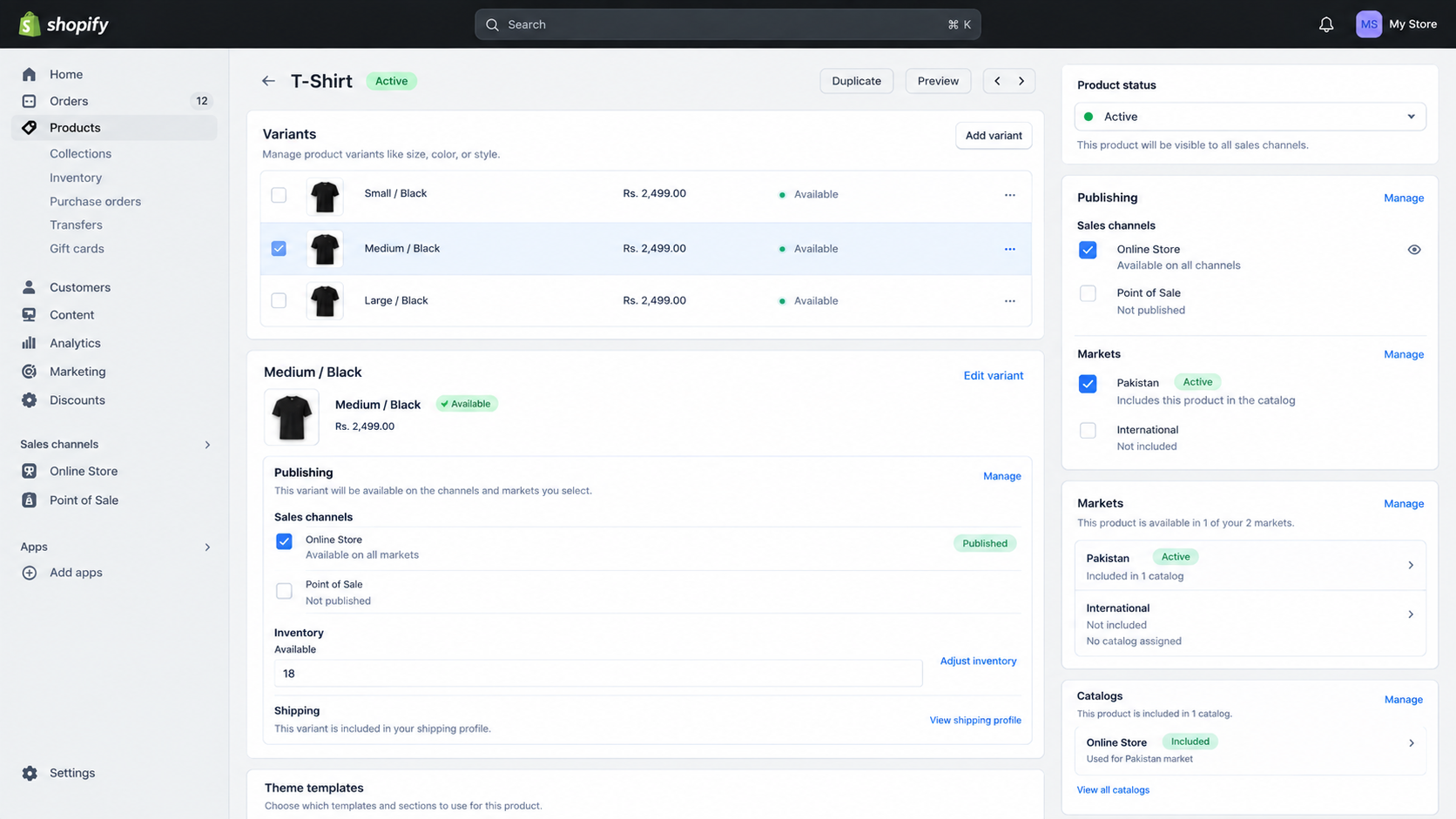
A variant needs to be published to the channel or catalog where the customer is shopping.
Both the parent product and variant need the relevant publication. Shopify’s variant publishing instructions cover these controls. Recheck the storefront in the same country after saving.
6. Compare the Product in an Unpublished Theme
The price and image may change when a customer selects another size while a faulty theme button stays on Sold Out. A fresh theme comparison helps separate that display problem from stock availability.
- Open Online Store > Themes. Duplicate your current theme before editing its blocks or code.
- Add a fresh, uncustomized Shopify theme and leave it unpublished. A duplicate containing the same custom code is not a clean comparison.
- Use the draft theme’s Preview action. Open the same product, select the same variant, and match the country using View as.
- Check whether the correct variant can be added to the cart. In your unpublished copy, test suspect app blocks or embeds one at a time.
Keep the test unpublished. The illustration below shows a Live label; your comparison should show Draft, as described in Shopify’s theme preview instructions.
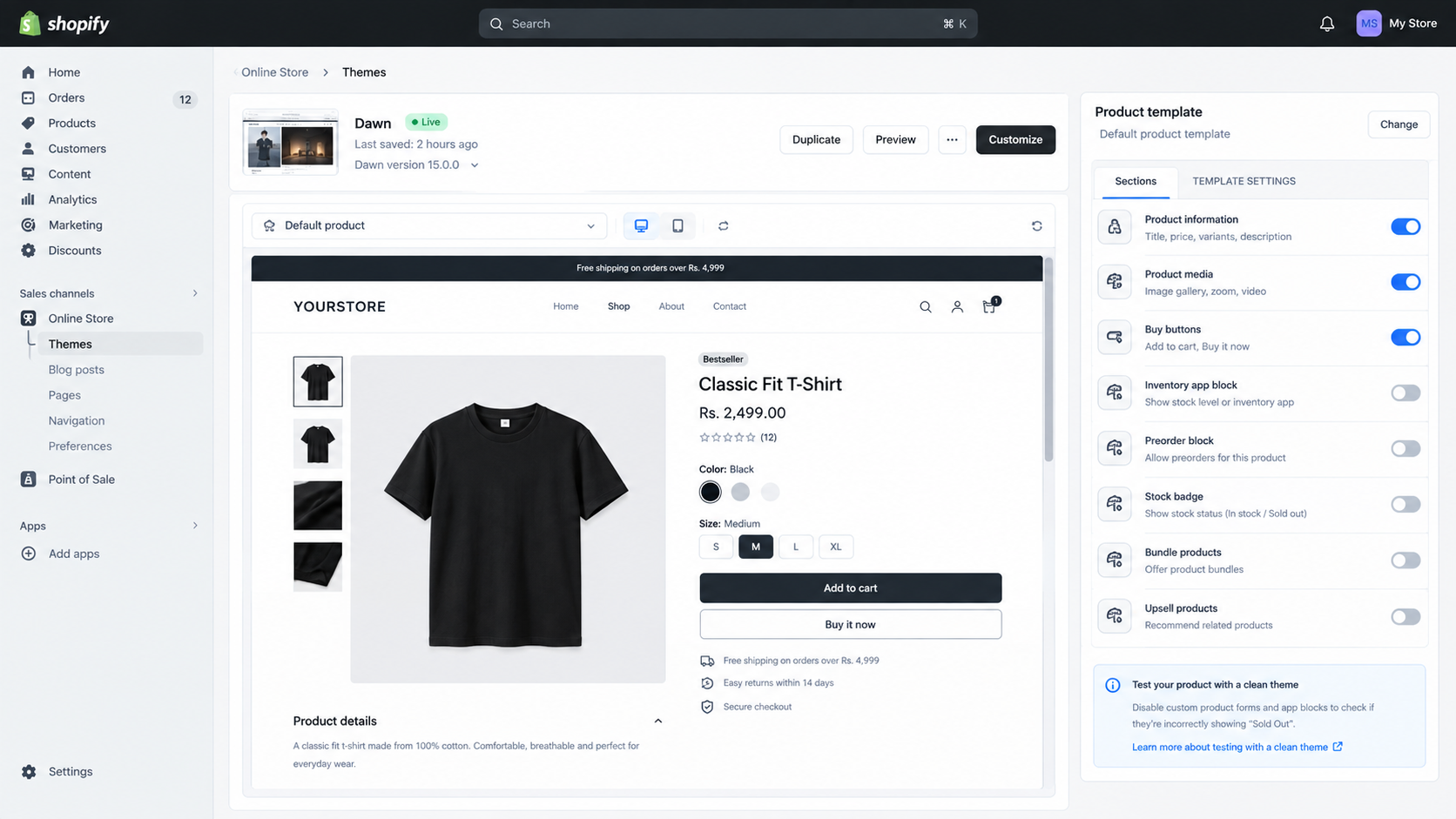
If the fresh preview works, give the theme or app developer both results. If only a collection badge is wrong, report that separately; hiding it with CSS does not repair availability.
If a private window works but your normal browser does not, match the country and variant first. Then clear only that storefront’s site data. This can remove its cart, sign-in, and country preferences; it cannot correct inventory.
7. Find What Changes the Stock Back
A quantity that returns to zero after a sync needs its source corrected, not another manual adjustment. Supplier or inventory apps may be updating a different warehouse or SKU.
- Open the variant’s Inventory > View adjustment history. Match the time of the change with Created by and Activity to identify the app, channel, or staff action.
- Check that source’s SKU and warehouse mapping against the Shopify variant. Correct the source count or mapping with the provider’s instructions.
- Resync only when the provider recommends it, then check the storefront after the next sync.
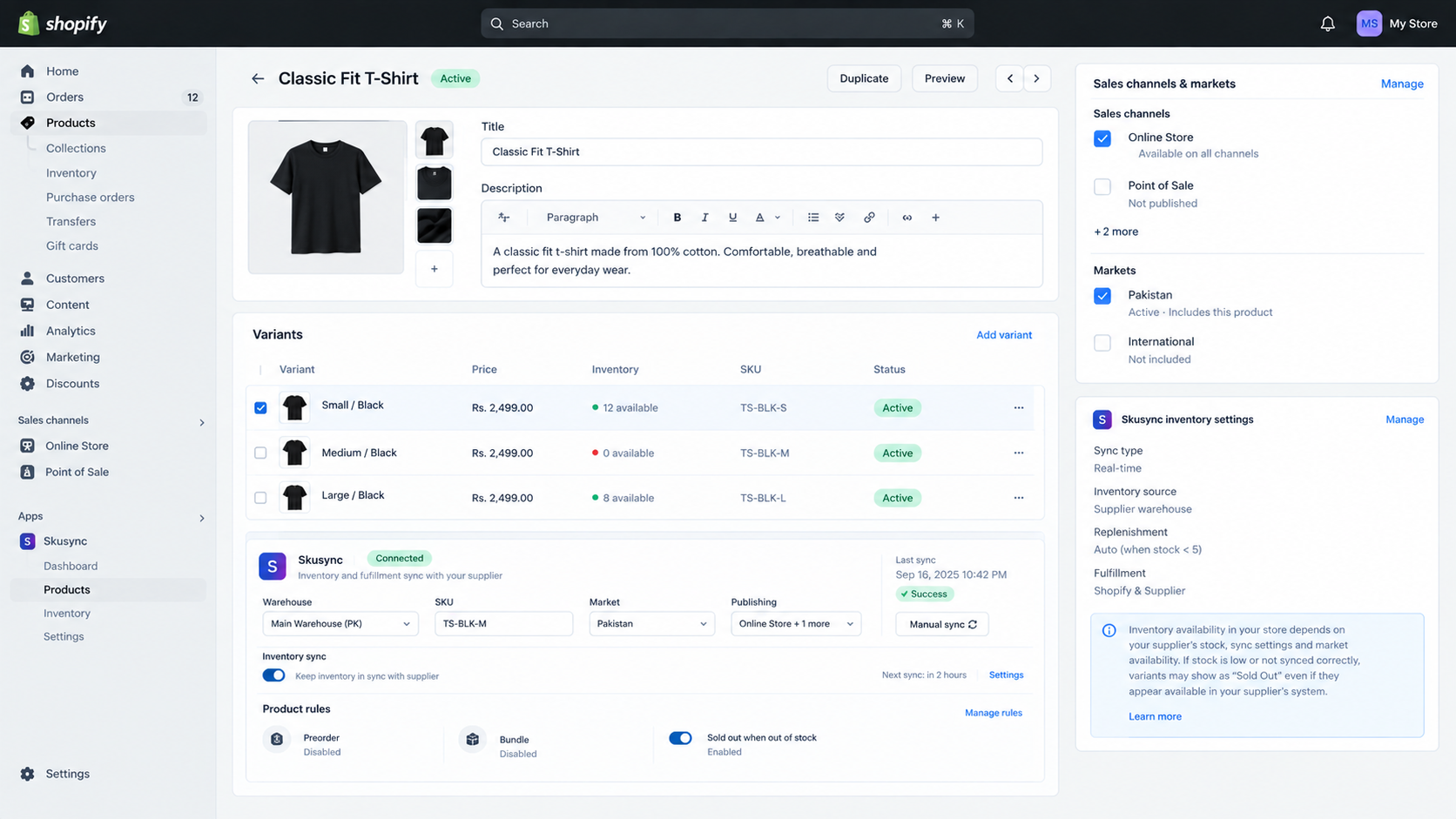
Supplier or preorder apps can put the Sold Out state back after a manual inventory fix.
Shopify’s inventory history guide explains the entries. A draft theme does not isolate inventory or app settings: pausing a live fulfillment app can affect real orders.
For Shopify Bundles: availability depends on the components and quantities required. For a tracked component with overselling disabled, a two-mug bundle needs two available mugs. Other bundle apps may calculate stock differently.
8. Give Support the Exact Variant and Test Results
A remaining Sold Out label is easier to investigate with a reproducible example than a screenshot of the total stock.
- Record the product URL, variant/SKU, customer country, and Available quantity by location.
- Capture the relevant fulfillment, shipping, publishing, and inventory-history details.
- Note whether the fresh theme can add that variant to the cart.
Contact Shopify Support through its Help Center if the same problem remains in the fresh preview. For a theme-only or identified app problem, send the comparison to that developer. Share evidence privately and redact customer details.