How to Fix After Effects Overflow Converting Ratio Denominators Error?
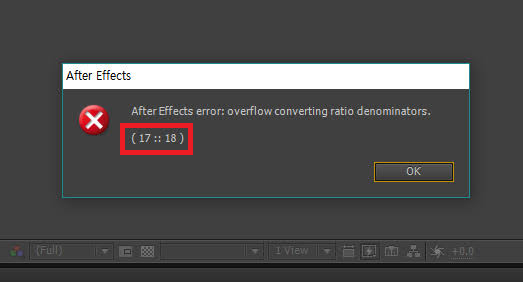
Adobe After Effects stops an import, preview, or render with “Overflow converting ratio denominators” when an internal calculation fails. The message often includes 17 :: 18 or 17 :: 19, but neither code identifies the offending clip or setting.
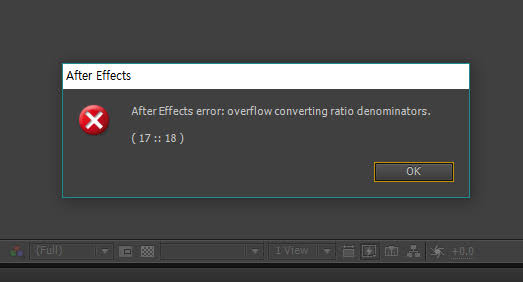
A recording can play normally outside After Effects yet trigger this error when imported. Incorrectly interpreted footage and speed changes are documented triggers.
Some affected projects also show blank timeline rows while the composition still previews; that alone does not mean your layers have been deleted.
| Where it fails | Relevant check |
|---|---|
| Importing one recording | Convert that clip to constant frame rate. |
| Creating a composition from footage | Check the detected footage and composition frame rates. |
| Sending clips from Premiere or changing speed | Test a rendered copy or remove the speed change temporarily. |
| Opening a project with blank timeline rows | Import a project copy into a new project to recover access. |
1. Find the Clip or Edit That Triggers the Message
Repeat the failed action in your project copy. Note the full message, timecode, and last clip or property changed.
- Turn off a suspected layer’s Video switch, or its effect’s fx switch, and repeat the failed action.
- Restore each switch before testing another.
- For repeated alerts during opening, enable Caps Lock before opening the copy. This pauses viewer updates and may allow inspection. Turn Caps Lock off before previewing again; it does not repair the project.
2. Convert the Problem Recording to Constant Frame Rate
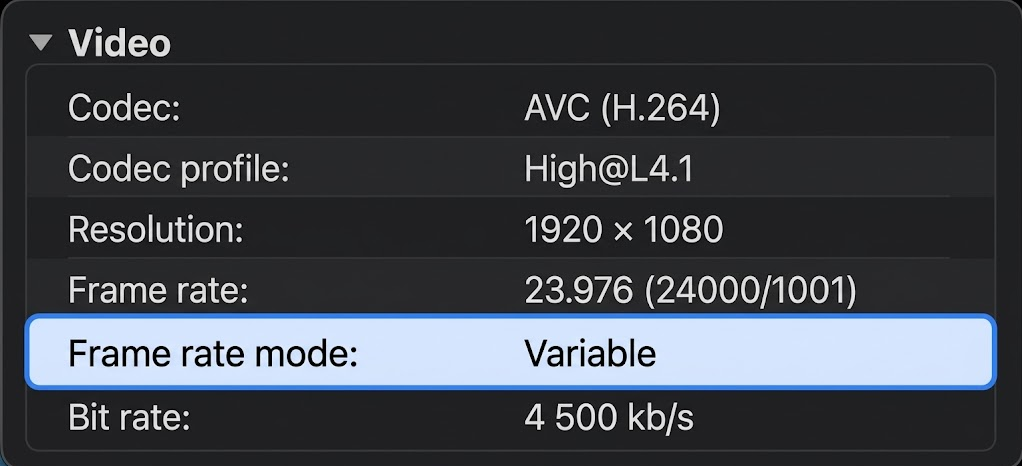
Screen captures and phone recordings can contain variable frame rate (VFR). A constant-frame-rate (CFR) conversion gives After Effects consistent frame timing without relying on Interpret Footage, which can shorten the usable video.
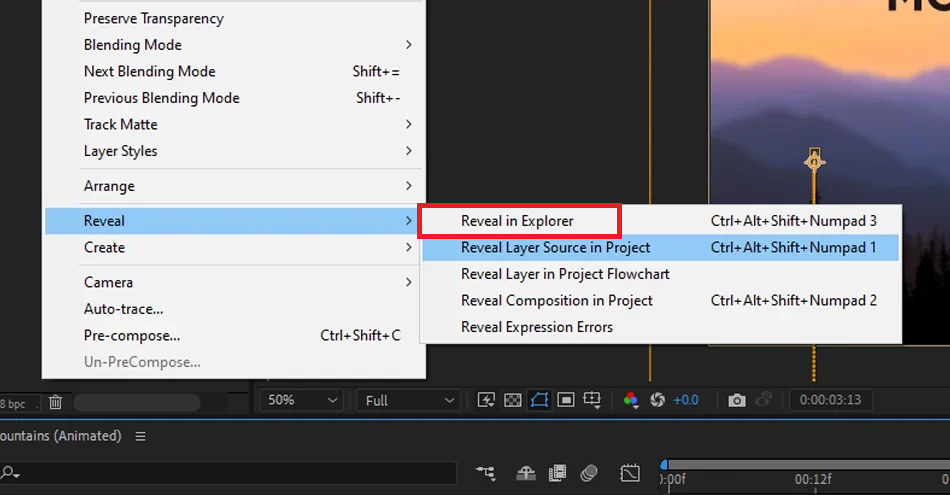
- Locate the source file with Reveal in Explorer or Reveal in Finder. From a timeline layer, this may be under Reveal.
- Open the file in MediaInfo and look for Frame rate mode: Variable in its video details. An MP4 or MOV extension alone does not establish VFR.
- Open the source in HandBrake. Choose Production Standard, then on the Video tab select Constant Framerate and the intended recording rate, such as 29.97 or 60.If the intended rate is unknown, use Same as Source with CFR. HandBrake’s frame-rate controls explain how the rate is detected.
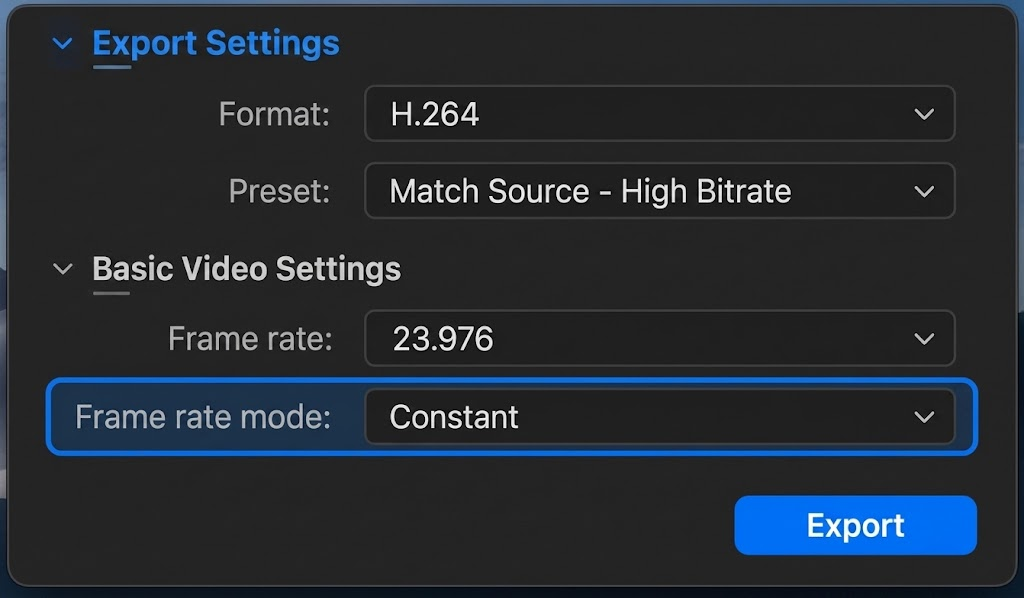
- Check resolution, audio tracks, and output location, then select Start Encode. Save to a new filename; production presets can create large files.
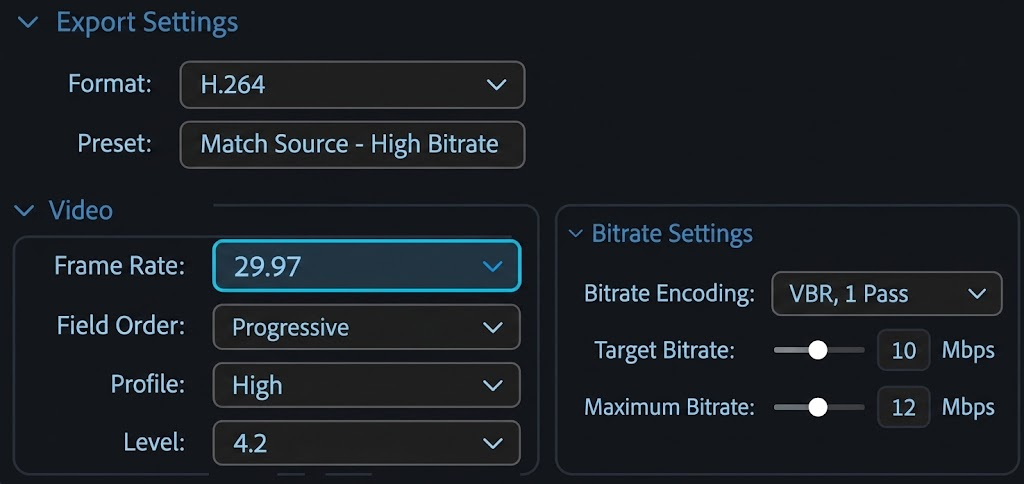
Constant-frame-rate media gives After Effects stable timing values instead of irregular frame intervals. - Import the result. Select the affected timeline layer and Alt-drag (Windows) or Option-drag (Mac) the new Project-panel item onto it. This replaces that layer’s source while retaining its properties.
Check the beginning, end, audio sync, and failed section. Conversion is not lossless. For HDR, transparency, or multichannel work, use an intermediate export that preserves those properties instead. Success implicates the original file’s encoding or timing, not necessarily VFR.
3. Correct a Frame Rate That Was Read Incorrectly
23.976, 29.97, and 59.94 are valid rates. After Effects also supports footage with different rates in one composition. Do not convert everything to 30 fps just because the error mentions ratios.
Composition Settings
Open Composition > Composition Settings and record the existing Frame Rate. Correct an unintended value such as 30.03 to the actual delivery rate, then click OK.
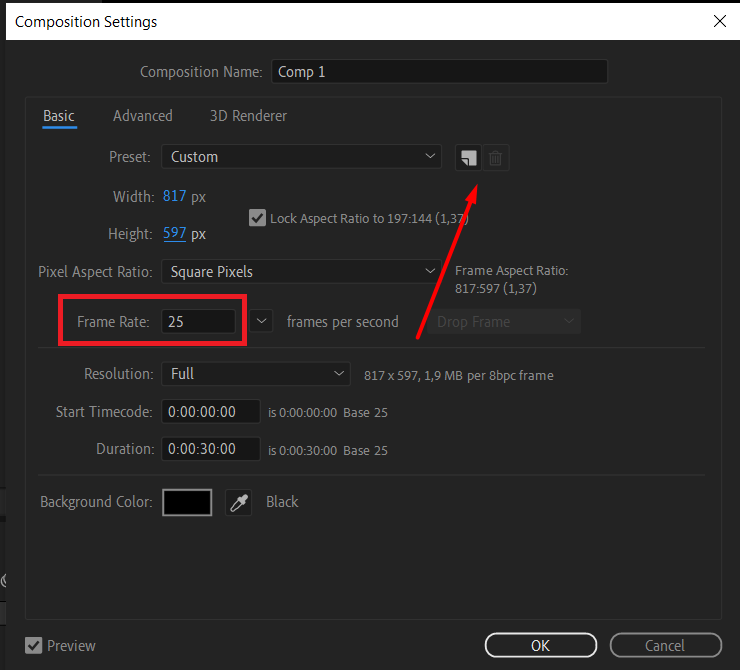
Preview the failed section and check keyframe alignment, cuts, and duration. Undo if the change disrupts the edit without removing the error. If creating a comp by dragging footage fails, create one manually with the intended preset and add the clip afterward.
Interpret Footage
For a genuinely misread source, select its Project-panel item and open File > Interpret Footage > Main. Record the original setting, choose Conform to frame rate, enter the known recording rate, and click OK. Use your recording’s rate, not the screenshot’s example.
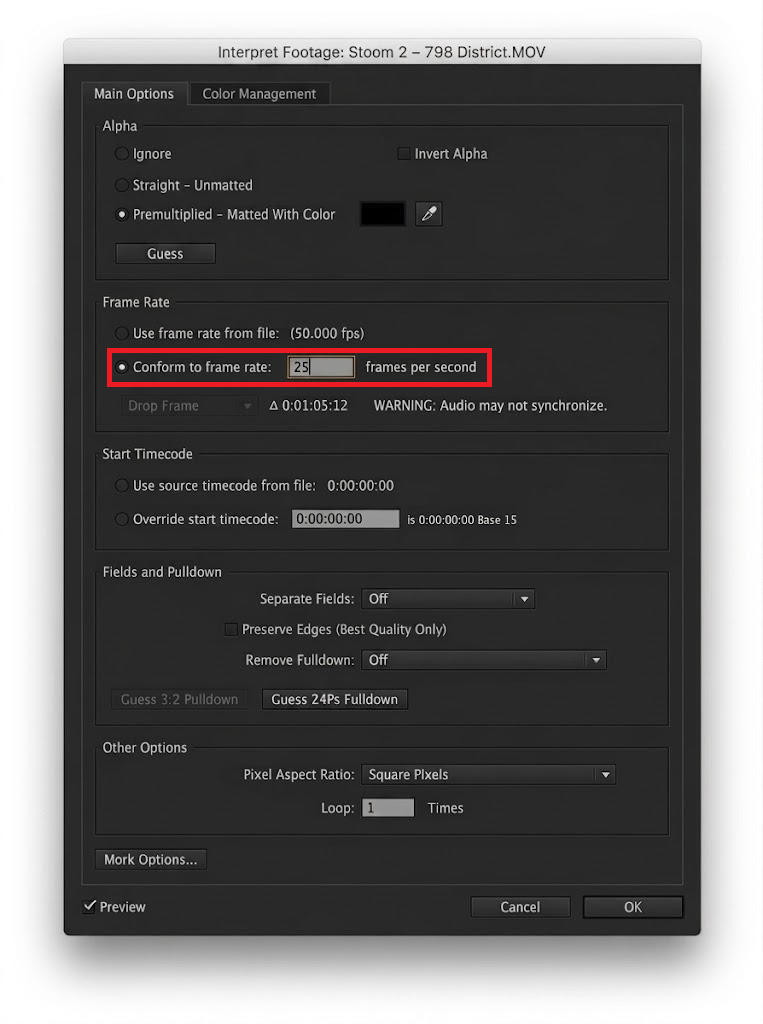
Conforming changes playback speed and video duration; it does not re-encode VFR. Interpretation affects every layer using that footage item.
Check the final frames and audio sync. If either is wrong, restore the original interpretation and transcode instead.
4. Test Premiere Clips and Speed Changes Separately
If Replace With After Effects Composition triggers the error, duplicate the Premiere sequence. Export the affected clip or section to a new file, using a fixed frame rate and an editing codec such as ProRes or DNxHR, then import it directly into After Effects.
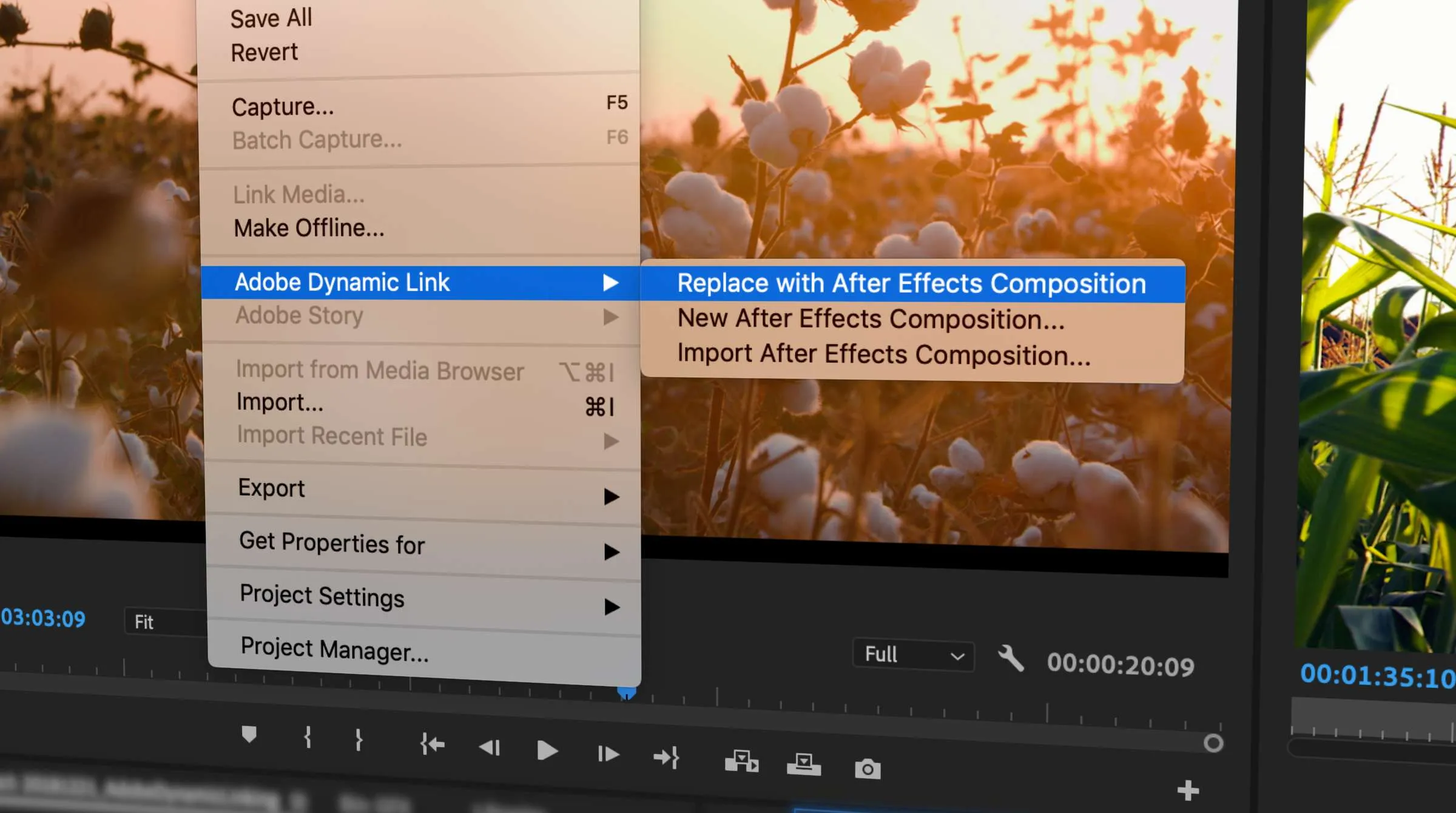
The rendered file avoids transferring the original clip’s editable properties. If it works, keep it as a workaround alongside the editable originals.
Before trying Dynamic Link again, check Adobe’s version compatibility requirement for Premiere and After Effects.
For a clip that fails after retiming, record its speed settings in the duplicate. Test Speed/Duration: 100% in Premiere, or Layer > Time > Time Stretch: 100% in After Effects. These restore normal speed for comparison, not the finished edit.
Restore the speed settings if the comparison does not help. If normal speed removes the alert, restore the intended speed in a separate copy and try rendering that section alone:
- Set the work area around the section, then choose Composition > Add to Render Queue.
- Set Render Settings > Time Span to Work Area Only. Choose an editing codec in Output Module, set Output To, and render.
Import the file only if that render succeeds. If it fails too, retain the copy for support.
5. Check the Effect on the Failing Layer
A plug-in can trigger the error even on valid footage. Disable effects individually with their fx switches, repeating the failed preview or render.
For a mask-editing failure, duplicate the composition and remove only the suspected mask from the duplicate for comparison. Keep the original mask intact.
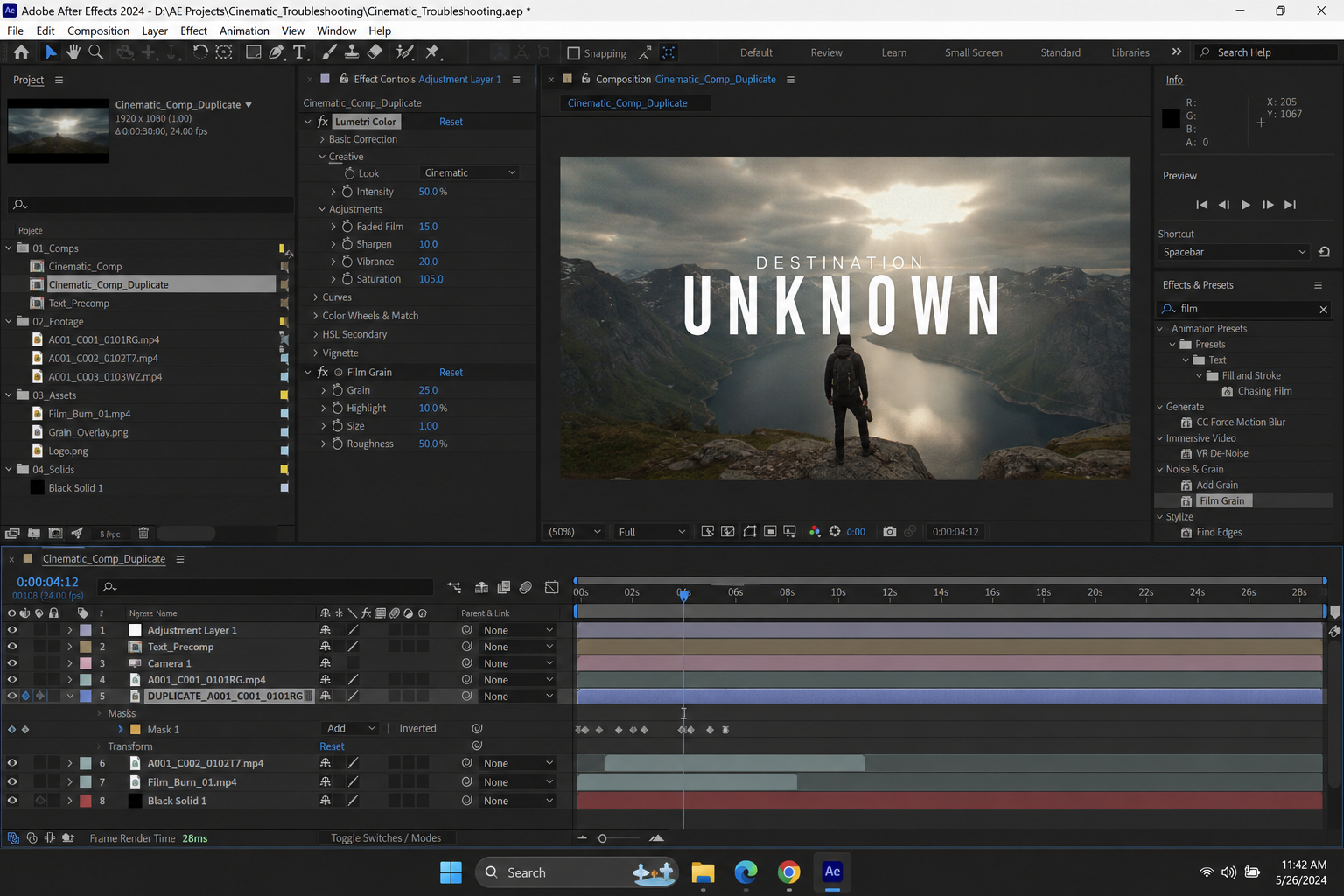
If disabling one effect stops the error, keep it disabled in the test copy while investigating it. If none helps, restore them. Do not redraw unrelated masks.
Refresh a Preview After Changing the Project
To discard cached frames after a correction, save and choose Edit > Purge > All Memory & Disk Cache, then confirm. This rebuilds previews; it does not repair source footage or guarantee a fix for this error.
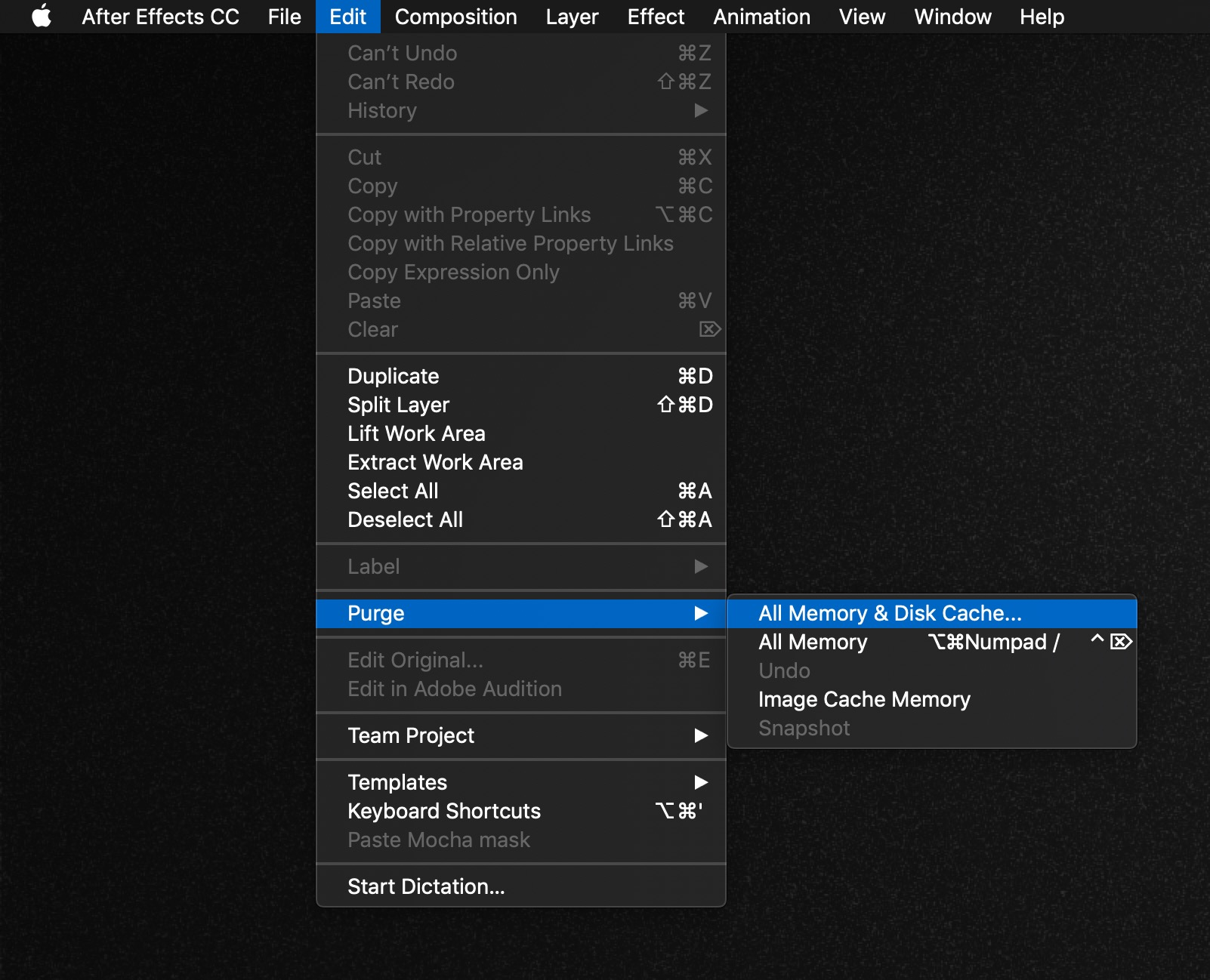
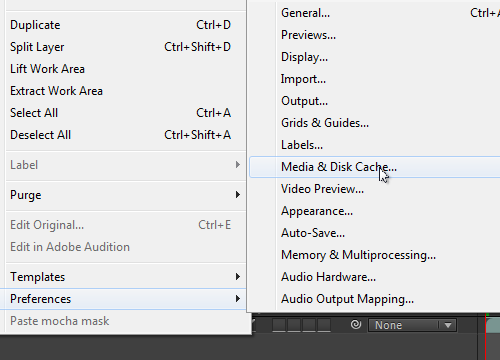
Cache preferences appear under Edit > Preferences on Windows or After Effects > Settings on Mac. The category is Disk in newer releases and Media & Disk Cache in older ones.
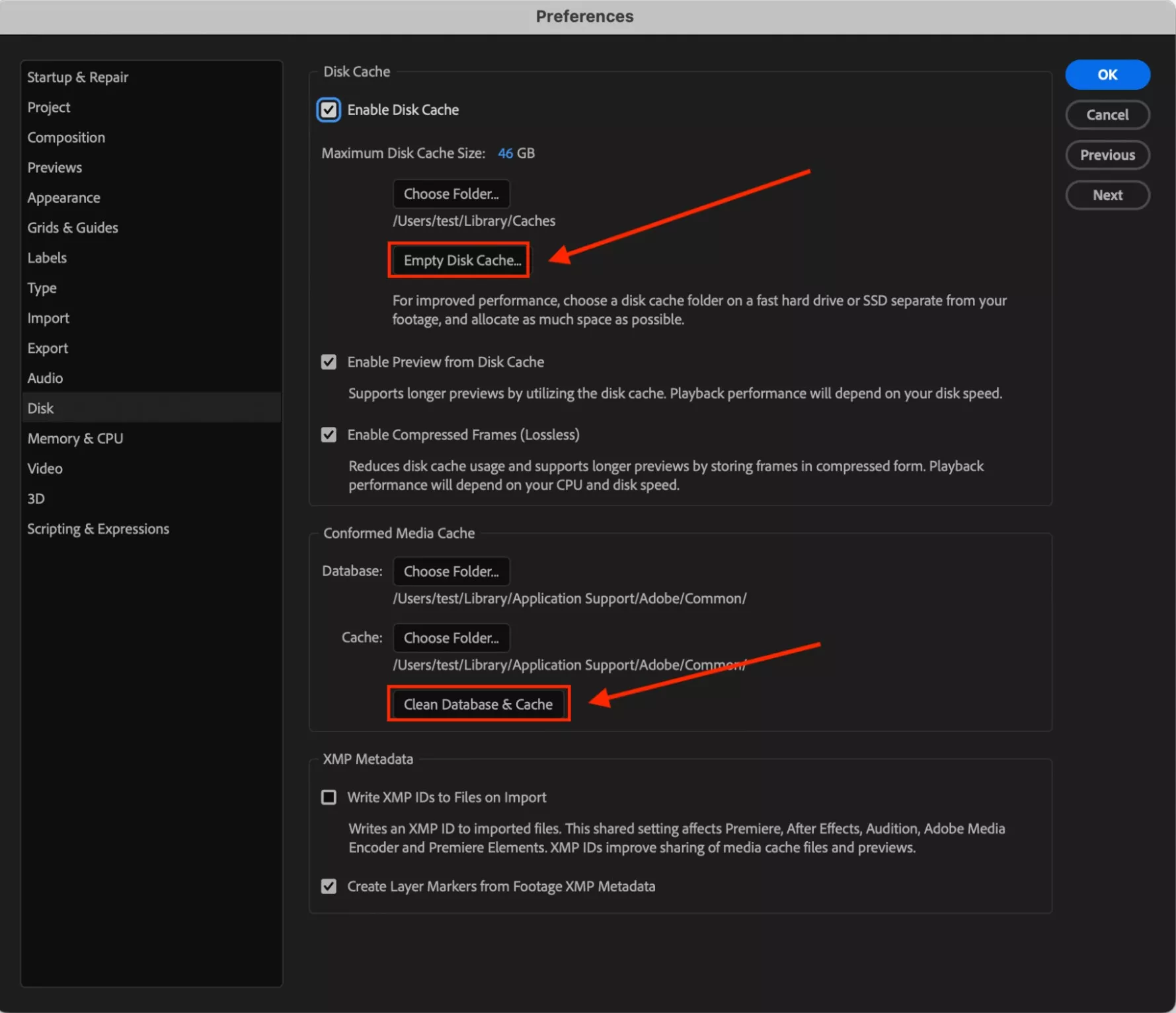
Empty Disk Cache duplicates the disk portion of the purge; running both is unnecessary. Clean Database & Cache is separate maintenance for cached media whose sources are unavailable. Connect media drives first, and expect previews or audio to rebuild.
If the alert changes to “Cached Preview needs 2 or more frames to playback”, check that separate preview problem rather than continuing to change frame rates.
6. Compare After Effects Versions
Adobe’s fixed-issues history includes a 17 :: 19 bug involving time-stretched compositions sent to Media Encoder, not a universal cure for this error.
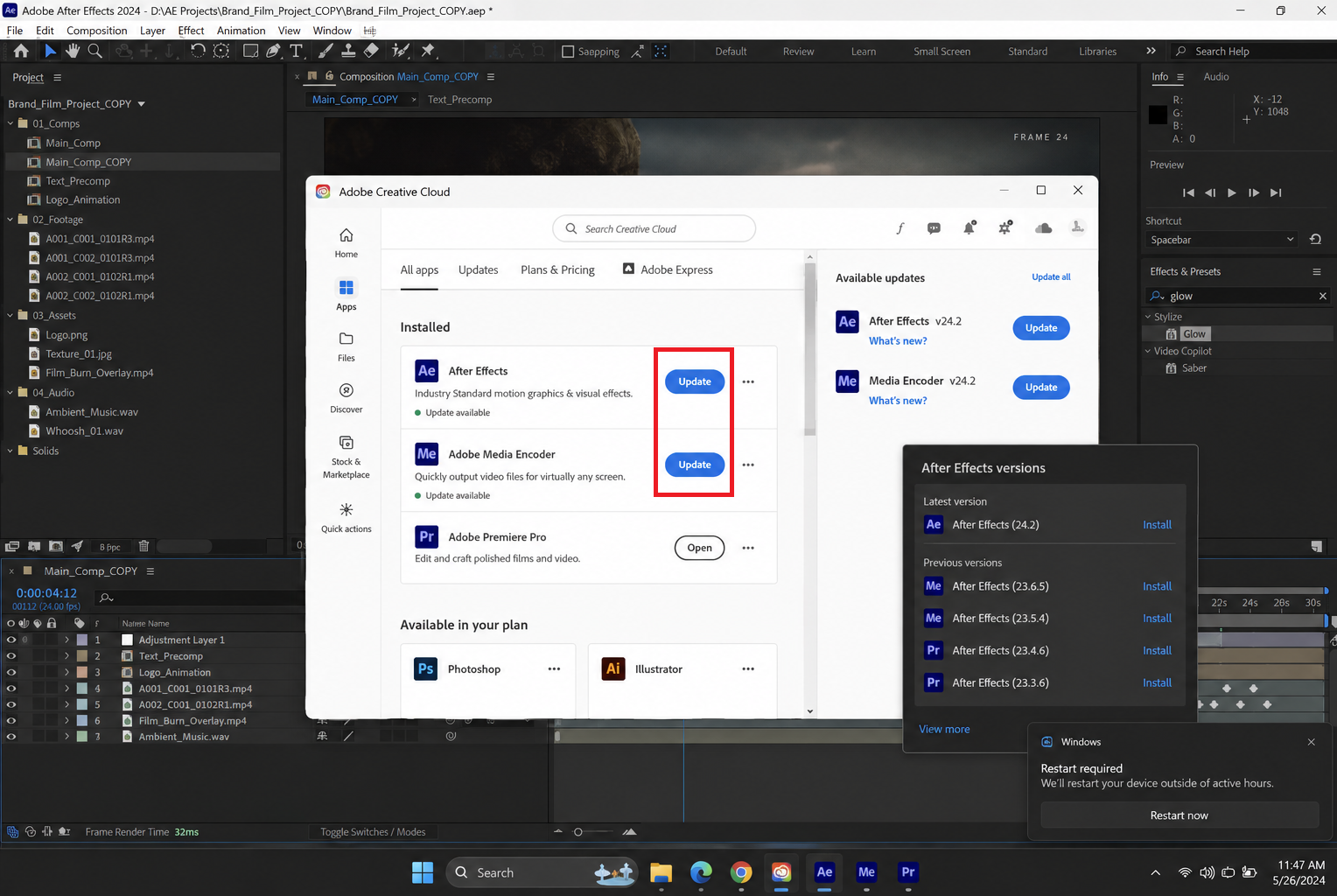
- In Creative Cloud > Apps, check for After Effects updates. Check Media Encoder too if queueing fails. Retain the previous installation until the project copy works.
- If the problem began after an update, compare the copy in your previously working version, if available under More actions > Other versions.Adobe’s older-version instructions cover installation and retaining previous releases.
Repeat the failed action in each version. Older releases may not open newer projects or reproduce newer features. Keep your originals; do not install unsupported historical releases to match old reports. Ask IT before changing a managed installation.
7. Recover Access to an Unusable Composition
Importing a project into a fresh one has helped users regain access to blank or inaccessible timeline rows. It can carry the original fault across too; recovery is not proof of repaired project data.
- Create a new project and choose File > Import > File. Select the saved .aep copy.
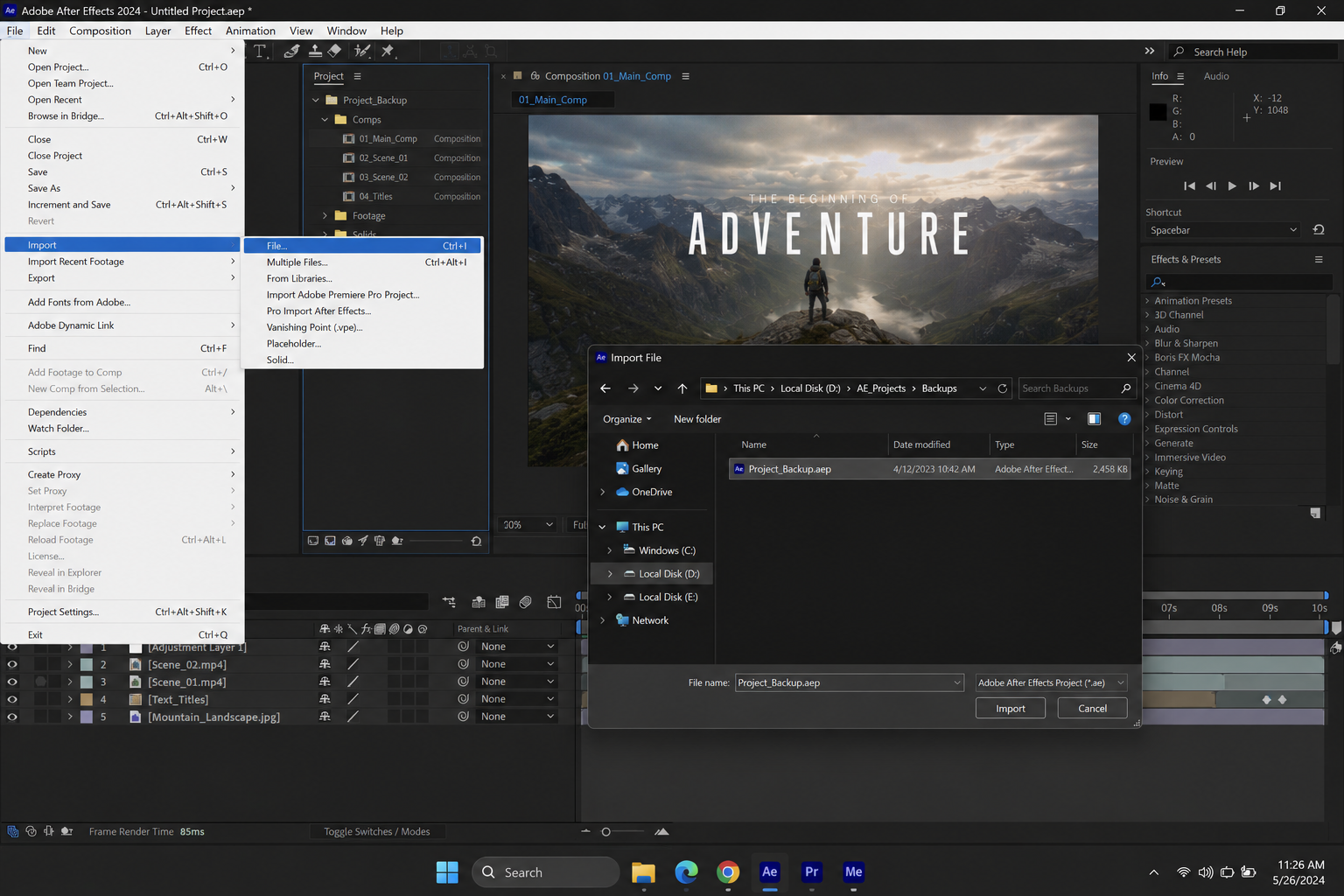
Importing the old project into a clean file can recover good comps while isolating damaged comp data. - Create a composition with matching dimensions, frame rate, and duration. Copy accessible layers into it in small groups, preserving order and start times. Check parenting and expression references afterward. Avoid Select All if that action crashes the affected comp.
- Save under a new name after each successful group. If the error returns, inspect the last group’s footage, effects, and speed settings. Keep the original project and its Auto-Save files.
Reopen the recovered project and check a preview and short render before resuming work. If the error persists, retain the copies for investigation.
If the Error Still Returns
For a project that works on another comparable installation, Startup & Repair offers Start in Safe Mode for a temporary comparison.
Find it in Windows Edit > Preferences or Mac After Effects > Settings. Missing third-party effects can change the result, so do not save over the working project.
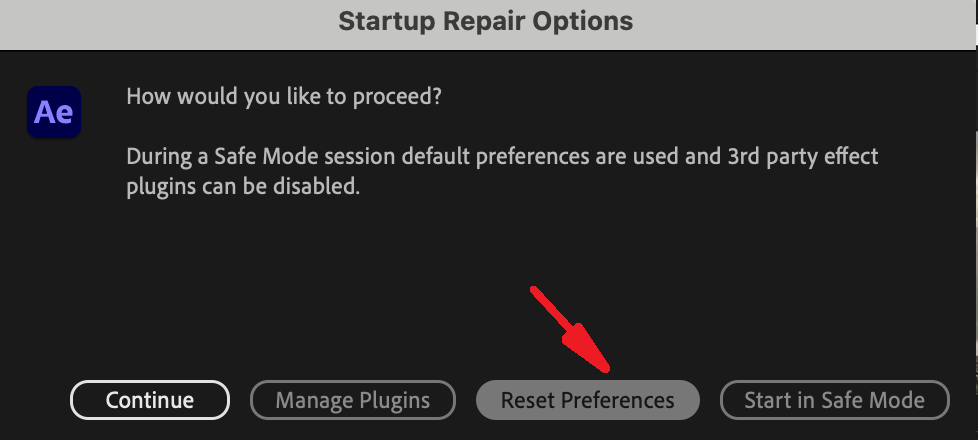
A permanent preference reset is not required just because this error appears. Back up required preferences and workspaces before any support-directed reset. If After Effects also closes with other errors, investigate the separate After Effects crashing problem.
Send Adobe Support the full message, app/OS versions, codec, frame-rate mode, failing timecode, and converted-clip/fresh-project results. “Zero denominator” is a different message; include the wording, not just the 17 code. Keep confidential footage out of public posts.


