How to Fix Essential Graphics Panel Missing in Premiere Pro?
Premiere Pro 25.0 and later no longer include Essential Graphics in the Window menu. Its editing controls moved to Properties, and template browsing moved to Graphics Templates. Older tutorials still refer to the retired panel.
Your titles and templates have not been removed just because the panel name changed. In newer releases, their controls appear in Properties when you select the relevant clip. In older releases that still include Essential Graphics, a closed panel or changed workspace can hide it.
Check Your Premiere Version
The version open on your computer matters, especially if you have more than one installed.
- Open Help > About Premiere Pro on Windows. On macOS, open the Premiere Pro application menu beside the Apple menu and choose About. The application may be named Premiere in newer releases.
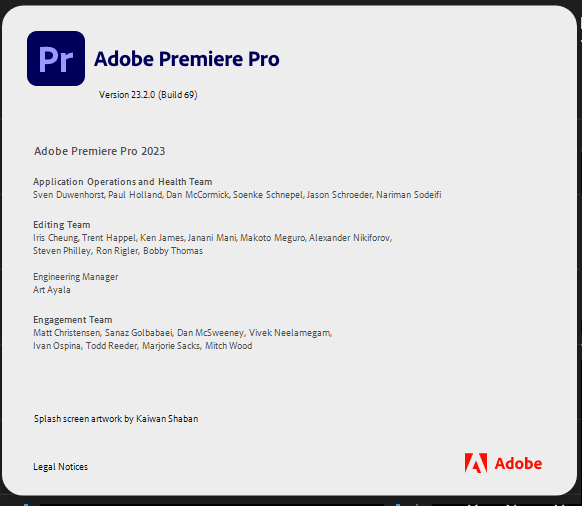
Capture the application name, version and build, including whether it is a beta. Hide account or license information.
| Installed version | Where the graphics controls are |
|---|---|
| 25.0 or later | Properties for editing; Graphics Templates for templates. |
| Earlier release with Essential Graphics | Window > Essential Graphics, with separate Edit and Browse tabs. |
Some beta builds introduced the replacement panels before 25.0. If yours has Properties and Graphics Templates, follow the newer layout below. These instructions cover the desktop Premiere editor, not Premiere Elements or After Effects.
1. Open Properties or Graphics Templates in Newer Releases
The old panel combined two jobs. Properties now shows controls for the selected item; Graphics Templates holds the templates you can add to a sequence. Opening the template browser alone will not reveal a title’s font or alignment settings.
Edit an Existing Title or Caption
- With your project open, choose Window > Properties.
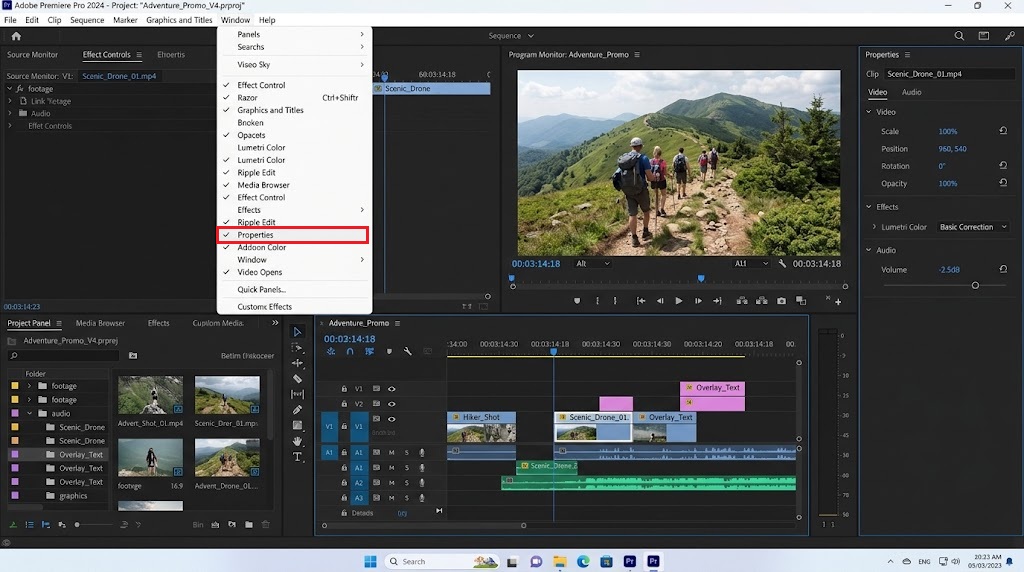
Properties contains editing controls; it is separate from the Graphics Templates browser. - Select the actual title graphic, caption block or Motion Graphics template clip in the Timeline, not the footage underneath it. Put the playhead over that item to see it in the Program Monitor.
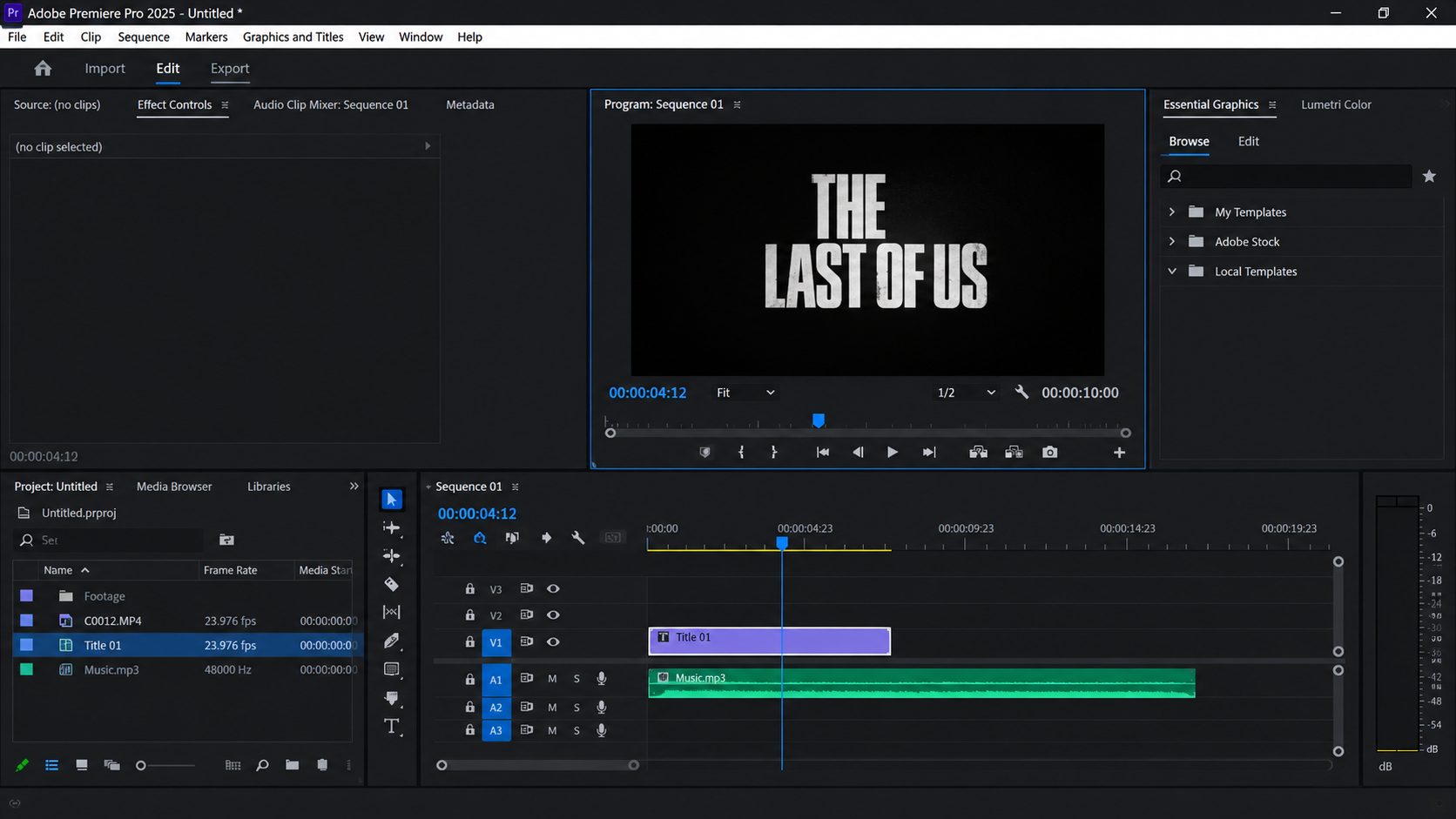
Use a sample sequence and select the actual title or caption clip, rather than the footage underneath it. - For text created directly in Premiere, right-click the title in the Program Monitor and choose Edit Properties. Adjust its font, appearance or alignment in Properties, scrolling to reveal additional controls.
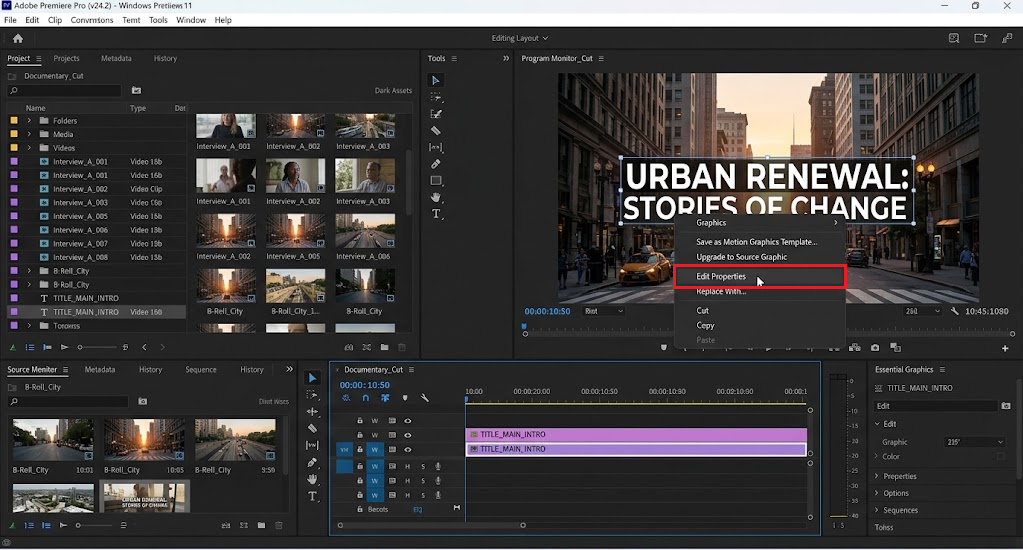
Capture the current native-text workflow. An After Effects template can expose a different set of controls.
Captions use the selected caption block’s controls. An After Effects template offers only the options its author made editable, so its settings may differ from a title created directly in Premiere.
Once you can change the selected item’s formatting, the editing controls are accessible. There is no need to reinstall Premiere or reset preferences to bring back the retired panel name.
Find and Add a Template
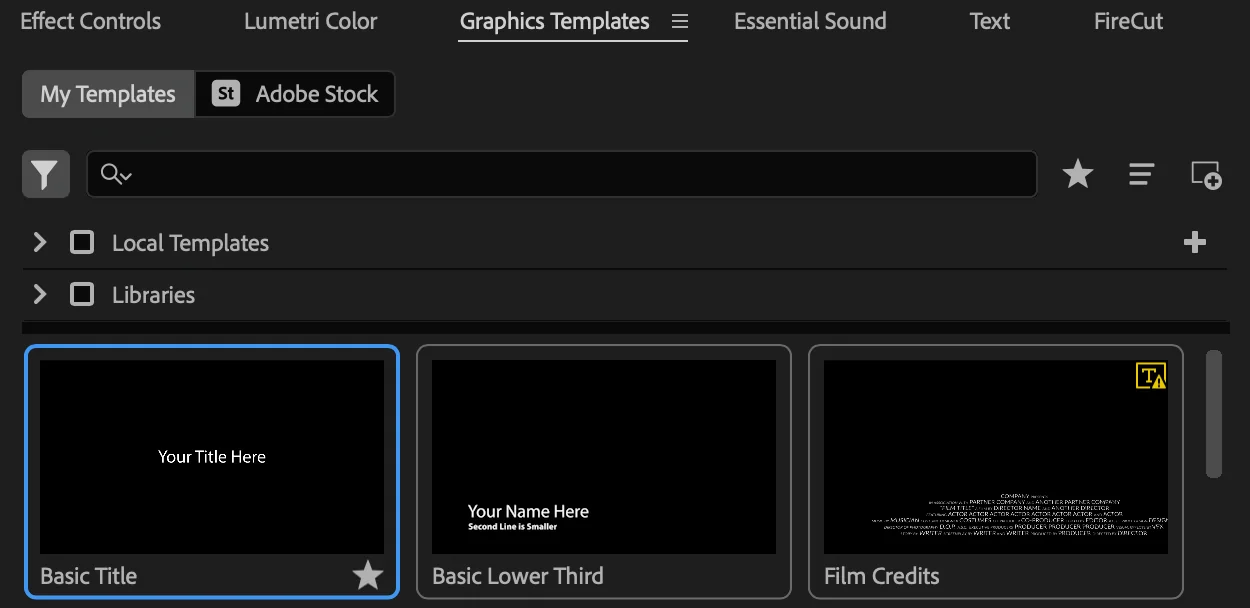
- Choose Window > Graphics Templates, then open My Templates to find installed templates.
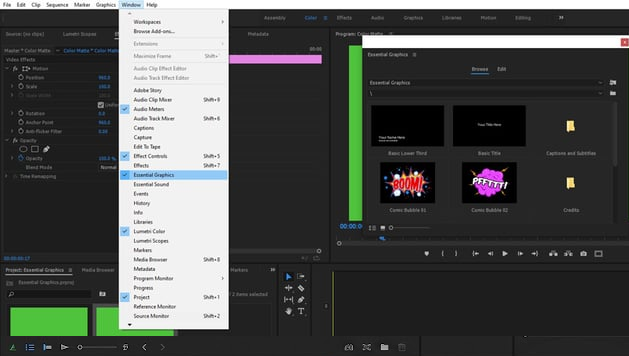
Show templates that really exist in the capture environment. This browser does not have the old Essential Graphics Edit tab. - Drag a template onto a video track in your sequence. Select that new Timeline clip to edit its available controls in Properties.
If the browser opens but a particular .mogrt file is absent, check that it is installed using Adobe’s template installation instructions. A missing template is different from a missing panel.
2. Restore Essential Graphics in an Older Release
When your release still includes Essential Graphics, reopening it or restoring the workspace can make it visible again. This does not restore the removed panel in version 25.0 or later.
- Choose Window > Essential Graphics. Click its panel tab if it is behind another panel.
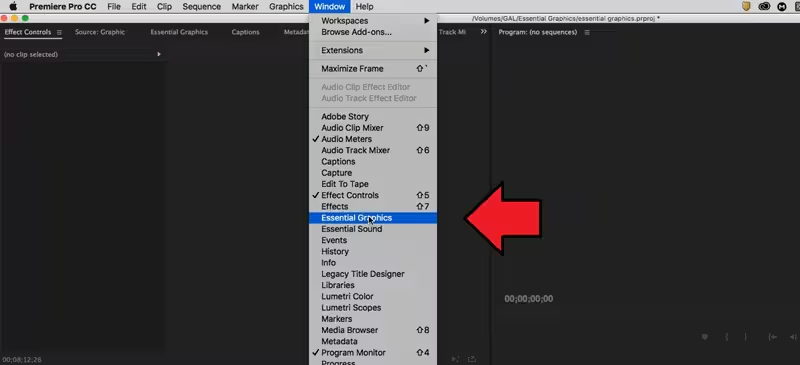
Use an authentic older supported capture environment and record its version; do not recreate this menu in a current-release image. - Select your title graphic in the Timeline, then open the panel’s Edit tab. If the formatting controls appear, no workspace reset is needed.
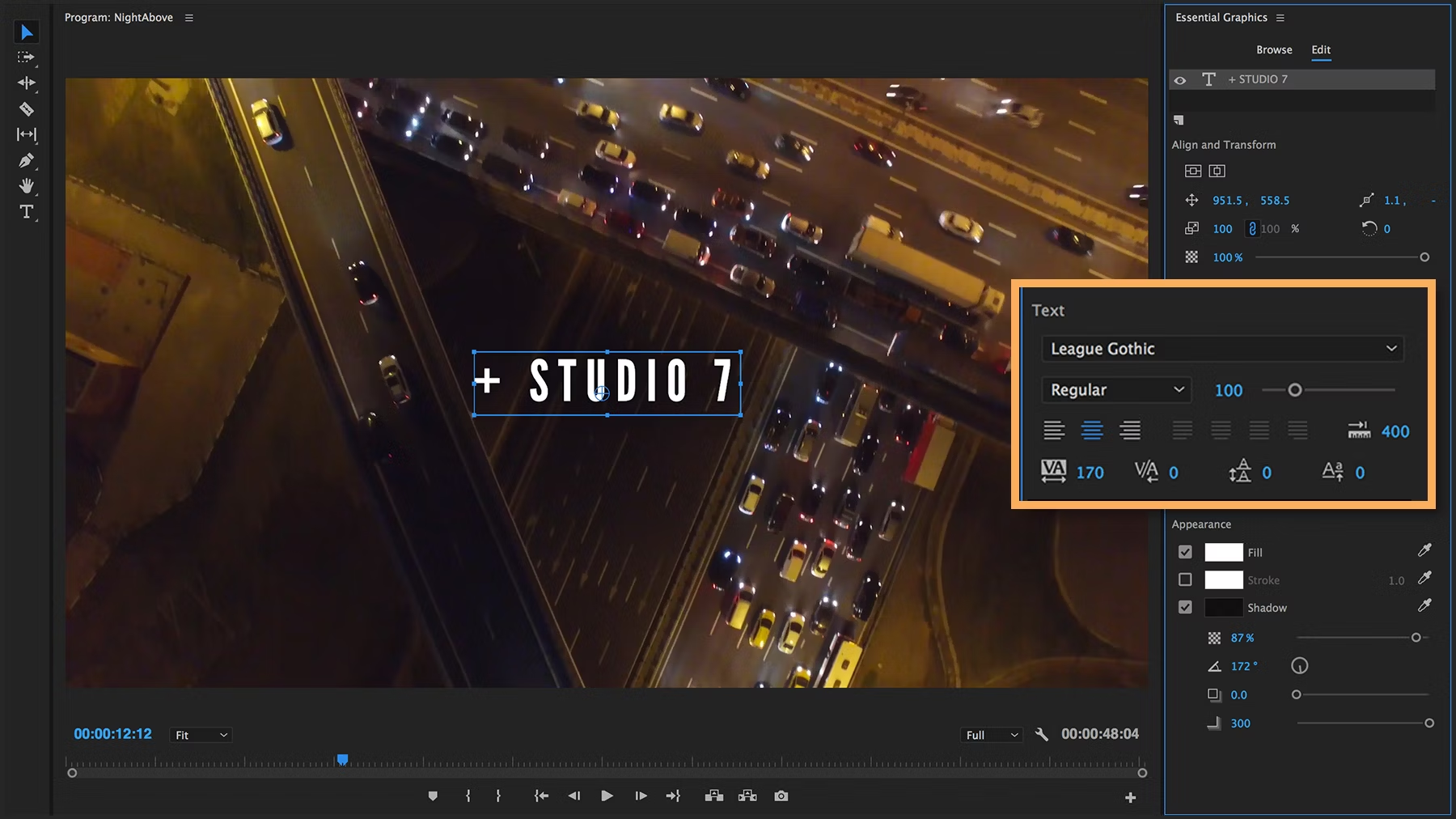
The graphic must be selected to display its editing controls. Stop here if the panel is accessible. - Optional: To keep your current layout, choose Window > Workspaces > Save as New Workspace. Enter a different name and select OK.
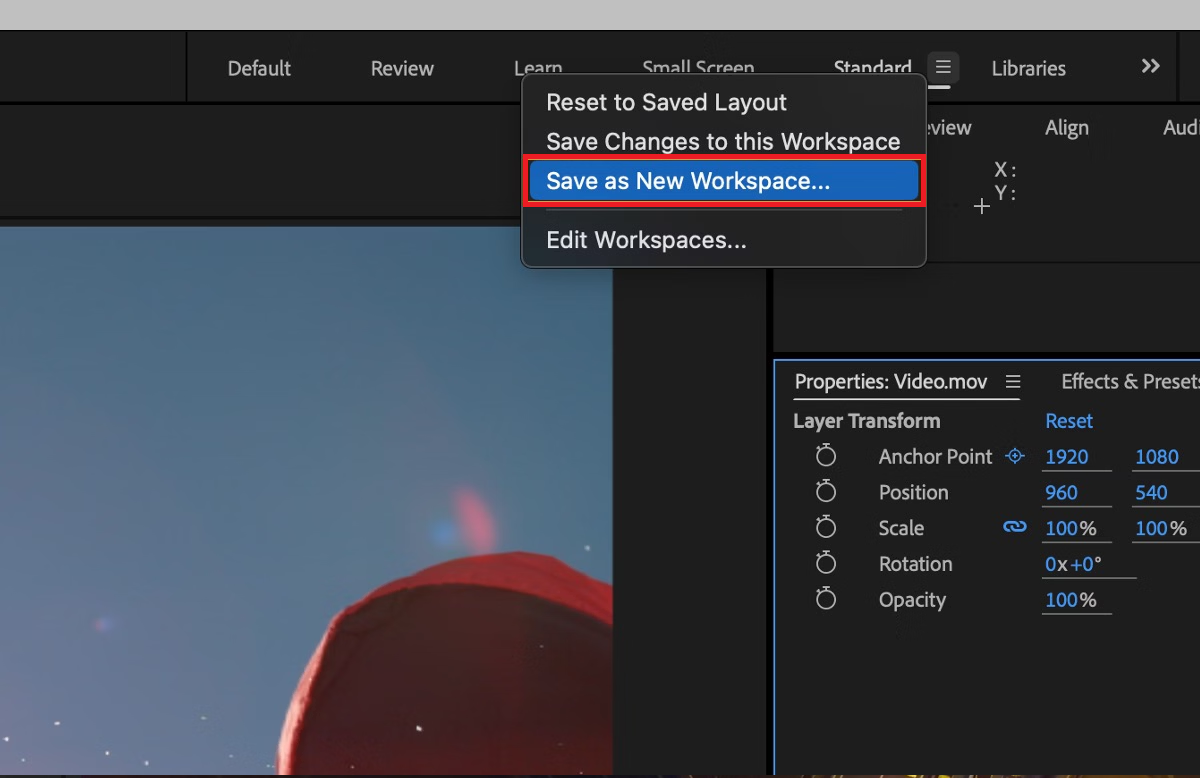
Use a new workspace name so the existing saved layout is not overwritten. - If the panel is still out of view, choose Window > Workspaces > All Panels and look for Essential Graphics there.
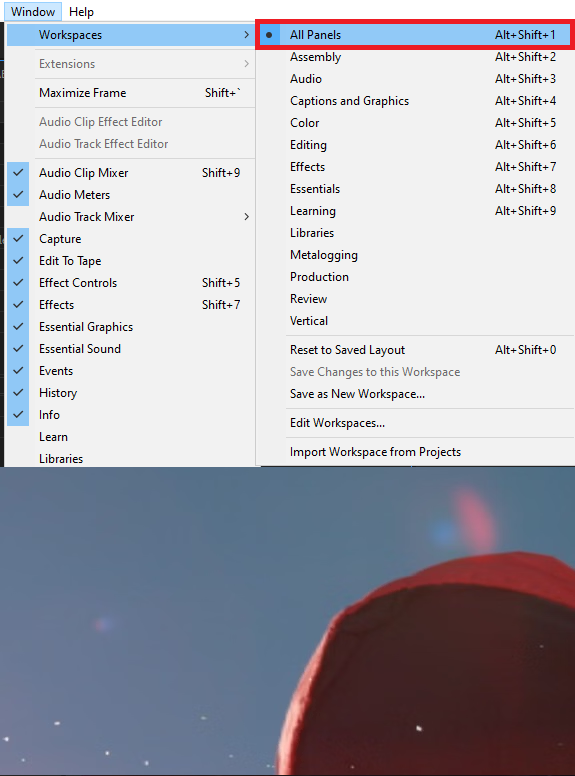
This step applies to a release that includes Essential Graphics; it cannot restore a removed panel in version 25 or later. - If necessary, keep All Panels active and choose Window > Workspaces > Reset to Saved Layout. Reopen Essential Graphics, select the title and check its Edit tab again.
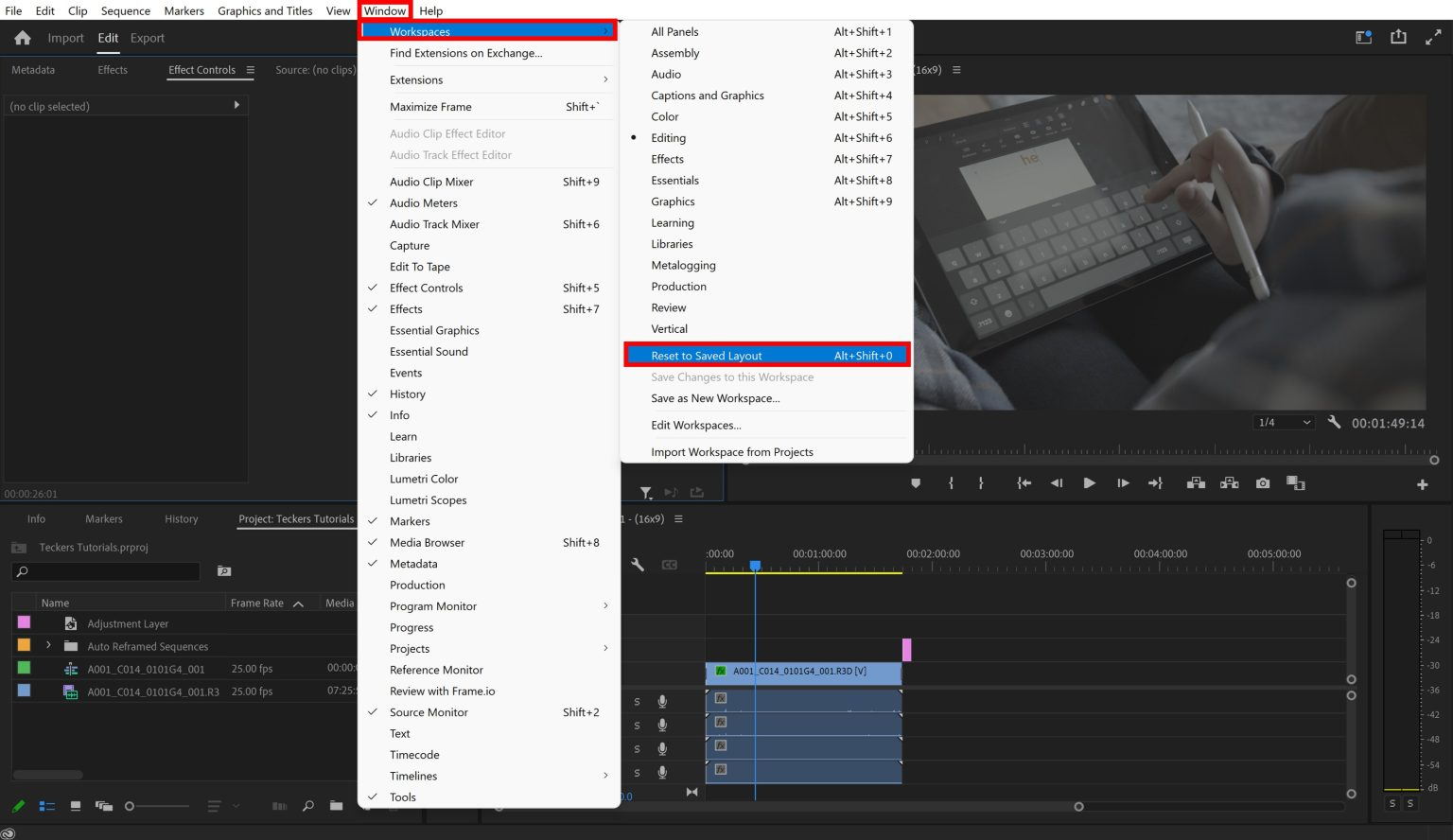
Capture the actual before-and-after layout only if this action restores visibility. A layout reset does not prove every text or template issue is fixed.
Check that the panel is visible and that changing the title’s formatting updates the preview. If it stays empty, check the selected item below rather than resetting the layout again.
Adobe’s workspace guide explains saving and restoring layouts. A reset returns the active workspace to its saved arrangement, not necessarily a factory-default layout.
If the Panel Opens but the Controls Are Missing
Try selecting just one item while checking the panel. Premiere supports multi-clip editing, but a single selection makes it easier to see which controls belong to that item.
| What is selected | What to check |
|---|---|
| Footage beneath a title | Select the separate graphic or caption clip. Seeing text in the preview does not mean its editable layer is selected. |
| One After Effects template | Check the template author’s documentation for its editable controls. A font or color option may not have been included. |
| A rendered video with text already in the image | Use the original project or graphic. Text baked into video has no separate text layer to edit. |
Compare the affected clip with a new title created using Adobe’s title-creation steps. If the new title shows controls, the panel itself is working; inspect the original graphic or template. Keep the original files intact.
For a panel that stays blank, will not open or loses controls repeatedly, contact Adobe Support with the version and build, beta status, affected clip type and a screenshot of the Timeline selection and panel. Contact the template author when only their template is affected.
On a work or school installation, send those details to your IT team before requesting software changes.
An actual freeze or shutdown needs Premiere Pro crash troubleshooting. The Error Compiling Movie guide covers export failures after editing works.