How to Fix Steam Not Logging in with the Correct Password?
Steam’s Please check your password and account name and try again message can remain even after a successful password reset. The reset changes the password for the account you selected; it does not correct a different account name saved in the sign-in form.
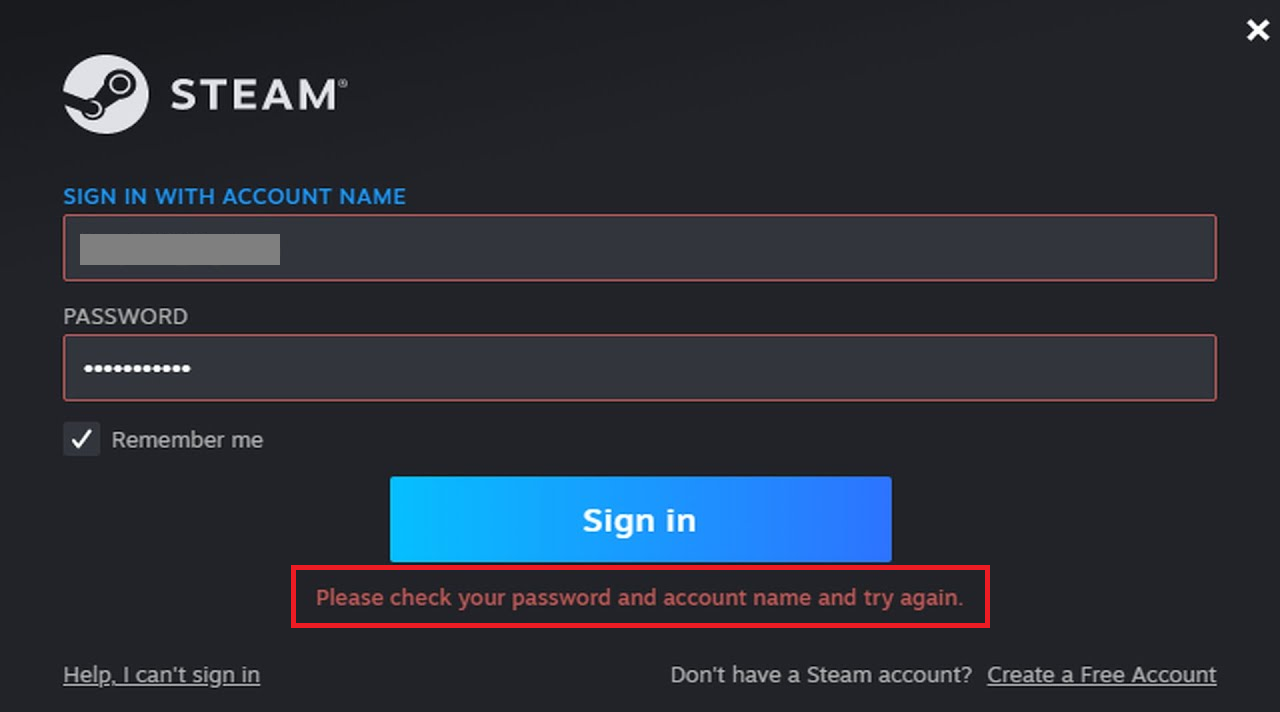
The name friends see on your Steam profile is not necessarily your login name. Steam requires the permanent account name, not your email address, profile URL, or numerical SteamID. A saved password can also belong to another account.
| What Steam shows | What needs attention |
|---|---|
| Check your password and account name | The account name and password entered together. |
| A Steam Guard prompt after password entry | Device authorization, rather than another password reset. |
| Unfamiliar recovery email or phone number | Confirm the account; investigate unexpected security changes. |
| Too many login failures | Pause sign-in attempts before testing again. |
1. Confirm the Account Name Steam Expects
Changing your profile name does not change the account name used to sign in. Checking it on an already signed-in device can save you another unnecessary reset.
- Check the Sign in with account name field. Replace any email address or public profile name.
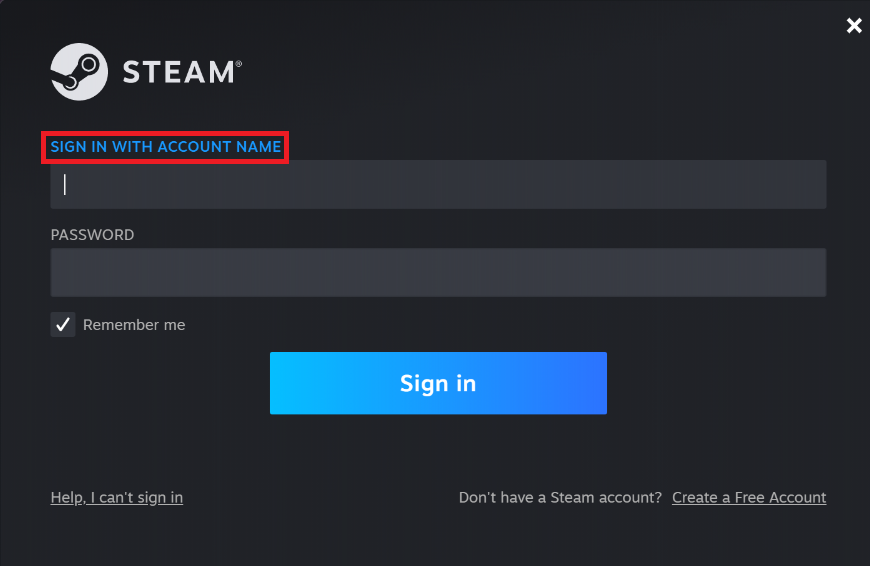
Capture the empty official sign-in form. Do not display a real account name, password, QR code, saved account, or browser profile - On a trusted signed-in computer, open the account menu and select Account details. Confirm the account name without signing out.
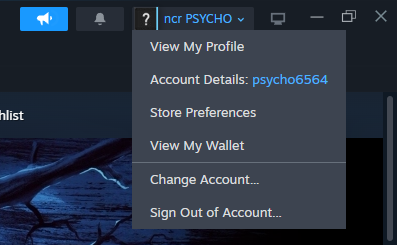
Use a test account or mask the account name, email, phone number, wallet, payment methods, purchase history, licenses, and security details. - Without a working session, select Help, I can’t sign in or Forgot your password?. The recovery search in the next section can identify the account.
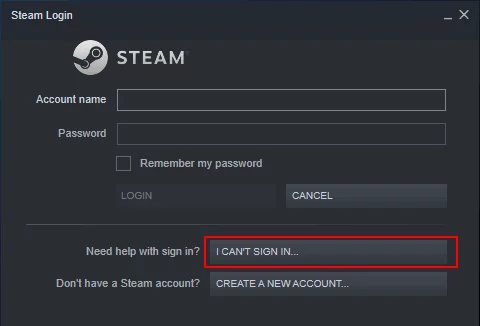
Show only the recovery choices and masked result. Hide account names, contact details, CAPTCHA data, security notices, and verification destinations.
2. Reset the Password for the Correct Account
A reset for one account will not help you sign into another. Before changing the password again, check the selected account carefully, especially if you have used the same email address for several accounts.
- Type the confirmed account name and current password manually once. Check Caps Lock, keyboard language, and accidental spaces; avoid autofill for this test.
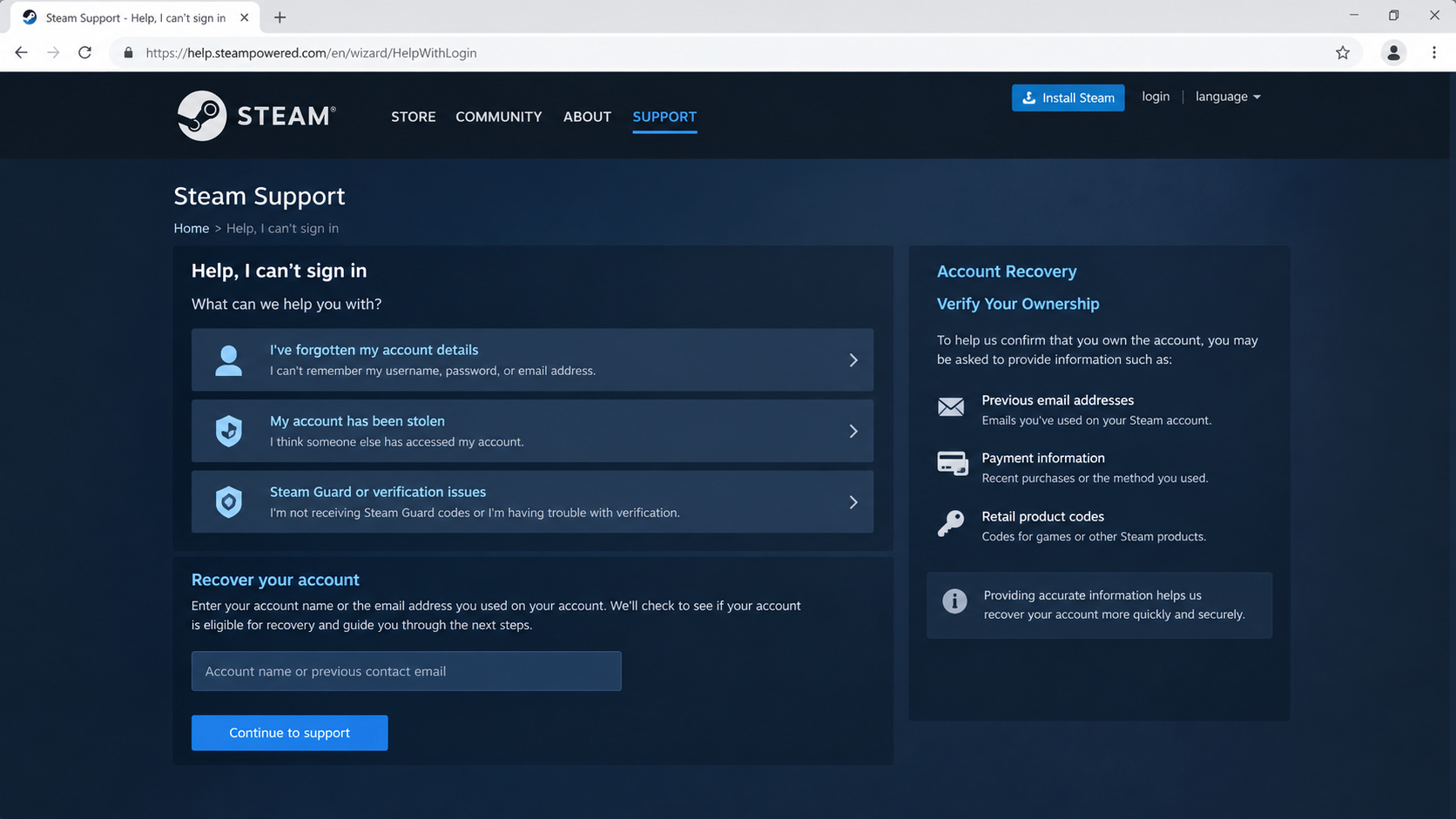
Stage the screen with empty or masked fields. Never expose the password, account name, clipboard, password manager, QR code, or saved accounts. - If rejected, open Steam Support’s sign-in help and choose I forgot my Steam Account name or password.
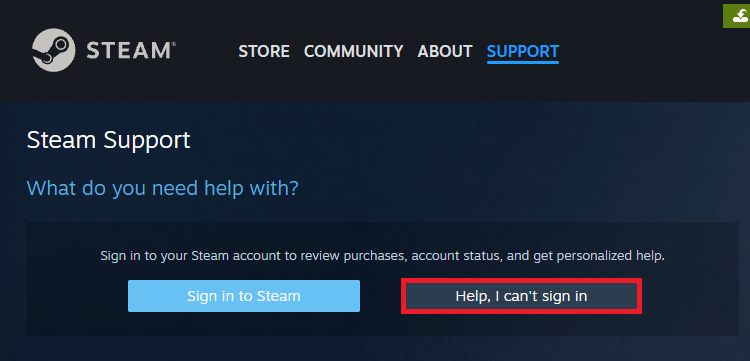
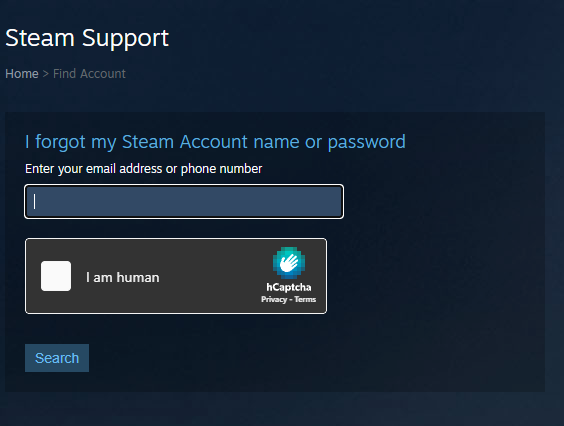
Show the official help page before entering data. Hide browser history, tabs, autofill, account identifiers, contact details, and security extensions. - Search using your email address or phone number. To search by login name, select Search with my account name. Confirm the account before proceeding.
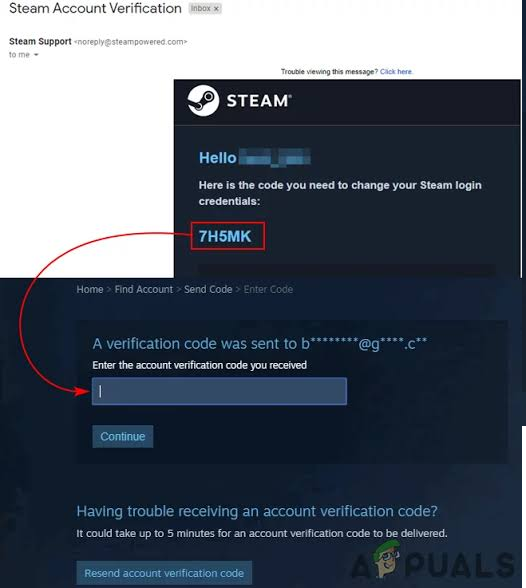
Capture the prompt before any code is entered. Hide the code, email address, phone number, account name, inbox, messages, and recovery links. - Complete Steam’s offered verification. If you no longer control the displayed email or phone number, select the option saying you no longer have access.
Show a staged success page without the account name, password, contact details, verification data, browser profile, or other open tabs. - Select the password-reset option and create a unique password. After Steam confirms the change, try the exact account name and new password once. Update the saved password only after sign-in succeeds.
Already completed this reset for the confirmed account? Repeating it is unlikely to resolve a Steam Guard or client connection problem.
3. Complete Steam Guard or Use Trusted QR Sign-In
A code or approval request after entering your password means Steam is checking the sign-in. QR sign-in works differently: it can sign you in without typing a password, so its success does not prove your remembered password is correct.
Follow the authorization method Steam actually requests; authenticator setup is not required again for every login.
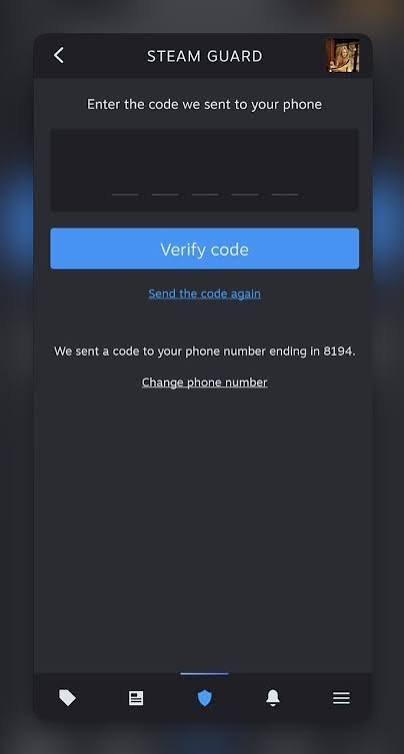
- With Steam Mobile already signed in and its authenticator active, open the Steam Guard shield. Scan only the QR code on your own official Steam sign-in screen, check the device and approximate location, then approve your attempt.
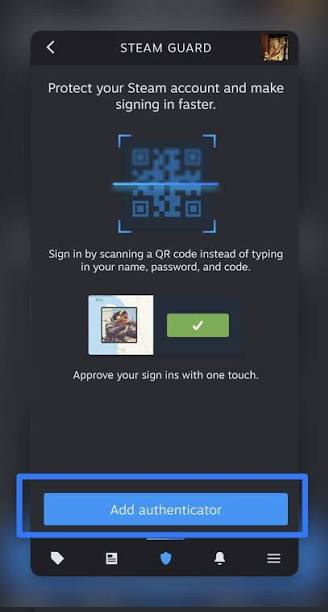
Use a test sign-in and mask the QR code, account, map, location, IP-related details, device name, notifications, and authenticator code. - For a rejected mobile authenticator code, check that the phone’s date and time are correct and that you selected the right Steam account. Use its current code, not a previously used one.
- For a missing email code, check spam and the registered inbox. Valve’s email-code instructions recommend waiting up to 30 minutes before requesting another.
Keep a working authenticator installed. A lost phone or deleted authenticator needs the recovery instructions in Valve’s Steam Guard guide, not another password change.
4. Recover an Account With Unexpected Security Changes
An unfamiliar recovery address can mean you selected the wrong account. Unexpected password, email, phone, or authenticator changes are stronger reasons to suspect unauthorized access. A failed login alone does not prove the account was stolen.
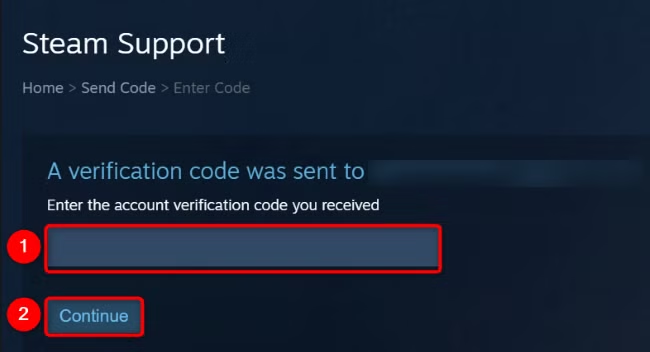
- Scan your computer for malware and secure the linked email account. From a trusted device, change its password and enable its two-factor authentication.
- Open Valve’s stolen-account recovery and follow its account-search and verification instructions. Changed contact details do not prevent you from asking Support for help.
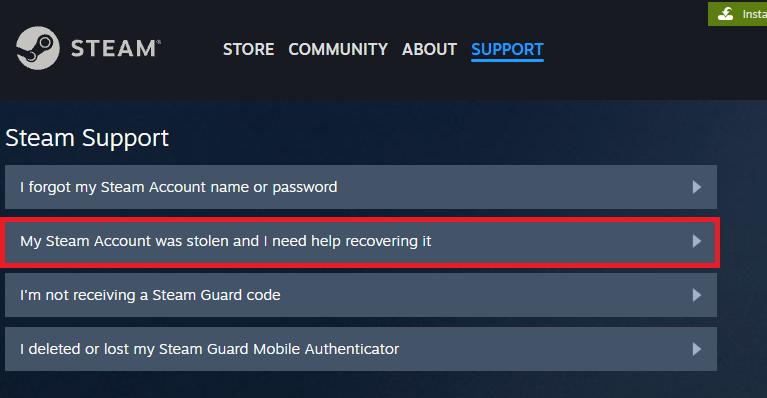
Show the official recovery page before data entry. Hide account names, emails, phone numbers, CAPTCHA data, proof of ownership, and support history. - After recovery, set a unique Steam password and review Steam Guard > Authorized Devices. Use Sign out everywhere if devices are unfamiliar; your own devices will also need to sign in again.
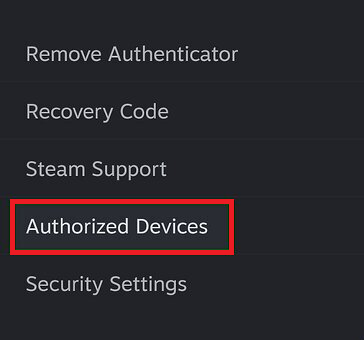
Use a test account or mask device names, locations, last-used times, account details, email, phone number, and every security code.
5. Test the Client When Browser Sign-In Works
A fresh browser sign-in using the same account name and password is a useful comparison. An existing browser session or successful QR approval does not test those typed credentials.
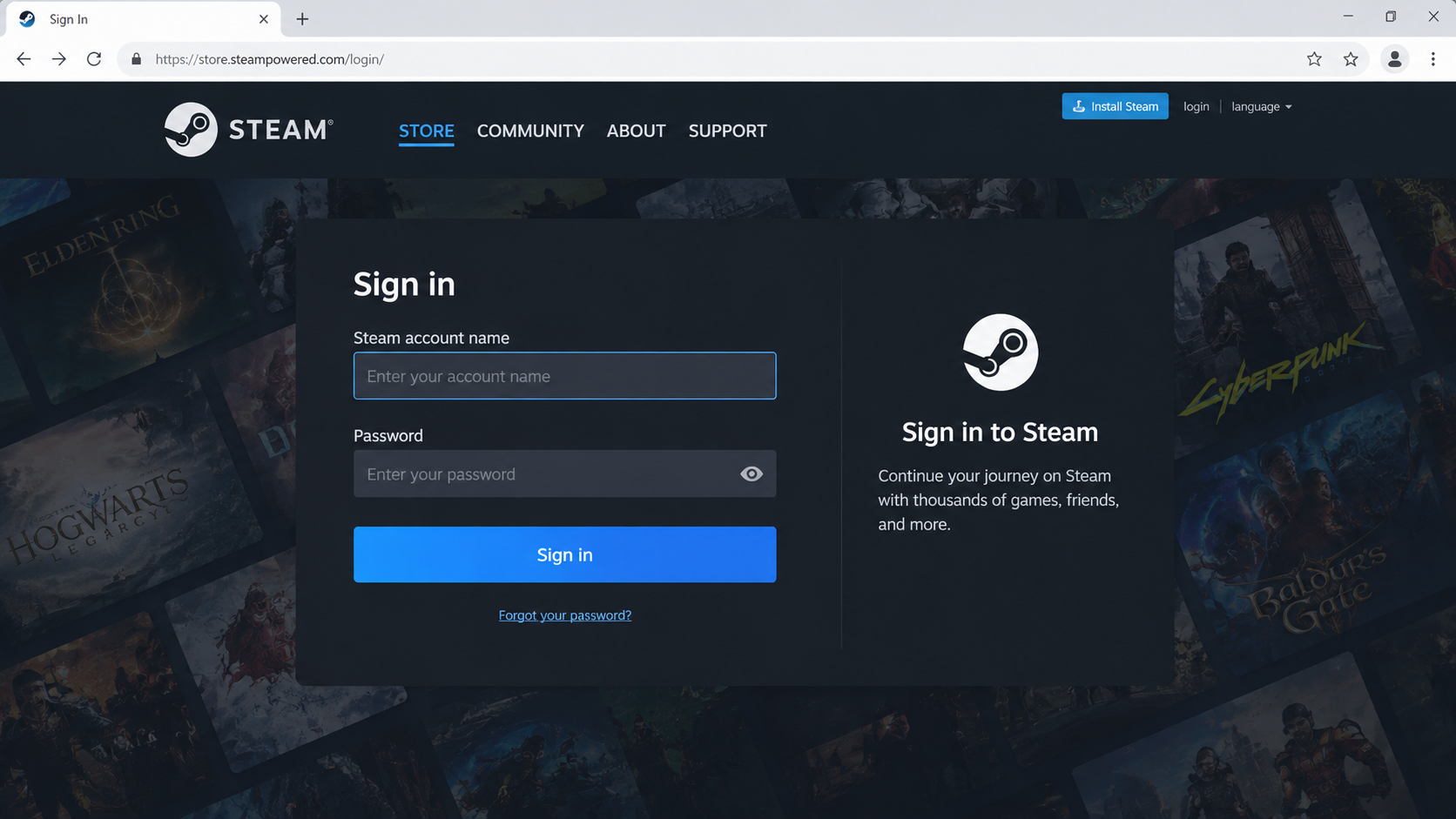
- Try the official Steam sign-in in another unmodified browser. Leave any working session open in your usual browser.
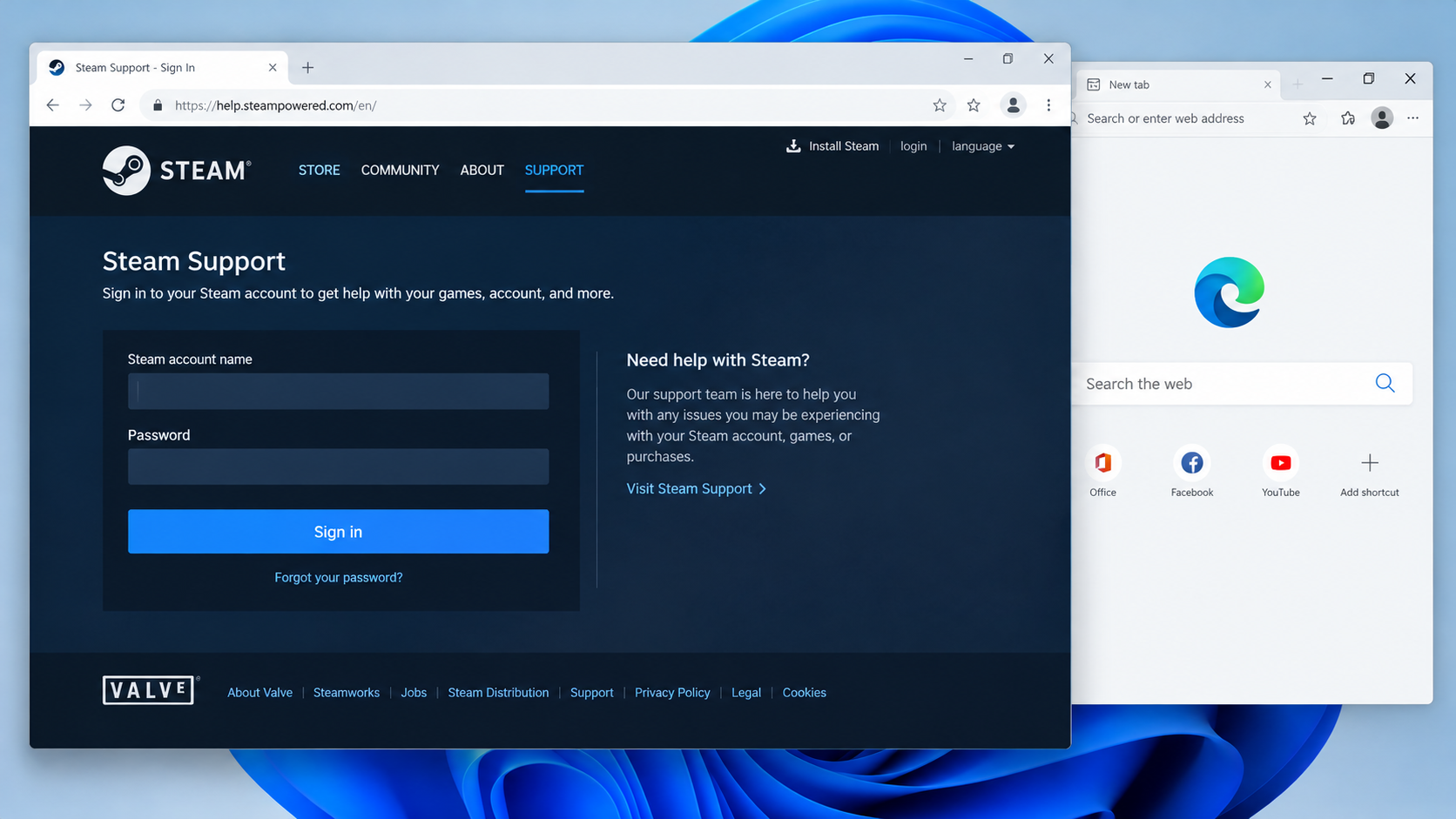
Show an empty official login form. Hide account data, passwords, QR codes, extensions, browser profiles, history, bookmarks, and unrelated tabs. - If the browser accepts the password but the client fails, exit the failing client from the Windows notification area and reopen it. Restart the PC if it remains unresponsive.
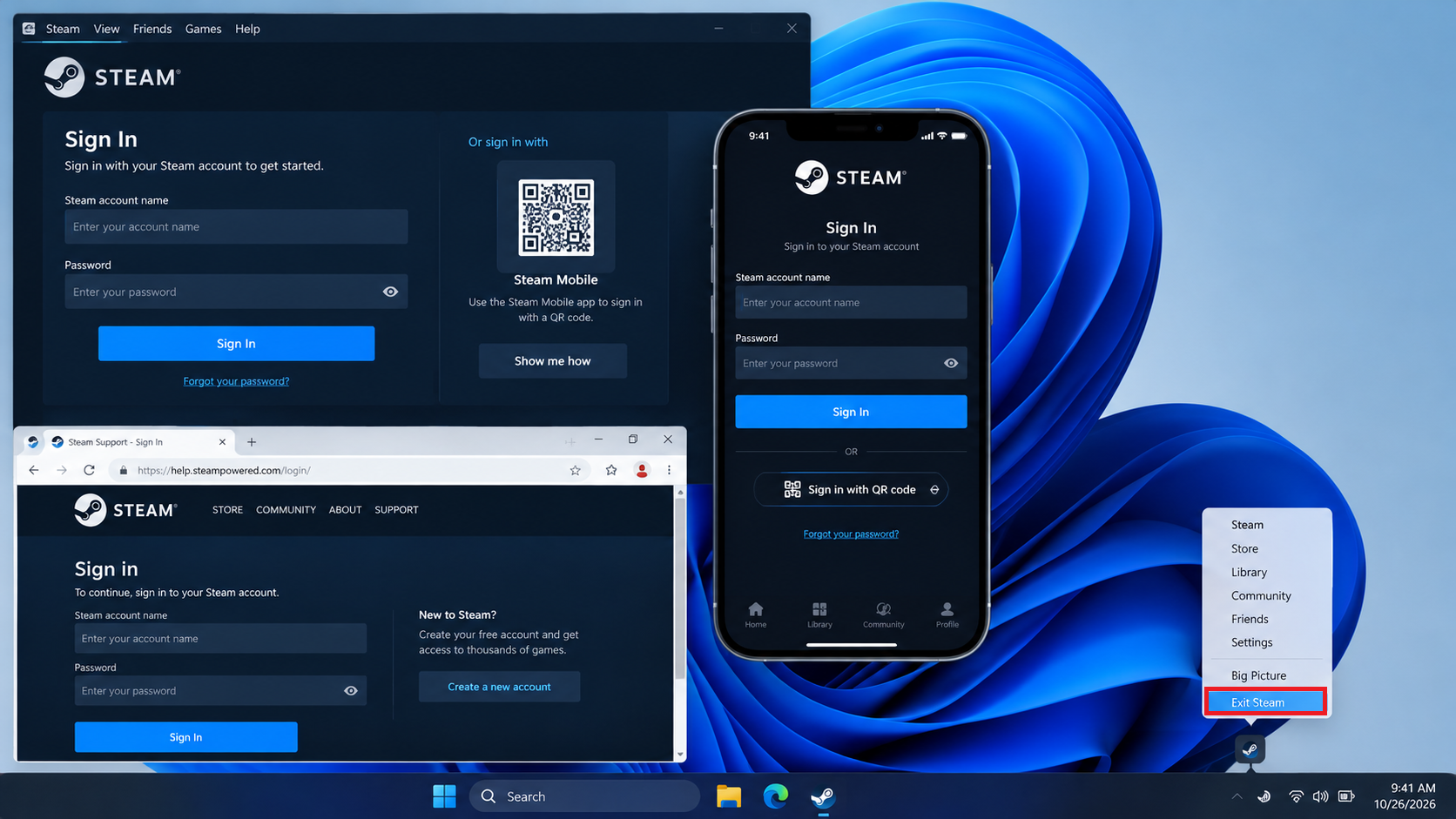
Show only the Steam Exit command. Hide notifications, account names, chats, game activity, other tray applications, and desktop files. - For connection errors, disconnect a personal VPN and compare with a trusted phone hotspot. If the hotspot works, restart your home router normally. Keep workplace-required software unchanged.
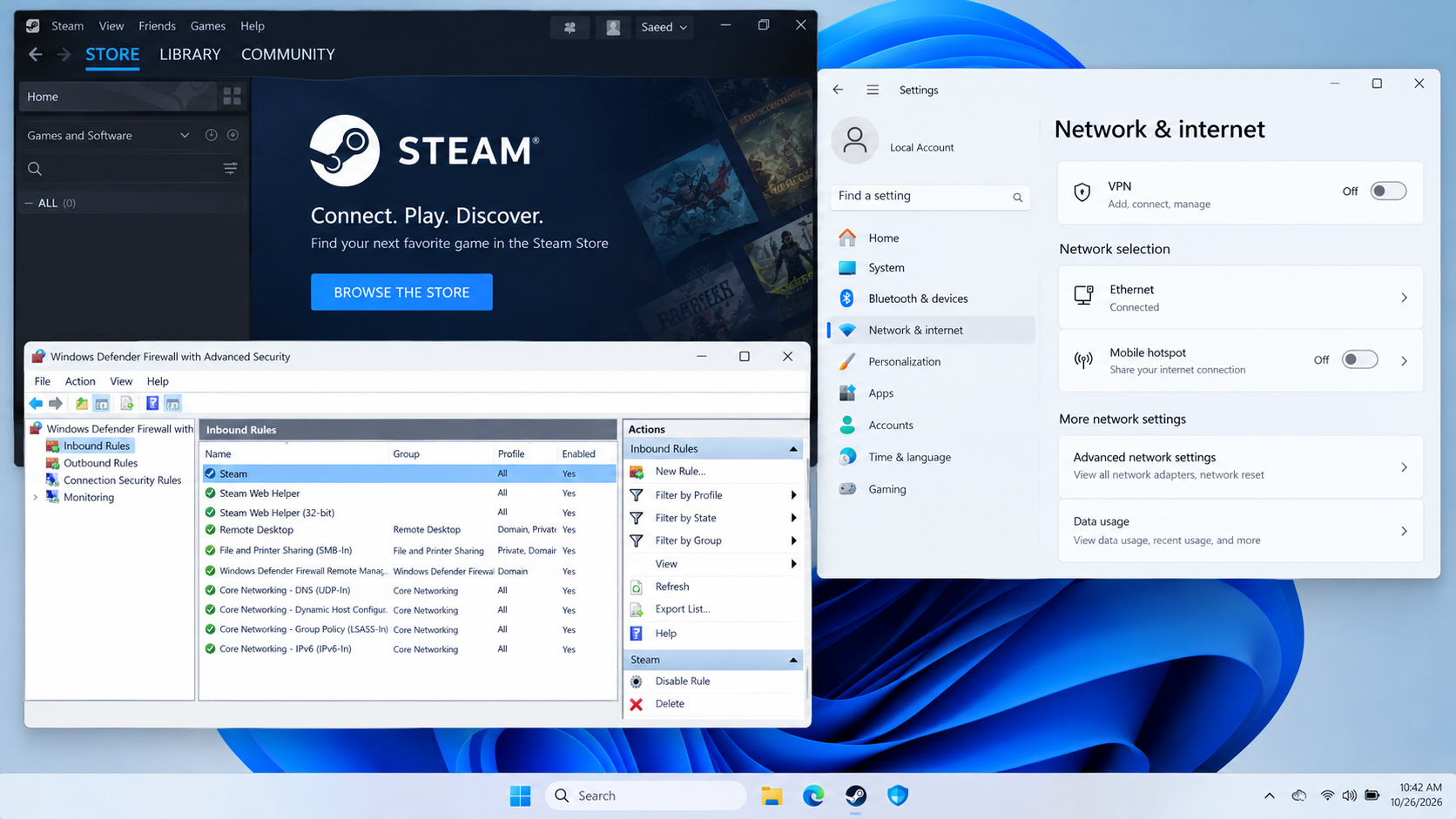
Show only relevant test controls. Hide network names, VPN servers, IP addresses, organization policy, security alerts, and unrelated firewall applications.
Keep antivirus and firewall protection enabled. A suspected block needs the security vendor’s instructions or your administrator’s help.
Valve also provides help for client-only sign-in failures. An error such as Steam E87 should be recorded separately from the wrong-password message.
If Steam Still Rejects the Sign-In
A too many login failures warning calls for a pause, not more password resets. Follow any waiting instructions Steam displays; there is no reliable universal countdown. Do not rotate VPN servers or networks to evade the restriction.
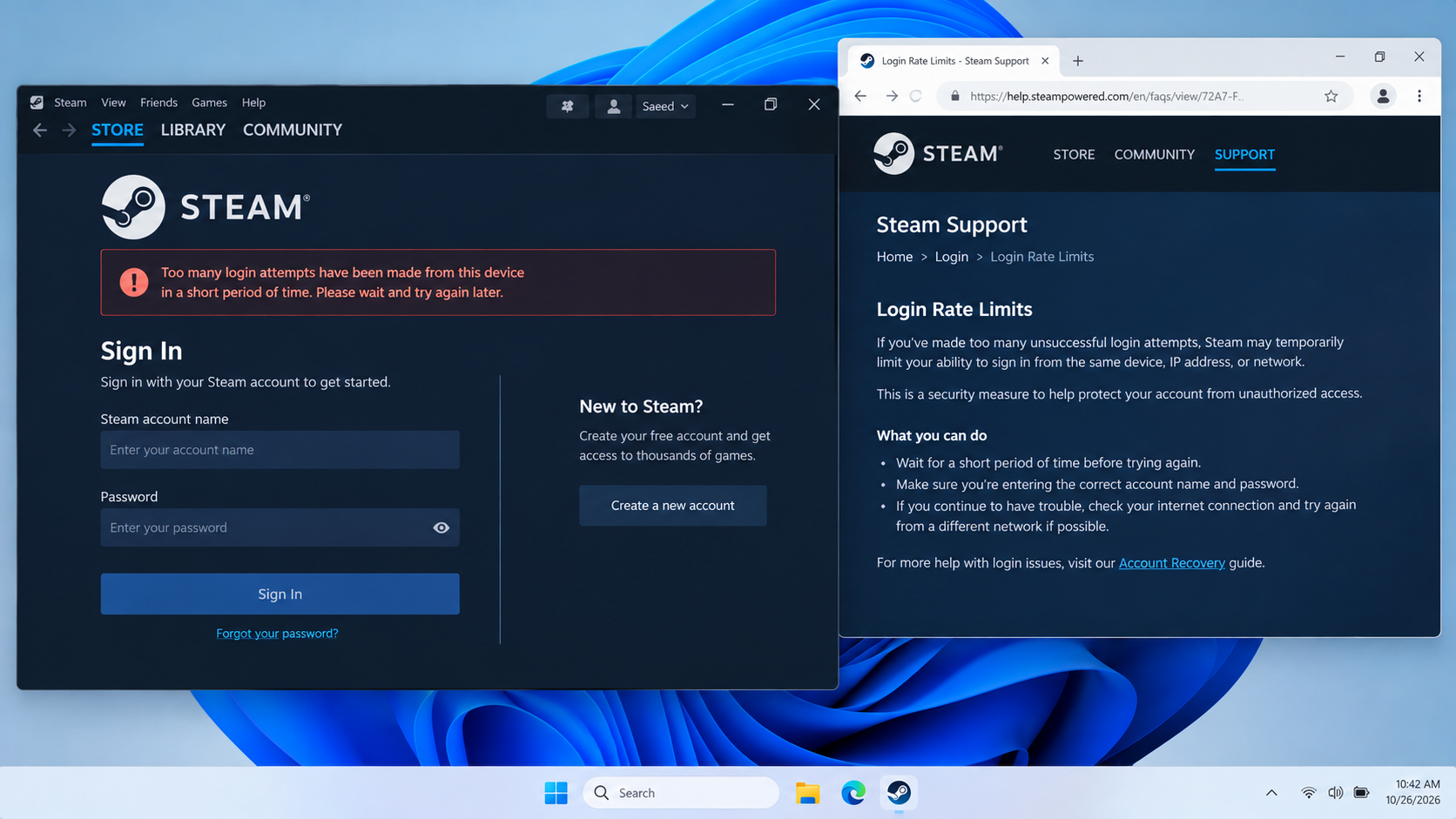
If the Steam Store and Help site also fail to load on different connections, wait and retry later before changing account details again.
When sign-in still fails after confirming the account and completing recovery, return to Help, I can’t sign in. Follow the recovery options until Support offers its contact form; you do not need to regain sign-in first.
Explain the exact message, whether a fresh browser login worked, and what happened during recovery.
Provide only the ownership evidence Steam requests, such as prior payment information or an activated retail product code, through the private Support form. Never post it publicly.