How to Fix Missing Menu Bar and Toolbars in AutoCAD?
The menu bar, ribbon or toolbars are missing in AutoCAD, even though your drawing is still open. Their visibility is saved separately from the drawing, so reopening the file may leave the same controls hidden.
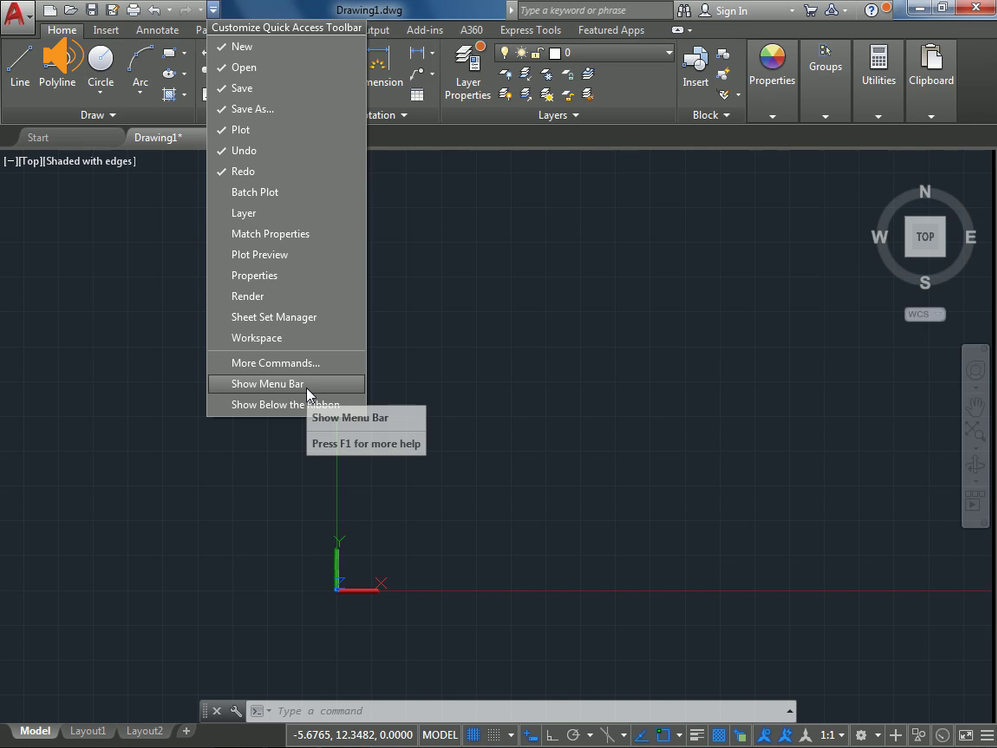
These instructions cover AutoCAD desktop products on Windows. AutoCAD for Mac has a different interface; the workspace and shortcut instructions are not interchangeable.
1. Turn Off Clean Screen and Reopen the Ribbon
Clean Screen hides the ribbon, toolbars and palettes to enlarge the drawing area. It does not hide the Quick Access Toolbar or command window, so those may need separate attention.
- Press Esc twice to cancel an active command. Type
CLEANSCREENOFFand press Enter; you can enter the command even with the ribbon hidden.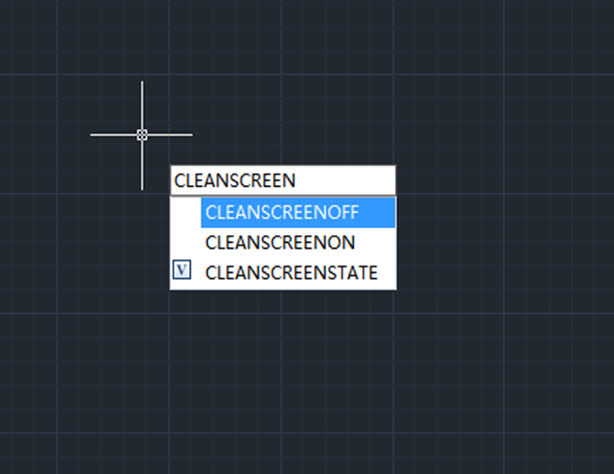
Show the same AutoCAD session after Ctrl+0 or CLEANSCREENOFF restores the normal interface. Hide drawing and account information. - If the command window is missing, press Ctrl + 9 to show it.
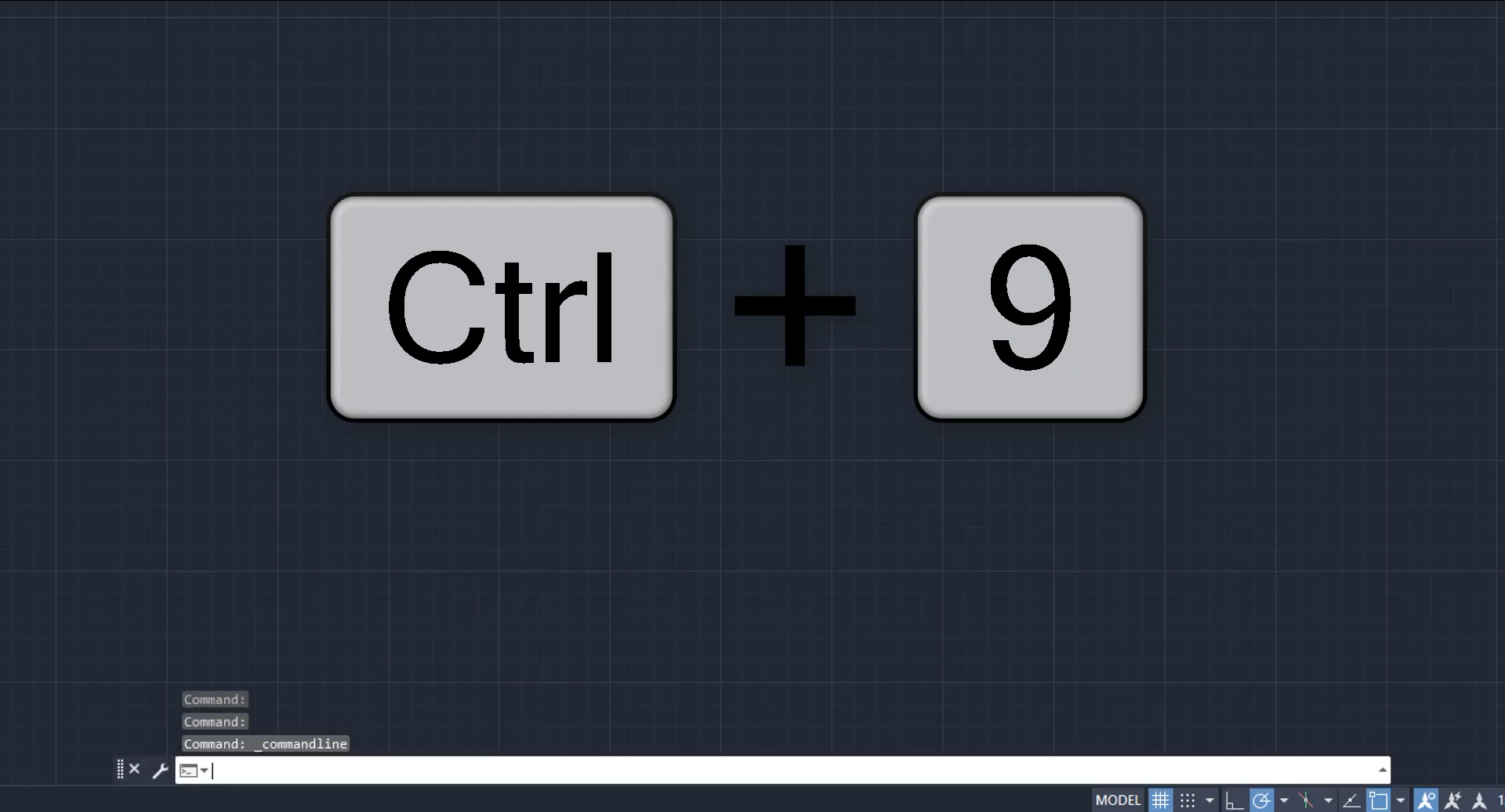
Show the command line docked at the bottom after Ctrl+9. Do not expose recent commands, drawing paths, user names, or project data. - Enter
RIBBON. If only tab names appear, use the ribbon’s cycle/minimize control to the right of the tabs until the full panels are displayed.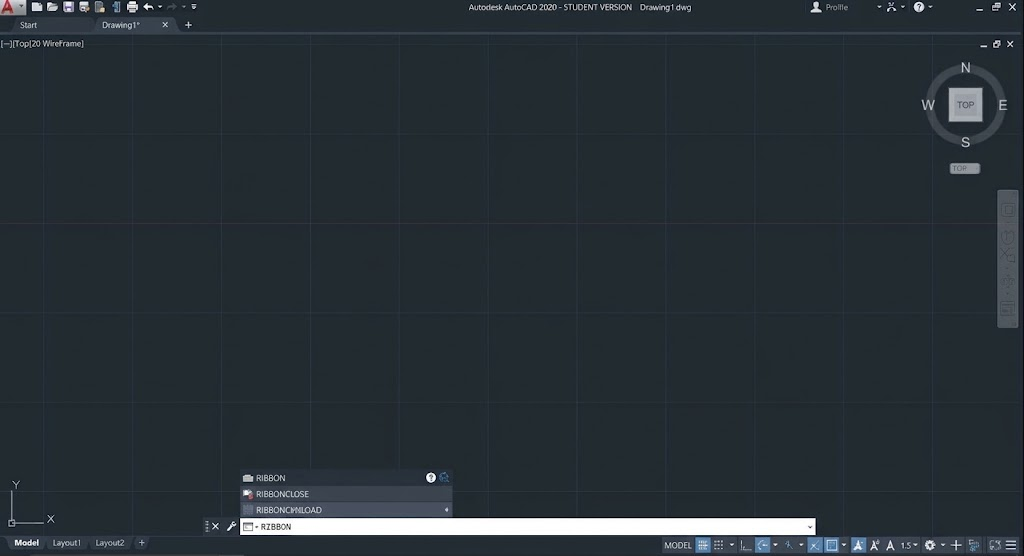
Show the ribbon display control and the full ribbon state. Keep the product name visible so a product-specific ribbon is not mistaken for plain AutoCAD.
Ctrl + 0 also toggles Clean Screen, but can hide the controls if the mode was already off. Once the expected controls return, no profile reset is needed.
2. Show the Menu Bar or a Named Toolbar
The File, Edit, View and Tools menu row is separate from the ribbon. MENUBAR controls its visibility; it does not turn individual Draw or Modify toolbars on.
- Enter
MENUBAR, press Enter, then enter1and press Enter again.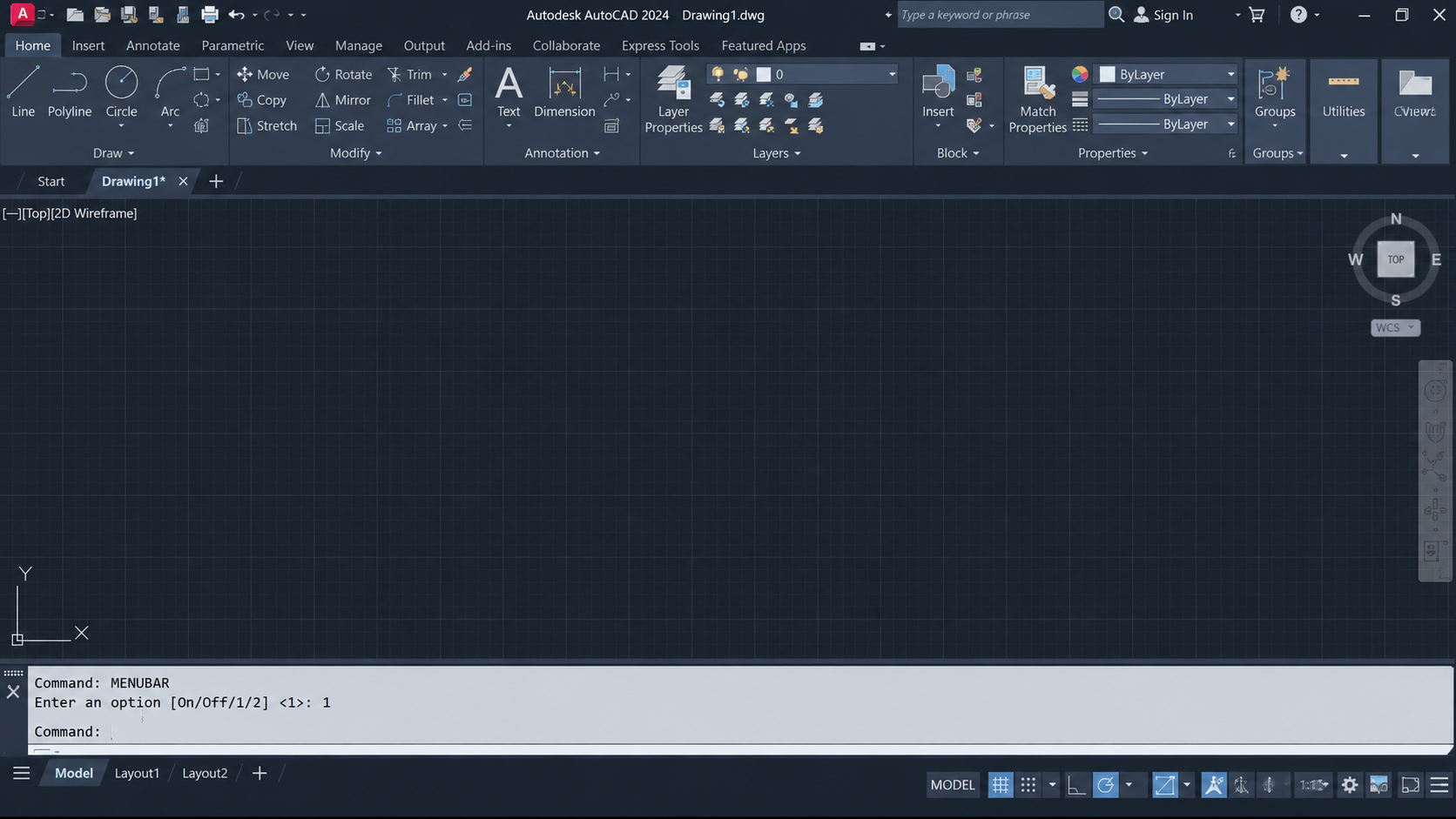
Show MENUBAR entered at the command line, the value 1, and the restored File, Edit, View, and Tools menus. Hide recent command history. - Open Tools > Toolbars, choose the installed product’s group and check the toolbar you need, such as Draw or Modify.
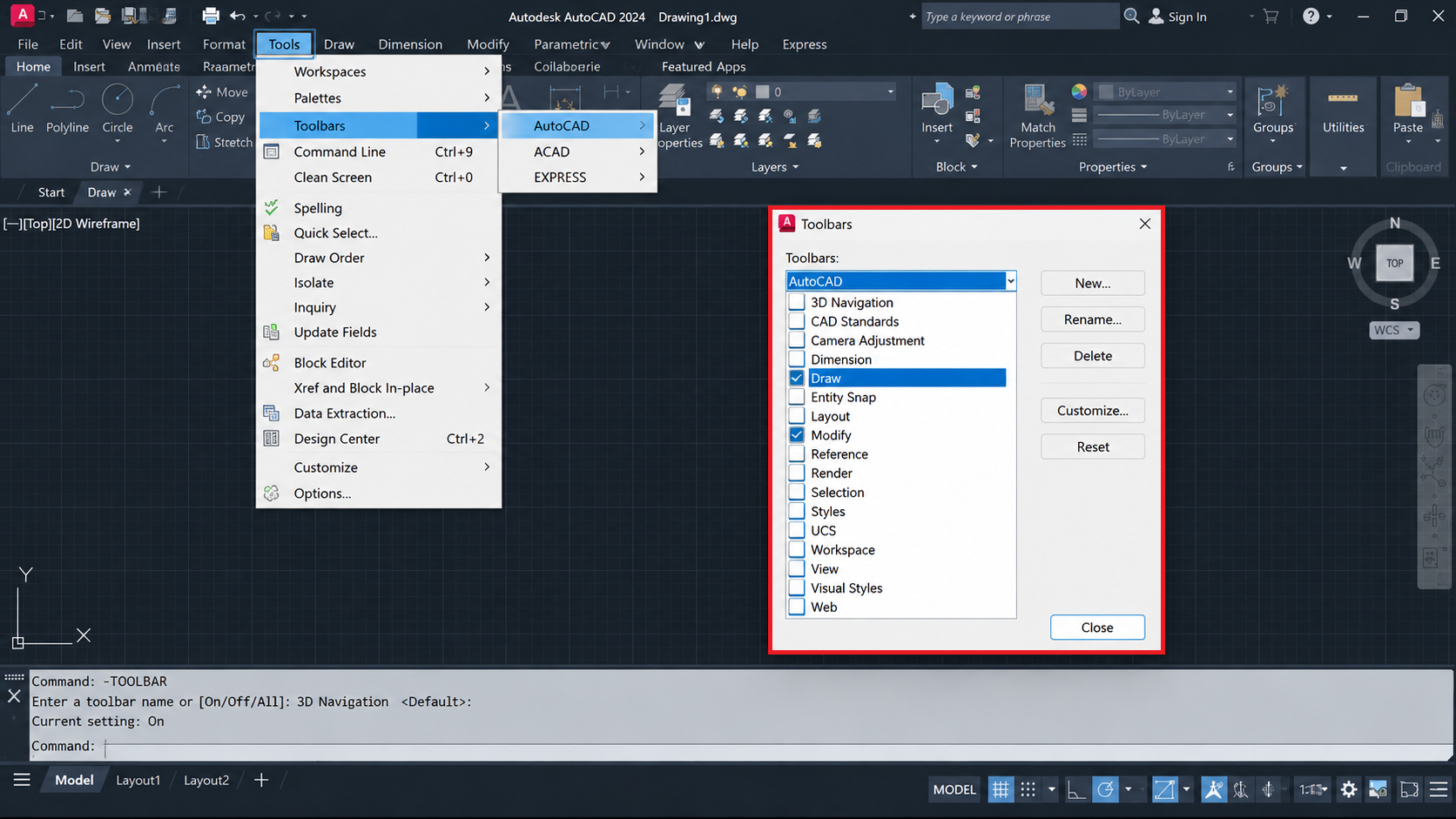
Show either Tools > Toolbars or the -TOOLBAR prompt with a standard toolbar such as Draw or Modify selected. Do not expose proprietary custom toolbar names. - Alternatively, enter
-TOOLBARwith the leading hyphen, enter a toolbar name such asDraw, then enterShow.
A toolbar can float near a screen edge rather than appear above the drawing. Check there before assuming it failed to load. Showing the menu bar will not recreate tools absent from the loaded customization file.
3. Return to Your Usual Workspace
Workspaces remember which controls are visible. Switching back to your saved layout can restore a missing ribbon without rebuilding it. Record the current workspace name before changing it.
- Enter
ABOUTto confirm the running product. Architecture, Electrical, Mechanical, MEP and Civil 3D need their own product-specific tools, not just a plain AutoCAD layout. - Use the workspace switcher on the status bar to select your usual workspace. In plain AutoCAD, try Drafting & Annotation. If it is already selected, switch to another available workspace and back.
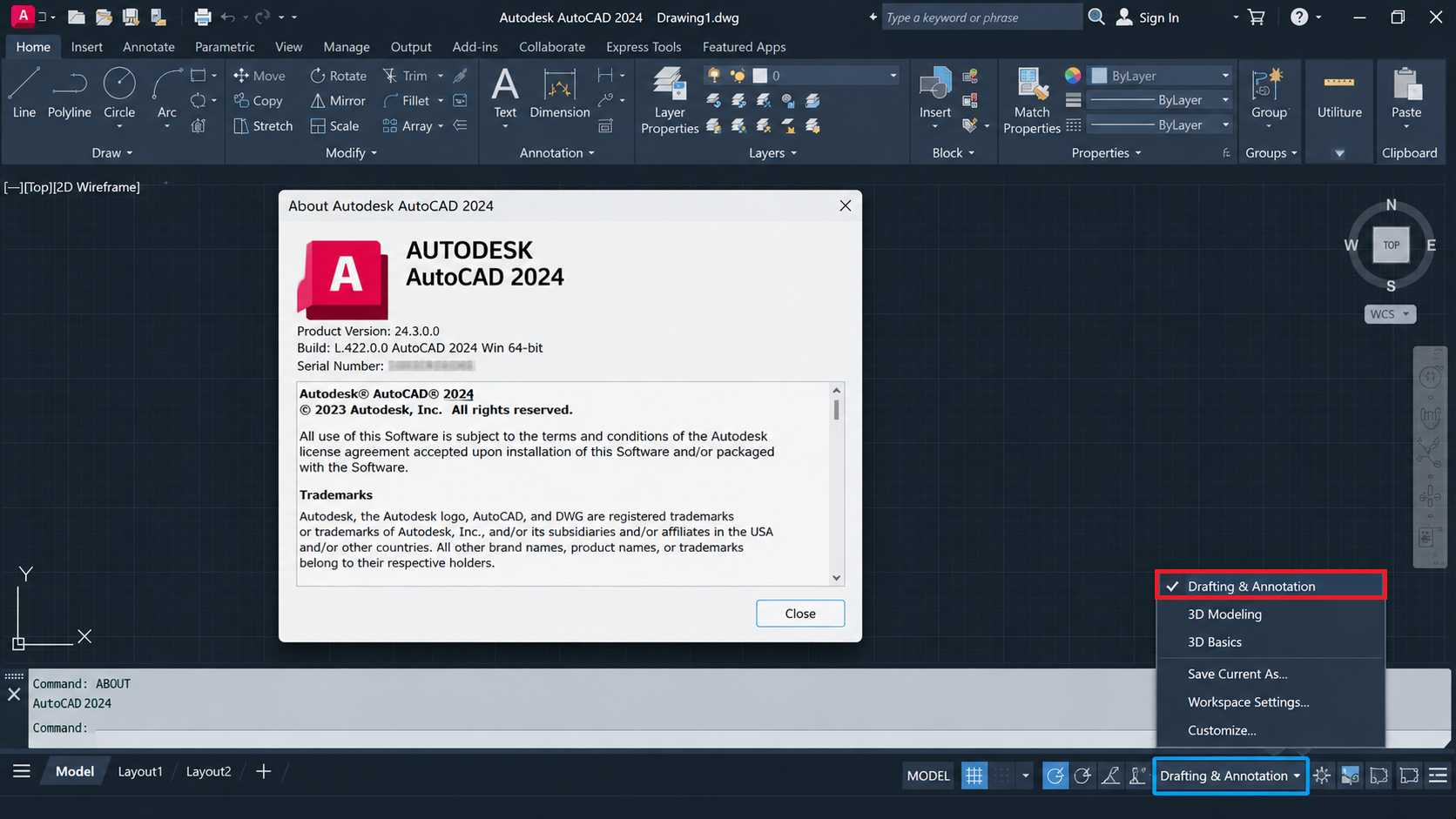
Show the workspace switcher or WSCURRENT result with the workspace that belongs to the installed AutoCAD product. Hide company workspace names if they reveal internal standards. - For individual missing ribbon items, right-click the ribbon and check the appropriate entries under Show Tabs and Show Panels.
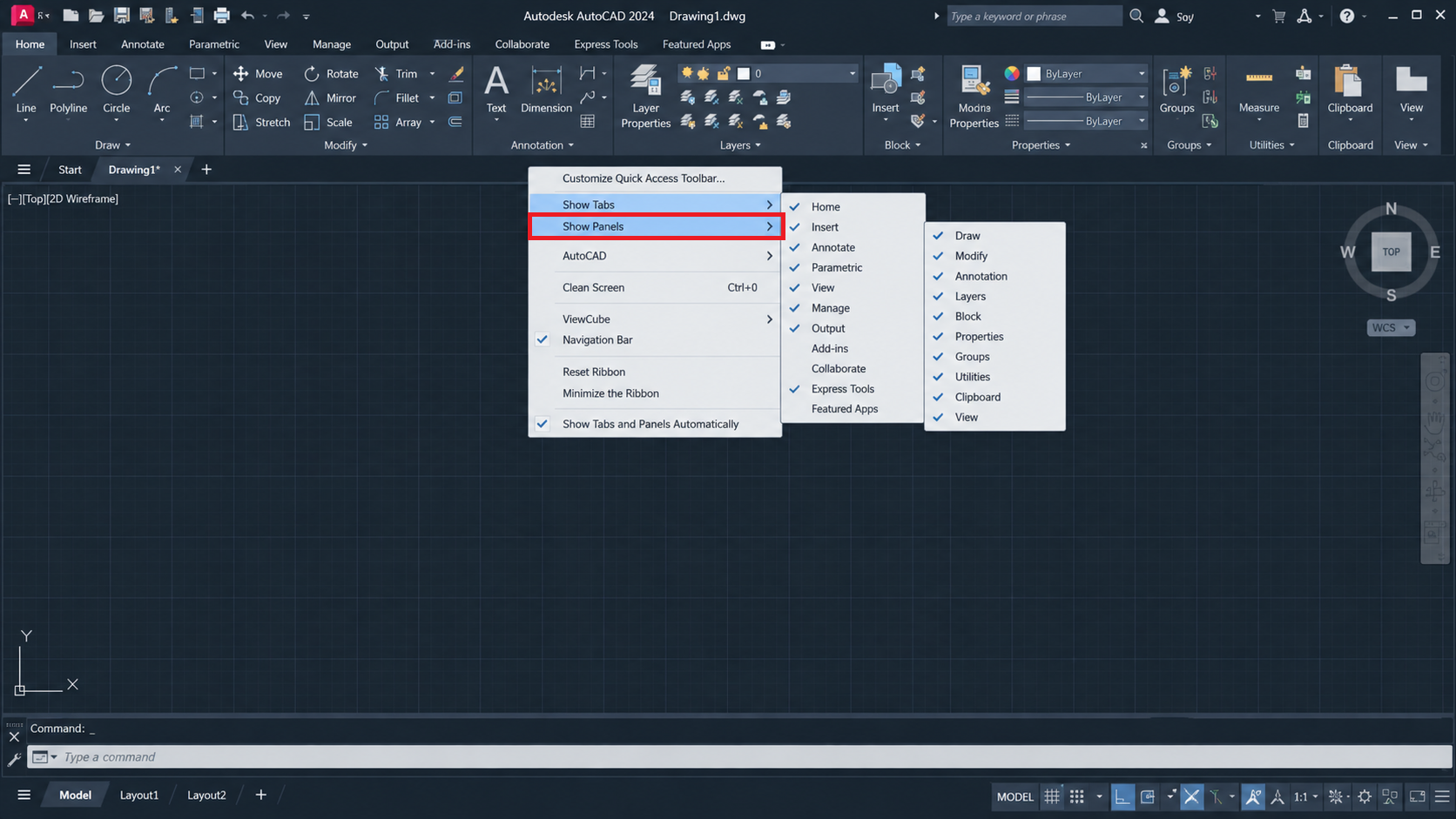
Show the right-click ribbon menu and checked items under Show Tabs or Show Panels. Do not add tabs that do not belong to the current product or role.
If the switcher is hidden, enter WSCURRENT and supply the name of an existing workspace. Restoring a workspace cannot add a toolset that was never installed.
4. Add Missing Controls to the Workspace
A toolbar can exist in AutoCAD but be excluded from the selected workspace. The Customize User Interface editor lets you add it back, including a missing Quick Access Toolbar.
- Enter
CUI. Under Customizations in All Files > Workspaces, select the workspace marked (current).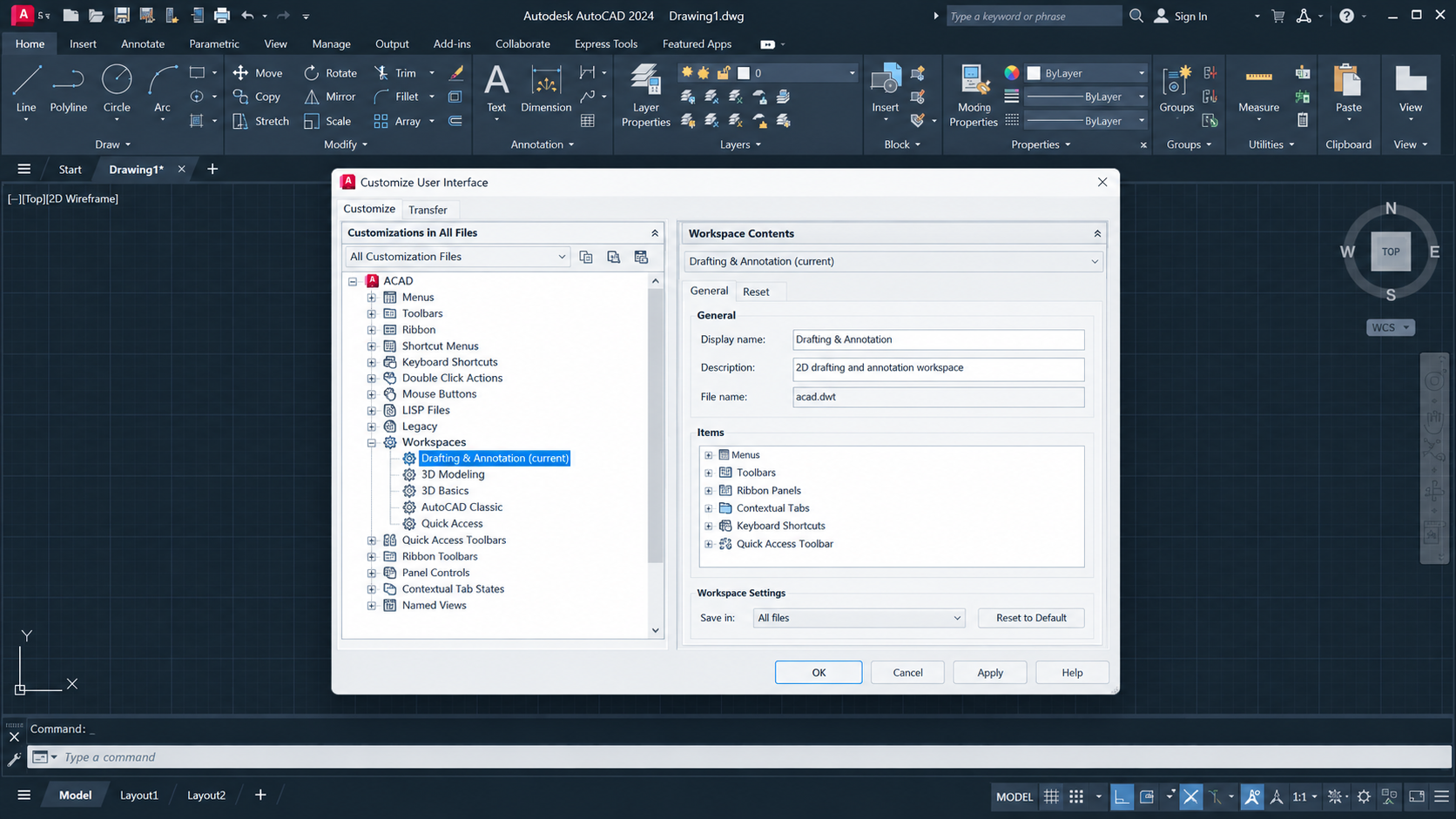
Show the CUI dialog, current workspace, and Workspace Contents pane. Hide organization-specific CUIX paths, user names, and custom command names. - Click Customize Workspace in the right-hand Workspace Contents pane.
- On the left, expand Toolbars and check the required items. For Quick Access, expand Quick Access Toolbars and select the appropriate toolbar. Click Done > Apply > OK.
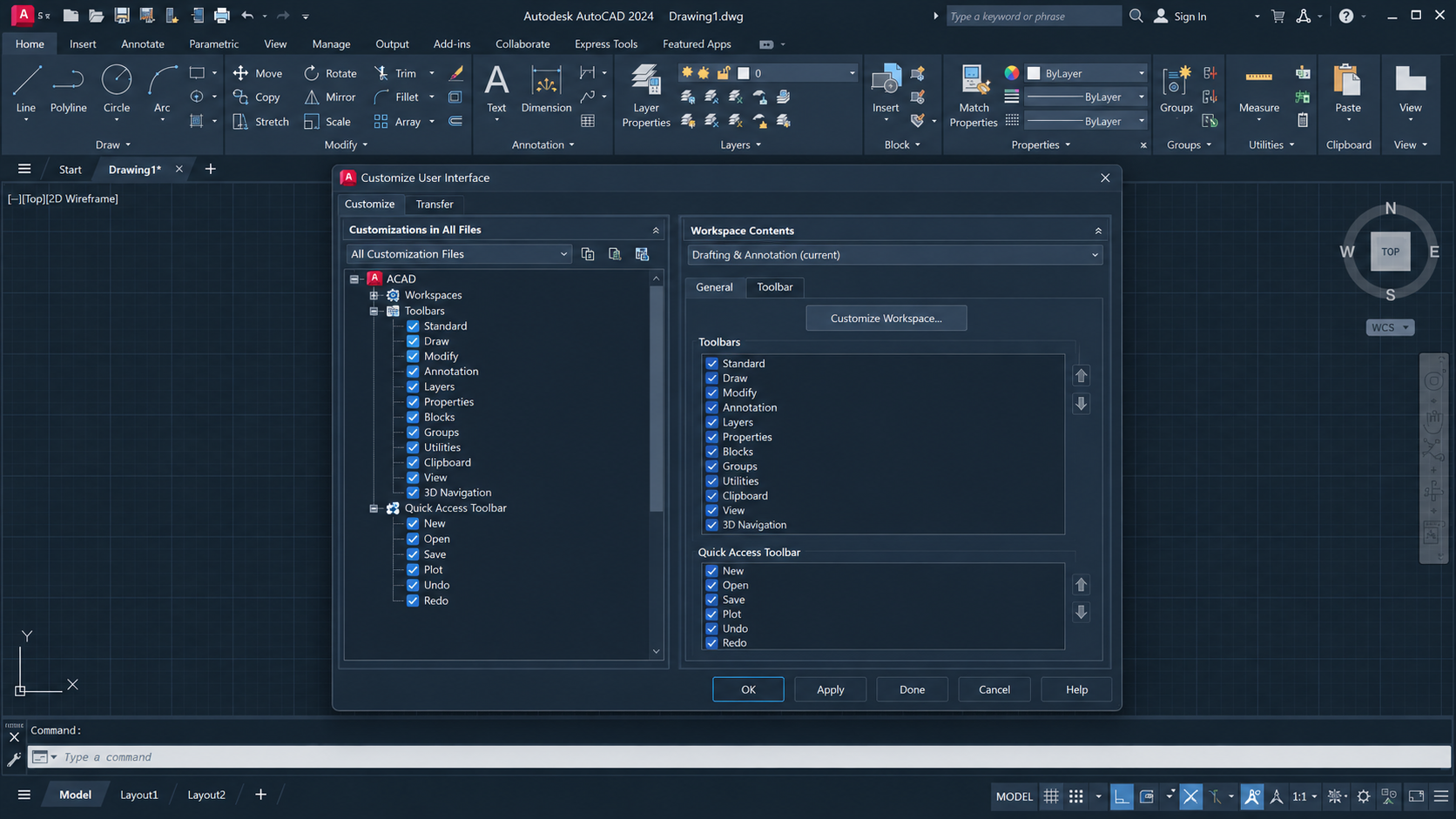
Show Customize Workspace active and the required toolbar checkboxes selected. Use standard toolbars in the capture and hide proprietary customization names.
Record changed checkboxes so you can reverse them. An empty toolbar or ribbon tree needs its customization file checked rather than more visibility changes. Leave company-managed definitions intact.
5. Check and Reload the Correct CUIX File
A ribbon that says The Ribbon does not have any tabs or panels currently loaded is open but empty. The CUIX file supplies its tabs and tools; check the assigned file before replacing your settings.
- Close AutoCAD and run Export AutoCAD Settings for the exact product/version from Windows Start, if available. Keep the ZIP; Autodesk’s settings-backup instructions explain product limits. Copy customized drawing templates separately; the export does not include them.
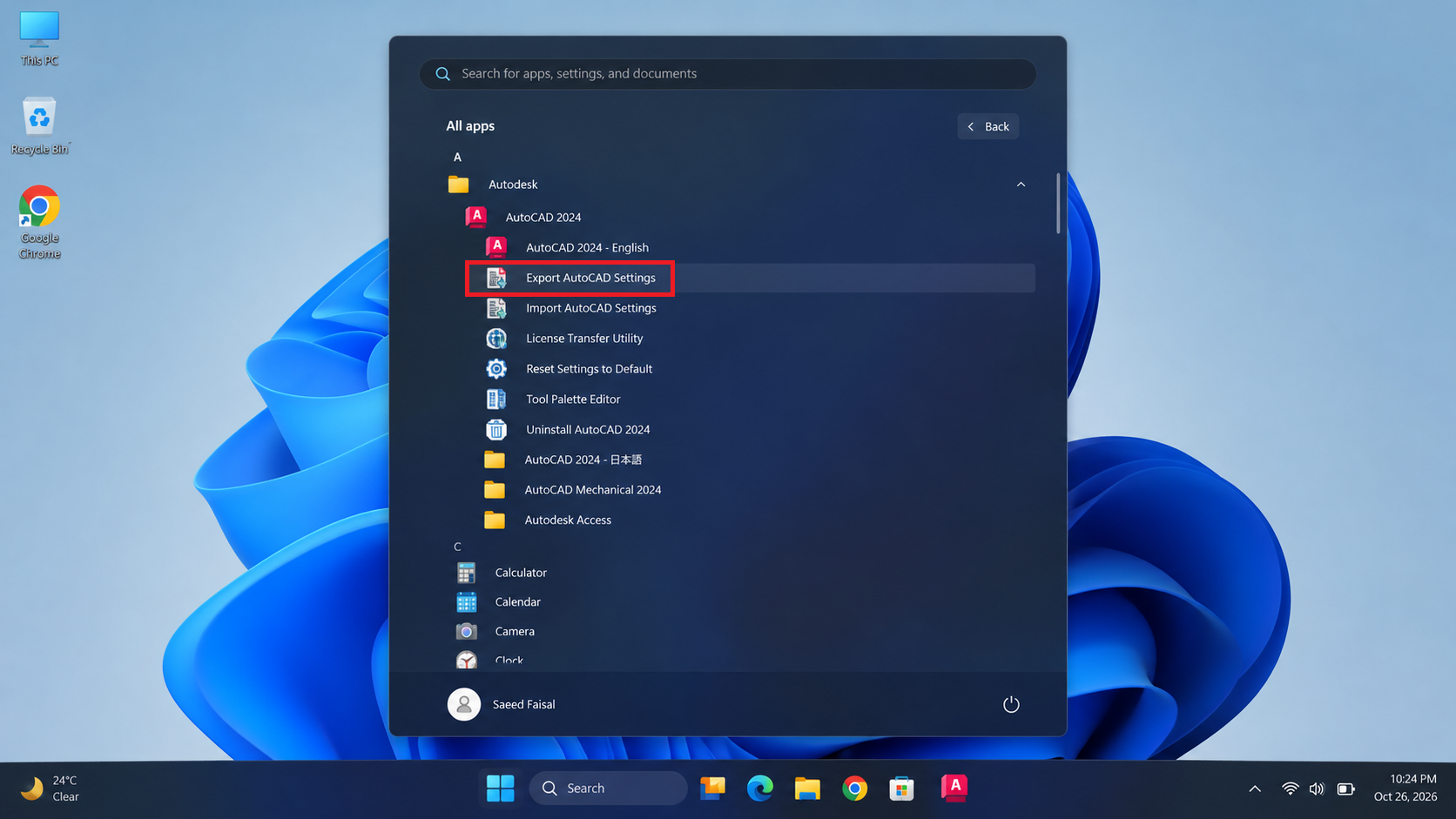
Show the correct installed AutoCAD version and Export Settings utility. Hide Windows user names, backup destinations, network paths, and organization details. - Reopen AutoCAD and enter
OPTIONS. Under Files > Customization Files > Main Customization File, note the configured file and full location. Confirm that the file exists before unloading anything.
| Product | Typical default file |
|---|---|
| AutoCAD | acad.cuix |
| AutoCAD LT | acadlt.cuix |
| Architecture | aca.cuix |
| MEP | mep.cuix |
| Mechanical | acadm.cuix |
| Electrical | acade.cuix |
| Civil 3D | c3d.cuix |
- If the main file belongs to another product, use Browse under Main Customization File to assign the correct verified file. Keep company-managed assignments unchanged.
- In OPTIONS > Files > Support File Search Path, check that the verified Support folder is included. Add it only if missing, then click OK. A disconnected company folder needs administrator help, not a substitute file.
- For a local default file, follow Autodesk’s CUIX reload procedure: enter
CUILOAD, select the matching loaded group and choose Unload. If the group is absent, skip Unload. - Choose Browse, select the verified CUIX, then Open > Load > Close. Enter
RIBBONand select the expected workspace again.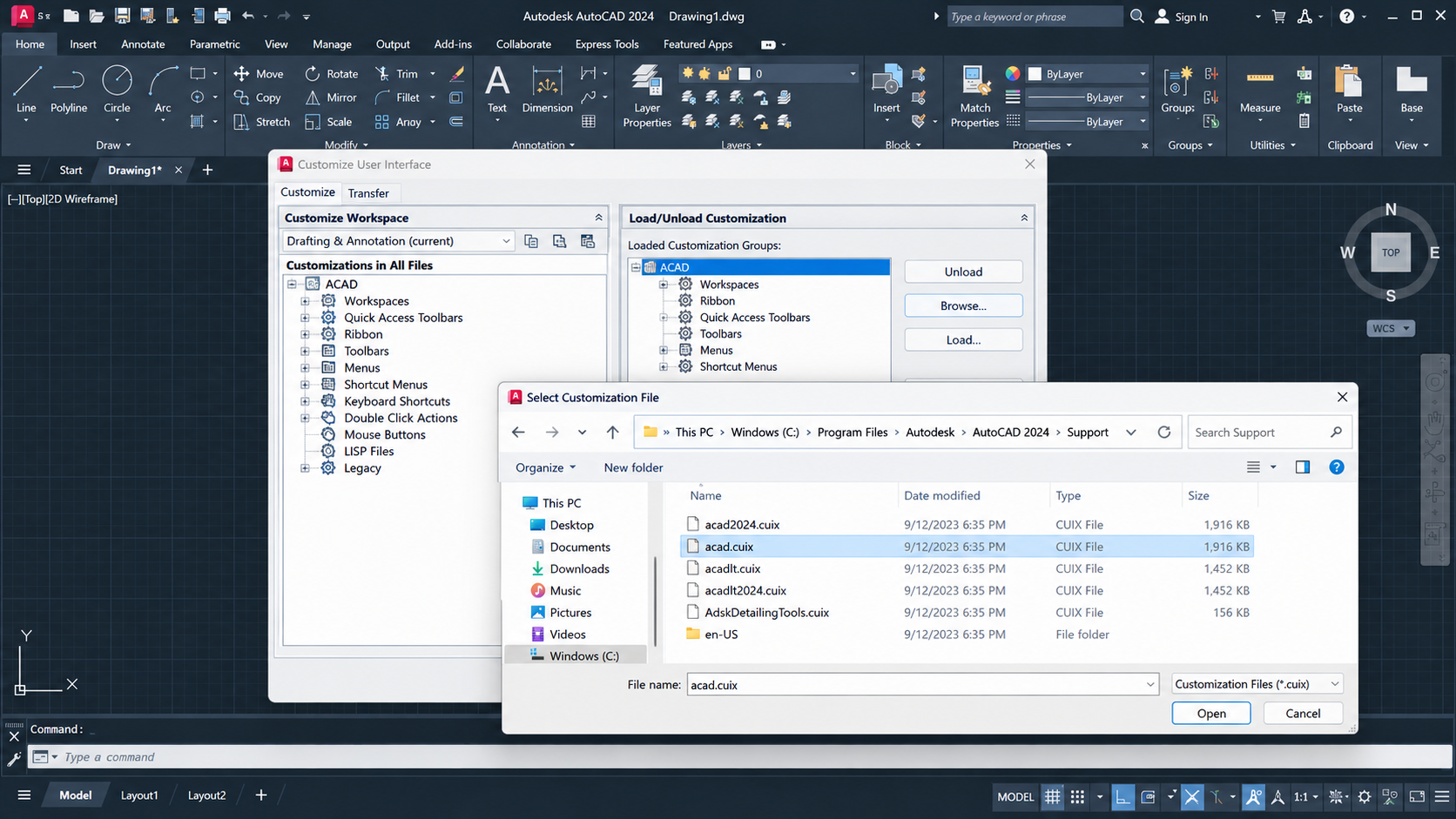
Show CUILOAD and the correct main customization group for the installed product. Hide custom partial CUIX names and private network locations.
If the file is missing or will not load, use Autodesk’s missing-CUIX recovery instructions for your product. A corrupted file is not repaired merely by loading it again. Avoid files from an unrelated release or toolset.
6. Reset Settings Only After Backing Them Up
A reset replaces the current user’s custom configuration with defaults. It can restore a damaged interface, but also removes the active layout and preferences. Keep it for problems that remain after the visibility and CUIX checks.
- Save all drawings and close AutoCAD. In Windows Start, open the exact product/version’s Reset Settings to Default utility.
- Select Back up and Reset Settings, keep the backup ZIP and complete the reset.
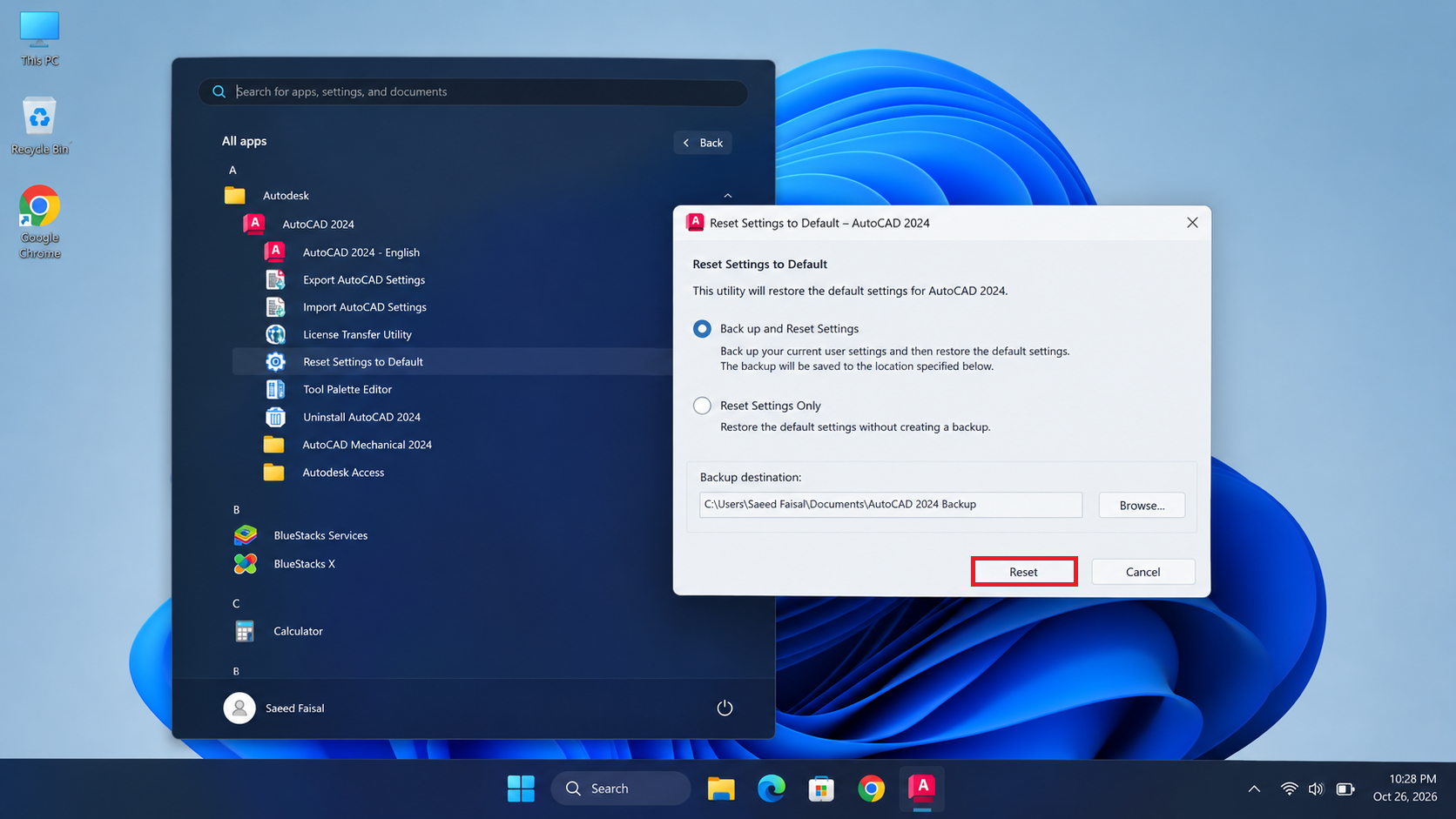
Show the reset utility for the exact installed product and the Back up and Reset Settings choice before confirming. Do not expose the backup path or operate a production profile solely for the image. - Launch AutoCAD without migrating or importing old settings. Check the default ribbon and workspace, then close and reopen it once to confirm they remain visible.
If the utility is absent, follow Autodesk’s product-specific reset instructions. Civil 3D and Plant 3D can require different procedures. Restore custom items selectively; importing the whole old setup may bring the problem back.
Keep the Restored Layout
Once the controls work, enter WSSAVE to save the layout under a new workspace name. Reopen AutoCAD to check it before restoring more customizations. A settings ZIP must match the product, release and language when imported.
For one missing third-party tab, check the add-on’s version and loading instructions rather than reset everything. If the default interface still fails, send your product/version, workspace, configured CUIX location and startup message to Autodesk Support or your CAD administrator.
An Unhandled Access Violation crash or License Manager error is a different startup problem. Changing toolbar visibility will not resolve either error.