How to Fix Forza Horizon 6 Not Installing or Downloading on PC?
Forza Horizon 6 appears in your library, but its download stays on Queued, stops partway through, or ends with an installation error. The Xbox app and Microsoft Store can recognize that you own the game without successfully installing it.
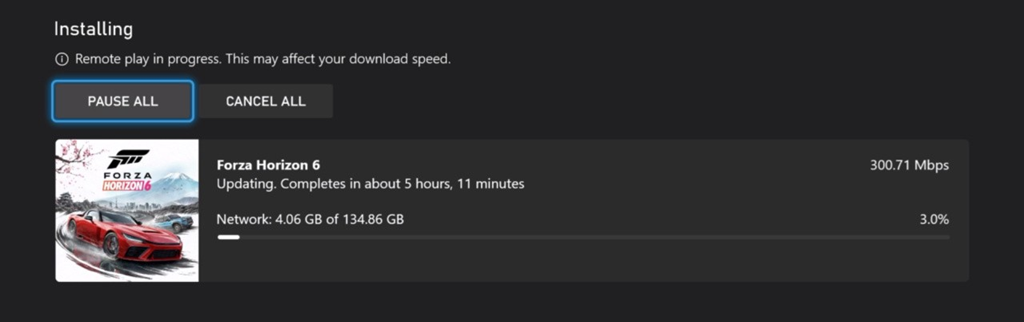
The problem can be outside FH6 itself: Store may be holding an unfinished download, Gaming Services may need attention, or the account may not have permission to install that edition. Repeatedly cancelling the game can waste a large download without correcting any of those problems.
These steps cover the Windows Xbox app and Microsoft Store, not console or Steam download queues. Check Xbox status before changing settings if purchases or downloads are failing across several games.
| What you see | Where to start |
|---|---|
| Queued, a stalled download, or an unresponsive Install button | Update Store and Xbox components. |
| A Premium bundle fails, including error 0x80070490 | Try the base game separately. |
| A Gaming Services installation prompt keeps returning | Run the official repair tool. |
| Buy appears instead of Install | Check the purchase account. |
1. Update Xbox, Microsoft Store, and Gaming Services
Updating FH6 does not update every Windows component it needs. Forza specifically requires a supported Gaming Services version, and Store delivers that update separately.
- Close FH6 and the Xbox app. Open Microsoft Store > Downloads or Library, then select Check for updates or Get updates.
- Install offered updates for Gaming Services, Xbox, and Microsoft Store. If Gaming Services is missing, open its official Microsoft listing and install it.
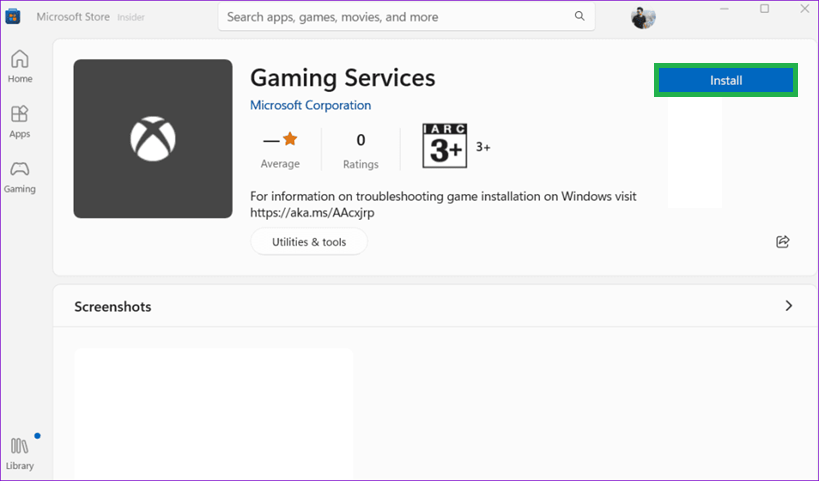
Forza Support specifically requires an updated Gaming Services package before FH6 will behave correctly on PC. - Open Settings > Apps > Installed apps > Gaming Services > three dots > Advanced options. Read the version under Specifications.
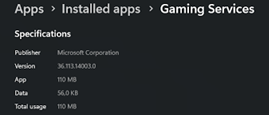
If the version is still below Forza’s requirement the install and launch stack can continue failing with different codes. - Compare every dotted number with the minimum on Forza’s Gaming Services requirements page, not the older screenshot.
- Install applicable updates in Settings > Windows Update, save your work, and restart. Open Xbox, finish any component-update prompt, then retry FH6.
The first Store screenshot shows a product-page Install button, not Downloads. An Installed label alone does not confirm that FH6 accepts the version.
On Windows 10, app settings are under Apps & features, and updates are under Update & Security > Windows Update.
If Store offers no update but the version is still too old, use the Gaming Services Repair Tool below.
2. Retry the Download Without Discarding It
A stalled queue does not always need a fresh download. Check the destination and Store cache before cancelling the installation.
- Open File Explorer > This PC. Check free space on the game drive and Windows drive; leave room for unpacking and updates, not just the displayed download size.
- In the Xbox download queue, select Resume or Retry. If the destination is disconnected or full, reconnect it or choose an available drive in the install dialog.
- Close Xbox and Store. Press Windows-R, enter
wsreset.exe, and press Enter.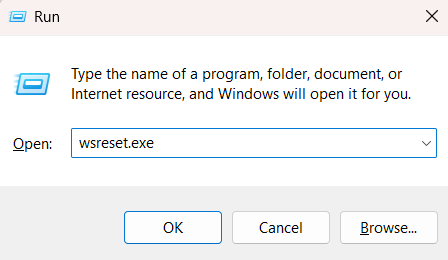
A stuck Store cache can leave FH6 installs queued or make the install button appear broken even when ownership is correct. - Wait for the blank window to close and Store to reopen. Open Library and retry FH6 there.
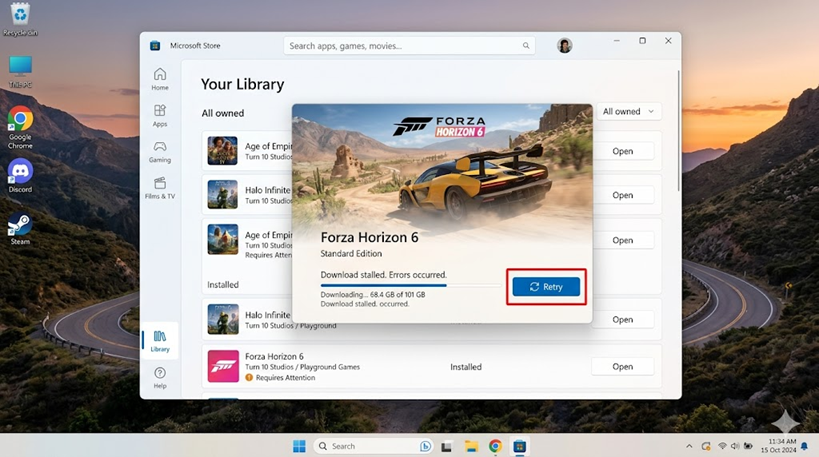
The Library page is often more reliable than a stale product page when Store permissions or install state are out of sync.
If Store still refuses the download, try the same owned game in the Xbox app > My Library. This changes the app requesting the installation; it does not require buying another copy.
For Premium-bundle errors such as 0x80070490, select the FH6 base game separately in your owned library and install it first. Then install the included, released add-ons individually. Some add-ons are recognized in-game without a separate download.
Once the byte count or percentage advances, let the queue continue. A brief zero-network period during installation is not enough reason to cancel it. Persistent Store-opening failures have a separate Microsoft Store cache walkthrough.
3. Repair the App That Cannot Complete the Install
If Xbox or Store also freezes, fails to open, or cannot install other titles, repair that app rather than resetting every component together.
- Open Settings > Apps > Installed apps. Find the affected app, then select three dots > Advanced options.
- Select Repair if available, reopen the app, and retry the download. Repair is intended to preserve app data.
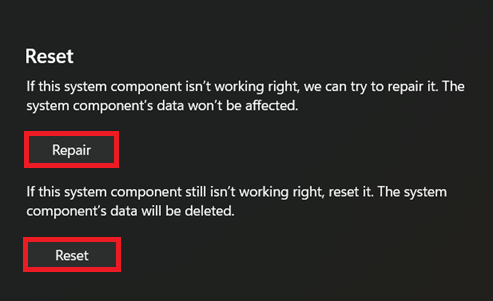
Repair preserves app data when possible and is the lowest-risk way to fix a broken Xbox app install path. - If Repair fails, consider Reset for that same app. Restart Windows, sign back in, and retry once.
- Repair Gaming Services separately if its installation fails or its prompt repeats. Missing repair controls are a reason to use the official tool below, not force an uninstall.
Signing back in restores account access, not data removed by Reset. For an Xbox app that remains unresponsive, the Xbox app opening checks address that separate symptom.
4. Run the Official Gaming Services Repair Tool
A repeating Gaming Services prompt or failed component update can prevent the game installation from completing. Microsoft’s tool checks and repairs that component without requiring a manual registry-deletion procedure.
- Open Xbox > profile picture > Support > Gaming Services Repair Tool > Start Troubleshooting.
- If Xbox will not open, use the Downloadable version on the official Gaming Services Repair Tool page. Open the downloaded tool and follow its prompts.
- Let the checks finish and complete any requested component installation. Restart Windows, reopen Xbox, and retry FH6.
PowerShell is not required for these steps. The screenshot below shows a different, manual reinstall procedure. Use the official tool rather than removing Gaming Services packages or service registry entries.
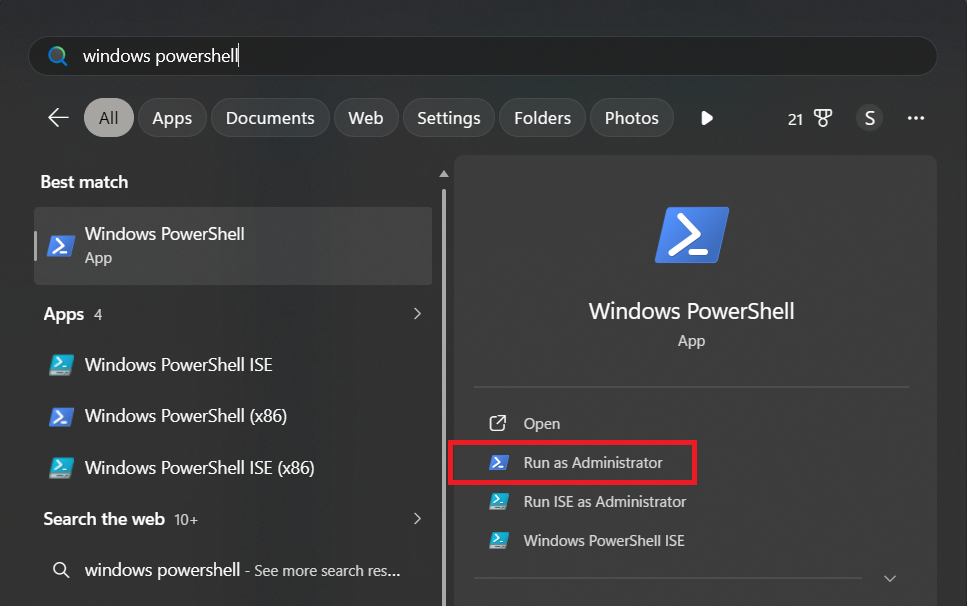
If the tool cannot run, check Windows updates and its administrator requirements. On a managed PC, ask your administrator. Keep persistent errors such as 0x80073D26 or 0x8007139F for support instead of applying old registry workarounds indiscriminately.
5. Confirm the Purchase Account and Device Authorization
A Buy button or missing owned edition needs an account check, not another cache reset. Know your sign-in and recovery details before signing out.
- Open Microsoft Store > profile icon. If necessary, sign out and sign in with the account that purchased FH6 or has subscription access to it on PC.
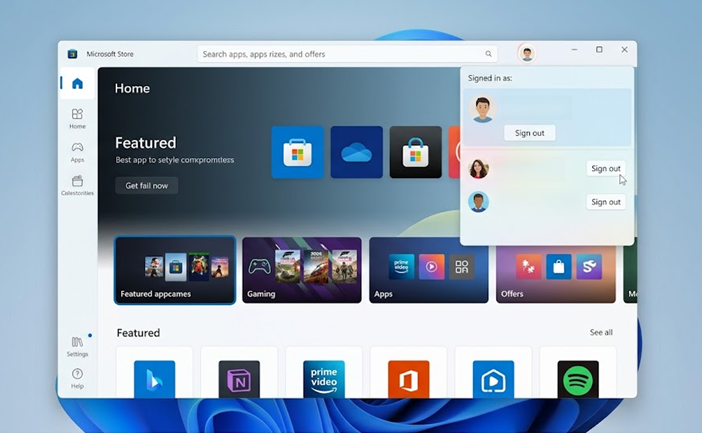
Mixed Store and Xbox identities can make FH6 appear owned while the install authorization silently fails. - Check Xbox > Settings > Account, including its Microsoft Store account. For a straightforward test, use the purchasing account in both apps.
- If both are correct, sign out of Xbox, close it, and sign back in. Confirm the purchase or active PC subscription, then retry from My Library.
- Only for a device-limit warning, open Microsoft Store device management and sign in.
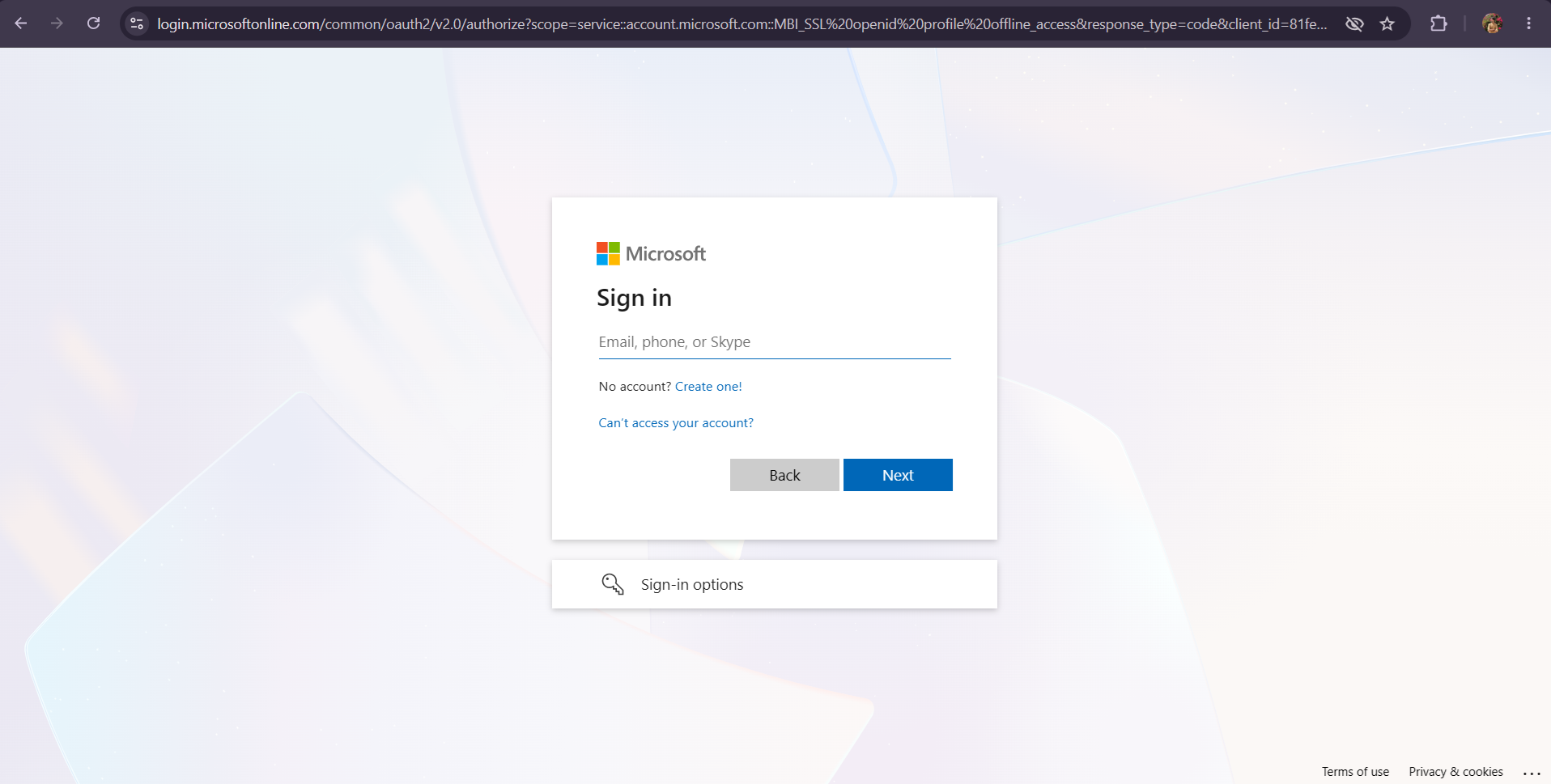
: Microsoft only allows Store downloads on a limited number of linked devices so removing unused PCs can restore install eligibility. - At the ten-device limit, unlink only a device you no longer use, confirm the choice, then retry on this PC.
The last image shows the sign-in page; device controls appear afterward. Unlinking frees a Store authorization slot, but that device can count again if you download on it later. It is not a routine fix for every stalled queue.
6. Check a Missing or Blocked Install Button
Store can block installation before downloading anything. Match the message to the requirement instead of changing regions or permissions without a reason.
- Not compatible: compare the affected PC with FH6’s official PC requirements. An app reset cannot make unsupported hardware compatible.
- Country or region restriction: check the purchased edition and your real account/Windows region. Ask support about a mismatch; do not use a false location to force access.
- Family approval required: ask the family organizer to review the game’s age/content permission. On a work or school PC, installation policy belongs to the administrator.
If FH6 Still Will Not Install
Try a small app you already trust from Store. Failure there too supports a broader Store/Xbox investigation; success does not rule out an FH6-specific package or drive problem.
Sign in to Forza Support to submit the exact code, screenshot, Windows build from winver, Gaming Services version, edition, chosen drive/free space, and repair-tool result. Never send your password or recovery codes.
If the same installation keeps failing near completion, ask support before cancelling it again; cancellation can require another full download. Avoid deleting WindowsApps, changing drive ownership, or deleting game saves for an installation error.