Best Schedule I PC Settings to Fix Low FPS, Lag, and Stuttering
Low FPS in Schedule I makes walking and turning feel sluggish. Brief freezes can interrupt movement too, even while the average FPS stays high. In that case, a higher number on the counter does not necessarily mean smoother gameplay.
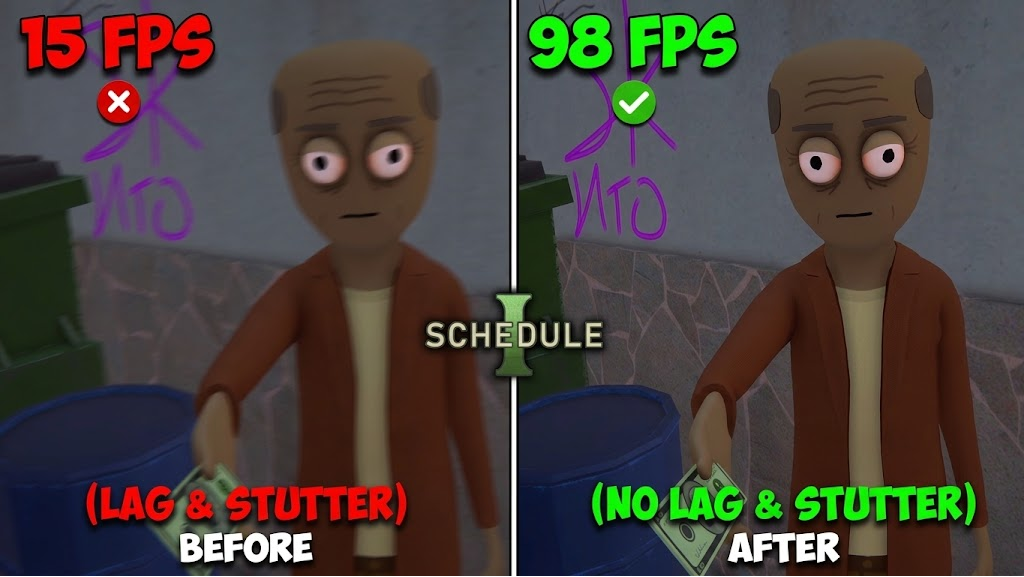
Lowering visual detail helps with rendering, but it may leave pauses caused by the game processing a busy property or its employees. The important result is whether the same scene feels smoother, not whether every setting is on Low.
Settings Worth Comparing
| Setting | What to try |
|---|---|
| Quality | Reduce one level: Ultra to High, then Medium if needed. Keep the highest preset that runs comfortably. |
| God Rays | Compare Off with your original setting, separately from Quality. |
| Resolution | Keep it unchanged initially. Try one lower setting only if reduced visual quality still leaves FPS too low. |
| Target Framerate | Check for an unintended low limit. A target is a ceiling, not a promise the PC will reach it. |
| VSync | Compare Off and On, judging tearing and input response as well as smoothness. |
| Screen Mode | Compare Fullscreen Window and Exclusive Fullscreen at the same resolution. |
Make One Repeatable Comparison
Install pending Steam updates before testing. TVGS’s performance improvements include rendering and frame-spike fixes; settings advice from a different build may not produce the same result.
These steps apply after your save loads. A game that never reaches the world needs the separate Schedule I loading-screen checks, not an in-game graphics adjustment.
- Open Steam > Settings > In Game and enable the performance monitor if you have no counter. Its detailed view shows brief minimum-FPS drops that an average can hide; Valve explains the readings here.
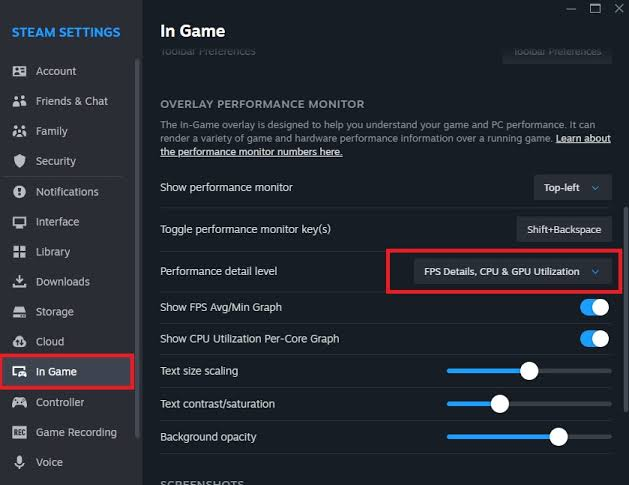
Use one performance overlay throughout the comparison. - Walk the same short stretch of the affected save twice. Note the FPS range and where movement pauses. Keep the viewing direction, time of day and weather comparable; a quiet room is not a fair comparison with a busy street.
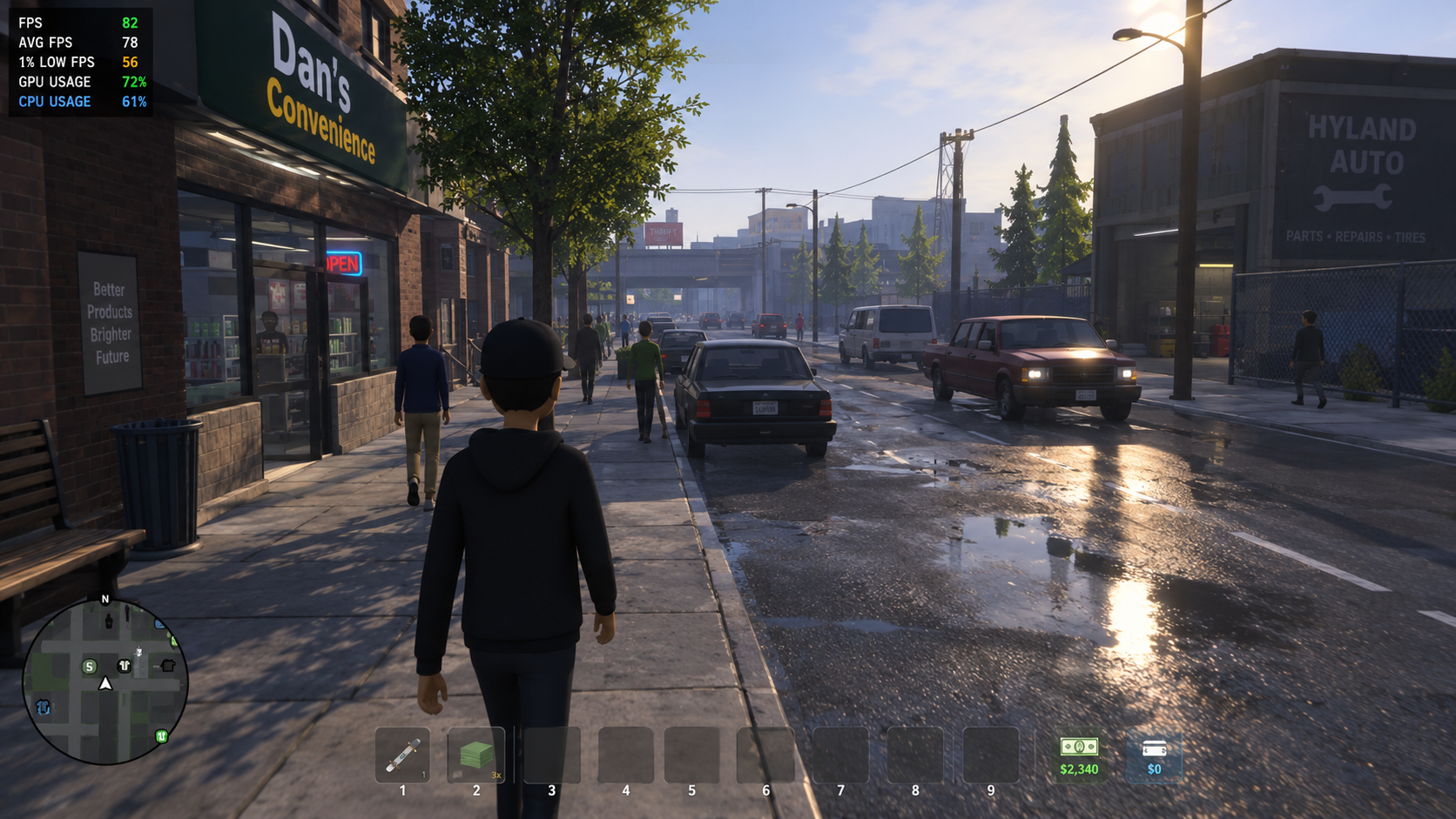
Compare the same route, viewing direction and similar in-game conditions. - Take a screenshot of your original resolution, Quality, God Rays, VSync, Target Framerate and Screen Mode. After each change below, repeat that same walk. Restore changes that do not help.
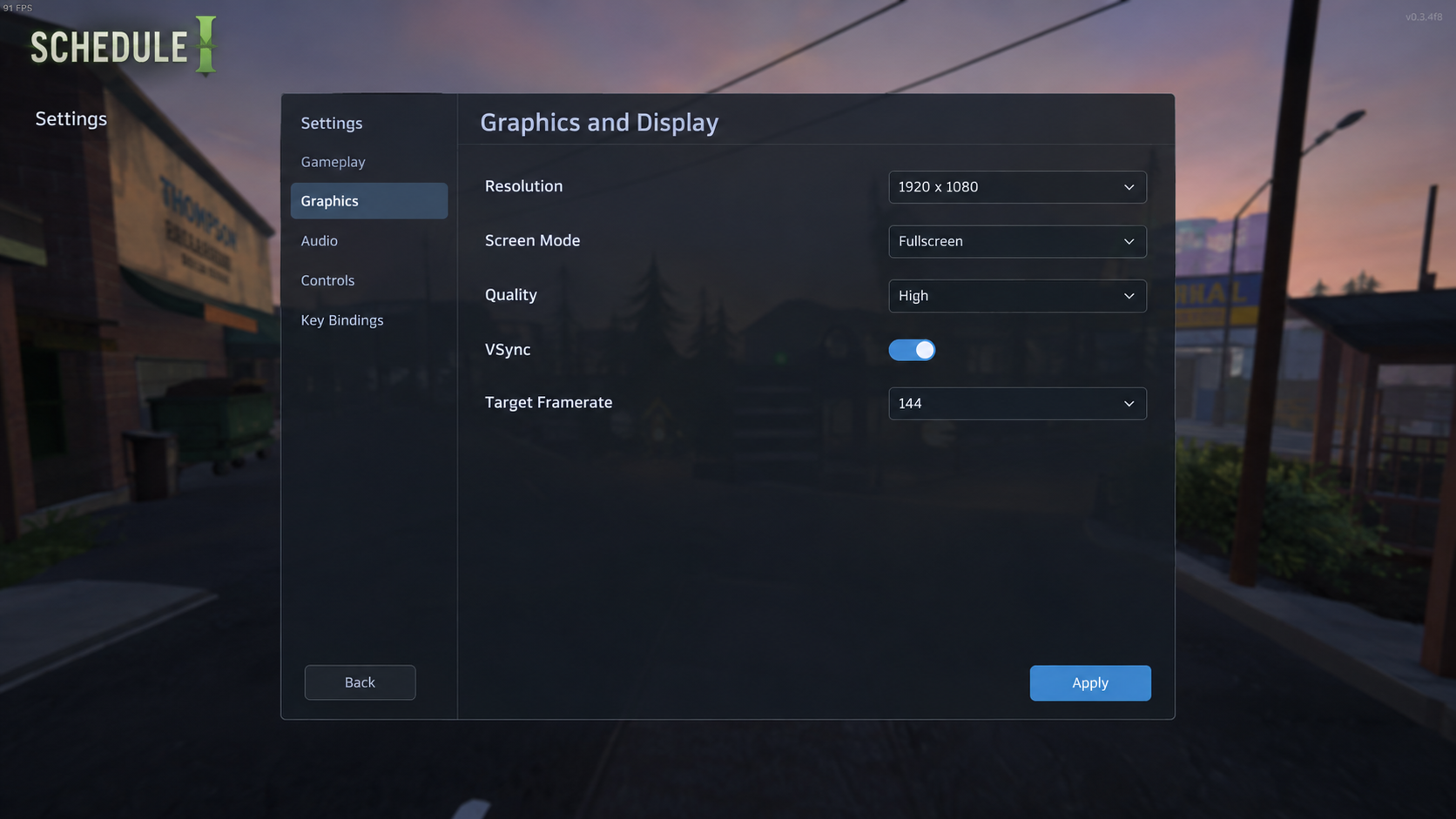
Keep the original values so an unhelpful change can be reversed.
Display changes apply automatically on updated builds. If your menu still offers Apply, use it before returning to gameplay.
1. Lower Quality and Test God Rays Separately
A detailed street can take longer to draw than an empty interior. Lowering Quality reduces that visual workload. Turning off God Rays removes an additional lighting effect, but neither change is guaranteed to fix a recurring simulation pause.
- Open the game’s Settings and lower Quality one level: Ultra to High, or High to Medium. Keep resolution and the display settings unchanged.
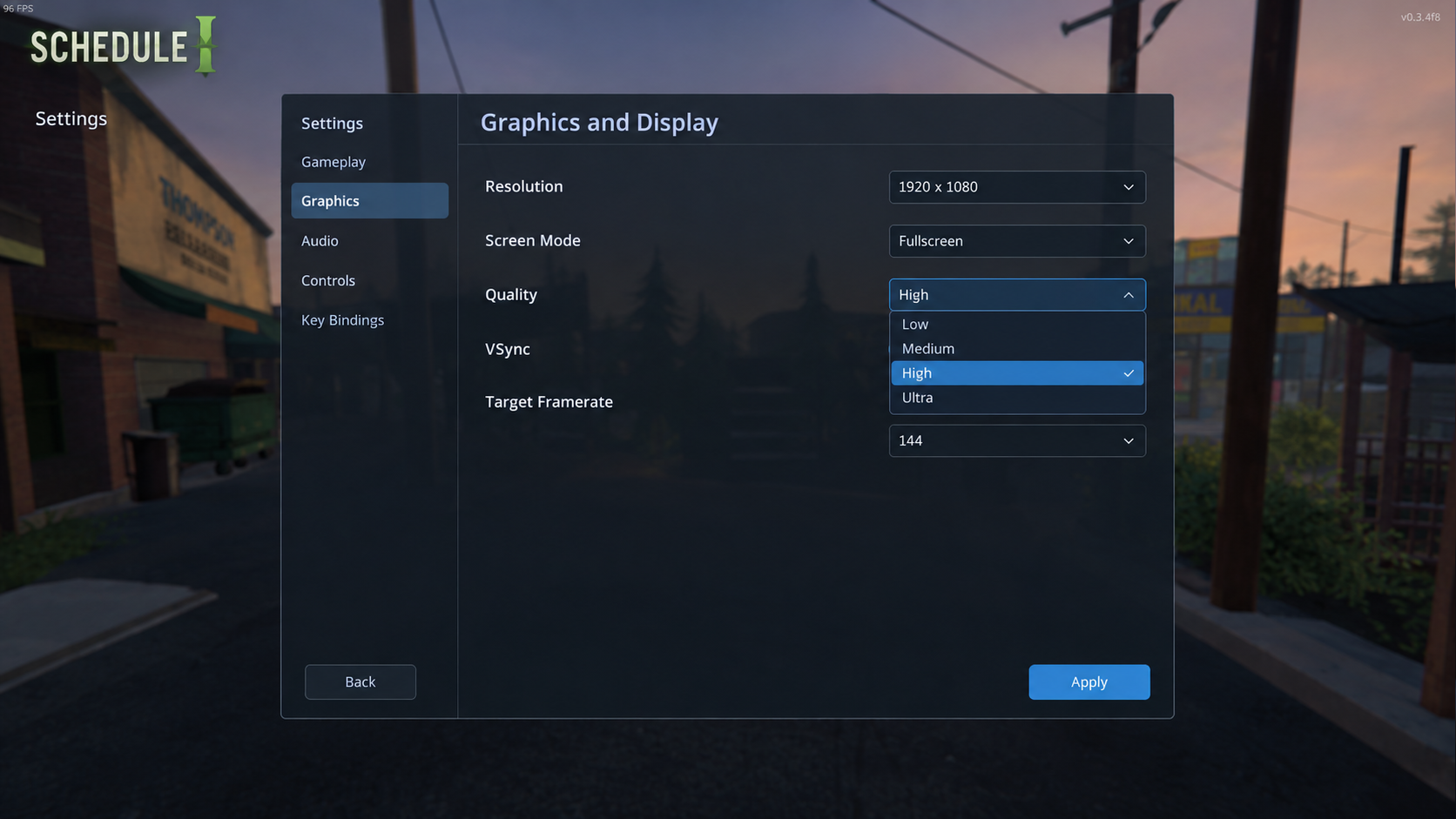
Change Quality first while keeping resolution and other controls unchanged. - Compare gameplay again. If it remains slow, try Low once. Keep the highest acceptable preset; restore the original if reducing it makes no useful difference. The image below shows the preset selector, not a measured before-and-after result.
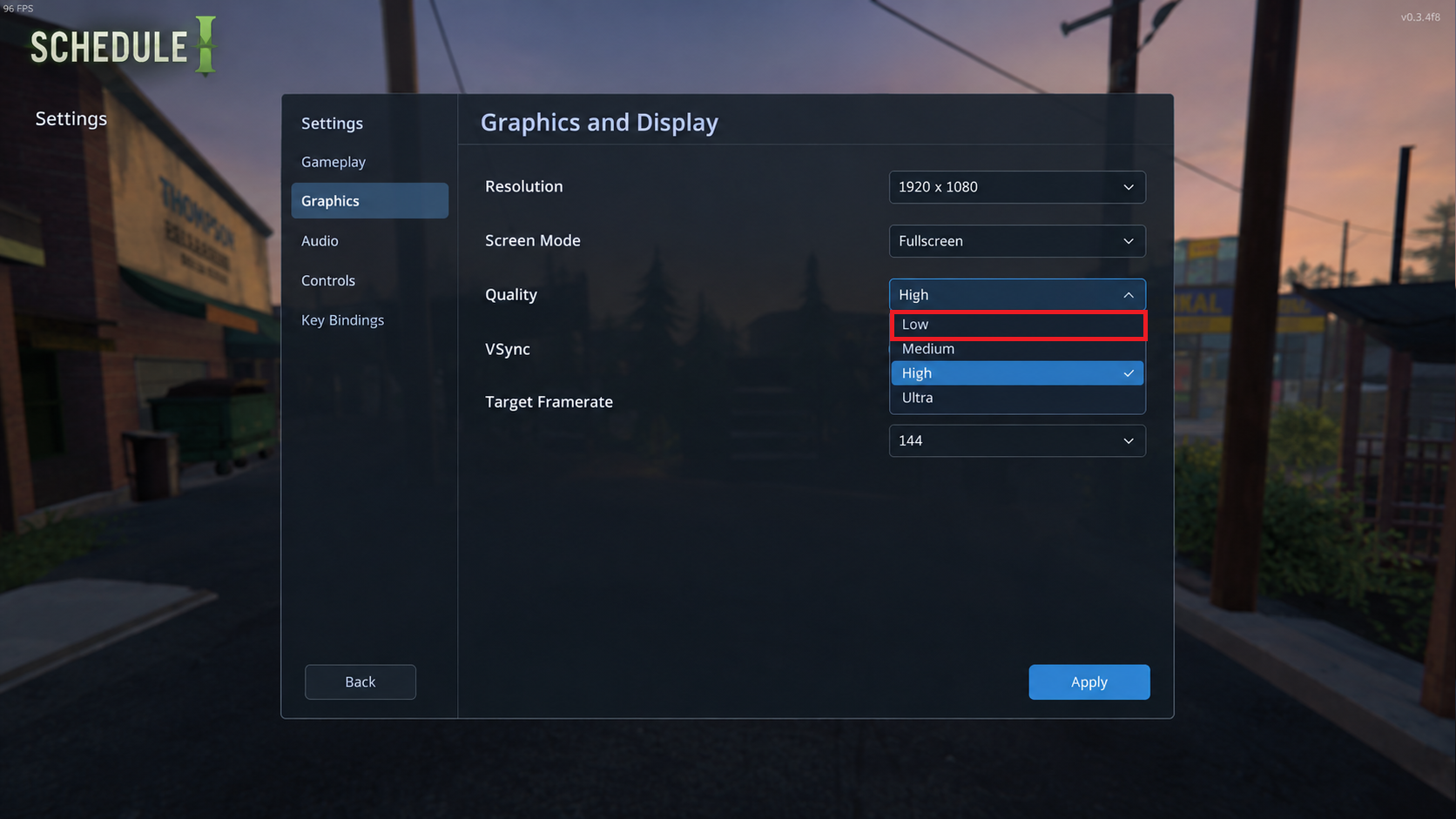
Retain a lower preset only when the performance improvement is worth the visual change. - With Quality settled, turn God Rays off if enabled. Change nothing else and compare the same location once more.
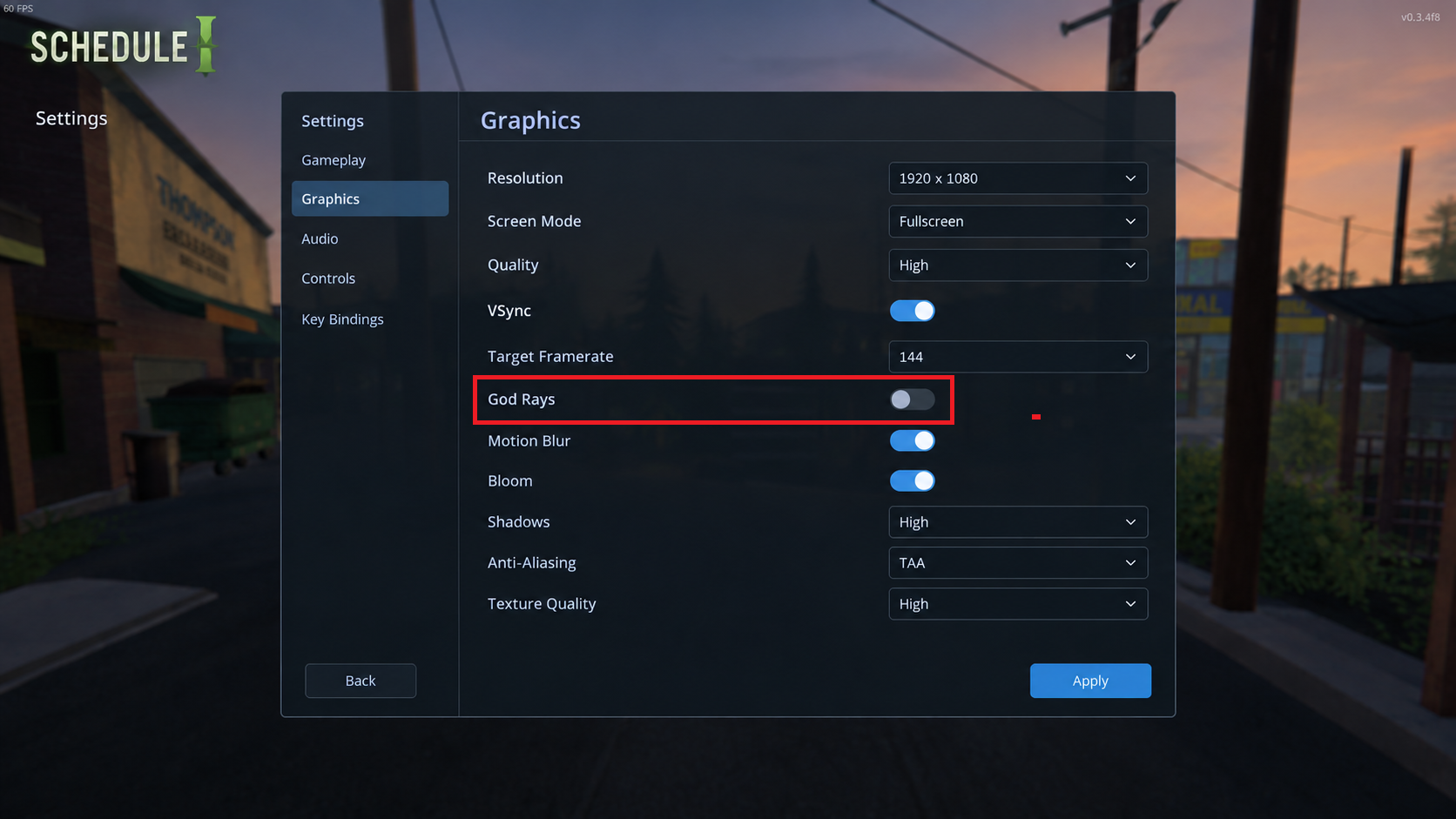
Retest after changing God Rays without altering the remaining settings. - Optional: if reduced graphics help but FPS remains too low, lower Resolution one step to draw fewer pixels. Keep it only if performance improves enough to accept the softer picture; otherwise restore it.
If you still have low FPS or the same pauses, check the FPS limit and VSync before reducing visual quality further.
2. Check the FPS Limit and Compare VSync
An FPS reading that stops at exactly 60 may reflect a limit rather than a struggling PC. Target Framerate sets a ceiling; VSync matches frames to the display’s refresh cycle and can also limit FPS.
Turning VSync off can change smoothness or responsiveness, but may introduce tearing. Valve’s refresh-rate and VSync explanation covers the distinction. Keep G-SYNC/FreeSync and driver settings unchanged during this comparison.
- Check Target Framerate. Raise an unintended low cap, then retest before changing VSync. A 60 FPS target explains a ceiling at 60, not drops below it. Note any separate driver FPS limit too.
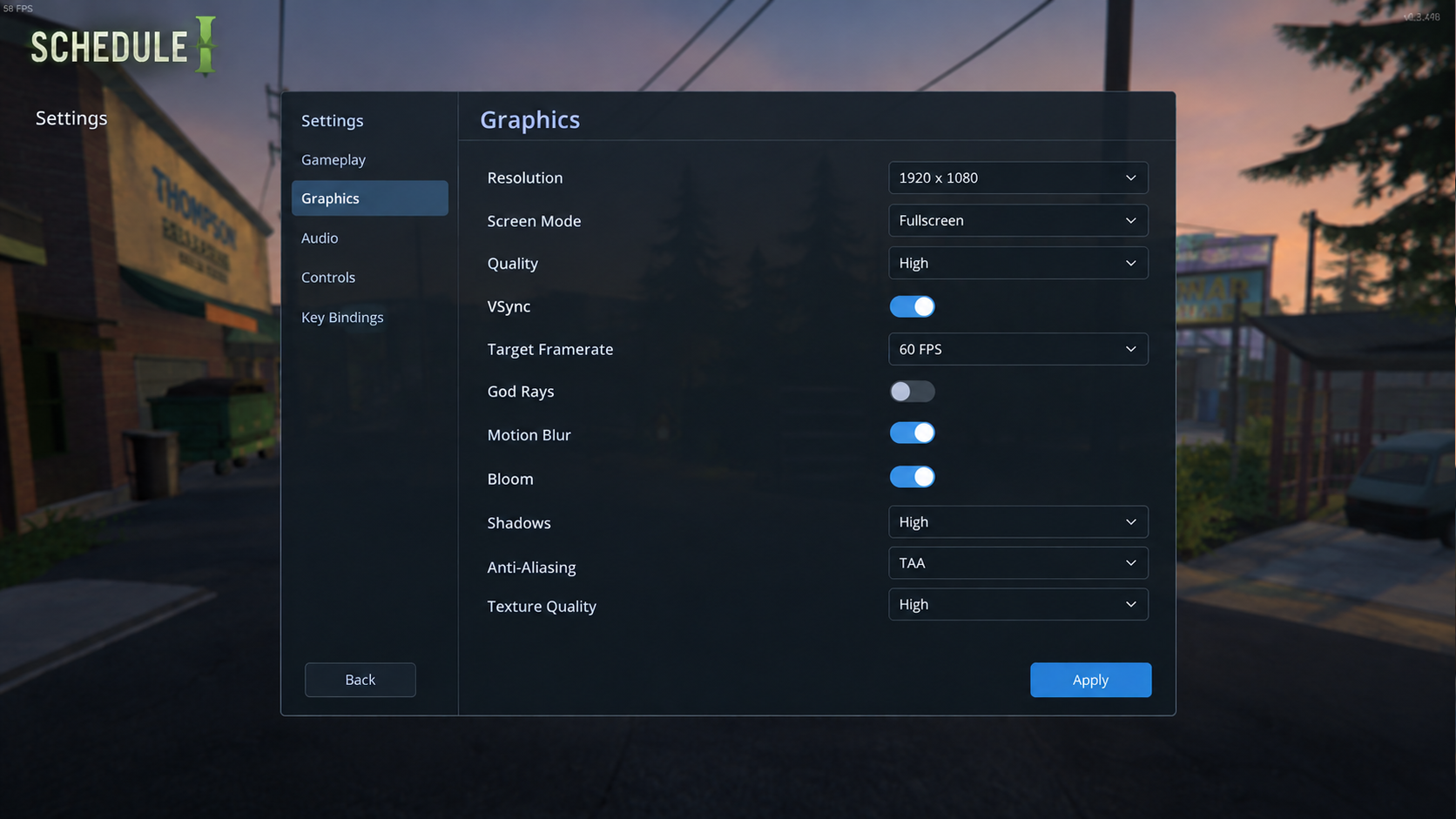
Target Framerate is an FPS limit, not the monitor’s refresh-rate control. - Set VSync to Off. Keep Target Framerate unchanged and repeat the walk, checking camera movement, tearing and how quickly turning responds.
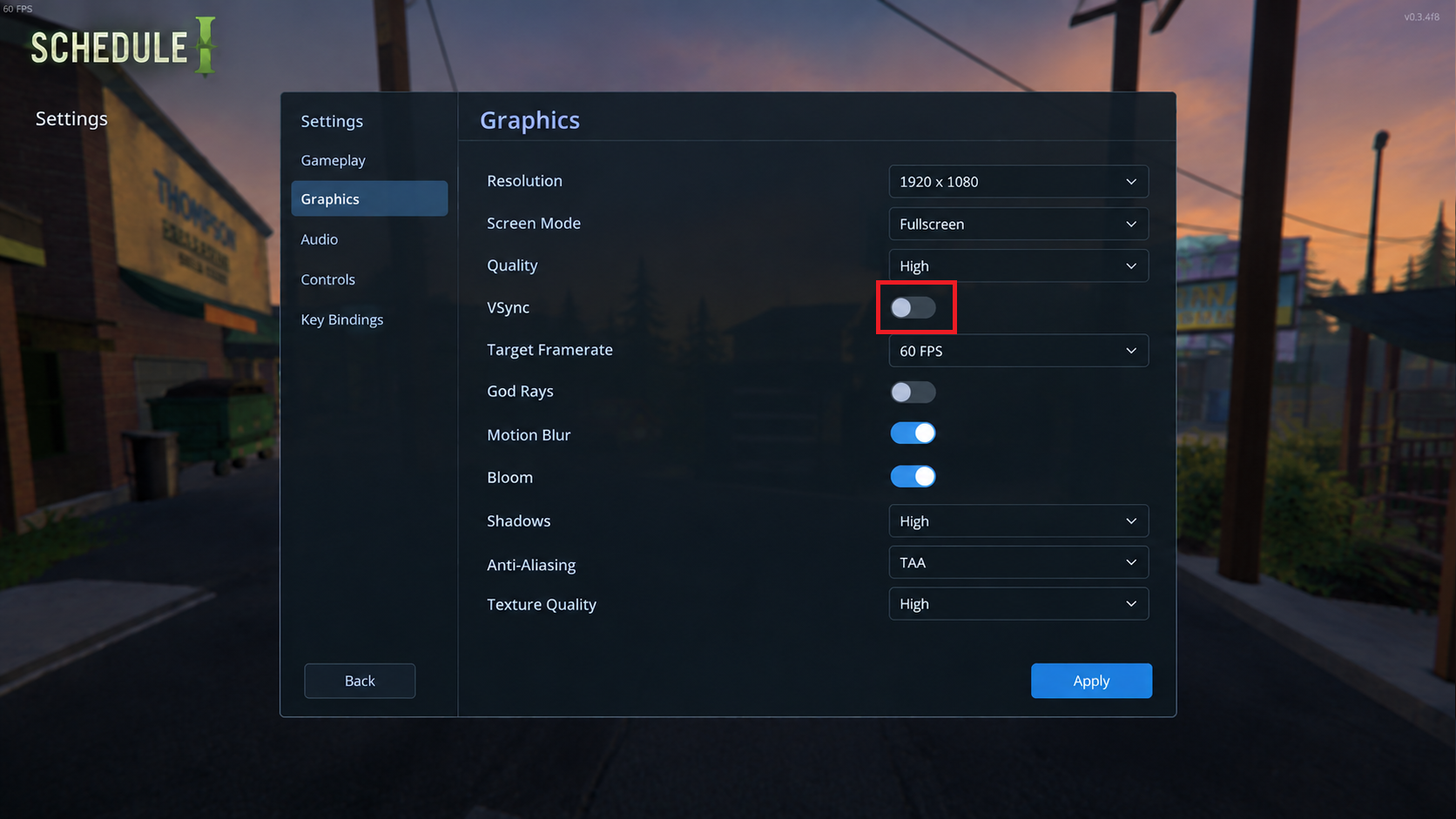
Check actual movement and tearing as well as the FPS reading. - Set VSync to On and compare again. Keep your own FPS target identical, even though the example screenshots show different values.
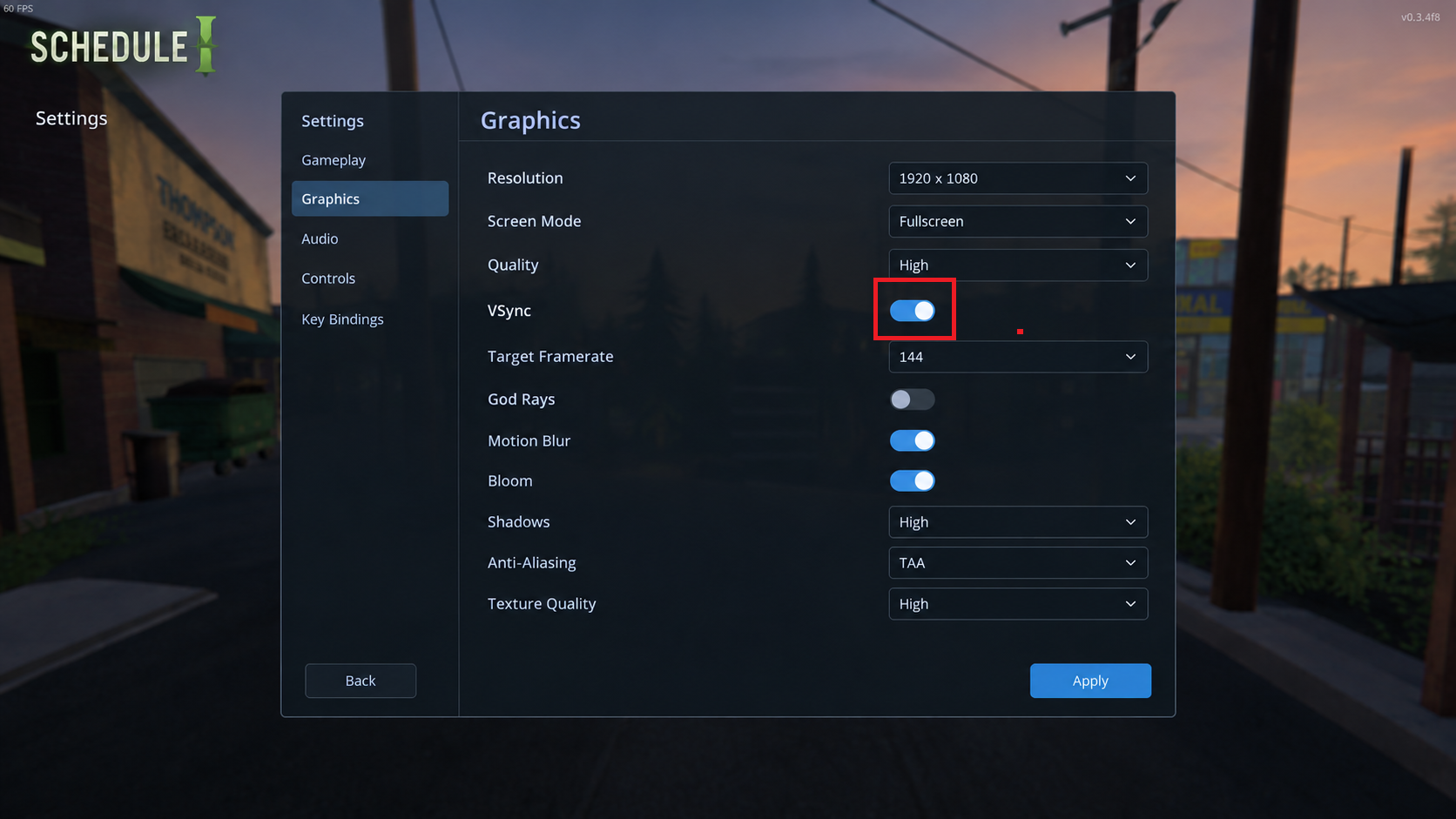
Keep the synchronization setting that gives the better movement and input response on your display.
Use the setting that feels smoother without unacceptable tearing or input delay. A cap near a frame rate the PC can sustain can reduce large swings, but cannot prevent every drop. If both VSync choices still hitch, compare screen modes.
3. Compare Fullscreen Window and Exclusive Fullscreen
Screen Mode can change how smoothly Windows displays the game, without reducing the scene’s visual detail. Neither mode is always faster. This comparison will not resolve lag that affects only remote co-op players.
- Select Fullscreen Window. Check that resolution, Quality, VSync and Target Framerate have not changed, then repeat the same walk.
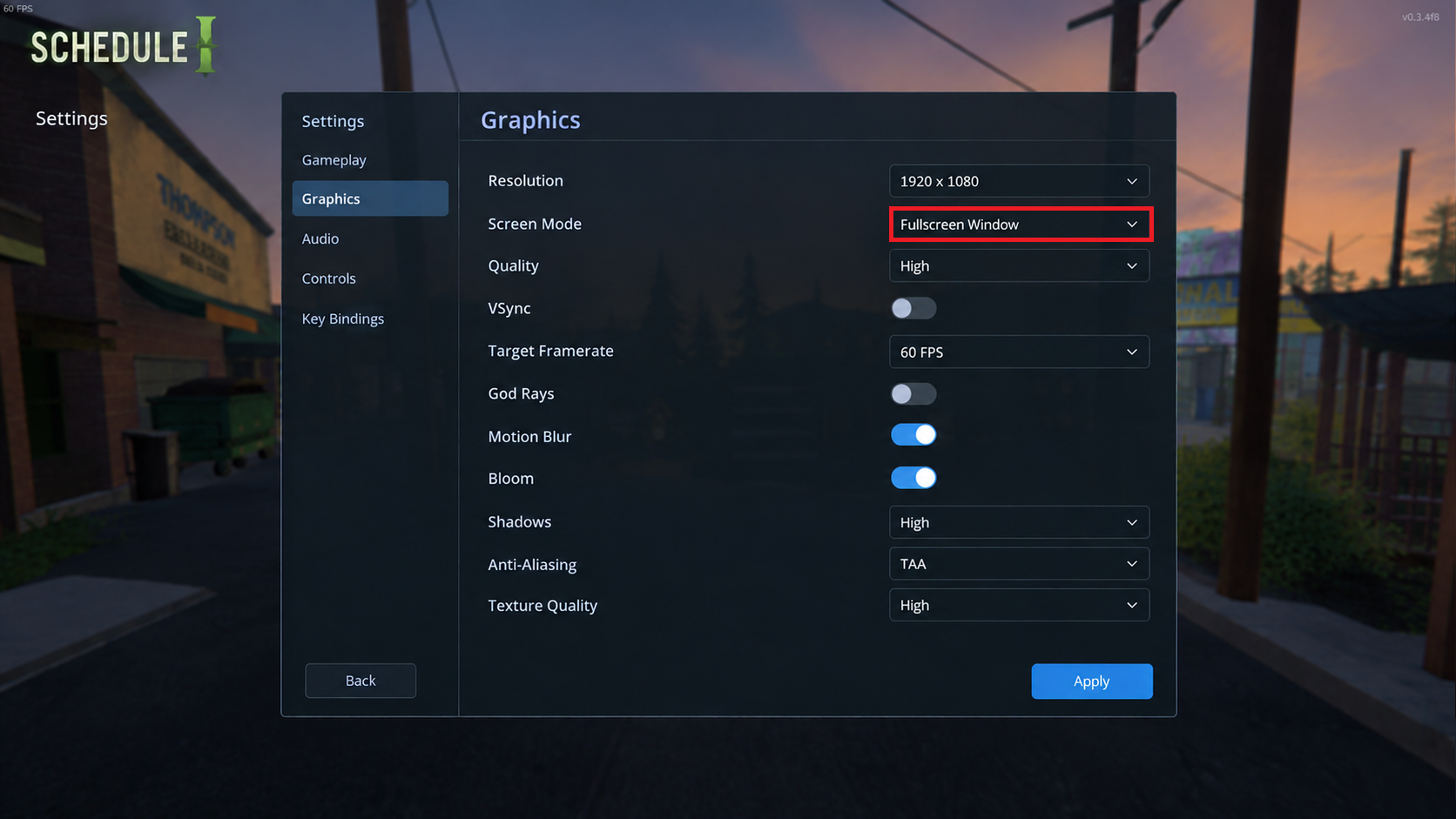
Keep resolution and the other settings constant during the mode test. - Select Exclusive Fullscreen, recheck resolution and compare again. Keep the better result. If neither changes the stutter, restore your original mode.
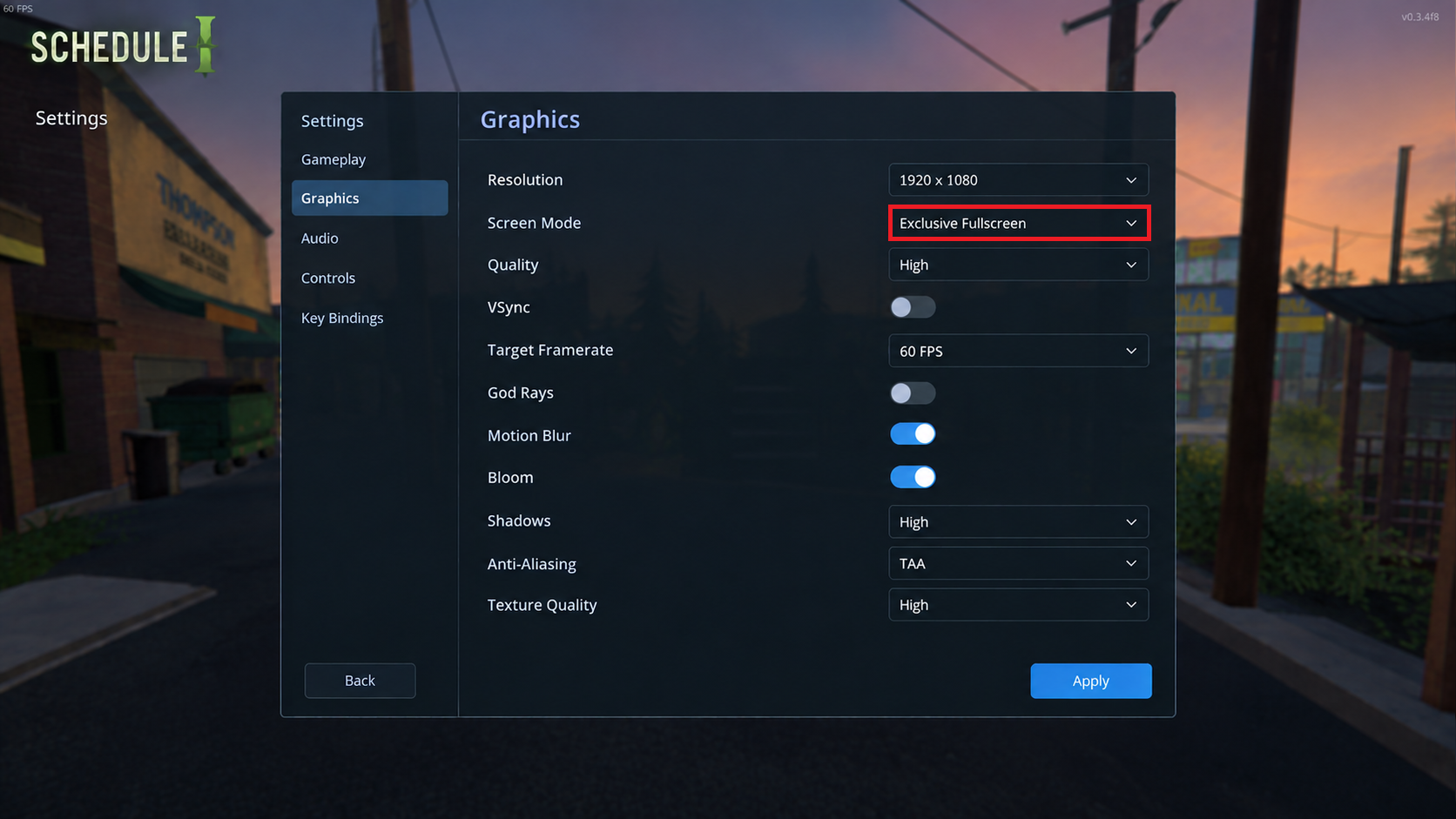
Choose the mode that performs better on the same route, then check that resolution stayed unchanged.
Once movement is comfortable, leave the working combination in place. If both modes pause at the same spots, record that result rather than cycling through the same settings again.
If the Same Pauses Remain
TVGS has addressed employee-heavy saves and stored-item stuttering, so a developed save can behave differently from a new one.
Compare another existing save if available, but preserve the affected save. This identifies a save-specific difference; it is not a controlled graphics benchmark or proof of corruption.
Post reproducible results in the game’s Steam Bug Reports board. Include the build, CPU, GPU, RAM, resolution, settings, mods and exact stall location, plus whether you are playing solo, hosting or joining.
A short clip with the counter visible can show the pause more clearly than an average FPS figure. If other games also run poorly, check Steam’s broader PC-performance guidance for requirements, background applications and drivers.
Smooth local camera movement with delayed co-op interactions suggests a connection or host-session problem instead. Record which players are affected, the host, connection type and VPN use; graphics presets do not control network latency.
If movement is smooth but an employee stands still, investigate the separate worker-stuck problem. A frozen worker is not the same thing as a frozen frame.