How to Fix CurseForge Modpacks that Keep Crashing?
A CurseForge modpack can finish installing normally, then close Minecraft before the main menu or while a world loads. The launcher’s Exit Code 1 records the failure, but does not identify which mod, file or setting caused it.
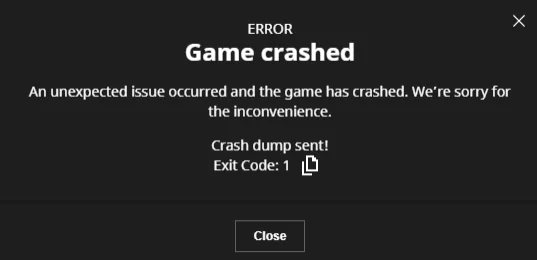
The ordinary Minecraft installation may still work. CurseForge keeps its packs in a separate modding folder, so reinstalling vanilla Minecraft does not necessarily change the files used by the failing pack.
These instructions cover Minecraft: Java Edition modpacks, not a stalled download or the CurseForge app itself closing. A large pack showing Not Responding may still be loading; allow it time if new entries continue appearing in its log.
Keep Your Worlds and Crash Log Safe
- Open the affected pack in CurseForge. Record its pack release, Minecraft version and mod loader, then select the three dots beside Play > Open Folder. Close Minecraft and its launcher before copying files.
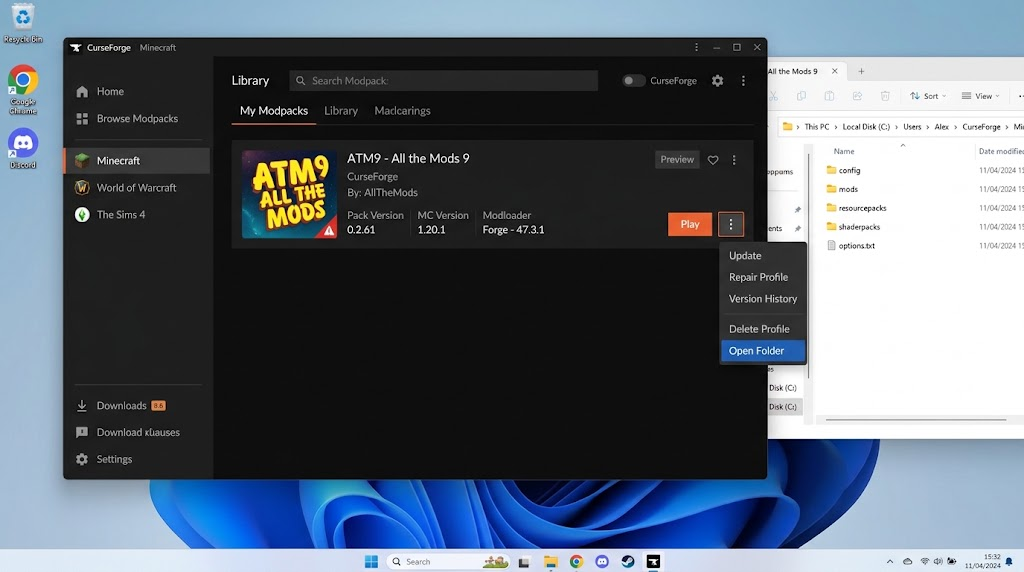
Use the folder belonging to this modpack, not the separate vanilla Minecraft installation. - Copy
logs/latest.logand the matching newest file incrash-reports, if present, somewhere outside the profile. Check their timestamps against the failed launch. If Minecraft never started, save the launcher’s error text instead.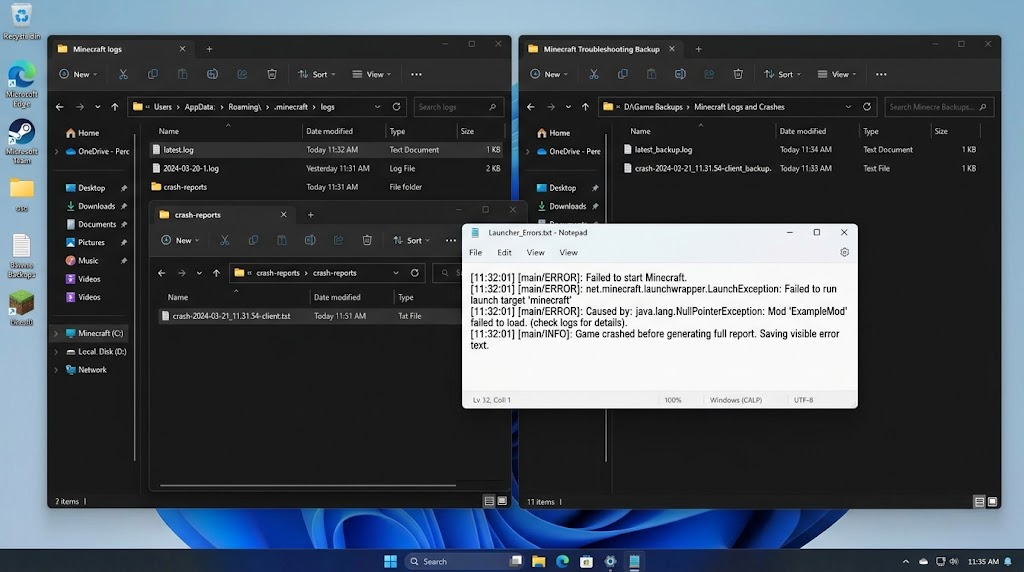
Copy latest.log and the matching crash report before another launch changes the logs. Use the profile folder opened above, not the vanilla
.minecraftlocation shown in this example. - Copy the entire profile folder to a separate location with enough free space. Verify that the backup includes
saves, mods and configuration files. Keep the original profile; a profile export does not necessarily include worlds.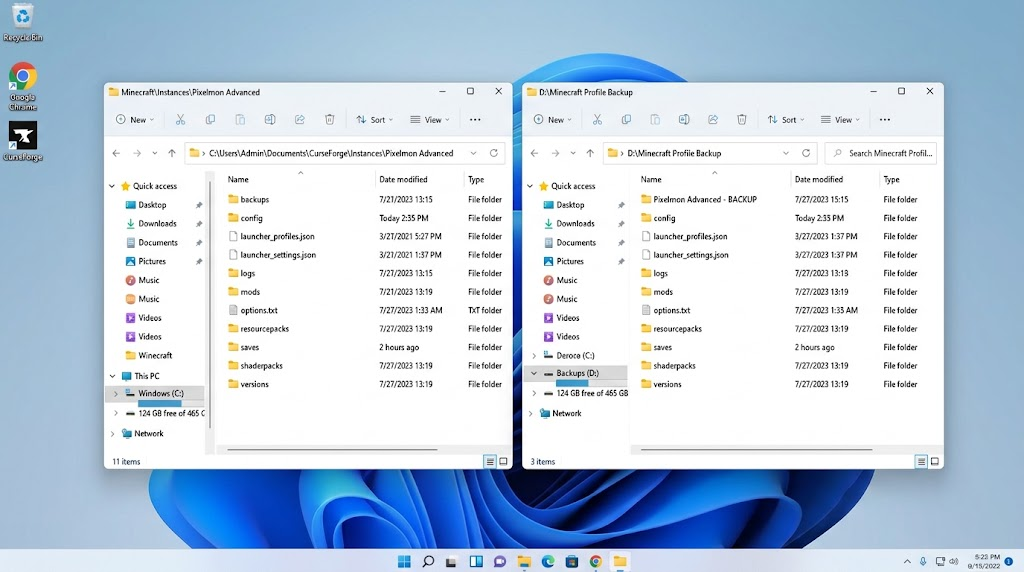
Keep the original profile and verify the backup before repairing or replacing files.
Look for a specific error near the crash in the saved report. Fabric’s crash-report explanation identifies the error summary and system details. A named mod may be involved without being responsible.
| What you find | What to check |
|---|---|
| Several existing packs fail before the menu. | Repair the shared Minecraft installation below. |
OutOfMemoryError: Java heap space, or allocation below the pack’s requirements. | Check the affected profile’s memory setting. |
| One pack crashes, especially after its mods were changed. | Compare an untouched copy of the same pack release. |
| A fresh world works, but one saved world crashes. | Keep that save backed up and send its log to the pack author before altering world data. |
1. Repair CurseForge’s Minecraft Installation
Several packs closing before the menu can share damaged launch files. CurseForge’s official crash guidance recommends installation repair for this situation. It is not a repair for an individual saved world.
- With Minecraft and its launcher closed, open CurseForge’s Minecraft library. Select the three-dot menu near the top right > Repair installation. This is different from Repair Profile inside a pack’s menu.
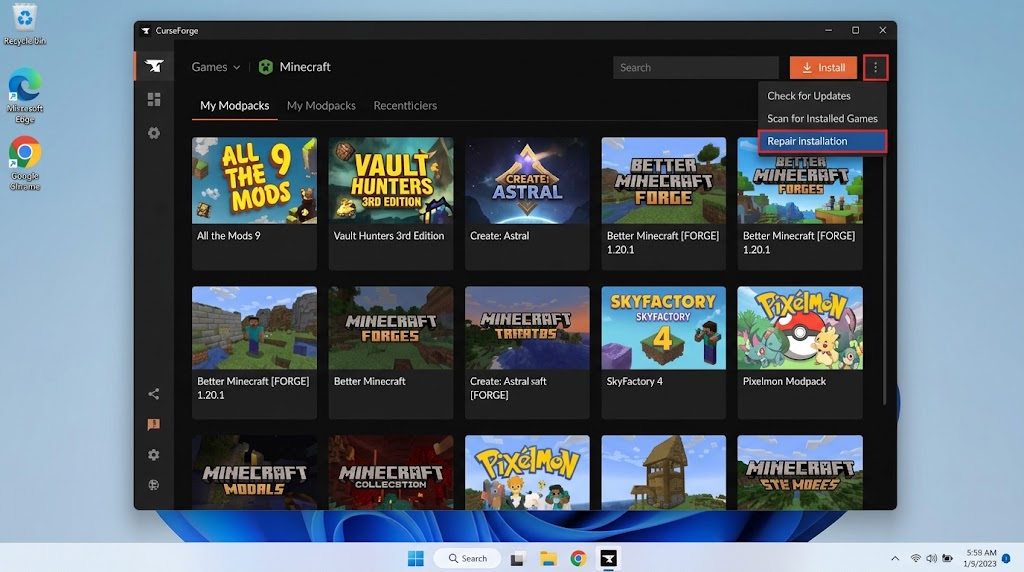
This library-level control is different from Repair Profile in an individual pack’s menu. - Let the repair and downloads finish, then close and reopen CurseForge. Leave the
InstallandInstancesfolders intact. Sign back into the launcher if prompted.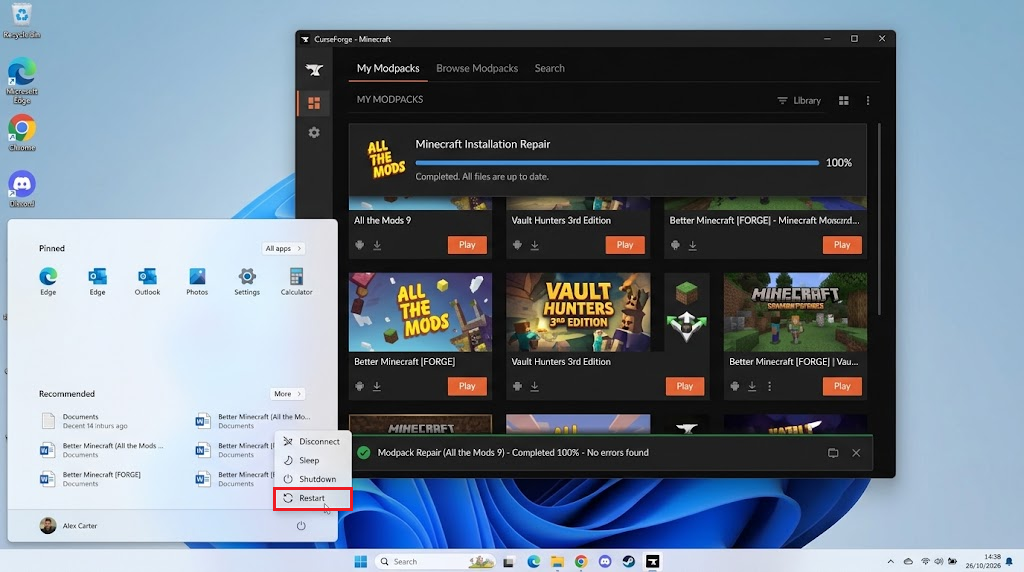
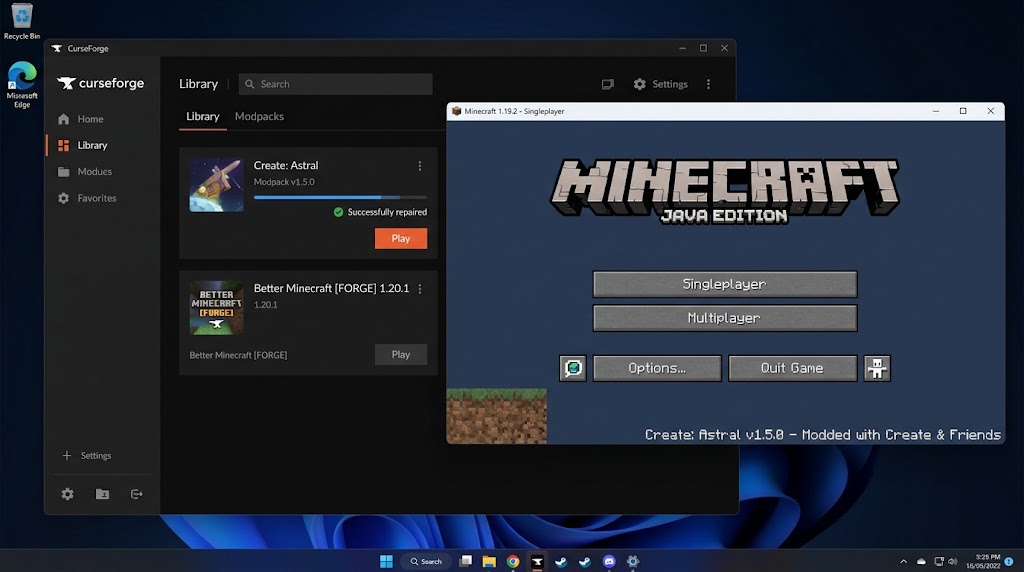
Compare the affected pack with another existing profile and record the actual result. - Launch the affected pack again. If available, test another existing profile that previously failed. Check whether each reaches the main menu before opening an important world.
Record the current profile setting before changing its allocation
Working packs confirm that launching has recovered, not that every saved world is healthy. If every profile still fails identically, collect the new error for CurseForge support rather than reinstalling each pack.
For OpenGL or graphics-driver errors, that official guidance also links to NVIDIA, AMD and Intel driver updates. Match your GPU’s manufacturer; a third-party driver updater is not needed.
2. Match the Pack’s Memory Requirements
A pack running out of Java heap can close during loading or world generation. Adjust its memory limit when the report says OutOfMemoryError: Java heap space or its allocation is below the author’s requirements, not because Exit Code 1 appears.
- Check the pack’s project description or release notes for its RAM requirement. Open three dots beside Play > Profile Options and record the current memory selection and value.
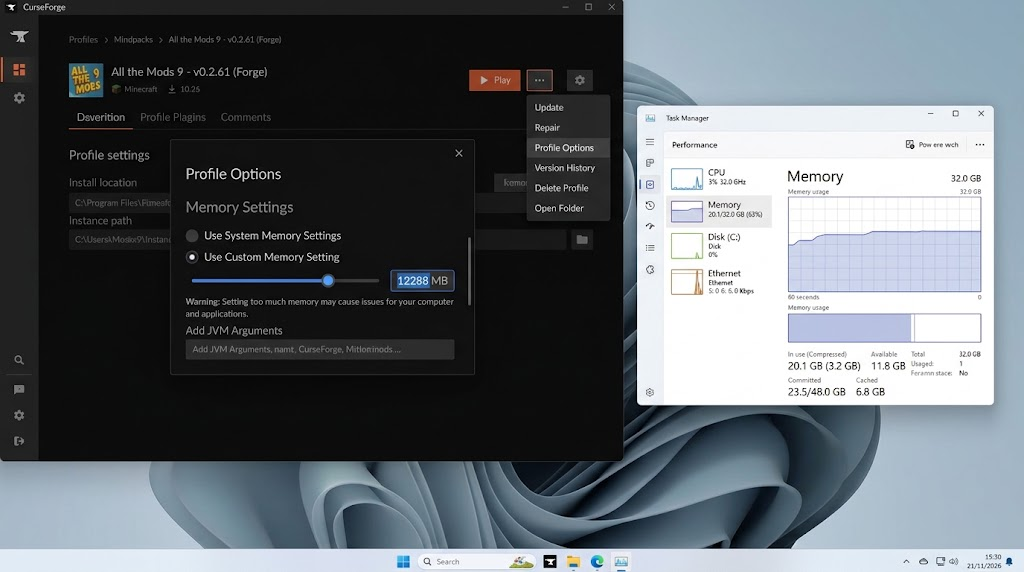
Record the current profile setting before changing its allocation. - Under Memory Settings, select Recommended by Author when offered and your computer has enough RAM. Otherwise use Custom RAM Allocation to match the published requirement. Older layouts enable the slider by clearing Use System Memory Settings.
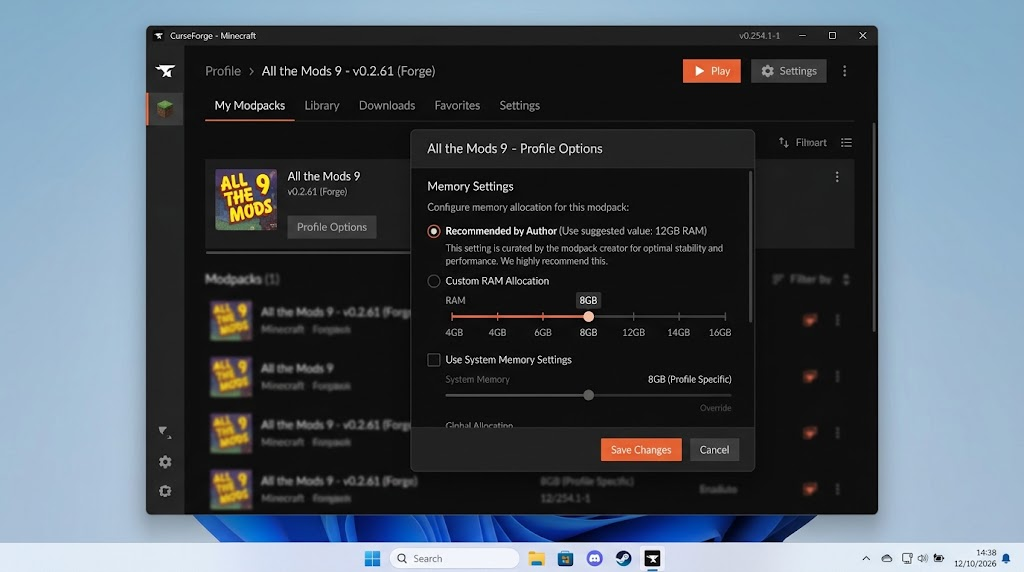
The illustrated value belongs to the test pack; it is not a recommendation for every modpack.
CurseForge’s memory guidance warns against excessive allocation. Leave RAM for the operating system, Java’s other memory needs and background apps. Reduce an oversized custom limit toward the pack’s requirement; never assign all installed RAM.
- Click Done, reopen Profile Options to verify the saved value, then repeat the same loading or gameplay test. Restore the previous setting if nothing improves or the computer becomes less responsive.
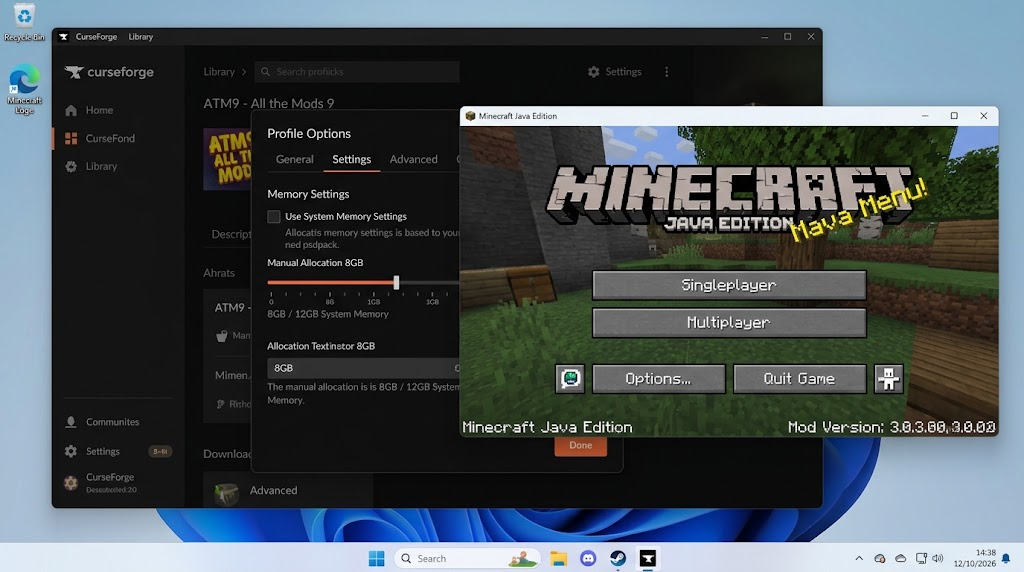
Repeat the same workload and restore the previous setting if the change does not help.
If adequate allocation still produces the same memory error, send the report to the author. A leaking or faulty mod can exhaust more memory too; repeatedly increasing the limit is not a lasting repair.
3. Test a Clean Copy of the Same Modpack
One pack failing while others work is a reason to compare its files, not replace all of Minecraft. A fresh copy restores the author’s supplied mod versions and configuration without carrying over your local changes.
For a custom collection without a published working release, ask its maintainer to review the logs instead.
- Open the pack’s official CurseForge project > Files. Download the client modpack ZIP for the exact installed release. Match the Minecraft version and loader; a server archive or newer release is not an equivalent test.
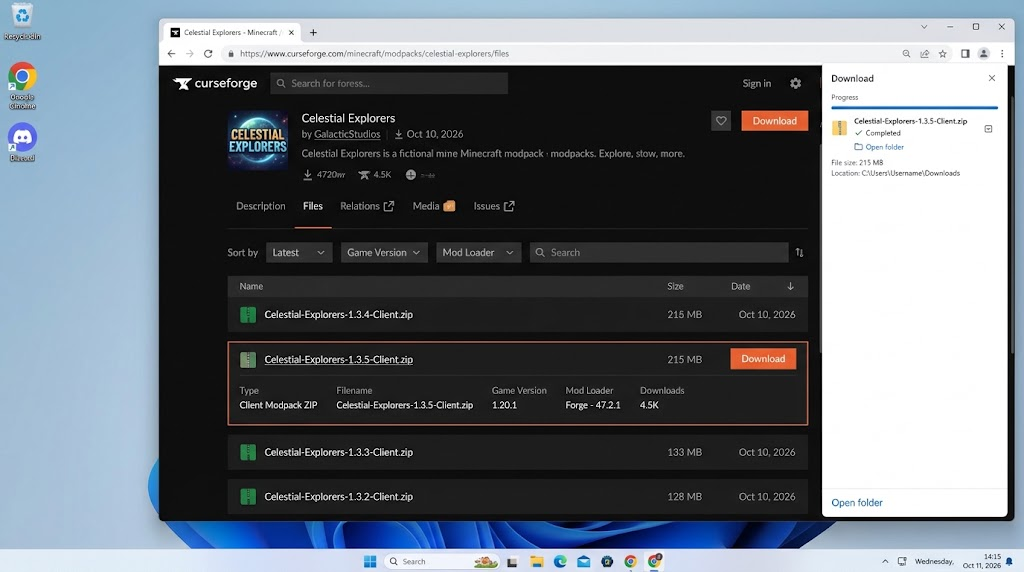
Choose the exact installed pack release, not a server archive or an unrelated newer version. - In the Minecraft library, choose Import > Import Profile .zip > Choose .zip file. Select that downloaded ZIP, not an export of the failing profile. CurseForge’s import instructions confirm this creates a new profile.
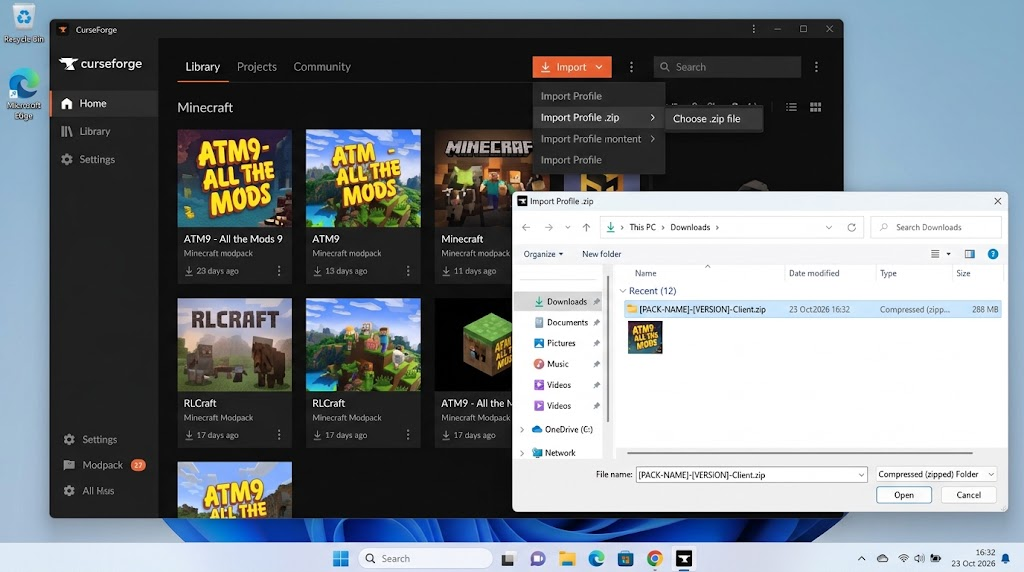
Import the author’s original client ZIP instead of an export of the failing profile.
If an import warning flags unfamiliar external files, cancel and verify them with the author. Omitting required files would also make the comparison incomplete.
- Confirm the original remains and the new profile is separate. Give it a recognizable name in Profile Options, verify the pack/game/loader versions and apply appropriate memory settings. Add no extra mods or shaders.
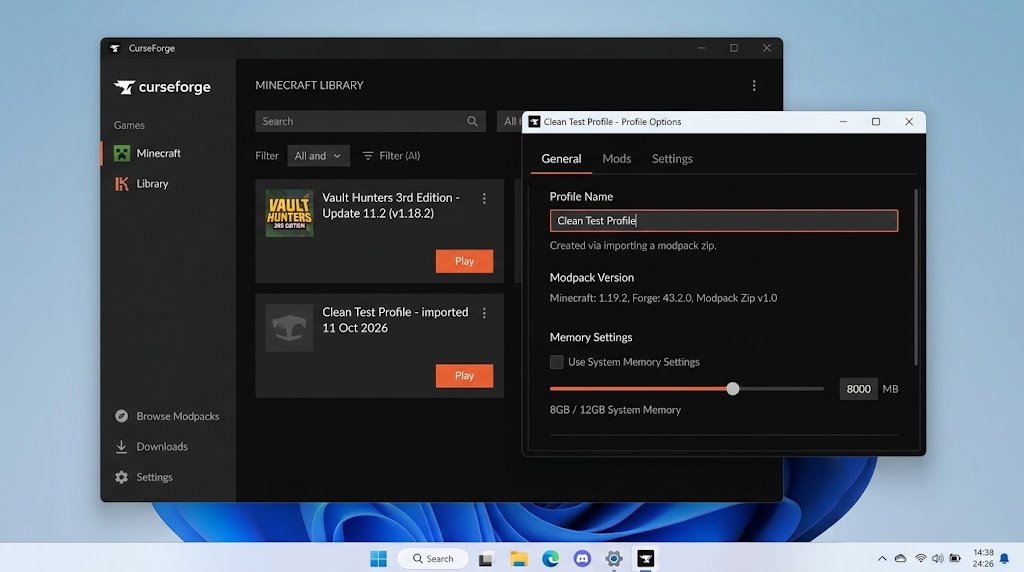
Give the new profile a recognizable name and confirm its pack, game and loader versions. - Launch the new profile and create a disposable world. Repeat the activity that crashed before, without copying old saves or configuration files into it.
If the clean pack still crashes in a new world, save its log for the author. Keep the old save untouched; altering its world data would not explain why a new world fails too.
Bring Back a World Only After the Clean Pack Works
For an otherwise unmodified pack of the same release, close Minecraft and copy one backed-up world folder into the new profile’s saves folder. Test that copy only. Stop at a missing-content warning; do not accept it on your only copy.
If the copied world works, keep the old profile and backup until you have checked your progress. If it alone crashes, preserve its new log for the author. Do not overwrite all the clean configuration files or delete world data to force loading.
If the Pack Still Crashes
Use the project’s listed support channel; CurseForge explains how to find the author. Include the pack release, game/loader/Java versions, operating system, memory allocation, crash trigger and clean-profile results.
Send the matching log and crash report. Remove access tokens and private account/server details from the shared copy, retaining an untouched local copy. For failures across all profiles, contact CurseForge support with that comparison.
Java is normally installed automatically by CurseForge. A Java-version error needs the requirements for that pack, not an arbitrary newer runtime. Missing-dependency messages likewise need the specified compatible files, not removal of whichever mod appears first in the report.
A different code, exit code -1073741819, concerns a native access violation rather than a general Exit Code 1 failure.
Minecraft staying open but rejecting a server login with Failed to Login: Invalid Session needs sign-in troubleshooting, not a modpack memory change.