How to Fix Black Ops 7 Split Screen Not Working?
Black Ops 7 can show no Player 2 join prompt even though both controllers work in the console menus. In other cases, the match starts but the second player’s half stays black, or play becomes too choppy to continue.
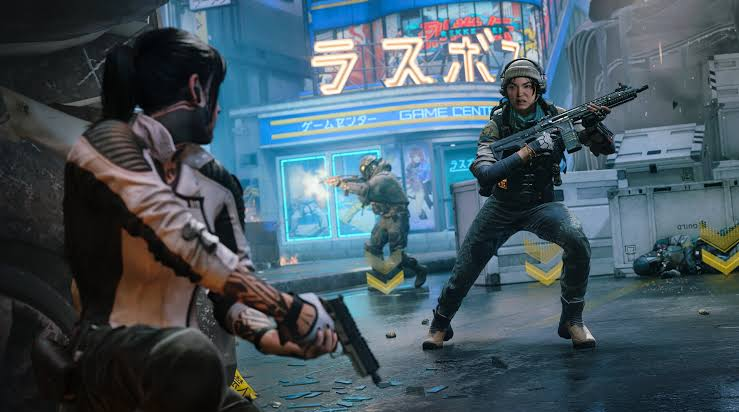
Player 2 needs a separate sign-in, not just a connected controller. If both names already appear in the lobby, a black second view is a picture problem, not a missing-controller problem. Game updates can also disrupt working split-screen sessions.
| What you see | What to check |
|---|---|
| No Player 2 join prompt | Console version and player sign-ins, then pending updates. |
| The prompt is missing under one PS5 profile | Try the other player as host. |
| Player 2 joins, but their view is black or corrupted on PS5 | Player 2’s FidelityFX CAS setting. |
| Both join, but PS5 split screen freezes or stutters | An optional 120 Hz/VRR comparison. |
1. Check the Console Version and Both Player Sign-Ins
A working second controller cannot add split screen to an unsupported edition. Activision lists two-player split screen on PS5 and Xbox Series X|S, not PC, PS4, or Xbox One.
- On PS5, confirm you installed the PS5 edition, not the PS4 version from a cross-gen bundle. Xbox players need the Series X|S edition; Xbox One X is an older console.
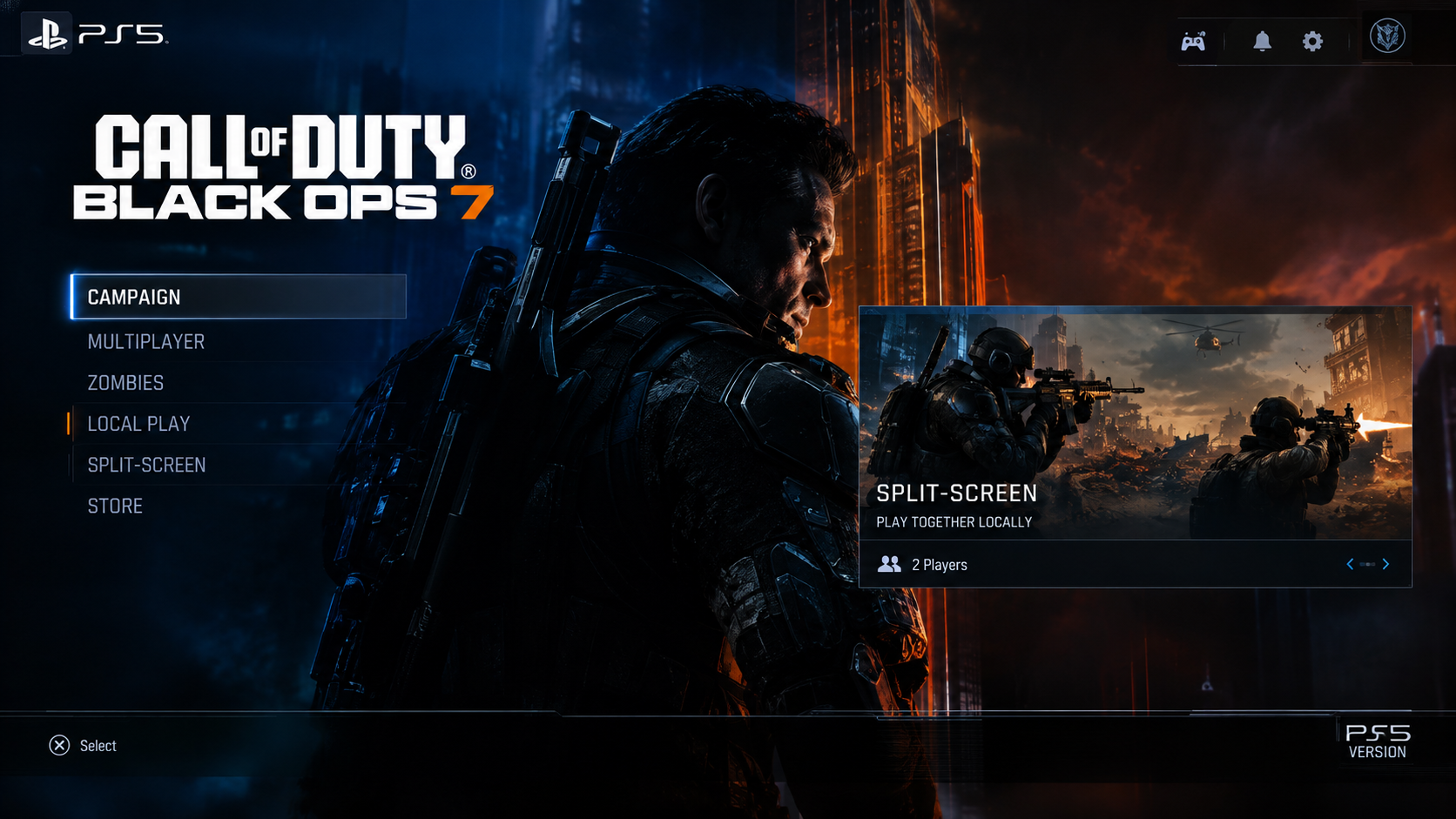
PS5 and Xbox Series X|S support split-screen; older console editions do not. On PS5, open Game Library, select Call of Duty, and open … to choose between owned versions. The illustrations are examples; follow your actual console menus rather than looking for a separate Split-Screen tile.
- Assign each controller to a different console profile. Finish each player’s sign-in and initial game prompts using their own Activision account, rather than relying on a temporary guest.
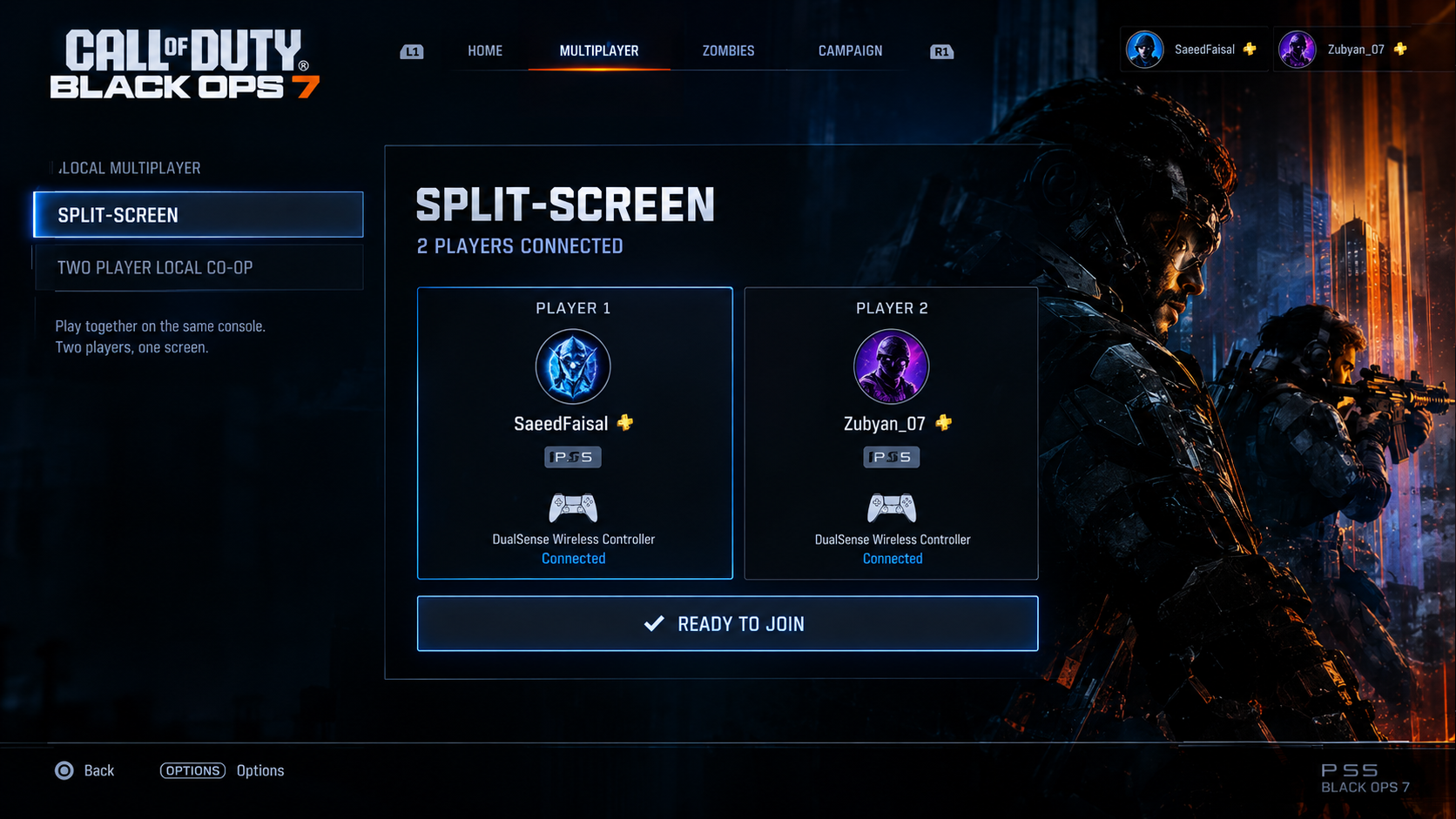
Conceal account names and identifiers in the published screenshot. If the second controller cannot navigate the console menu, fix that connection first. A DualSense flashing blue without connecting needs the PS5 controller pairing checks.
- Open a Black Ops 7 Multiplayer or Zombies lobby. On Player 2’s controller, use the displayed join control, normally X on PS5 or A on Xbox. An online co-op label elsewhere does not mean that menu accepts local players.
If both names appear, load a short match before changing graphics settings.
Keep the console online: BO7 requires an internet connection even for local split screen. Resolve explicit purchase, subscription, sign-in, or parental-control messages before retesting; changing hosts does not remove those requirements.
Two profiles do not automatically require two paid subscriptions. For PS5 subscription prompts, check PlayStation Plus sharing eligibility before paying again. Let the account owner handle access restrictions; do not unlink accounts.
2. Update the Game and Open a Fresh Lobby
A prompt that disappears after an update can be a game bug, not a failed controller. Installing an available fix and reopening Call of Duty avoids testing an older or suspended session.
- Check Activision’s live known-issues page for your symptom and platform. Read the current notice, not the date or status in a screenshot.
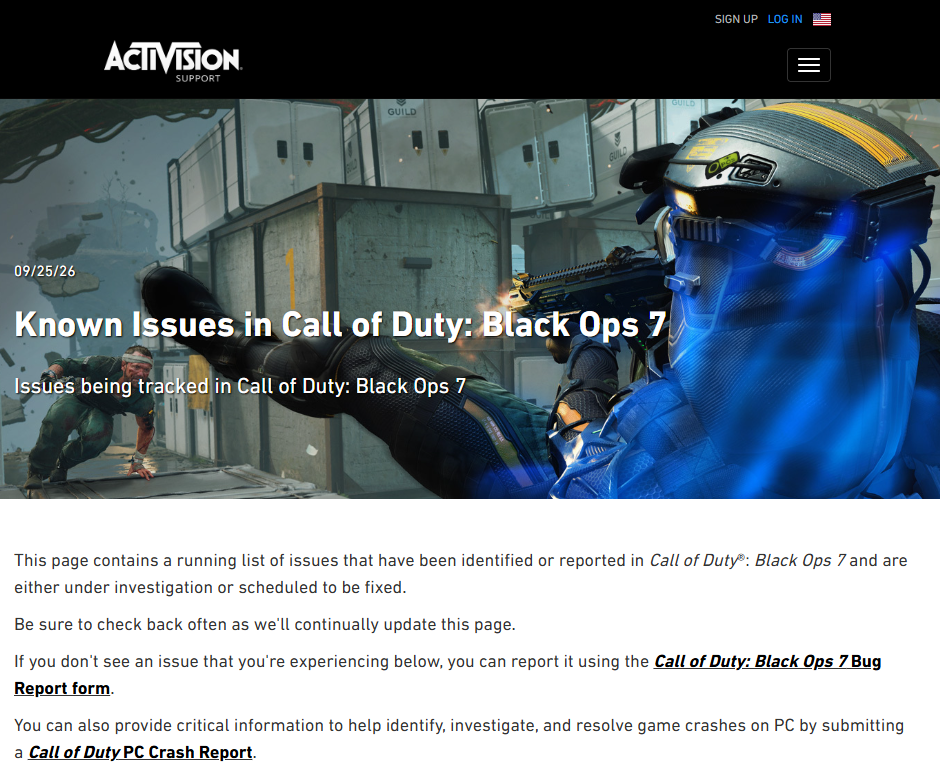
Read the current page rather than relying on an old search excerpt. If a matching notice says split screen is temporarily disabled, wait for its restoration. No matching entry does not rule out an unlisted bug.
- On PS5, highlight Call of Duty, press Options > Close Game, then reopen that menu and select Check for Update. Wait for installation to finish.
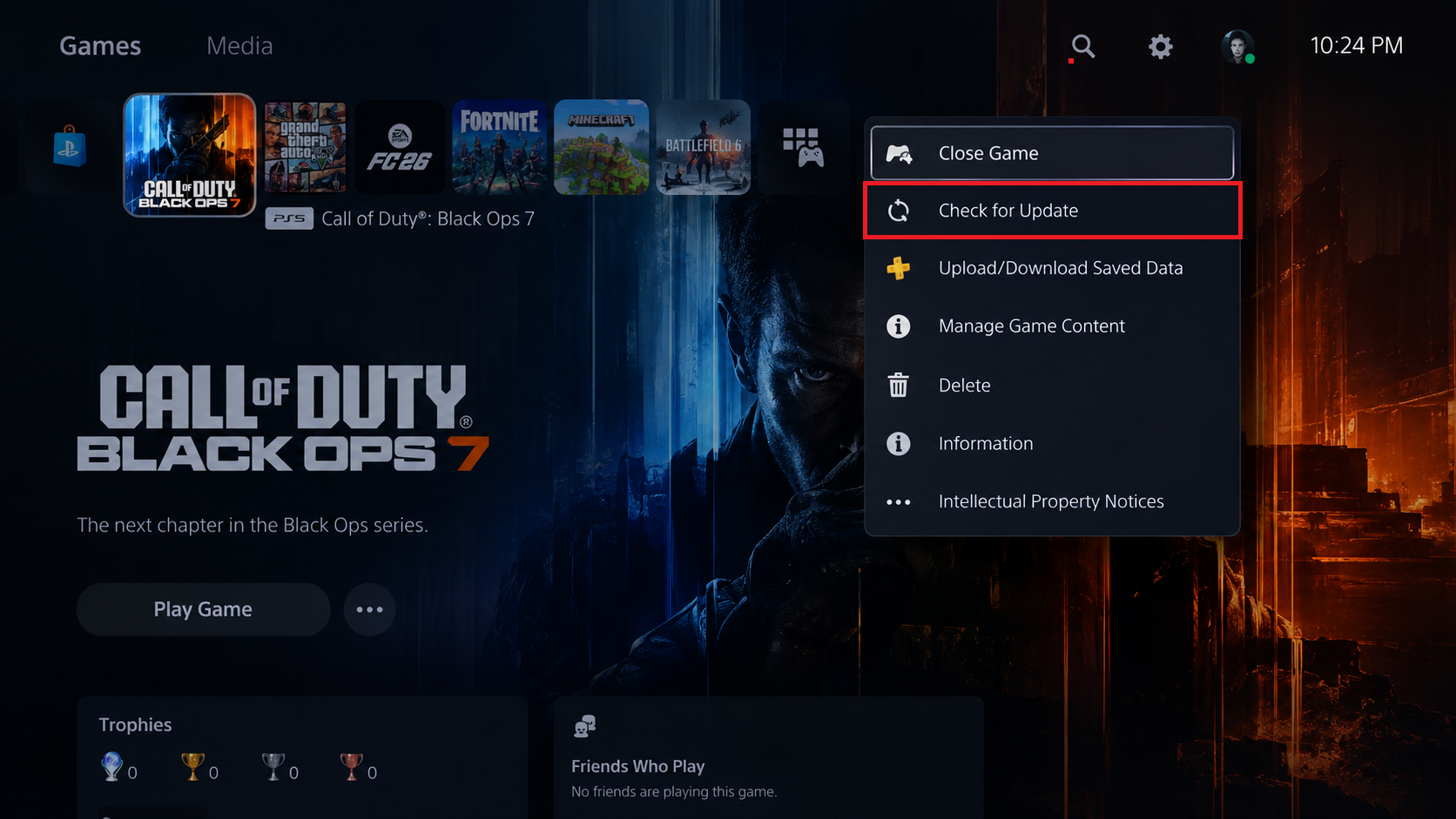
Wait until the update has finished before relaunching the game. On Xbox Series X|S, highlight the game, press Menu > Quit, then open My games & apps > See all > Manage > Updates. Finish pending Call of Duty updates.
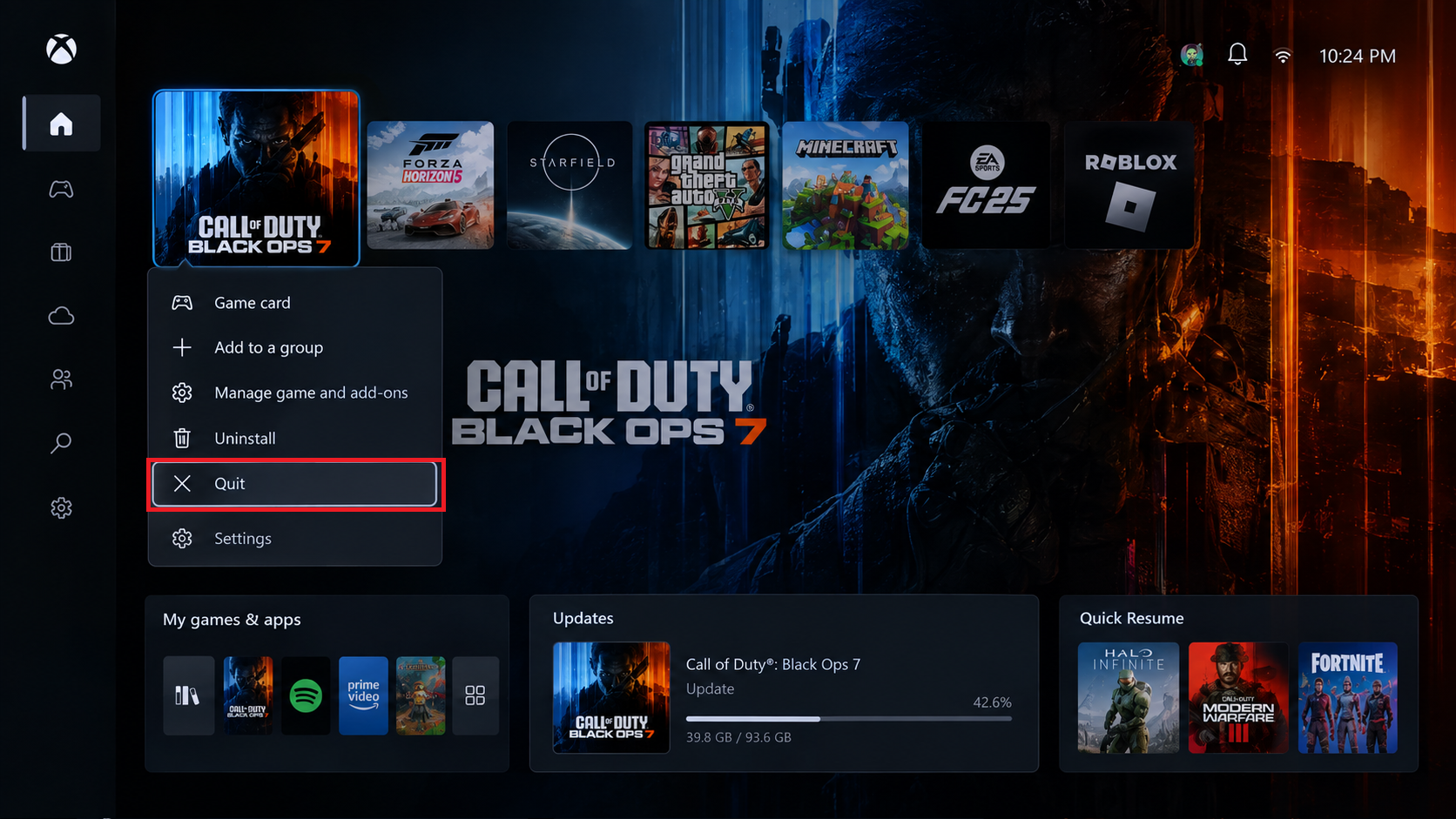
A suspended game session should be closed before testing the updated build. - Reopen BO7, enter the same supported lobby, and add Player 2. Check that both names appear, then load a short match and test each controller.
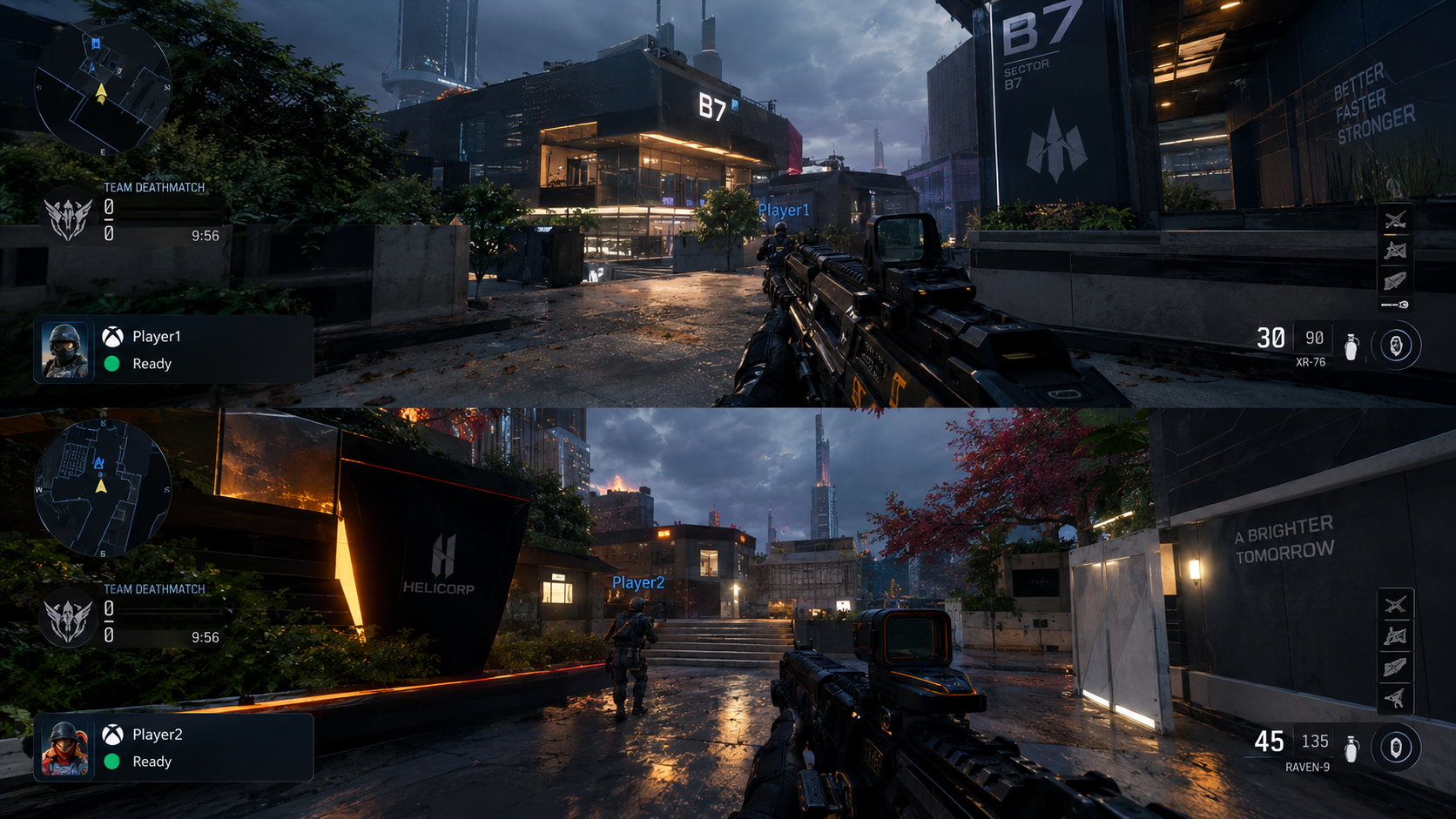
A visible prompt alone does not establish that a match will load.
A match with both views and controls working is the useful result, not just a restored prompt.
If PS5 shows CE-109506-1, resolve that PlayStation Network sign-in error before judging split-screen setup.
3. Try the Other Player as Host on PS5
The same PS5 can show the join option under one profile but not the other. Swapping who opens the lobby tests that difference without deleting either profile or changing account links.
- Close Call of Duty. From the PS5 home screen, select your profile picture > Switch User and choose the other player’s existing profile.
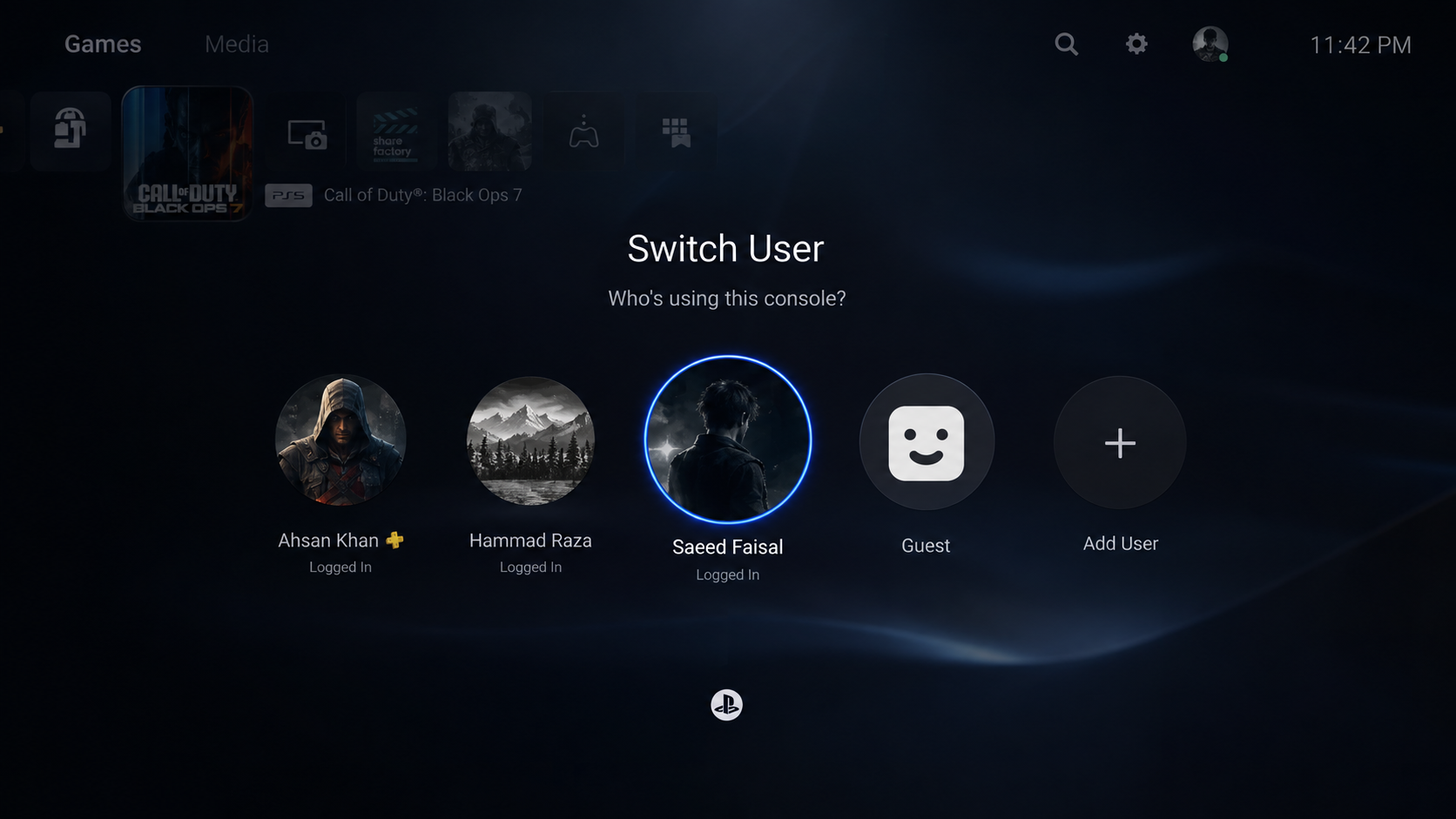
Both players must already be entitled and permitted to access the game. - Launch BO7 as that player, finish any outstanding sign-in prompts, and enter the same mode. Assign the original host’s controller to their own profile and check for the Player 2 prompt.
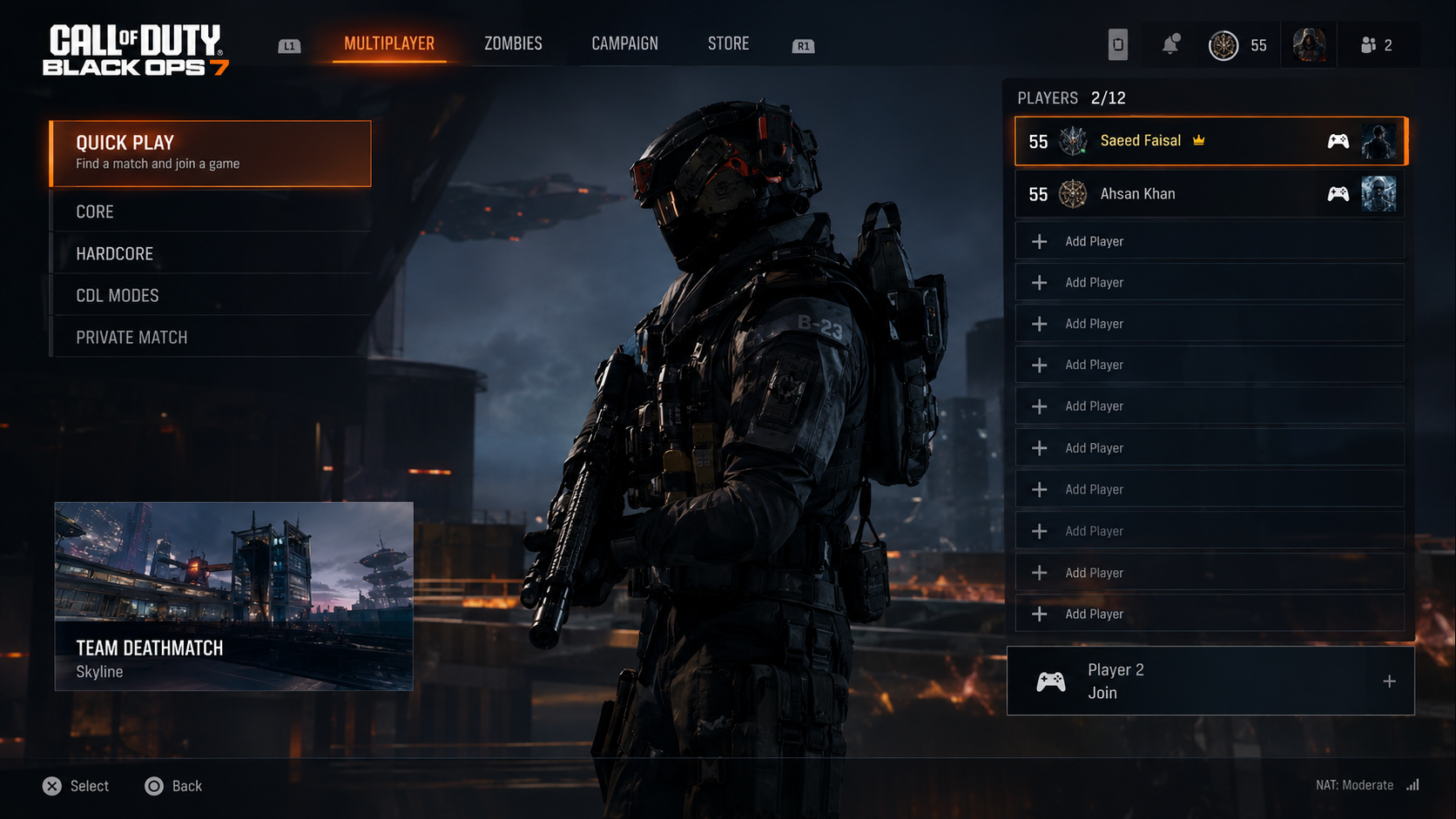
Keep the console, game mode and controllers the same for this comparison. - If it appears, add Player 2 and test a match. Confirm both players have the correct names and control their own characters.
Both profiles must already have legitimate access to the game and mode. If only one host arrangement works, record it for support; it does not prove the original account is damaged. Restore the original host arrangement if the comparison does not help.
4. Turn Off Player 2’s FidelityFX CAS on PS5
Player 1 seeing the match while Player 2 gets a black or corrupted view is not a pairing failure. Turning off the second player’s FidelityFX CAS removes its image-sharpening step and has helped with this specific split-screen symptom.
- With both players in the lobby, use Player 2’s controller to open Settings > Graphics. Find the Quality section where shown and confirm whose settings you are editing.
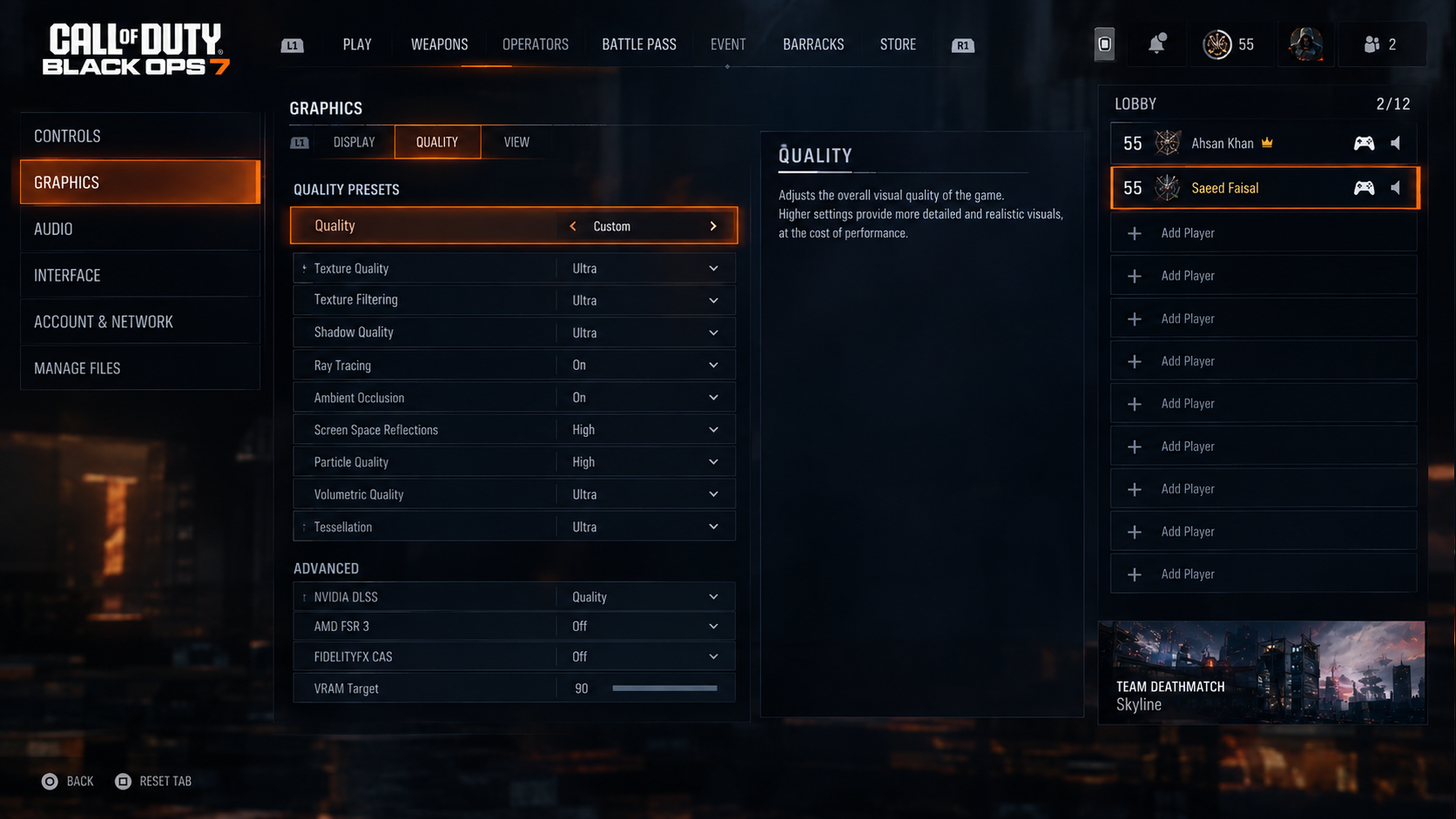
Check which player’s settings you are editing before changing anything. - Record the original FIDELITYFX CAS setting, then set it to Off. Leave Player 1’s settings unchanged.
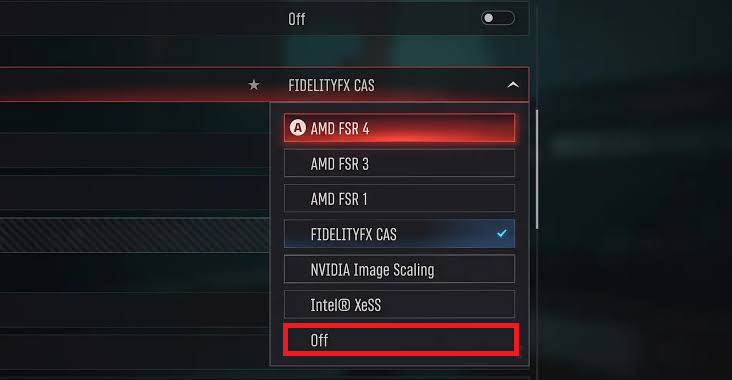
This check applies when the second viewport is black after joining. The graphics illustrations include PC-style options; you do not need those entries on PS5. Change only CAS. If your console build has no CAS control, leave other settings alone.
- Start a short match. Check that Player 2 can see and control their character and that the Off setting was retained.
Keep CAS off if it restores the second view; the picture may look softer. Otherwise, restore the original value and report the symptom. This does not address a missing join prompt or the entire television losing its signal.
5. Test PS5 Split Screen with 120 Hz and VRR Off
For freezes or severe stutter after both players join, especially in Zombies, a lower-refresh comparison is worth one test. Disabling 120 Hz output and variable refresh rate (VRR) has helped some sessions, but it does not repair every HUD, reward, or stability bug.
- End the match and close Call of Duty. Open PS5 Settings > Screen and Video > Video Output, where Sony documents the 120 Hz and VRR controls.
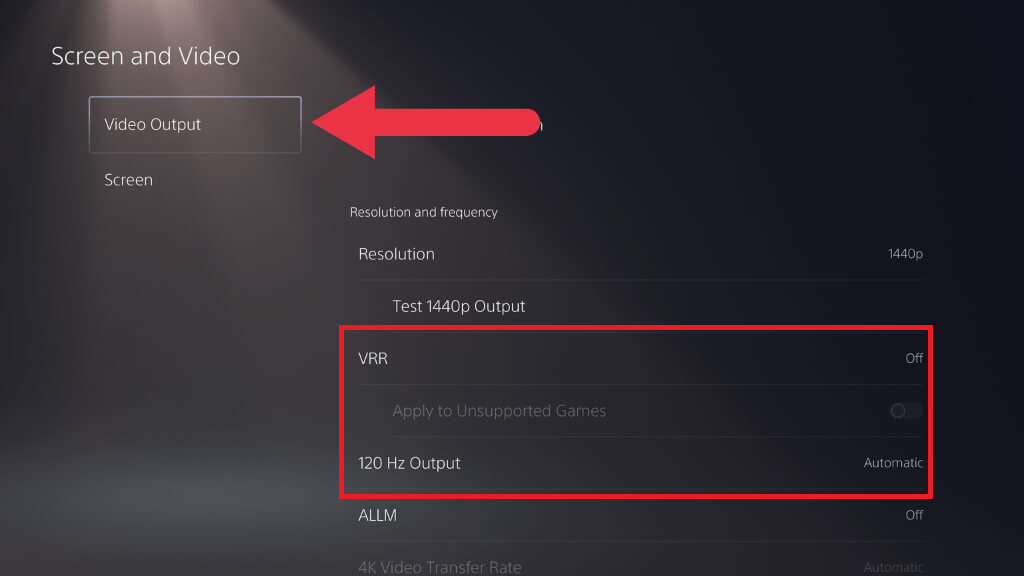
These console settings also affect other games. - Set 120 Hz Output to Off.
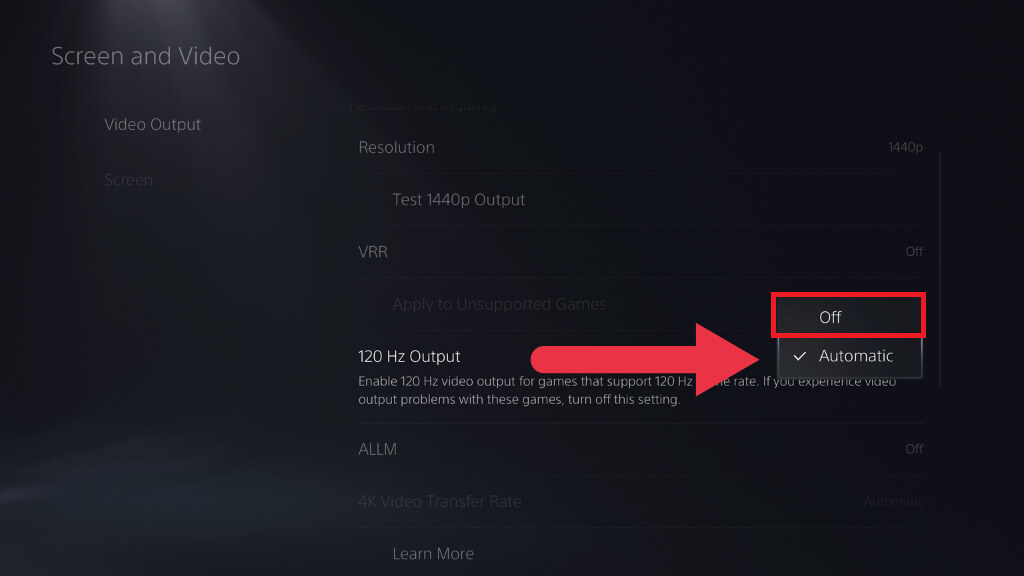
The test gives up high-refresh output while it is active. - Set VRR to Off. Leave resolution and other display settings unchanged.
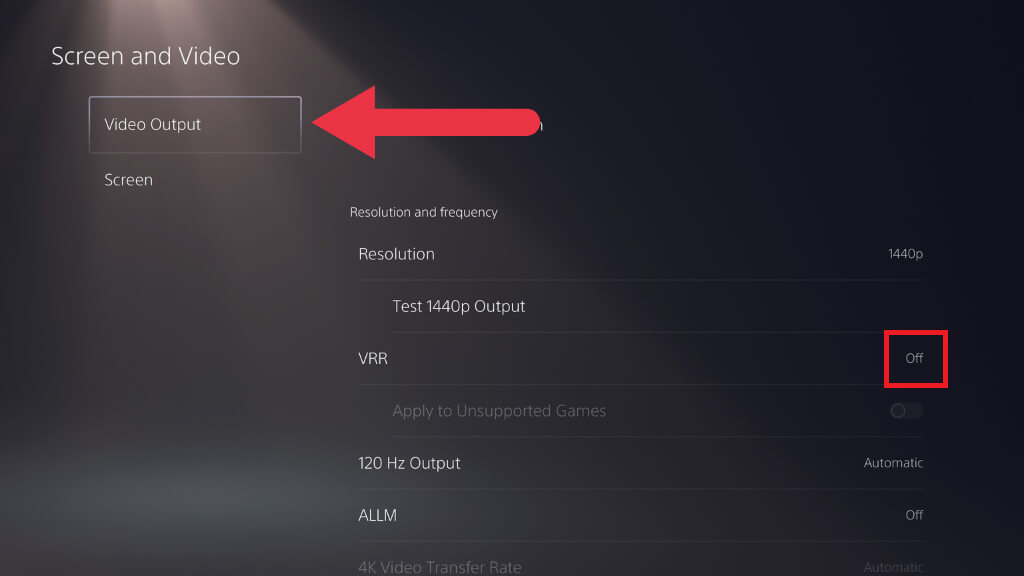
Restore the original setting if the comparison does not help. - Press the PS button > Power > Restart PS5, not Rest Mode. Sign both players in, launch BO7, enter Zombies, and add Player 2.
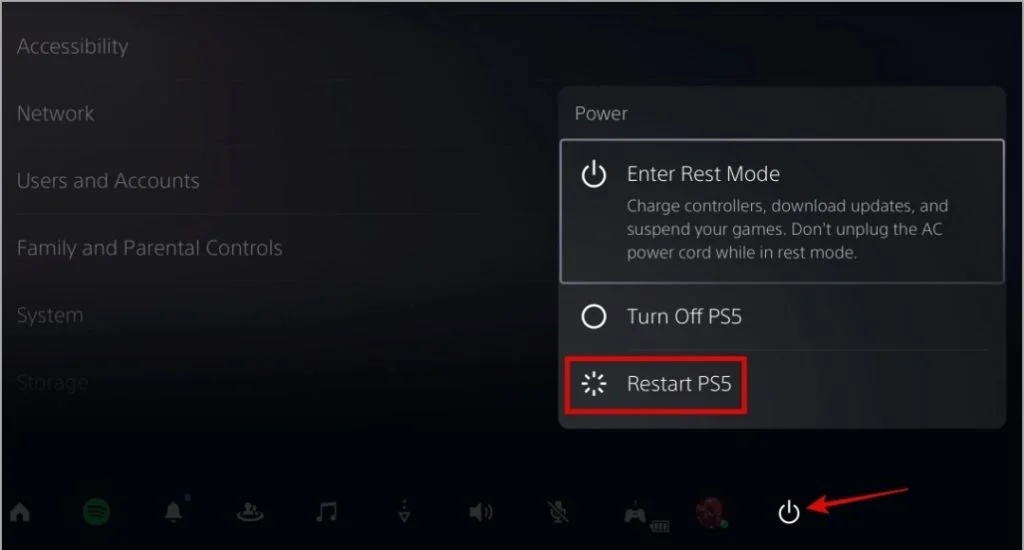
Sign both players in before reopening Black Ops 7. - Test the same map for the original freezing or stutter before starting a long run.
If play improves, restore one display setting at a time and retest to find a usable combination. If nothing improves, restore both original values. A smoother match is not proof that every split-screen bug is fixed.
If Split Screen Still Fails
Use Activision’s Black Ops 7 bug-report form. Include the console model, game version, mode/map, exact symptom, whether each player works alone, and whether changing the host changes the result.
A short clip can show whether Player 2 never joins or joins without a usable picture. Hide account identifiers before sharing publicly. Keep both profiles and saved data intact; a factory reset or deleted saves are not routine split-screen fixes.