How to Fix the FiveM Connection Failed Error?
FiveM can show a server in its list but stop at Connection failed instead of joining. The details often say Failed to fetch server variables or Failed handshake: the game could not retrieve the server’s information or complete the initial connection exchange.
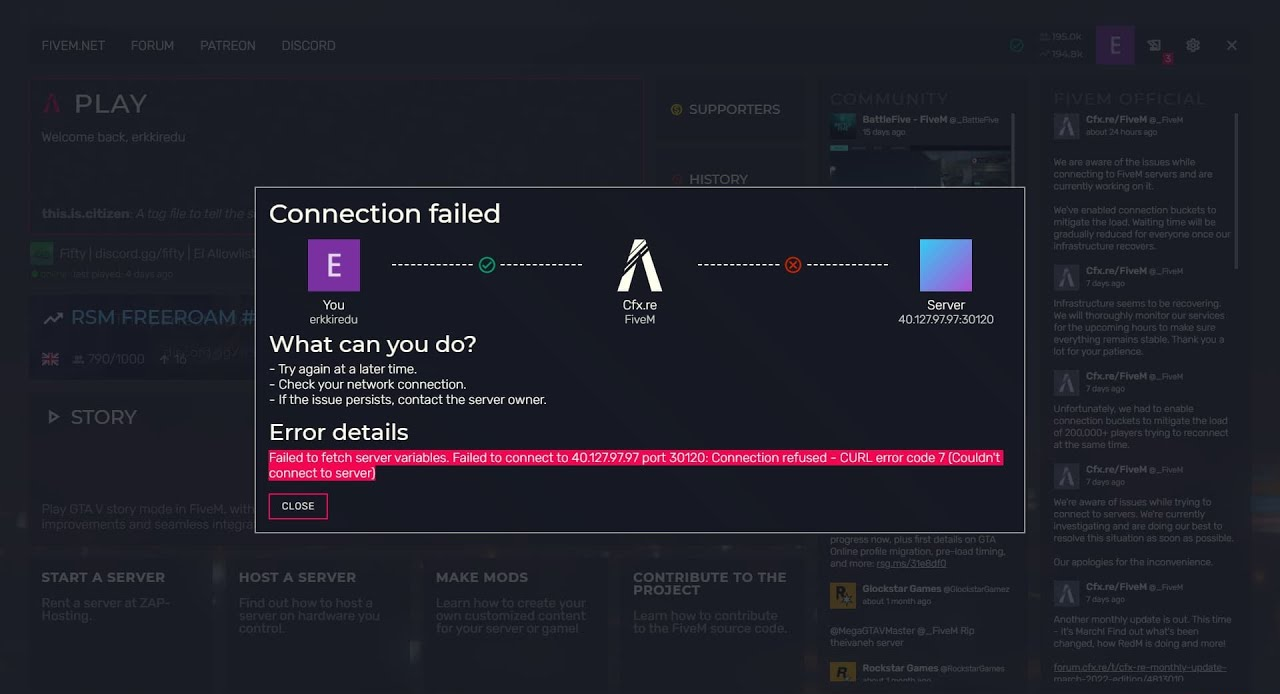
A visible listing does not guarantee that the server is accepting connections. Its address may have changed, or it may be unavailable from your connection. A VPN can also affect the attempt. The error alone is not a reason to reinstall GTA or FiveM.
1. Check the Error and Try Another Server
Find out whether FiveM can join another server before changing its files. A problem affecting one community server needs different attention from a failure across several unrelated servers.
- Save the full error dialog. Press F8 to open the console and capture the failed attempt, including whether it stopped before or during resource downloads.
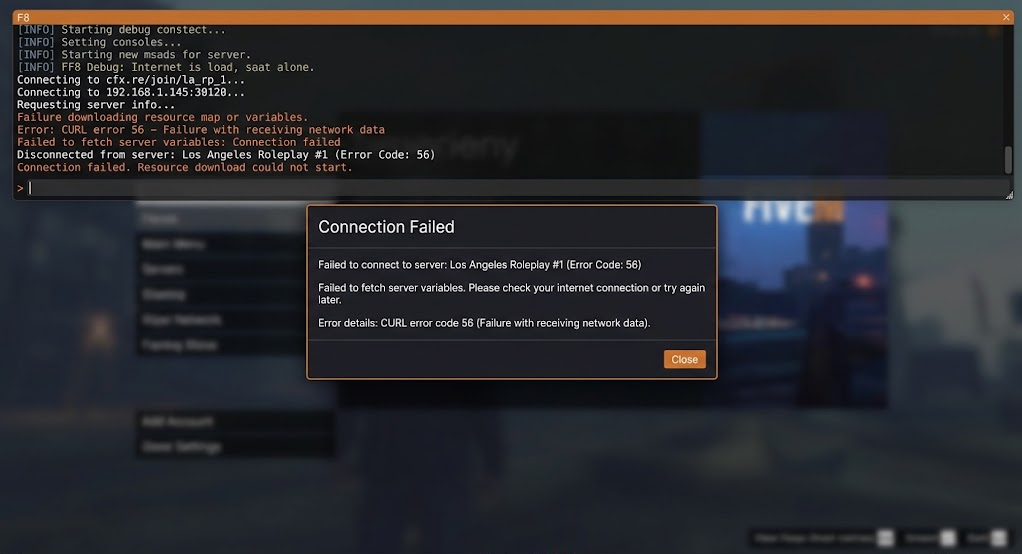
Keep the error number and failure stage; conceal personal identifiers before sharing. The number matters. These definitions come from curl’s error reference:
Error What it tells you CURL 7 The connection to the host or proxy could not be established. CURL 28 The operation exceeded its time limit. CURL 56 Receiving network data failed. These codes describe the failure, not which computer or provider caused it.
- Open Cfx.re service status, which redirects to Rockstar’s status page, and scroll to the Cfx components. Check the affected server’s own maintenance announcements too.
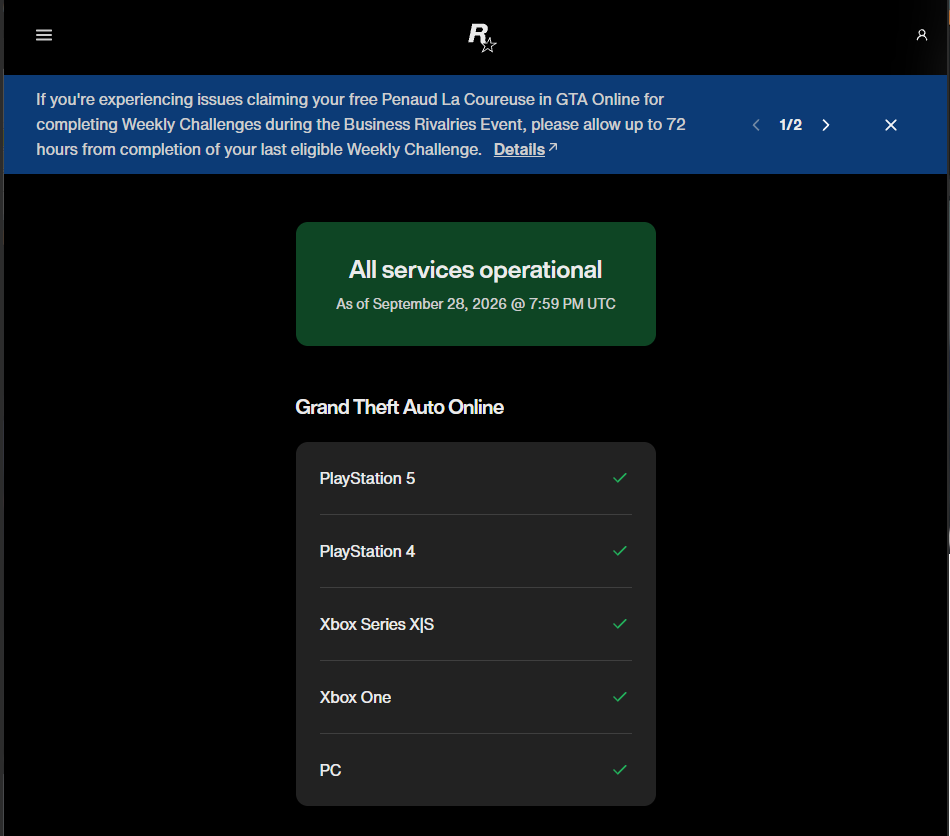
A platform status page does not establish the health of every individual community server. A matching service incident is a reason to wait for recovery. A green platform status does not confirm that an individual community server is healthy.
- Try another server you are permitted to join. Cfx’s CURL troubleshooting page also recommends the FiveM test server. Enter its published command in F8:
connect cfx.re/join/y4lg95Press Enter. If that test server is unavailable, use another known-working server instead.
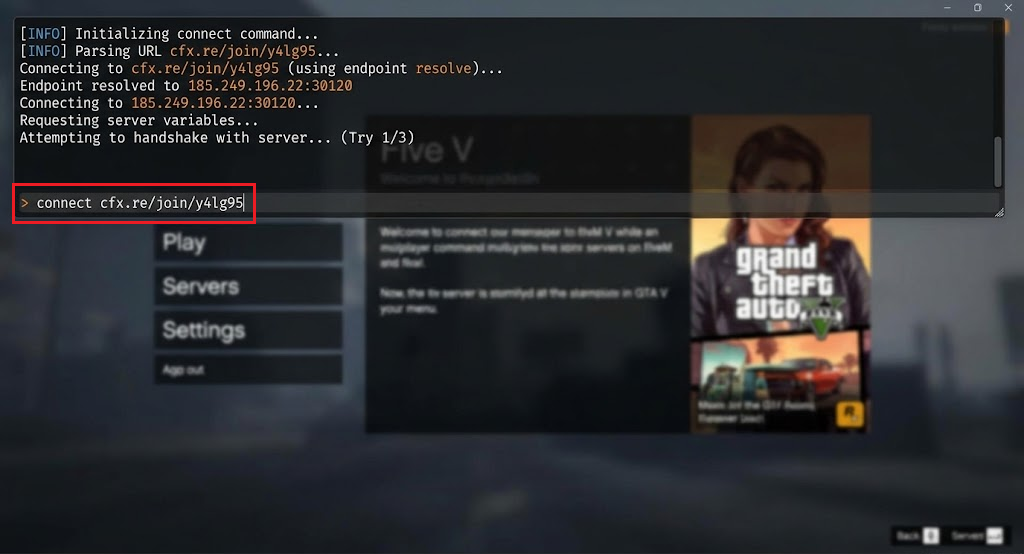
Use the same PC and network to find out whether the failure affects other destinations.
Other servers loading successfully narrows the problem to the original server or your connection to it. Ask its administrators whether other players can make a new join; players already online do not prove new connections work.
If none of the tested servers loads and no incident is reported, compare your VPN and internet connection below before changing game files.
An explicit ban, allowlist, account requirement, or game-version rejection needs the stated requirement or an administrator’s review, not a different network to bypass it. An outdated server-artifact warning belongs to the server owner.
FiveM failing before its main menu is a separate launch problem, rather than a failed server connection.
2. Reconnect Using the Server’s Current Address
A saved favorite or old join link may no longer lead to the right server. Connecting with its current, owner-approved details avoids that stale address without changing your installation.
- Find the server’s current connection instructions on its own website or official community page. Ask its administrators for the approved join address if it is unclear.
Use connection details published by the server owner, not an old screenshot or unrelated listing. - In FiveM, press F8. For an owner-supplied IP address and port, enter the following, replacing both placeholders, then press Enter:
connect SERVER_IP:PORT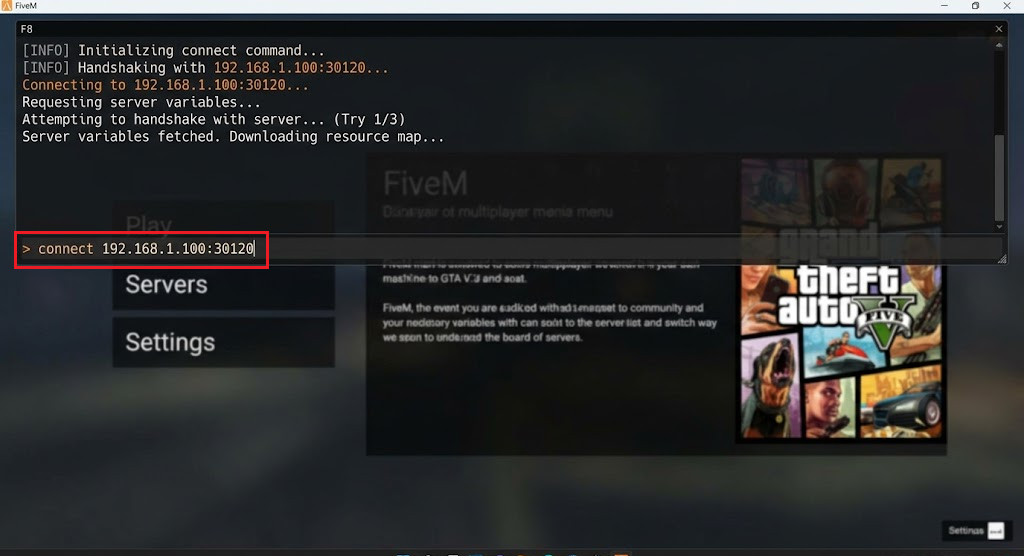
Replace SERVER_IP and PORT with the actual values supplied by the server owner. The screenshot’s 192.168.x.x address is a local-network example, not a public server address. 127.0.0.1 points to your own PC. Use the owner’s actual address and port; the port is not always 30120.
For a published Cfx join link, type
connect, a space, and that complete link instead. FiveM documents both forms under its connect command. Do not search for a hidden host or bypass the server’s published gateway. - Check that the intended server is loading, then allow its normal queue and resource downloads to finish.
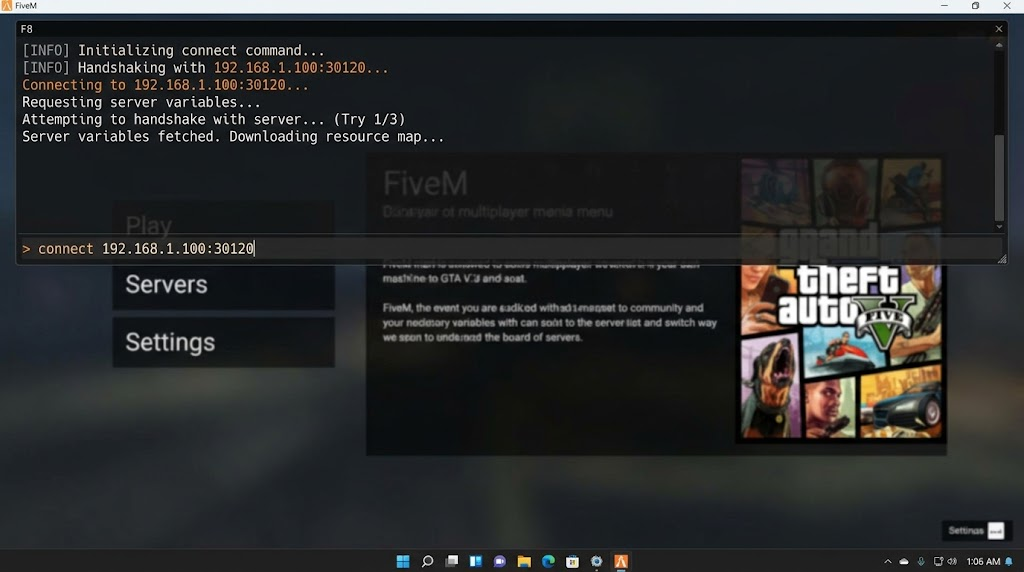
Reaching a queue is progress, but confirm that the intended server actually loads.
If the server loads, use the working address and let its owner know the usual join method failed. Reaching a queue or download screen alone is not a completed join.
3. Retry with Your Optional VPN Disconnected
A server may fail through a VPN but accept the same connection without it. This comparison is only relevant when a VPN is already running; there is no need to install one.
Keep required work or school connections unchanged. On a managed device or network, ask IT before testing without the VPN.
- Close FiveM and finish work that needs the VPN. In your VPN app, select Disconnect. For a Windows-managed VPN, open Settings > Network & internet > VPN, select the active connection, and disconnect it.
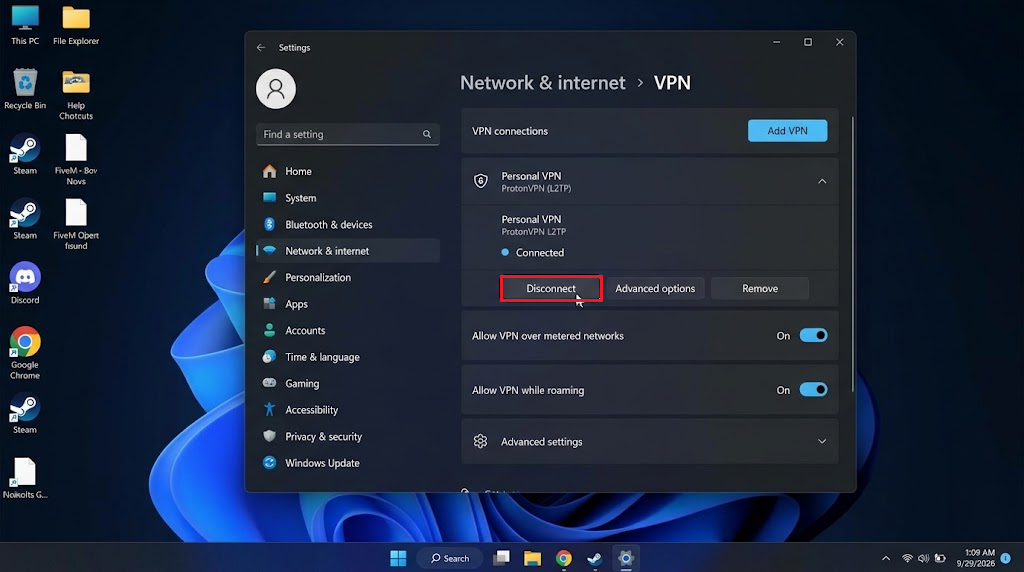
Use this comparison only on a network where direct access is permitted. Confirm it no longer says Connected and internet access still works. If an always-on VPN or kill switch prevents direct access, restore the connection and ask its administrator or provider; leave that protection enabled.
- Reopen FiveM and retry the same server address, leaving game settings unchanged.
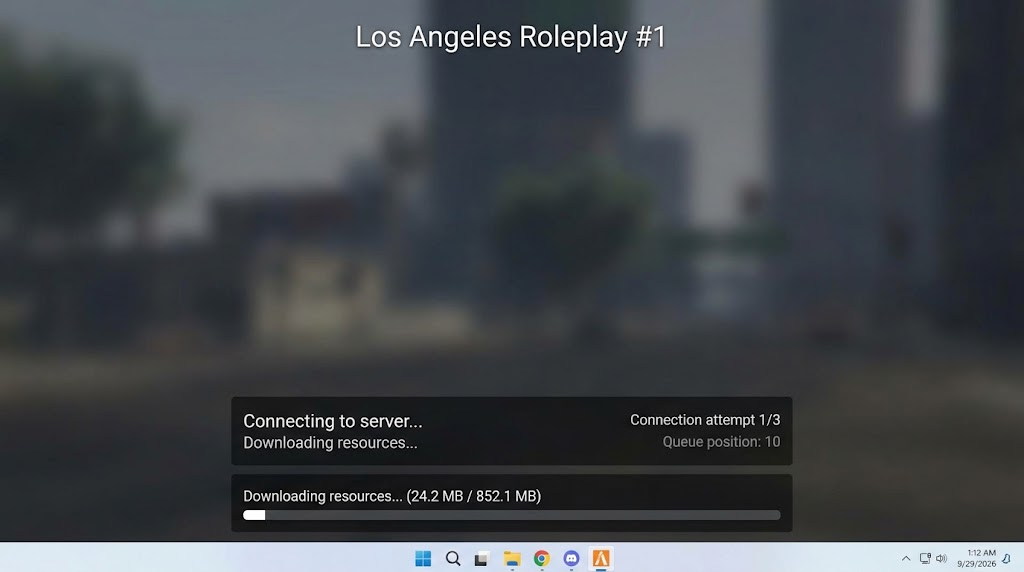
Keep the client and server address unchanged so the comparison is useful.
If the server now loads, the VPN connection affected this attempt. Use direct access only where permitted, and reconnect the VPN before VPN-dependent work. If nothing changes, restore your usual VPN setup before making the next comparison.
4. Compare with a Separate Internet Connection
The same server working through mobile data but failing on home internet gives the server owner and your ISP something concrete to investigate. It does not identify the exact router setting, filter, or provider responsible.
- Close FiveM and finish downloads or calls that must not be interrupted. Disconnect the PC from its current Wi-Fi or unplug Ethernet so the original connection cannot carry the test.
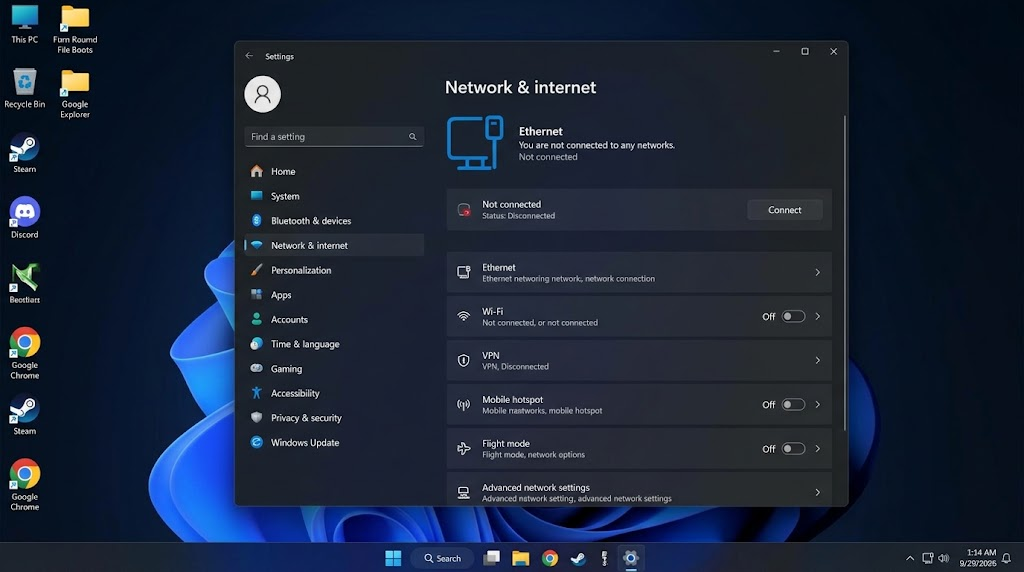
Close FiveM and finish other network work before changing connections. - Enable your phone’s hotspot using mobile data, not the same home internet. On Windows, open the taskbar’s network controls, choose the hotspot, select Connect, and enter its password.
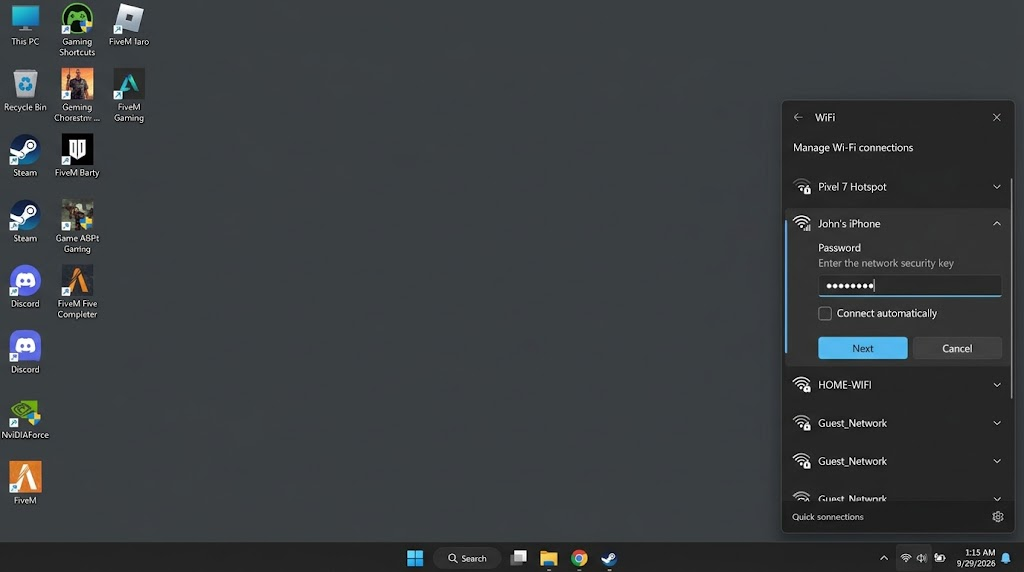
A hotspot must use mobile data rather than share the same home internet connection. On Windows 11, open Manage Wi-Fi connections to see the network list. Microsoft’s Wi-Fi connection steps also cover Windows 10.
Confirm the hotspot says Connected and keep firewall protection enabled.
- Retry the same server with the same account and VPN state. Record whether it loads fully, shows the original error, or stops with a different message. Stop before exceeding your data allowance.
- After testing, close FiveM, disconnect and turn off the hotspot, and restore your original network and any VPN needed for other tasks.
If it loads only on the alternate connection, share both results with the server owner and your ISP or network administrator. If both fail, keep both errors; that result does not rule out a server problem.
If the Connection Still Fails
For one affected server, contact its administrators. For failures across unrelated servers, use Cfx Support. Include:
- The complete error, timestamp and time zone, plus your FiveM/game version.
- The approved join address and results from another server.
- Any VPN or alternate-network comparison, including whether resources finished downloading.
Review logs for tokens, account identifiers, local usernames, and private addresses before sharing them. Send sensitive details only through the appropriate private support channel.
Keep antivirus and firewall protection enabled. A security log naming FiveM warrants review of that specific rule, not switching protection off. Port forwarding and repeated GTA reinstalls are not general repairs for a remote server timeout.
A message naming ox_inventory or another resource concerns that download stage. Preserve its name and HTTP/CURL details; the ox_inventory loading guide distinguishes player checks from work that belongs to the server owner.