How to Fix Red Dead Redemption 2 “Unknown Error FFFFFFFF”?
Red Dead Redemption 2 can stop at “Unknown Error FFFFFFFF” before the main menu or close with it during gameplay. The message reports a crash without identifying the component responsible.
A headset can work normally in Windows yet prevent RDR2 from starting. The game can also crash using Vulkan but run using DirectX 12, or the other way around. The error alone does not mean your headset or graphics card is faulty.
These checks follow Rockstar’s guidance for FFFFFFFF on Windows. Test the same mission, launch or gameplay period after each change; reaching the menu is not enough if the crash normally happens later.
| What matches your setup? | Relevant check |
|---|---|
| A USB/Bluetooth headset or Voicemeeter | Test a working physical audio output in Method 1. |
| An outdated graphics driver | Install the matching supported update in Method 2. |
| The error persists with working audio and a current driver | Compare Vulkan and DirectX 12 in Method 3, including when the menu will not open. |
A launcher that closes without this dialog needs the broader RDR2 launch checks; it is not necessarily the same failure.
1. Test the Game With a Different Audio Output
RDR2 may fail while opening an external audio device. Starting with working speakers, then reconnecting the headset after the menu loads, tests that startup behavior without uninstalling sound drivers.
Finish calls and recordings first. Note your current output, and keep at least one working playback device available throughout the test.
- Close RDR2. Open Start > Settings > System > Sound. Under Output, select working speakers or another physical playback device, then play a short audio clip.
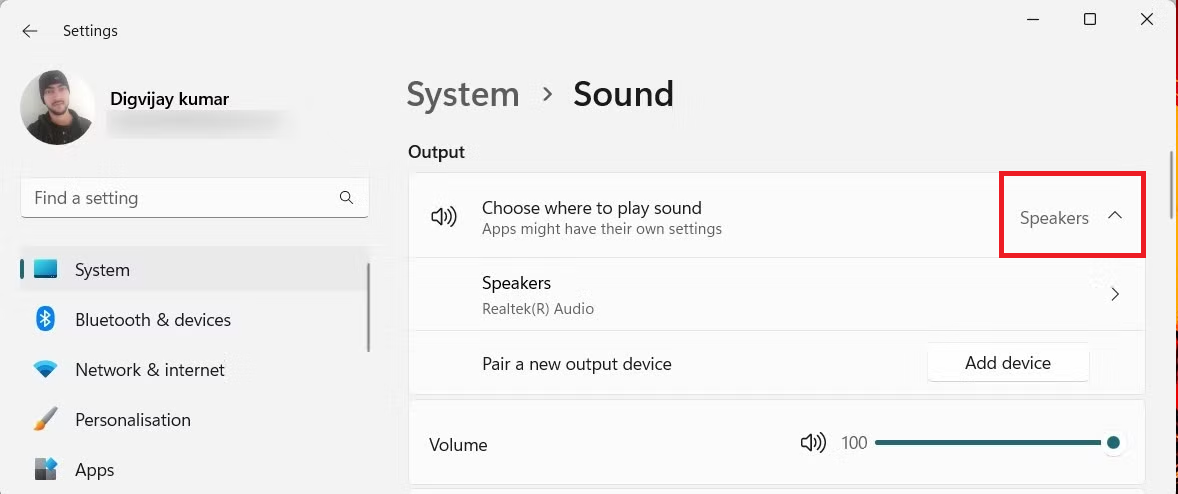
Keep an available audio output instead of leaving the PC with no playback device. - Disconnect the test headset or its USB receiver. Confirm Windows still uses the working alternative. If the headset is your only usable output, keep it connected until another device is available.
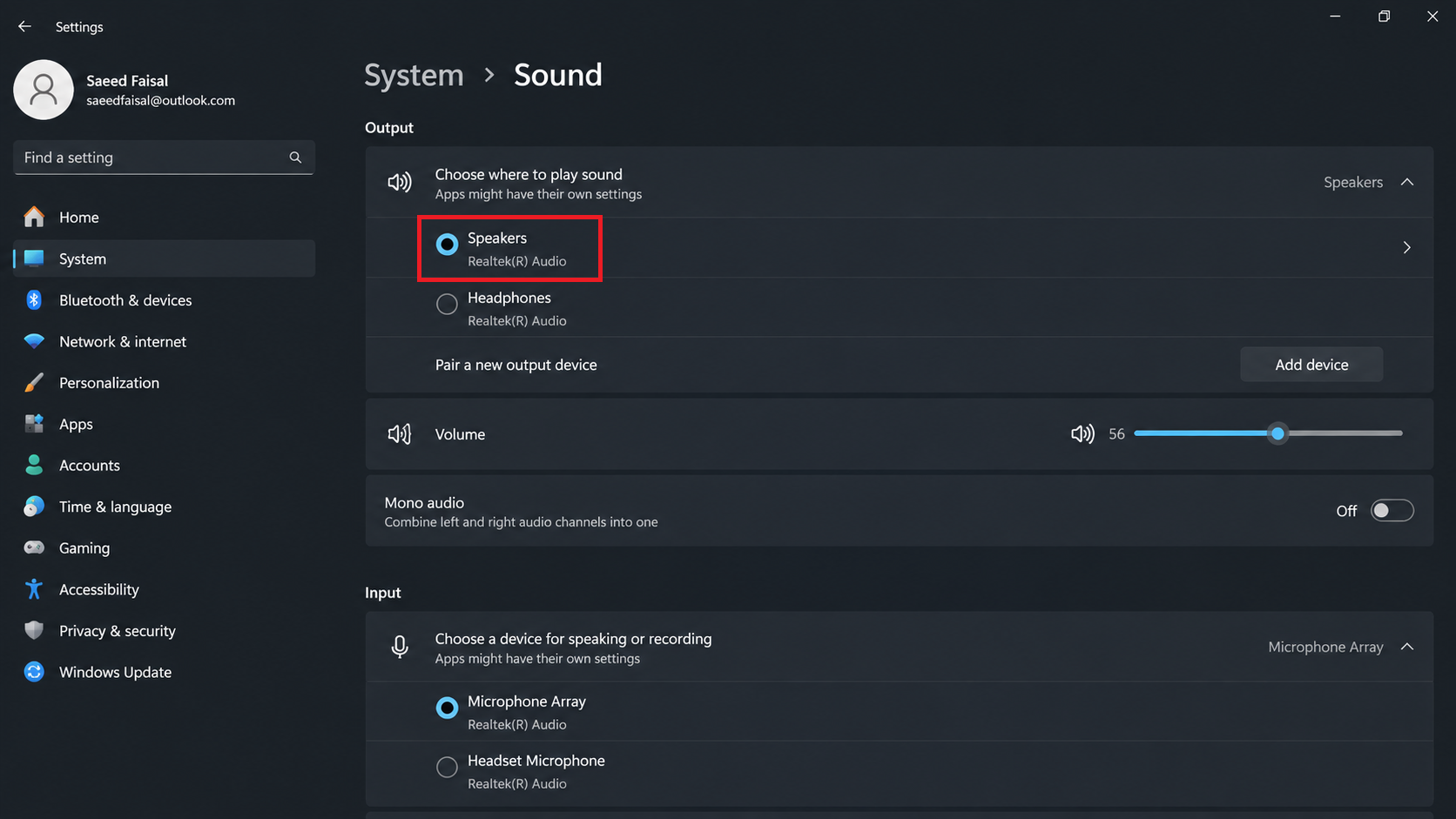
Disconnect it only when another working output remains available. - Launch RDR2 normally. After the main menu loads, reconnect the headset, select it under Windows Sound > Output, and repeat the activity that previously crashed.
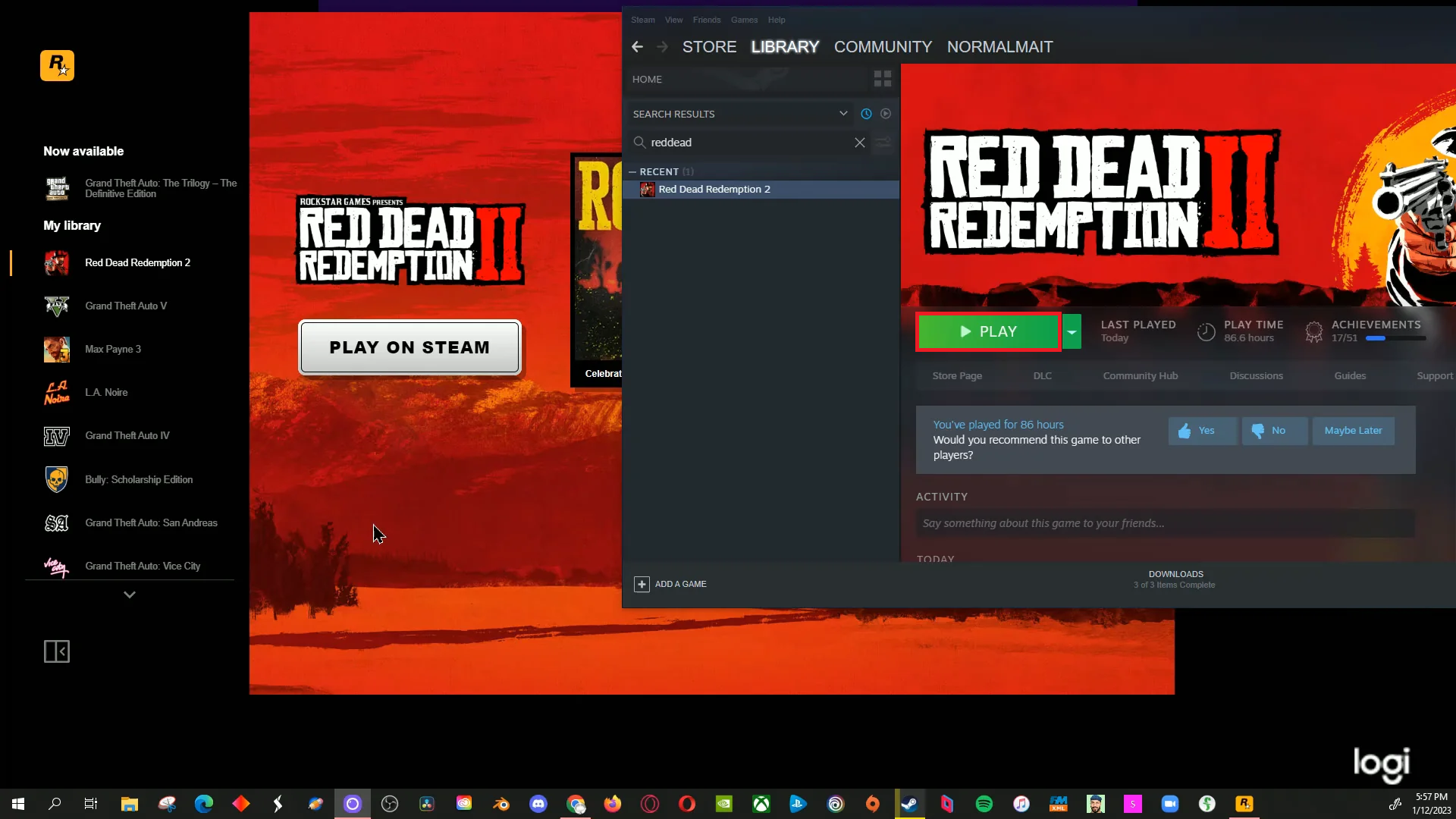
Check whether returning to the headset brings the error back. - If reconnecting brings back the error, use the working alternative for that session. If the comparison makes no difference, restore your original output.
- Optional, for Voicemeeter users: Close RDR2 and exit Voicemeeter. If it remains running, open Task Manager with Ctrl + Shift + Esc, select its process and choose End task.
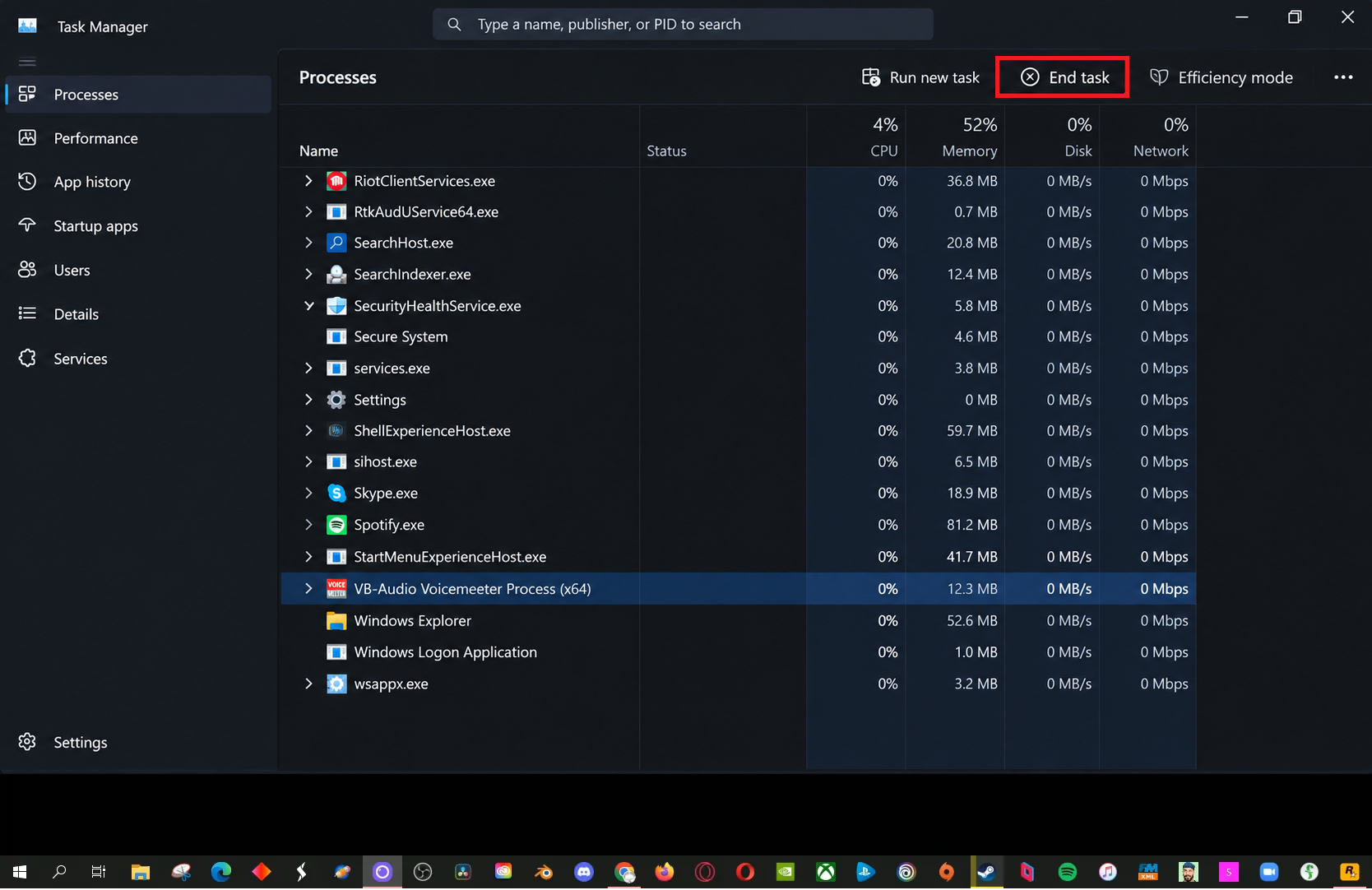
This optional check applies only to a PC already using Voicemeeter. - For that mixer test, select the physical speakers or headset directly in Windows, confirm audio works, and relaunch RDR2. Reopen Voicemeeter and restore your usual routing after closing the game.
If RDR2 stays stable, keep the working output for that session. Restore any audio changes that did not help before testing the graphics settings.
2. Update an Outdated Graphics Driver
The graphics driver supplies the support RDR2 uses for Vulkan and DirectX 12. An outdated driver can therefore affect either setting. A normal supported update is worth testing before replacing game files or using driver-cleaning tools.
Already on the current supported driver? Repeated installation is unnecessary. If the crashes began immediately after an update, record that version for the GPU vendor rather than copying an old version from a screenshot.
- Right-click Start > Device Manager and expand Display adapters. Note your gaming GPU’s full model name. On a laptop, check the manufacturer’s model page if the two listed adapters are unclear.
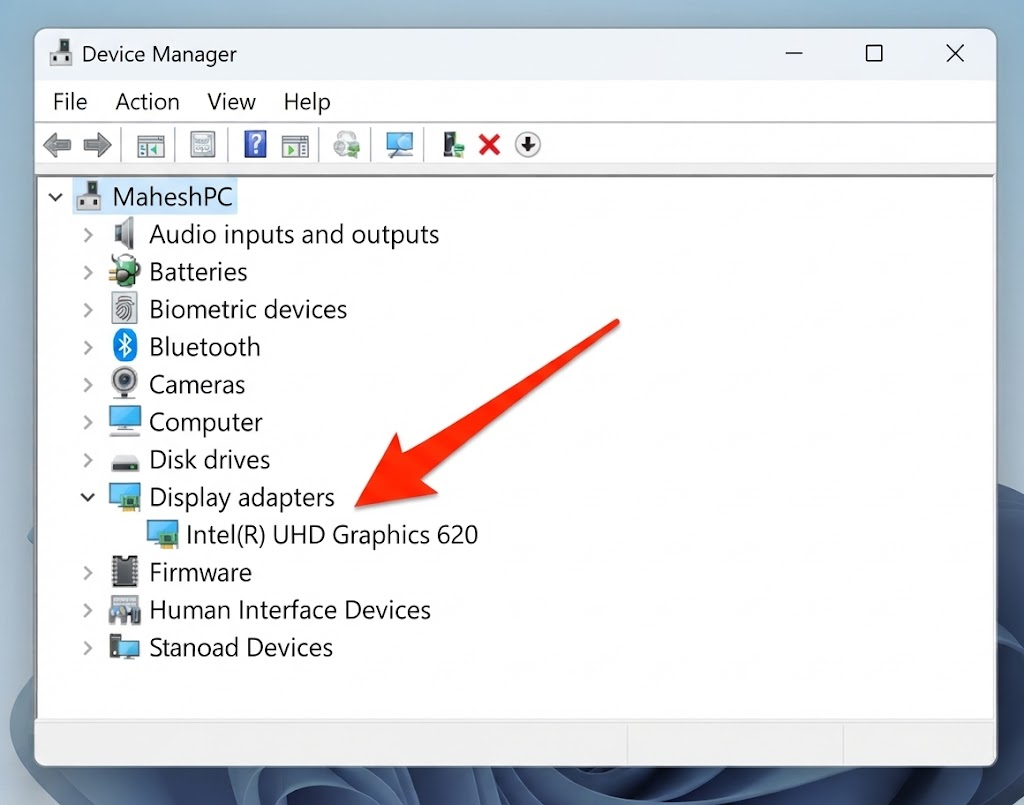
Match the driver to the GPU used by the game. - Right-click that adapter, open Properties > Driver, and record the version and date. The pictured hardware and versions are examples, not requirements for your PC.
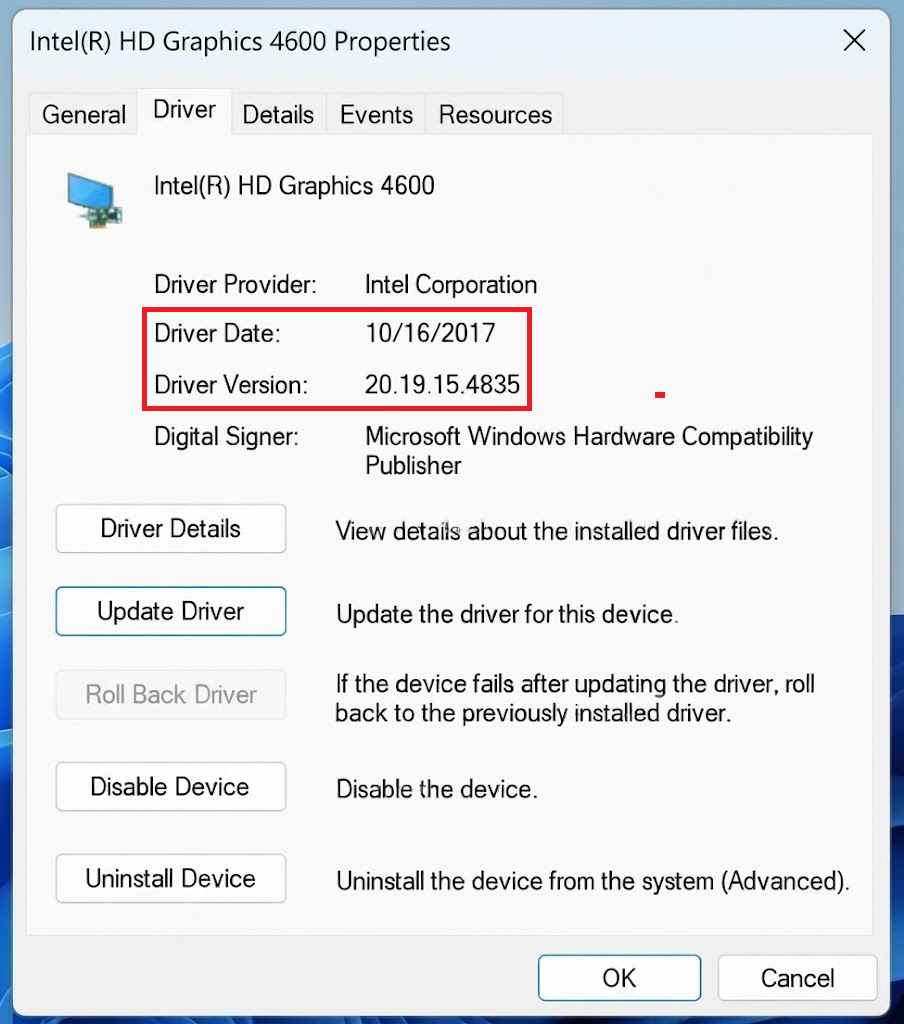
Keep this information for comparison and any support request. - Download the package matching your GPU and Windows version. For manufacturer-customized laptop graphics, check the laptop’s support page first.NVIDIA: Select your GPU and operating system on the official driver page, then choose a supported Game Ready Driver.
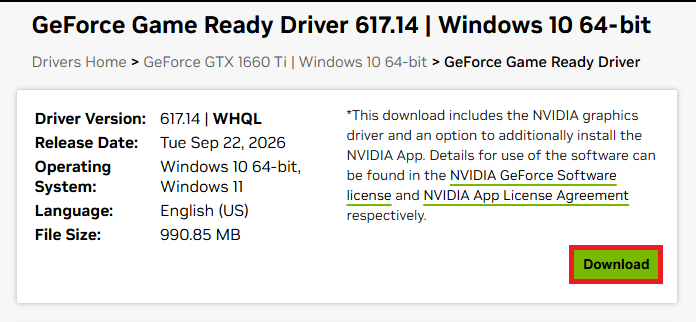
Choose a supported Game Ready release for your exact GPU and Windows version. AMD: Choose the matching Radeon graphics package on AMD’s driver page, not an unrelated chipset package.
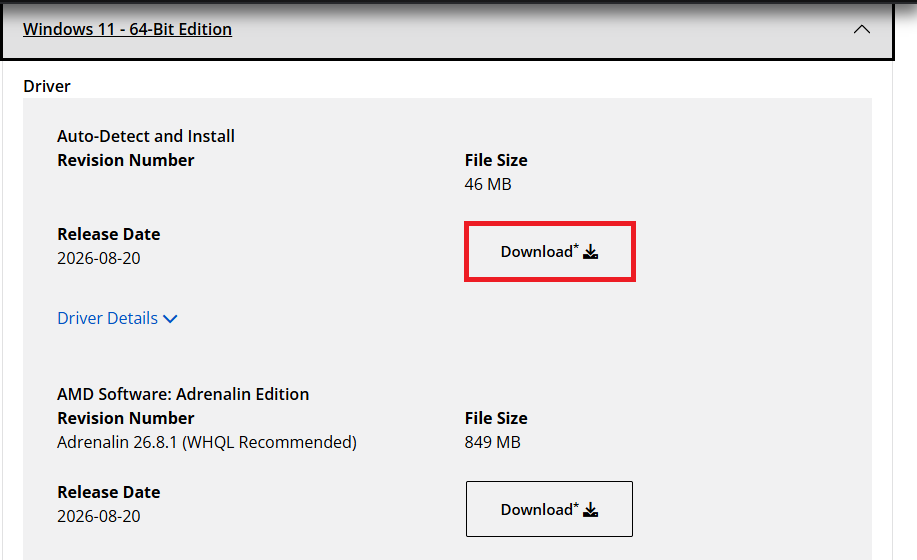
Use the Radeon graphics package for your hardware, not an unrelated chipset download. Intel: Use the laptop manufacturer’s package or Intel Driver & Support Assistant for the relevant adapter.
- Save your work, close open apps and install the driver normally. Leave optional factory-reset or clean-install settings off. Wait for actual completion, then restart Windows and retest RDR2.
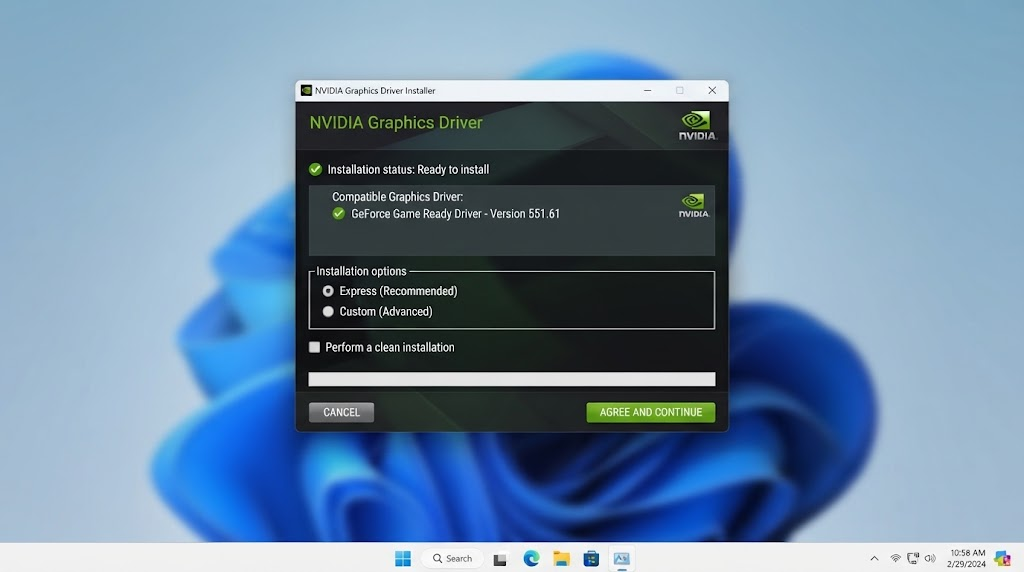
Restart Windows, then repeat the launch or gameplay that previously failed.
The installer illustration shows Ready to install, not a completed update. Confirm completion on your PC. If FFFFFFFF remains, compare the graphics APIs rather than repeatedly reinstalling the same driver.
3. Switch Between Vulkan and DirectX 12 and Rebuild the Cache
A crash that persists with working audio may depend on RDR2’s selected graphics API, the interface it uses to draw the game. Switching between Vulkan and DirectX 12 tests the alternative; removing its sga_ cache files lets the game recreate them.
- Close RDR2 and its launcher. Open File Explorer > Documents > Rockstar Games > Red Dead Redemption 2 > Settings. Follow Windows’ actual Documents location, including OneDrive if redirected.
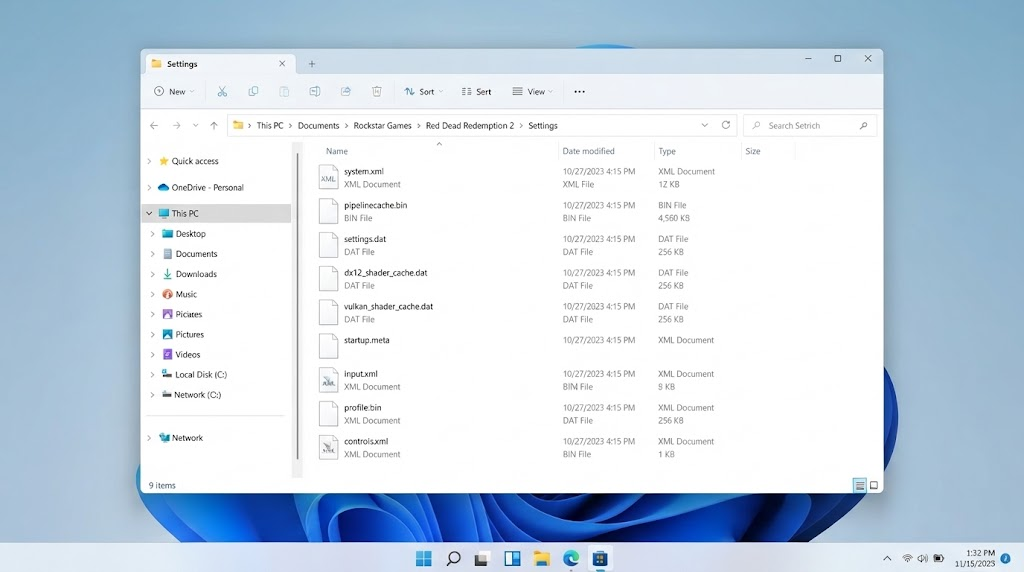
Use your actual Documents location, including its OneDrive location if redirected. - Create a separate RDR2 Settings Backup folder on your Desktop. Copy the live Settings folder’s contents there, keeping the originals in place. Confirm the backup includes system.xml.
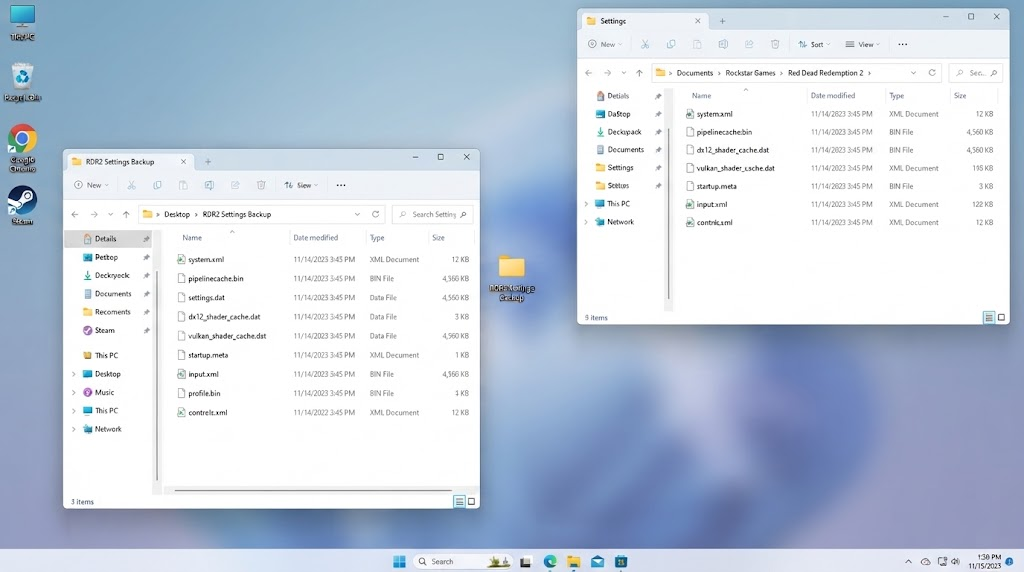
Copy the original files before changing the API or removing cache files. - In the original Settings folder, open system.xml with Notepad. Press Ctrl + F, find
kSettingAPI_, and note its value. If the file or entry is missing, stop; do not copy another PC’s configuration.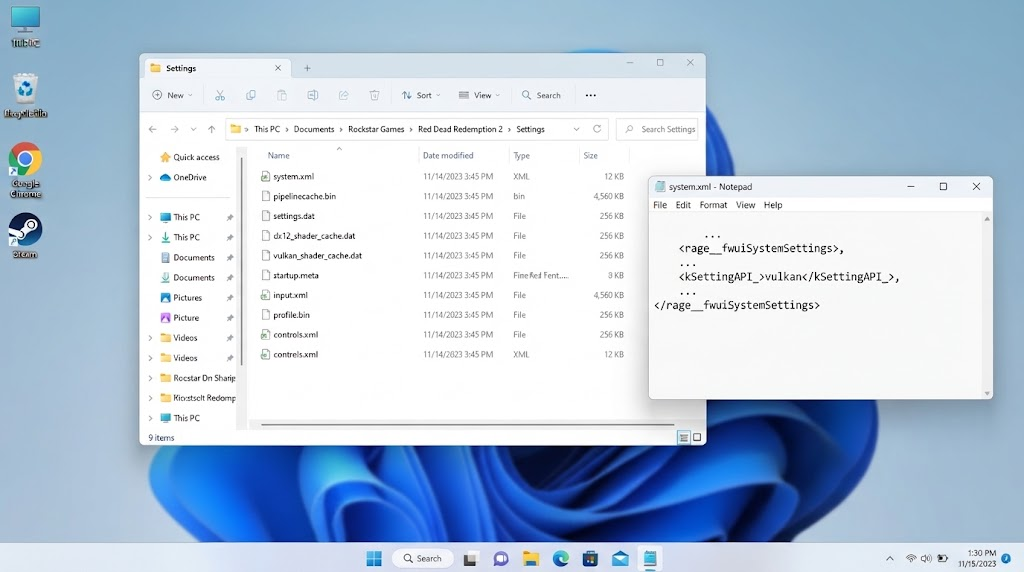
Edit system.xml in the live Settings folder, not the backup copy. - For an existing Vulkan setting, change only the API value so the line reads:
<API>kSettingAPI_DX12</API>If it already uses
kSettingAPI_DX12, replace that value withkSettingAPI_Vulkaninstead. Save as system.xml, not system.xml.txt. Keep the surrounding XML unchanged; do not copy the sample file shown.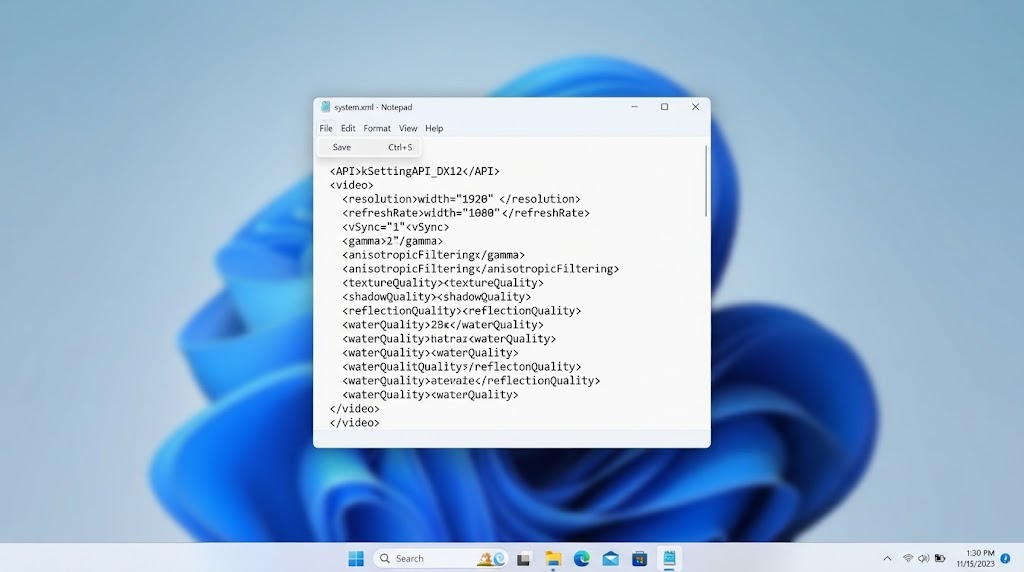
For an existing DX12 configuration, the comparison goes in the opposite direction. - In the live Settings folder, delete only files beginning with sga_, if present. Leave system.xml and every other file or folder alone. This is a File Explorer operation, not an XML edit.
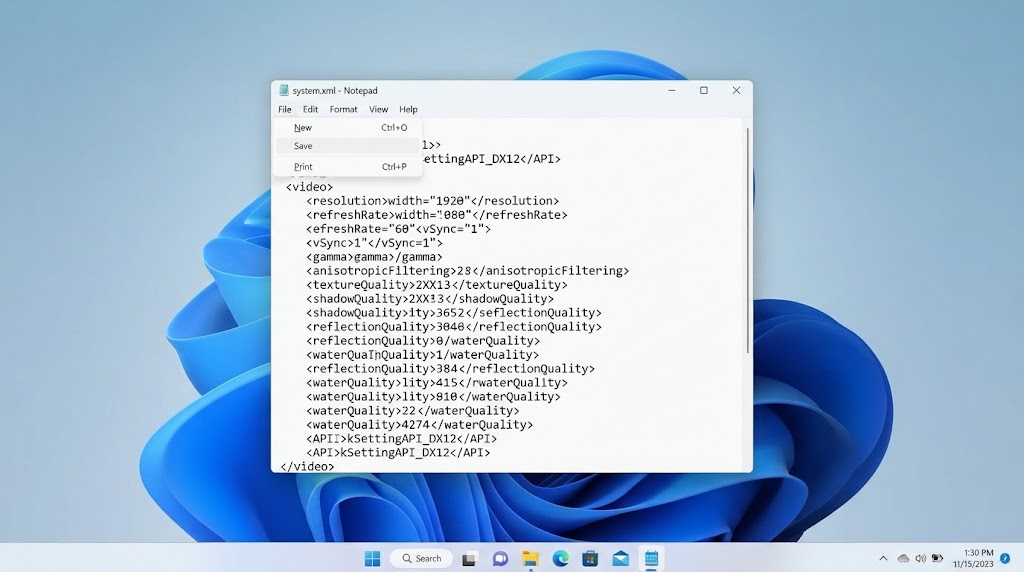
Leave system.xml, Profiles and saved games in place. - Reopen the launcher and RDR2. Allow the cache to rebuild, then repeat the activity that failed.
Keep the alternative API only if the game remains stable through a normal session. If the crash returns or performance worsens, close the game and launcher, then restore the backed-up system.xml.
A changed ERR_GFX_STATE message has its own RDR2 graphics-state checks; record the new message rather than treating all crashes as FFFFFFFF.
If FFFFFFFF Still Appears
For a modified installation: Preserve your saves and mod settings, then use your mod manager or each mod’s removal instructions to test unmodified Story Mode. Avoid deleting DLLs by filename alone.
If game files were accidentally removed or replaced, run your launcher’s integrity check. Steam’s verification instructions show Properties > Installed Files > Verify integrity of game files. File repair is not a substitute for properly uninstalling mods.
For Online-only crashes, compare Story Mode and a fresh normal Online session. Note whether others disconnect simultaneously. The error by itself does not prove another player caused it; third-party lobby tools are not a necessary troubleshooting step.
Send Rockstar Support the exact message, launcher, Windows version, GPU/driver, audio device, chosen API and repeatable trigger. Include the results above and any installed mods, especially for a crash tied to one mission or surviving both APIs.