How to Fix RTX Option Grayed Out in Minecraft Bedrock?
Minecraft Bedrock can show Ray Traced in Video settings without letting you select it, even on an RTX-equipped PC. The graphics card is only part of the requirement: the world also needs an active resource pack built for ray tracing.
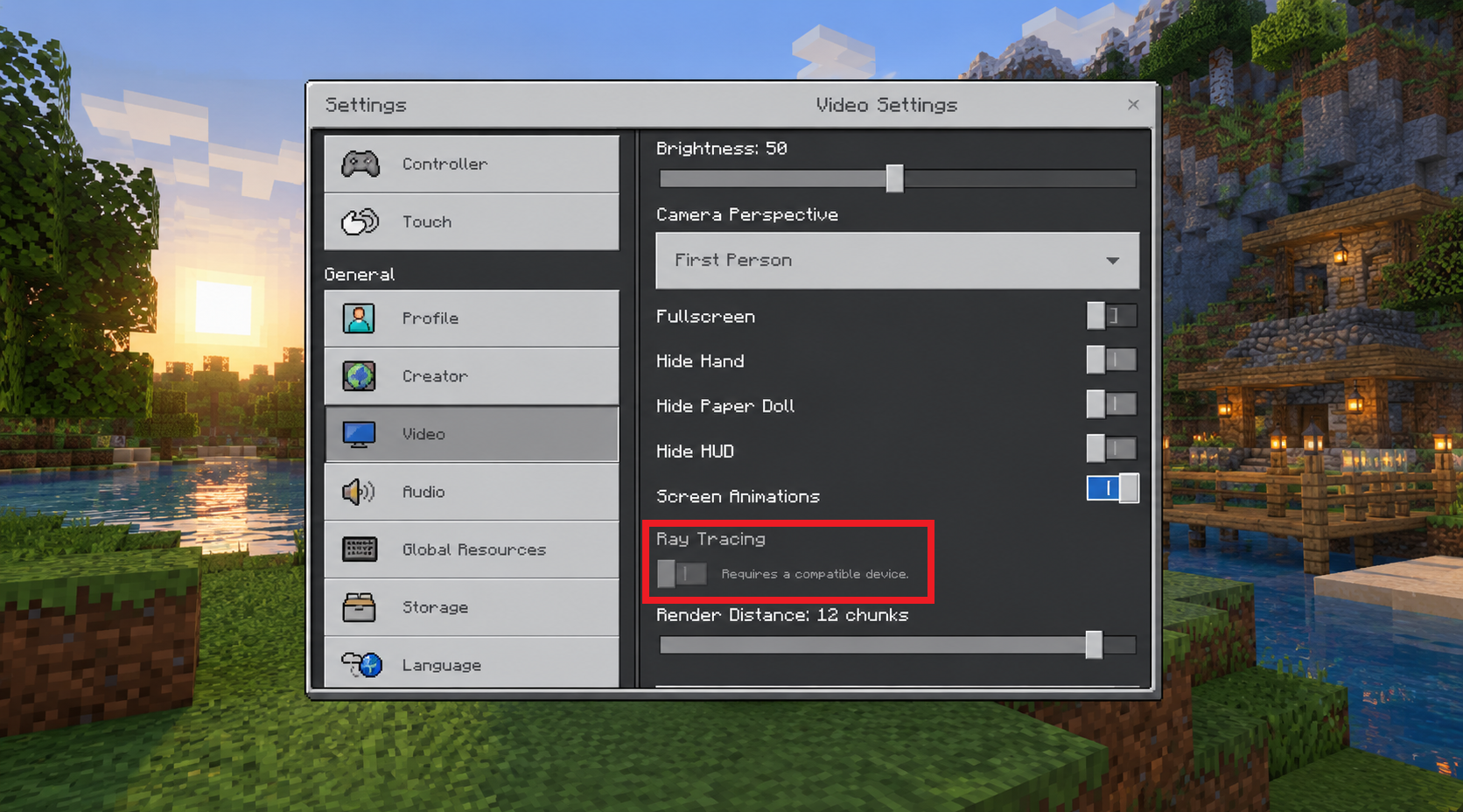
A gray option at the title screen does not settle whether it works. With compatible content loaded, Ray Traced can become selectable inside the world. Older menus call it Ray Tracing, as pictured above.
This feature is for Minecraft for Windows on a supported PC, not console or mobile Bedrock. Vibrant Visuals is a separate mode; Mojang confirms that Windows ray tracing remains supported alongside it.
1. Enable a Ray-Tracing Pack for Your World
A pack being downloaded or imported is not enough: it must be active. Ordinary texture packs, Java shaders and packs made only for Vibrant Visuals do not establish Ray Traced compatibility.
Without a suitable pack, open Minecraft’s Marketplace, search RTX, and choose a world explicitly marked for ray tracing. Mojang describes free ray-tracing worlds, so a paid pack is not required for this test.
Load that world separately. For a pack you already trust, use a copy of your own world instead:
If its download is a .mcpack file, open it with Minecraft and wait for the import to finish before looking in My Packs.
- Choose Play, select the world’s pencil icon, then scroll to Copy World in its settings. The image shows the pencil icon, not the Copy World button.
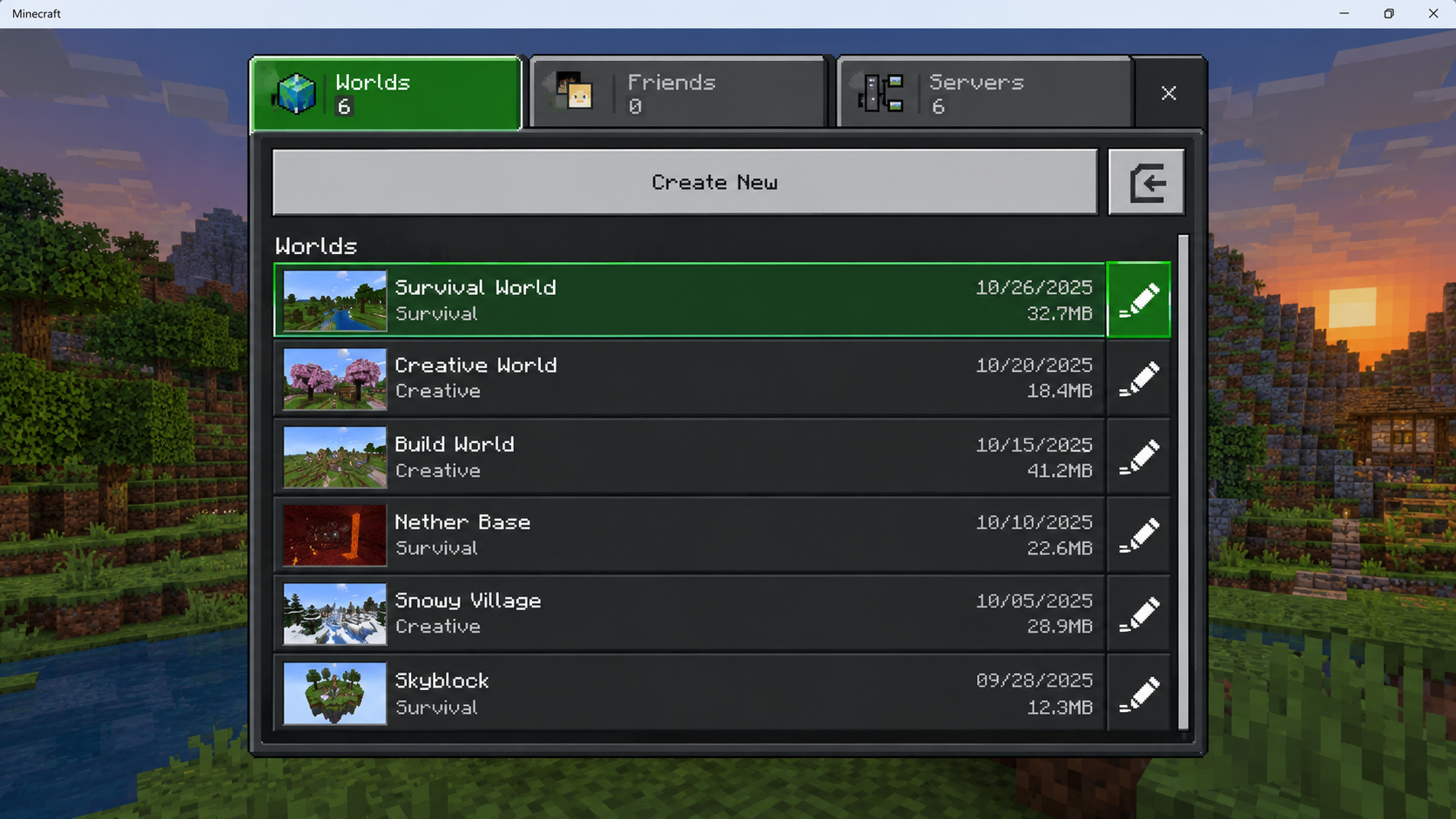
Show the Copy World control for an owner-consented world. Keep the original world untouched and hide its private name, seed, Realm details, and multiplayer information. - Edit the copy and open Resource Packs > My Packs. Look for a pack explicitly described as Bedrock ray-tracing/RTX compatible, not merely high resolution.
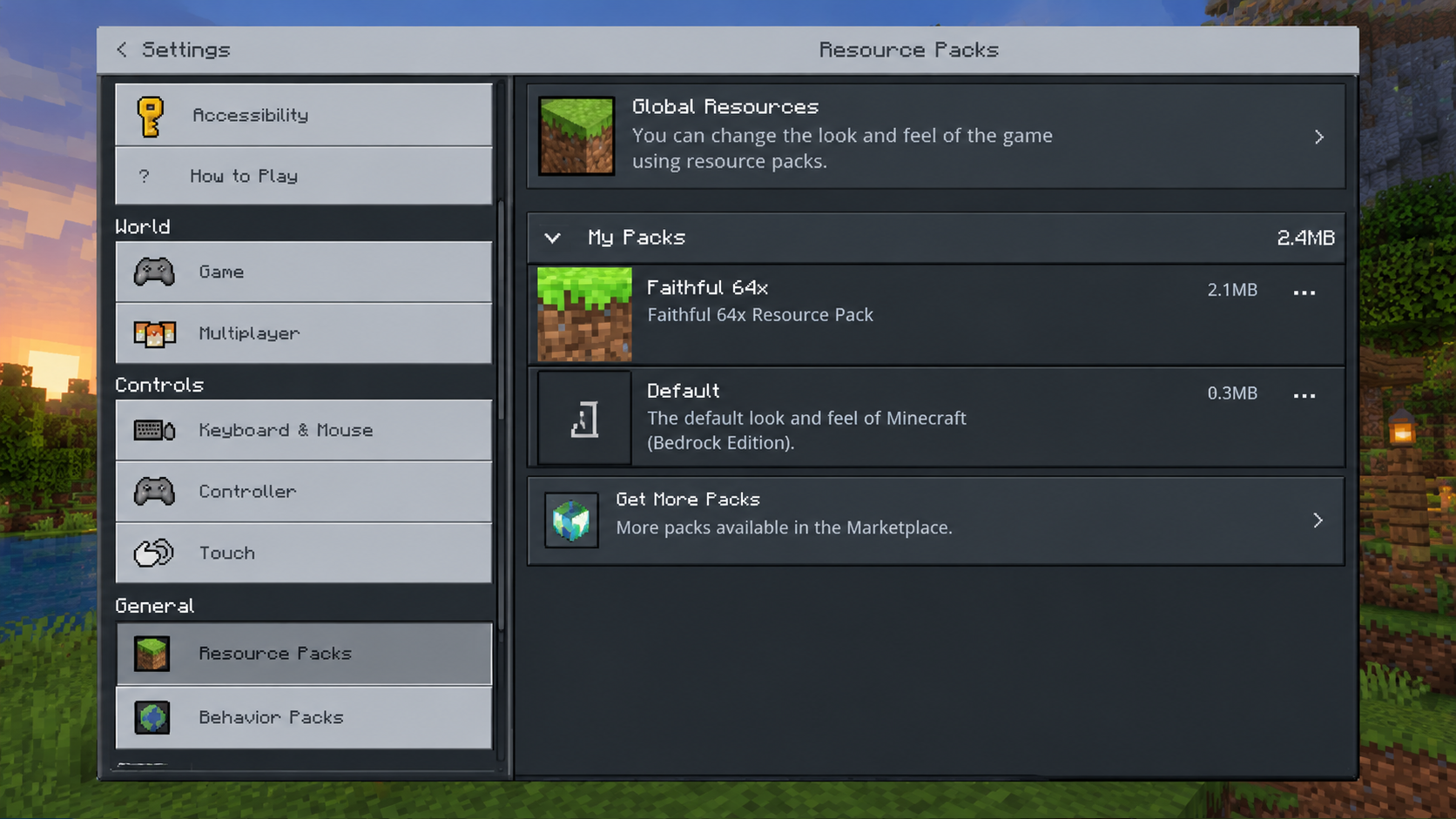
Show Play, Edit World, Resource Packs, and My Packs on the copied world. Do not expose purchase history, account details, or unrelated private packs. - Select the compatible pack and choose Activate. Confirm it appears under the active packs; follow its publisher’s instructions for any required companion packs.
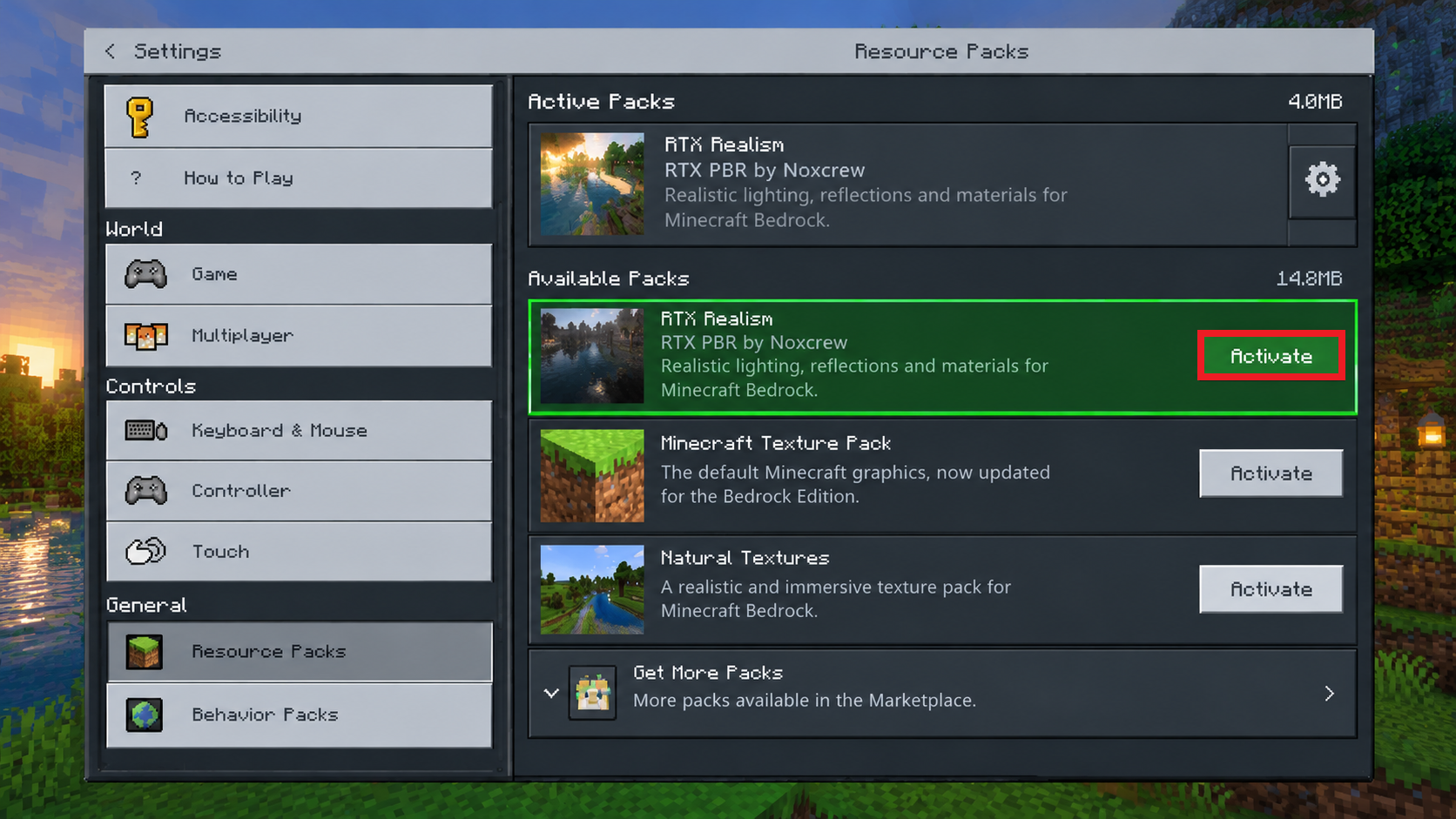
Show one current ray-tracing PBR pack moving to Active. Record its name, version, source, and order; do not download unknown files or delete purchased content for the image. - Load the copied world. Keep the original world and its pack settings untouched.
The illustrated pack names are not recommendations. Use the publisher’s verified download, not an installer advertised as an RTX unlock. A normal resource-pack import does not require replacing Minecraft’s program files.
Once the world loads with the pack active, check its Video settings as described below. A gray title-screen option alone is not a failed test.
2. Enable In-Game Switching and Select Ray Traced
The world can load correctly while Minecraft still prevents graphics-mode changes during play. Allow In-Game Graphics Mode Switching lets you make that change after its resources have loaded.
- Save and quit to Minecraft’s title screen. Open Settings > Video.
- Turn on Allow In-Game Graphics Mode Switching. The screenshot locates the setting but shows it off; your switch should be on.
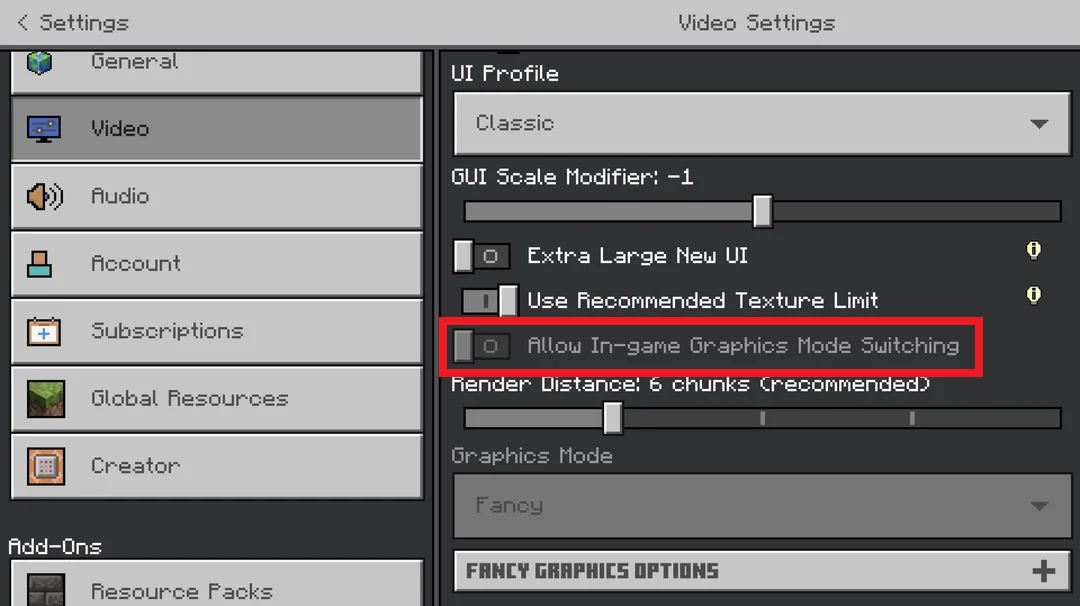
Show the control enabled from the title-screen Video settings. Capture the current label because wording can change between Bedrock releases. - Load the copied world or the separate RTX test world.
- Pause, open Settings > Video > Graphics Mode, and select Ray Traced. The image below shows the disabled state, not a successful selection.
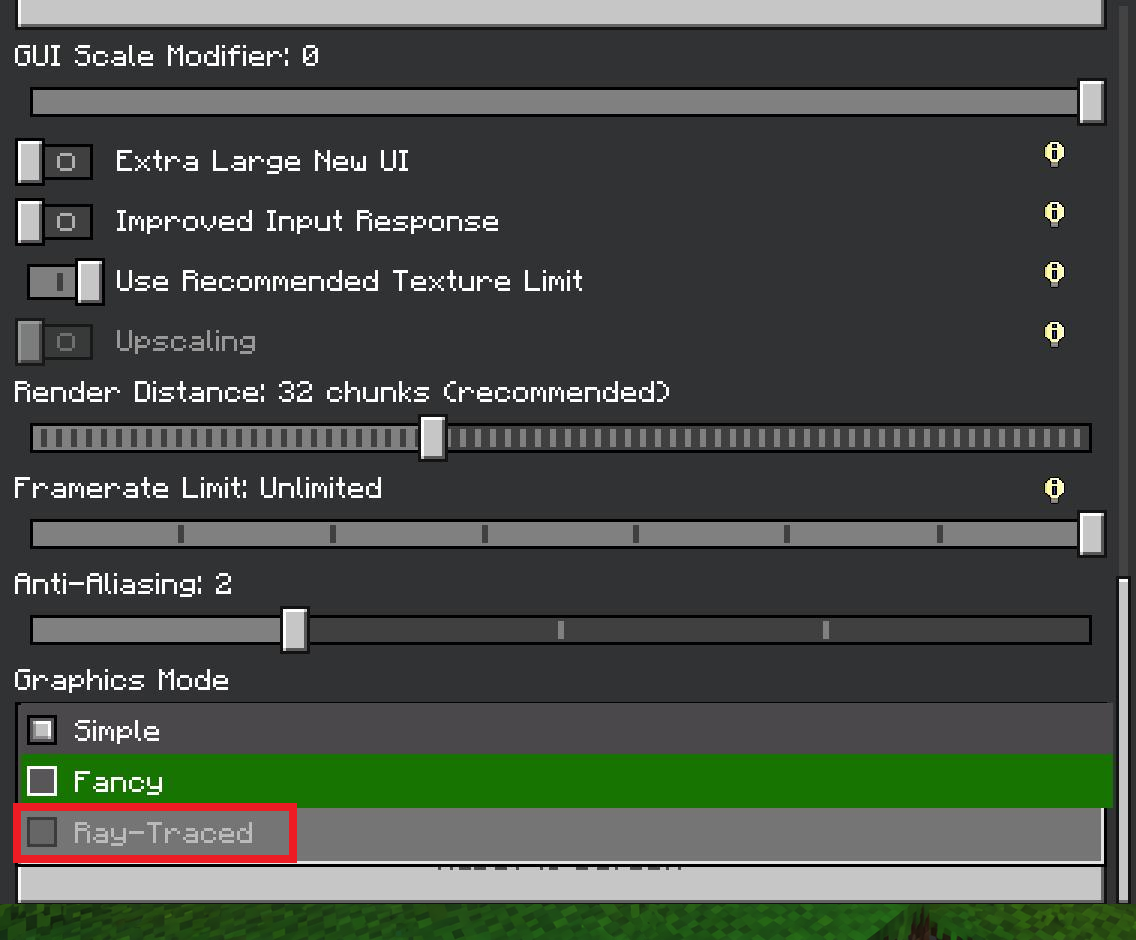
Show the control enabled from the title-screen Video settings. Capture the current label because wording can change between Bedrock releases. - Return to the world and allow its textures to load. If the mode is selected but materials look excessively glossy or lighting is missing, save, quit and reopen the world once.
Check that Ray Traced remains selected in the world’s menu. A selected mode with incorrect textures is different from an unavailable selector. If it stays gray inside a compatible world, check the PC requirements rather than repeatedly changing packs.
3. Check the Edition and Hardware Requirements
The menu can be visible on a device that cannot use it. Compare the PC with Microsoft’s published ray-tracing requirements:
| Requirement | What to check |
|---|---|
| Game and platform | Minecraft for Windows, the Bedrock edition, on a 64-bit Windows PC. |
| Graphics hardware | A DirectX hardware ray-tracing-capable GPU. Published examples include NVIDIA RTX 20-series or newer and AMD RX 6000-series or newer. |
| Other specifications | Intel Core i5 or equivalent; Microsoft Learn lists at least 8 GB RAM. |
| Game version | Ray tracing began with Bedrock 1.16.200. Use the supported released game, not that old version as an update target. |
- In the launcher, confirm you are opening Minecraft for Windows. This Bedrock setting does not configure Java Edition’s separate shader or mod systems.
- Press Win + R, enter
dxdiagand press Enter. Under Display or Render, note each GPU’s name and driver version.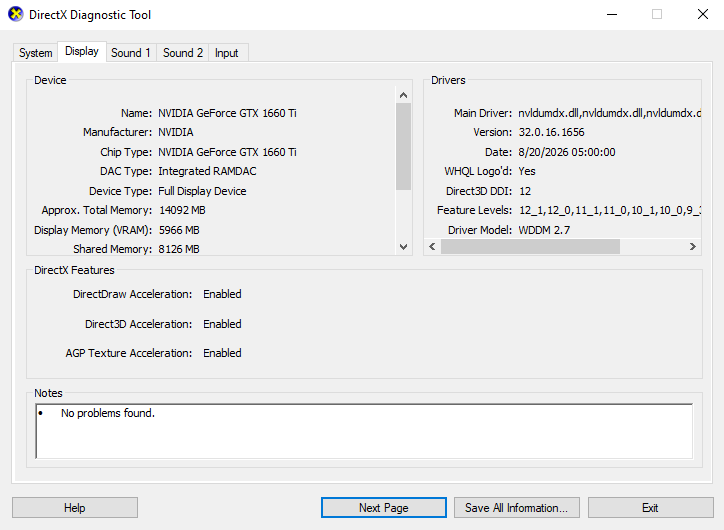
Show the Display or Render tab with GPU model, driver date, and DirectX features needed for diagnosis. Redact the computer name, user name, machine ID, and saved diagnostic file location.
The pictured GTX 1660 Ti is not one of the supported RTX examples. Its Direct3D 12 entry is not proof of compatible ray-tracing hardware. Check the exact GPU, not just the installed DirectX version.
Unsupported hardware cannot be unlocked by reinstalling Minecraft. Use Simple, Fancy or Vibrant Visuals where supported. VR and mixed-reality headsets are also outside Microsoft’s listed ray-tracing support.
4. Check Which GPU Minecraft Uses
On a PC with two graphics adapters, identifying an RTX card does not confirm that Minecraft is using it. Windows’ per-app preference lets you choose the capable adapter. This check is unnecessary on a single-GPU system.
- Close Minecraft. Open Windows Settings > System > Display > Graphics.
- Select Minecraft for Windows, not just the launcher. If missing, add the installed game using Windows’ app-selection control.
- Open GPU preference or Options. Choose the ray-tracing-capable GPU under High performance, then save if prompted.
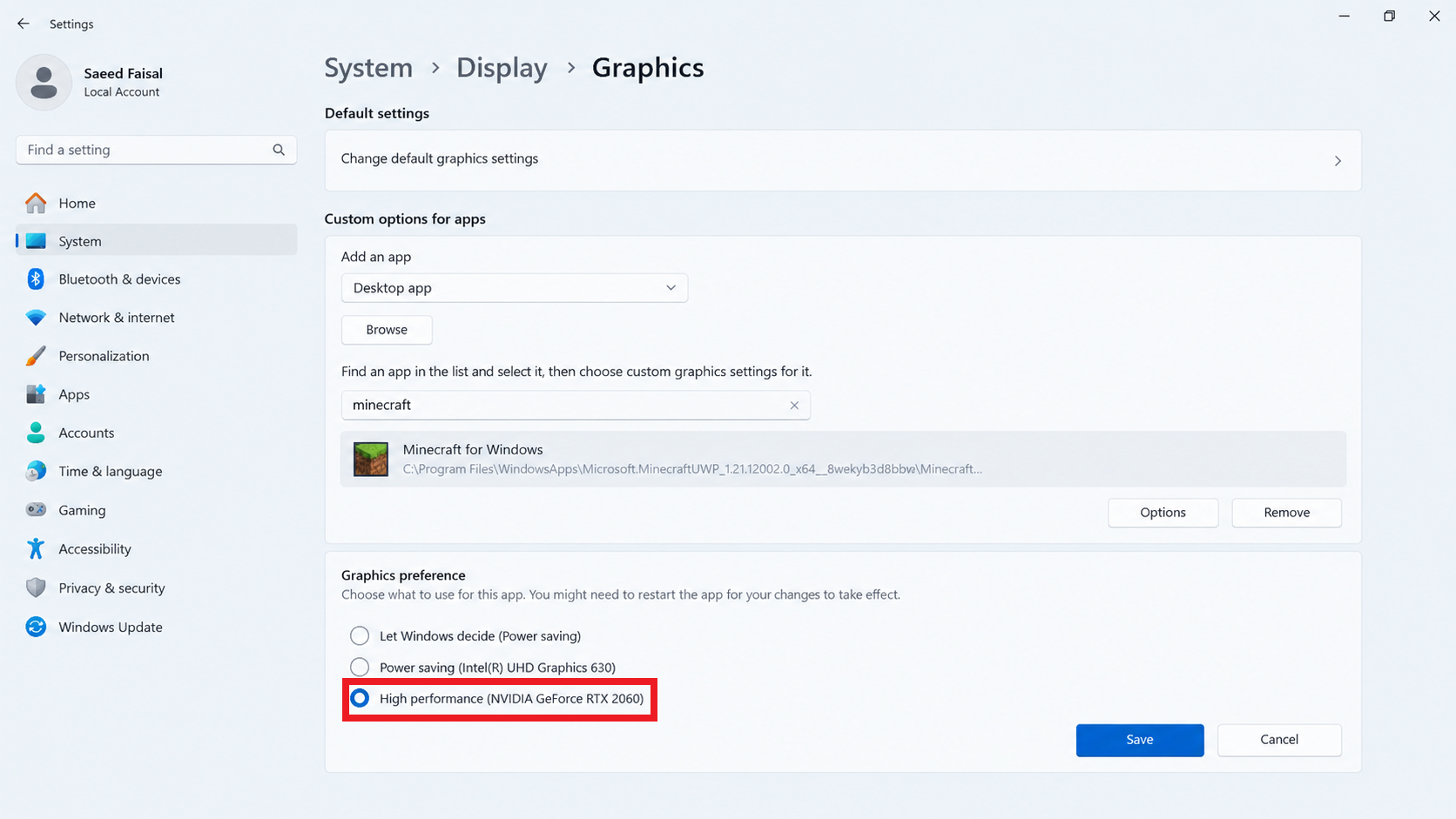
Show Settings, System, Display, Graphics, Minecraft for Windows, Options, and High performance. Do not disable the integrated GPU or change a managed-device policy. - Reopen Minecraft and the same test world. Press Ctrl + Shift + Esc to open Task Manager.
- Under Processes, right-click a column heading and enable GPU engine. Match Minecraft’s GPU number to the models under Performance.
Microsoft documents these per-app GPU preferences. The preference does not add ray-tracing support; an already-correct GPU needs no change. Leave the integrated adapter enabled.
Retest Ray Traced inside the same world. If Minecraft uses the compatible GPU but the option remains gray, changing that preference again will not help.
5. Check Updates and Compare One Compatible World
A setup that worked previously deserves a controlled comparison, not an immediate reinstall. Updates can address compatibility problems but are not a guaranteed fix for every gray selector.
- Close Minecraft and check Microsoft Store’s Library or Downloads for its available update. Update Minecraft for Windows, not only the launcher.
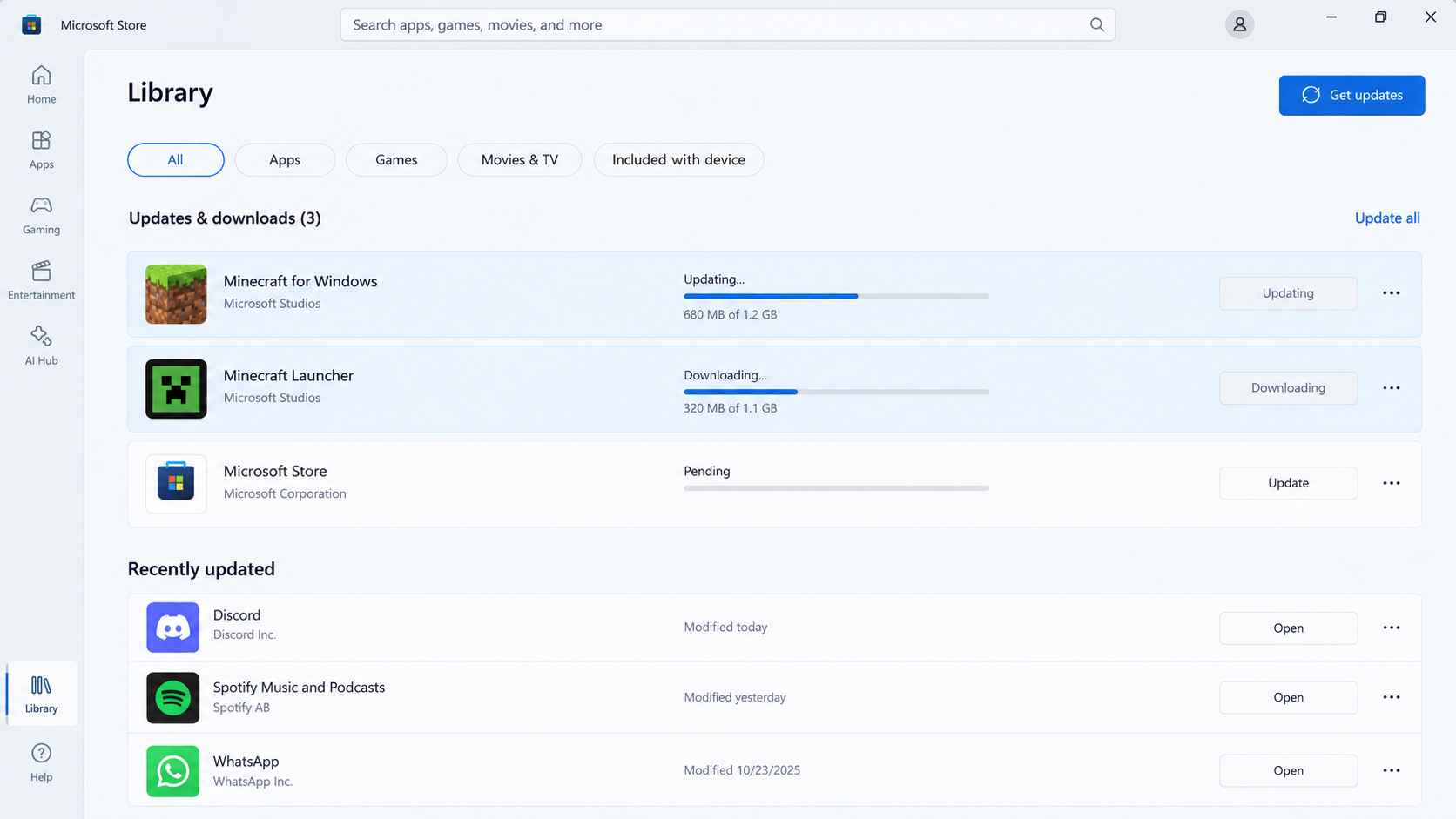
Show Minecraft for Windows in Microsoft Store Library with Update or the installed version. Do not reinstall or reset the game merely to create the screenshot. - Install applicable Windows updates and any available compatible graphics-driver update from the PC or GPU manufacturer. Match your exact model, not the screenshot’s example.
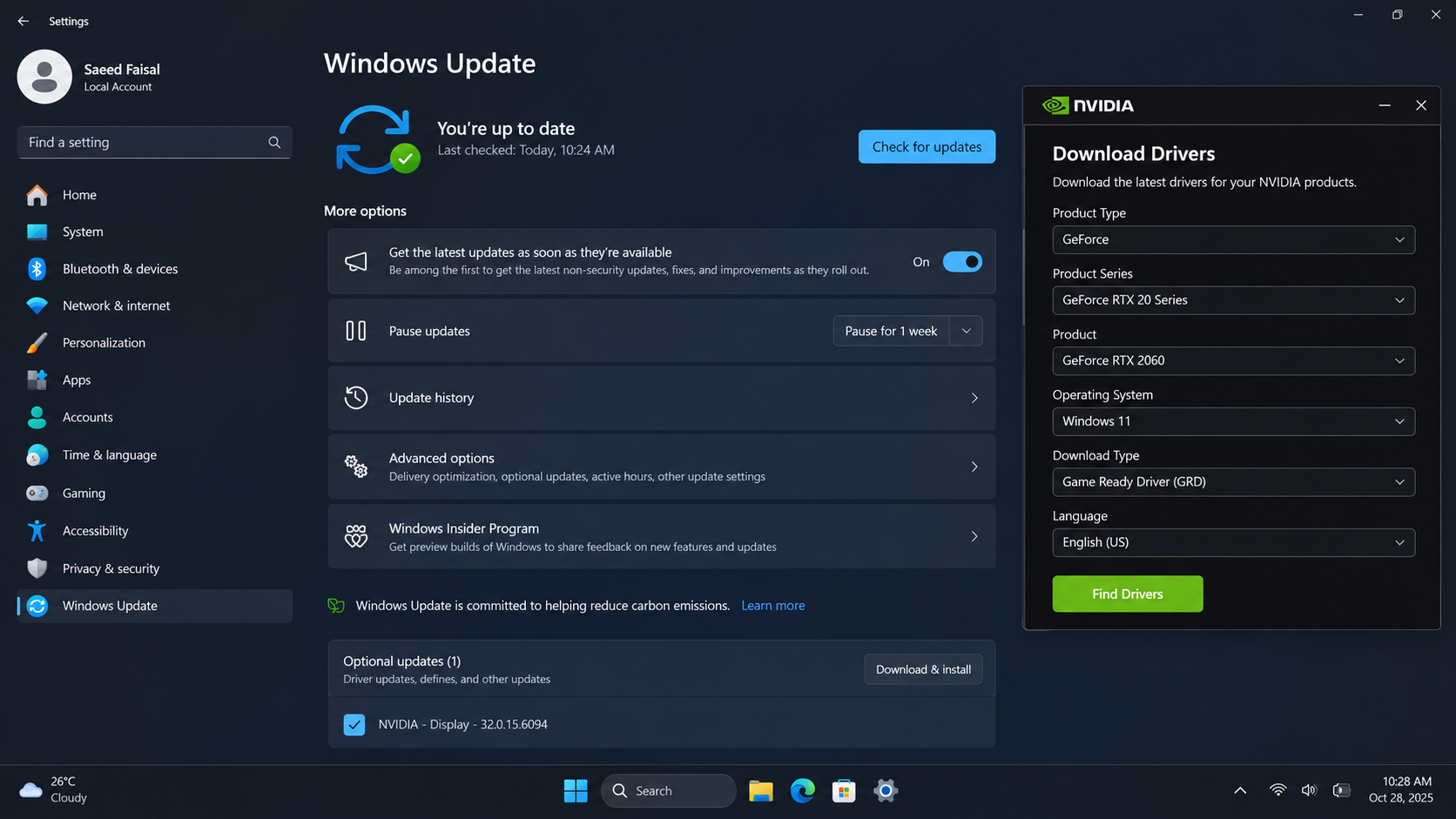
Show the exact GPU model and current driver from an official vendor or computer-manufacturer source. Hide hardware serials and do not use a third-party driver updater. - Restart if the updates require it. Retest your RTX world. For a copied world, keep only its RTX pack and required dependencies active.
The Store and Xbox app update controls help when the game update is missing. For drivers, follow the manufacturer-download instructions for your GPU, not third-party driver updaters.
If the separate RTX world works, revisit the affected world’s pack version and active resources. Re-enable other visual packs one at a time on the copy. Check Global Resources too, since those packs can also affect it.
If Ray Traced Still Cannot Be Selected
When every compatible test stays gray on supported hardware, record the Minecraft build, Windows version, GPU, driver and pack version. Include an in-world settings screenshot and whether graphics switching is on when reporting it through Mojang’s bug tracker.
Keep the original world. Editing options.txt, resetting the app or installing a modified renderer is not necessary to establish these results, and none makes unsupported hardware compatible. Review screenshots and diagnostic files for private details before sharing them.