How to Fix Forza Horizon 6 “Invalid Gaming Services Detected” Error?
Forza Horizon 6 stops at Invalid Gaming Services Detected instead of reaching the main menu. The warning asks for a newer version of Microsoft’s Gaming Services component, even if FH6 itself has just finished downloading or updating.
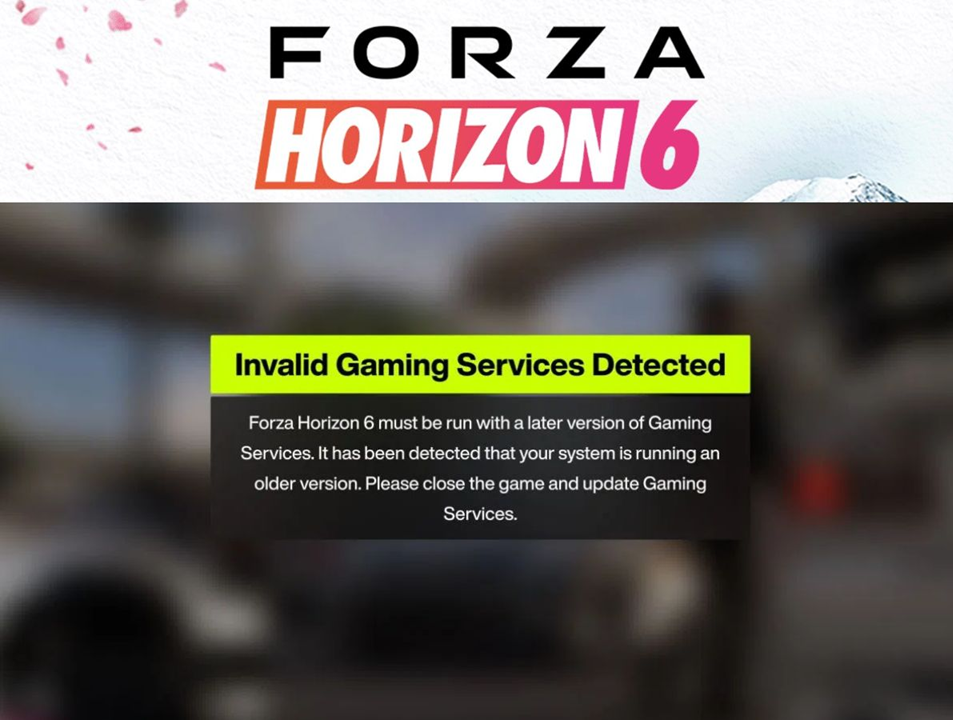
Gaming Services is a separate Windows component required by both the Xbox app and Steam editions. Microsoft Store can show it as Installed while FH6 still rejects it. Reinstalling the game does not update that component.
| What you find | What to check |
|---|---|
| A Gaming Services update is available | Install it through Microsoft Store. |
| Store says Installed, but the warning remains | Read the installed version in Windows Settings. |
| The version meets Forza’s requirement | Run Xbox’s repair tool; Steam folder access is a later check. |
1. Update Gaming Services Through Microsoft Store
A Steam update does not update Windows Gaming Services. Forza directs PC players to Microsoft Store for this particular warning.
- Close FH6, Steam, and the Xbox app. Open Microsoft Store from Start.
- Open Downloads or Library, then select Check for updates or Get updates. Install updates offered for Gaming Services and Xbox.
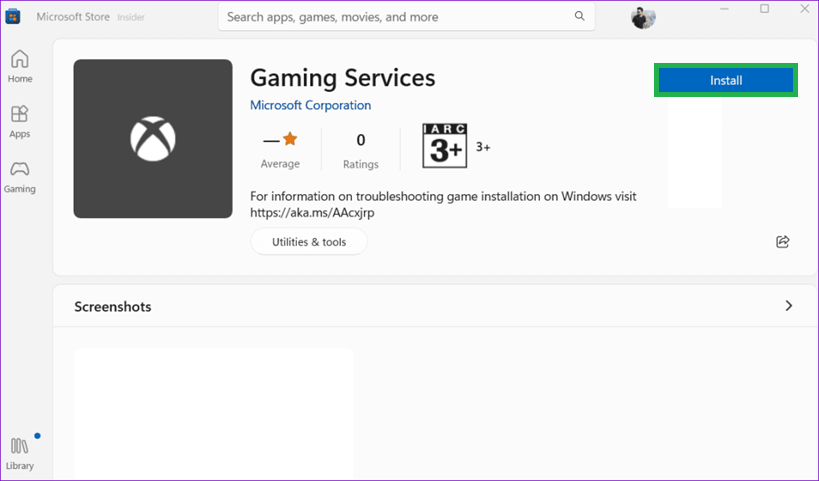
Forza’s current FH6 support says the first fix is updating Gaming Services directly through the Microsoft Store. - If Gaming Services shows only Open or Installed, note that result. Opening it is not required to launch FH6.
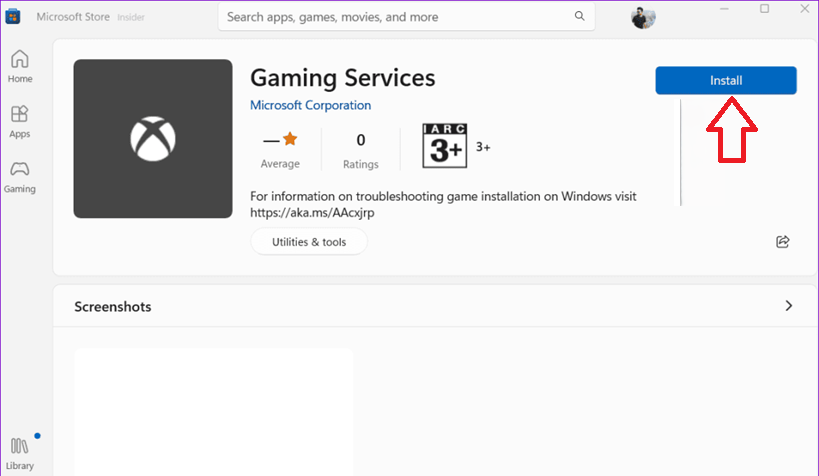
If FH6 still shows the warning after this step you need to verify the installed version and possibly repair the package. - If it is missing, open the official Gaming Services listing, published by Microsoft Corporation. Choose View in Store, Get, or Install as offered.
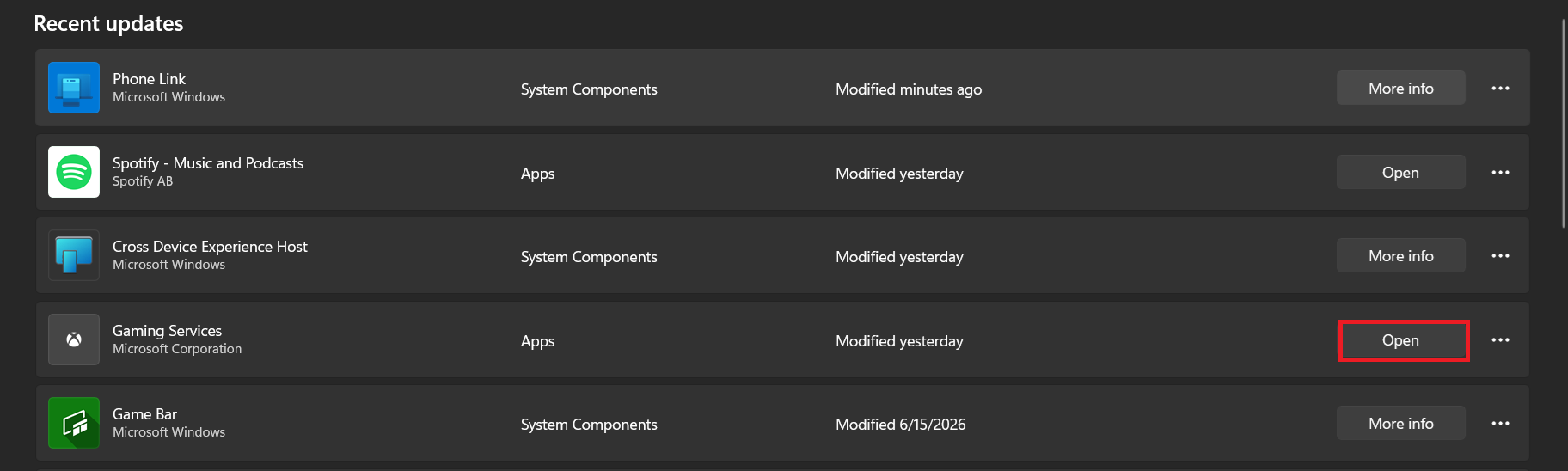
The direct Store page helps when Gaming Services is missing from the normal recent-updates view but FH6 still needs the package. - Choose Start > Power > Restart, then launch FH6 from your usual library.
The screenshots show different Store versions: the first is a product page, while the last shows recent updates. Use the Downloads controls to update, or the direct listing to install. If FH6 now opens, no package removal is needed.
2. Compare the Installed Version With Forza’s Requirement
The Store’s Installed label is not a substitute for reading the version registered on your PC.
- Open Settings > Apps > Installed apps, search for Gaming Services, then choose three dots > Advanced options. On Windows 10, look under Apps & features.
- Read the version under Specifications.
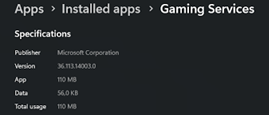
If the installed version is below 36.113.2002.0 FH6 is correctly refusing to continue until Gaming Services is updated. - Compare it with the minimum on Forza’s FH6 Gaming Services requirements page. Compare every number between the dots, not just the first two.
Use Forza’s linked minimum, not the older number shown above. Requirements can change with game updates. If your version is lower and Store offers no update, the installation or update process needs attention.
3. Repair Gaming Services and Any Failing Store App
A package can be installed but still malfunction. Windows provides Repair without deleting app data; Reset clears more local state.
- Return to Gaming Services > Advanced options. Select Repair if available, then restart Windows and test FH6.
- If the warning remains, consider Reset on that same Gaming Services page. Restart and test again.
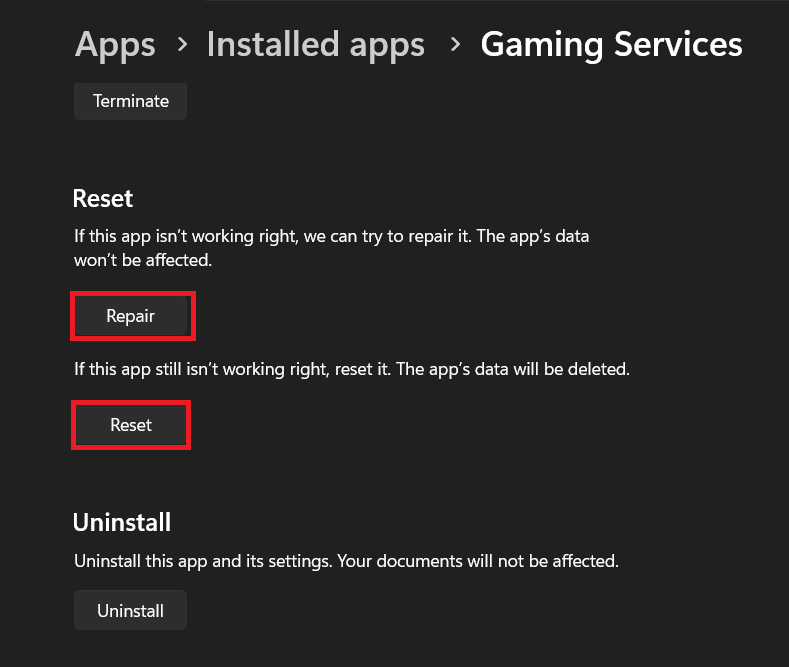
Repair is the lowest-risk way to fix a damaged package when FH6 still rejects Gaming Services even after an update. - Repair Microsoft Store or Xbox through their own Advanced options only if they also fail to open, sign in, or update. Use Reset only after Repair fails; sign back in afterward.
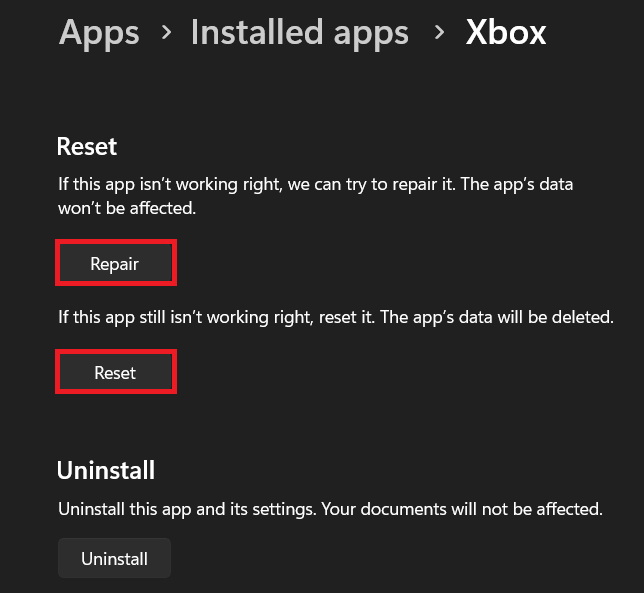
If Gaming Services itself cannot update cleanly the Store and Xbox app often need repair too because they control the install chain.
Microsoft explains these controls in its Windows app-repair instructions. Some installations do not expose every button; use the repair tool below rather than forcing an uninstall.
When Store itself will not open, press Windows-R, enter wsreset.exe, and wait for Store to reopen. The Microsoft Store cache walkthrough illustrates this step. Retry the component update once Store works.
4. Run Microsoft’s Gaming Services Repair Tool
A missing component, failed update, or repeating installation prompt is better handled by Microsoft’s repair tool than by manually deleting service registry keys.
- Open the Xbox app, select your profile picture > Support > Gaming Services Repair Tool, then select Start Troubleshooting.
- Let it finish. If Xbox cannot open, use the Downloadable version on the official Gaming Services Repair Tool page. Open the downloaded tool and follow its prompts.
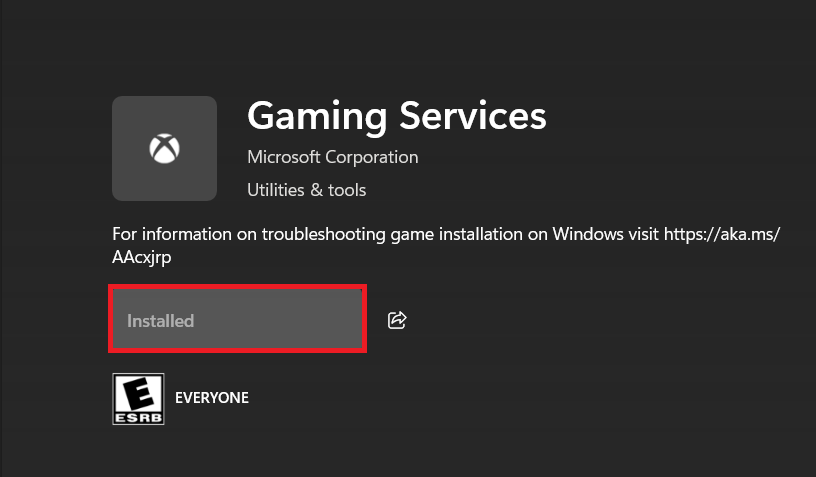
- If Xbox or Store then offers to install a missing Gaming Services component, complete that installation. The image below is the Store install page, not the repair-tool interface.
After the removal and restart Windows should offer to reinstall Gaming Services through the normal Xbox app flow. - Restart Windows, recheck the installed version, and test FH6. Keep any error code the tool reports.
You do not need to delete registry keys to produce an installation prompt. Repairs can affect other Xbox/Store games temporarily; finish the component installation before reopening them. On a managed PC, ask the administrator if policy or permissions block the tool.
For an Xbox app that remains unresponsive, the Xbox app opening checks cover that separate symptom; the downloadable repair tool does not require its interface to work.
5. Finish Pending Windows Updates
When Gaming Services cannot install or the repair tool will not run, Windows itself may need an update or a pending restart. This does not establish that FH6’s files are damaged.
- Open Settings > Windows Update, select Check for updates, and install applicable updates. On Windows 10, use Update & Security > Windows Update.
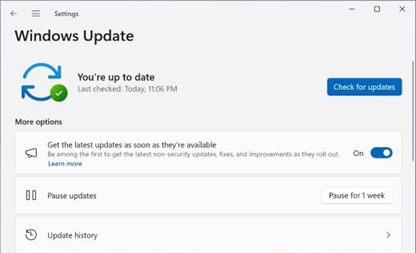
If Gaming Services keeps failing with the same install errors after a reinstall the missing piece is often Windows Update rather than FH6 itself. - Save your work and restart when requested. Follow your organization’s update policy on a managed PC.
- Retry the Gaming Services update or repair tool, then launch FH6 once.
Record persistent installation errors such as 0x80073D26 or 0x8007139F for support. They do not, by themselves, justify applying an old Windows 10 registry-deletion workaround to every PC.
If the Warning Remains
Contact Forza Support with the exact warning, Gaming Services version, Windows build from winver, Steam/Xbox edition, and repair-tool result. For Steam, include the install-folder path and any access-denied message.
If Store or the repair tool also fails, give Xbox Support its separate error code. Avoid repeated game reinstalls, save deletion, or a Windows reset for this warning alone.