How to Fix Zenless Zone Zero Black Screen Graphics Issue?
Zenless Zone Zero can open to a black window or display characters against a missing background instead of loading the scene. HoYoPlay may still show the game as running, although no usable login screen or picture appears.
The GPU and its driver still have to render that window. A display or DX12 option can fail even while the launcher works; a black screen by itself does not prove that you need a complete reinstall.
Compare the PC with HoYoverse’s minimum requirements. A DirectX version number in Windows alone does not prove the GPU meets them. These steps concern the Windows game client, not a blank HoYoPlay interface or a mobile device.
If Windows itself restarts, blue-screens, or stays unresponsive, stop repeated launch tests and seek system support. That is more than a black game window.
| What you can access | Useful first check |
|---|---|
| Launcher only | Repair game files. If DX12 was enabled, uncheck its launcher option before retesting. |
| In-game settings | Compare Windowed mode and a 60 FPS limit. |
| A named missing-DLL error | Repair the matching component, not every runtime package. |
1. Repair Game Files and Any Named Missing Components
A partial update can leave the launcher ready to play while the game still lacks usable files. Close the game and finish pending updates. On its HoYoPlay game page, open the menu beside Start Game > Repair Now. Allow repair downloads to finish.
For a Steam installation, use Properties > Installed Files > Verify integrity of game files. The Steam file-verification walkthrough shows the procedure. If the game reaches Press to Play, its tool icon > Repair also repairs assets without entering the game.
If file repair restores a normal launch, leave the runtime packages alone. Missing system components need their own repair; the following downloads are conditional, not a requirement for every black screen:
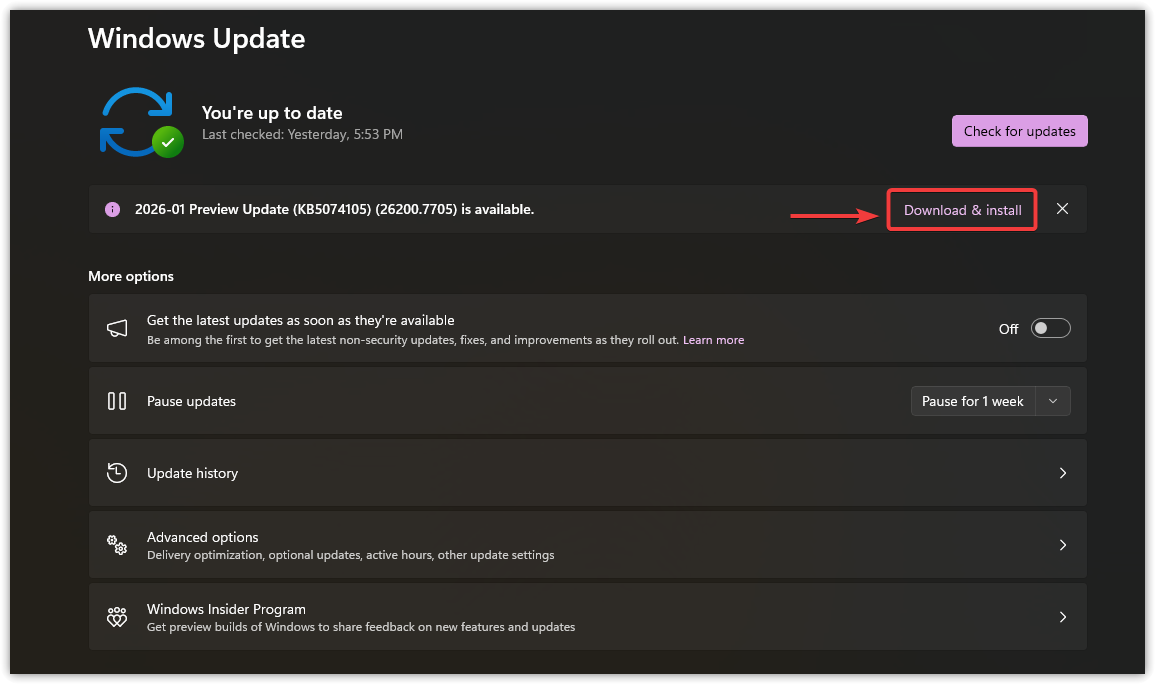
- Open Settings with Windows + I, then Windows Update. Install applicable standard updates and restart when requested. The pictured optional Preview Update is not required for this check.
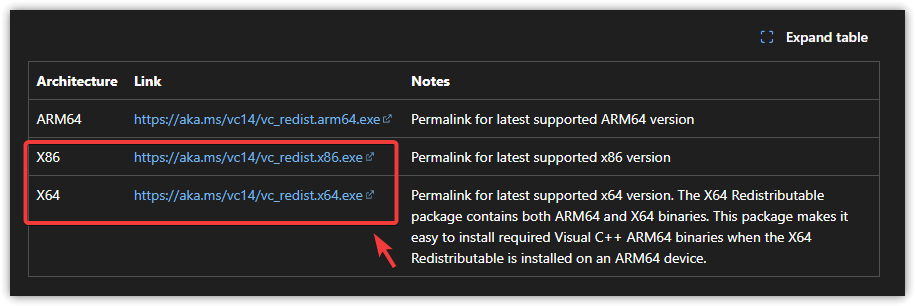
- For a missing VCRUNTIME140 or MSVCP140 DLL, use Microsoft’s Visual C++ v14 Redistributable installer. Choose Repair if offered. The 64-bit game uses x64; an x86 package is for a 32-bit component, not a replacement for x64.
- Only for an error naming a legacy component such as D3DX9_43.dll or XINPUT1_3.dll, use Microsoft’s DirectX End-User Runtime. This adds older libraries; it does not upgrade DirectX support or make an unsupported GPU compatible.
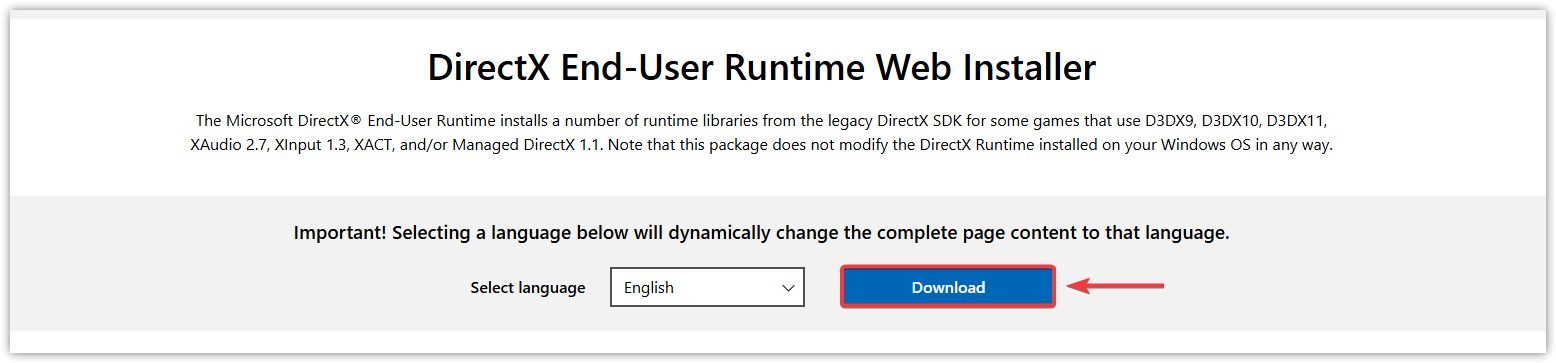
Restart after component repairs and try launching again. Avoid individual DLL-download sites. If the same missing-file message returns, retain its exact wording for support rather than replacing DLLs manually.
2. Compare Windowed Mode and a 60 FPS Limit
When settings remain accessible but the picture freezes or disappears afterward, a less demanding display configuration is worth testing. It changes the game’s workload without deleting your saved configuration.
- Photograph your existing settings. Open Settings > Graphics from the opening screen or pause menu, set FPS to 60, and test again.
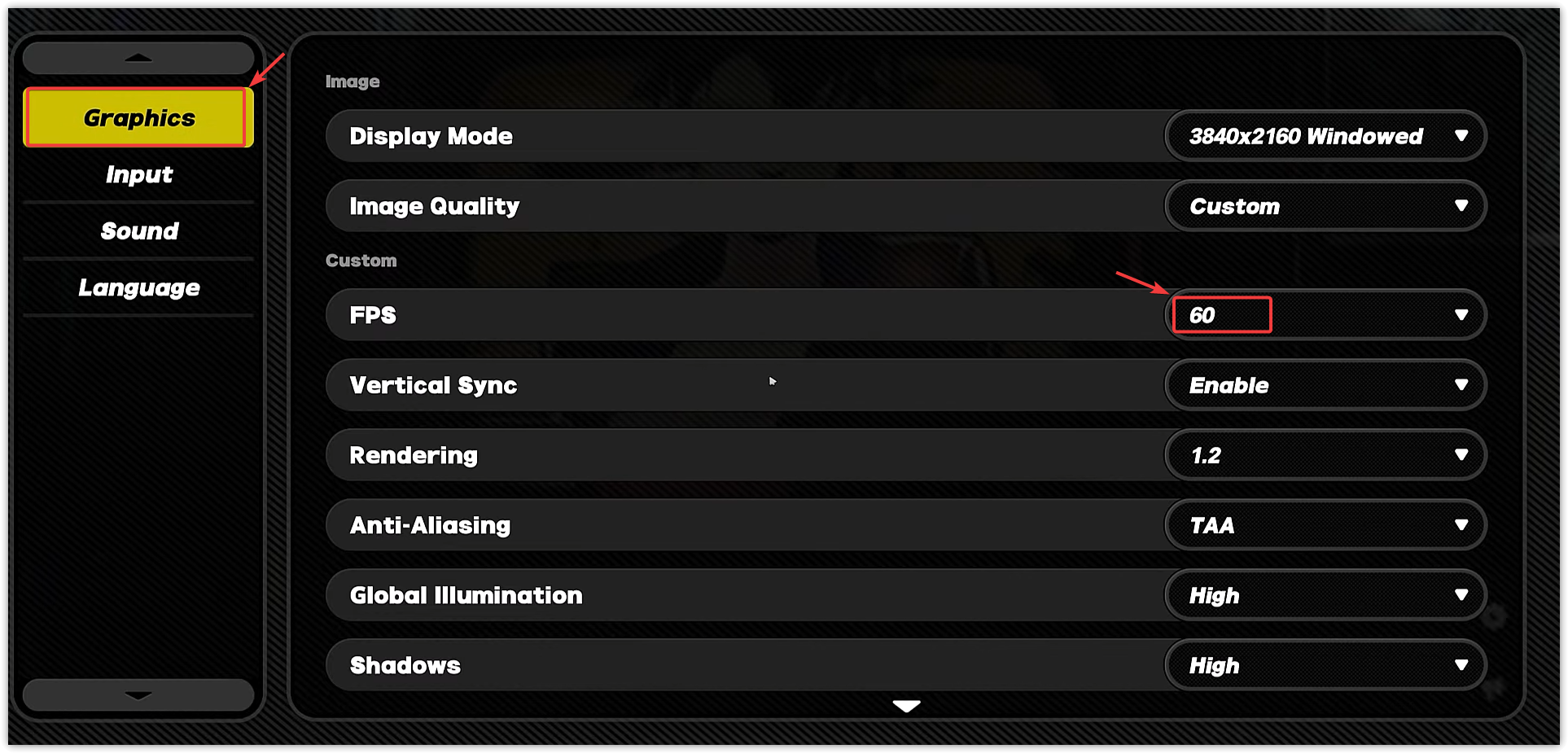
- Keep that limit while testing. The next screenshot highlights Unlimited, but restoring Unlimited is optional, not part of the fix. A stable 60 FPS setting can be left in place.
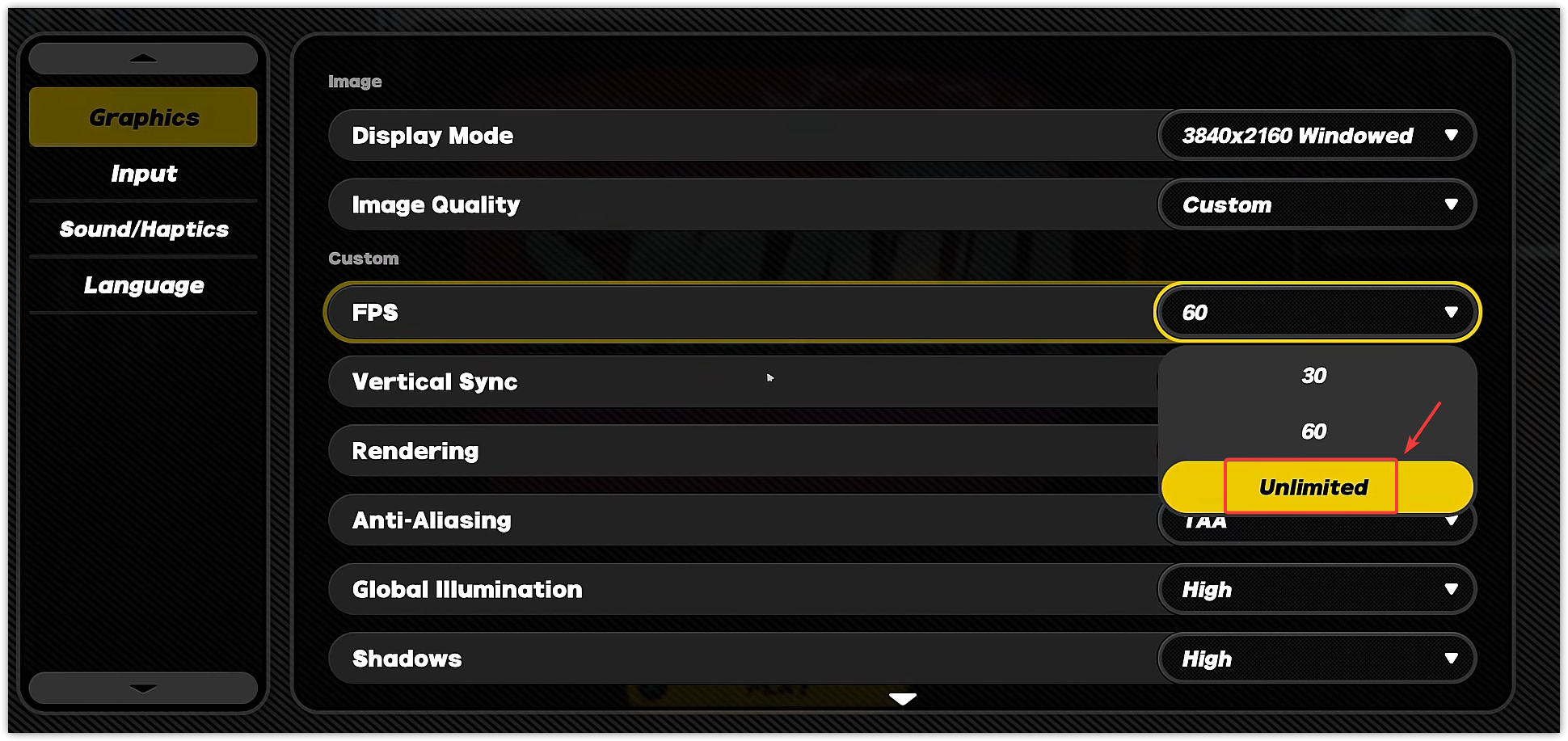
- If needed, compare Windowed mode, a lower resolution, or a lower graphics preset, one change at a time. Close nonessential overlays or recording apps for a separate comparison.
Repeat the loading screen or activity that failed. Retain a helpful setting; restore changes that make no difference. A successful menu launch alone does not establish that gameplay is stable.
3. Check Whether Security Software Blocked a Game File
A black screen alone is not evidence of an antivirus conflict. Open Windows Security > Virus & threat protection > Protection history and look for a detection matching the game and failure time.
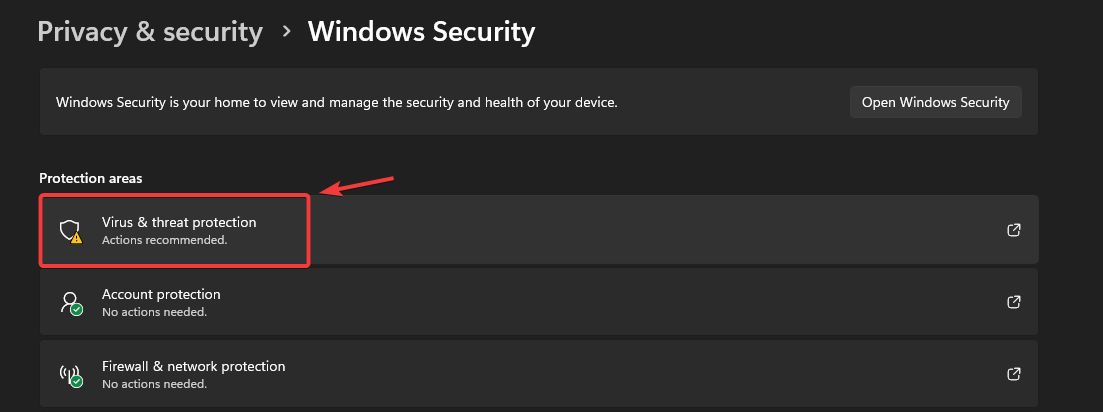
Without a relevant block, leave exclusions unchanged. For a detected file, ask HoYoverse or the security vendor to confirm whether it is a false positive. Keep unverified files quarantined, especially modified clients or unofficial downloads.
If support recommends a specific Defender exclusion, follow Microsoft’s exclusion instructions. Third-party antivirus needs its own controls; this list does not configure it.
- Under Virus & threat protection settings, select Manage settings.
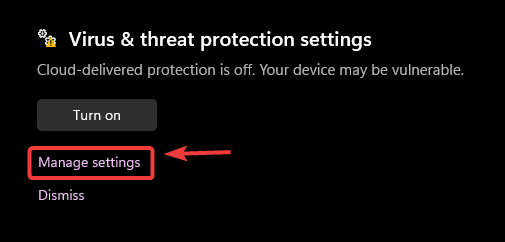
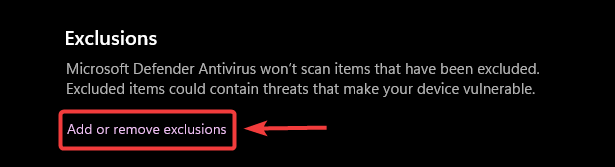
- Open Add or remove exclusions.
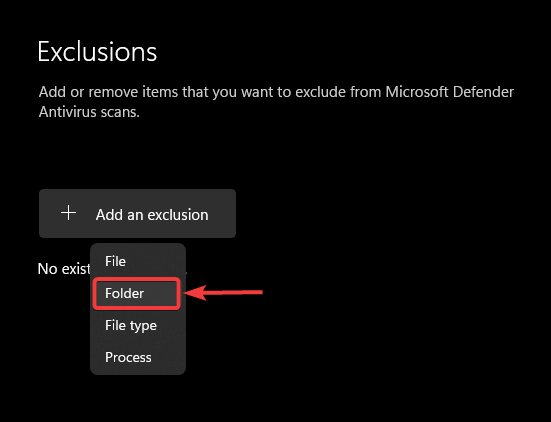
- Select Add an exclusion > File for the exact approved file. The screenshot also shows Folder; that excludes everything within the folder and should only be used if support explicitly requires that scope.
An exclusion does not itself restore a quarantined file. Follow the vendor’s confirmed recovery instructions, repair the game, and retest. Remove an unhelpful exclusion through the same list.
4. Return to DX11 if DX12 Causes the Failure
A game that stops displaying correctly after enabling DX12 may work again in DX11. HoYoverse’s PC graphics FAQ documents a DX12 option below Start Game on eligible installations: close the game and uncheck it to return to DX11.
This comparison can remove access to DX12-only visual features. First-time DX12 shader compilation can also cause brief stutters; let it finish. Interrupted compilation can be restarted through the launcher’s Repair Tool.
Where a supported launch-arguments field is available, an optional alternative is Unity’s Direct3D 11 argument.
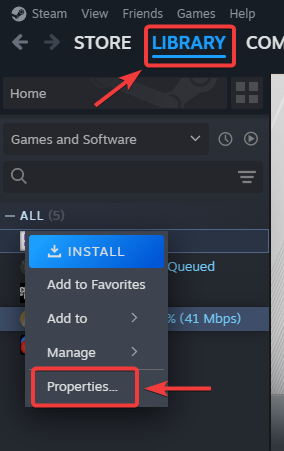
- For the Steam game entry, open Library > right-click Zenless Zone Zero > Properties > General.
- Record existing launch options, then test this argument by itself:
-force-d3d11The screenshot says -dx11; use -force-d3d11 instead. Do not combine it with a force-DX12 argument.
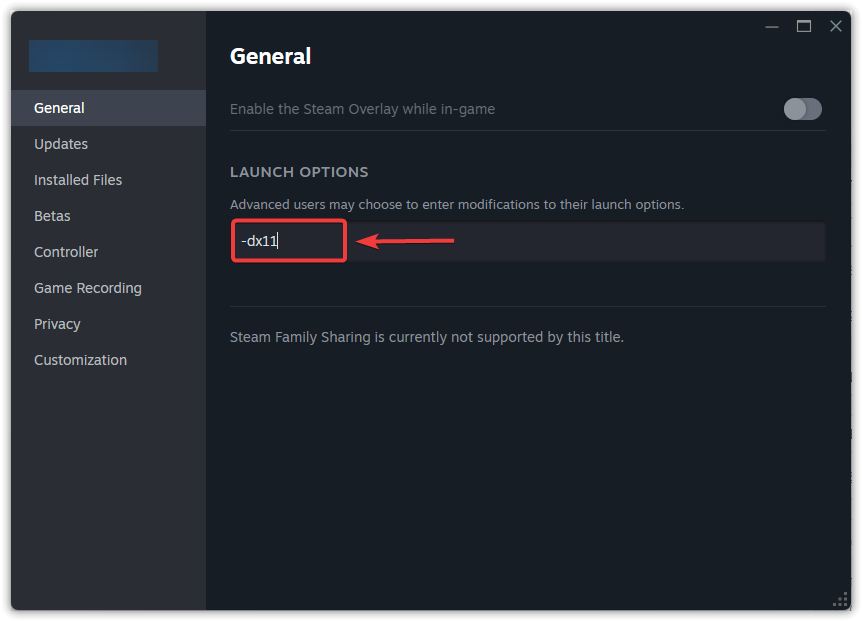
A launcher may ignore forwarded arguments; an unchanged result does not prove DX11 was selected. Remove an ineffective argument and restore previous options. Do not add Steam shortcuts or alter game files just to create this setting.
5. Update the GPU Driver, or Roll Back a Recent Change
If the failure began immediately after a driver update, compare the previously working driver. Otherwise, check for a compatible update. The graphics-driver walkthrough explains model-specific installation; use official manufacturer downloads, not third-party driver updaters.
Driver installation and rollback require administrator access. Ask IT first on a managed PC.
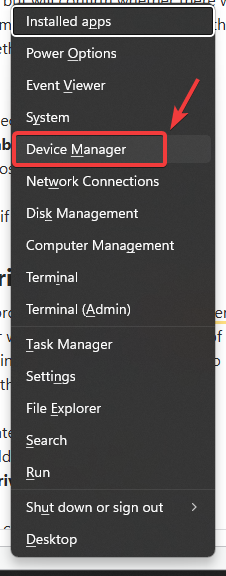
- Save your work. Press Windows + X > Device Manager.
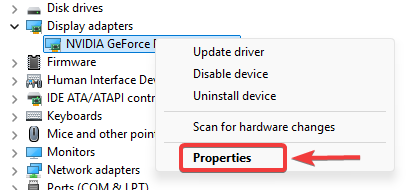
- Expand Display adapters, note the GPU model, and open its Properties.
- On the Driver tab, record the version. If a recent update preceded the problem, select Roll Back Driver when available and restart afterward.
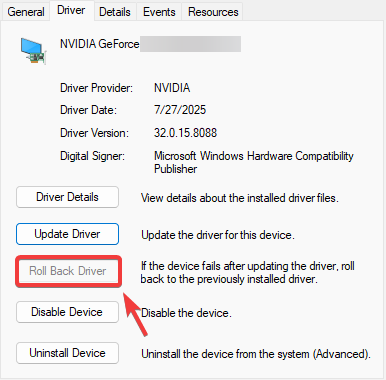 A gray button can mean Windows lacks a previous package or you lack permission. If no package is retained, a compatible previously working release can be installed from its manufacturer. Do not select Disable device as a substitute.
 - For an update, download the matching Windows driver from NVIDIA, AMD, or Intel, or your laptop manufacturer’s support page. Follow its installer and restart. Do not copy the old driver version pictured below.
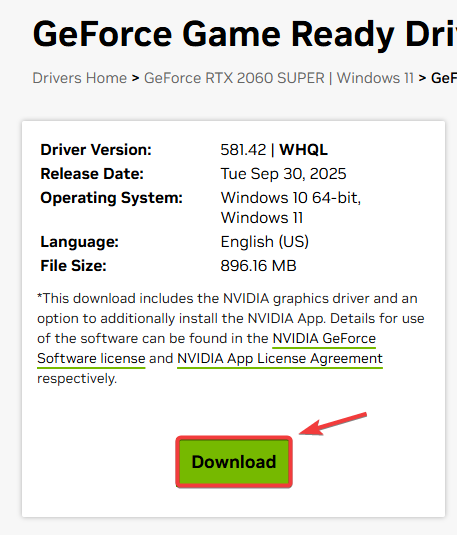
Retest the previously failing scene with the same settings. Keep a driver that restores stable play; otherwise return to a supported compatible release. Do not uninstall both graphics adapters on a laptop or cycle through arbitrary old versions.
If the Black Screen or Graphics Error Remains
Contact HoYoverse support with the details in its crash and black-screen guidance: UID, CPU, GPU, Windows and driver versions, RAM, and the exact error or recording.
Explain whether the launcher, login screen, or gameplay fails, and whether DX11 changes the result. Send diagnostic details privately, not in a public comment. Never include your password or verification codes.


