How to Fix Warzone Dev Error 0x872394dc?
Warzone’s Dev Error 0x872394dc can interrupt startup or end a match with an error screen. Restarting may get the game open again, only for the same message to return on the next launch.
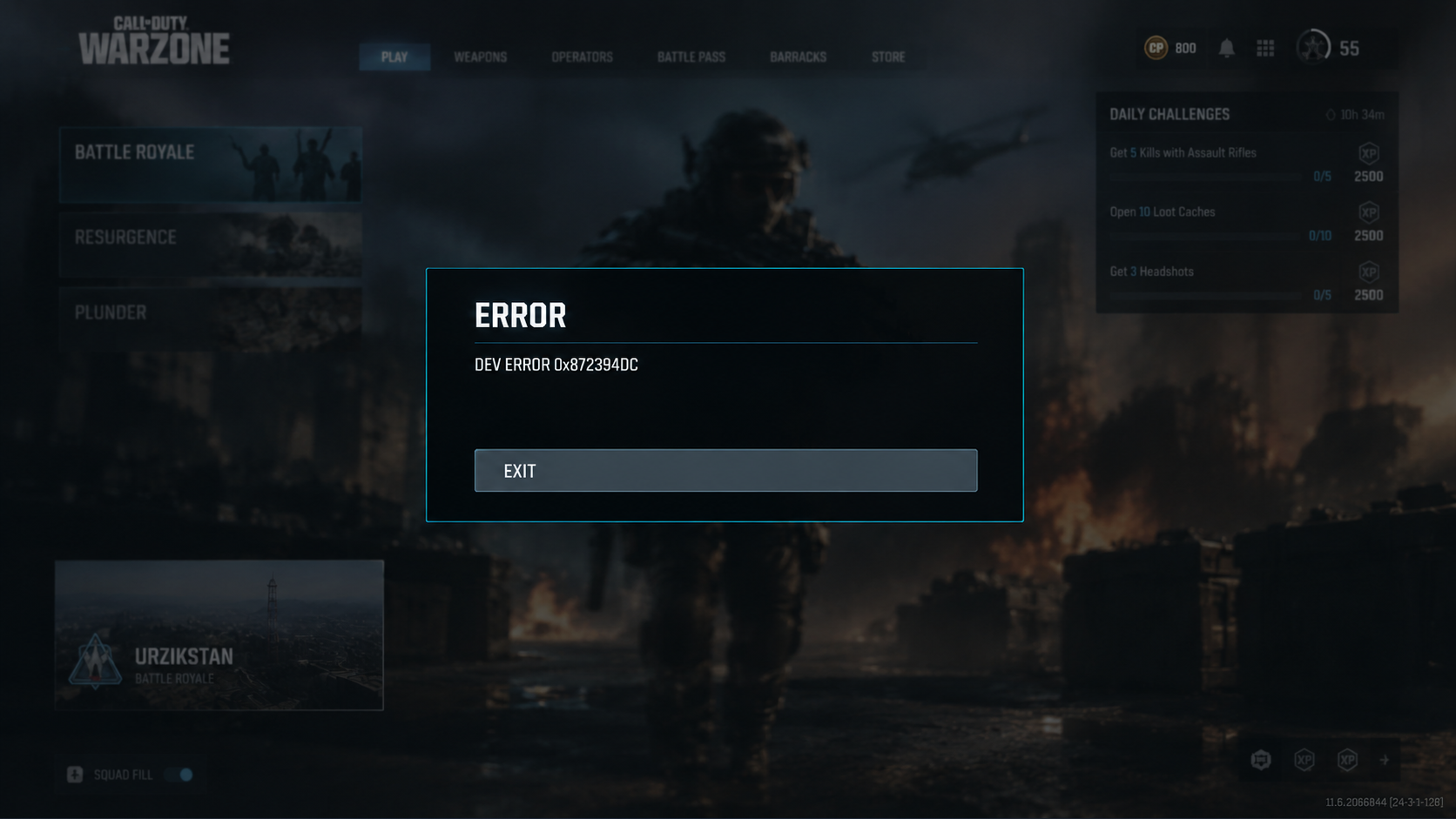
The code alone does not establish the cause. Repeated setup prompts or lost graphics settings are a useful clue: Warzone may not be saving its local configuration. Settings that stay saved make a folder reset less useful as a first step.
| What happens | Most useful checks |
|---|---|
| The menu opens after an update, then the game crashes. | Let shader preloading finish; verify installed files. |
| Setup prompts or graphics settings reset every launch. | Check the active players folder and recorded security blocks. |
| Settings stay saved, but matches or display changes cause crashes. | Test overlays and a lower graphics setting. |
| Warzone closes before the menu is usable. | Verify files; check the graphics driver. |
Game_steam_ship.exe, if listed in the crash report, names a game component; it is not a diagnosis. These instructions focus on the Steam PC version.
1. Let Shader Preloading Finish
After a game or driver update, Warzone may need to rebuild shaders. Activision advises staying at the main menu until preloading completes; leaving it interrupts the process.
- Finish pending Call of Duty updates in Steam, then launch the game.
- If Call of Duty offers Safe Mode after a crash, accept it once to test reduced settings. This is the game’s prompt, not Windows Safe Mode.
- Wait at the main menu until shader preloading finishes, then close the game normally.
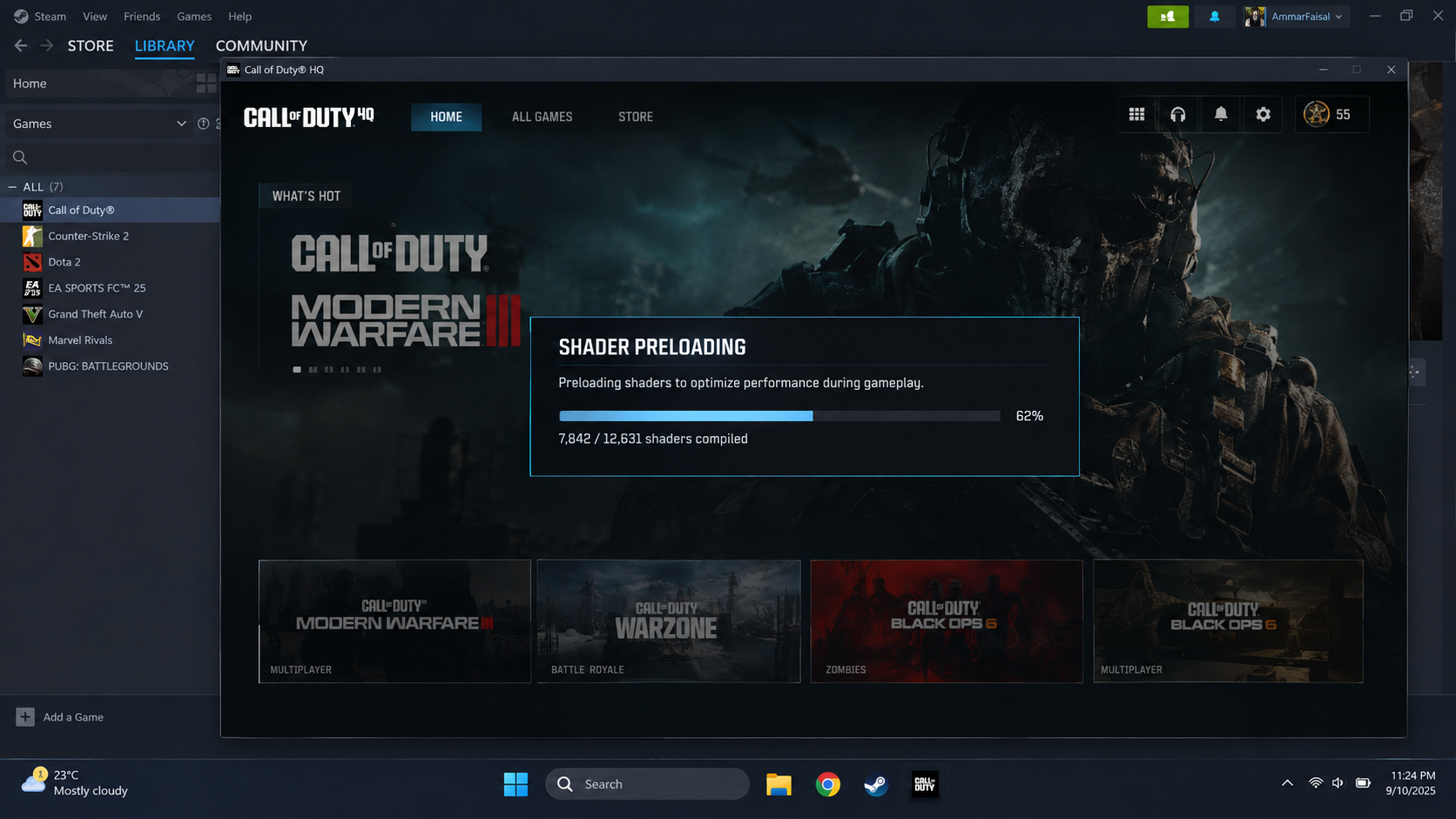
Let the first shader pass finish before joining a match or changing graphics settings. - Relaunch and test Warzone. If it closes before the menu, shader waiting is not an available test.
2. Check Why Local Settings Are Not Saving
Having to redo setup each launch warrants checking the files Warzone saves under Documents\Call of Duty\players. Reinstalling the game does not necessarily correct access to those files.
- Open File Explorer > Documents > Call of Duty > players. Use your current Documents location, which may be inside OneDrive or on another drive.
- Check that the folder opens and its settings files have recent modification dates. If it is missing, launch once and check again. Resolve a disconnected drive or OneDrive error before editing files.
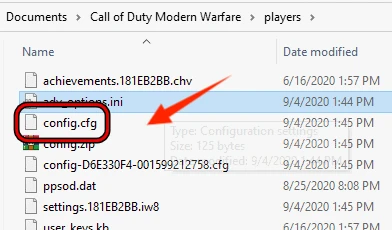
If this folder cannot be created or updated, Warzone may keep resetting settings and crash with Dev Error 0x872394dc. - Close Call of Duty and Steam. Open a current settings file’s Properties > General; clear Read-only only if that individual file is checked, then apply.
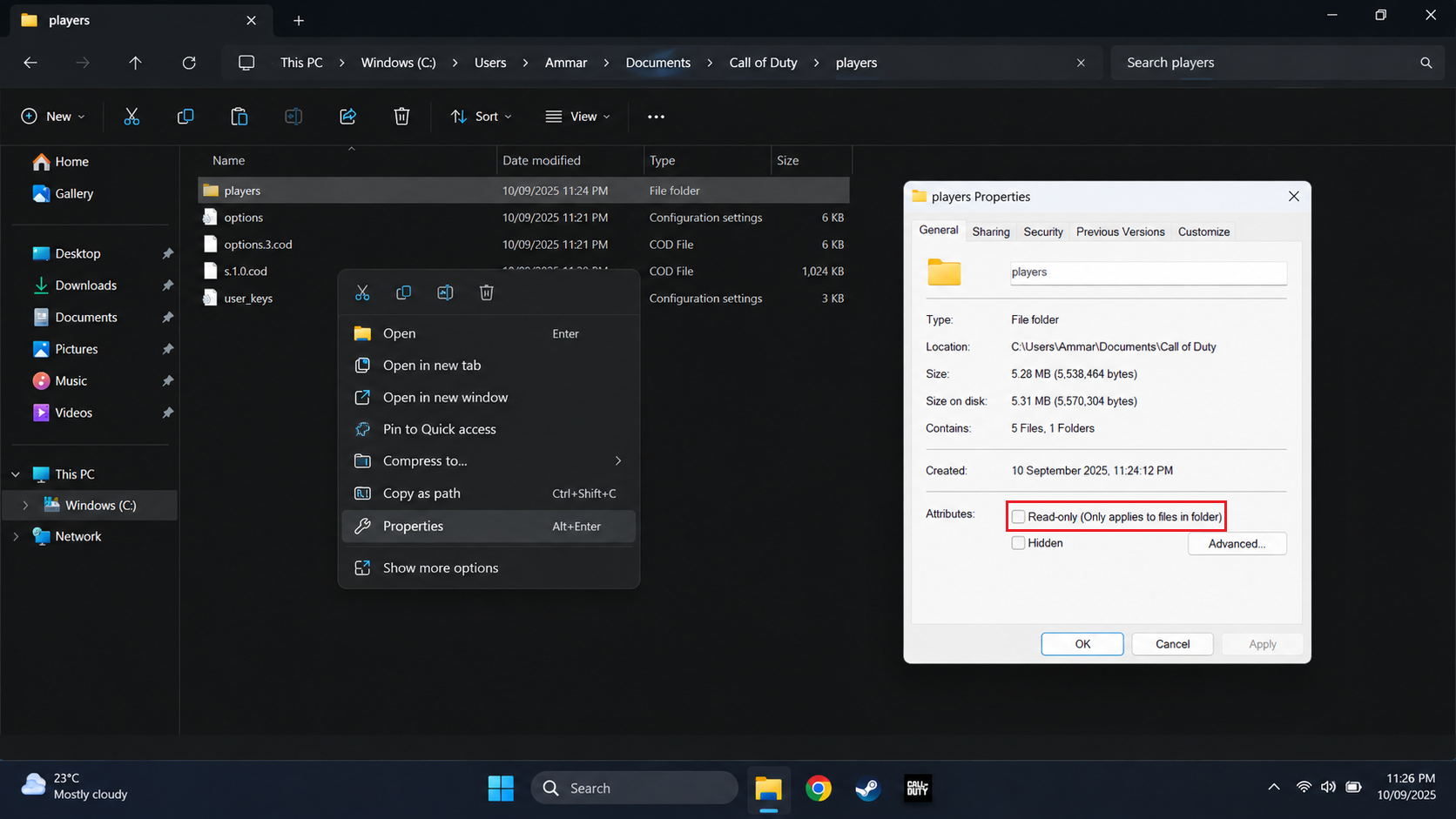
The goal is to let Warzone update its own local settings files after each launch. - Change one harmless in-game option, exit normally, and reopen. A saved change confirms that the game can update that setting.
The older screenshot shows Call of Duty Modern Warfare; use the folder your installed game actually updates. A filled Read-only box on a folder does not prove its contents are locked. Avoid blanket permission changes to Documents.
3. Test a Fresh Players Folder
Warzone reloads its saved preferences at startup. A fresh players folder lets it rebuild those settings; renaming the original keeps your previous preferences available for recovery.
- In the active Documents\Call of Duty folder, rename players to players.old. Choose another unused name if that backup already exists.
- Launch Warzone to generate new settings. Test before restoring your preferred graphics options.
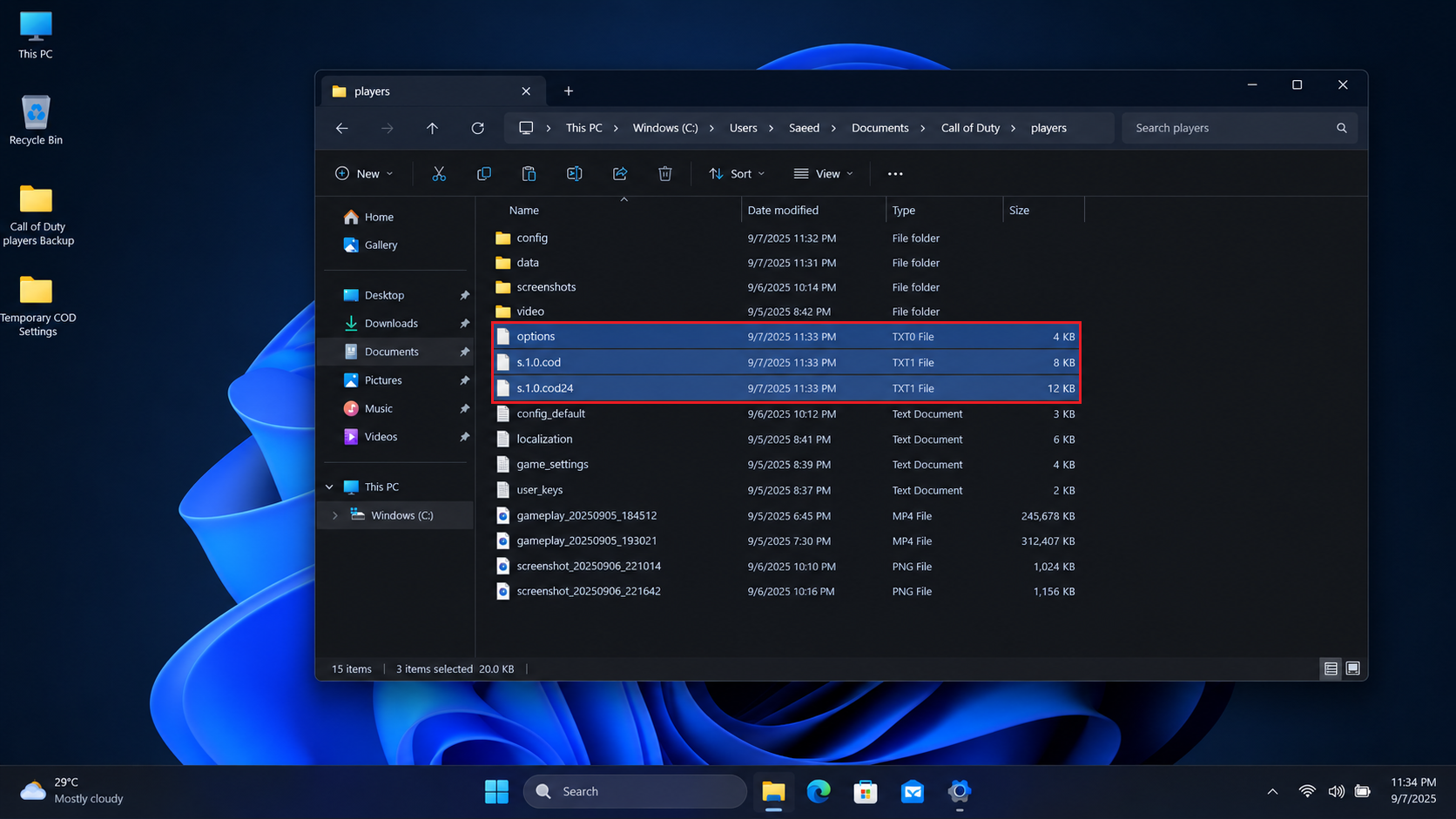
Back up the folder first because this can reset local Warzone preferences. - To undo: close the game and Steam, rename the new players folder to players.test or another unused name, then rename your original folder back to players. Do not merge the two.
If the new folder cannot be created, check for a security block rather than repeatedly resetting it.
4. Allow a Confirmed Folder-Access Block
Windows ransomware protection can prevent an otherwise working game from saving to Documents. A recorded block is evidence to act on; the error code alone is not.
- Open Windows Security > Virus & threat protection > Protection history. Look for a recent Controlled Folder Access event naming Call of Duty.
- For a matching event, open Manage ransomware protection > Allow an app through Controlled folder access > Add an allowed app. Select the genuine installed executable named in the event, not every program pictured below.
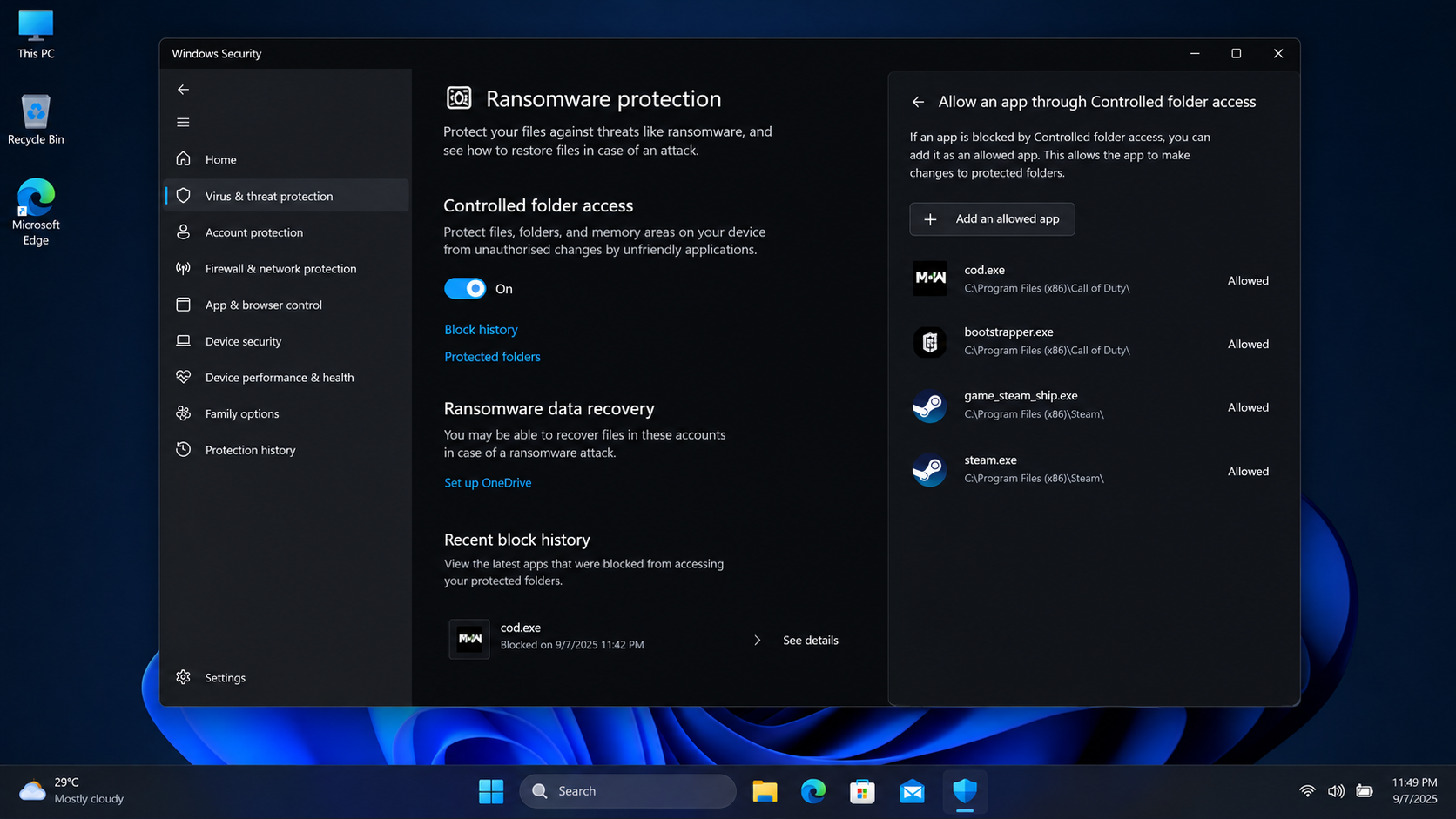
Allowing the game is safer than leaving ransomware protection turned off permanently. - Restart the game and test whether settings now save. With third-party security software, check its logs and use its documented, app-specific exception procedure.
Microsoft explains how allowed apps can change protected files. Keep protection enabled; remove a test exception if it was unnecessary. Ask IT about managed restrictions.
5. Verify the Steam Installation
A crash after an interrupted download or update makes file verification worthwhile. It repairs installed content, not your separate Documents settings.
- Close the game. In Steam > Library, right-click Call of Duty > Properties > Installed Files.
- Select Verify integrity of game files and let Steam finish any repairs.
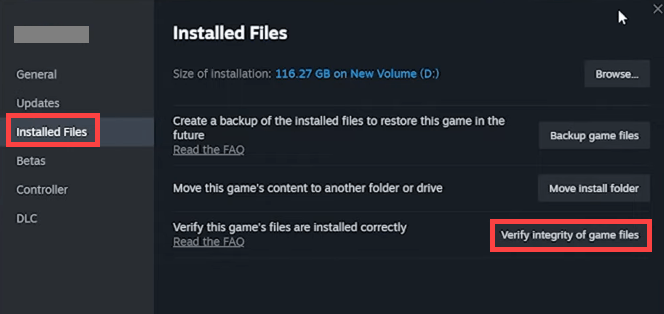
Run verification after the player settings folder is writable so both game files and local config can rebuild cleanly. - Restart Steam and test again, allowing shaders to finish if requested.
Verification does not require a config reset first. For a Battle.net installation, use Scan and Repair; the launcher-specific repair walkthrough illustrates both.
6. Test Without Overlays or Monitoring Tools
Overlays display or record content inside the game and can interfere with it. Activision names MSI Afterburner, NZXT CAM, and Razer Cortex as possible conflicts, not as programs that always cause this code.
- Close Warzone. In its Steam Properties > General, turn off Enable the Steam Overlay while in-game. The older image shows Steam’s global control.
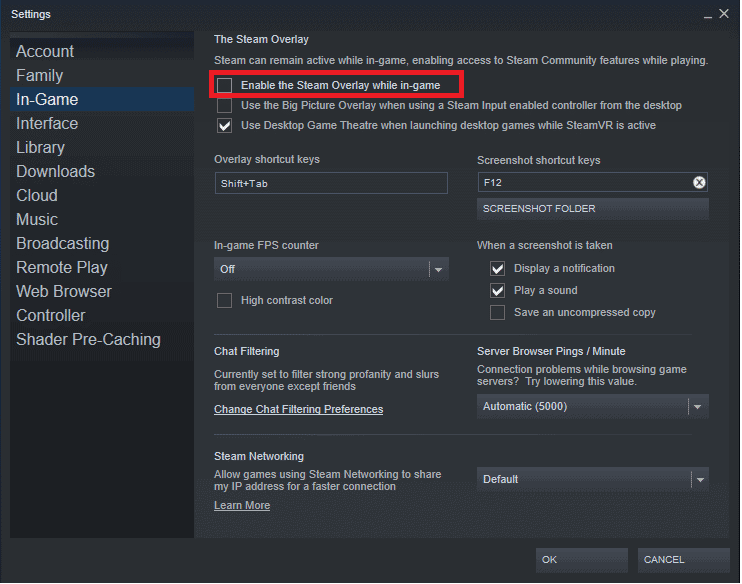
- Turn off Discord’s in-game overlay and any NVIDIA/AMD overlay or background recording you use for this test.
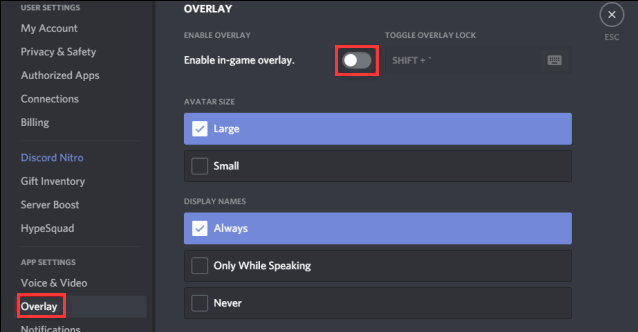
Test with a clean launch before turning capture and monitoring tools back on one by one. - Exit tuning and monitoring apps, including RivaTuner if installed. Restart, then open only Steam and Warzone.
If the crash stops, restore those apps one at a time to identify the conflict. Otherwise restore unchanged tools; keep antivirus and anti-cheat protection running throughout.
7. Rebuild Shaders or Reduce One Graphics Setting
A usable menu lets you test graphics changes without editing configuration files. Record the original values and test one change at a time.
- Under Settings > Graphics, use Restart Shaders Pre-Loading if offered. Follow any restart prompt, then wait at the main menu until it finishes.
- If crashes continue during matches, lower VRAM Scale Target one step and retest. Test a lower Texture Resolution separately.
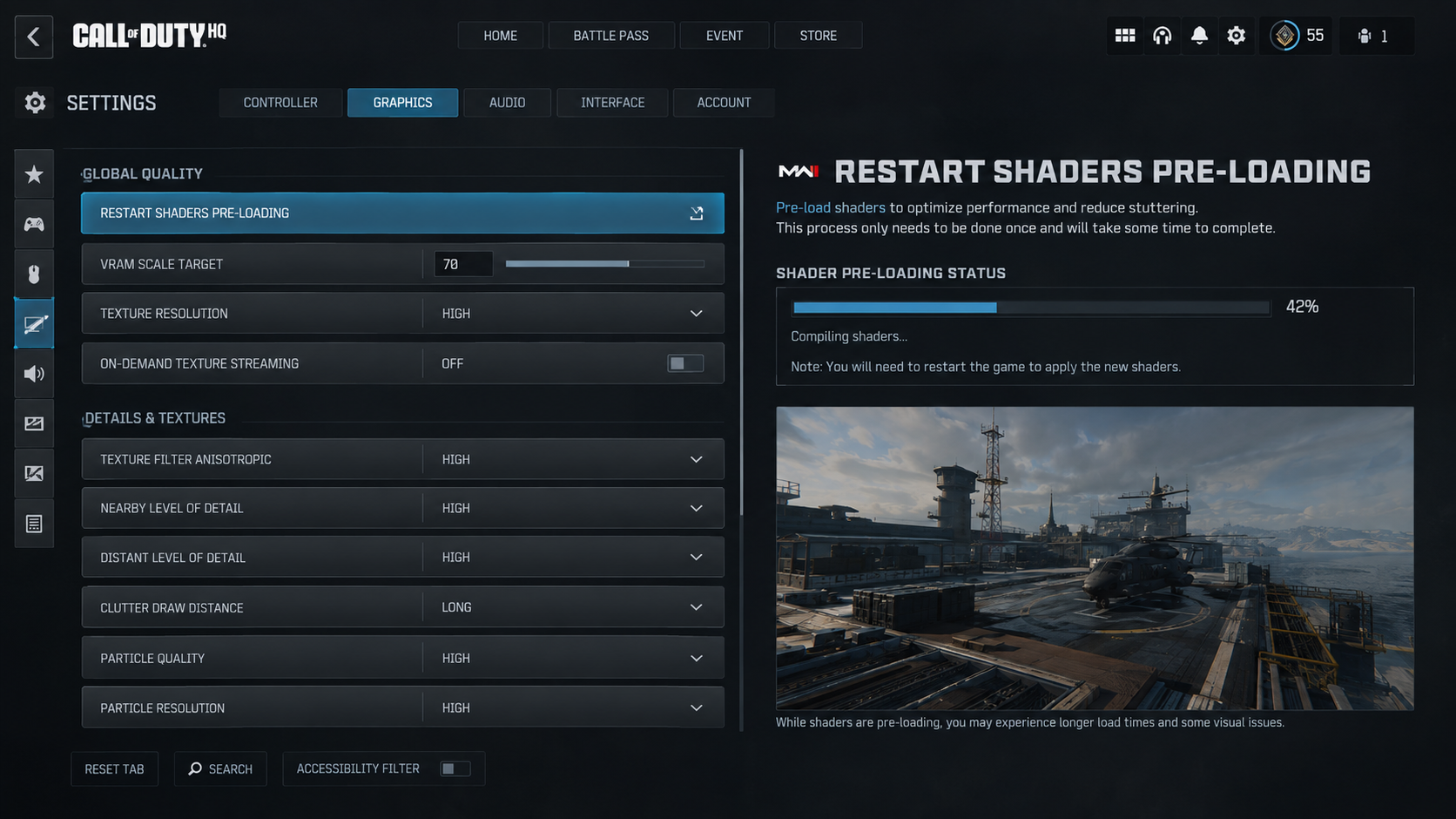
Leave some GPU memory free for Windows, overlays, shaders, and large Warzone map assets. - Restore changes that make no difference. If texture streaming is offered as Optimized or Minimal, Minimal reduces streaming quality and bandwidth; it does not disable streaming.
The pictured Off toggle is not available in every build. A successful lower-setting test does not, by itself, prove that the GPU is faulty.
8. Check Windows and the Appropriate Graphics Driver
A crash that starts immediately after a driver update deserves a different response from an outdated driver. Check the installed version before replacing it.
- Press Windows + R, enter
dxdiag, and note the GPU and driver version under Display. - Install pending updates from Settings > Windows Update. Compare your driver with Activision’s Warzone driver recommendations and your manufacturer’s supported downloads.
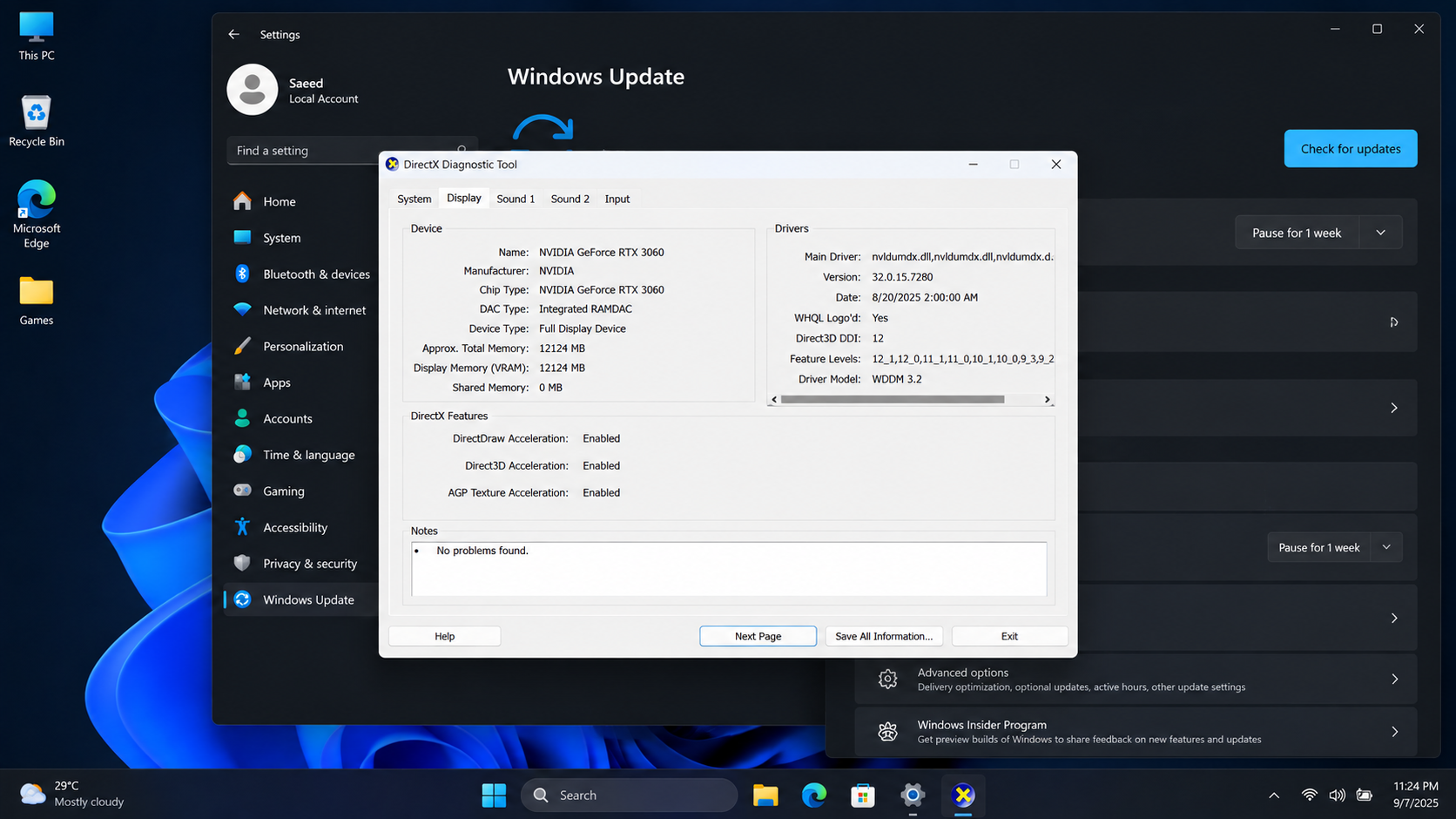
Match the driver to your exact GPU and restart before testing Warzone again. - Install the appropriate official package for your GPU and Windows version, then restart. On laptops, check the laptop maker’s package first. The GPU-driver update walkthrough covers identifying and installing a matching driver.
If the crashes began with a new driver, test the previous manufacturer-supported version that worked on this PC instead. Avoid copying an old version number from a screenshot.
9. Reserve a Clean Driver Installation for Persistent Graphics Crashes
A normal update or rollback may leave existing driver preferences in place. A clean installation is a later test, not a required step for every Dev Error.
- NVIDIA: close other apps, run the appropriate official installer, then choose Custom (Advanced) > Perform a clean installation.
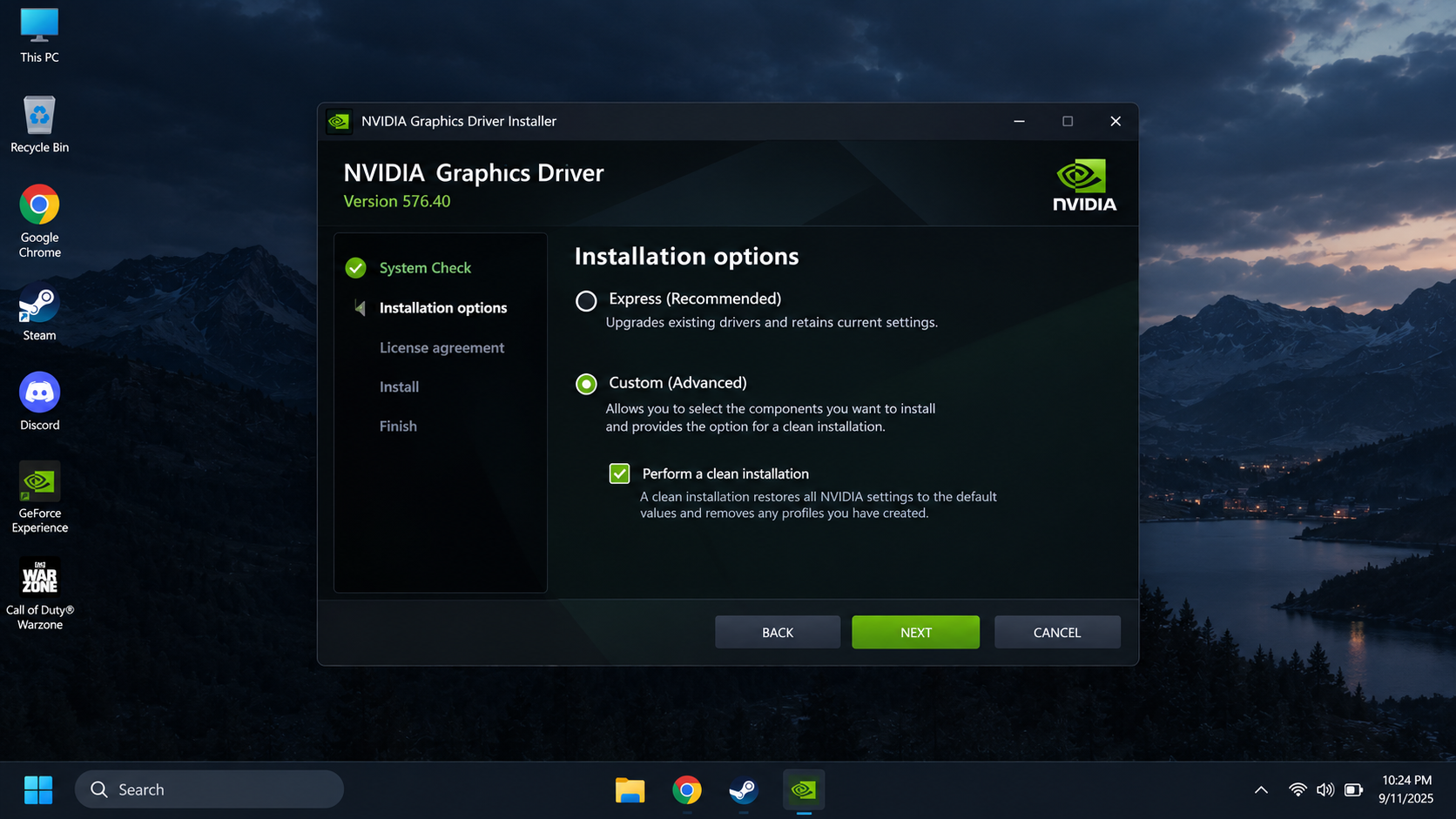
Clean driver installs remove stale driver pieces that can keep COD HQ crashing. - AMD: follow AMD Cleanup Utility’s instructions, including its restart prompts, then install your downloaded driver. It removes AMD graphics/audio software; the screenshot below shows the regular uninstaller, not the utility itself.
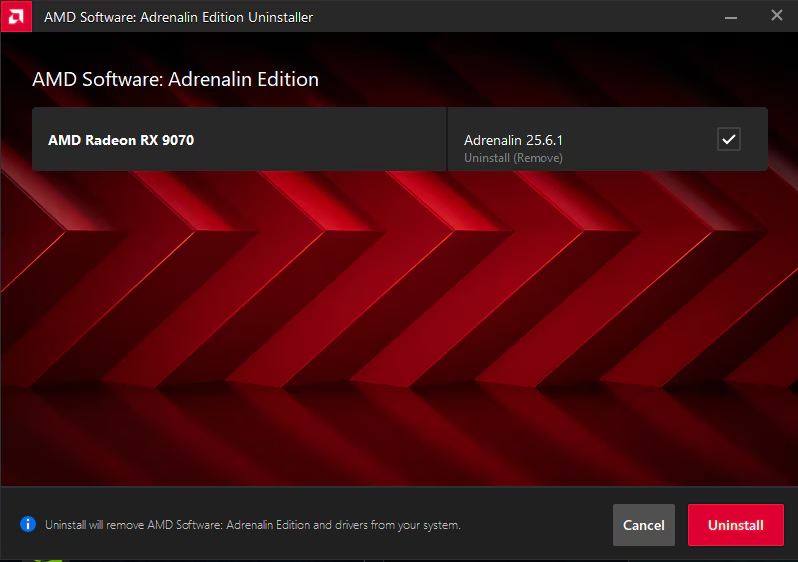
- Intel: run the appropriate official installer and choose Execute a clean installation if offered. Keep the laptop-maker caution above in mind.
- Restart and test without overlays. Allow the game to preload shaders again.
10. Check GPU Selection on a Dual-GPU PC
A laptop or desktop with integrated and dedicated graphics may run the game on the wrong adapter. Check the selected GPU against Warzone’s requirements, especially if performance is unexpectedly poor.
- Find the game executable using Steam > Call of Duty > Manage > Browse local files. If unsure which file it is, right-click the running game in Task Manager and choose Open file location. Do not select Steam or a shortcut instead.
- Open Windows Settings > System > Display > Graphics. Add that executable, open its options, select High performance, confirm the dedicated GPU’s name, and save.
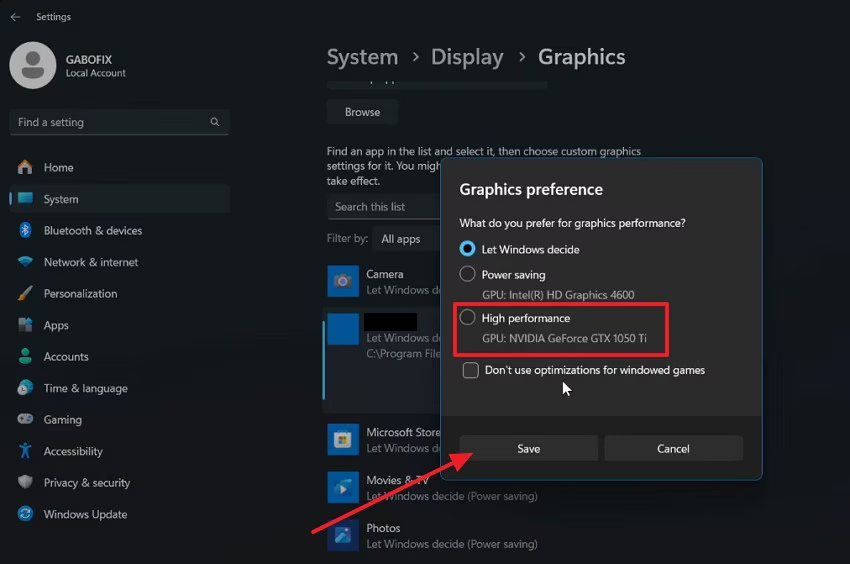
Dual-GPU systems should launch COD HQ on the GPU that meets Warzone requirements. - Restart the game. On a desktop, also check that the monitor connects to the graphics card rather than the motherboard.
Leave integrated graphics enabled; many laptops need it for the built-in display. Restore the previous preference if the test does not help.
11. Retest Without Your Hardware Tuning
Custom overclocks or undervolts can cause crashes even if other games appear stable. There is nothing to undo on a PC you have not tuned.
- Record your tuning values, then restore manufacturer-default GPU clocks, voltage, and power limits. Keep normal cooling active, close the tuning app, and retest.
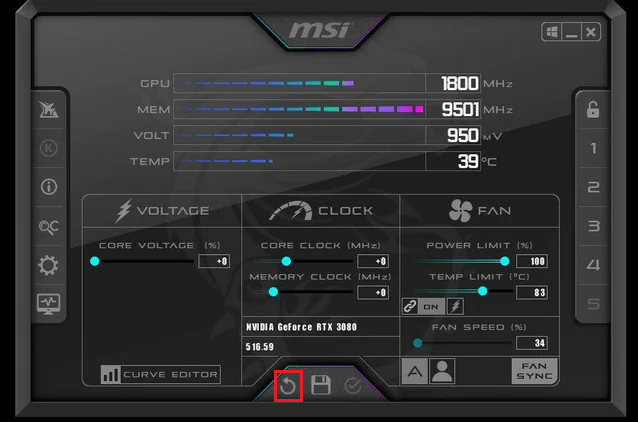
Test COD HQ once with stock CPU GPU and RAM behavior before blaming the installation. - If you also configured CPU tuning or an XMP/EXPO memory profile, consider a separate stock-settings test using your PC or motherboard maker’s instructions.
Before any firmware change: Record existing settings and have your BitLocker recovery key available if encryption is enabled. Change only the relevant tuning setting, not boot/storage modes or all BIOS defaults. Ask the manufacturer if unsure.
If stock settings do not help, restore the previous configuration. If they do, leave the unstable tuning off and seek hardware-specific advice.
12. Isolate Background Services With a Clean Boot
Some utilities start services even when their windows are closed. A temporary clean-boot test can identify that interference after ordinary app closing has failed.
- Record which services and startup apps are currently enabled. Press Windows + R, enter
msconfig, and open Services. - Select Hide all Microsoft services. Disable nonessential third-party utility services for the test, keeping security, management, and required game/anti-cheat services enabled. Do not apply the pictured Disable all indiscriminately.
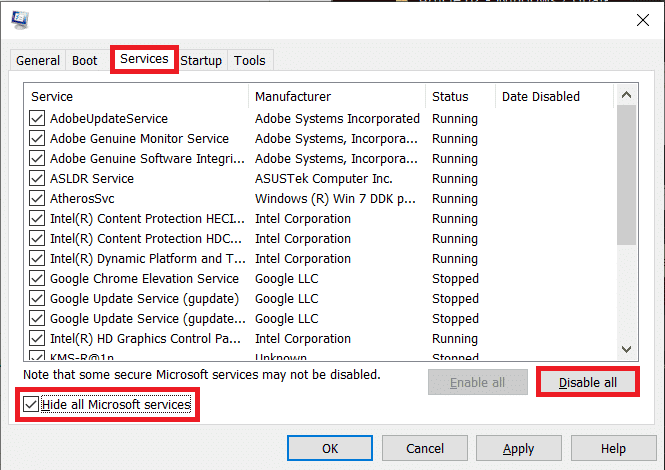
Clean boot testing helps identify background software that survives normal app closing. - Open Startup > Open Task Manager and disable nonessential startup apps you recorded as enabled.
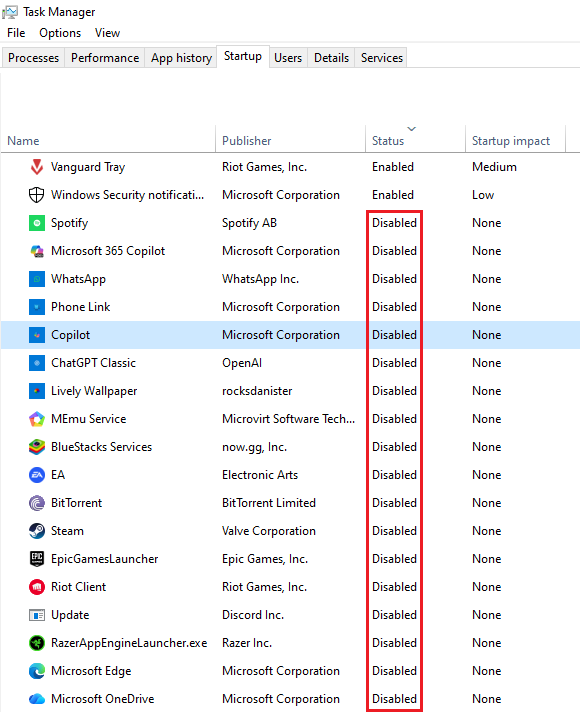
- Restart, open Steam manually, and test Warzone. If a required service was disabled, restore it and restart before judging the result.
- If the crash stops, re-enable changed items in small groups to isolate it. When finished, restore only the entries you changed and restart.
Microsoft’s clean-boot guidance explains isolation in detail. Leave Boot > Advanced options untouched; ask IT to handle managed PCs.
When the Same Error Keeps Returning
Check Activision’s known issues before repeating repairs or reinstalling Windows. A game update can require a developer fix.
For the official PC crash report, include the exact code, crash timing, GPU/driver version, whether settings save, and completed tests.
Close the game and run CrashLogGenerator.exe from its installation folder if present; it creates an Error Log ZIP in Documents.
The form requests a hosted log link. Review the archive for private information before sharing; do not post it publicly. A crash report does not open a support ticket. Use Support Options for account-specific assistance.


