How to Fix Path of Exile 2 Return of the Ancients Lagging or Stuttering?
Path of Exile 2 can run smoothly between fights, then stutter or freeze as enemies and effects fill the screen. Even a brief pause can interrupt a dodge or leave your character taking damage before the picture catches up.
A high average FPS does not rule out these pauses. The game can deliver frames unevenly, stop to prepare graphics for a new effect, or wait for delayed network updates. Lowering every graphics setting will not help equally in each case.
This guide covers recoverable pauses during Windows PC gameplay. A crash during an area transition or a completely unresponsive PC needs the separate POE2 loading-screen crash checks.
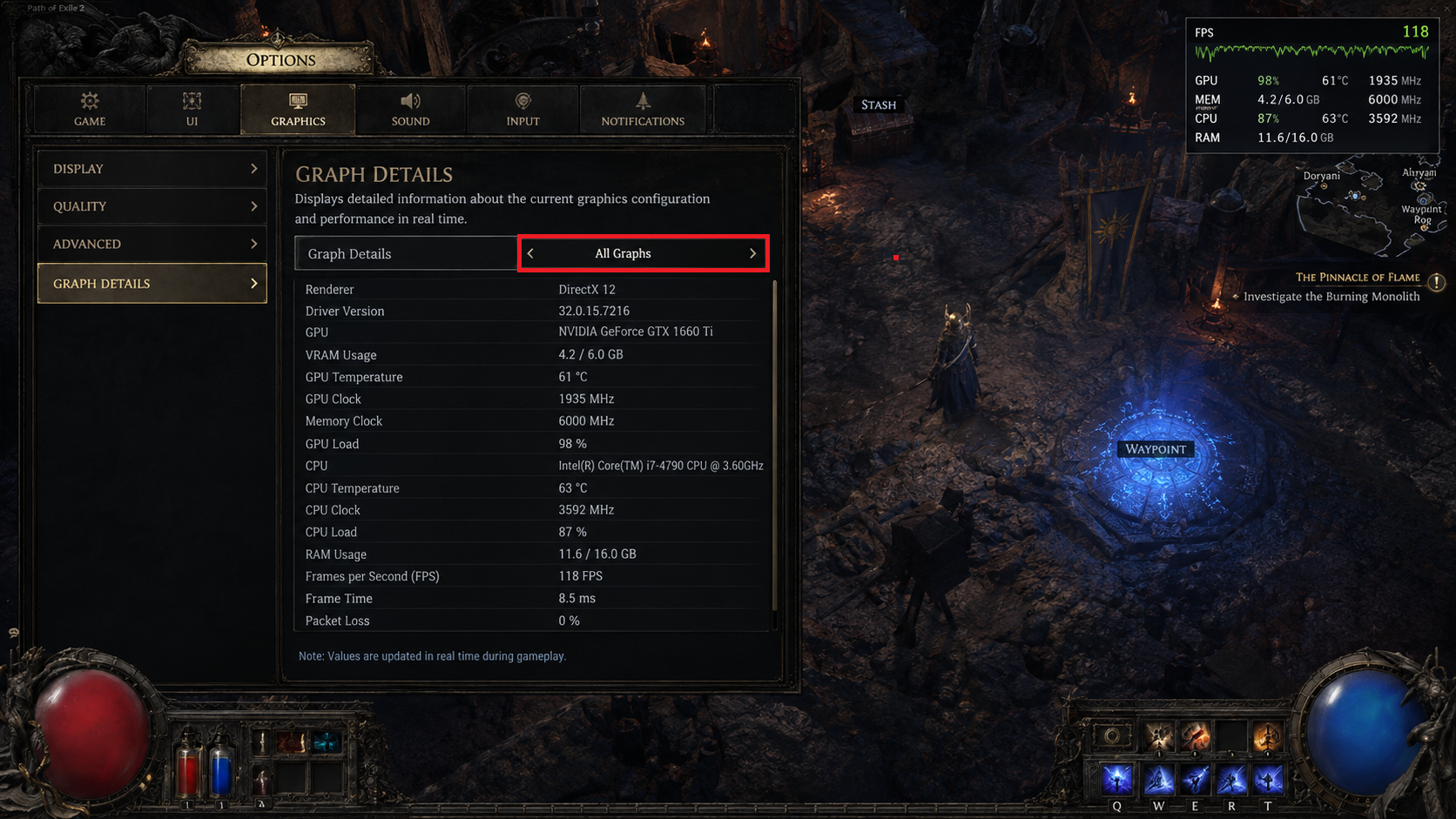
Press F1 during gameplay to show the performance overlay. Under Options > Graphics > Graph Details, select All Graphs if available. Watch what changes at the moment of a pause, not just the FPS afterward.
| What changes during the pause | What to check |
|---|---|
| Shader activity rises when an area or effect first appears | Update the client and compare a repeat visit. |
| Long pauses develop during DirectX 12 sessions on NVIDIA | Check the installed driver. |
| Frame, CPU, or GPU time rises while network latency stays steady | Compare the FPS cap, renderer, and graphics load. |
| Network latency rises while local frame timing stays steady | Test Ethernet and another nearby gateway. |
Several graphs can spike together; that alone does not identify a faulty component. For each comparison, change one setting and repeat similar gameplay in a low-risk area.
1. Update the Game and Allow Shaders to Rebuild
Pauses around unfamiliar effects can be more noticeable after an update. Shaders are small programs used to draw those effects, and rebuilding them can interrupt rendering.
Grinding Gear Games (GGG) introduced shader-loading improvements that required recompilation, and driver updates can also trigger fresh shader work. Compare a repeat visit before judging performance.
- Exit POE2 and let your usual launcher finish all pending game updates. The illustration shows an older update, not a version to install.
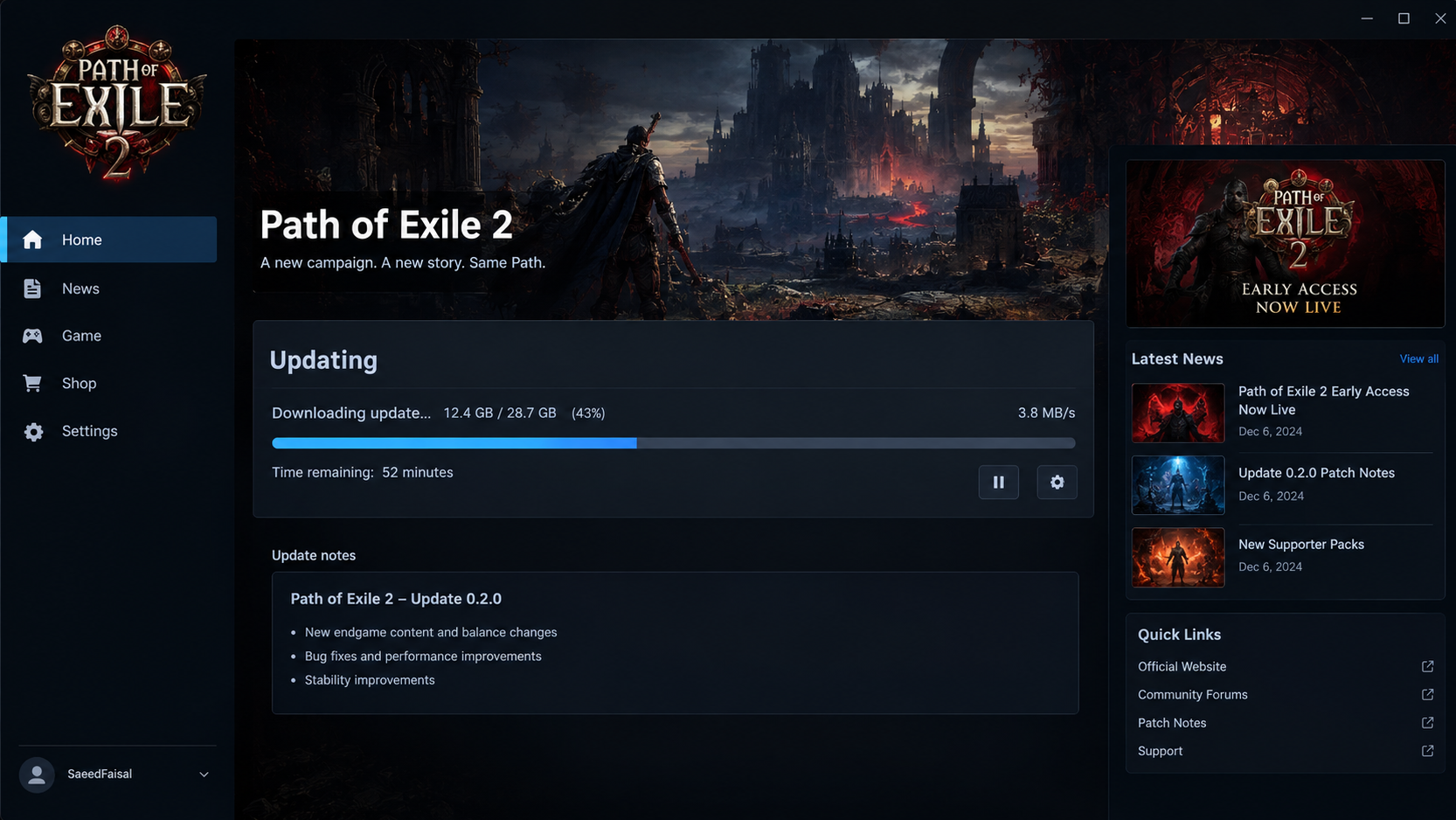
Let the launcher finish before testing the game. - Reopen the game and visit a familiar, low-risk area. Allow the initial shader activity to settle.
- Repeat similar gameplay there with F1 visible and the same settings.
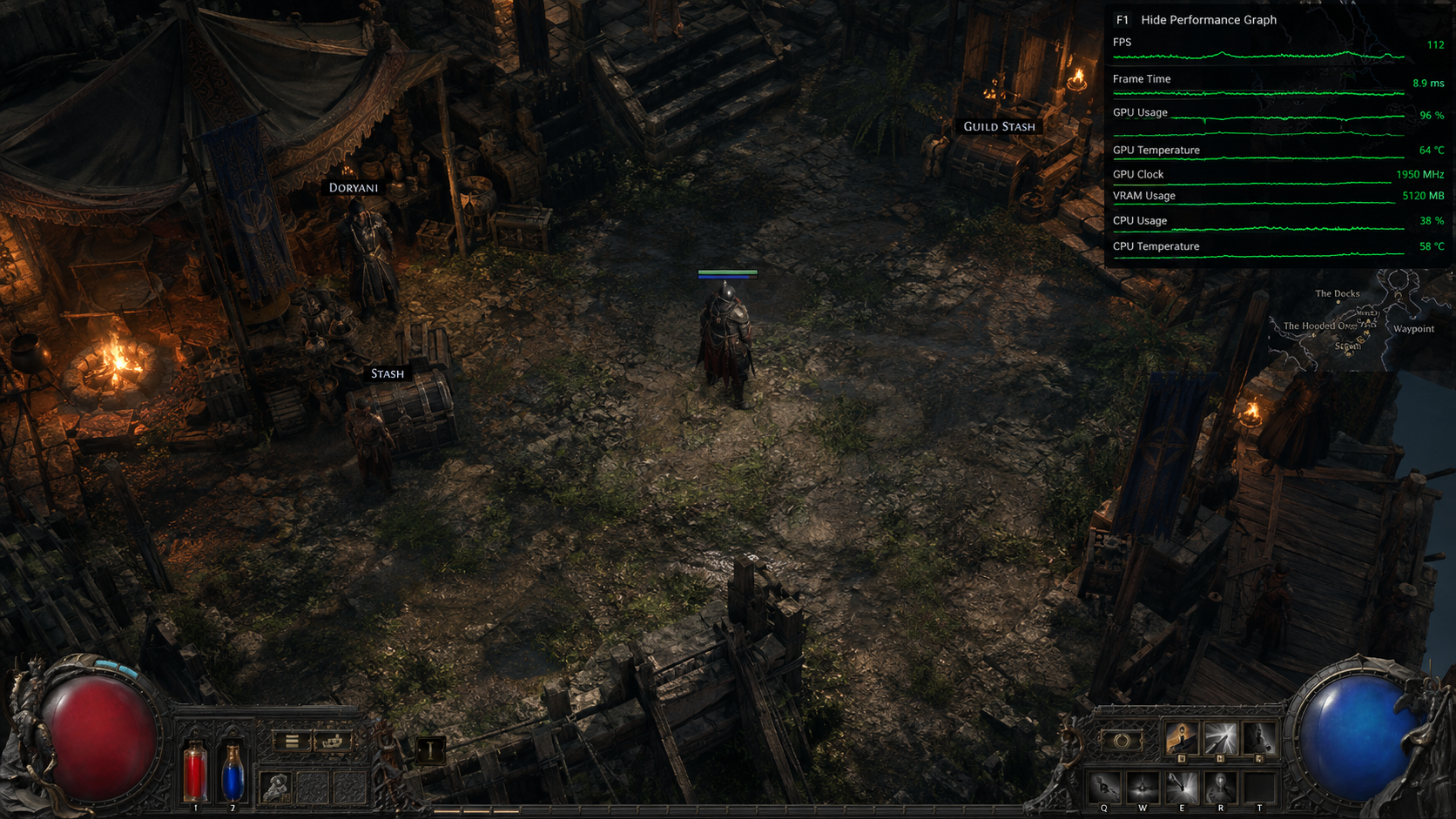
The first visit after an update can differ from later visits.
Fewer pauses on the repeat visit support a shader-related explanation. Persistent pauses with little shader activity need another check; waiting indefinitely will not resolve them. Repeatedly deleting caches removes data the game could reuse.
2. Check the NVIDIA Driver for Long DX12 Pauses
For NVIDIA users, GGG documented a driver fix for prolonged freezes, included in Game Ready 610.88.
That number identifies a historical fix, not a reason to downgrade a newer driver or install a package your GPU does not support.
- Open NVIDIA App > Drivers and check the installed version. The screenshot’s older offered version is only an interface example.
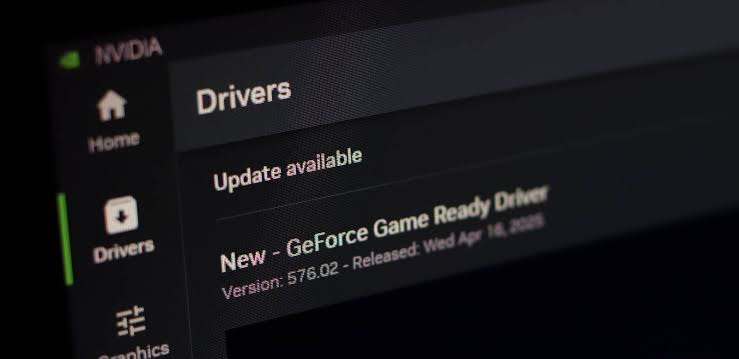
Confirm that the offered driver supports your GPU and Windows version. - Install the current supported driver offered for your GPU and Windows version, using the app or NVIDIA’s driver selector. The graphics-driver update walkthrough explains the installation steps.
- Restart Windows. Keep DirectX 12 selected and test long enough to cover the interval at which the freeze previously appeared.
If your GPU no longer receives that driver series, do not force installation; compare Vulkan instead. AMD and Intel users do not need this NVIDIA-specific fix. Short combat hitches that remain after updating may have a different cause.
3. Replace Adaptive VSync and Set a Sustainable FPS Cap
High FPS can still feel uneven when frames arrive inconsistently. GGG changed the default VSync mode to Locked because Adaptive had frame-pacing problems. Older screenshots may still label Adaptive as the default.
- Open Options > Graphics. Note the current VSync setting, change Adaptive to Locked, and save. Test that change first.
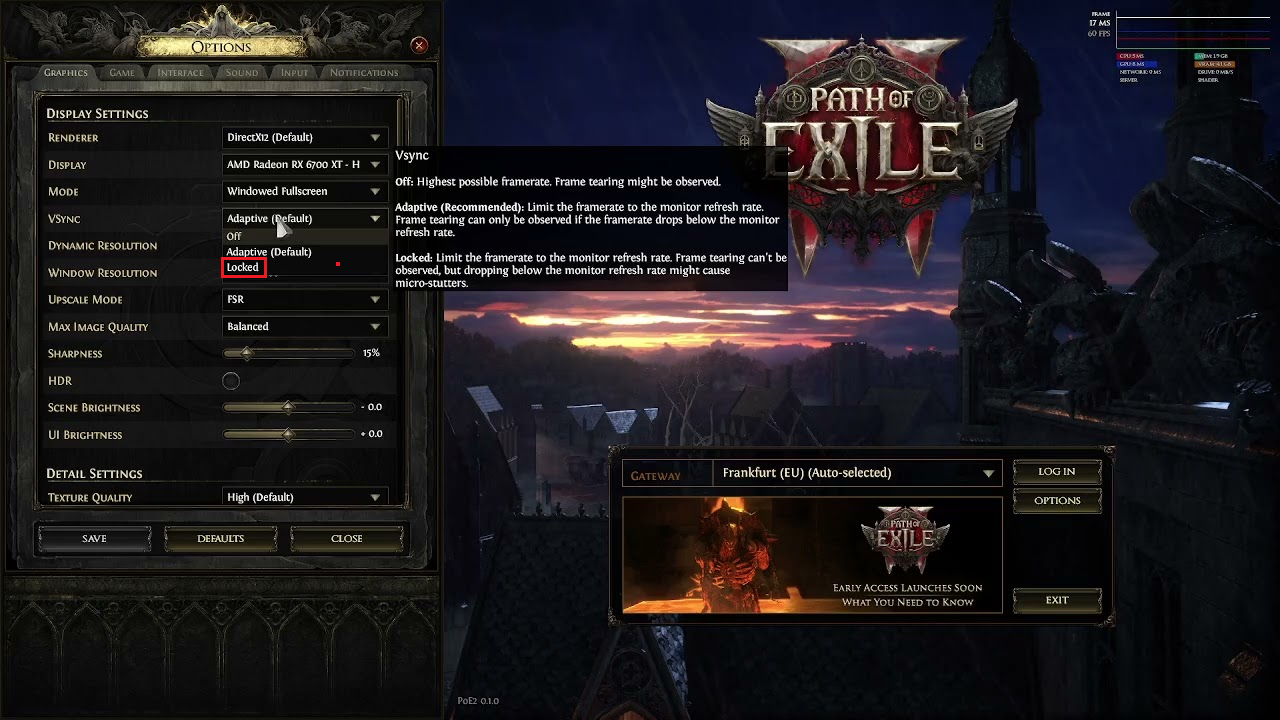
Replace Adaptive before comparing other frame-pacing settings. - Enable Foreground FPS Cap and choose a rate your PC sustains during combat. 60 FPS is a starting point, not a requirement; use a lower target if necessary. Save and compare similar combat.
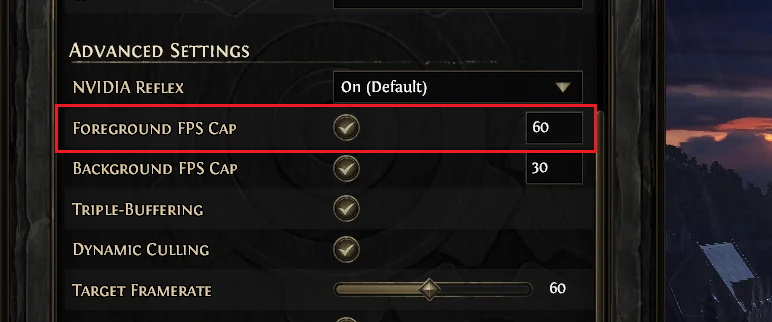
Choose a cap the PC can maintain during combat, then compare the same scene. - If Locked still feels uneven, optionally compare VSync Off at the same cap. Restore the previous mode if screen tearing appears or movement worsens.
Leave driver-level sync overrides unchanged during the comparison. A lower peak FPS is worthwhile only if movement becomes more consistent; a cap will not prevent network interruptions.
4. Compare DirectX 12 with Vulkan
Repeated freezes can persist with one renderer but not another. DirectX 12 and Vulkan use different graphics-driver interfaces, so testing the alternative can help even when reducing graphics quality has not.
- In POE2, open Options > Graphics > Renderer. Record the current selection and switch between DirectX 12 and Vulkan. The illustration is from Path of Exile 1; use POE2’s Renderer control, not its other pictured settings.
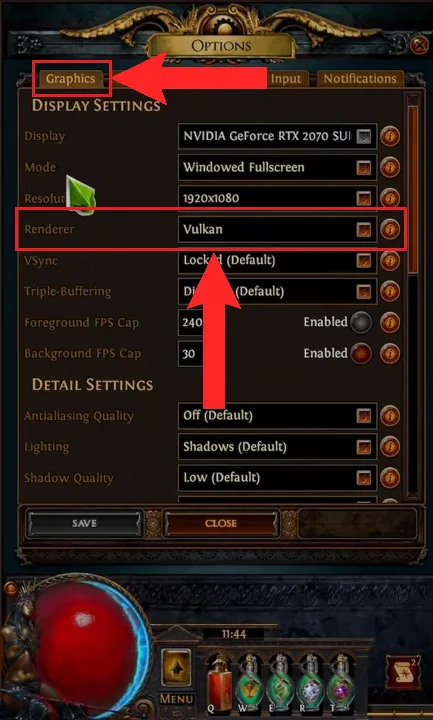
Record the original renderer so you can restore it. - Save and restart the game. Allow initial shader activity to settle, then revisit a familiar area without changing other graphics options or the gateway.
Keep the alternative only if repeat visits remain smoother. Restore the original renderer if performance drops or crashes appear. Neither renderer is universally faster, and switching will not repair a connection problem.
If the game no longer reaches its menu, the loading-screen crash guide linked above covers restoring the renderer through its configuration file.
5. Test AMD Fluid Motion Frames and the Overlay
Optional, for AMD systems with AFMF enabled: AMD Fluid Motion Frames generates extra frames. Its FPS reading can rise without resolving the underlying pauses.
A comparison with AFMF off shows whether it is helping on your system.
- Exit POE2. Open AMD Software > Gaming > Games and select the POE2 profile.
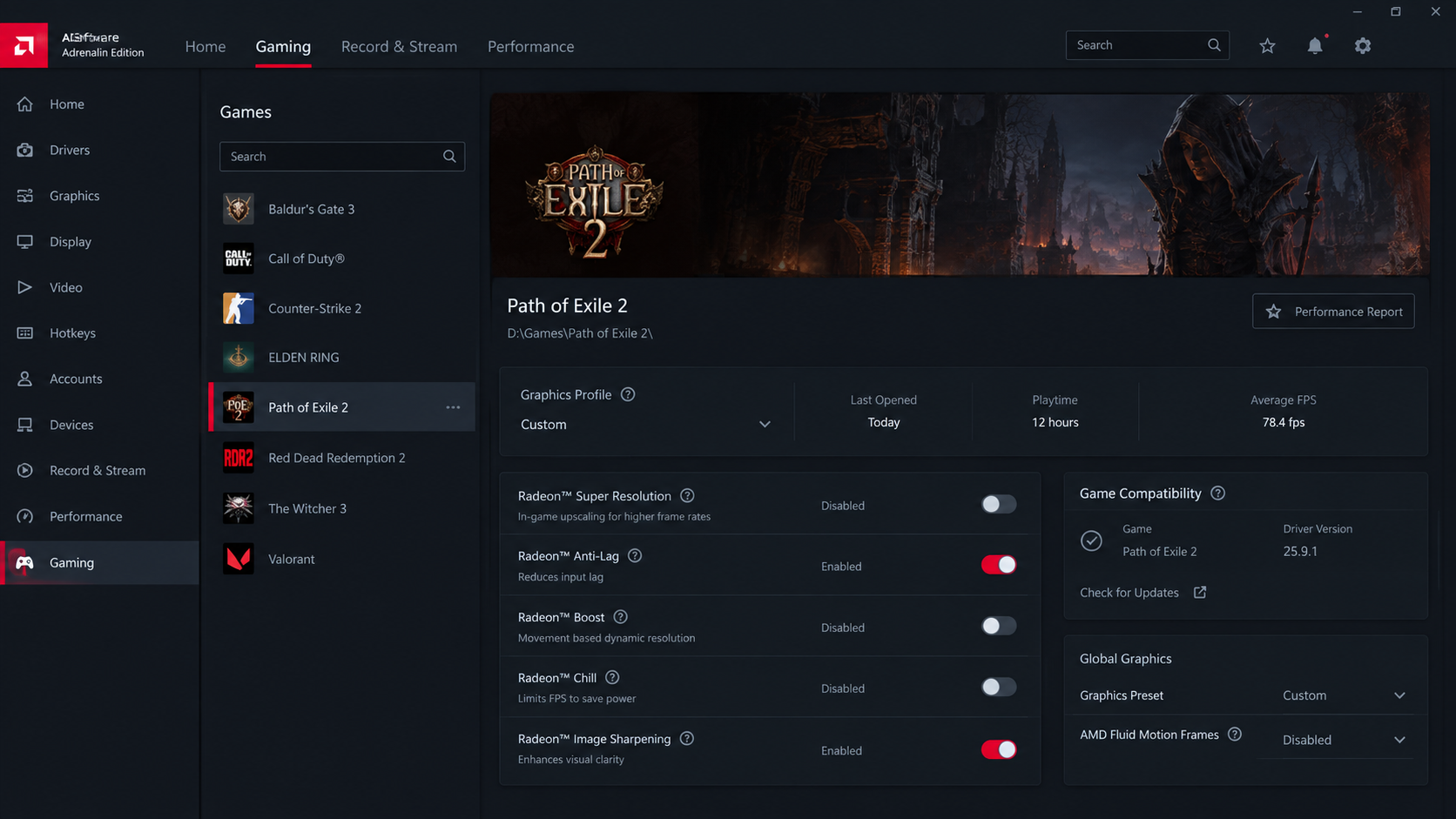
Change the POE2 profile so other games retain their settings. - Record the current AMD Fluid Motion Frames setting and turn it off in that profile. The image below shows the global control; make this change in the game profile instead.
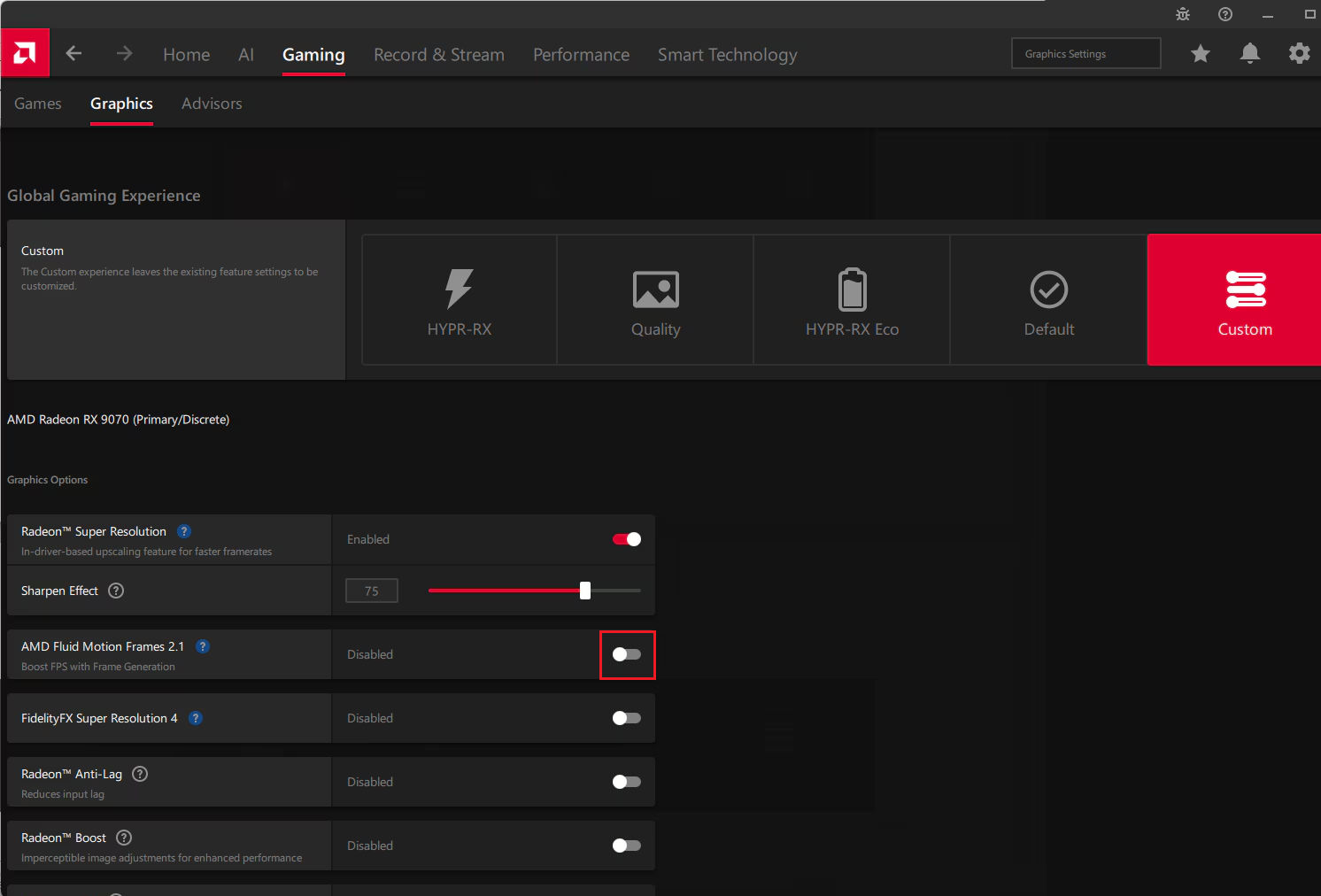
The displayed FPS may fall while movement becomes more consistent. - Launch POE2 and compare the same scene. If disabling AFMF makes no difference, restore it and separately test with AMD’s performance overlay closed, using F1 instead.
The displayed FPS may fall with generated frames disabled. Judge movement, not that number alone. Restore ineffective changes; AFMF is separate from resolution upscaling, and this test is unnecessary when it is absent or already off.
6. Reduce Graphics Load During Effects-Heavy Fights
When fights become choppy and GPU frame time rises, reducing the work per frame can help. Resolution and global illumination are useful individual comparisons without lowering everything at once.
- Under Options > Graphics, record the current resolution and upscaling settings. Reduce render resolution by one available step, or choose a lower-resolution upscaling quality mode. Save and retest.
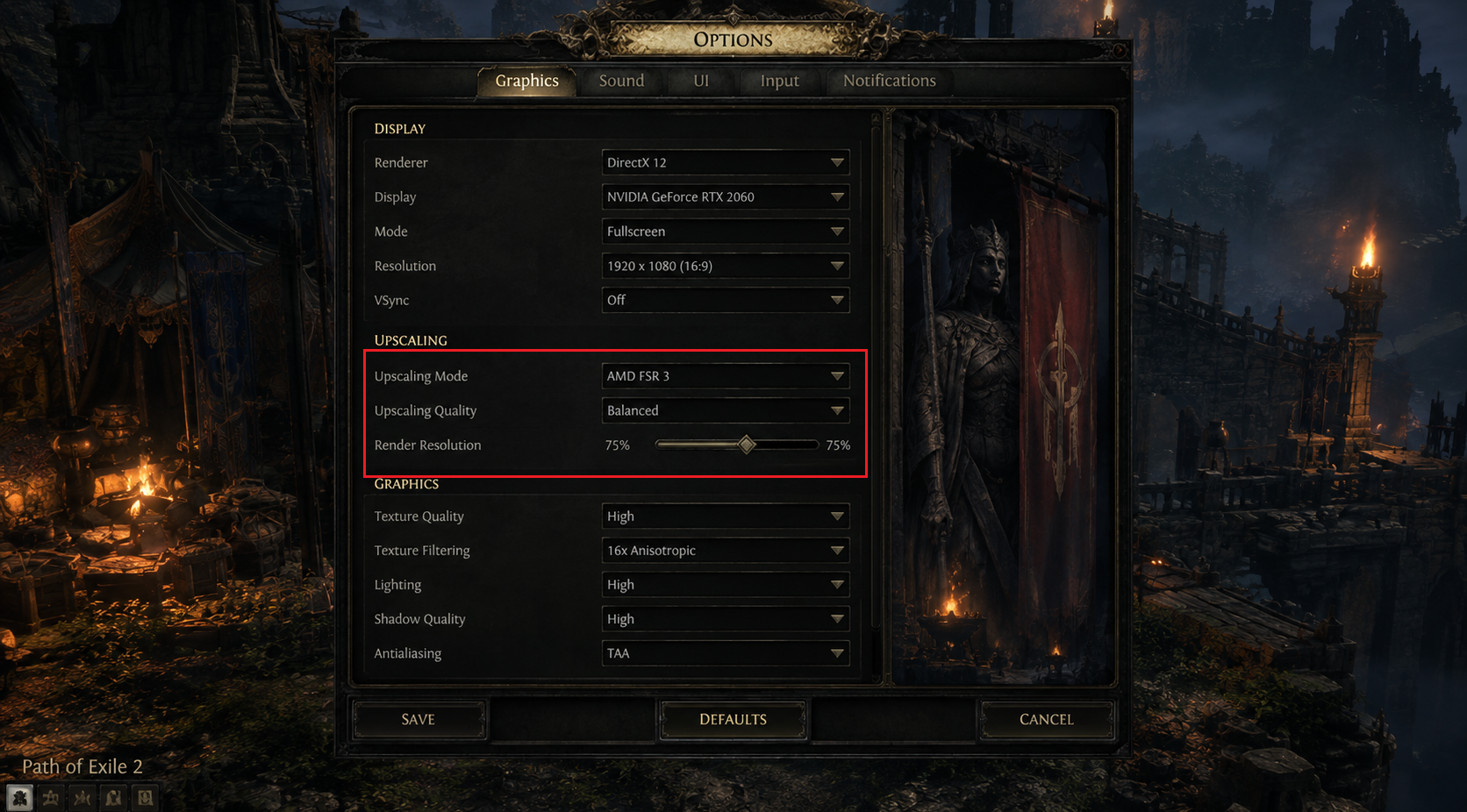
A lower resolution is a diagnostic tradeoff and may soften the image. - Separately, change Lighting from Shadows and Global Illumination to Shadows. Compare similar combat before adjusting anything else.
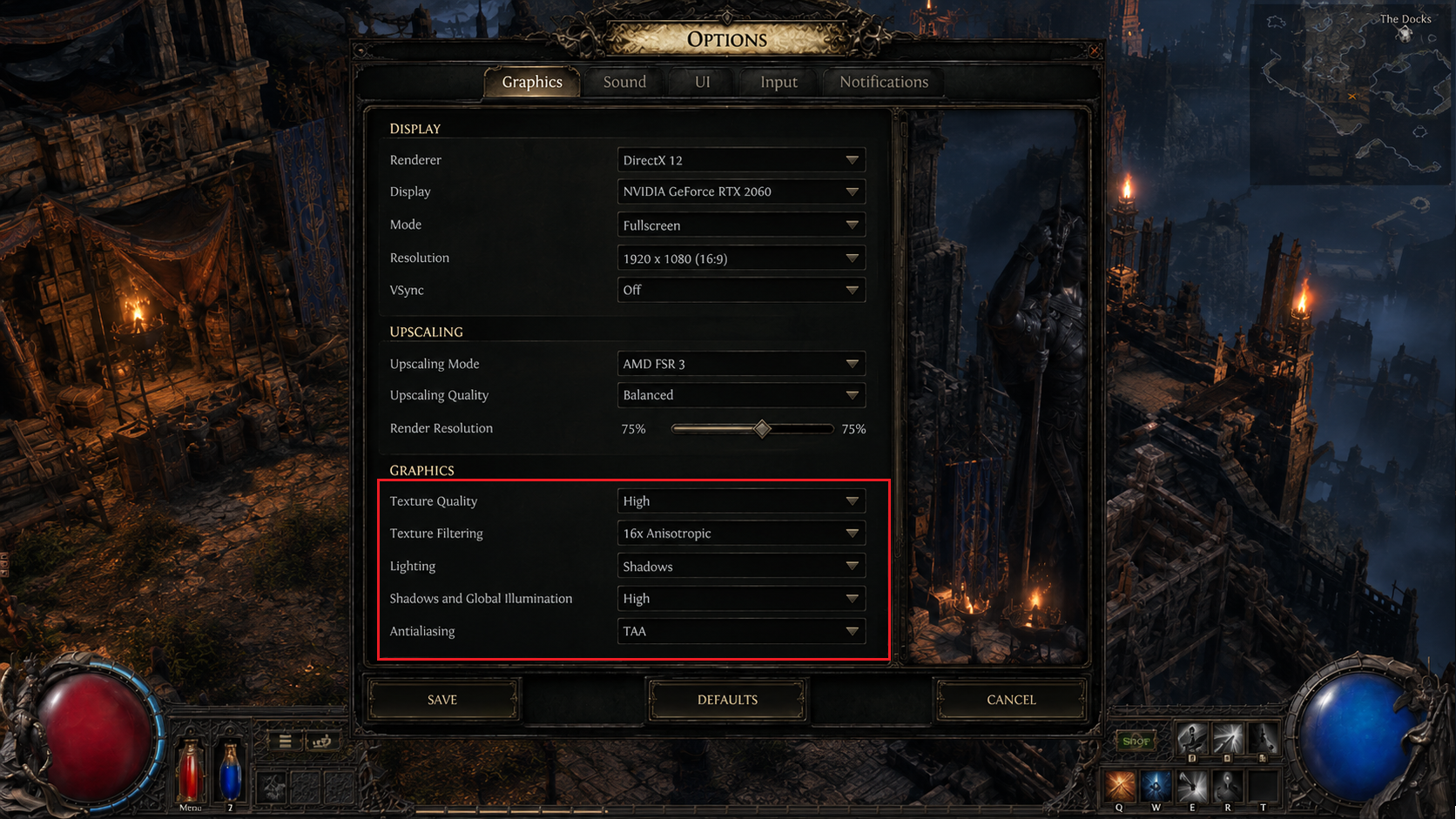
Retest before changing another option.
Keep changes that noticeably improve combat at an acceptable image quality. If CPU time, shader activity, or network latency dominates instead, progressively lowering resolution may only blur the picture without removing the pause.
7. Test Ethernet When Network Latency Spikes
Delayed skills and sudden catch-up movement can resemble poor rendering. When the network graph spikes but local frame timing remains steady, Ethernet provides a useful comparison by removing Wi-Fi from the connection.
- Connect the PC directly to the router by Ethernet if possible. Confirm Windows Settings > Network & Internet shows a wired connection, then temporarily disconnect Wi-Fi.
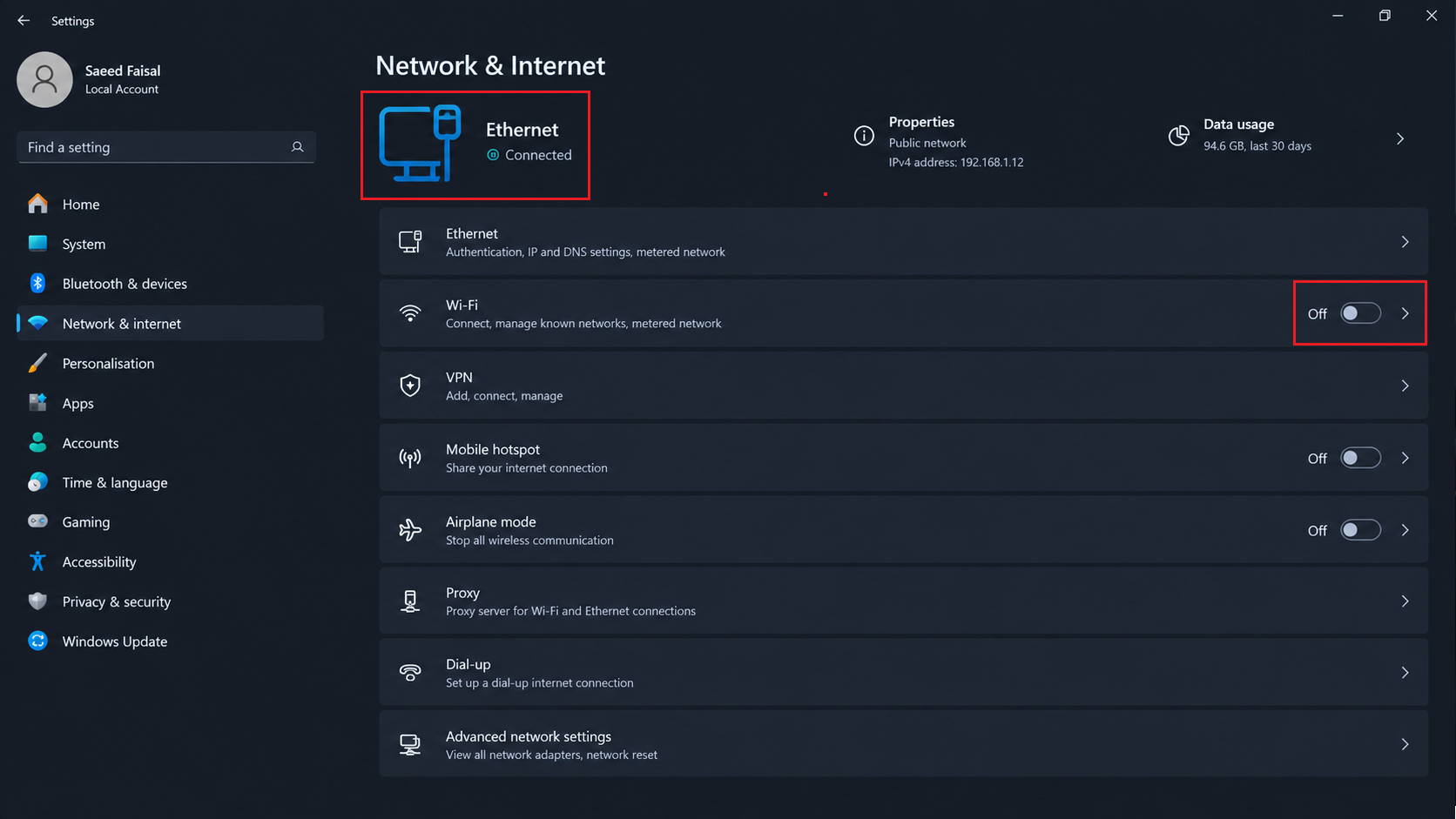
Ethernet removes the wireless hop from this comparison. - Keep the same POE2 gateway and compare several minutes of similar gameplay with F1 visible.
- If spikes persist, return to the login screen and select another nearby Gateway. Retest, then restore your preferred connection and gateway.
Smoother play on Ethernet makes the local wireless connection worth investigating. Spikes on both connections do not prove a server fault. On managed networks, leave required VPNs and security controls intact and ask the administrator for help.
If Pauses Continue
For persistent local freezes or latency spikes, check existing reports in GGG’s POE2 Bug Reports forum. Include the client version, CPU/GPU, driver, renderer, affected area, gateway, and a short F1 recording captured during the pause.
Note whether it also happens on a repeat visit, over Ethernet, or with another renderer. For connection-specific trouble, give your ISP the timestamps and gateway comparison. These details are more useful than another round of changes that made no difference.


