How to Fix Marvel Rivals Crashing or Freezing on PC?
Marvel Rivals can run smoothly for part of a match, then close to the desktop or show an Unreal Engine crash report. The problem may not appear until a particular hero, map, or effect loads, even on a PC that played earlier matches without trouble.
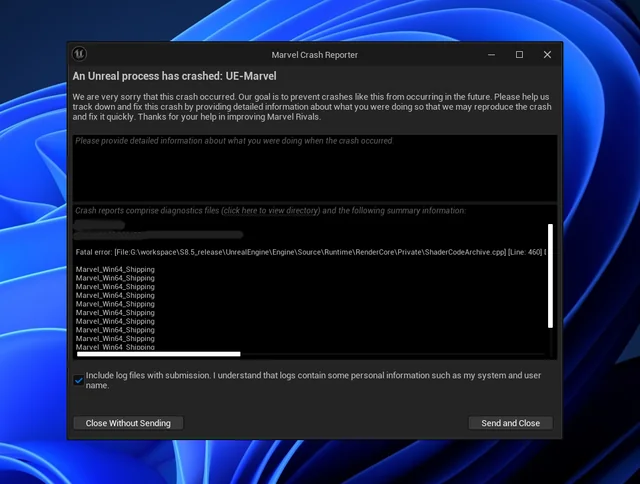
An Unreal Engine report records where the game stopped, not a single underlying cause. Shader processing after an update can also interrupt play, but a brief freeze that recovers is different from the game closing.
A game that never opens needs different checks, covered in the Marvel Rivals launch troubleshooting guide.
1. Verify the Game Files and Finish Shader Preloading
A crash that returns at the same map or loading point can involve missing game files. Verification checks the installation and replaces damaged or missing files without requiring a full reinstall.
Finish any pending game update, close Marvel Rivals, and run your platform’s file verification:
| Platform | Where to verify |
|---|---|
| Steam | Library > right-click Marvel Rivals > Properties > Installed Files > Verify integrity of game files. |
| Epic Games | Library > Marvel Rivals menu > Manage > Verify. |
| Loading Bay | Open the game’s options menu and select Verify File Integrity. |
For an outdated graphics driver, install a compatible release from your GPU or PC manufacturer’s support site. Marvel Rivals’ technical FAQ also recommends driver checks for persistent gameplay crashes. On a managed PC, ask IT first.
- Allow any repair downloads to finish, then launch the game.
- Check the shader-preloading progress shown in the game and wait for it to complete before joining a match.
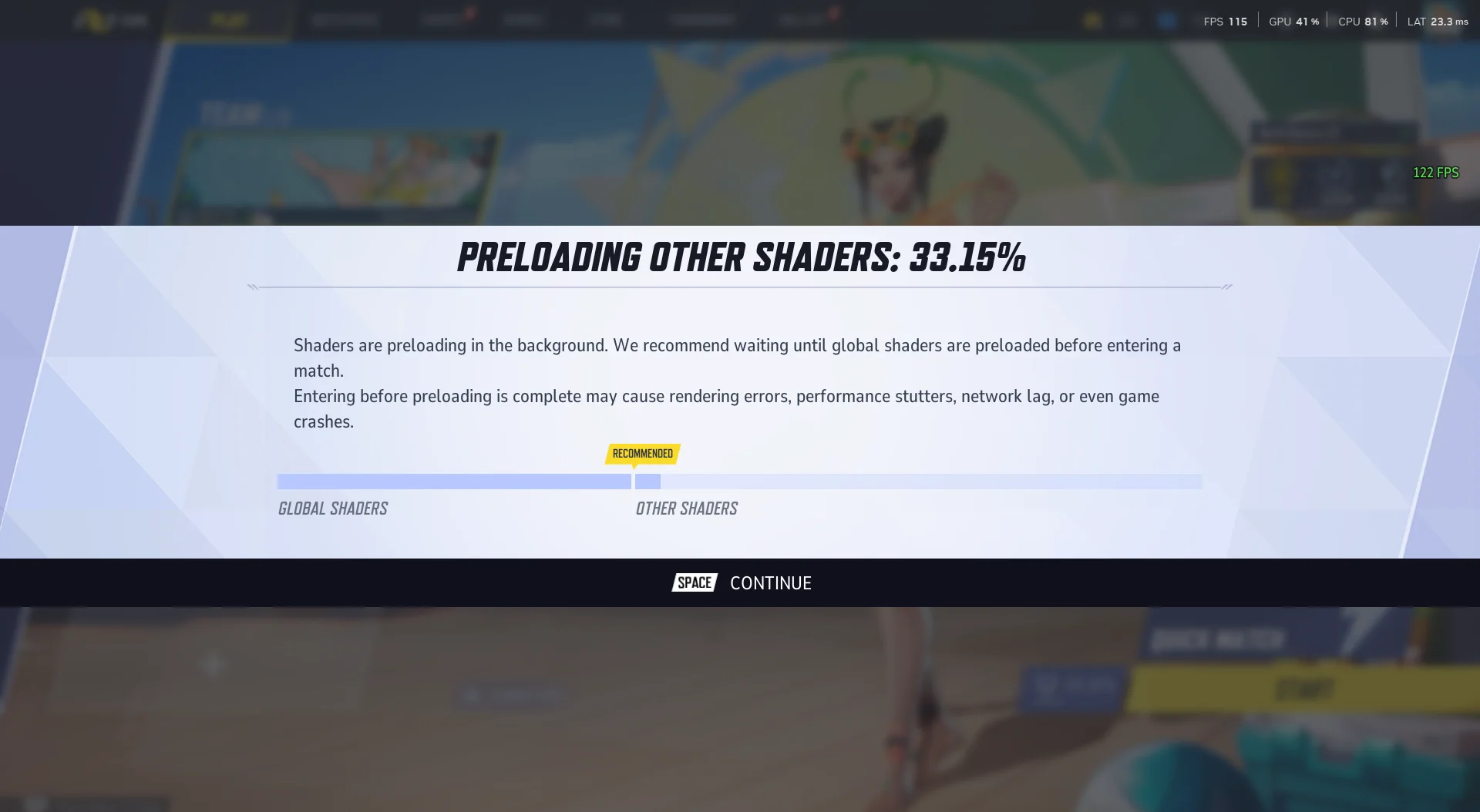
Wait for the displayed preload to complete after a game or graphics-driver update.
Marvel Rivals preloads shaders in the background; playing before it finishes can cause stuttering, rendering errors, or crashes. Follow the progress actually displayed rather than waiting a fixed number of minutes. Older guides may show different shader-compilation controls.
Test in Practice Range or a private custom game using the hero or activity that previously failed. If file repair and completed preloading resolve it, leave the experimental settings unchanged.
2. Check the Launcher’s Experimental Settings
Crashes that started after enabling an optional feature are worth comparing with that feature off. In-Game Performance Optimization changes CPU rendering and is separate from shader preloading; enabling it is not a prerequisite for troubleshooting.
Close the game and open the Marvel Rivals launcher. Click the gear at the top right and photograph the current switch positions. Change only one option between tests.
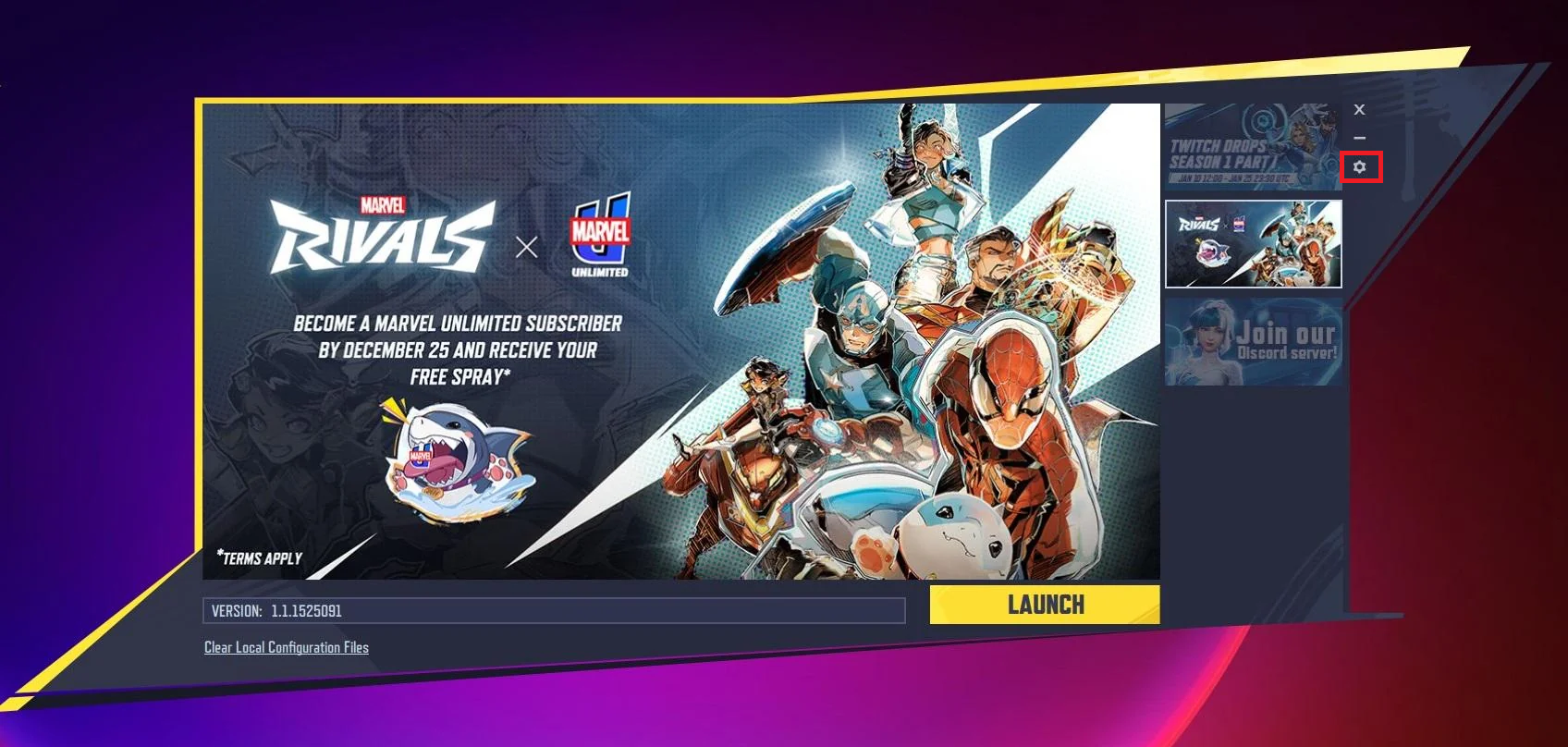
Turn Off Previously Enabled Performance Optimization
Leave this feature alone if you never enabled it. There is no need to use Download or Go to set it up for this test.
- Find In-Game Performance Optimization, possibly marked Experimental. The screenshot shows the enabled check mark; select the Off/X state and click Confirm.
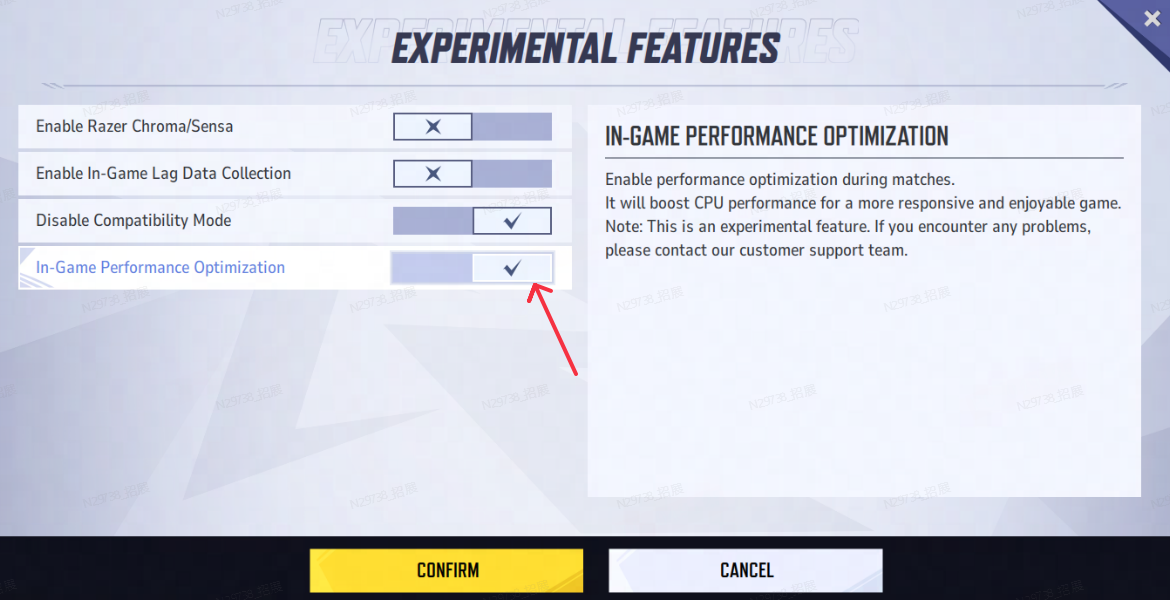
Change this setting only when it was enabled before the stability problem. - Reopen the launcher and check that it stayed off. If it re-enabled itself, turn it off again for the comparison and report that behavior; do not delete executables or edit hidden launch files.
- Start Marvel Rivals, finish any shader preload, and repeat the same hero or activity in a private test.
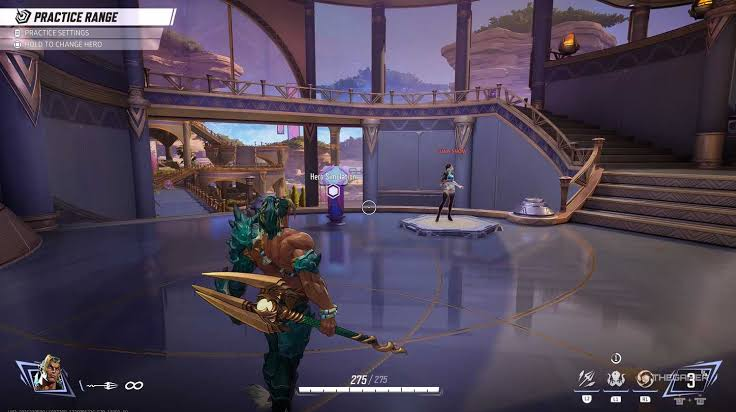
Use a comparable hero and workload, then extend testing if the game remains stable.
Optional: Compare the Launcher’s Compatibility Setting
The launcher may also offer Disable Compatibility Mode. This is a separate, reversible comparison, not a confirmed general cure for crashes or missing assets. It is not the Windows executable’s compatibility setting.
- With the game closed, locate Disable Compatibility Mode. The screenshot shows Off/X. Select On/check mark to disable compatibility mode, then click Confirm.
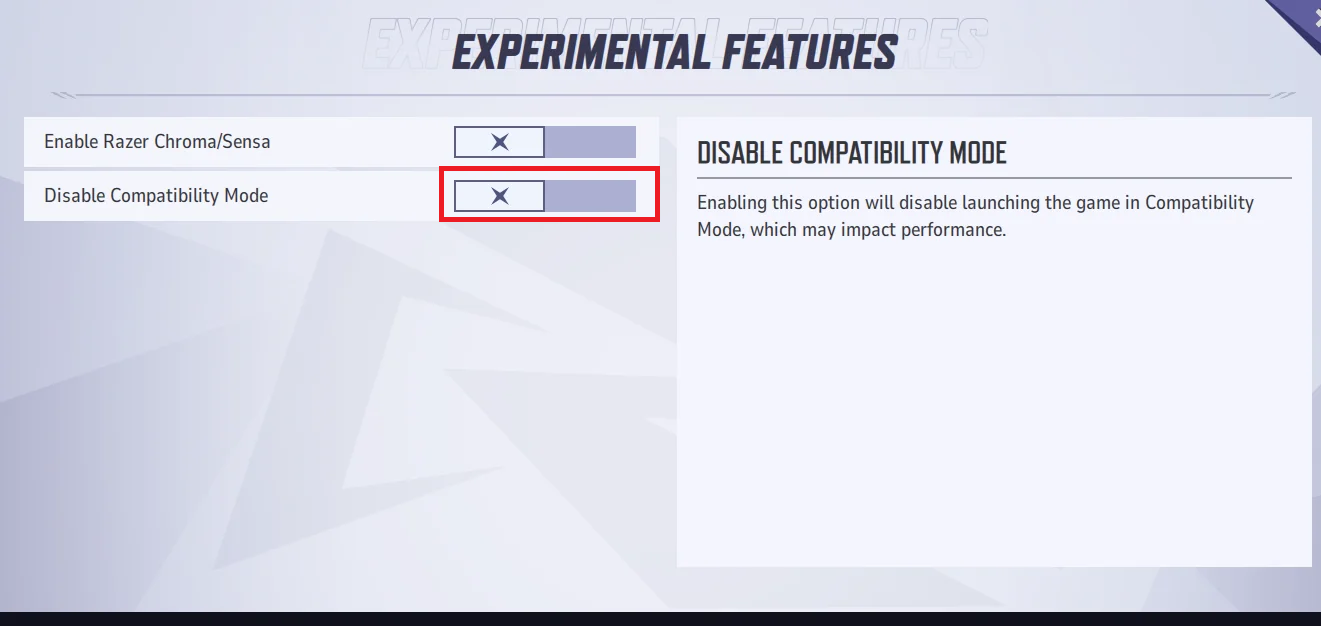
The switch must be on to disable the mode described by its label. - Test the same hero, scene, and effects, checking whether the assets load correctly and the original interruption returns.
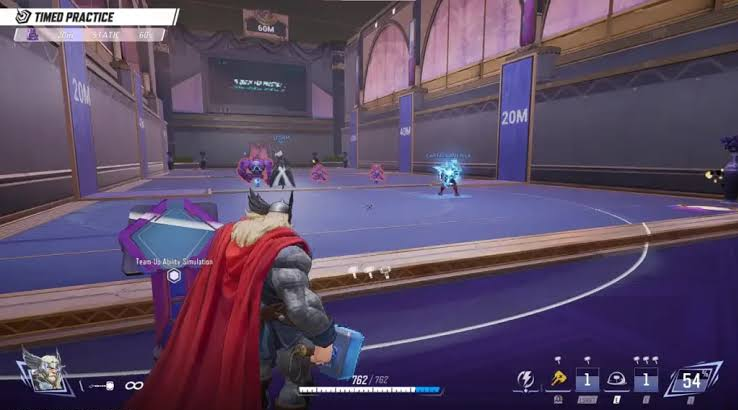
Check both missing character assets and the pauses or crashes you were experiencing.
An absent or already-on compatibility switch needs no change. If either comparison does not help, restore that option’s photographed state with the game closed. Keep a helpful change, but extend testing if the crash normally takes several matches to appear.
3. Test a Larger NVIDIA Shader Cache for Brief Freezes
Repeated pauses as heroes or effects appear can involve shaders being compiled again. A larger cache retains more of them for reuse. This NVIDIA-only comparison concerns brief freezes that recover, not whole-PC lockups or every crash.
- Close the game. Open File Explorer > This PC and check free space on the system drive, normally C:, not only the drive containing the game.
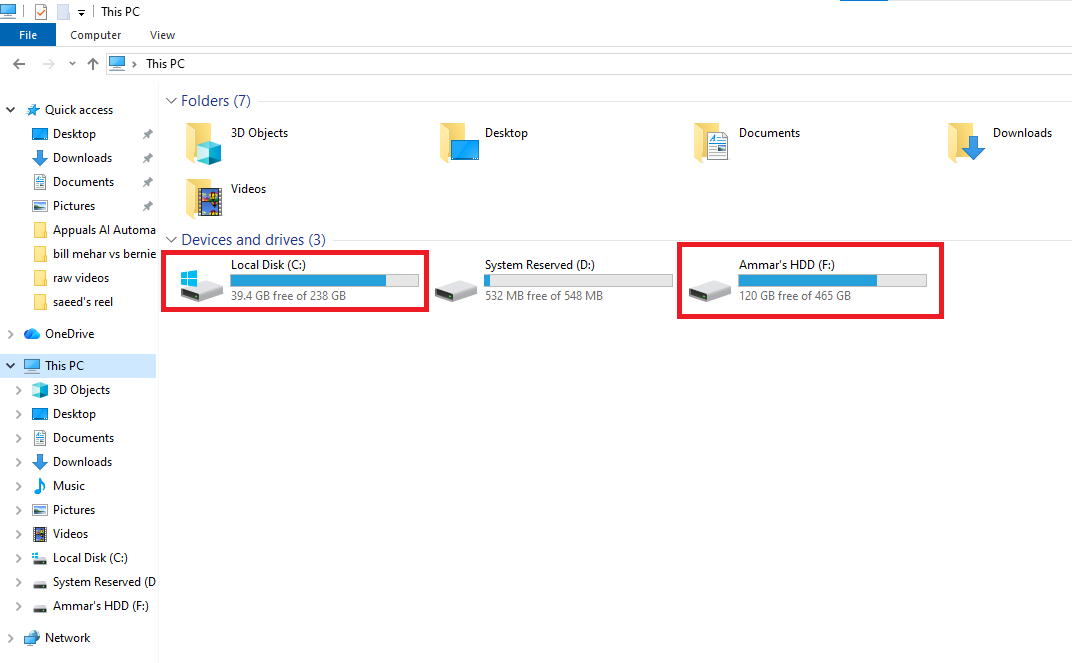
The shader cache uses disk storage; space on the game drive alone may not be enough. - Open NVIDIA Control Panel > Manage 3D settings > Global Settings. Find Shader Cache Size and record its existing value.
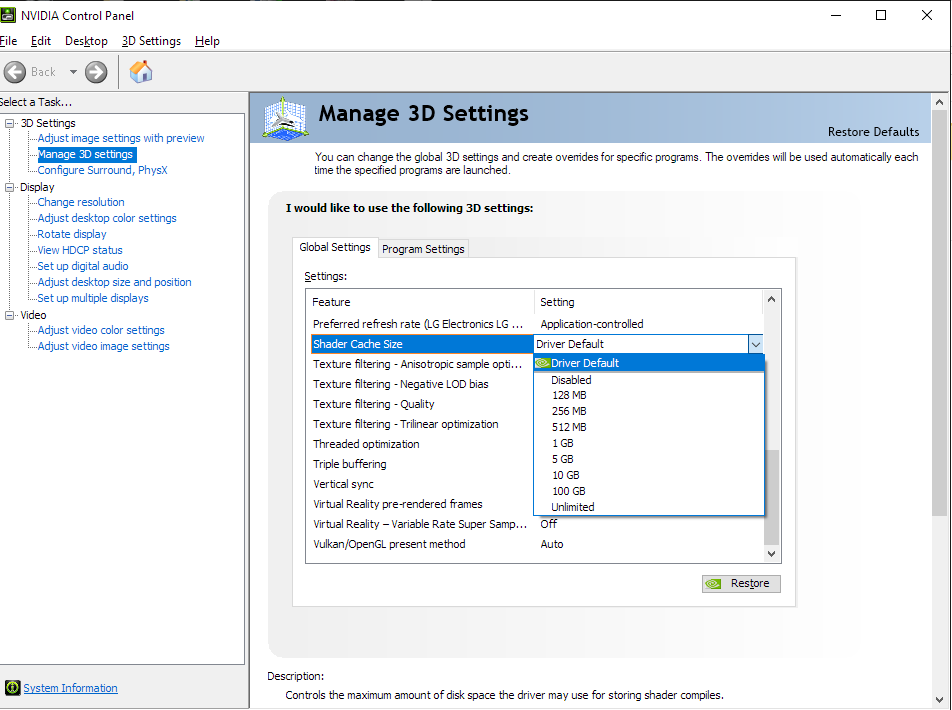
This driver setting also applies to other games. - Choose a larger limit that leaves ample disk space for Windows, updates, and your files. 10 GB is an option above a smaller existing limit; 100 GB is optional, not a requirement. Click Apply.
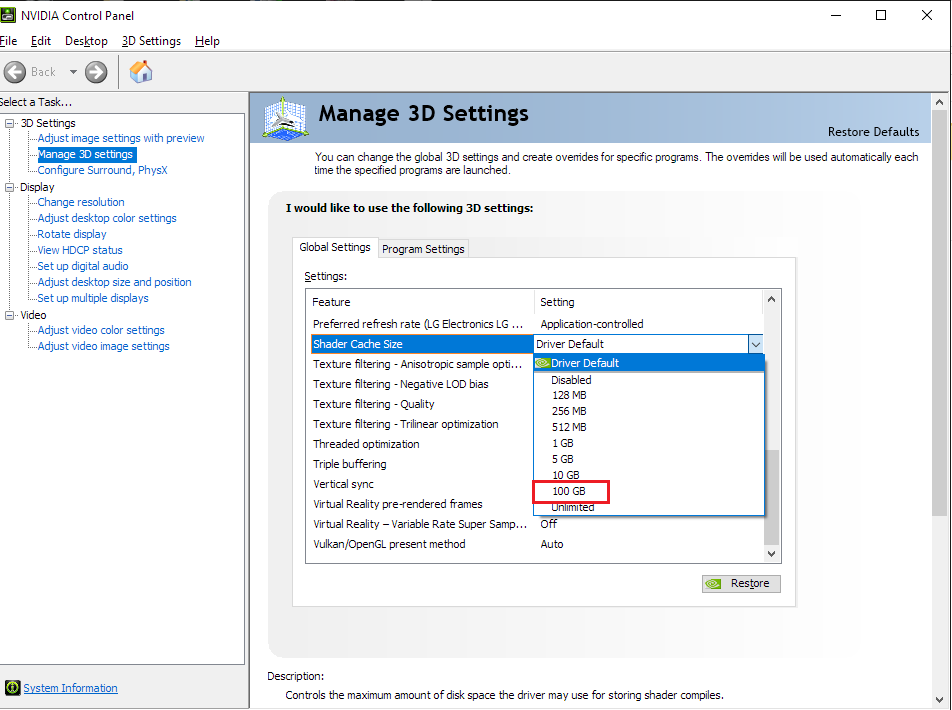
100 GB is a conditional test value, not a universal requirement for Marvel Rivals. - Reopen Marvel Rivals, complete shader preloading, and compare subsequent runs with the same heroes and effects.
NVIDIA’s cache limit controls disk storage, not VRAM or RAM, and applies globally. Leave it unchanged if storage is tight or it is already 100 GB or Unlimited.
Ask IT about locked GPU controls on a managed PC.
A driver update can require fresh shader compilation. Avoid clearing the cache between comparisons. If repeated hitches improve, monitor disk usage; otherwise restore the original limit and apply it. AMD and Intel GPUs do not use this NVIDIA control.
If Marvel Rivals Still Crashes
Save the complete latest report, including the error above the call stack. EXCEPTION_ACCESS_VIOLATION alone does not identify a cause. The UE-Marvel error guide covers the related crash popup; retain the report before any cleanup.
With a 13th- or 14th-generation Intel desktop CPU, an Out of video memory warning during shader compilation can involve CPU instability. Ask your system or motherboard manufacturer about applicable stability guidance. A larger shader cache does not add video memory.
For support, collect the game’s diagnostic package with Marvel Rivals closed. The official diagnostic guide includes the support channel for sending it.
- In Steam > Library, right-click Marvel Rivals > Manage > Browse local files. On another platform, open its game installation folder.
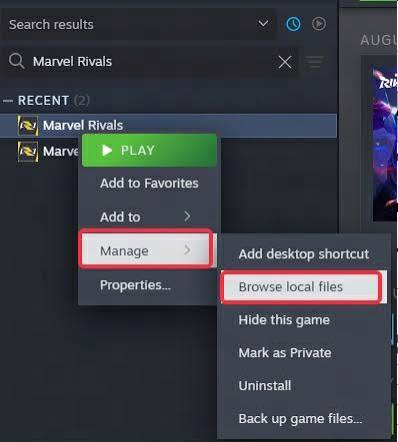
Use the utility supplied with your own game installation. - Open the supplied client_diagnose.exe, click Analyze, and wait. If it is absent, ask official support for the current collection instructions rather than downloading a replacement from elsewhere.
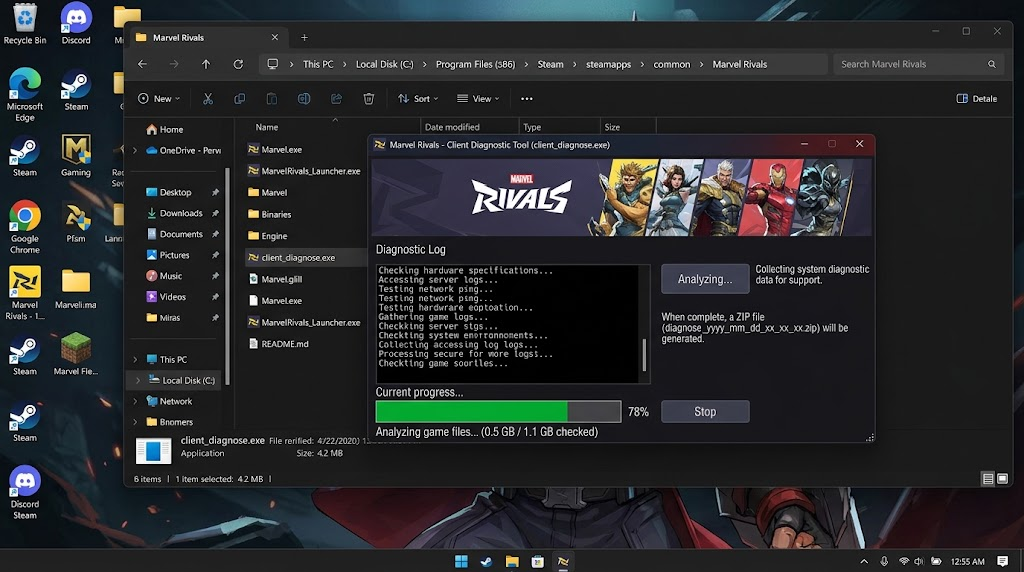
This utility collects evidence for support; it is not a guaranteed crash repair. - When the results folder opens, keep the generated diagnose_…zip. It may contain system details and local file locations. Follow official support’s private submission instructions; do not attach it in a public comment or general chat.
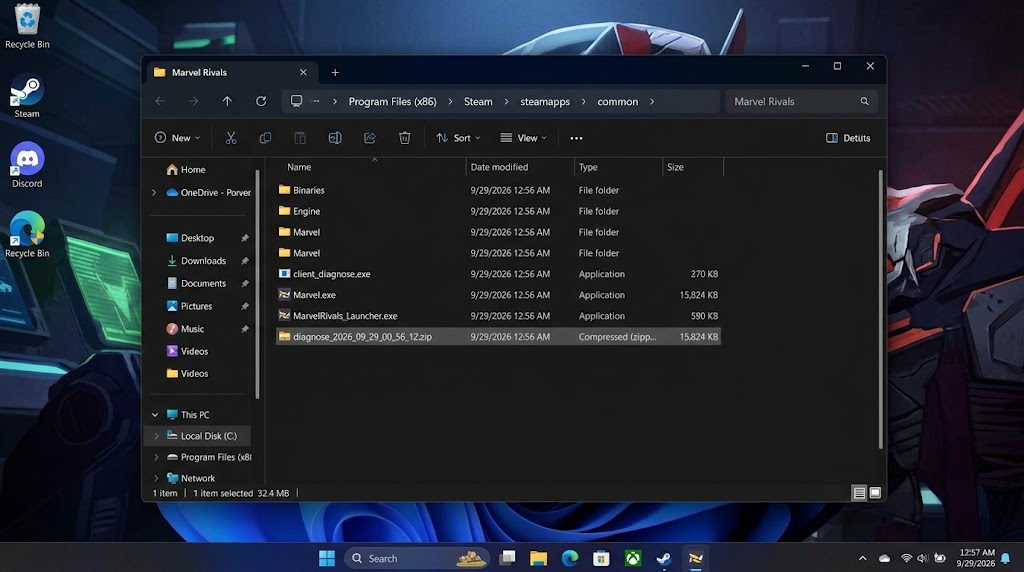
Share it through the support channel provided by Marvel Rivals, not in a public comment.
Include your CPU, GPU, RAM, driver and game versions, the triggering hero or map, and the settings tested. Distinguish a game-only crash from a computer restart.
Keep anti-cheat and Windows security enabled. One successful private session is encouraging, but it does not rule out an intermittent fault.


