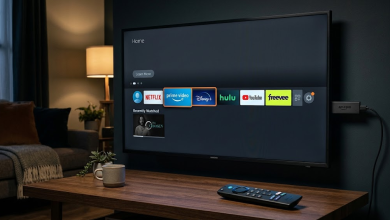
How to Fix Samsung Smart TV Broadcasting Option Grayed Out?
On a Samsung Smart TV, a grayed-out Broadcasting menu prevents channel scans even though apps and HDMI devices may still work normally. Auto Program or Auto Tuning may also be unavailable, or the TV may display “This function isn’t available.”
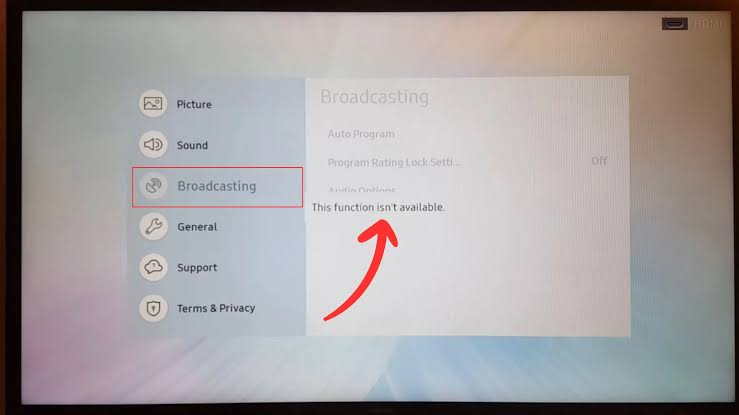
Broadcasting controls the TV’s built-in antenna or cable tuner, not screen casting or channels supplied by an HDMI receiver. A streaming app, the wrong input, or an active recording can leave these settings unavailable without anything being broken.
The antenna connection matters too. A disabled scan button needs different checks from a scan that runs but finds no channels; the latter is a reception or signal-setup problem.
1. Close the App and Select the TV Source
The Home screen can appear while an app is still running. Samsung’s grayed-out menu guidance recommends closing the app and selecting the TV input before checking Broadcasting again.
- Stop any recording or paused-live-TV session (Timeshift) through its playback controls, if your model supports these features.
- Exit the running app: hold Return/Back until it closes, or confirm its Exit prompt. Pressing Home alone may leave it running.
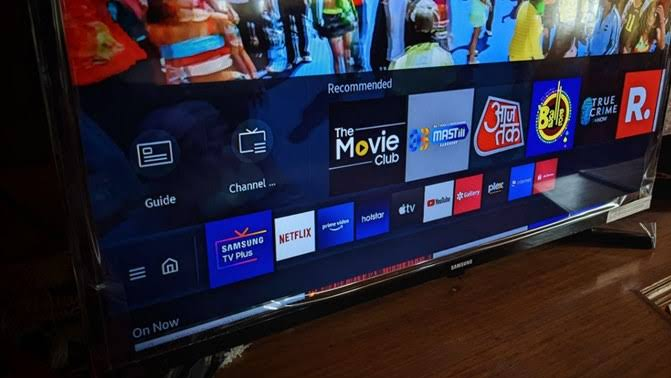
Show the app being closed or an owner-consented recording being stopped. Do not expose profile names, program history, or subscription information. - Open Home > Source or Connected Devices and select TV or Live TV, rather than HDMI. The illustration locates Connected Devices; the tuner label varies.
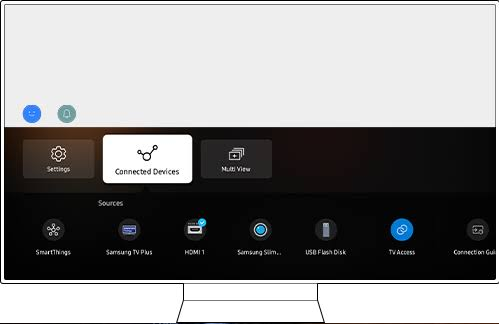
Show TV or Live TV selected instead of HDMI or a streaming app. Record the exact label used by the tested model and software version. - Open Settings > All Settings > Broadcasting. Some models place Broadcasting under General & Privacy; older menus omit All Settings.
Some older layouts group antenna channels with TV Plus under Live TV. Where offered, open Channel List and choose Air/Antenna/Terrestrial or Cable to match your connection. TV Plus internet channels alone do not establish antenna reception.
Check the selected input label, not just a No Signal message: HDMI inputs can show that message too. Once Broadcasting opens, no reset is needed.
2. Check the Antenna or Cable Connection
A working HDMI picture does not give the TV access to the receiver’s tuner. Before changing cables, check which device actually supplies your channels.
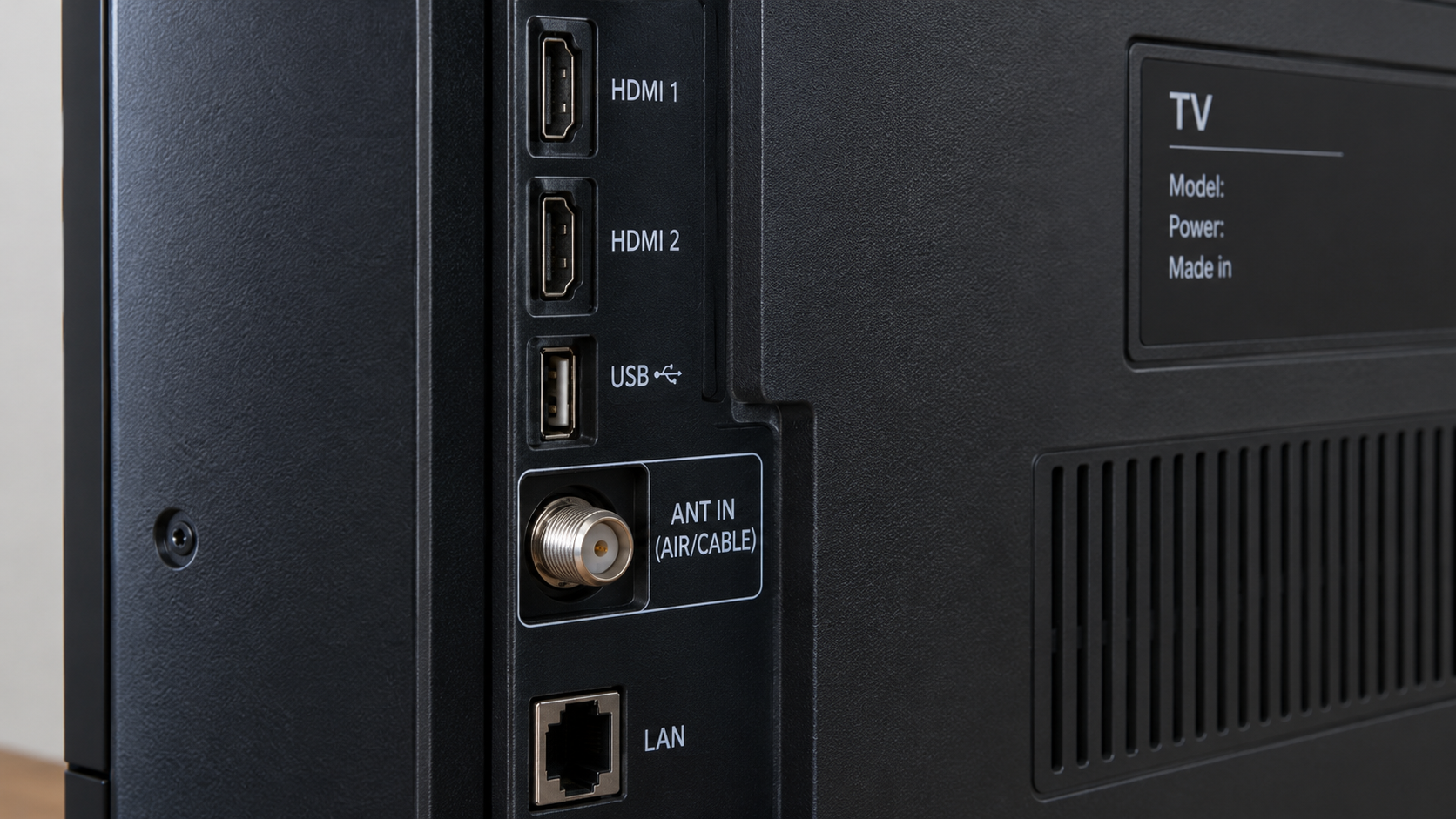
| Your setup | Correct connection or control |
|---|---|
| Over-the-air antenna | Coax connects directly to the TV’s ANT IN or AIR/CABLE socket, sometimes on the One Connect Box. |
| Direct cable feed without a receiver | Connect to the compatible tuner socket. Your TV and provider must support direct tuning; encrypted services may require a box. |
| Cable or satellite receiver connected by HDMI | Use the receiver’s channel setup and remote. Samsung Broadcasting does not scan the box’s channels and can remain gray. |
For a direct feed, turn off and unplug the TV before adjusting an accessible connection. Never interrupt an update. Match the socket label to your signal; a satellite connector is not interchangeable with AIR/CABLE.
Seat push-fit plugs securely or tighten threaded connectors by hand, without forcing them. Leave mounted equipment, damaged cables and shared-building wiring to an installer.
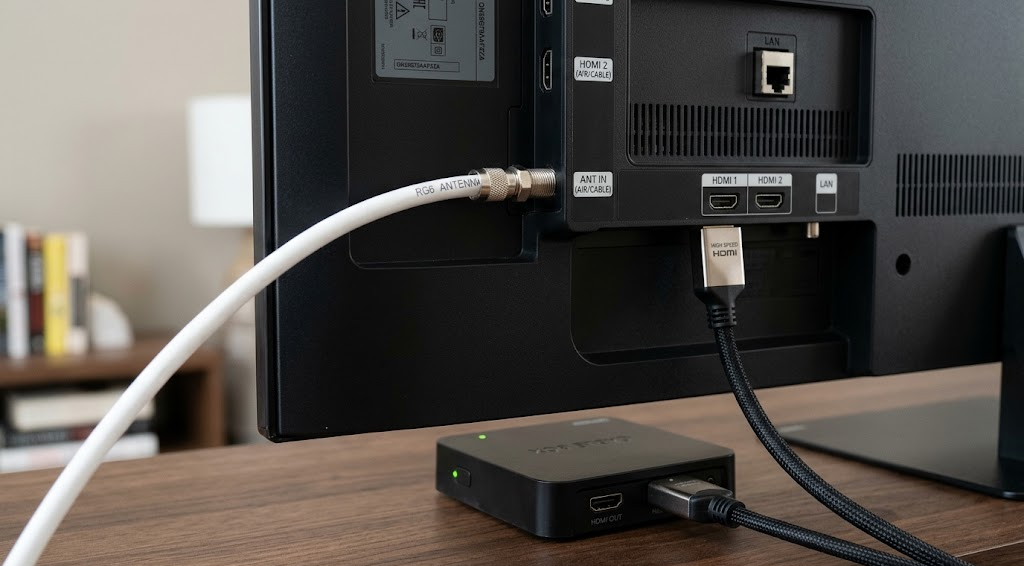
Restore power, select TV/Live TV and reopen Broadcasting. If the tuner source itself is missing, check the connection and your exact model’s manual; not every Samsung display has the same tuner or source labels.
3. Unplug the TV and Reconnect the Coax
Broadcasting may remain gray after selecting TV with the antenna connected. Samsung recommends this power-and-coax restart when closing apps and changing source have not restored the menu.
Do not interrupt a software update. The connection photos do not verify that power is disconnected; unplug your own TV before handling the coax.
- Turn off the TV and unplug its power cord. Leave other equipment on a shared power strip undisturbed.
- Disconnect the safely accessible coax from ANT IN and wait at least 30 seconds.
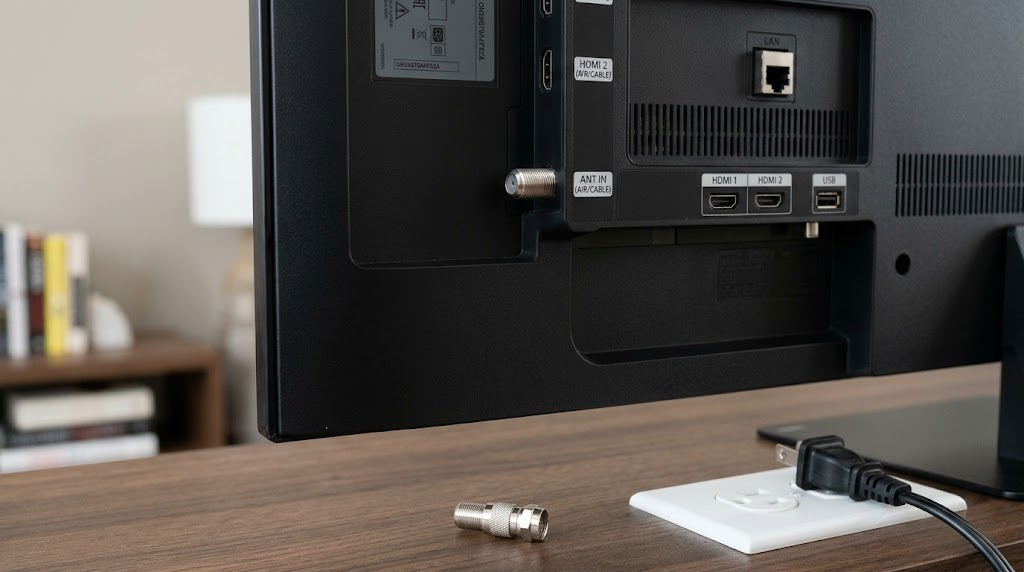
Show the television unplugged and an accessible coax disconnected. Do not touch damaged cables, shared wiring, wall-mounted hardware, or roof antennas. - Reconnect the coax securely while the TV is still unplugged. Then reconnect TV power.
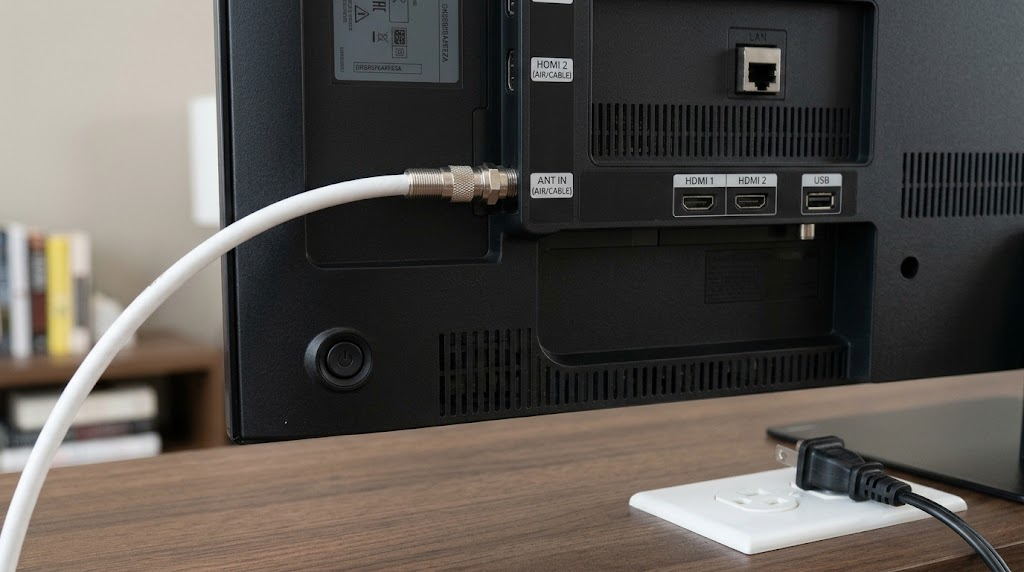
Show the coax returned to the correct ANT IN connector after the wait. Keep the television unplugged until the connection is secure. - Turn the TV on, select TV/Live TV, and check Broadcasting again.
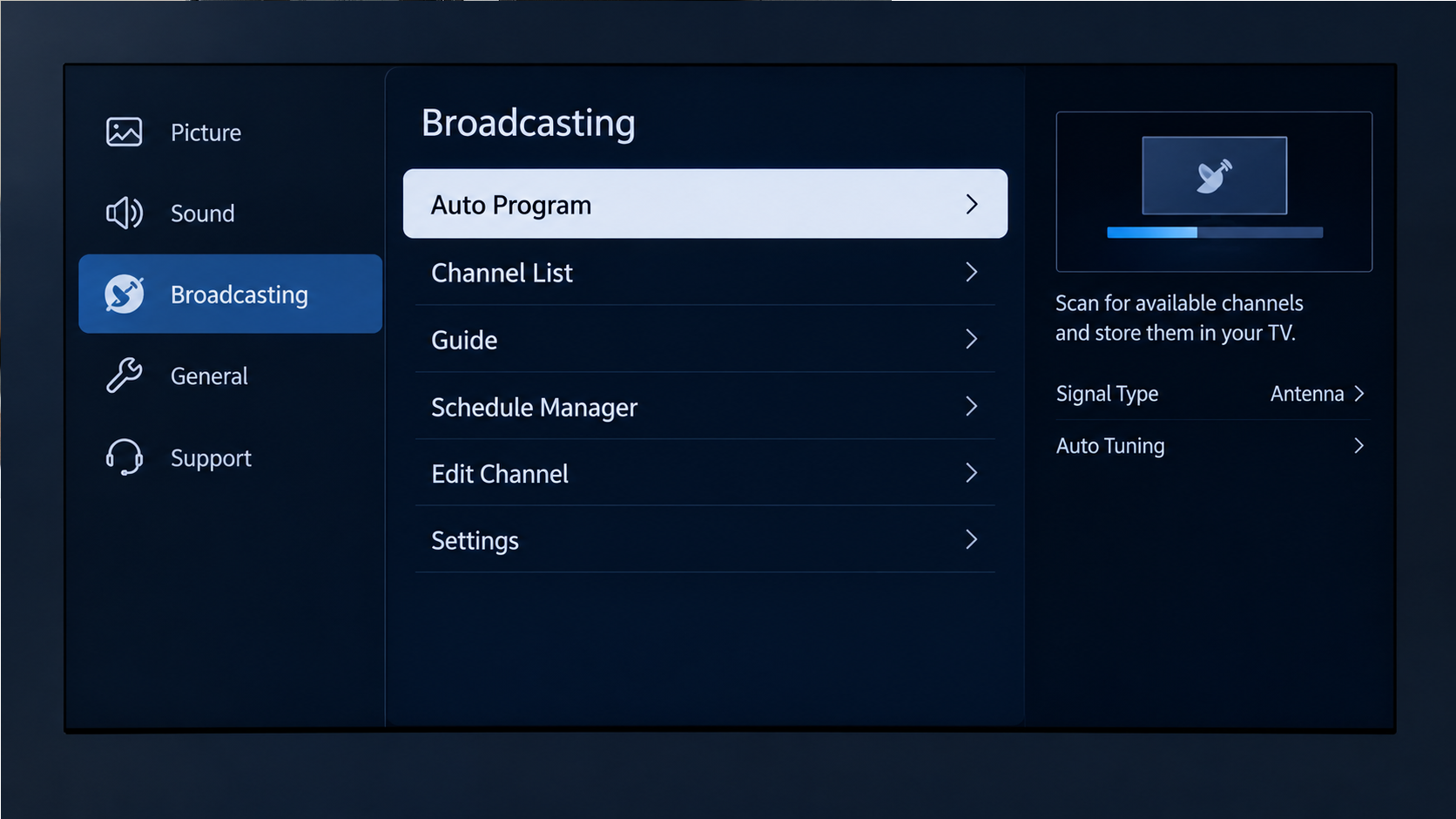
Show the restarted TV on the tuner source and the Broadcasting menu result. Keep private channel history and recommendations out of frame.
If the controls are available, run one scan only if needed. Choose Air/Antenna/Terrestrial for an antenna or Cable for a compatible direct cable feed. A completed scan with no channels now needs reception checks, not repeated resets.
4. Check for Updates Before Considering a Reset
A menu that stays unavailable after these checks deserves model-specific attention. An offered software update is worth checking before erasing settings, but it is not a guaranteed fix.
- With the TV connected to the internet, close apps and open Settings > All Settings > Support > Software Update > Update Now. Omit All Settings if absent.
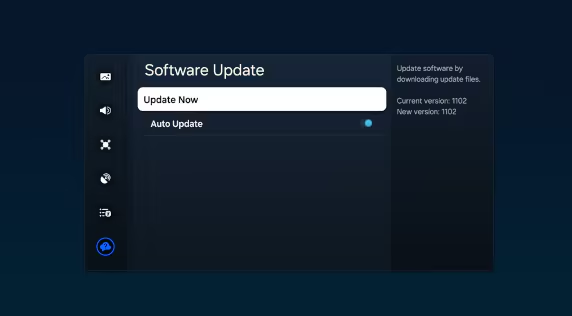
Show the current public software version and Update Now control. Hide the serial number, device ID, network details, and Samsung Account. - Install an offered update and let it finish without disconnecting power. Then select TV/Live TV and retest Broadcasting.
For supported online or USB procedures, see updating Samsung TV firmware. Use only firmware for the exact model; the pictured version is not an update recommendation.
Factory Reset: Optional Last Resort
A reset returns TV settings to defaults; it cannot repair a damaged connector or make an incompatible signal work. You can contact Samsung before taking this step.
Samsung’s reset instructions vary by model. Look for one of these menus, rather than following every row:
| Settings section | Reset control |
|---|---|
| General & Privacy | Reset or Factory data reset |
| General | Reset |
| Support > Self Diagnosis | Reset |
- Close apps and select TV or HDMI if Reset is unavailable. Open the matching reset menu; the image shows its location, not the final confirmation.
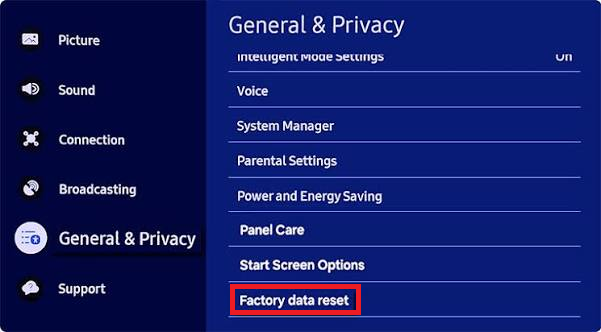
Show the owner’s reset confirmation before approval. Do not reveal the PIN, and do not reset a shared, managed, hotel, retail, or production television for a screenshot. - Enter the owner’s PIN, read the TV’s warning and confirm only if you accept the loss of settings. Let the reset finish.
- Complete setup in Home Mode, not Retail/Demo Mode, with your actual antenna or cable connection.
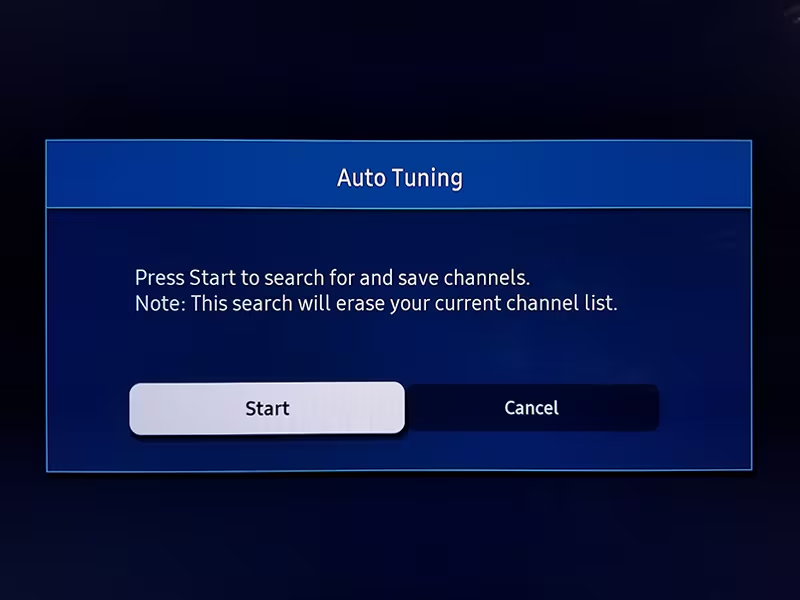
- Select the tuner source and scan once if needed. The image below shows the later scan menu, not initial setup.
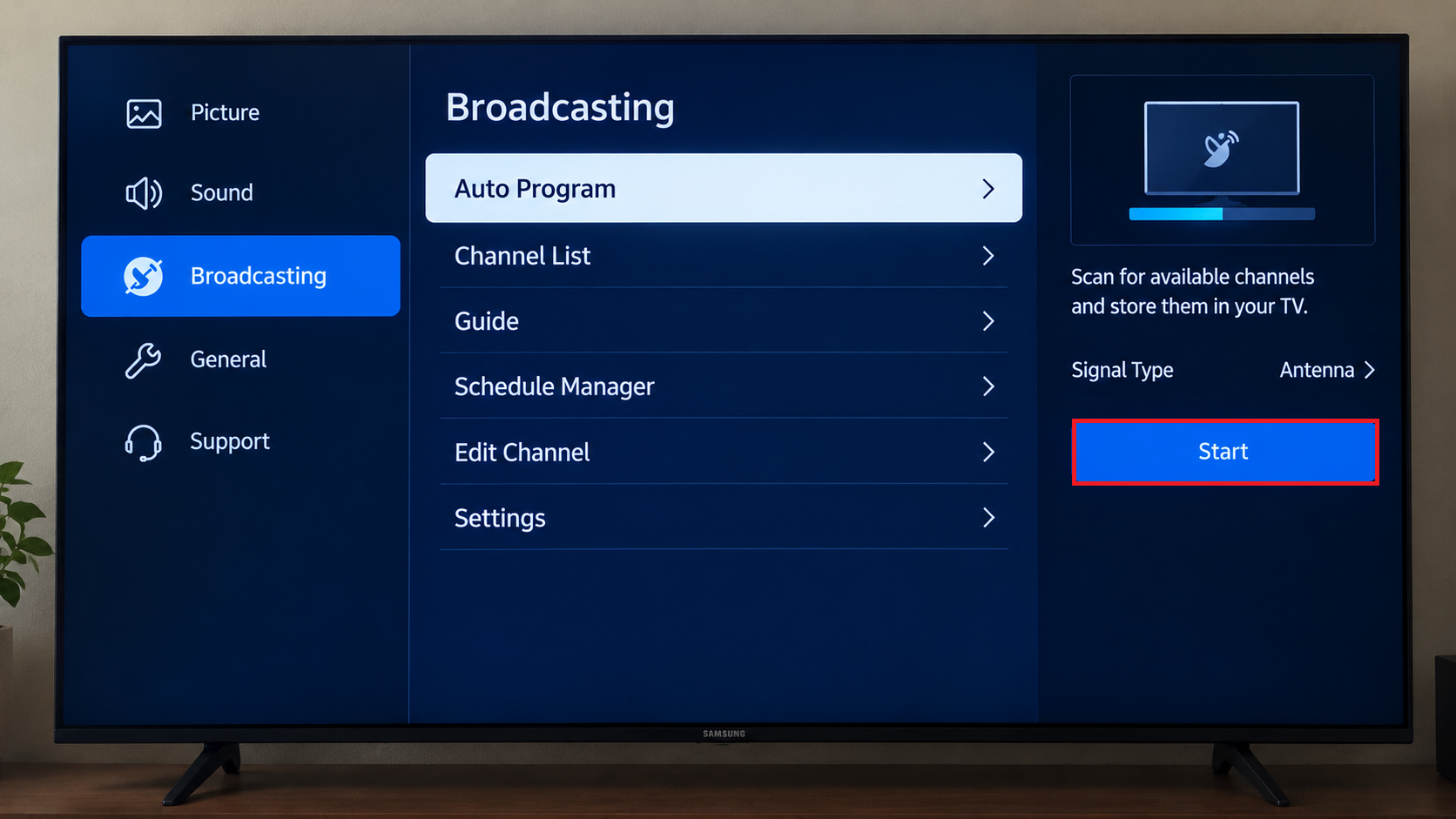
Show the antenna, air, terrestrial, or cable choice that matches the real signal. Hide Wi-Fi, Samsung Account, location, and household information.
The Samsung TV reset walkthrough illustrates older layouts. If Broadcasting remains gray after setup, stop resetting and ask Samsung to review the model and connection.
Still Unable to Open Broadcasting?
Give Samsung Support the model code, software version, sales region, selected input and antenna/receiver setup. Find the model and software version under Support > About This TV or Contact Samsung; keep serial numbers private.
For a managed TV, contact its administrator. Avoid service-menu codes, hospitality or region changes, unofficial firmware, and opening the television. A gray menu alone does not prove the tuner has failed.