How to Fix Google Play Store Not Showing on Google TV?
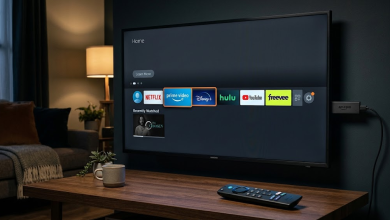
Google TV can show Netflix, YouTube and your other installed apps without a Google Play Store icon alongside them. The store can still be present and working, even though there is no Home shortcut for it.
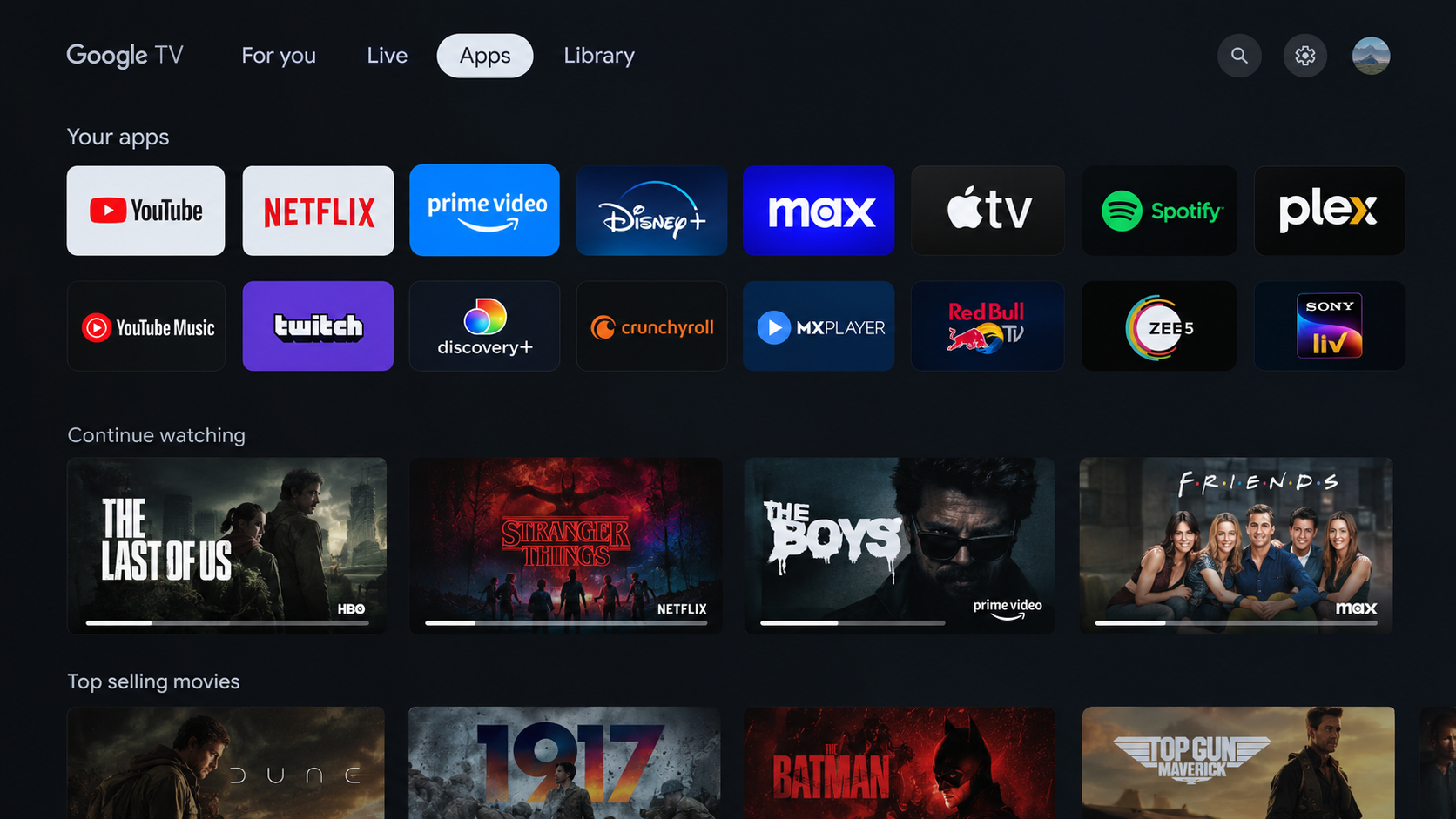
Google TV uses the Apps tab to help you find and install apps. On supported devices, the full Play Store also opens from Settings. A missing icon alone does not mean the store needs reinstalling, and opening it will not automatically add a Home tile.
Check the TV’s Setup Mode
Installing apps requires an internet connection and a Google Account on the TV. For a Chromecast that cannot connect to Wi-Fi, resolve the connection problem before trying an installation.
These instructions cover TVs and streaming devices running Google TV, including Chromecast with Google TV. Older casting-only Chromecasts do not have these menus.
A Set up Google TV banner can mean a television is still in Basic TV mode. This mode is available on supported TVs with Google TV built in and cannot install additional apps.
- To enable app installation, select Set up Google TV and complete setup with the TV owner’s Google Account. Review the account and privacy choices as you proceed.
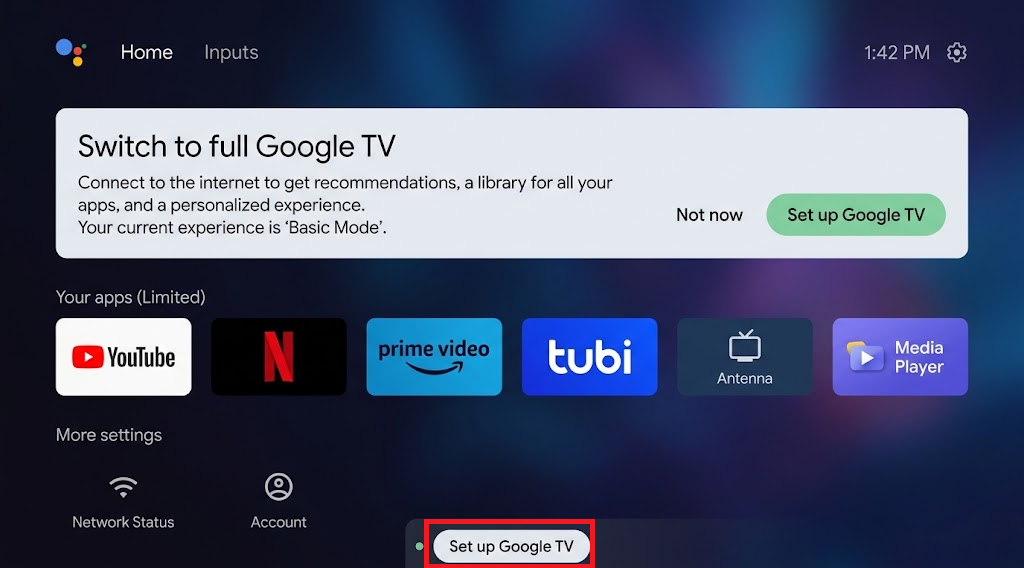
Basic TV cannot install additional apps. This mode is available on supported TVs with Google TV built in.
Apps only mode is different: it retains your installed apps but disables Home Search and Google Assistant. You can leave it on and open Play Store through Settings. For a kids profile, ask the parent or guardian to manage app access.
1. Open Google Play Store Through Settings
The store may be absent from Home and the ordinary app list but still appear among the system apps. Opening its app-information page lets you launch it without changing its data or installing anything else.
If Google Assistant already works, you can also press the remote’s MIC/Assistant button and say “Open Google Play.” Otherwise, the Settings steps do not require Assistant setup.
- Open Settings or All settings from Home or the remote’s settings button. Select Apps > See all apps.
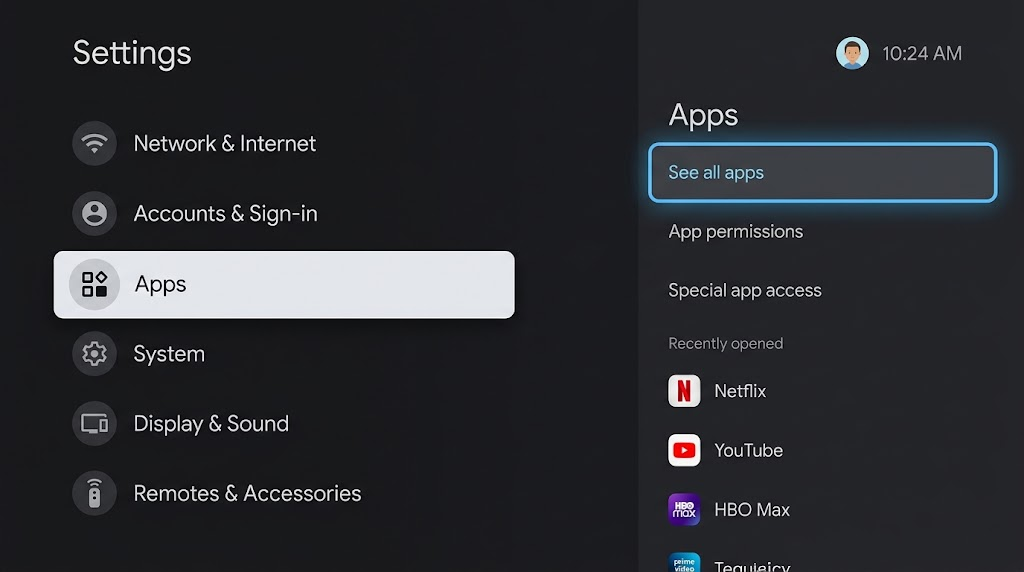
Settings or All settings may appear first, depending on the TV or streaming device. - Look for Google Play Store. If it is absent, scroll down to Show system apps and check the expanded list. Google Play services is a different entry.
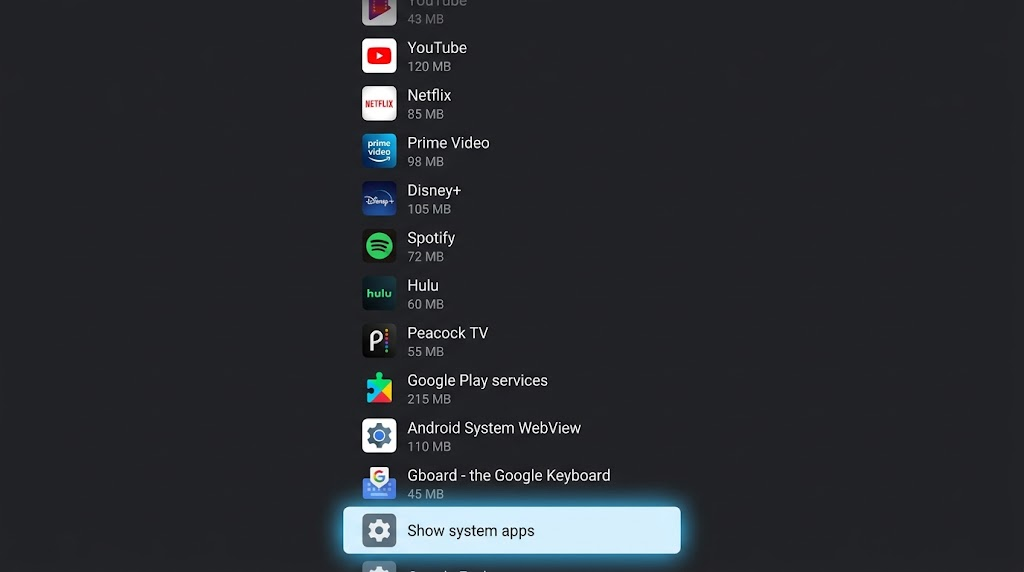
Look for Google Play Store, which is separate from Google Play services. - Select Google Play Store > Open. Menu labels vary by manufacturer; Sony’s Google TV instructions also describe opening the store from Settings.
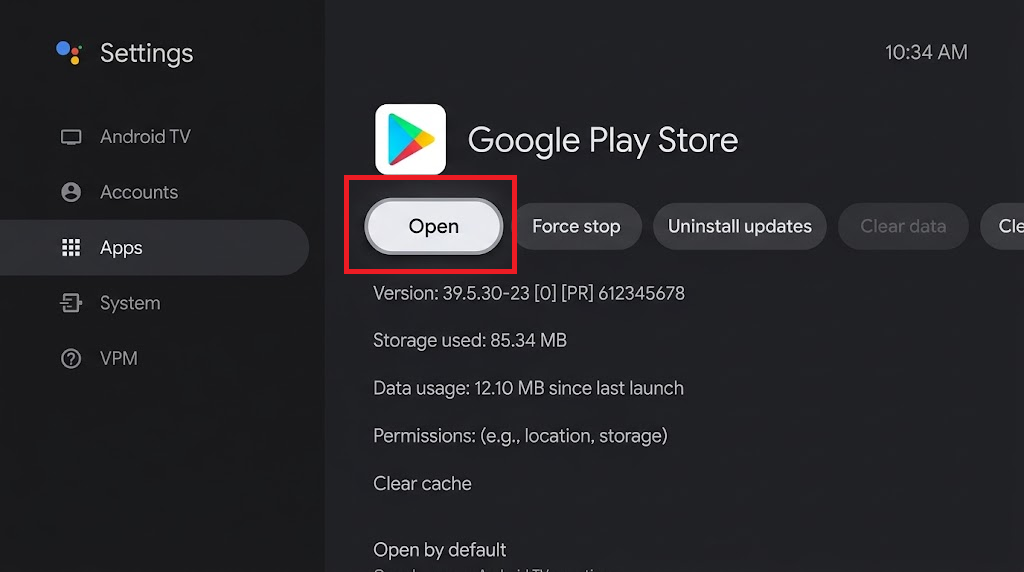
Opening the app does not require clearing its data or uninstalling updates. - Once the store loads, search or browse for the app you want. To update installed apps, open the profile menu and look for Manage apps and games, where available.
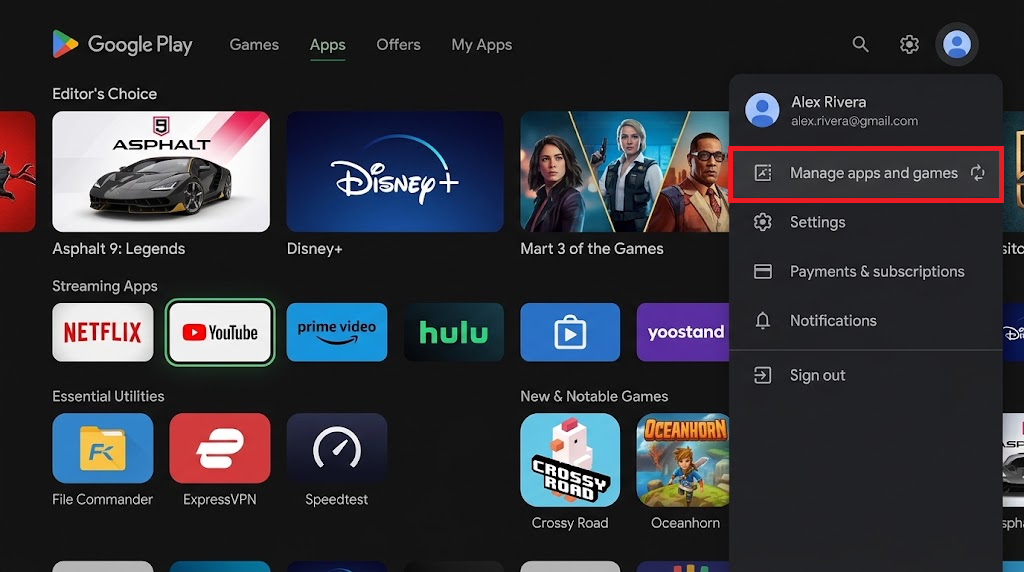
Capture the real result; record whether browsing or Manage apps and games is available on this version.
If the store opens normally, you can use it from here; the Home shortcut does not need restoring. Leave Clear data and Uninstall updates alone just to find the icon. An absent system-app entry or unavailable Open control needs the manufacturer checks at the end.
2. Install Apps from the Apps Tab
For a new app, you do not have to open the full store. Google TV’s Apps tab and app search provide installation listings directly. Use the tab if it is available on your Home screen; Settings remains useful when Home search is unavailable.
- Press Home and select the Apps tab. Browse the categories or select an app already displayed there.
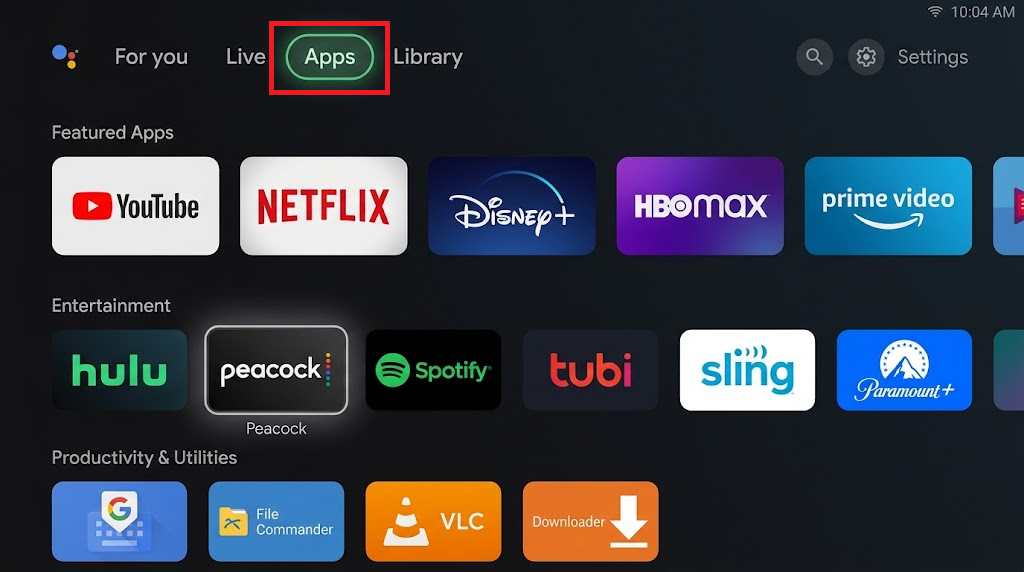
You can find compatible TV apps here without a separate Play Store tile. - For a specific app, choose Search for apps or Search apps and games if shown. Enter its name with the on-screen keyboard, then select the matching result.
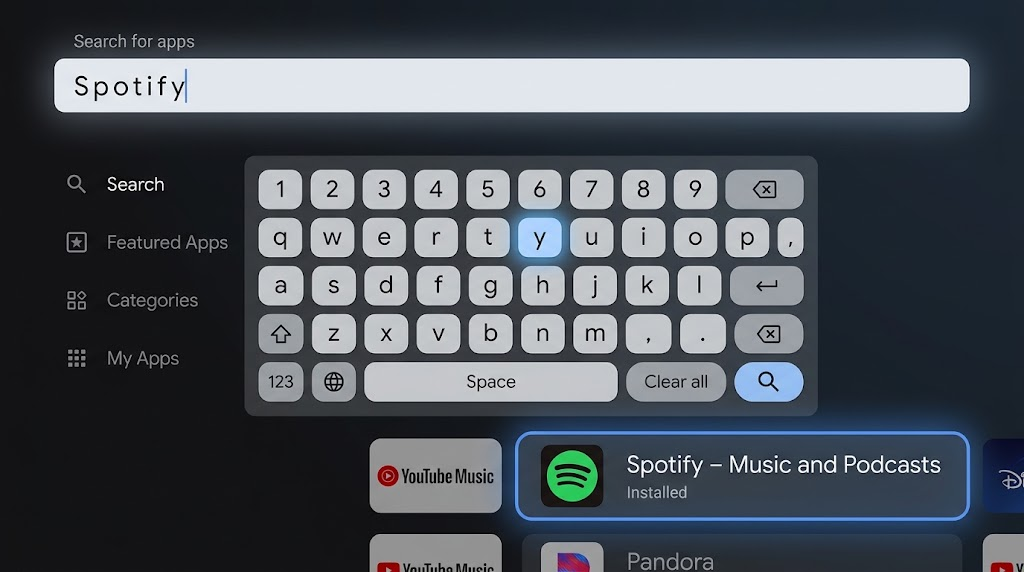
The label may read Search for apps or Search apps and games; use the actual device wording. - Check the app’s name and developer, then select Install. Wait for completion and choose Open, or find it under Your apps. Review any price before approving a purchase.
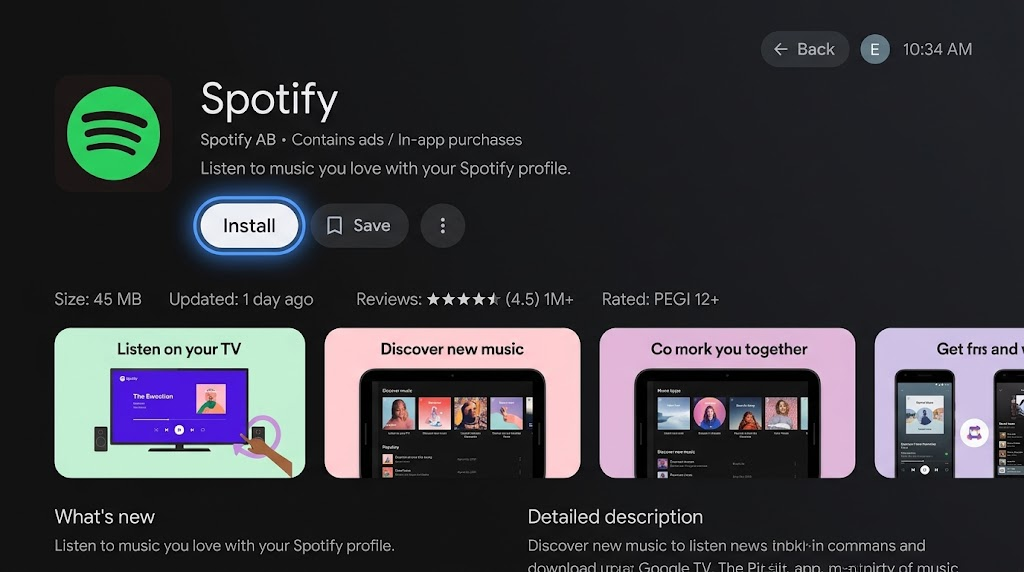
Use a free supported app for demonstration and record the actual installation result.
An app that installs and opens confirms you can download apps without a store shortcut. If search repeatedly opens Assistant setup or returns no results, the Settings or website options avoid that search screen without changing your Assistant preferences.
A single missing app is not proof that the whole store is unavailable. Its developer must offer a version for your TV and country; being available on an Android phone does not guarantee TV compatibility.
3. Send an App to the TV from the Google Play Website
The Google Play website can install apps on another device, including a TV. This is useful when TV search cannot find a compatible listing, but it does not bypass device, account or country restrictions.
- On a phone or computer, open Google Play in a browser. Sign in with the same Google Account used on the TV; check the profile menu if several accounts are available. Keep the TV online.
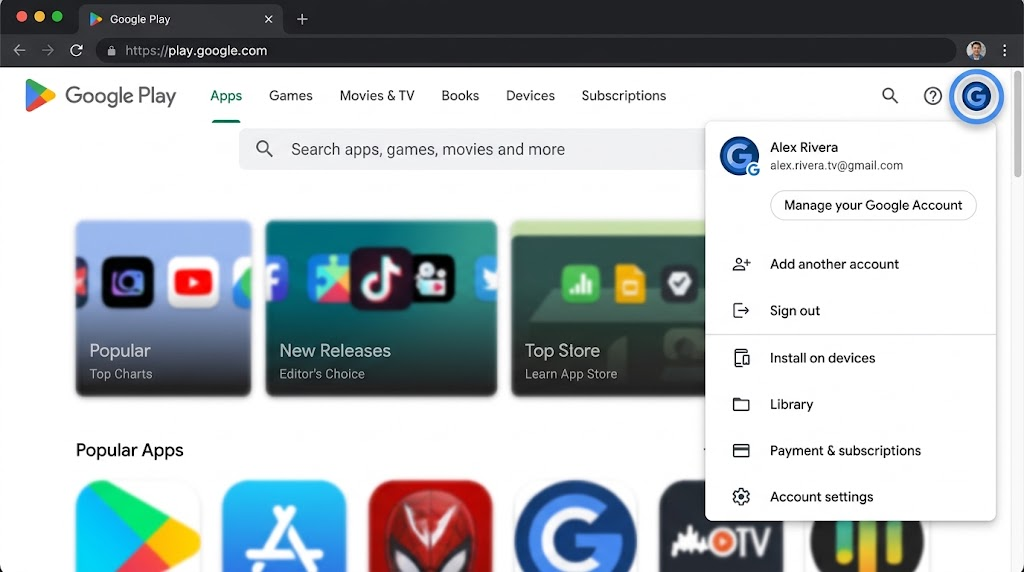
Redact email addresses, account photos and other personal information. - Search for the app and open its listing. Select Install or the device-installation control shown. Check whether the listing says it is available for your devices.
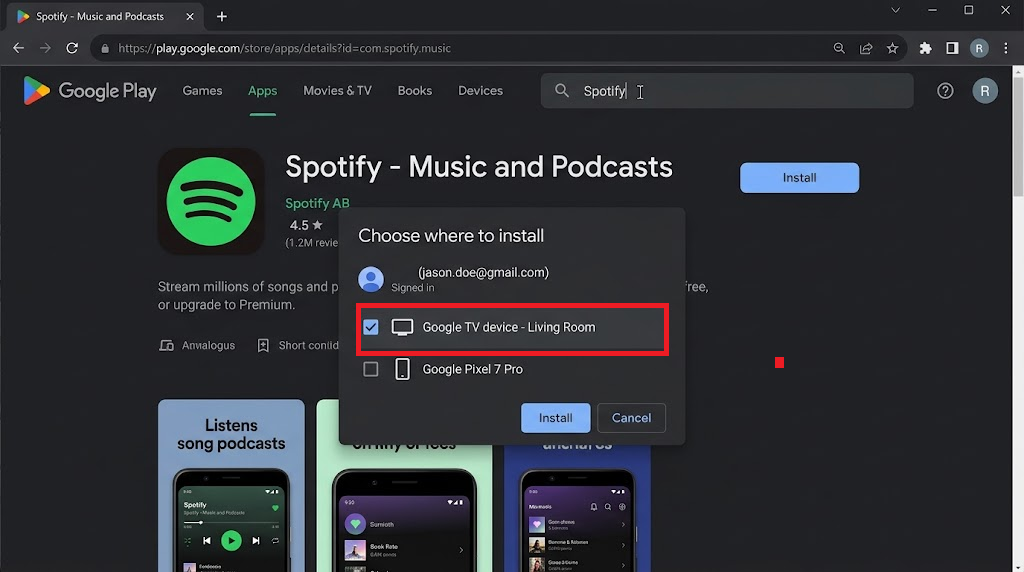
Hide other device names and confirm the destination before submitting the installation. - Choose the intended TV or streaming device, then confirm installation. Check its name carefully if several devices are listed. Installing to your phone instead will not transfer the app to the TV.
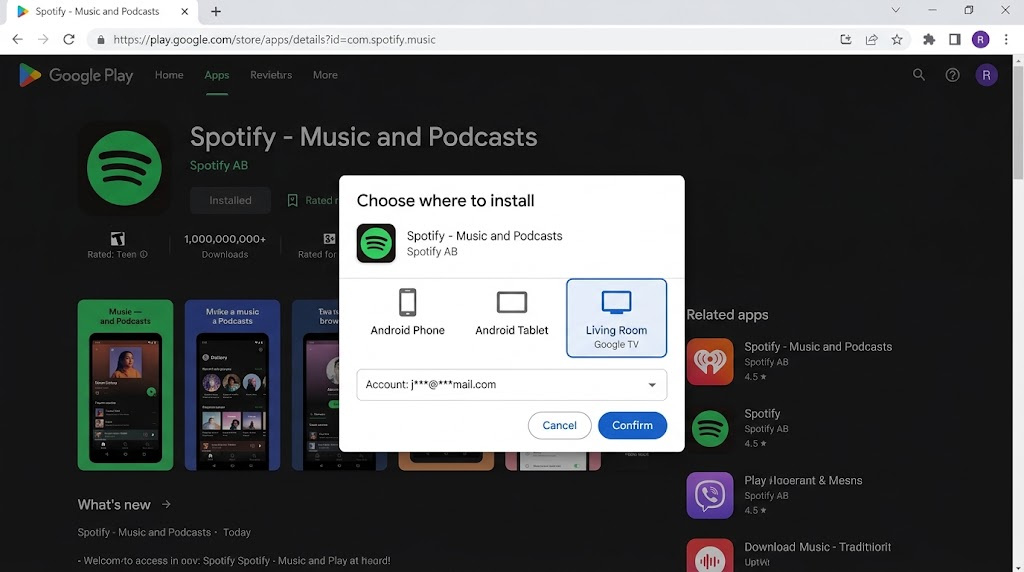
Hide other device names and confirm the destination before submitting the installation. - After installation, return to the TV’s Your apps row or Settings > Apps. Open the app to confirm it arrived on the correct device; submitting the web request alone does not confirm delivery.
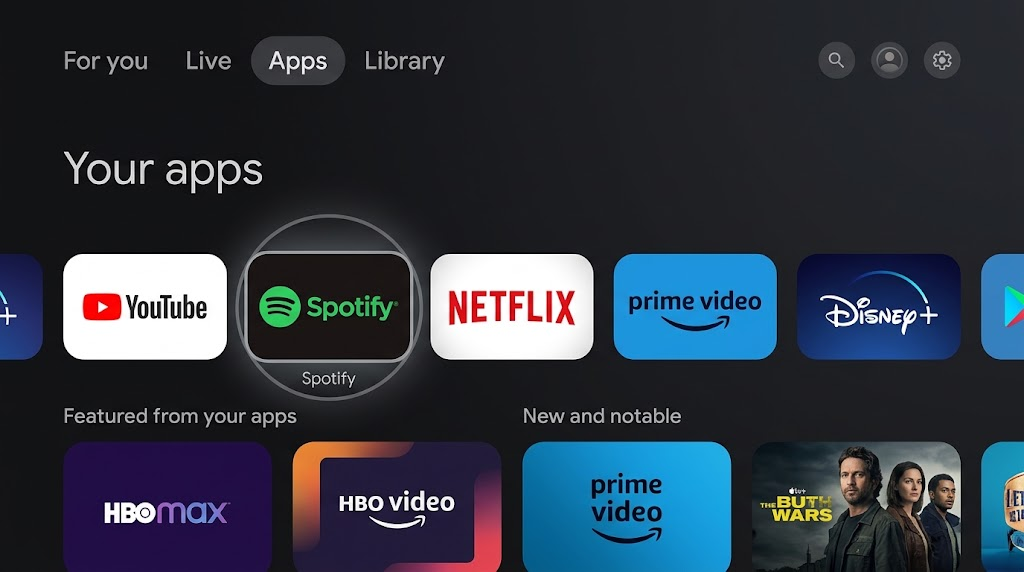
Capture a completed install only if it occurred; a remote request alone is not proof of delivery.
| What stops the web installation | What to check |
|---|---|
| The TV is missing from the device list | Recheck the Google Account. Under the website’s profile menu > Library & devices > Devices, make sure the TV’s Show in menus option is selected. |
| The TV is listed as incompatible or unavailable | Check the developer’s supported TV models and countries. Another device being compatible does not make the TV eligible. |
| The request stays pending | Check that the intended TV is connected to the internet and signed into the matching account. Look in its app list before submitting another request. |
The browser also works independently of a phone whose Play Store will not open or download apps. That phone problem is separate from the missing Google TV shortcut.
If Google Play Store Is Still Unavailable
A store that opens but shows a connection or sign-in error needs attention to that exact message. Do not treat it as an icon problem or assume an alternative installation will repair it.
If Play Store is absent from Show system apps after full Google TV setup, or cannot be opened, contact the TV or streaming-device manufacturer with the model, software version, setup mode and affected profile. Mention any previous system-app removal or firmware changes.
There is no need to factory-reset the device, remove its Google Account or sideload a replacement store solely because its Home icon is absent. Those changes can create new problems without changing Google TV’s normal layout.