How to Fix Chromecast Built-In Option Not Showing on Android TV?
The Chromecast built-in option can seem to disappear from Android TV or Google TV even though the TV still supports casting. Google’s current instructions call the receiver Google Cast; older menus may show Chromecast built-in or Google Cast Receiver.
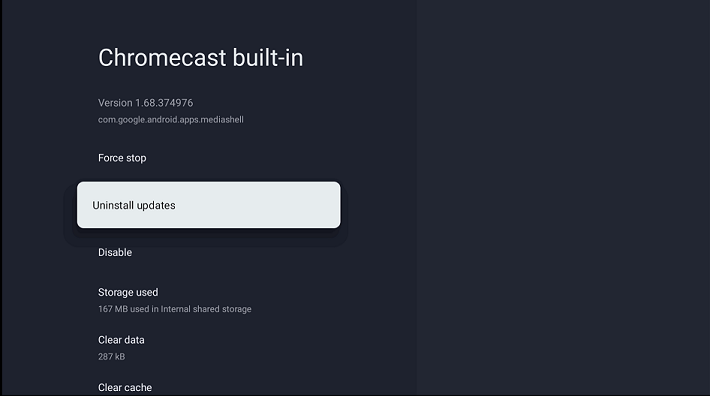
It works in the background rather than as an app you need to launch. Casting starts from a compatible phone or computer app. A disabled receiver or incomplete Google TV setup can prevent the TV from receiving it.
1. Check the TV Model and Setup Mode
A box advertised as Android does not necessarily include Google Cast. Check the exact model’s manufacturer specifications for Google Cast or Chromecast built-in, rather than a generic screen-mirroring claim.
- Find the model under Settings > System > About. Some Android TVs use Device Preferences > About instead.
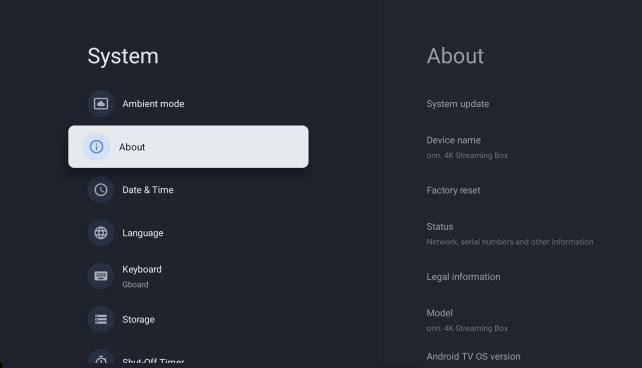
Show only the model and public software version. Hide serial numbers, device IDs, network addresses, accounts, and precise location. - For an unfamiliar Android box, also check Google Play Store > profile > Settings > About > Play Protect certification, if available.
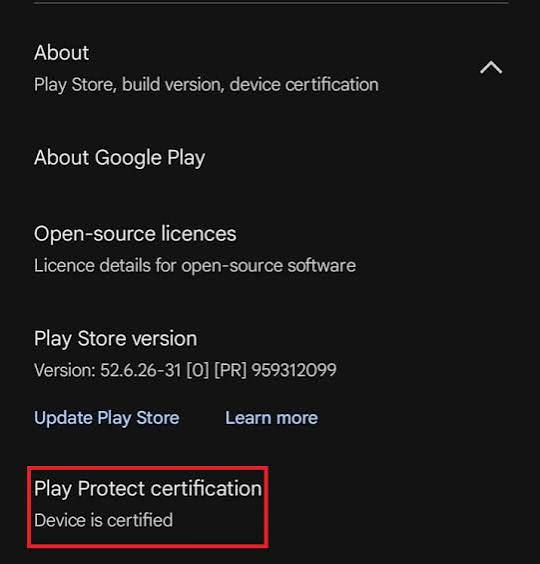
Capture the certification line without exposing the Google Account, purchase history, payment details, or device identifiers. - On a television still using Basic TV mode, select Set up Google TV on Home and complete setup with the owner’s account and privacy choices.
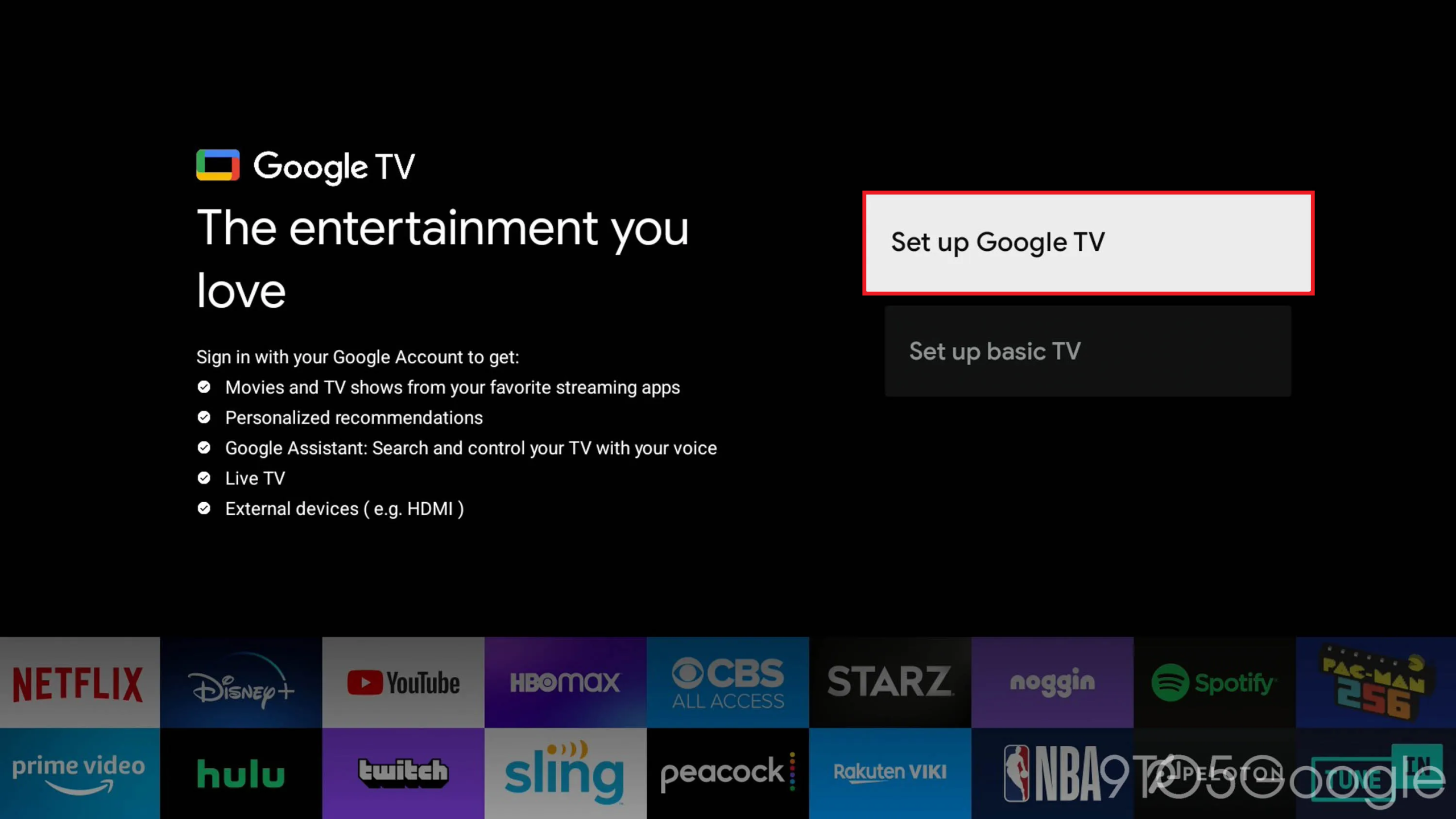
Show the setup choice before accepting it. Full Google TV setup adds account-based features, and returning to Basic TV later requires a factory reset.
Play Protect certification confirms Android compatibility testing, not every model’s Cast features. An uncertified device needs manufacturer advice; installing a receiver APK is not a substitute for supported hardware.
Basic TV mode cannot cast. Full setup enables additional features, but returning to Basic TV afterward requires a factory reset. Leave it unchanged if you prefer using the television without a Google Account.
2. Find and Enable the Google Cast Receiver
The ordinary app list can hide the receiver among system apps. A disabled receiver cannot accept casts. Google’s casting instructions include checking system and disabled apps, then enabling the receiver.
- Open Settings > Apps > See all apps. Older TVs may list apps directly under Settings.
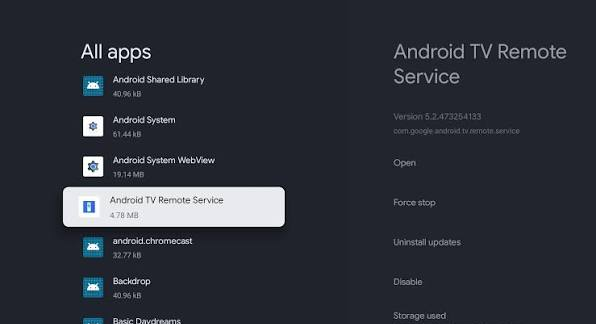
Record the model-specific Apps path. Hide account details, recent activity, recommendations, and unrelated private app names where needed. - Select Show system apps and check Disabled apps if your TV has that separate list.
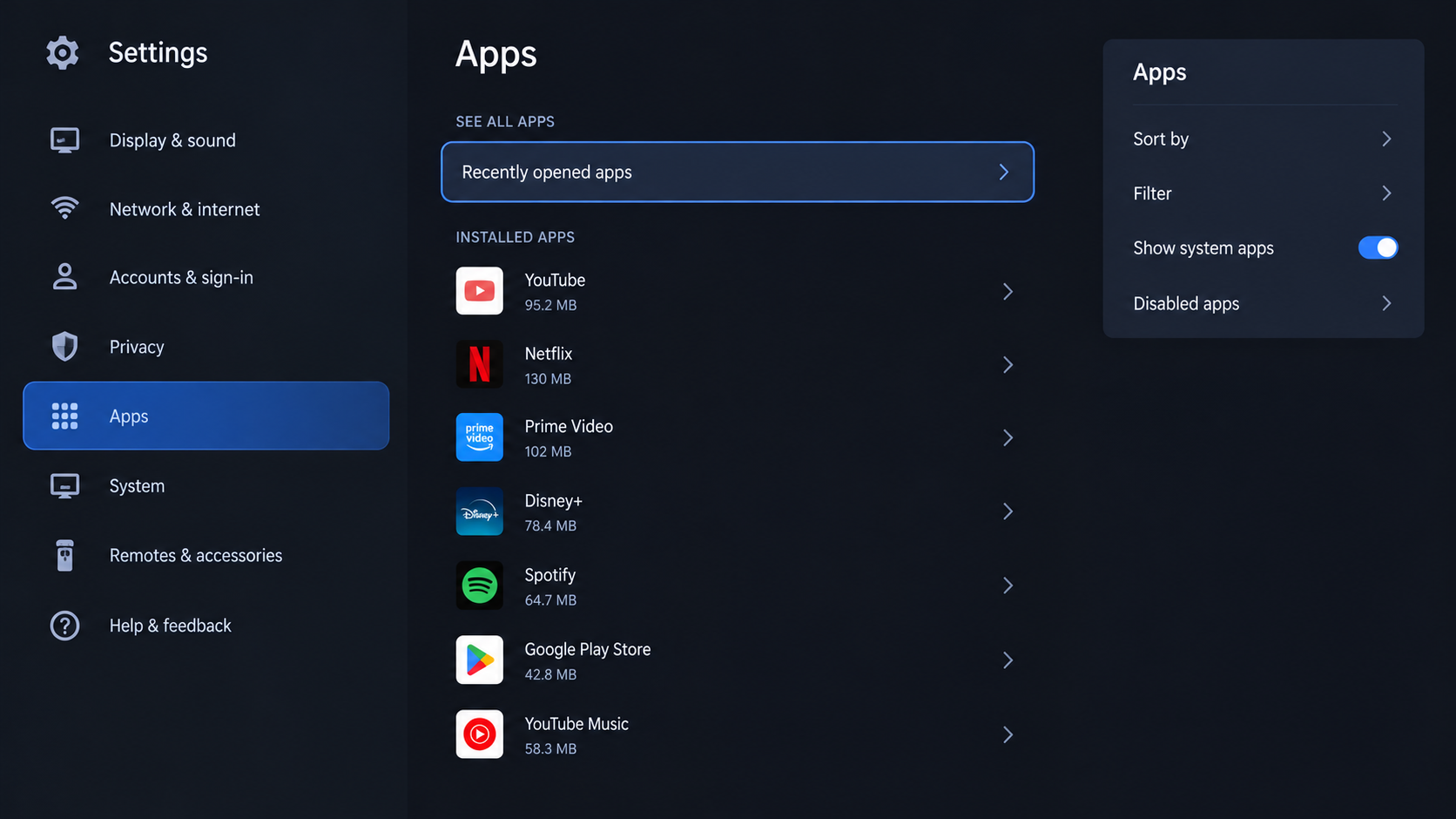
Show the exact manufacturer label. Do not change unrelated system packages or reveal private app activity. - Look under all three names: Google Cast, Google Cast Receiver and Chromecast built-in. You do not need three separate receiver apps.
Show the exact manufacturer label. Do not change unrelated system packages or reveal private app activity. - Open the receiver’s app information. Select Enable if offered. A Disable button means it is already enabled; leave it that way.
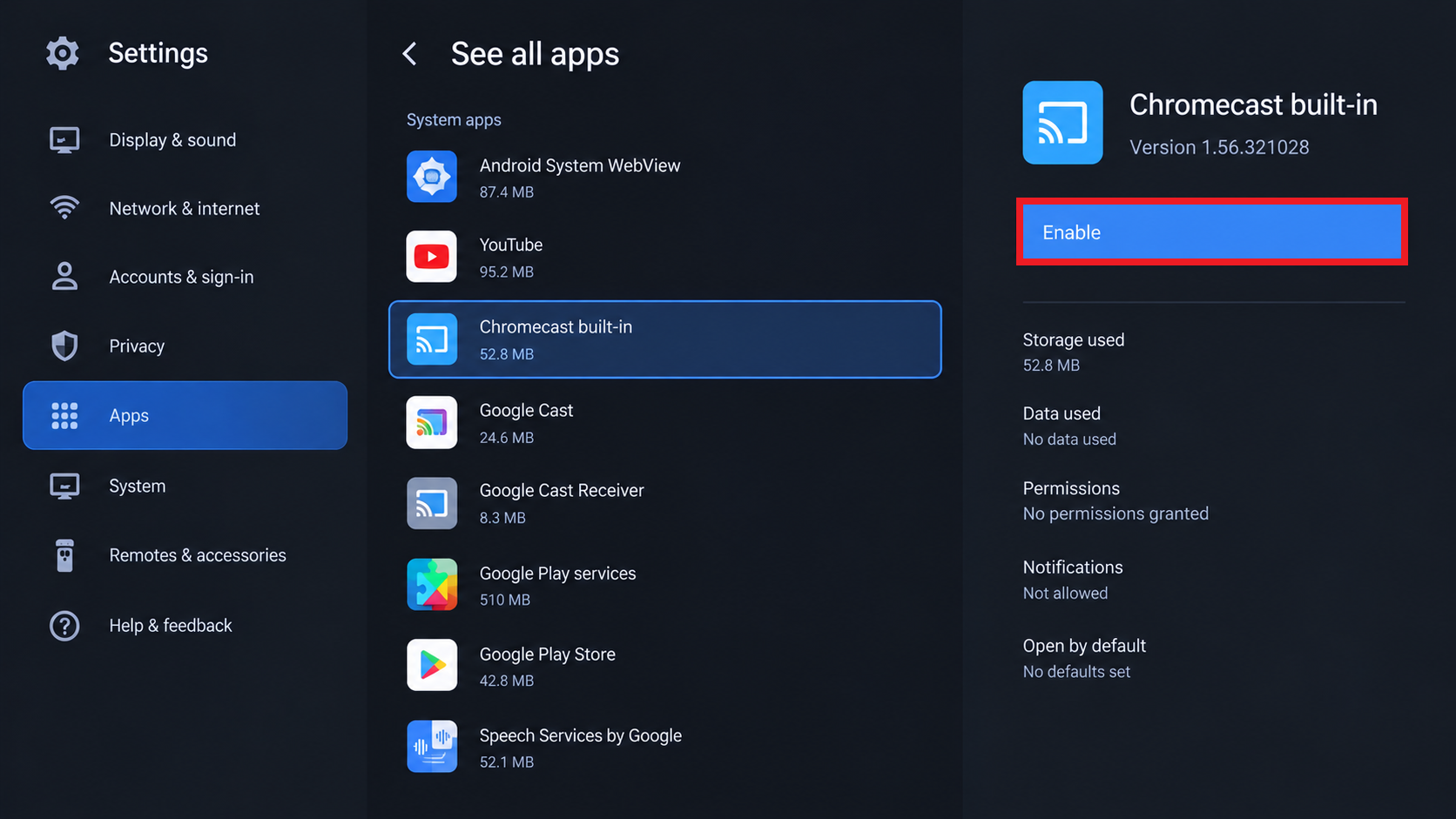
Show Enable only when the official receiver is disabled. Leave unrelated system apps and organization-managed settings unchanged. - Choose Settings > System > Restart, or the Restart command under About on older models. Let startup finish.
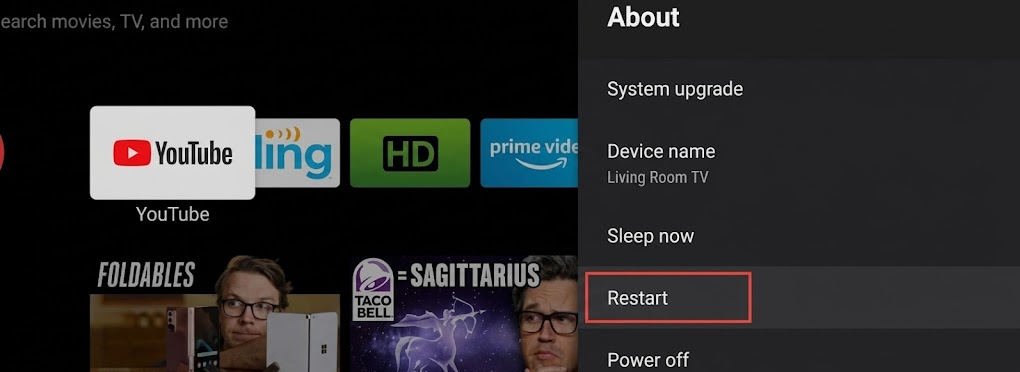
Use the normal Restart control and allow startup to finish. Do not interrupt an update or force repeated power cuts for the image.
Connect your phone and TV to the same home Wi-Fi network. In an updated Cast-enabled app, select Cast, choose the TV and try playing a video. Test actual playback, not just whether its name appears.
| Result | What to Do |
|---|---|
| Video plays, but there is no Cast tile on Home. | Casting works. No separate launch icon needs restoring. |
| The receiver is enabled, but the phone cannot find the TV. | Check the same-network and phone-permission sections of our Chromecast connection troubleshooting, rather than searching for another TV switch. |
| No receiver appears in the complete app list. | Check the TV’s system update below. If it remains absent on a supported model, contact the manufacturer; data-clearing steps require an installed app. |
3. Install Offered Receiver and TV Updates
When the receiver is present but casting still fails, check its update separately from the TV software. A system update does not necessarily update the receiver through Google Play.
- Open Google Play Store > My apps or Manage apps and games. Update the installed Google receiver if an update is offered.
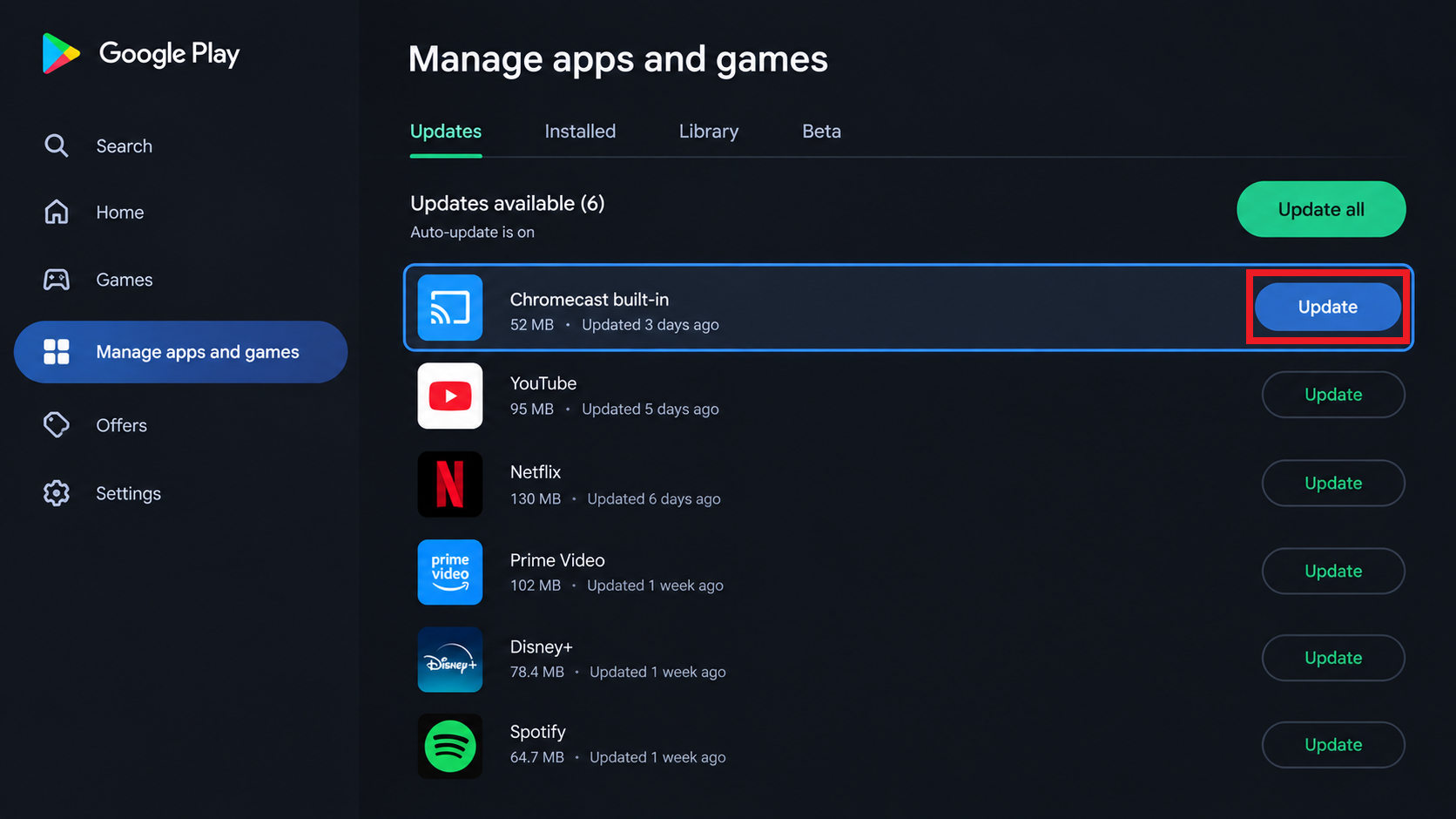
Show the official Google package and available action. Hide account details and do not install a third-party APK. - Open Settings > System > About > System update. On older TVs, look under Device Preferences > About. Install any offered model-specific update.
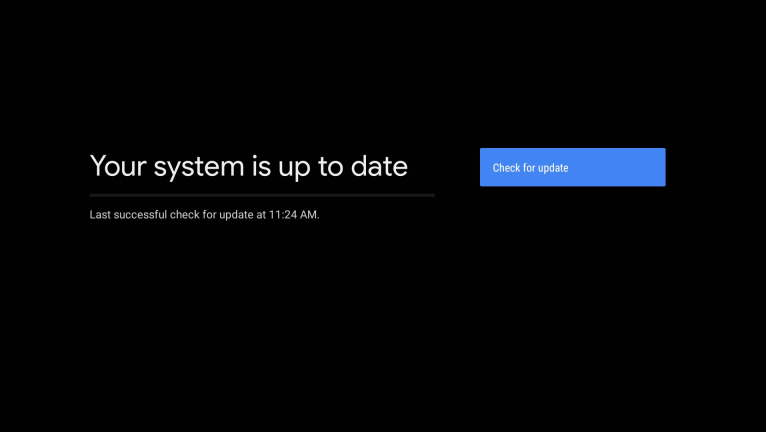
Show the public build and update state. Hide serial numbers, device IDs, network details, and account information. - Let installation finish without disconnecting power, then restart and repeat the same casting test.
Google documents the receiver’s Google Play update. If Play Store has no Home tile, try opening it from Settings > Apps > See all apps > Show system apps > Google Play Store. Avoid similarly named third-party receiver apps.
4. Clear the Installed Receiver’s Cache and Data
An enabled receiver that still refuses connections may recover after its saved app data is cleared. This resets that receiver’s local state; it cannot reinstall an absent system app.
- Return to the receiver under Apps > See all apps > Show system apps. Open Storage and cache, if your TV uses that submenu.
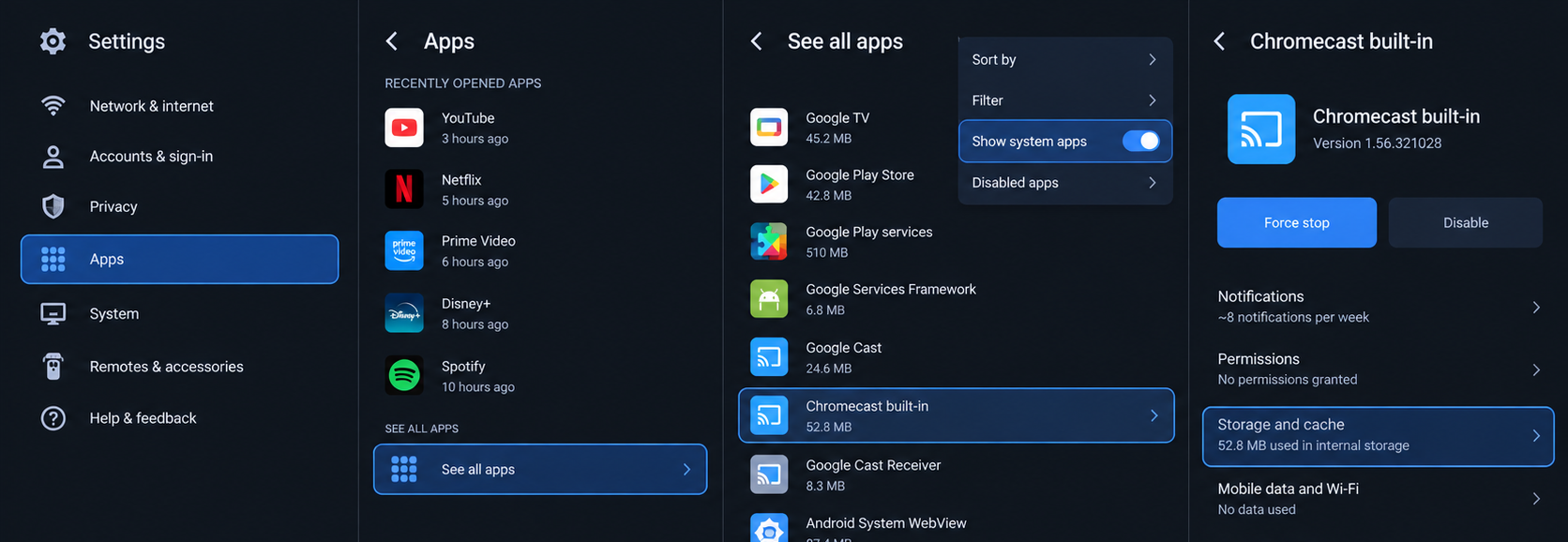
Verify that the selected package is Google Cast, Google Cast Receiver, or Chromecast built-in before changing its local data. - Select Clear cache, restart the TV and retest. Stop if casting works.
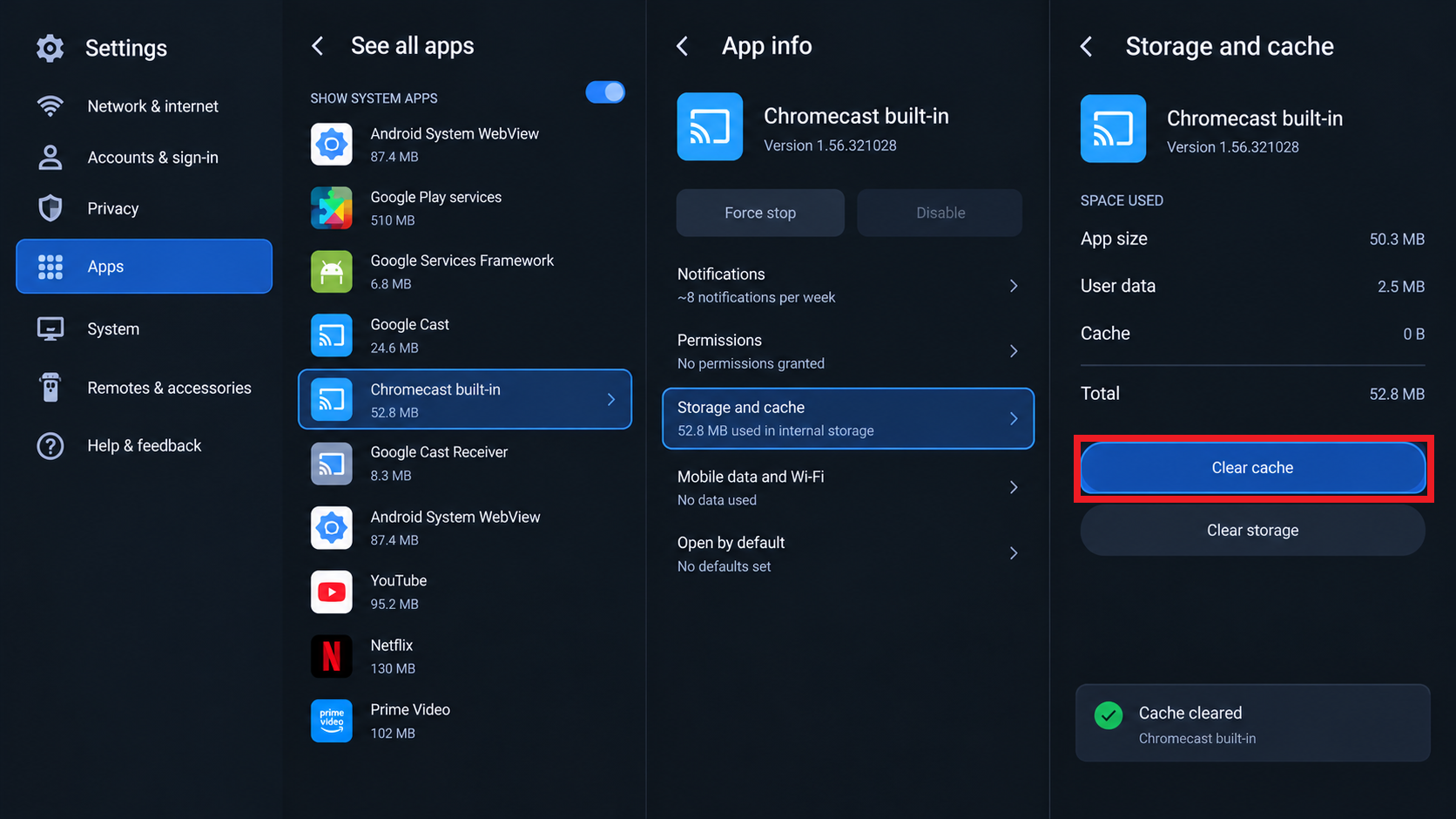
Clear only the Cast receiver cache, restart, and test before clearing data. Leave Google Play services and unrelated apps unchanged. - If it still fails, return to the same receiver and choose Clear data or Clear storage. Read and confirm its warning.
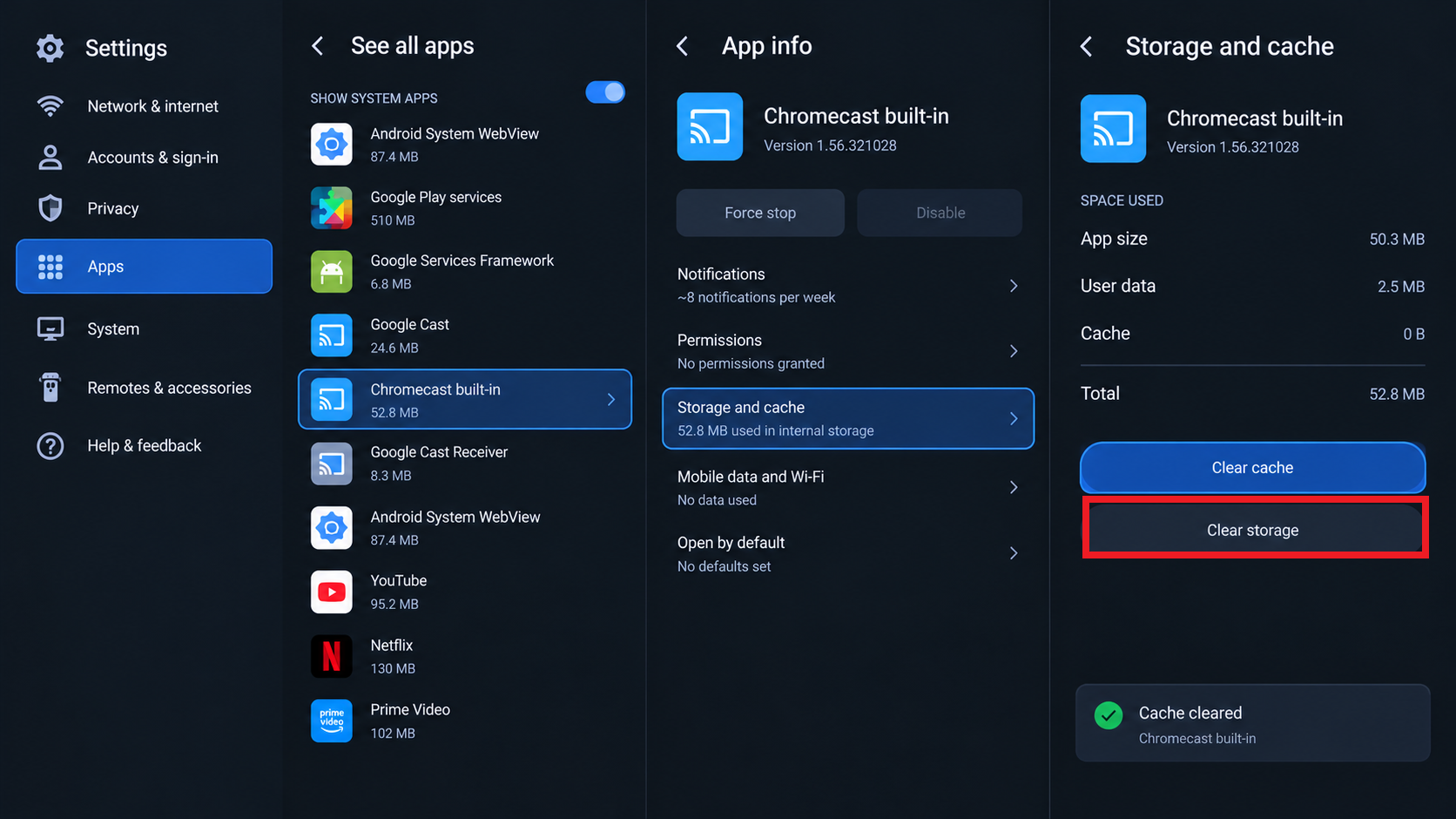
Clearing data rebuilds the receiver’s local state and may require relinking its room or name in Google Home. Preserve account and household details. - Restart, allow startup to finish and test again from the same app.
If playback still fails, you can reinstall the receiver’s official update without resetting the TV.
5. Reinstall the Official Receiver Update
Casting that stopped after an update may recover by removing and reinstalling that update. This applies only to a preinstalled receiver offering Uninstall updates, not an ordinary Uninstall action.
- Open the receiver’s app information and note its version. Choose Uninstall updates, then confirm restoring that app to its factory version.
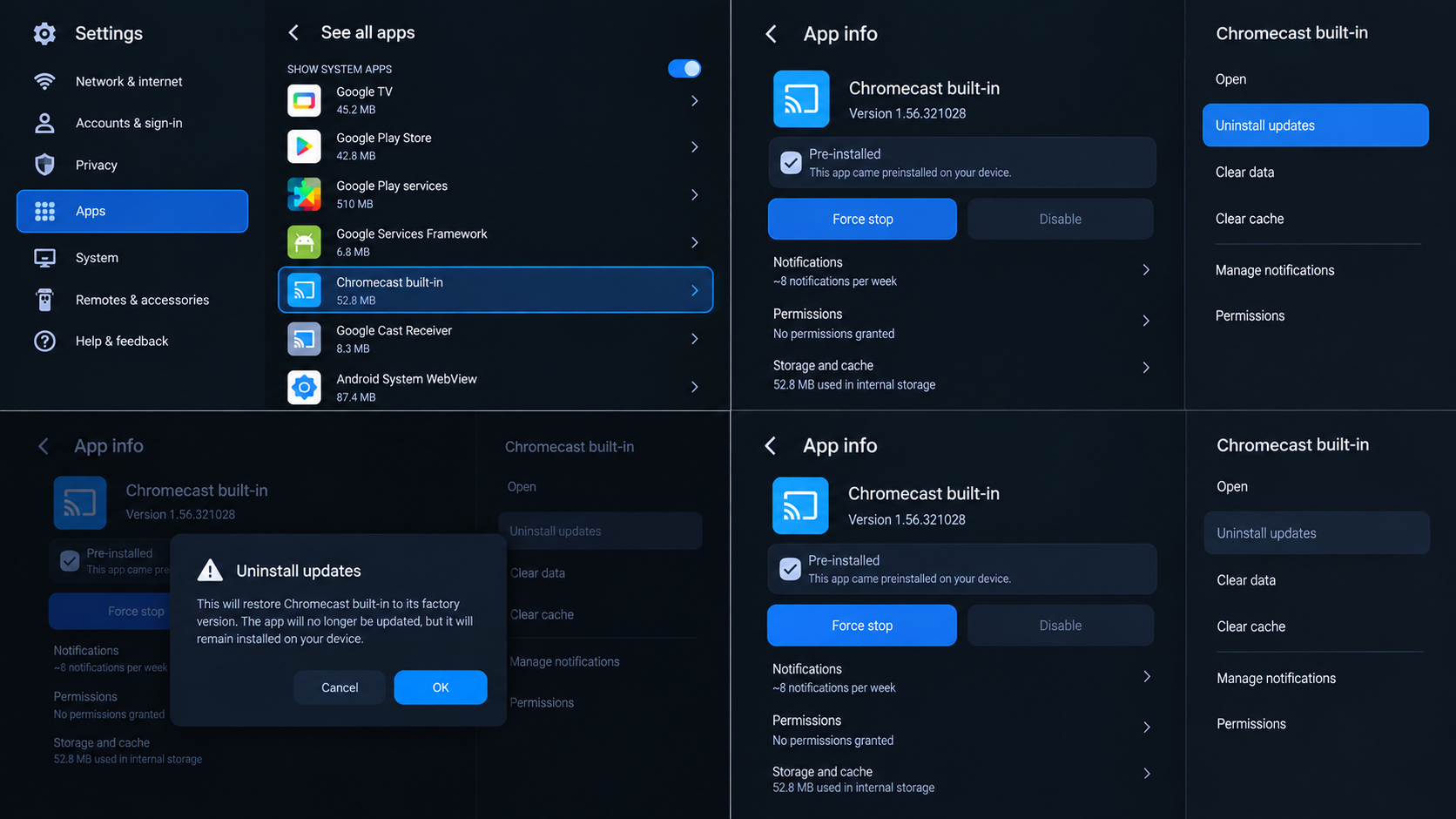
Use this only when the issue followed an update and the official system app offers Uninstall updates. Record the version before changing it. - Restart the TV and test once before updating again. This restores the app’s original version, not the whole TV’s factory settings.
- Install the current official receiver update from Google Play, restart and repeat the playback test.
Sony includes this update-reinstallation procedure for supported TVs. If your manufacturer gives different instructions, follow those for your exact model.
If casting works on the factory app but fails again after updating, give the manufacturer both versions and the test results. Repeatedly reinstalling the same update will not resolve a recurring compatibility problem.
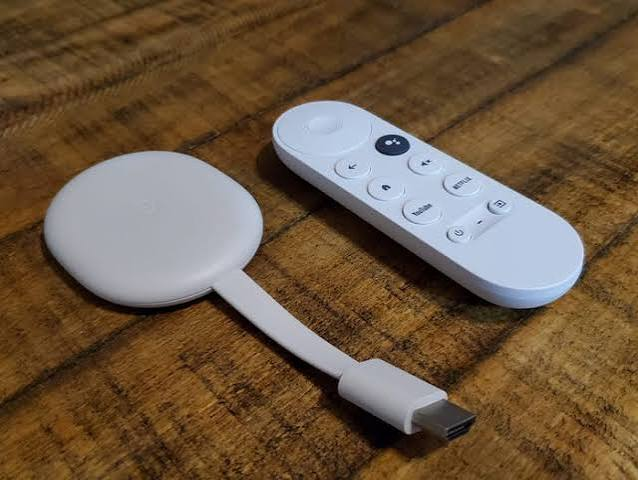
Once playback works, our phone and computer casting instructions cover everyday use; a TV with Cast built in does not need the external dongle setup.
Still No Google Cast Receiver?
Ask the TV manufacturer to check the exact model, sales region and software build. Include whether casting worked before, whether full Google TV setup is complete, and what appears in the system-app list.
For an installed receiver, also provide its version and the result before and after each repair. Share redacted screenshots, not account details or device identifiers.
A factory reset erases apps, accounts and settings; it is not justified by a missing menu label alone. Get model-specific advice before resetting, sideloading software or changing system packages.


