How to Fix Missing Local or Antenna Channels on Roku TV?
Your local antenna stations are missing from Roku TV after an update, even though Live TV still opens. The guide may show streaming channels instead, omit familiar channel numbers, or no longer include your Favorites.
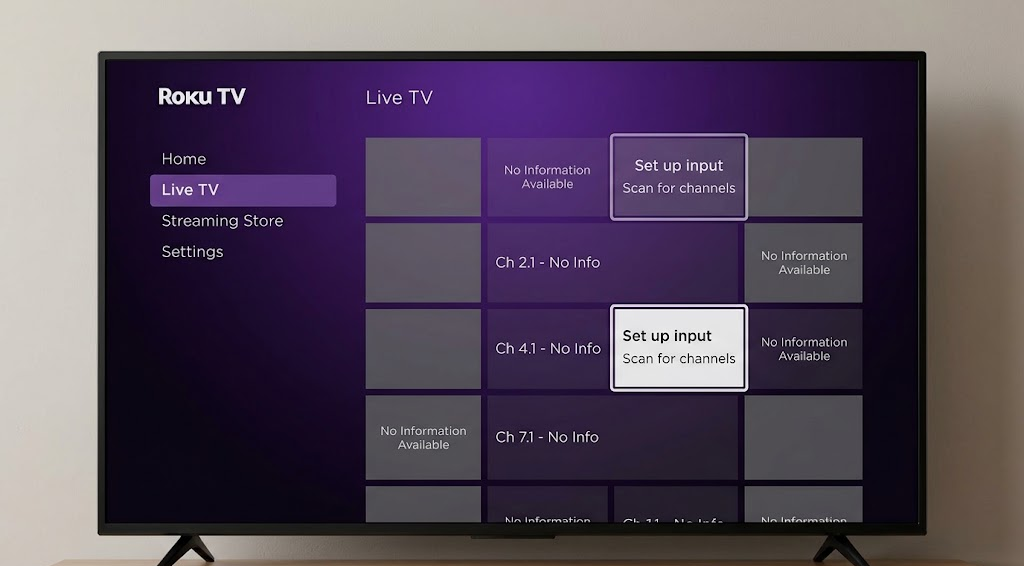
Roku’s guide can combine antenna broadcasts with internet streams. Seeing plenty of streaming channels does not confirm that the TV is receiving local stations, but a missing guide entry does not prove that your antenna has stopped working either.
1. Open the TV’s Antenna Input
Roku’s streaming Live TV destination can look like the antenna guide. The Home screen input opens the television tuner, where your scanned local stations belong.
- Press Home and select the input tile named Live TV, Antenna TV or TV, rather than Live TV in the left navigation.
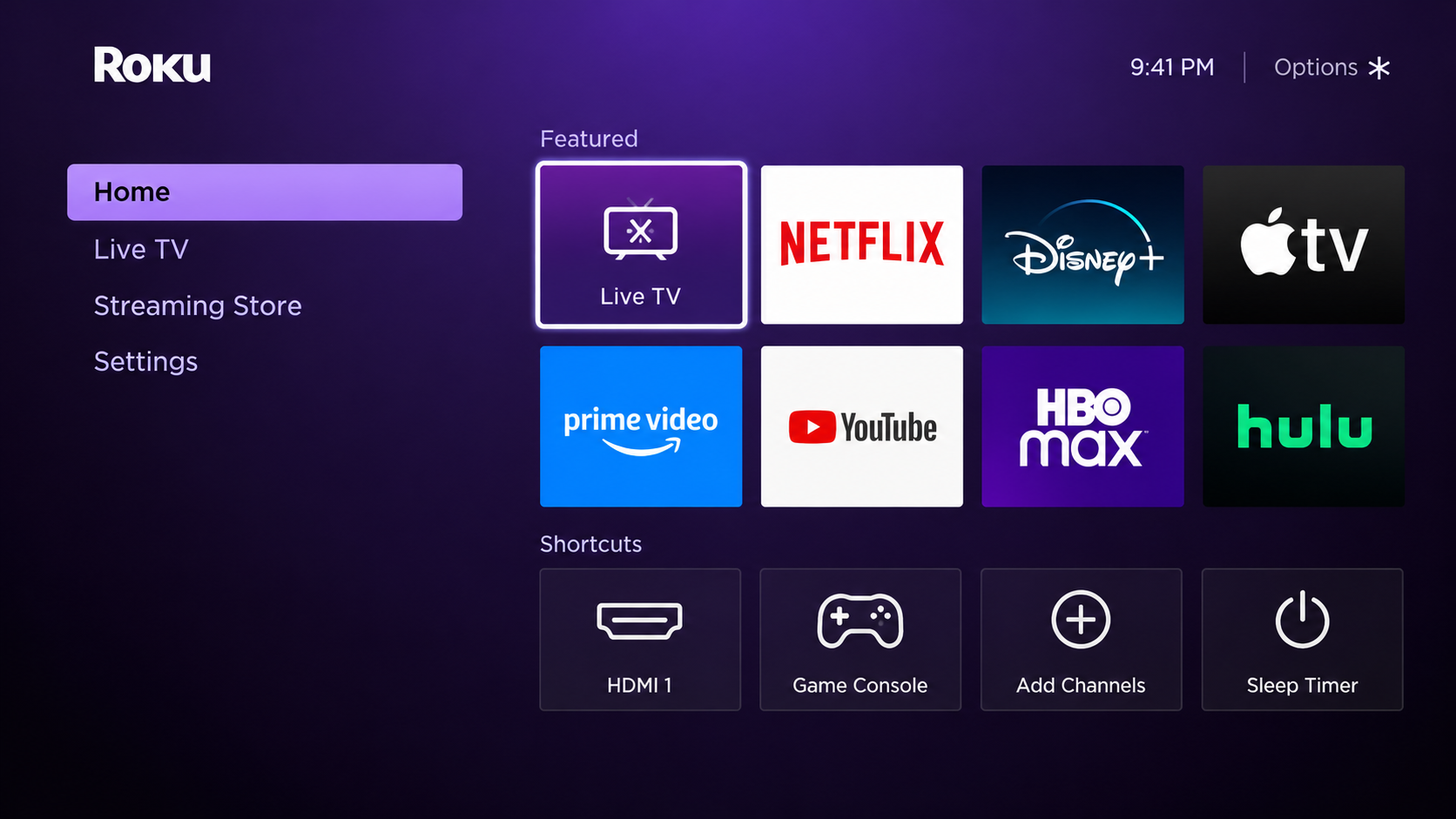
Show the Live TV input tile used for antenna channels and the separate streaming destination. Hide profile names and personalized recommendations. - If the tile is absent, open Settings > TV inputs > Live TV > Set up input and follow the antenna setup prompts. Older menus may call this input Antenna TV.
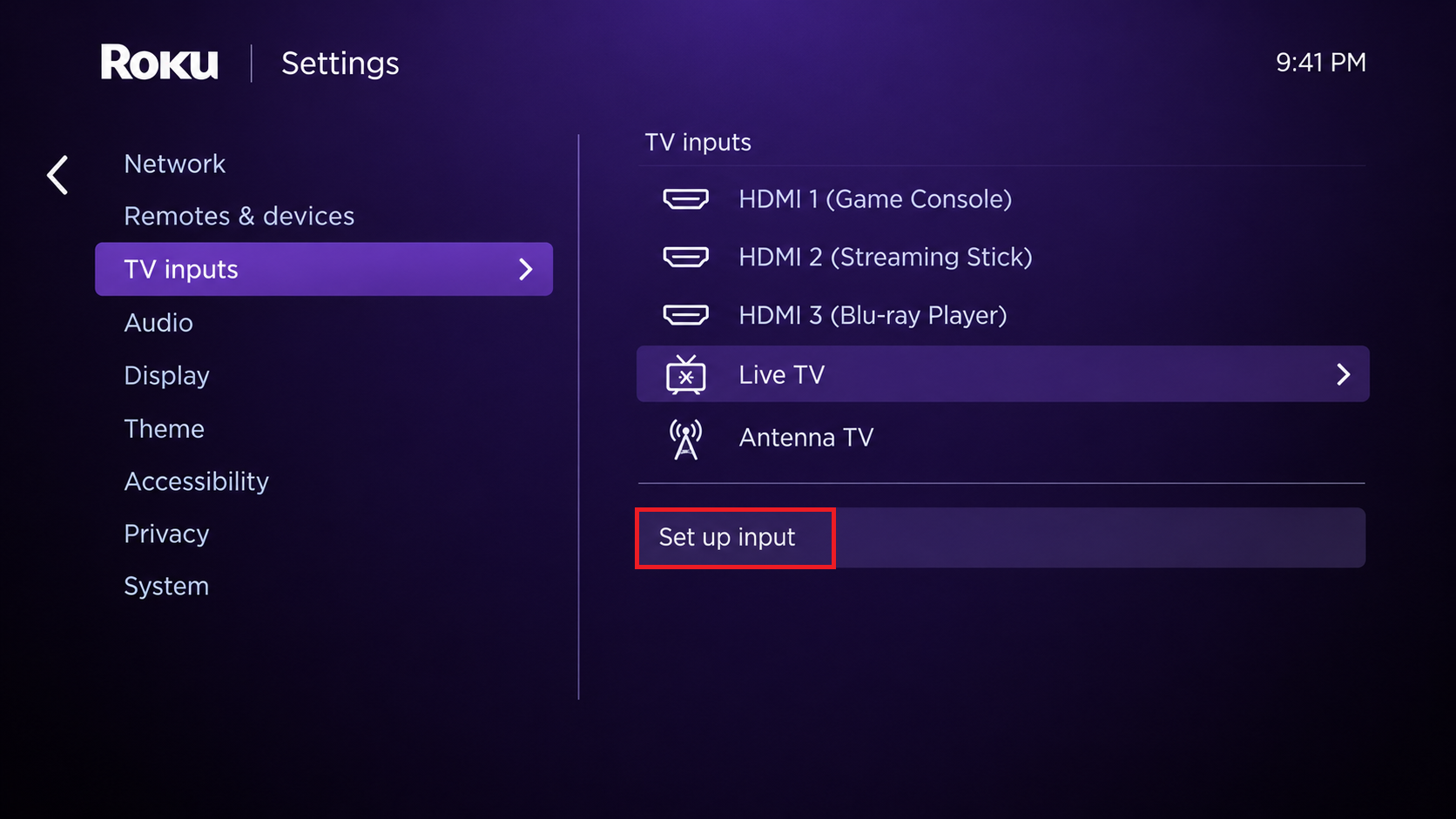
Show Settings > TV inputs > Live TV and the setup control available on the tested Roku TV model. - Optional: Highlight the Home input tile, press Star (*) > Rename input, and select Antenna TV. Renaming makes the tile easier to recognize; it does not change reception.
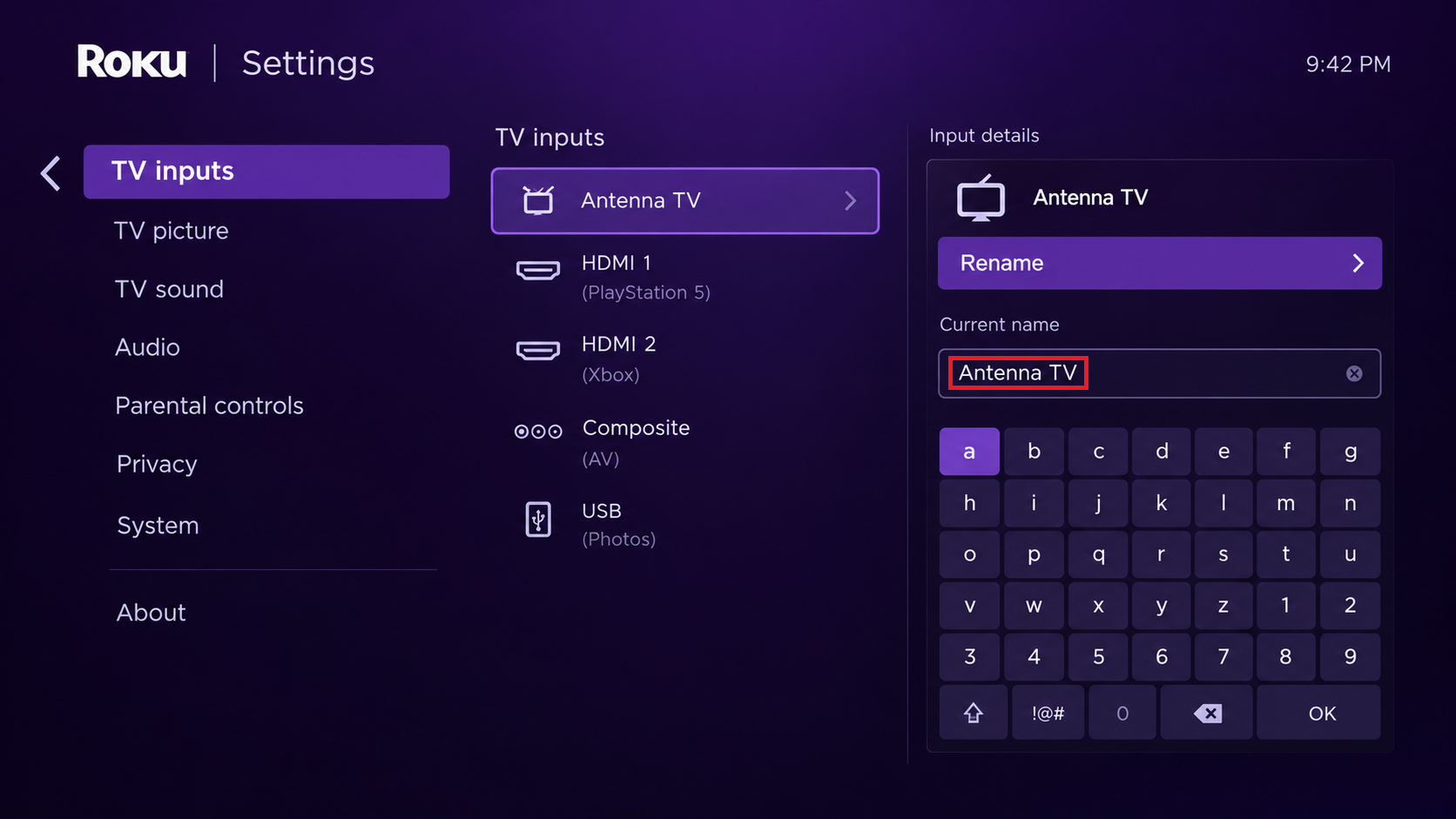
Show the input rename screen or the resulting Antenna TV tile. Hide account details and unrelated Home screen recommendations.
For an antenna-only guide, Roku also offers Settings > TV inputs > Live TV > Hide streaming TV channels > Hide all. This hides internet channels, not weak or missing broadcasts.
2. Restore Channels Hidden by the Guide
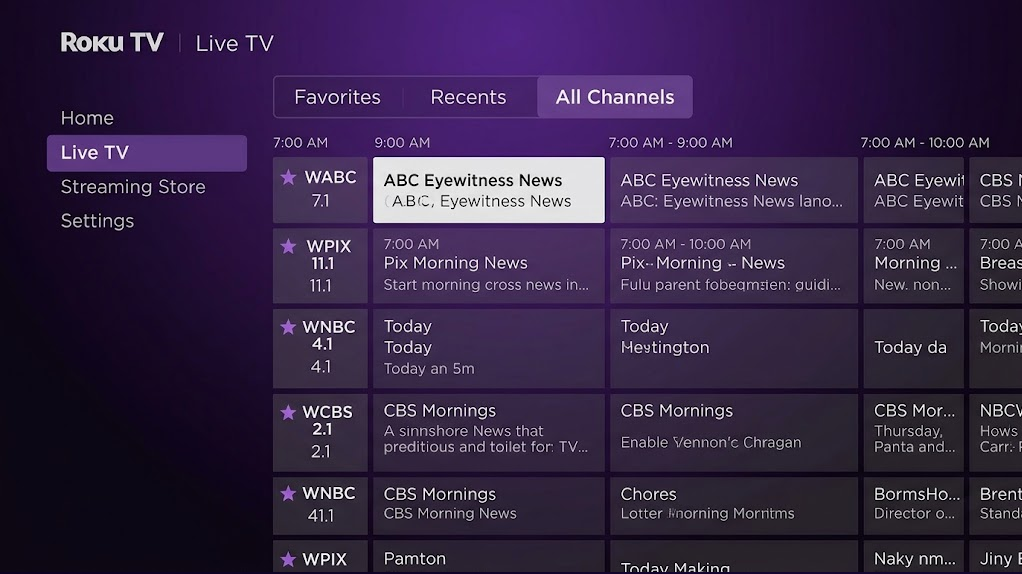
A station can remain stored while Favorites, Recents or a hidden-channel setting keeps it out of view. All channels still excludes hidden channels, so check both settings before scanning again.
- Open the antenna input and press Left to display the guide. Move left until a channel’s name or logo is highlighted. Press Star (*), then select Filter > All channels.
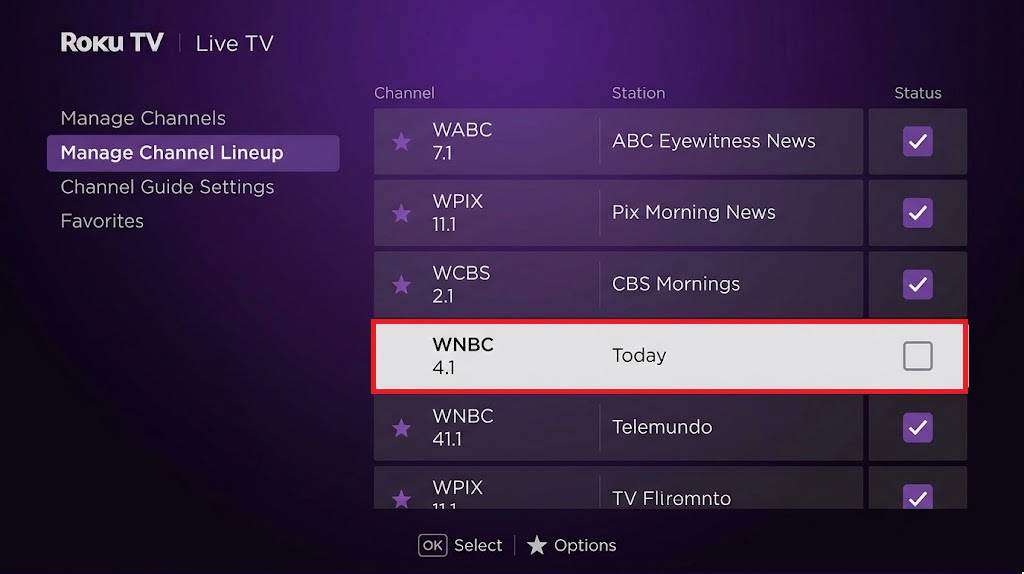
Show the input rename screen or the resulting Antenna TV tile. Hide account details and unrelated Home screen recommendations. - From a highlighted channel name, press Star (*) again. Select Manage channels > Manage channel lineup and find the missing station. On this screen, a checked box means hidden; press OK to uncheck it.
Show the guide filter changed to All channels and include one recognizable over-the-air call sign if permission allows. - If the station plays under All channels but is absent from Favorites, open its Channel options and select Favorite channel.
Menu labels vary by software version; Roku’s channel-management instructions explain the controls. A restored, playable station needs no rescan.
3. Check the Antenna Connection and Reception
Channels that break up or remain absent from the stored lineup need a reception check. A loose cable, unpowered amplifier or changed antenna position can affect reception regardless of when the TV updated.
- Check that the antenna cable is finger-tight at Ant/Cable In and the antenna. Inspect accessible cable for damage. An optional splitter can be bypassed for a direct-connection comparison.
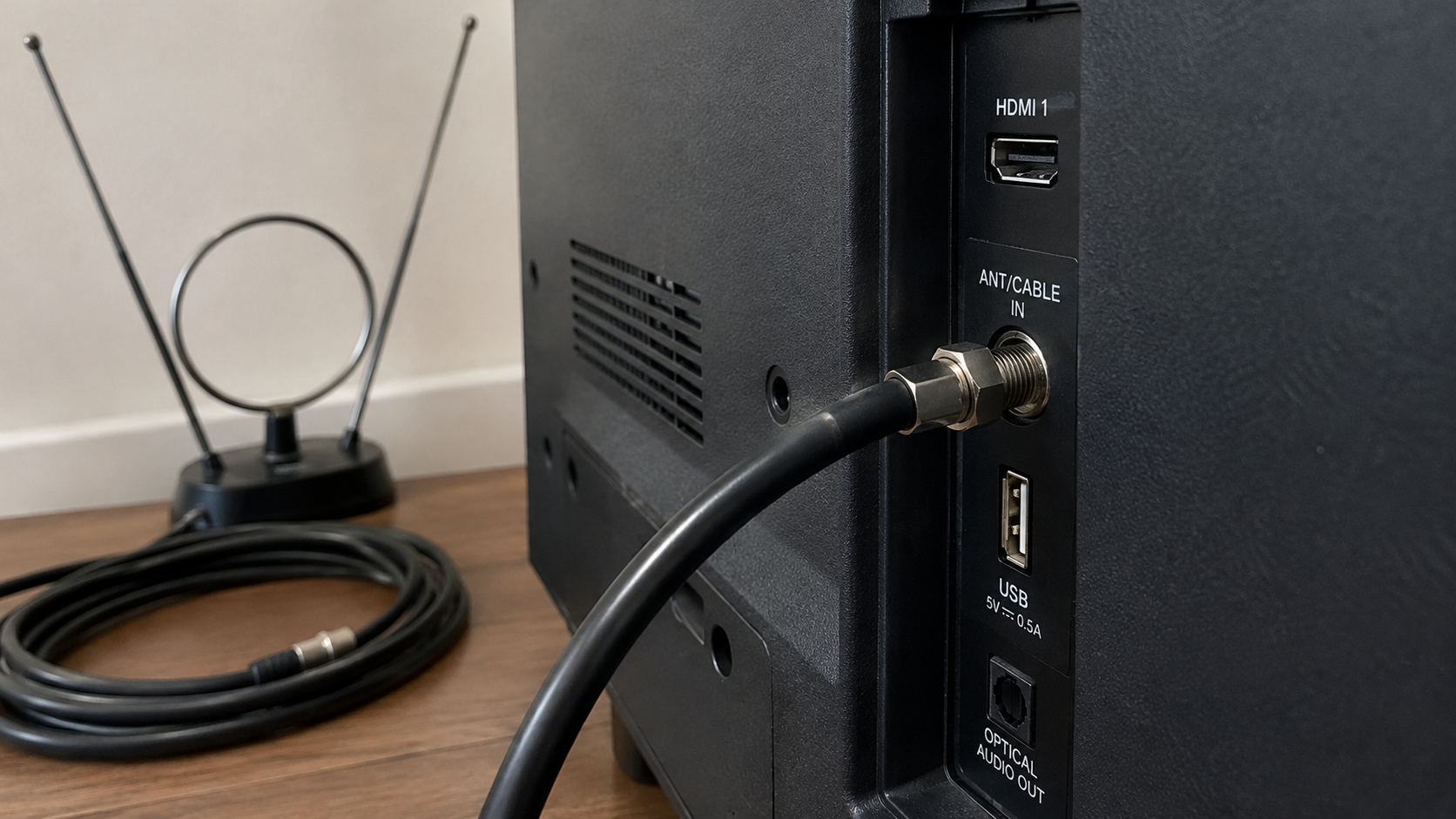
Show a safely accessible Ant/Cable In connection with the television powered off. Do not move a mounted TV or work near power lines. - If the antenna has an amplifier, check its power supply. Near strong transmitters, test a manufacturer-supported bypass. Merely unplugging amplifier power is not equivalent: an unpowered amplifier can block the signal.
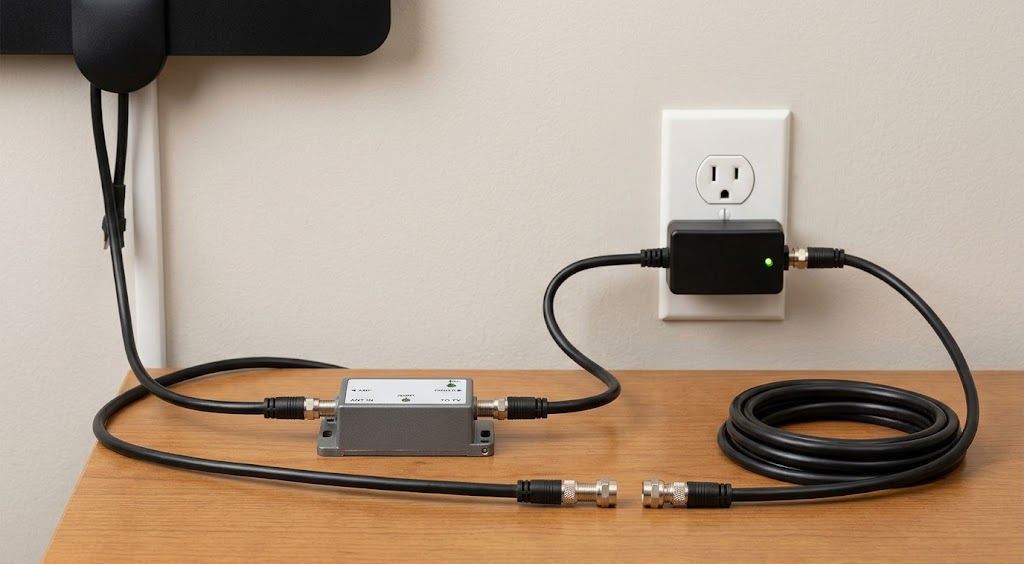
Show the amplifier powered, then a safe direct-coax comparison. Do not alter shared-building antenna equipment or inaccessible wiring. - Try a stable indoor position higher up or near a window, away from metal, thick walls and electronic equipment. Keep the antenna still during the next scan.
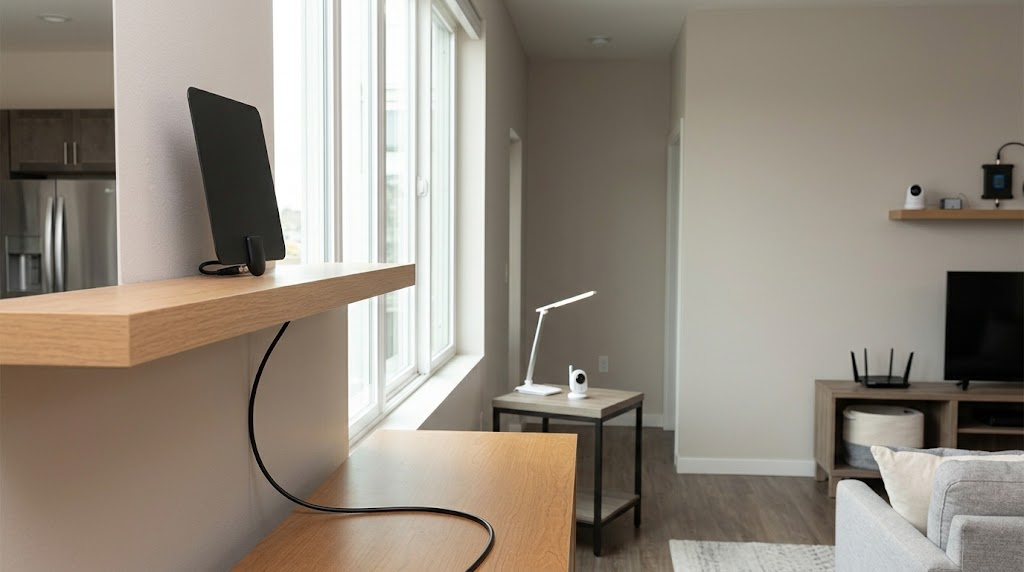
Show a stable indoor placement near a window and away from metal and electronics. Do not climb onto a roof or place an antenna near power lines.
Turn the TV back on and try a previously received station before rescanning. Keep any position or connection that gives a stable picture.
The FCC reception map helps identify nearby stations and tower directions. Its predictions assume an outdoor antenna; indoor results can differ substantially. For one missing station, check the broadcaster’s official reception notices too.
4. Rescan the Antenna Channels
A scan updates the channels the tuner has found. It is useful after improving reception or when a broadcaster changes its signal, but it cannot compensate for an antenna that receives nothing.
- Open Settings > TV inputs > Live TV > Scan for channels. Some versions also offer this after highlighting the Home input tile and pressing Star (*).
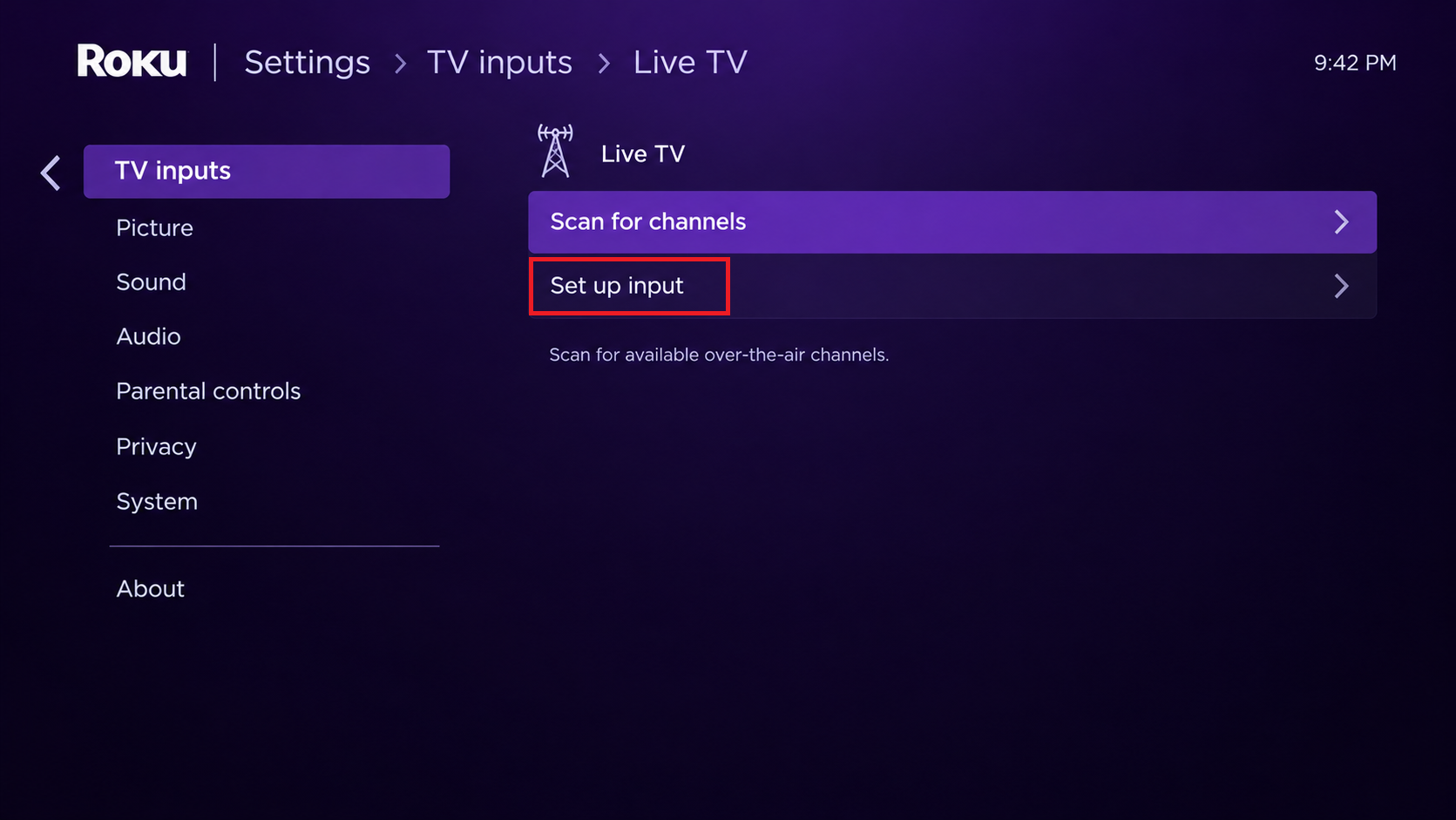
- Read the scan choices before confirming. Roku’s TV user guide distinguishes them as follows:
Option What changes Scan again Adds channels while preserving Favorites and hidden-channel choices. Start over Clears the channel settings and replaces the lineup. Save your preferences before choosing it. - Select Antenna, not Streaming TV only or Cable, for an antenna connected directly to the TV.
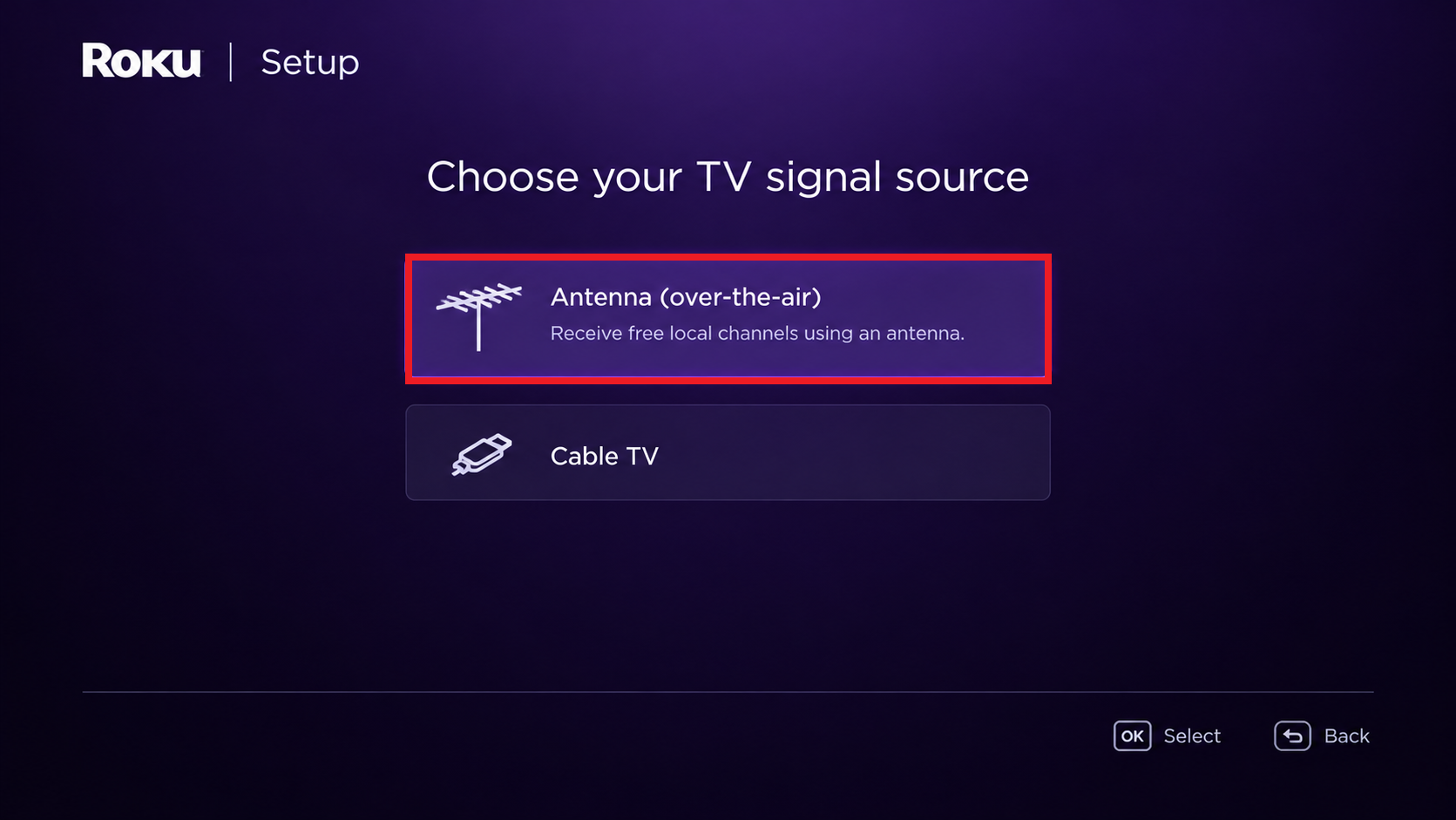
Show the Live TV input scan control and the antenna source selected. Record the TV model and Roku OS build separately. - Let the scan finish, then check the missing station’s number and call sign under All channels. Recheck hidden-channel settings if Scan again preserved them.
Use Scan again first. If a previously received station remains absent despite verified reception, Start over can rebuild the list, at the cost described above. Repeated scans without changing reception or setup are unlikely to help.
5. Correct the ZIP Code for the Wrong Local Listings
A working station with another city’s schedule needs a guide correction, not a stronger antenna. No information alone does not establish a wrong ZIP code: detailed listings also depend on internet access.
- On U.S. models, open Settings > System > ZIP code and check your local code. Change it only if incorrect; keep it out of public screenshots.
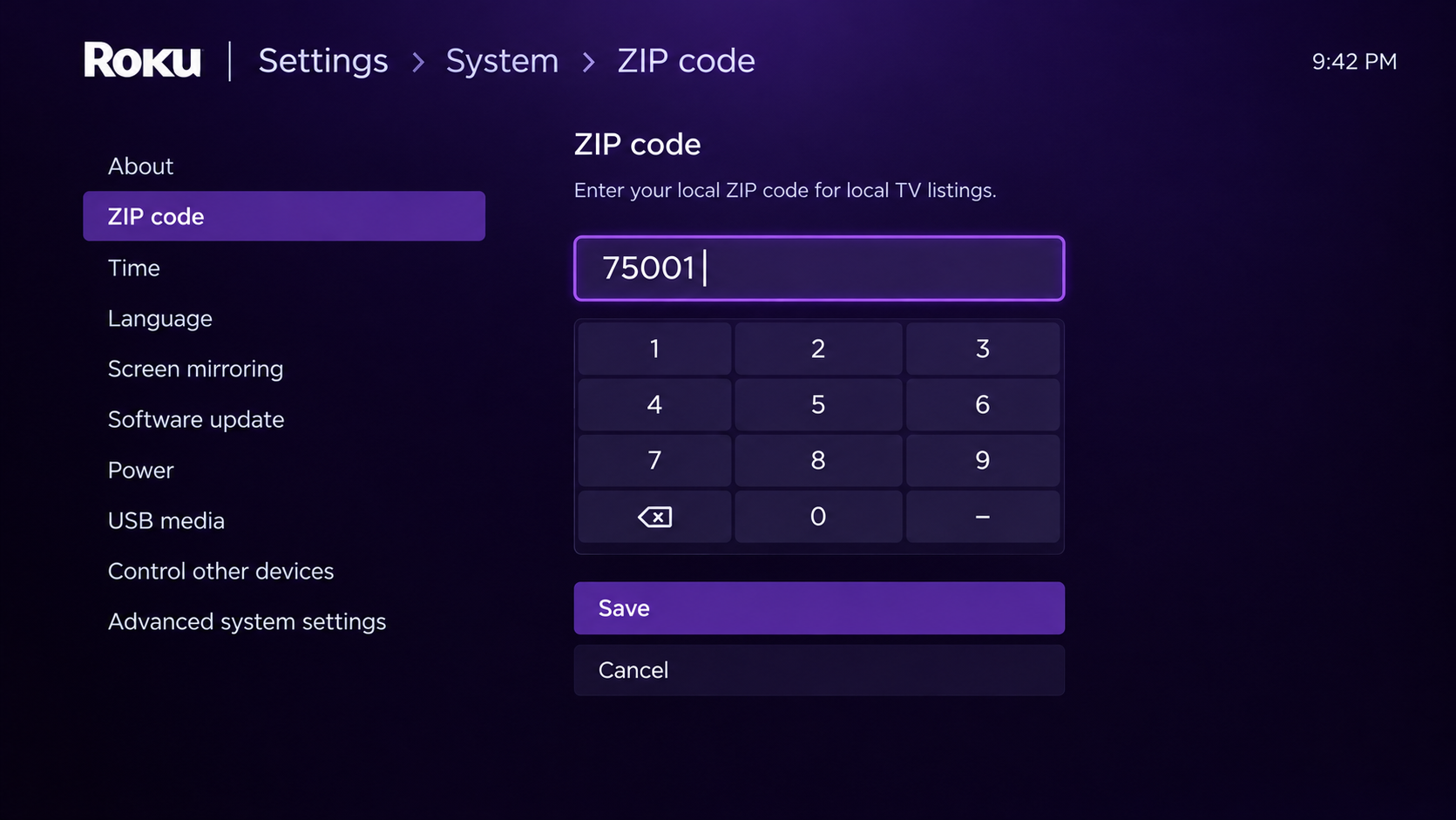
Show the ZIP code setting with the actual code fully hidden. Record only whether the corrected area restored matching listings. - After changing it, connect the TV to the internet, set up the Live TV input again and complete the antenna scan, as Roku’s guide-listing instructions require.
If the ZIP code is already correct and the station plays, leave the lineup intact. Missing program descriptions are not the same as missing reception.
6. Check for a Roku Update and Restart the TV
A blank or frozen Live TV screen can persist even when the antenna is working. Reconnecting the TV to the internet can let the guide load; that does not mean the broadcast itself is internet-delivered.
A system restart reloads Live TV without erasing your lineup. An offered software update may address a guide fault, but it is not a guaranteed repair.
- Note the TV manufacturer, model and Roku OS version/build under Settings > System > About. Then open Settings > System > Software update > Check now and let any offered update finish.
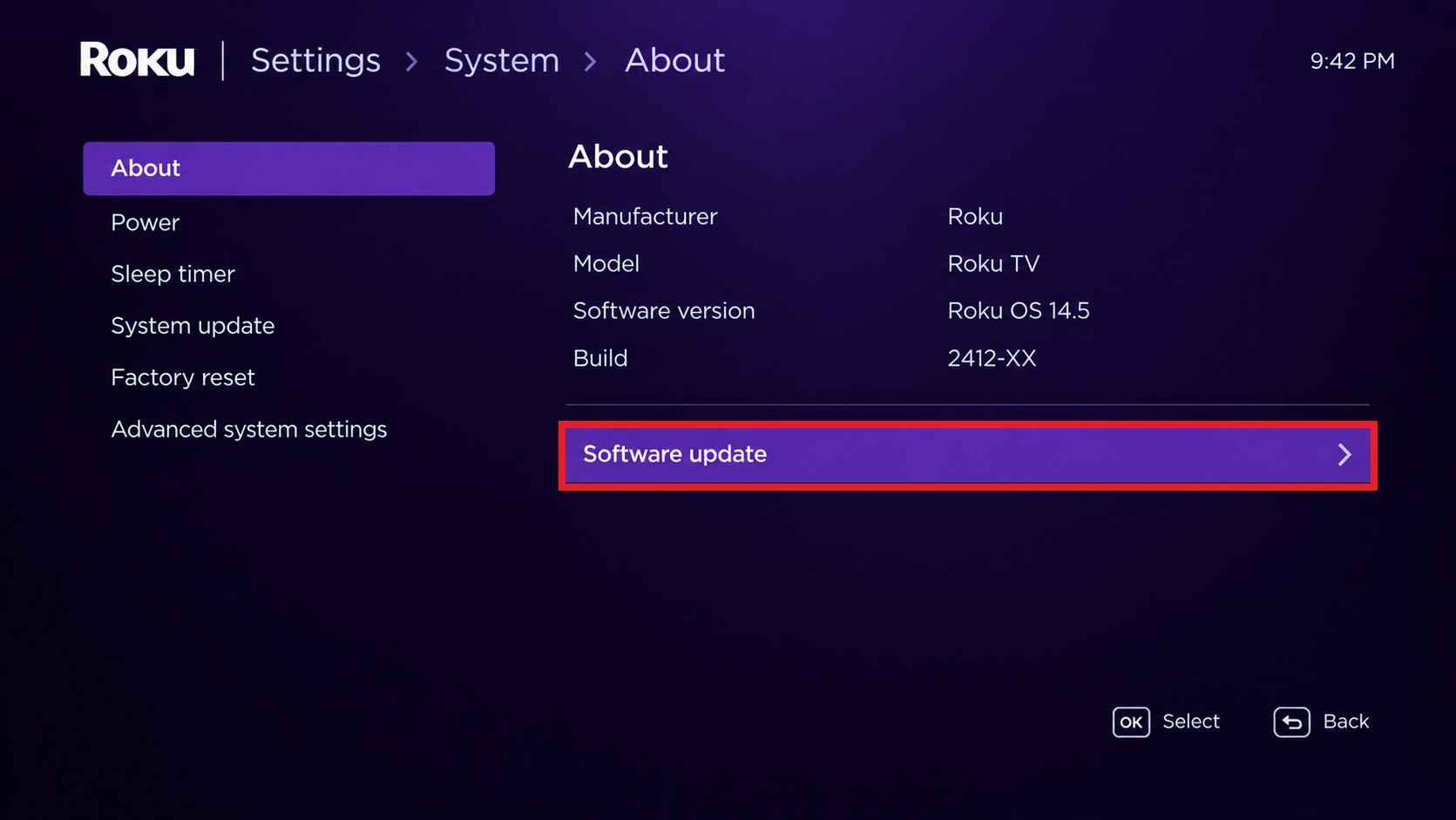
Show Settings > System > Software update with the version, build, and Check now control. Hide the device ID and serial number. - Choose Settings > System > Power > System restart > Restart. If there is no Power submenu, select System restart directly under System. Turning the screen off is not necessarily a full restart.
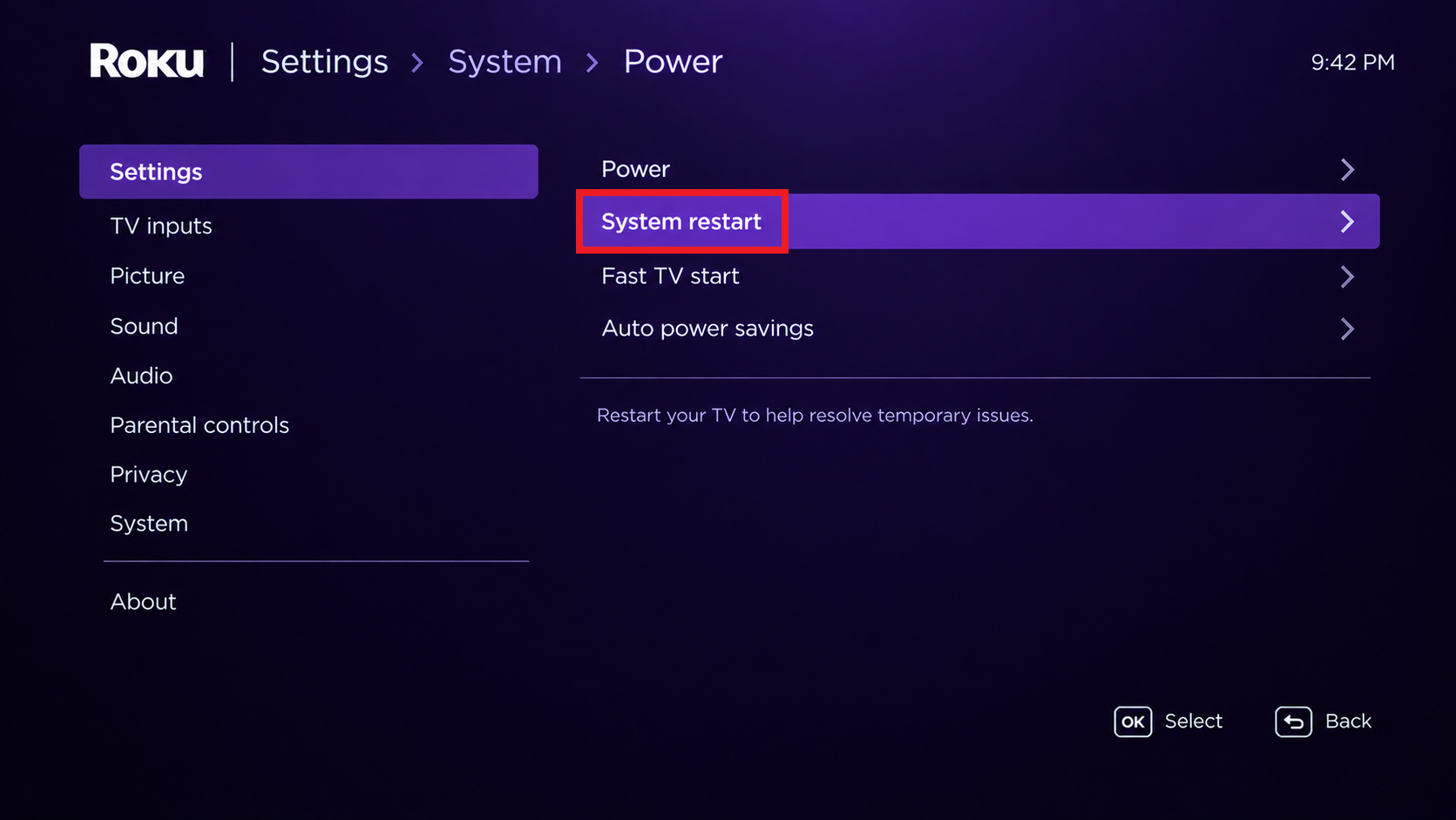
- Reopen the antenna input. If another TV is available, optionally compare the same safely accessible antenna cable and position there, using that TV’s channel scan.
The Appuals Roku software-update walkthrough includes screenshots of the update menu. A reset is different: it erases setup, so avoid factory resets, secret-menu changes or firmware rollbacks for a missing lineup.
If only the Roku TV still fails, contact Roku Support or the TV manufacturer with the model, OS build, scan count and missing station call signs.
Include the other-TV comparison if available; it helps narrow the problem but does not prove a tuner fault. Keep serial numbers and device IDs in private support conversations.
If both TVs miss the same station, investigate the antenna or broadcaster before replacing the Roku TV. For an error inside the Spectrum app instead, Spectrum RLC-1000 is a separate streaming problem, not an antenna scan failure.