How to Fix Fire TV Stick Apps Blocked After an Update?
A Fire TV Stick app can remain on Home after an update but close immediately, stay on Update, or show App disabled when selected.
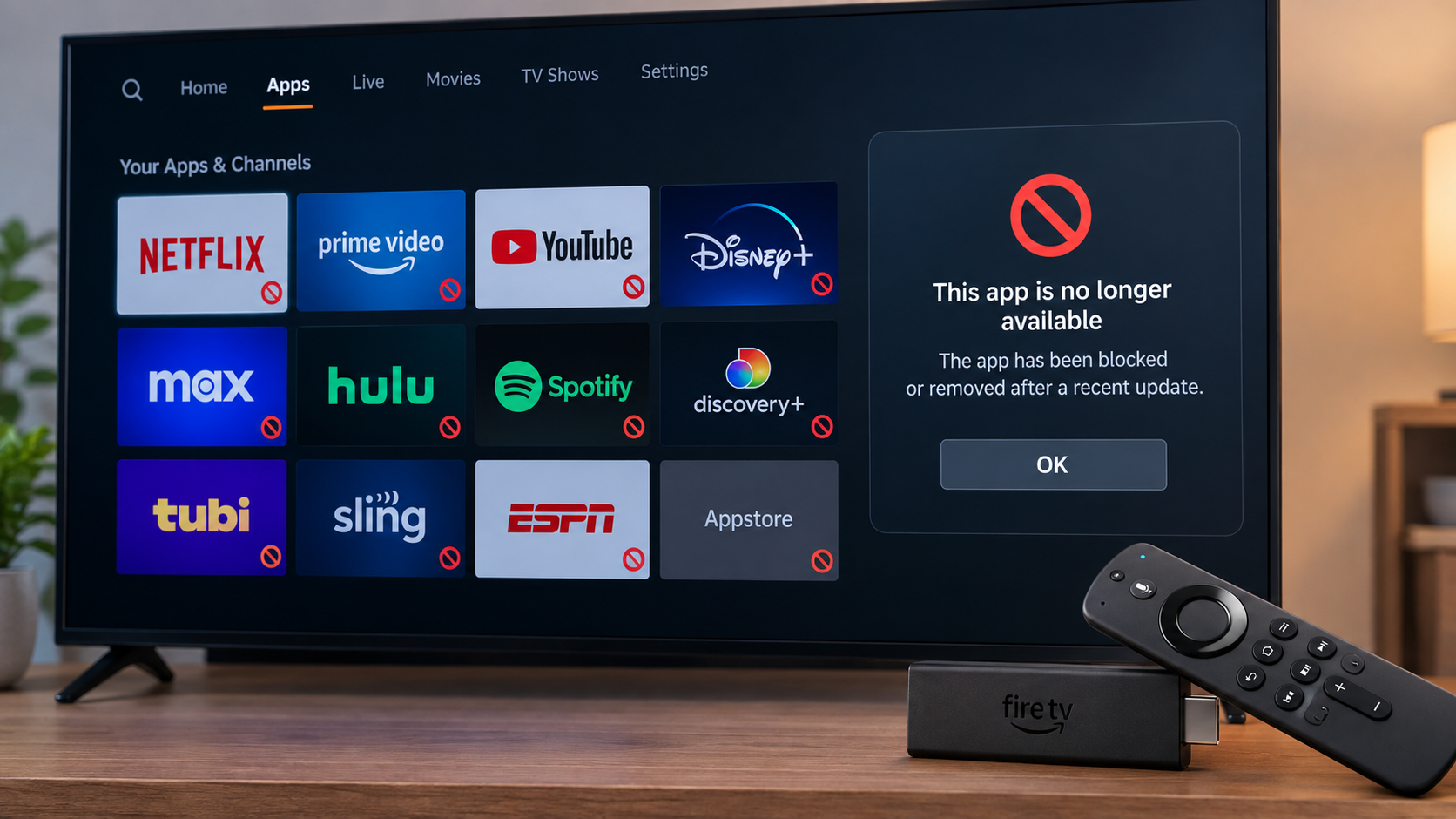
A warning that specifically mentions unlicensed content describes an Amazon restriction, not an ordinary crash. Clearing the cache cannot remove that restriction. An app that closes without a warning, however, still needs normal app troubleshooting.
The illustrations do not establish that the named streaming services are blocked. Check the exact message on your own device.
| What appears | What needs checking |
|---|---|
| App disabled or App installation blocked | Read the full reason before changing settings. |
| App crashes, freezes, or stays on Update/Queued | Restart, connectivity, and that app’s cache or installation. |
| Unavailable or no store listing | Device support and region. Confirm availability before uninstalling. |
| A cloud icon on the app tile | The app may have been offloaded; download it again. |
| A PIN prompt or an app missing only in Kids | Household parental controls and permitted content. |
1. Read the Full App-Disabled Warning
An app explicitly disabled for unlicensed content will not be restored by a reset. Amazon’s official explanation says it disables identified apps and does not offer exceptions to that restriction.
- Photograph the complete warning, including the reason below its headline. App installation blocked alone does not tell you whether the reason is licensing, security, or another installation issue.
- For an explicit unlicensed-content block, use the offered Uninstall option and choose a legitimate alternative from the Amazon Appstore.
- If the message instead describes a harmful or unverified app, stop the installation and confirm the source with its developer or Amazon.
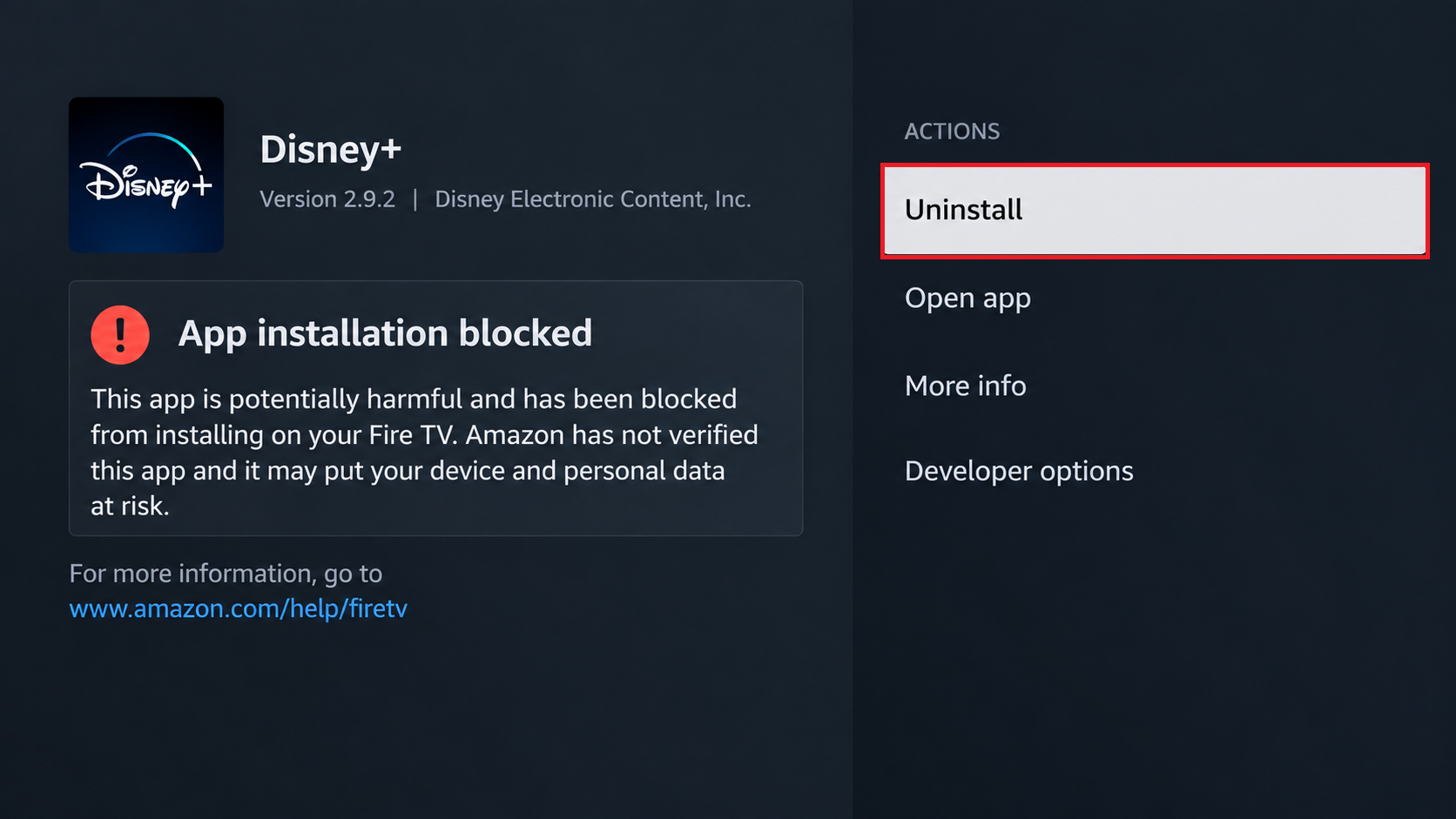
A real block message means Fire TV has decided the app should not launch, even if the tile still appears.
A legitimate app that appears incorrectly flagged should be reported with the warning and app details. A VPN, modified APK, or update-blocking tool is not a supported repair.
2. Restart Fire TV and Complete Offered Updates
An official app that closes without a block message may recover after Fire TV reloads its services. Amazon includes restarting and checking system updates in its app troubleshooting guidance.
- Open Settings > My Fire TV > Restart. Some devices label the menu Device & Software. If menus are frozen, disconnect the Stick’s power adapter for one minute, then reconnect it.
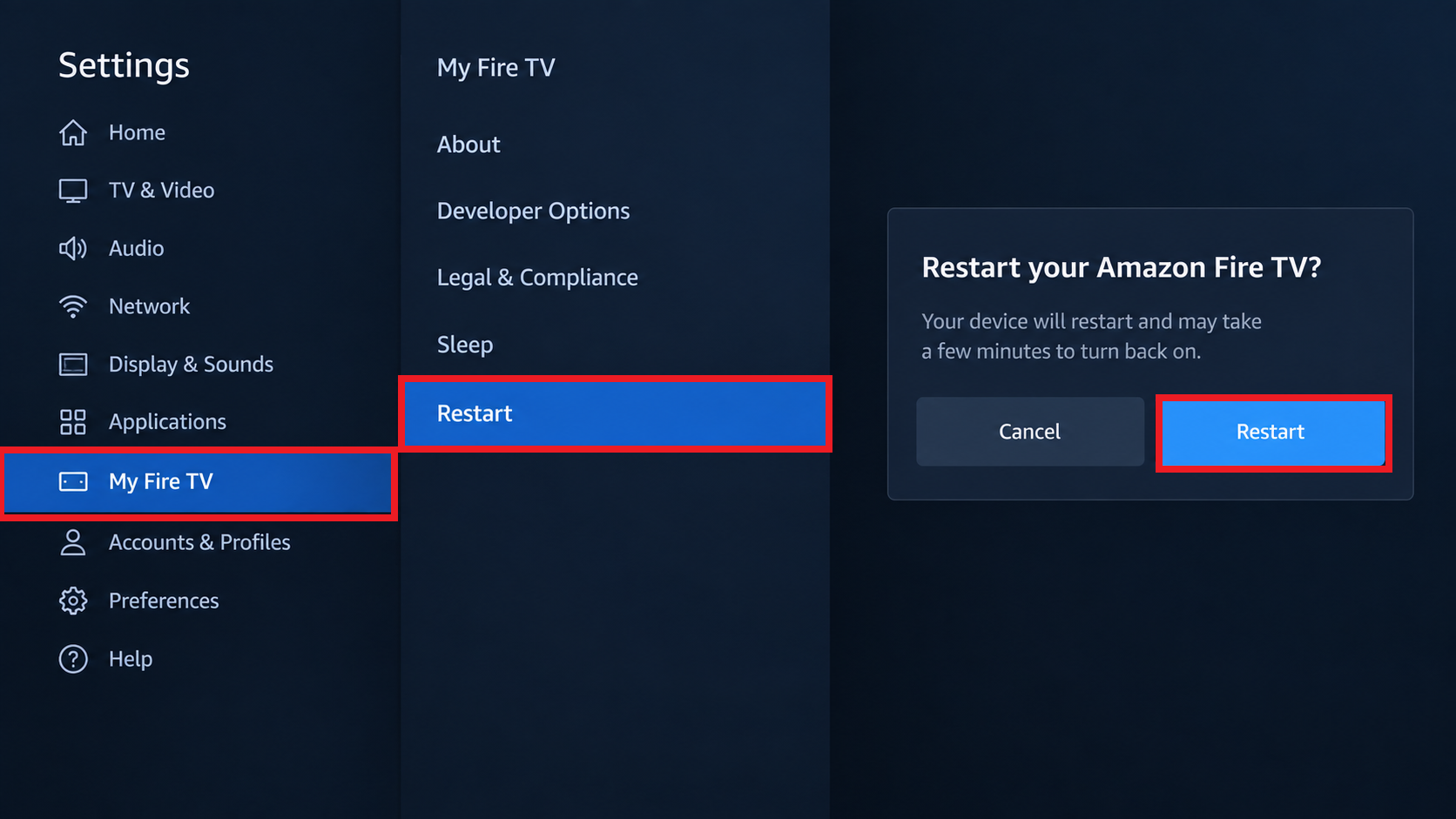
A clean restart reloads Fire TV services that may still be stale after a system update. - After Home returns, open Settings > My Fire TV > About > Check for System Update. Complete any offered installation and keep the Stick powered until it finishes.
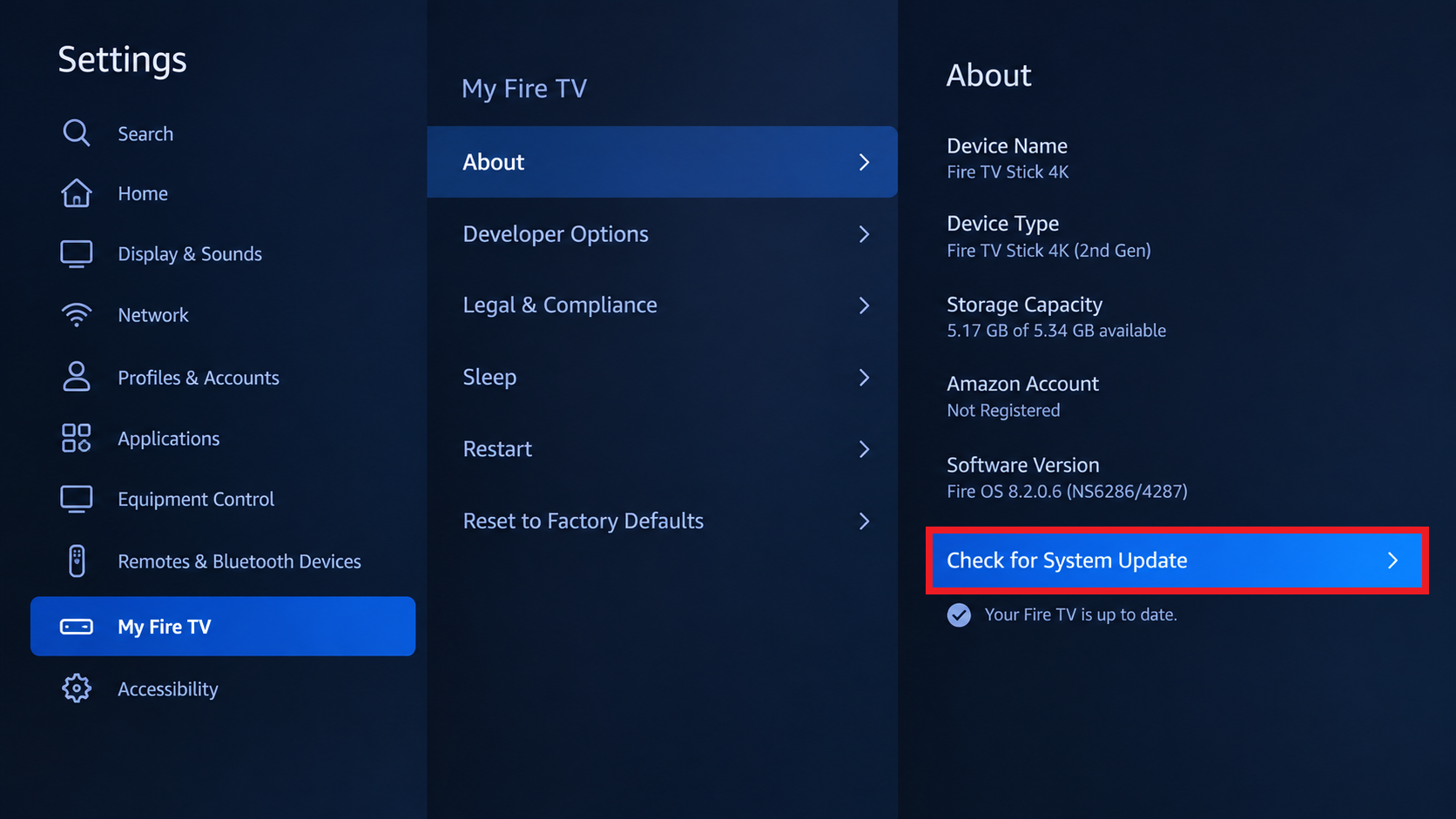
Apps can keep failing if the Fire OS update downloaded but did not finish installing cleanly. - Retry the app and check its Appstore listing for an Update option.
For stuck downloads, open Settings > Network and press Play/Pause to check the connection. Follow Amazon’s network diagnostics if the Stick cannot reach the internet.
Try another streaming app and the same service on your phone. A service failing on both devices warrants checking its official support notices before deleting local data.
If the whole Stick keeps restarting, investigate its restart loop rather than repeatedly reinstalling apps. Use the power equipment supplied for your model.
3. Clear the Affected App’s Cache Before Its Data
An app can retain a faulty saved state after an update. Clear Cache removes temporary files; Clear Data resets more of the app. Neither reverses an explicit Amazon block.
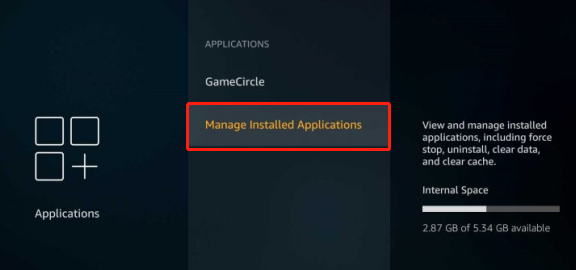
- Open Settings > Applications > Manage Installed Applications.
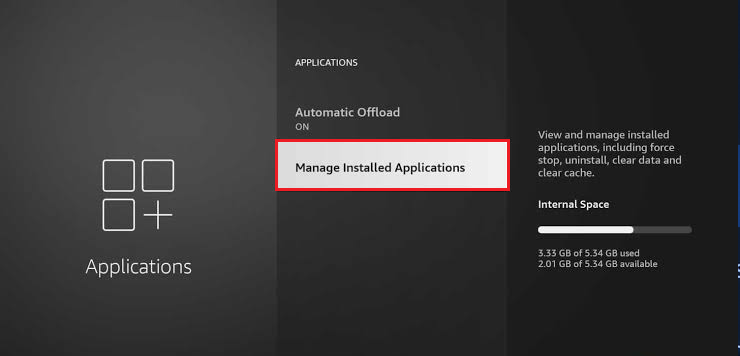
Fire TV keeps per-app cache and data controls inside Manage Installed Applications. - Select the failing app, choose Force Stop if available, then Clear Cache. Reopen it and test.
- If the same app still fails, return to its settings, choose Clear Data, and test after signing in again.
- When several apps cannot download or update, select Appstore in the installed-app list if your model exposes it. Try its cache first; clear its data only if the store still fails.
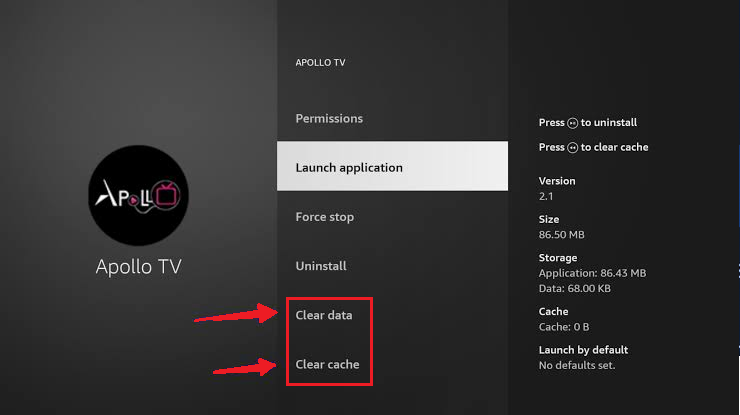
If several apps cannot update or reinstall, the Appstore service data may be the stale part. - Restart after clearing Appstore data, then retry one download.
Select Appstore by name for store problems; the illustration shows a different app’s cleanup controls. Amazon documents the shared cache and data settings.
4. Confirm the App Is Available Before Reinstalling
Reinstalling replaces app files, but an unavailable app may be impossible to download again. Check its current official listing and device support before removing the copy you have.
- Search Find or Search for the app. Confirm the official listing is available for your device and account. If it says Unavailable, keep the installed copy and check compatibility below.
- Confirm your sign-in details and preserve any needed local data. Open Settings > Applications > Manage Installed Applications, select the app, and choose Uninstall if offered.
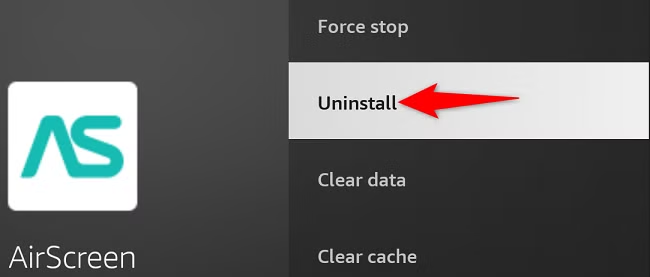
Removing the app clears the old installation instead of asking Fire TV to update files that may already be damaged. - Restart, return to the official listing, and choose Get, Download, or the shopping-cart icon. Follow any account-verification prompt, then sign in and test.
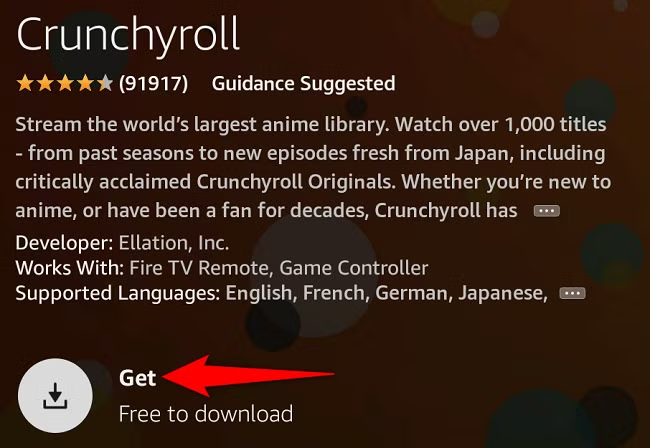
Reinstalling from the official listing gives Fire TV the current supported build for your device.
Amazon’s app download instructions cover these controls. Some preinstalled apps cannot be uninstalled; use their available update or data-reset controls instead.
5. Check Storage, Device Support, and Region
A stalled download needs free internal space, while an Unavailable listing needs an eligibility check. More storage cannot restore support the developer has ended.
- Open Settings > My Fire TV > About > Storage and check free internal space.
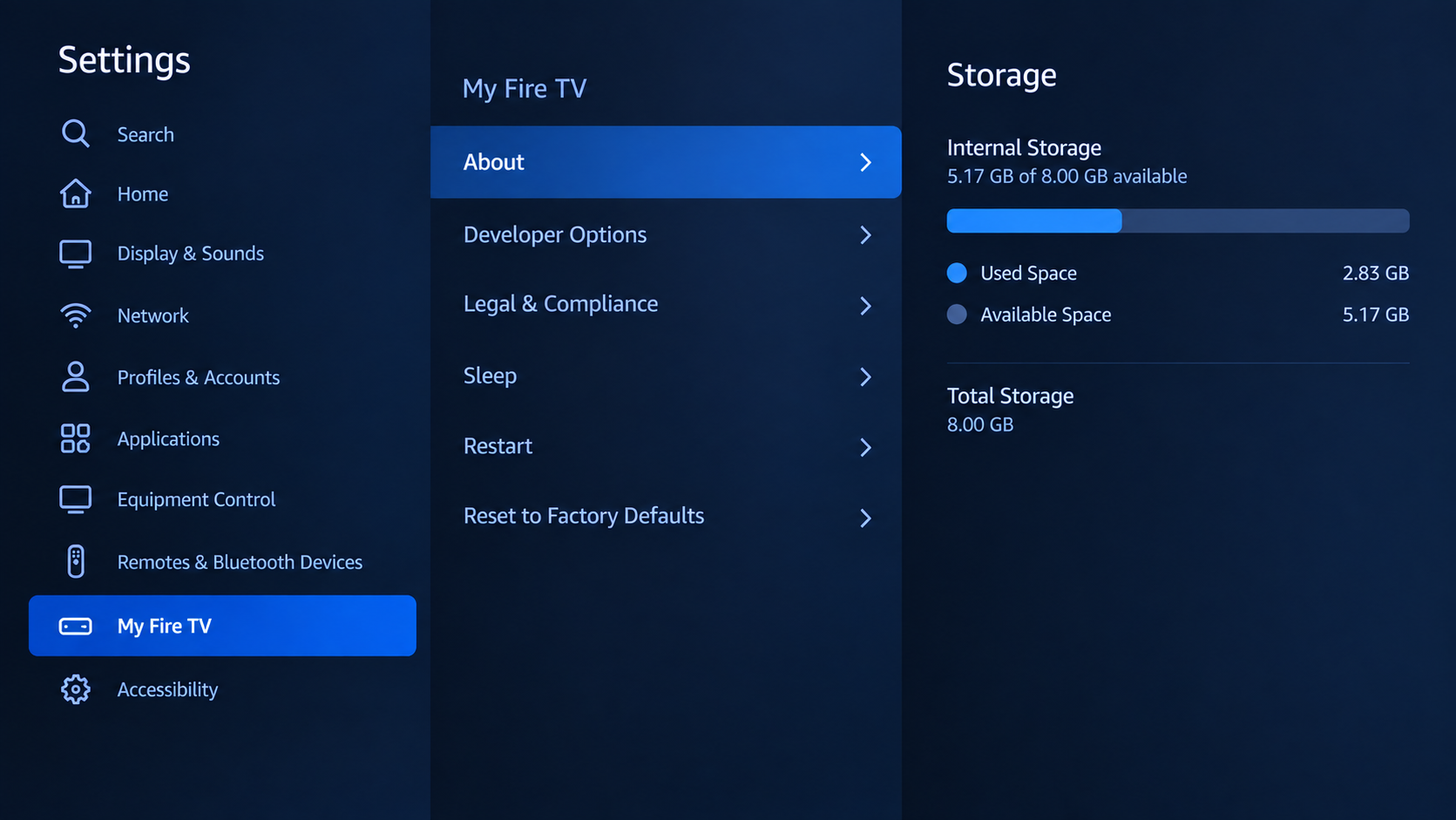
Low internal storage can stop app updates and reinstalls before the app ever opens. - Remove unused, removable apps through Applications > Manage Installed Applications, protecting needed local data first. Retry the download after freeing space.
Some apps stop supporting older Fire OS versions even though the Fire TV home screen still works normally. - Check the provider’s official supported-device requirements against your exact Stick model and software version under About. A listing that says Works With: Fire TV Remote does not by itself confirm model compatibility.
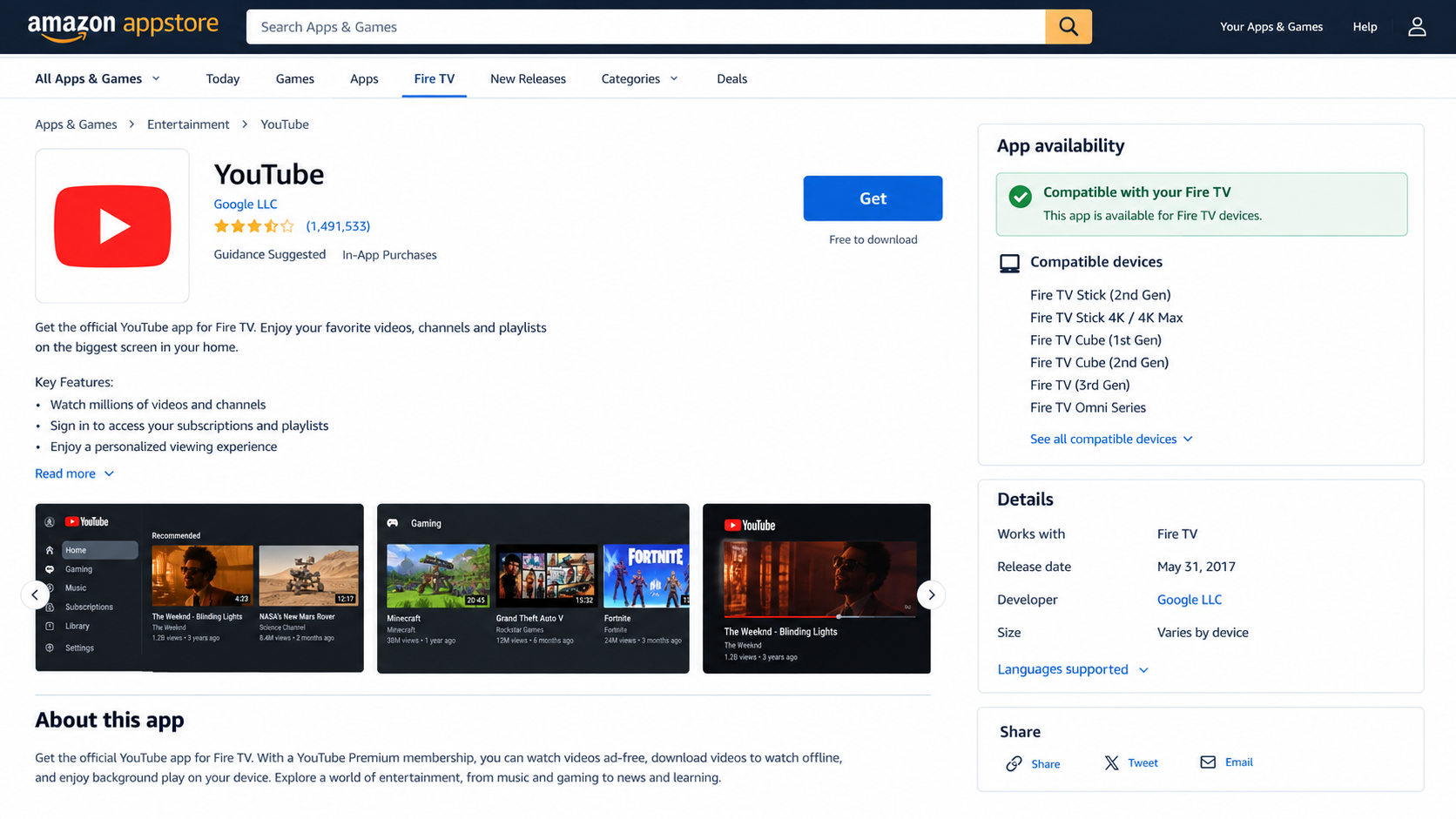
A mismatched account region can make compatible apps appear unavailable or fail to install on Fire TV. - For a missing or unavailable listing, check your Amazon account’s Country/Region Settings on Amazon’s website and the service’s regional availability. Compare once without a VPN if you use one.
A cloud icon indicates Auto Offload on supported devices. Select the tile to download the app again; offloading normally retains sign-in information and preferences. It is not an unlicensed-content warning.
Change account country only to correct a genuine location mismatch. Amazon warns that changing countries makes Prime Video purchases inaccessible and rentals unavailable. It does not repair an app block.
6. Check PIN and Kids-Profile Restrictions
An app that opens in an adult profile but not in Kids may be working correctly. The household’s content permissions, rather than its installation, need checking.
- The parent or account holder should open Settings > Preferences > Parental Controls and enter their Fire TV PIN.
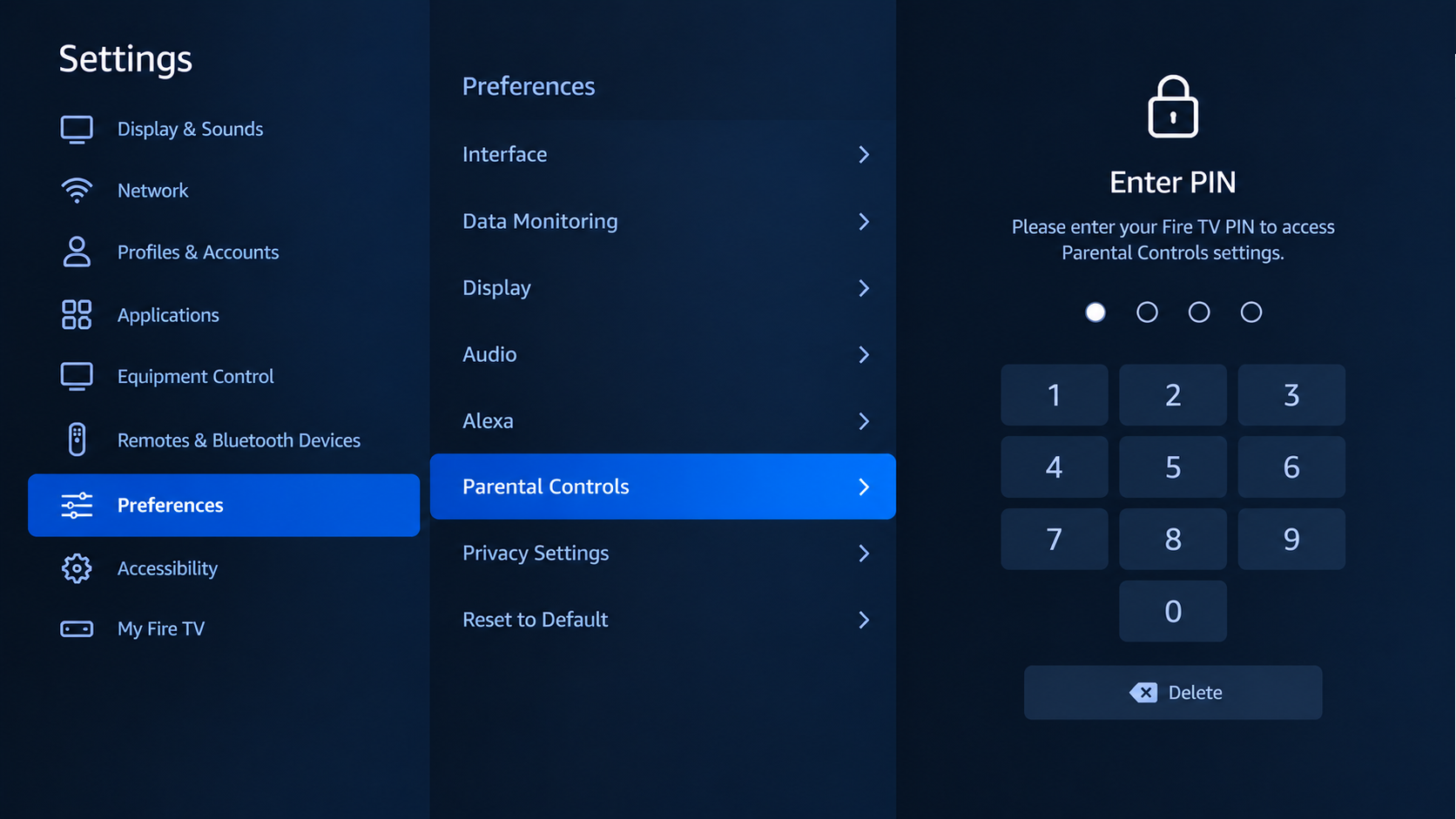
PIN and profile restrictions can block app launches without meaning the app itself is damaged. - Review the options requiring a PIN, including app launches and purchases. Approve only the intended action; there is no need to disable all protections.
- With the account holder’s permission, test the app in the adult profile.
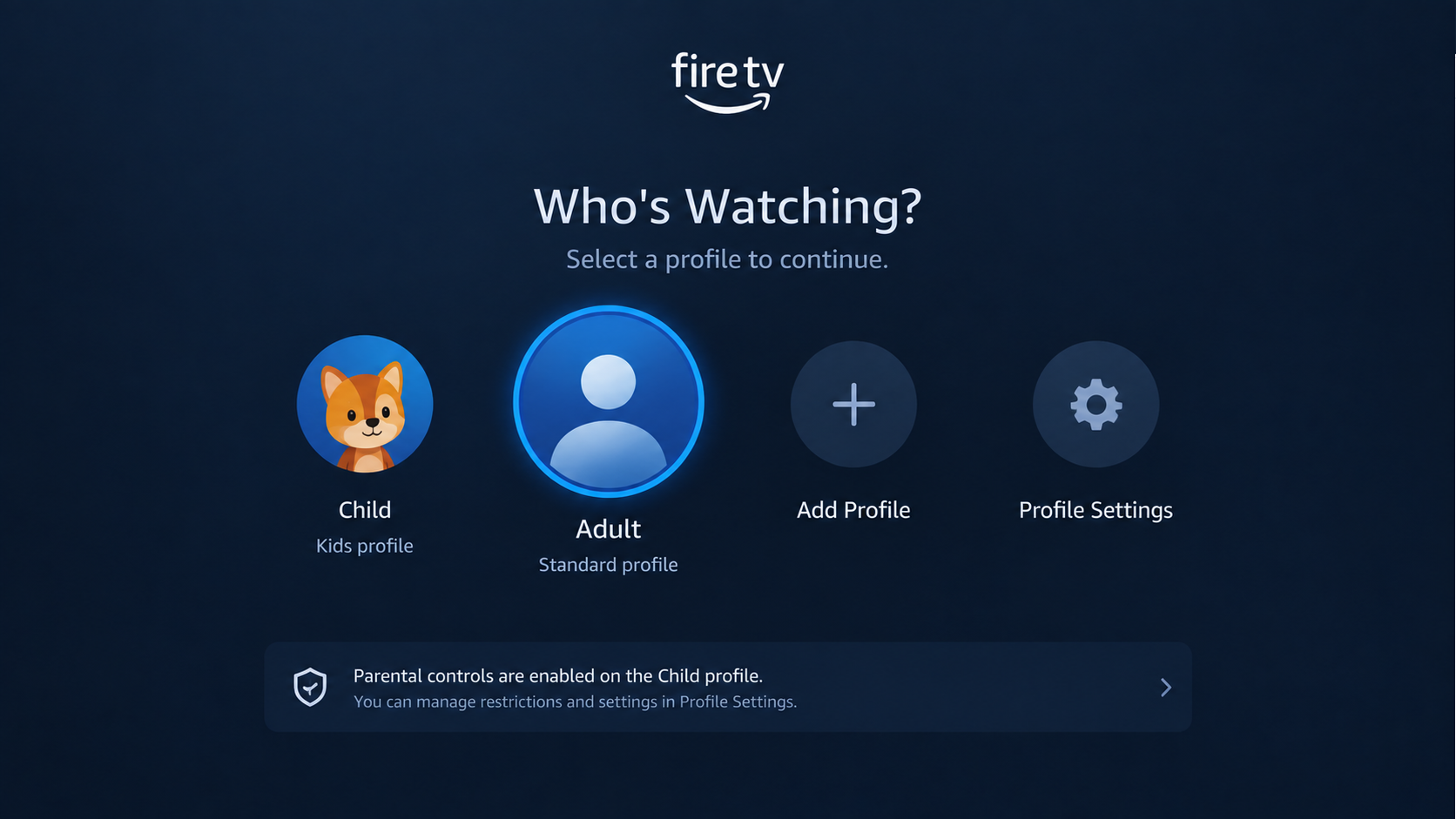
Child profiles can limit apps that still open normally from the main adult profile. - On devices supporting Kids profiles, manage the child’s apps through Settings > Account & Profile Settings > Kids Settings > [child] > Add Content, then retest there.
Amazon documents PIN protections and Kids content controls separately. Keep the household’s intended restrictions in place.
7. Consider a Factory Reset Only for Widespread Failures
A reset lets you test Fire TV with a fresh setup. Consider it only when several supported apps still fail after the restart, network, storage, and app checks above.
For one failing app, ask its developer or Amazon Fire TV Support first. A reset cannot restore an unsupported app or lift an unlicensed-content restriction.
Amazon’s reset instructions warn that confirmation can proceed automatically if no choice is made. Open the reset screen only when you are ready to erase the device.
- For persistent failures across several official apps, preserve recoverable app data and safely eject any expandable USB storage before resetting.
- Open Settings > My Fire TV > Reset to Factory Defaults only when ready to erase the device.
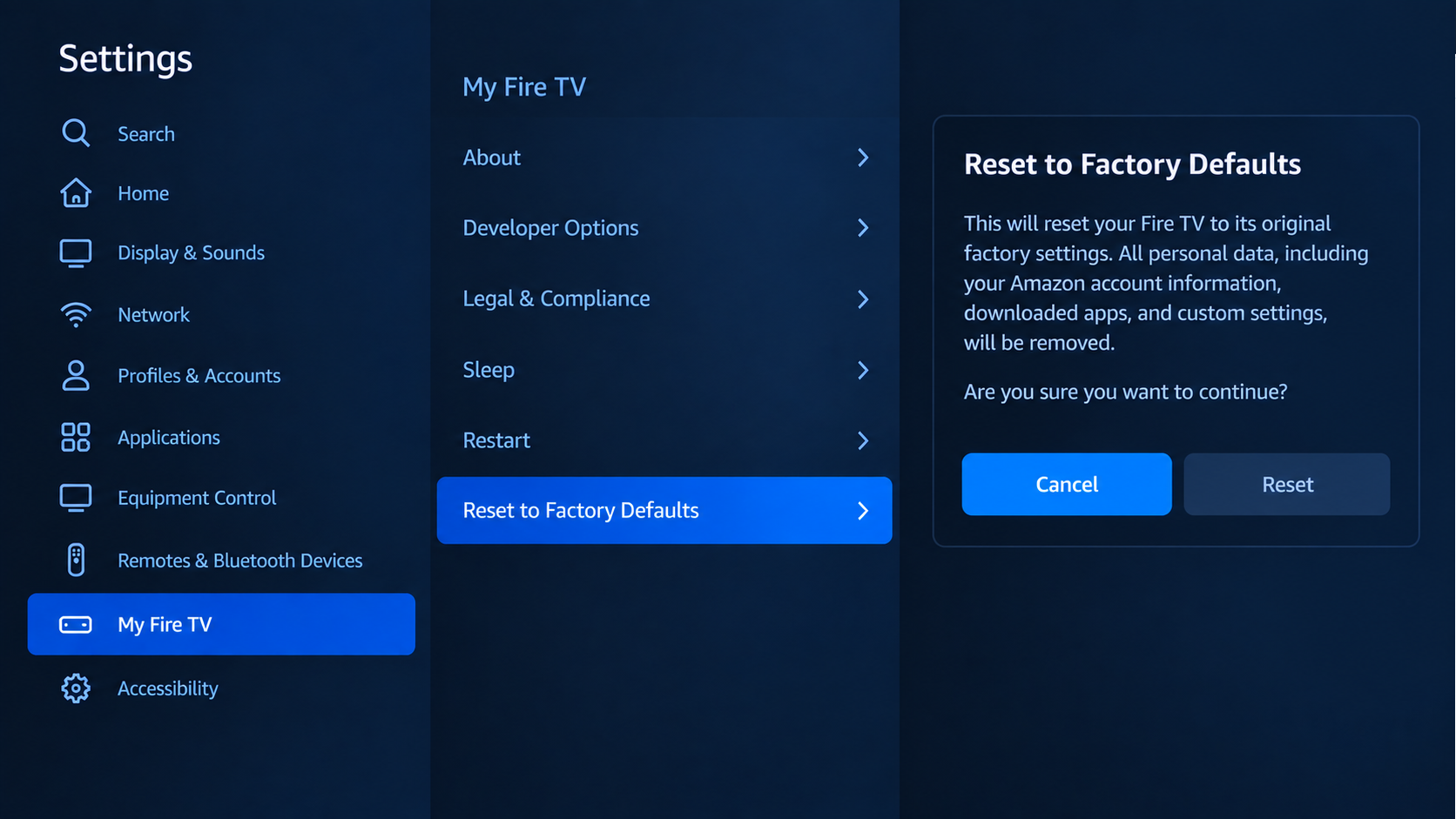
A reset can repair damaged Fire TV software state, but it also removes downloaded apps and local settings. - Confirm the reset and keep power connected until setup begins again.
- Complete setup, install offered updates, and test one official app before restoring the rest.
If the same failure returns, do not reset repeatedly. Give support the exact warning, app/version, Stick model, software version, free storage, and whether one app or several fail. Redact personal details from screenshots.


