How to Fix a Fire TV Stick That Is Running Slow?
A Fire TV Stick can play video normally while its menus take several seconds to respond. The selection pauses after a button press, apps open slowly, and even Settings becomes difficult to navigate.
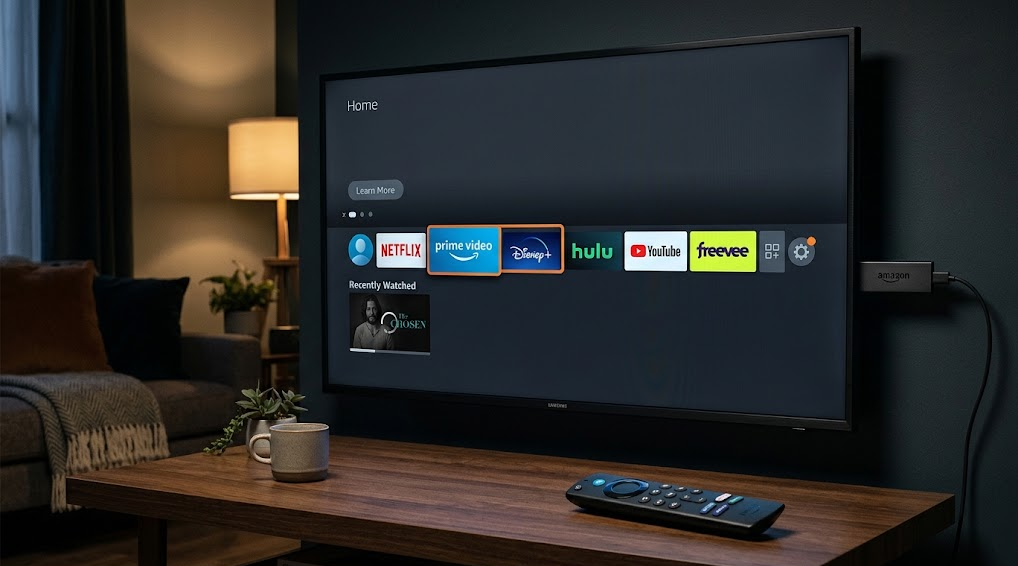
Slow navigation is not the same as a slow internet connection. The Stick may be handling an app that has stopped responding, or struggling to load and update apps with little internal space left.
Compare Settings With the App That Feels Slow
Open Settings, move between a few items, then compare that response with the affected app.
| What is delayed? | What to check |
|---|---|
| Home, Settings and several apps | Restart the Stick, then check apps and available storage. |
| One app, while Settings responds normally | Close that app and clear its cache. |
| Video pauses to buffer, but menus respond normally | Open Settings > Network and run Amazon’s Network Status tool. |
If available, compare the same menu using Amazon’s Fire TV mobile remote. Connect the phone to the same Wi-Fi, select the Stick and follow the sign-in and pairing prompts. If the phone responds normally, check the physical remote’s batteries and connection.
A television showing No Signal needs power and HDMI checks instead; app cleanup requires a visible Fire TV screen.
1. Restart the Stick and Check for Updates
Restarting reloads Fire TV and closes its current app sessions without erasing your setup. It can restore navigation after an app stops responding, but a delay that returns still needs attention.
Wait for any software installation to finish before restarting or disconnecting power.
- Open Settings > My Fire TV. Some models use Device & Software.
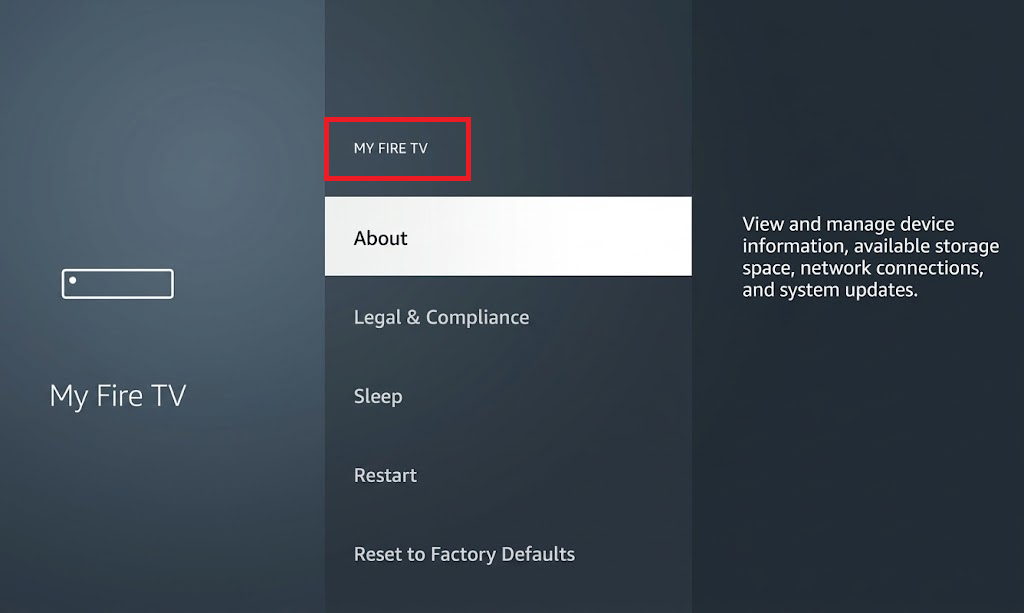
Some models label this menu Device & Software. - Select Restart, confirm if asked, and wait for Home to load.
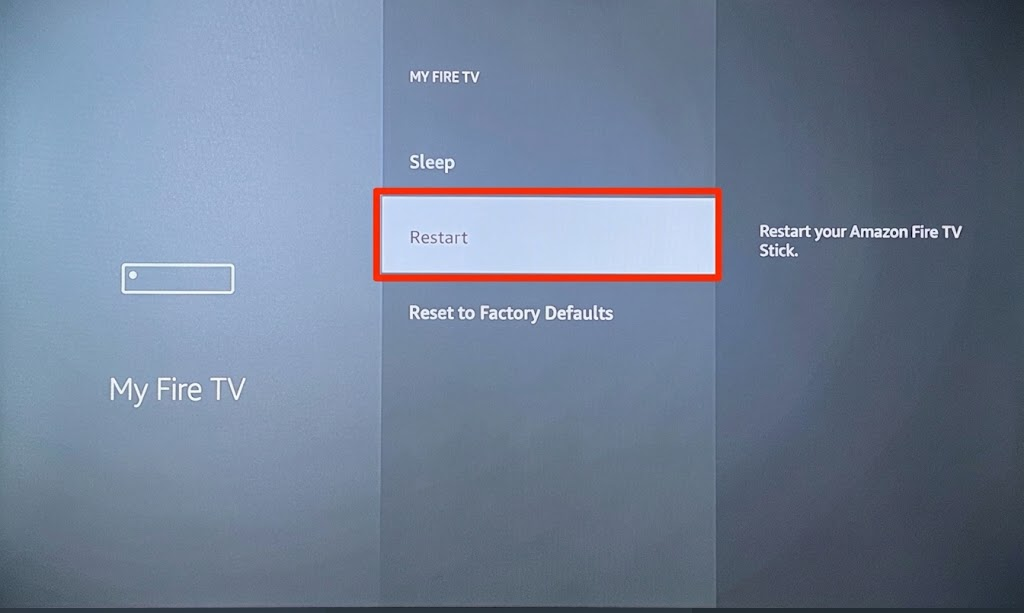
Restart closes the current session without erasing your setup. - If menus are frozen and no update is installing, disconnect the Stick’s power for one minute, then reconnect it. Turning off only the television may leave the Stick running.
- Once navigation responds, check Settings > My Fire TV > About > Check for System Update. Follow Amazon’s update instructions and keep power connected until installation finishes.
- Test the same Settings menu and app again. Note whether the delay returns immediately or only after using a particular app.
If navigation stays responsive, no further cleanup is necessary. A Stick that repeatedly shows the Amazon logo instead needs the restart-loop checks, including its model-appropriate power equipment.
2. Close the Sluggish App and Clear Its Cache
An app that opens slowly or stops responding while other apps work deserves its own check. Force Stop ends its current session; Clear Cache removes temporary files without resetting its saved account setup.
- Open Settings > Applications.
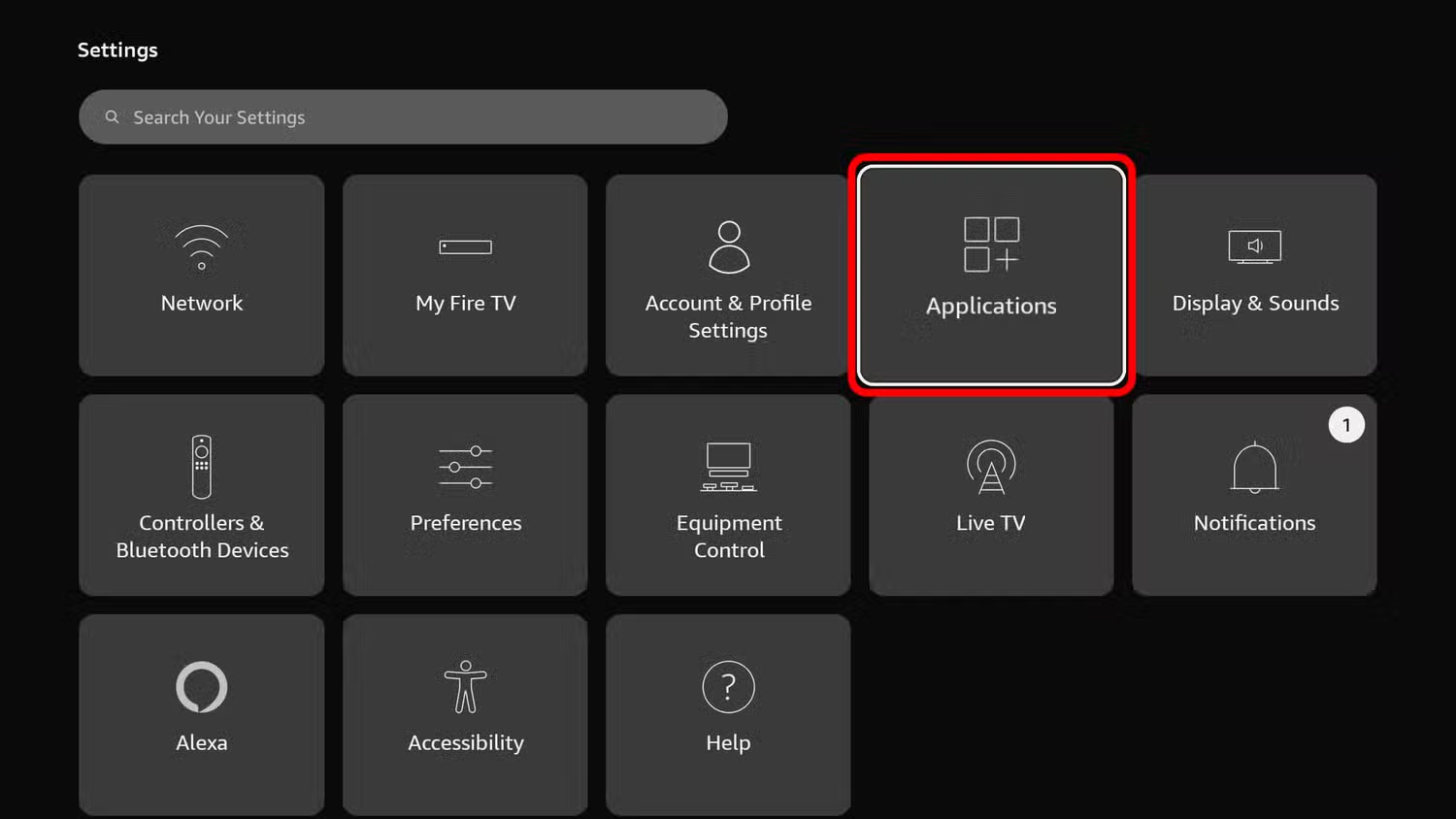
Manage the affected apps from the built-in settings. - Select Manage Installed Applications, then choose the affected app. The pictured Apple TV app is an example, not a requirement.
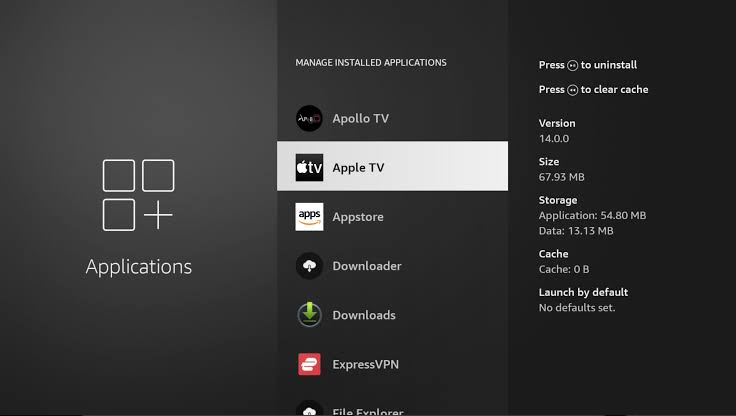
Select the app that becomes slow or stops responding. - Select Force Stop if available. This interrupts that app’s playback or background work; leave unrelated system services alone.
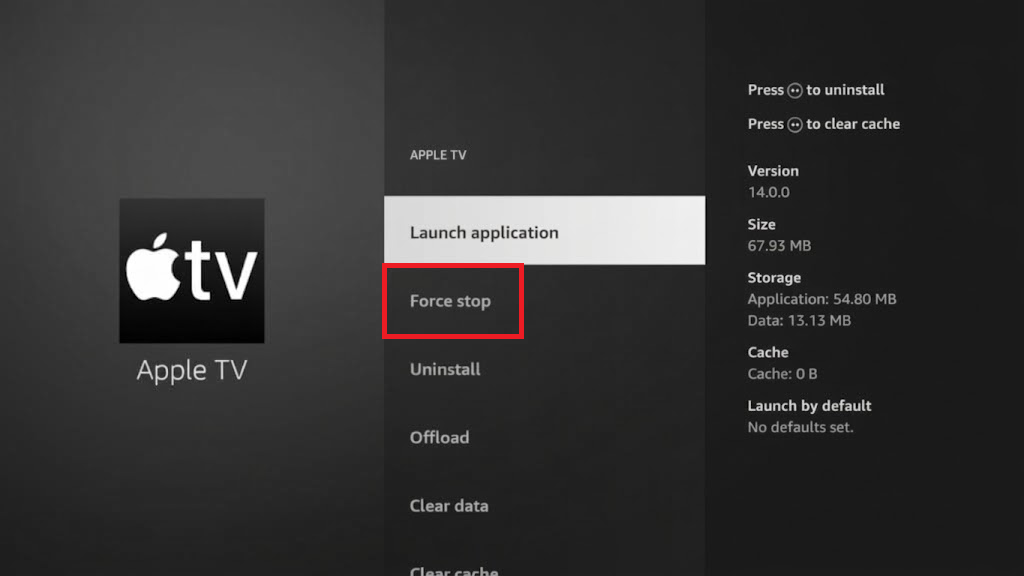
Force Stop ends the app’s current session. - Select Clear Cache. Return Home, reopen the app and allow its content to load before comparing navigation.
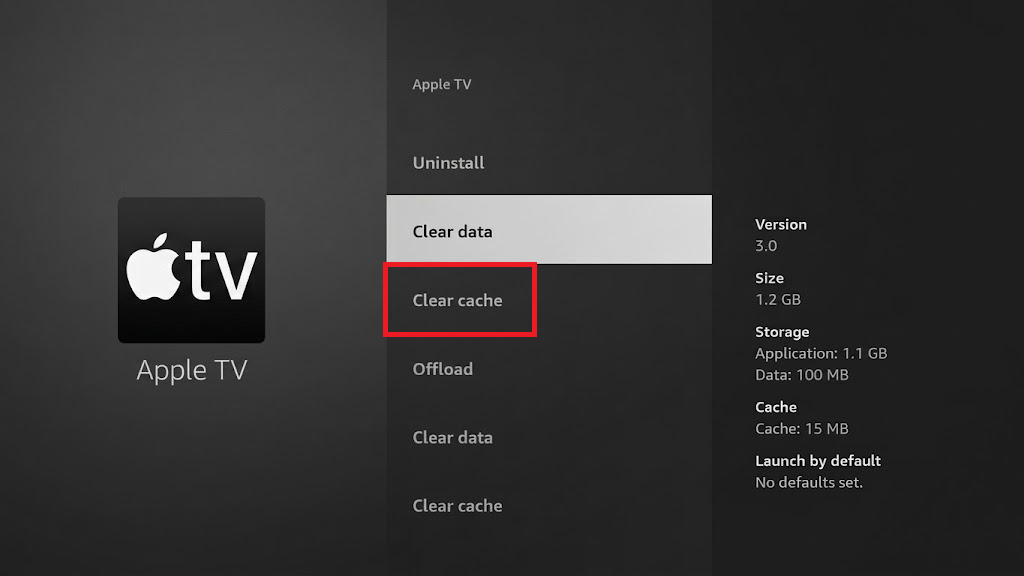
Choose Clear Cache; leave Clear Data alone.
These are the per-app controls in Amazon’s cache instructions. Cache normally helps loading, so the first launch afterward may take longer. Repeatedly clearing every app is not a general speed fix.
If the app responds normally, leave its data unchanged. If only that app remains slow, find its official Appstore listing through Find or Search, check for an update and report the problem to its developer.
3. Free Internal Storage When Space Is Low
A low-storage warning can persist after closing apps because their installed files remain on the Stick. Removing an unused app frees that space; it does not add working memory.
Before uninstalling: Preserve needed local data, confirm the app remains available to download, and make sure you can sign in again. Removal does not cancel its subscription.
- Check Settings > My Fire TV > About > Storage. Some versions show Internal Space under Applications > Manage Installed Applications, as pictured.
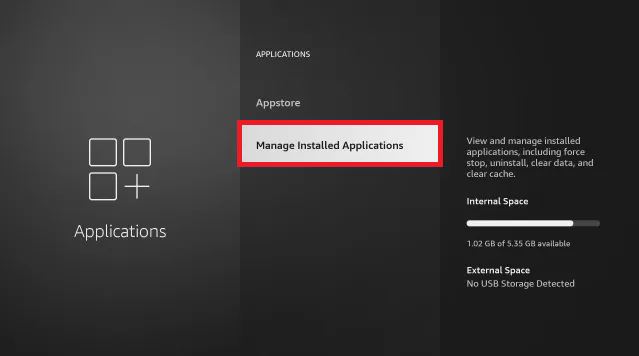
Storage space and working memory are different resources. - When storage is low, open Applications > Manage Installed Applications, select an app you no longer need, and choose Uninstall if offered. Leave apps without that control installed.
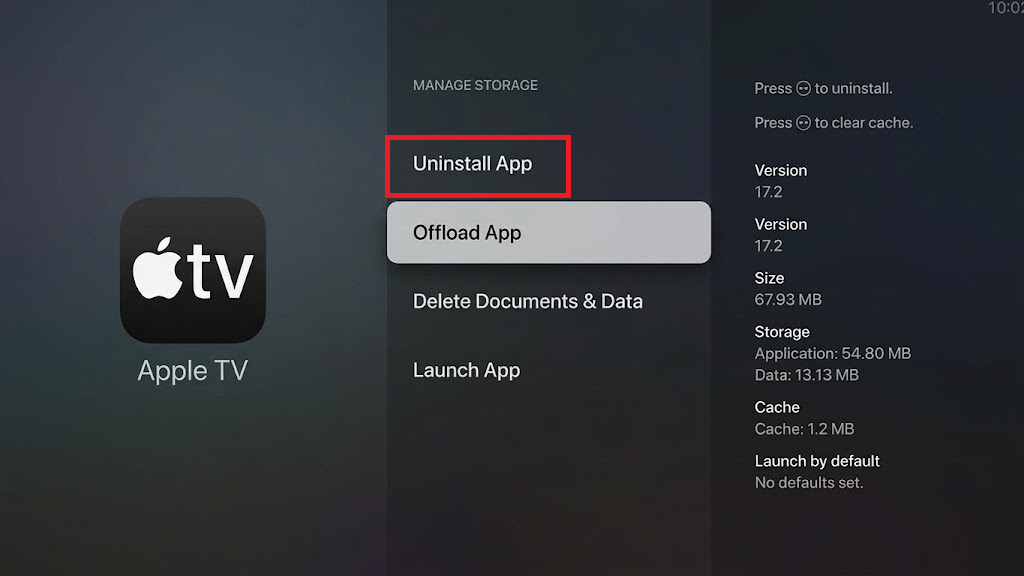
Uninstalling can remove that app’s local data and sign-in. - Confirm the app name before approving removal. Recheck free space and the original delay. Stop removing apps once the storage shortage is resolved.
Follow the Uninstall control on your device, as described in Amazon’s app-removal instructions; the illustration includes different menu labels.
If the warning remains despite available space, give support the displayed figures. Do not delete system files or remove more needed apps just to reach an arbitrary free-space target.
4. Turn Off Home-Screen Preview Playback
Pauses that coincide with featured videos starting on Home are worth testing without those previews. Turning off autoplay stops their automatic playback; it does not change how an app’s own menus or videos work.
- Open Settings > Preferences.
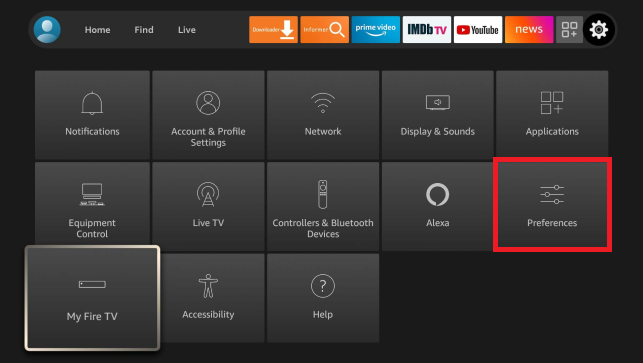
Home-screen options can vary with model and software. - Select Featured Content. If that menu is absent, check your model’s help rather than changing unrelated settings.
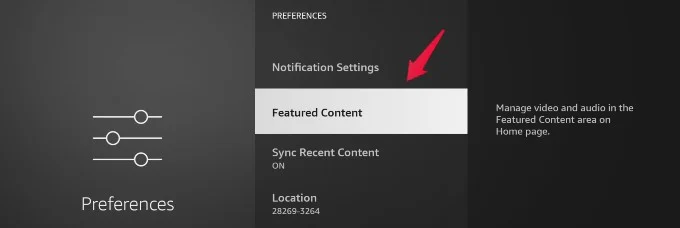
These settings affect featured content on the Home screen. - Record the current settings, then set Allow Video Autoplay and Allow Audio Autoplay to Off. If both are already off, leave them unchanged.
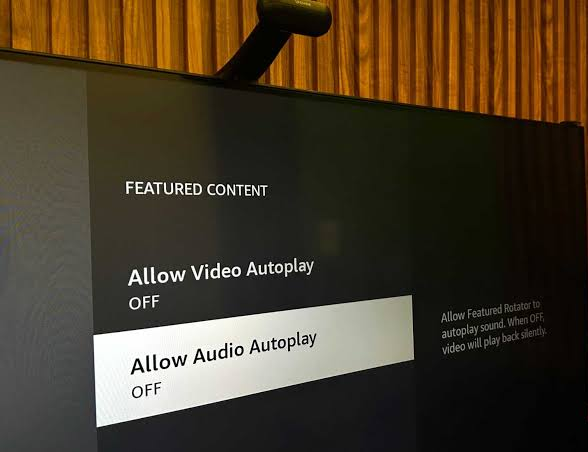
Static promotions can remain after autoplay is disabled. - Return Home and repeat the delayed navigation. Compare the response inside an app separately.
Amazon explains that promotions can remain with autoplay off. This is not an ad-removal setting. Keep previews off if it helps, or restore your recorded preferences if it makes no difference.
If Navigation Is Still Slow
Give Amazon Fire TV Support the model, software version, free storage, affected apps and whether a restart helps temporarily. Mention unusual heat, power warnings or unexpected restarts rather than treating them as ordinary menu lag.
A factory reset is a later option to discuss for persistent device-wide trouble, not a required speed tip. Amazon’s reset warning explains that it removes account information and downloaded content. Confirm account access and preserve needed data before considering it.


