How to Fix Samsung Smart TV App Store Missing?
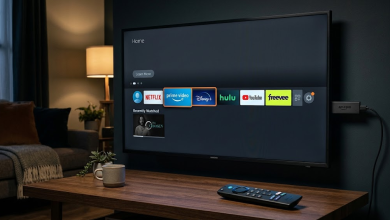
Samsung TV updates can remove the familiar app store tile from Home without removing access to app downloads. Netflix, YouTube and your other installed apps stay visible, but the old store shortcut or Apps search button is no longer there.
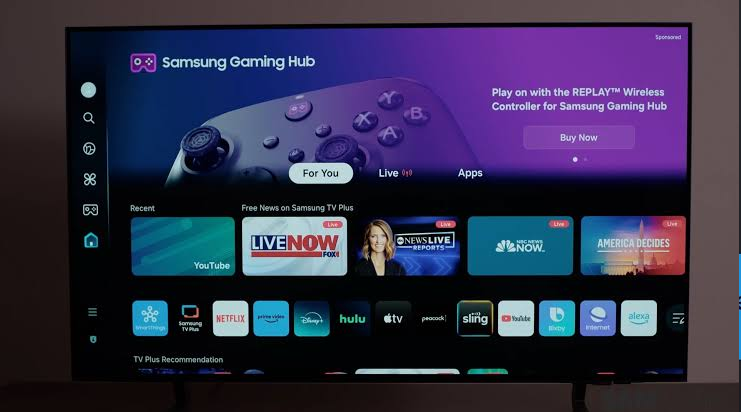
Samsung’s newer layouts use Home Search to find apps as well as movies and shows. The Apps area also contains download listings. The old shortcut is not required to install an app, and its absence alone does not mean the store is broken.
The menus differ by model and software version. These instructions cover the TV’s built-in Samsung interface, not the separate store on an HDMI-connected streaming device.
Complete Setup if the TV Asks
App downloads require internet access and a Samsung Account. A TV showing Set Up Now has not finished the required Smart Hub setup. Samsung explains the account and terms requirements for affected TVs.
- Select Set Up Now, or open the sign-in prompt shown in Apps. Follow the setup with the TV owner’s account. Read the required terms and privacy notice before accepting; optional choices remain yours.
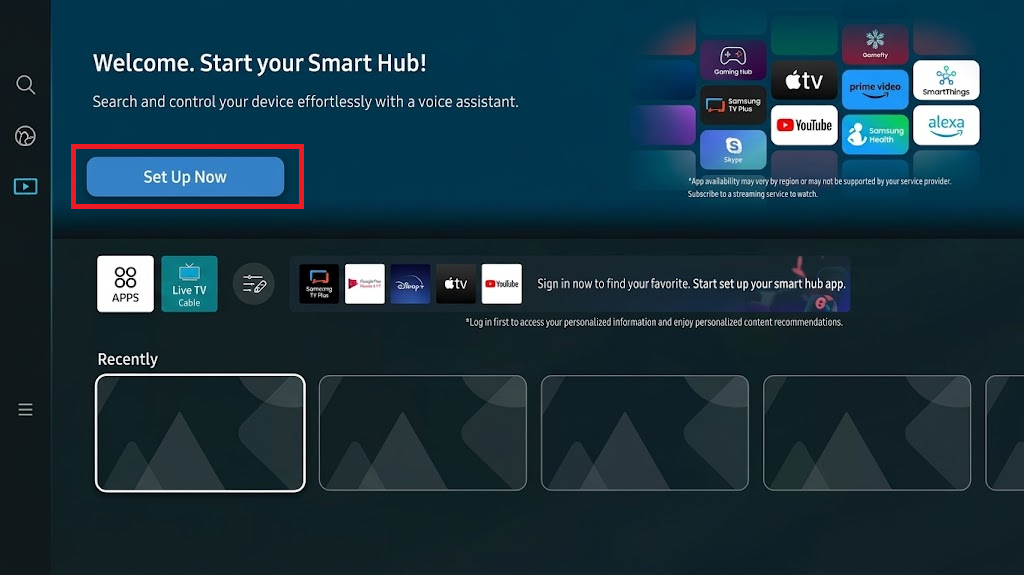
Use a real setup screen and hide personal information, QR codes and sign-in codes. Do not reset a configured TV to create this image.
An already configured TV does not need signing out. For a Samsung TV that cannot connect to Wi-Fi, restore the connection before attempting a download.
1. Find the App Through Home Search
The search icon outside Apps is not limited to programs. Samsung’s Home Search installation instructions use it to find apps and open their download pages. Search from the TV’s Home screen, not inside Netflix or YouTube.
- Press Home on the Samsung remote. Move left to the sidebar and select the magnifying-glass Search icon.
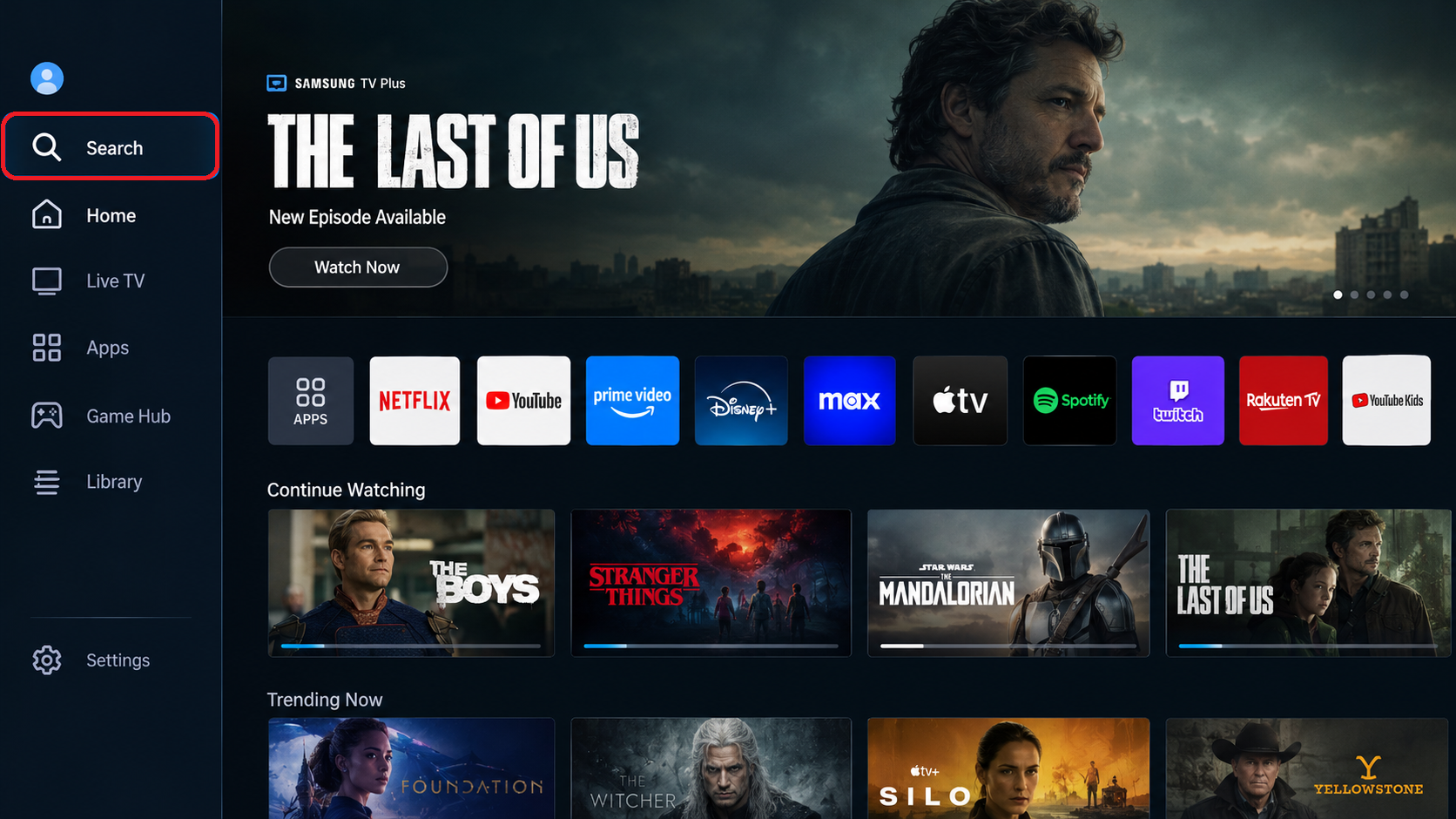
Home search can find apps as well as shows on supported One UI Tizen layouts. - Enter the app’s name and submit the search, rather than searching for a film or channel within that app.
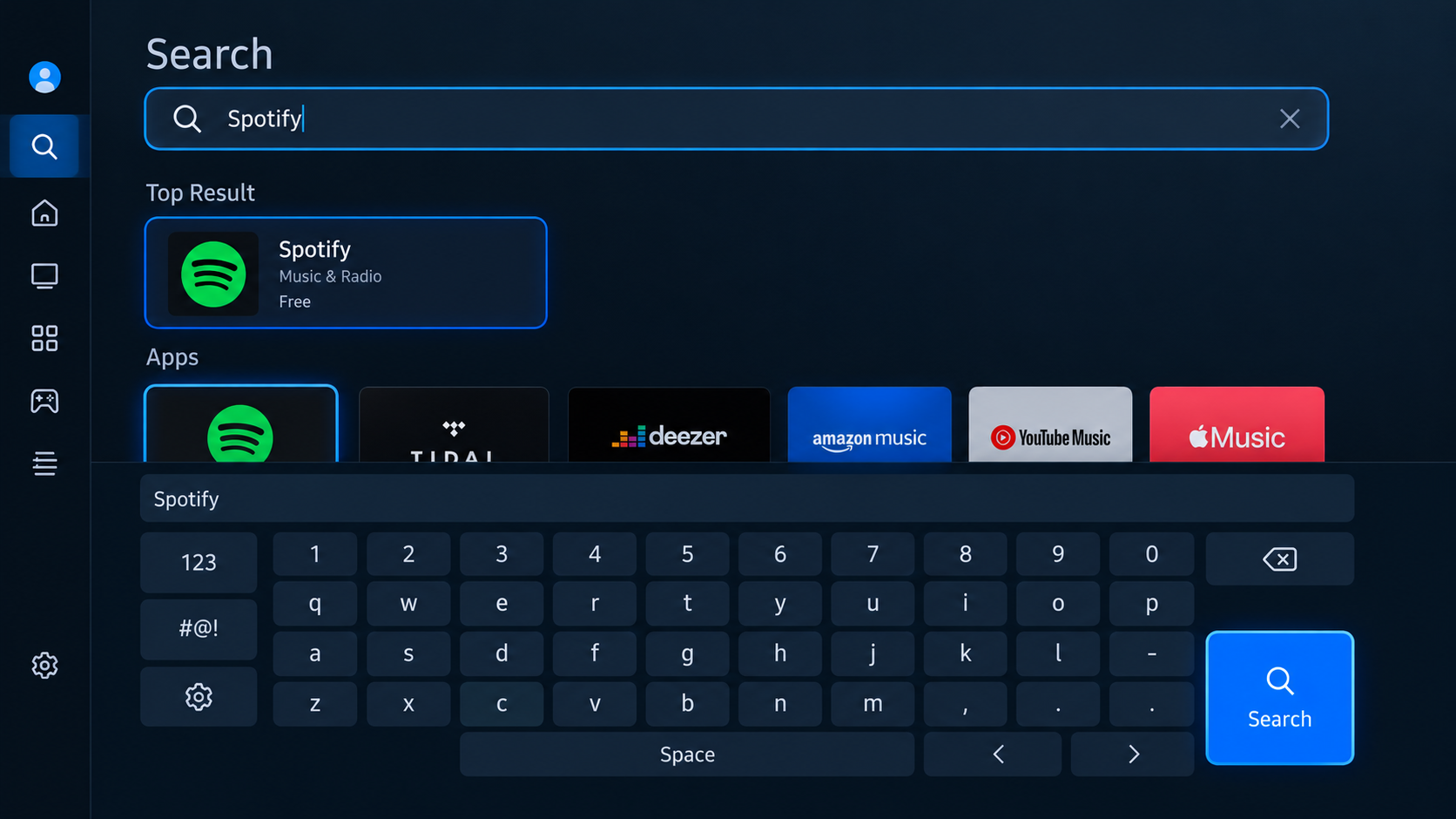
Search from the TV interface, outside any streaming app or connected HDMI device. - Select the app listing in the results. When shows or movies appear first, scroll down to the Apps results, or select an Apps filter if offered.
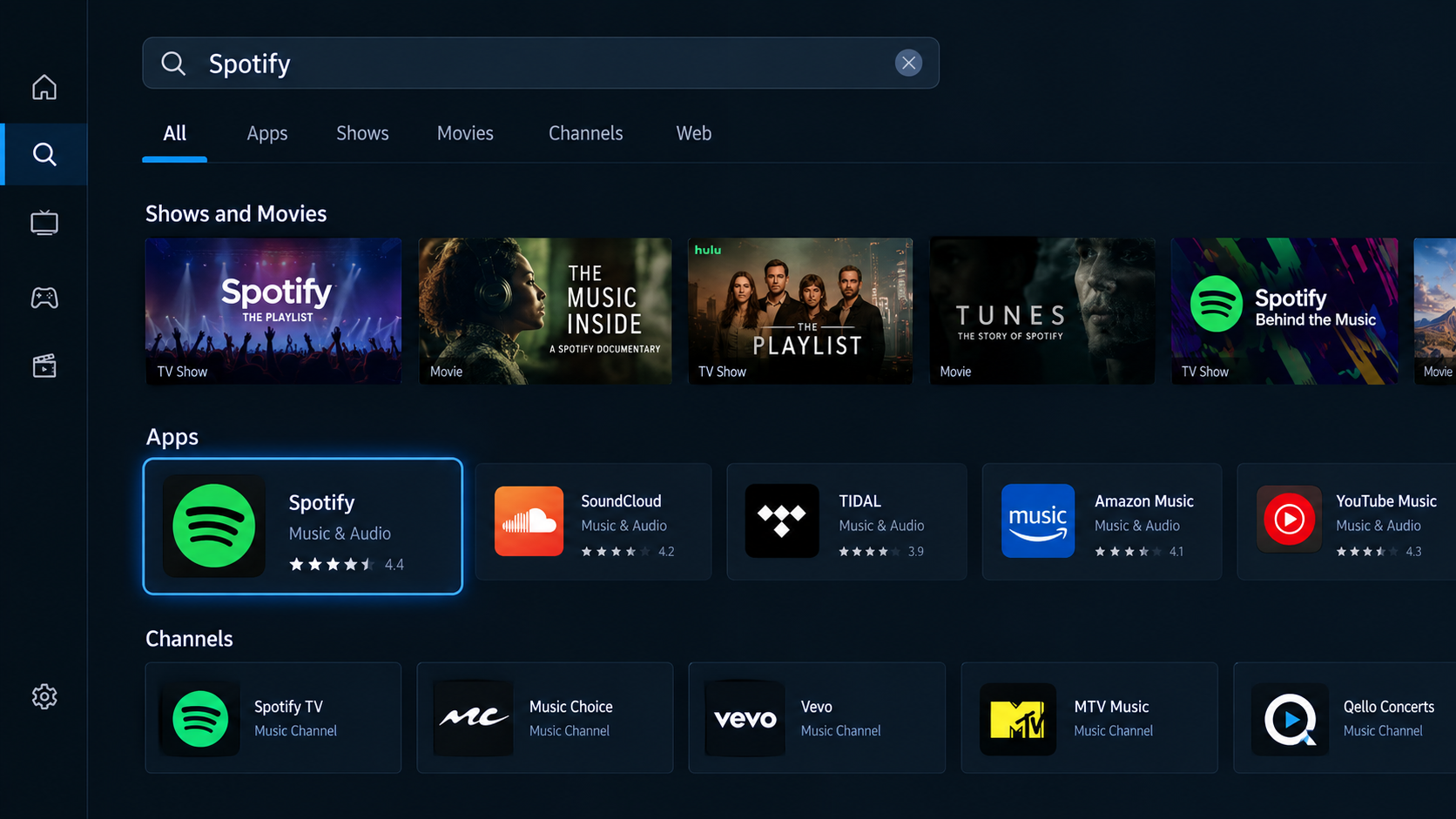
App results may appear farther down the page. Capture the actual grouping on the test TV. - Select Install, wait for the download to finish, then select Open. An Open button already present means the app is installed.
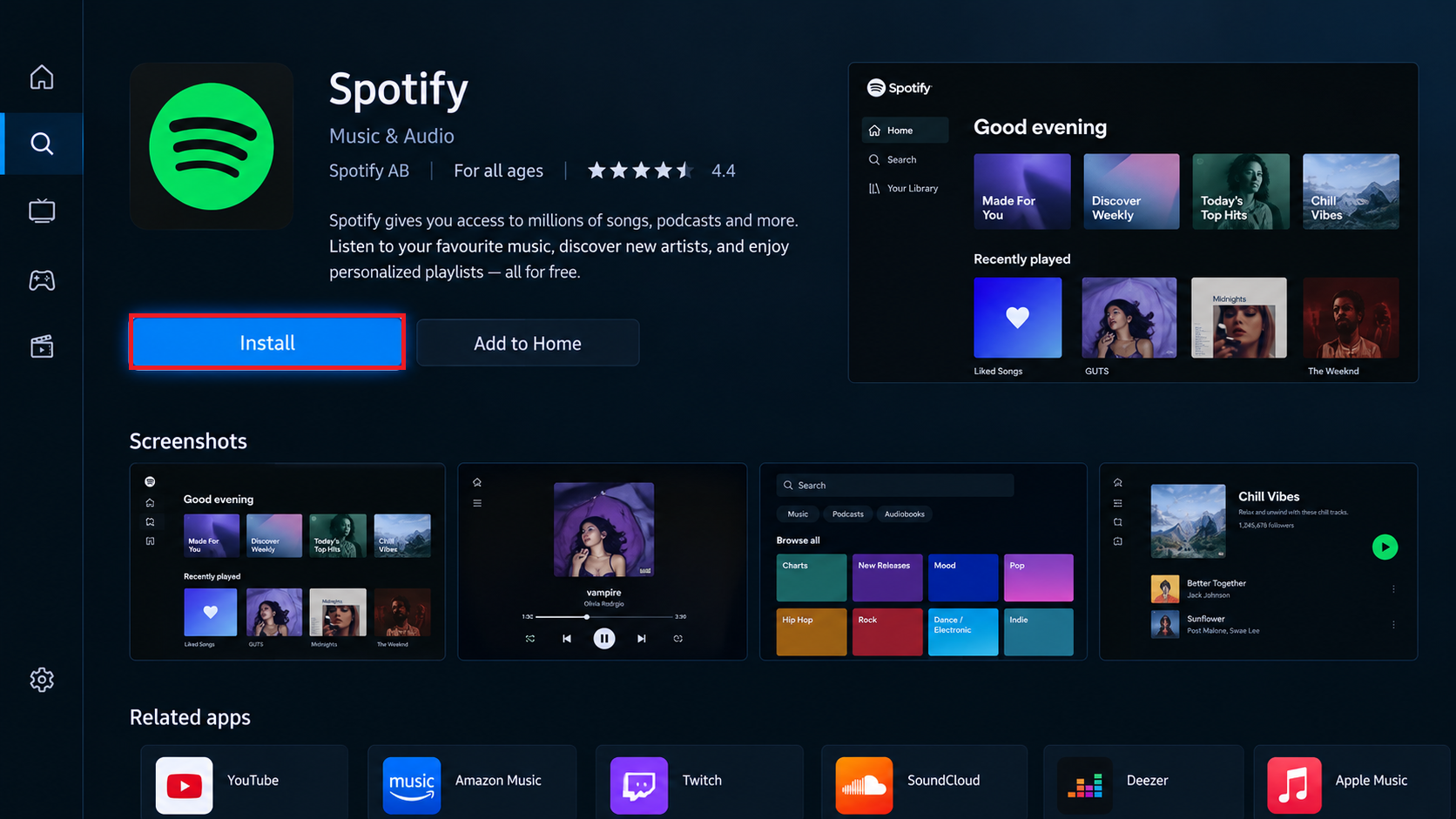
Use a free supported app for demonstration and verify that installation completes before recording success. - Optional: Select Add to Home if offered. This adds a shortcut for the individual app, not a separate app store tile.
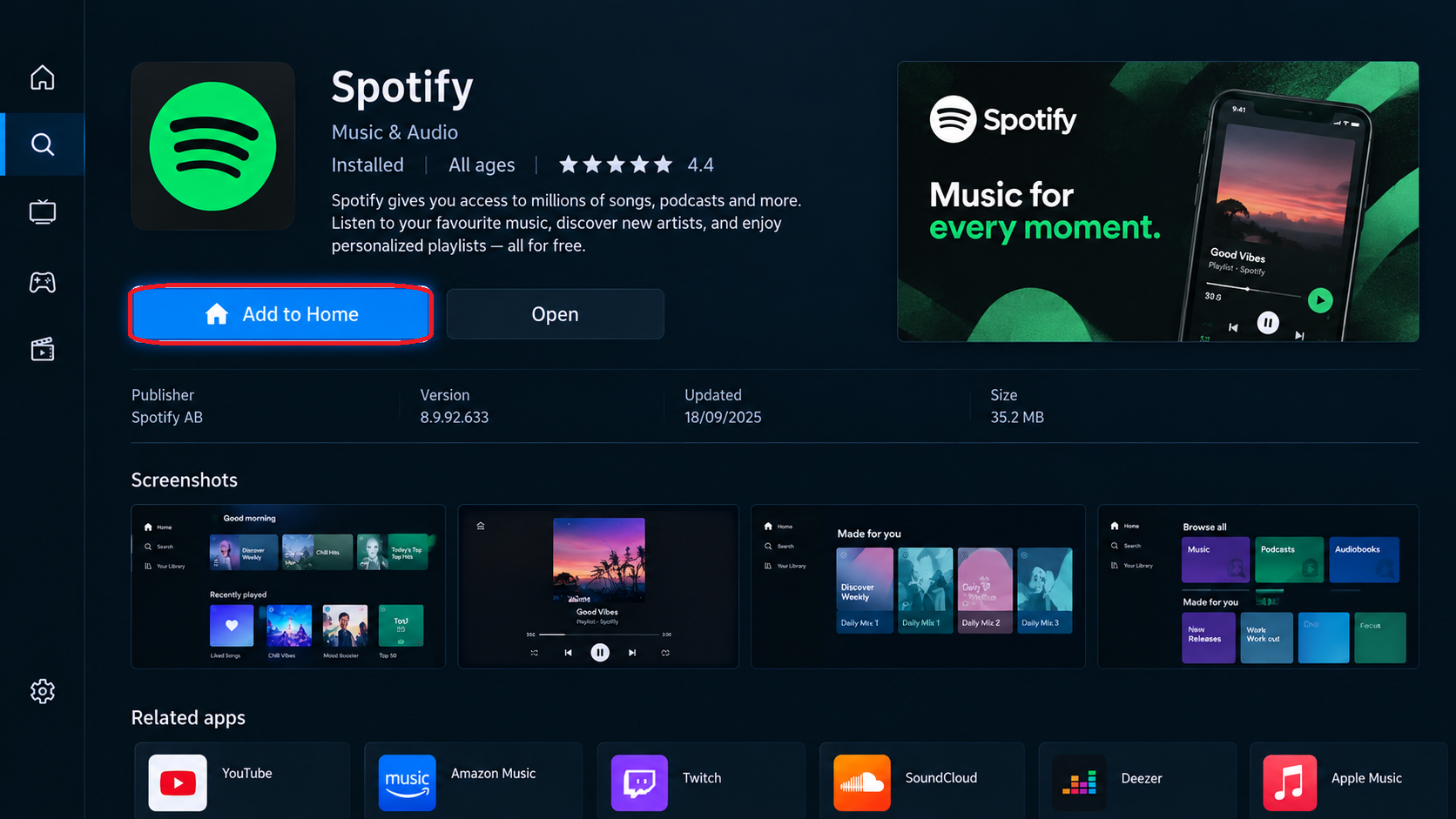
This optional shortcut is for the individual app, not a replacement app store icon. Do not fabricate an unavailable control.
If the app installs and opens, you can use it without restoring the old tile. A missing Search icon or results containing only programs makes the Apps catalog worth checking.
Installing an app does not include a paid subscription to its service. Review any purchase or subscription prompt separately.
2. Open the Apps Catalog
A page of recommendations is still part of the app catalog, not evidence that downloads have been removed. Samsung’s Apps instructions allow installation directly from a recommended listing, with a separate Search control on some layouts.
- Press Home and select Apps. Depending on your layout, this is a tab near For you and Live, a sidebar entry, or a tile in the Home menu.
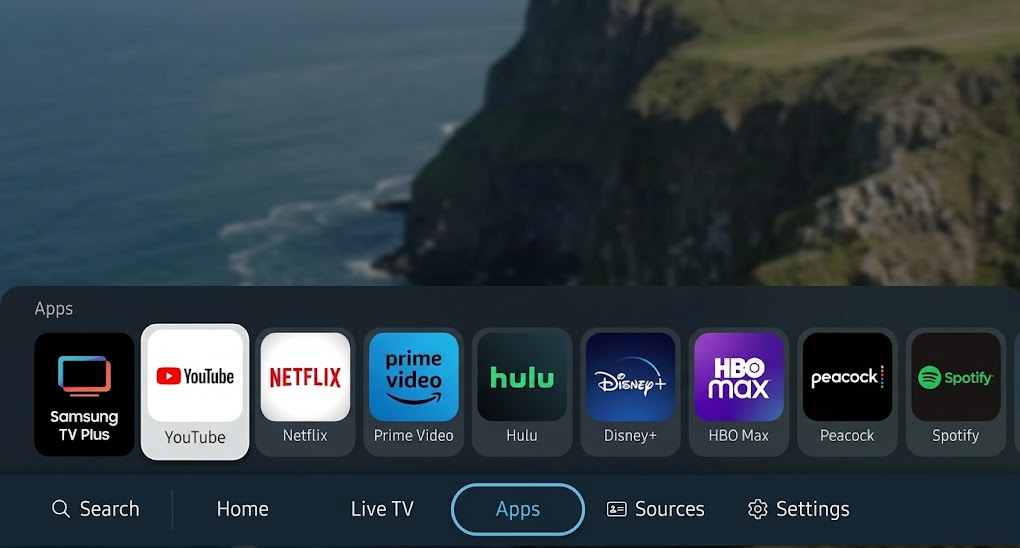
Capture this layout on a matching TV. If demonstrating an older Apps tile instead, update the image description to match it. - Browse the app listings. If Apps has its own magnifying-glass Search control, enter the app’s name there. Look beyond any row showing only your downloaded apps.
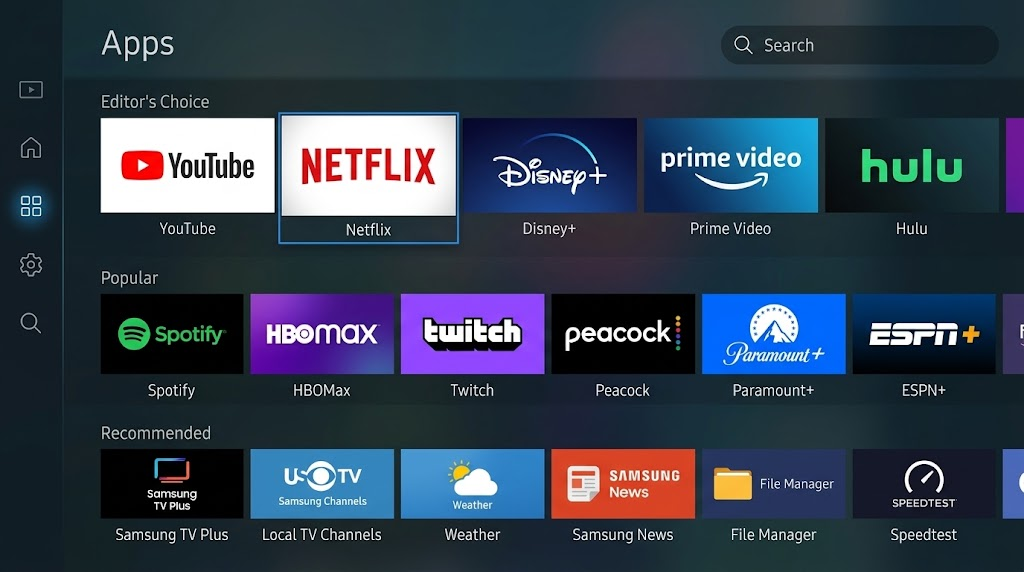
Some versions use Home-level search and have no separate magnifying glass inside the Apps tab. - Select the app to open its details, then choose Install if available. Wait for completion and select Open.
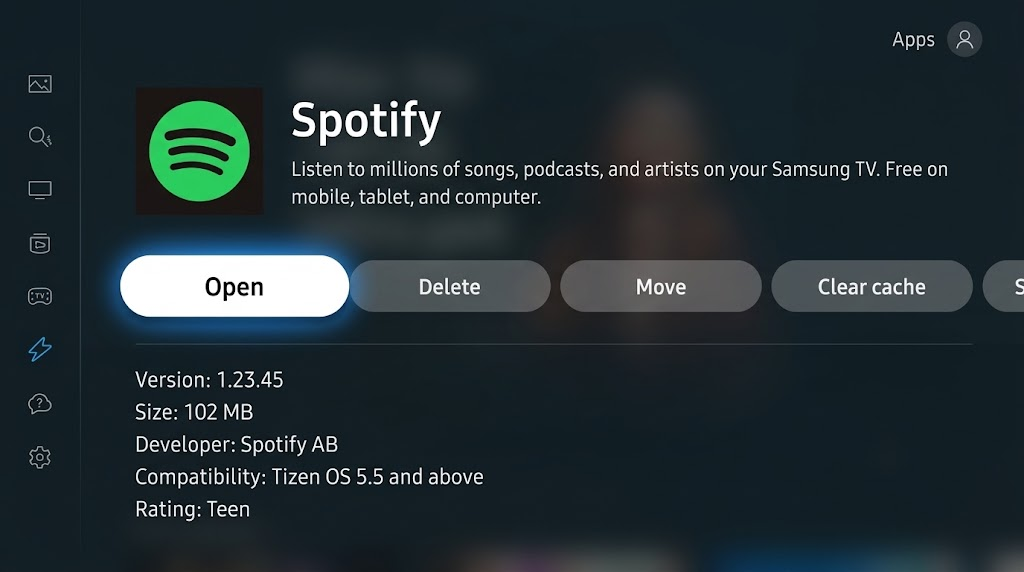
Only show Open after a real successful installation; retain an error screenshot if that is the observed result.
An app that opens is ready to use. If Apps has no separate search button, Home Search remains the alternative; the missing magnifying glass is not a reason to reset Smart Hub.
3. Try SmartThings if TV Search Shows No Apps
On compatible TVs already connected to SmartThings, the phone’s TV controls can offer another search. This can open an app’s installation page on the television even when the TV search fails to list it. Controls vary by model and app version.
- Turn on the TV. Open SmartThings on your phone and select that TV’s device card.
- Open its Search or Content search control if available. Enter the app’s name and select its result under Apps.
- Check the television for the app’s details page. Select Install on the TV, wait for completion, then select Open.
Samsung documents these SmartThings TV controls. If your TV is not connected or the controls are absent, this option does not apply. It cannot make an unsupported app compatible.
Still Cannot Find or Install the App?
| What you see | What to check |
|---|---|
| Other apps appear, but one is missing. | Check the app provider’s supported Samsung TV models and countries. A phone version does not establish TV compatibility. |
| The listing opens, but installation fails. | Record the exact error. Finding the listing and completing its download are different problems; repeating the search will not resolve an installation error. |
| The TV says Unable to connect to Samsung Server. | Address the Samsung server connection error rather than trying to restore a shortcut. |
Samsung Tizen TVs do not install Android APKs or use Google Play Store. Changing the service region is also not a suitable way to restore a missing menu. For a hotel or organization-managed TV, ask its administrator about app access.
If neither Search nor Apps provides listings after setup, contact Samsung Support in your country. Have the model code, software version, country, app name and exact error ready, plus a photo of Home with personal details hidden.