How to Fix a Missing Chromecast Cast Button or Icon?
The Google Cast button is missing from a video app, but videos still play normally on your phone. Without that control, you cannot choose your Chromecast or TV from the app’s usual playback controls.
A TV can have internet access but remain invisible to an app without local-network permission. The service may also no longer support casting to that TV. In desktop Chrome, however, the missing button can be just an unpinned shortcut.
| What Is Missing? | Where to Check |
|---|---|
| The button inside a phone app. | Check the app’s supported devices and player controls below. |
| The shortcut beside Chrome’s address bar. | Open the desktop Chrome Cast menu. |
| The TV, after opening the Cast button. | Check the local network; the button itself is already available. |
1. Check the App’s Cast Controls and Supported Devices
The Cast button is not always on the app’s home screen. In some apps, it appears only after playback starts. Support also depends on the service, not just whether the TV has Google Cast.
- Play a video in the service’s official mobile app. Tap the player to reveal its controls, and check the app header or documented Watch on TV menu.
- Check the service’s help page for supported receiving devices and any plan restrictions. For example, Netflix’s Cast compatibility list excludes many TVs and streamers; use their Netflix app and remote instead.
- Close and reopen the app, then test another Cast-enabled app on the same phone and Wi-Fi. Select the same receiver and confirm that a video actually plays.
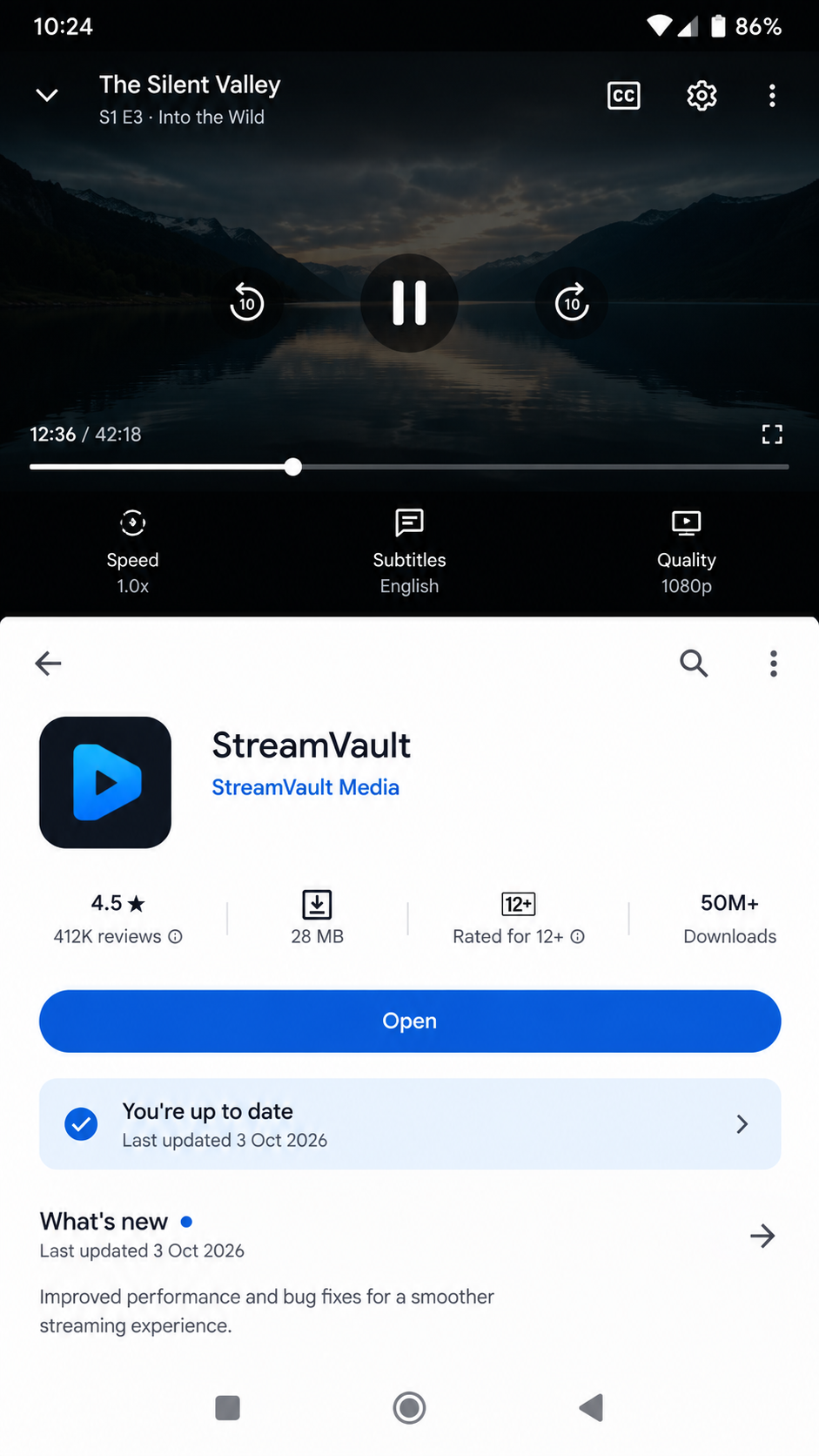
Use an official supported app on the same phone and network. Hide media history, profiles, nearby device names, and household information.
YouTube and Netflix use special discovery methods, so their success alone does not establish that other apps can find the receiver. Compare with another supported app you already use, as Google’s discovery guidance recommends.
If only one app fails, check its own network permission and support information rather than resetting the TV.
Using Chrome on your phone? It does not have desktop Chrome’s tab-casting command. Use the service’s Cast-enabled app instead.
2. Connect Both Devices to the Same Home Network
A guest network can allow internet access while preventing your phone from finding the TV. Connect both devices to the main home network rather than an isolated guest connection.
- Open the phone’s Wi-Fi settings and confirm it is connected, not just that Wi-Fi is switched on.
- Check the TV’s network settings, or the streaming device’s settings in Google Home. Compare the connected network with the phone’s.
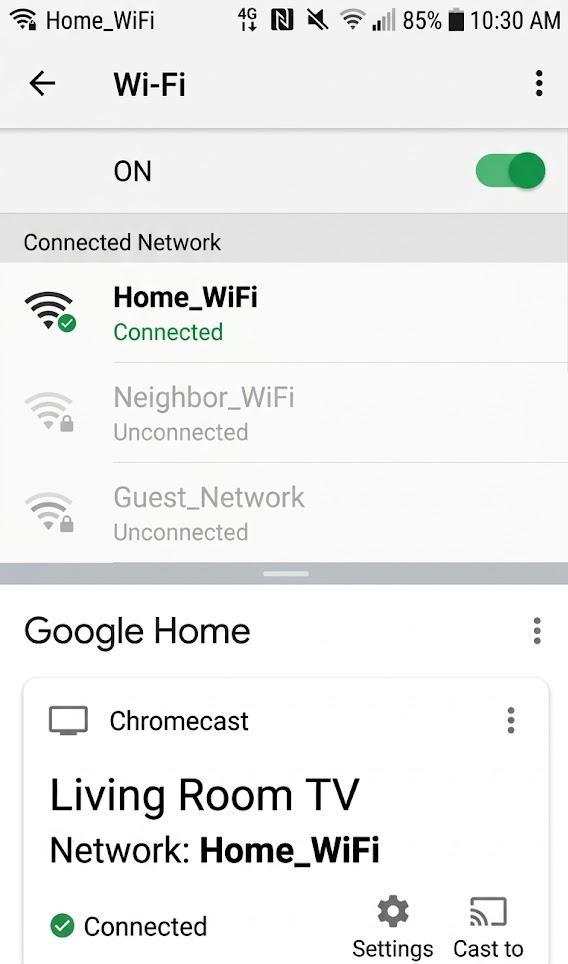
Use an official supported app on the same phone and network. Hide media history, profiles, nearby device names, and household information. - Open your own router’s app or administration page. In its Wi-Fi settings, check AP isolation or Client isolation. Disable it only for the trusted home network; leave guest isolation intact.
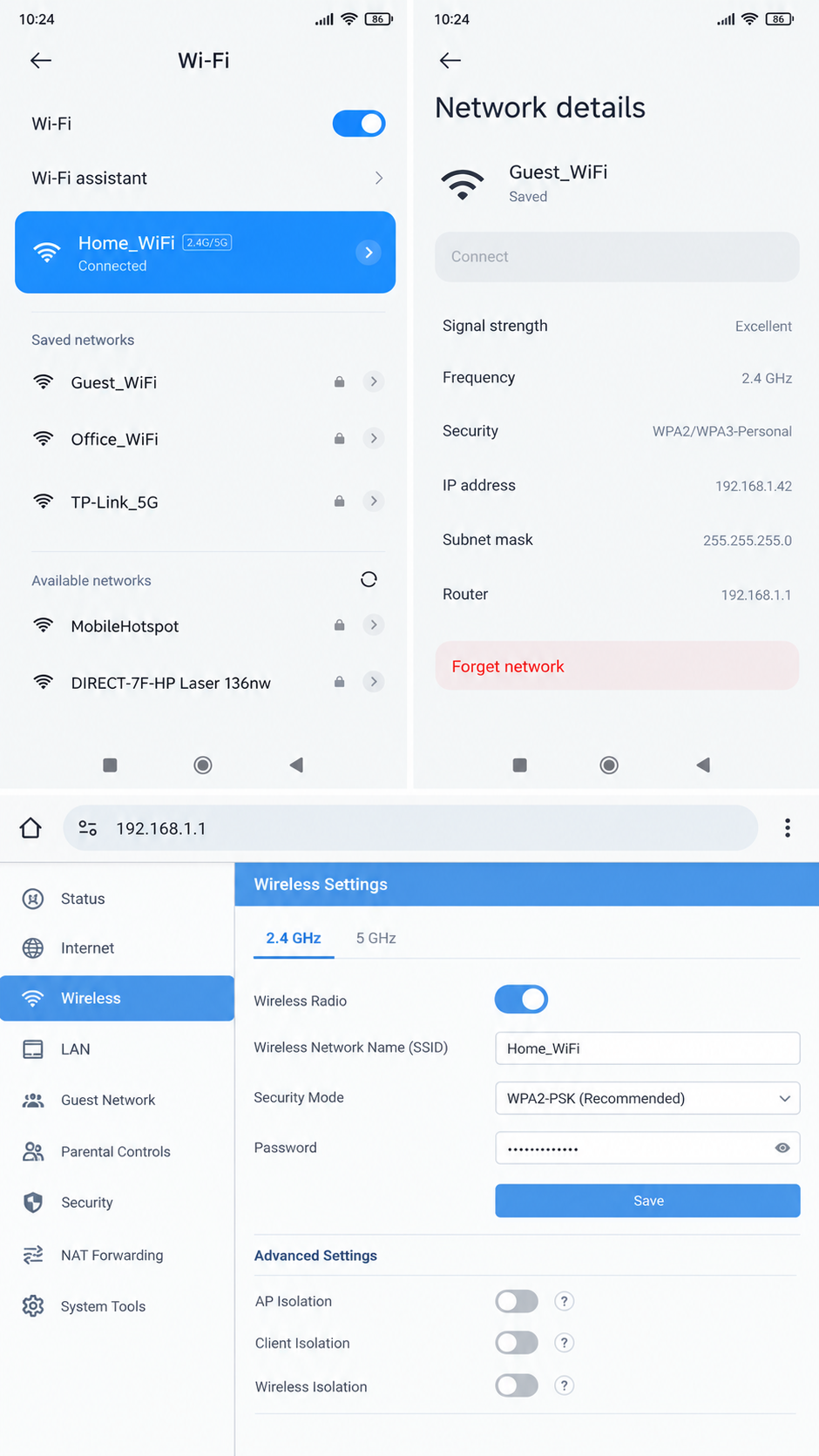
Show only enough of each network page to confirm the same SSID. Redact the network name, password, IP and MAC addresses, device names, and nearby networks. - Reopen the app and try casting. On hotel, school or managed Wi-Fi, ask the administrator whether local-device connections are permitted.
Temporarily disconnect a personal VPN that blocks local devices, then retest. Restore it afterward and check its local-network access option. Leave organization-managed VPNs unchanged.
Matching network names alone does not rule out isolation. Devices on 2.4 GHz and 5 GHz can communicate when the router connects both bands to the same local network.
3. Allow Local Network Access on Apple Devices
An iPhone app can stream normally over the internet while being denied access to nearby devices. Local Network permission is separate for each app; enabling it for Google Home does not enable it for your video app.
iPhone or iPad
- Open Settings > Privacy & Security > Local Network.
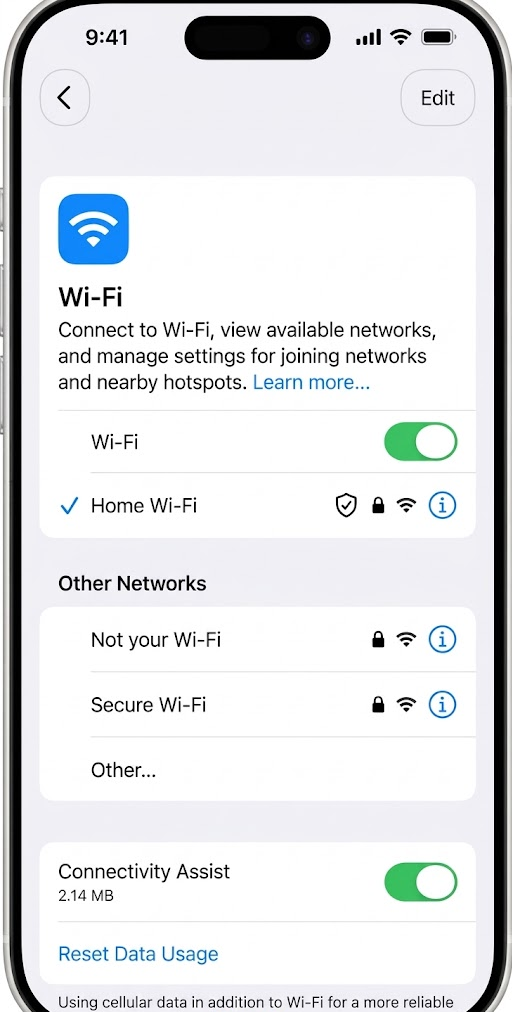
Show Settings, Privacy and Security, and Local Network on the current public iOS release. Hide the Apple Account, notifications, VPN status, and unrelated privacy entries. - Enable access for the affected app, then close and reopen it.
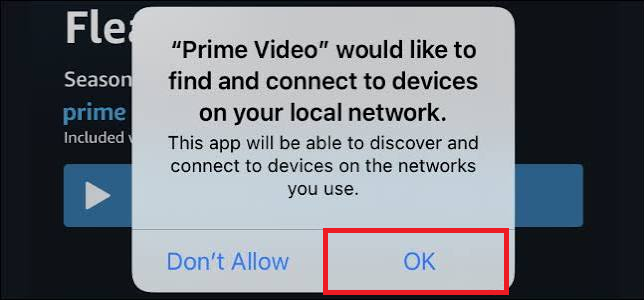
Show the affected app toggle enabled. Hide unrelated installed apps, managed settings, device names, and personal account information.
If the app is absent, open its casting control and allow the network request when shown. Update the app if it never requests access; the missing entry alone does not mean the TV is unsupported.
Mac Running macOS 15 or Later
- Open System Settings > Privacy & Security > Local Network and enable Google Chrome.
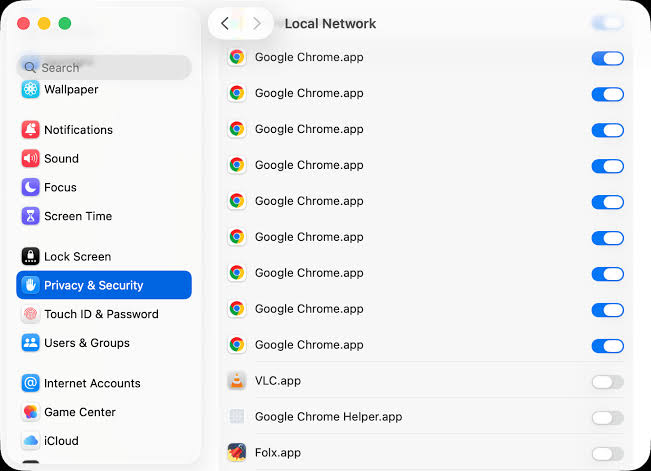
Show Google Chrome enabled under Local Network on macOS 15 or later. Hide the Mac name, Apple Account, profiles, VPN details, and unrelated applications. - Quit Chrome completely, reopen it and try the Cast menu again. Ask your administrator about controls locked by device management.
4. Check Android Permissions and App Updates
A denied discovery permission can leave Android apps unable to find the TV. On Android 17 or later, YouTube requires Nearby devices access. Check Settings > Apps > the affected app > Permissions and allow it when listed.
- In Google Play, open the affected app’s official listing and install any offered update.
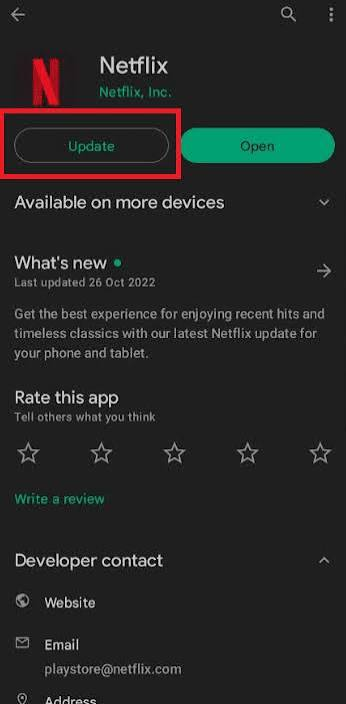
Use the official Google Play listing and stable release. Hide the Google Account, payment details, subscriptions, review history, and unrelated apps. - Update Google Home if installed, and check whether it can reach the existing receiver.
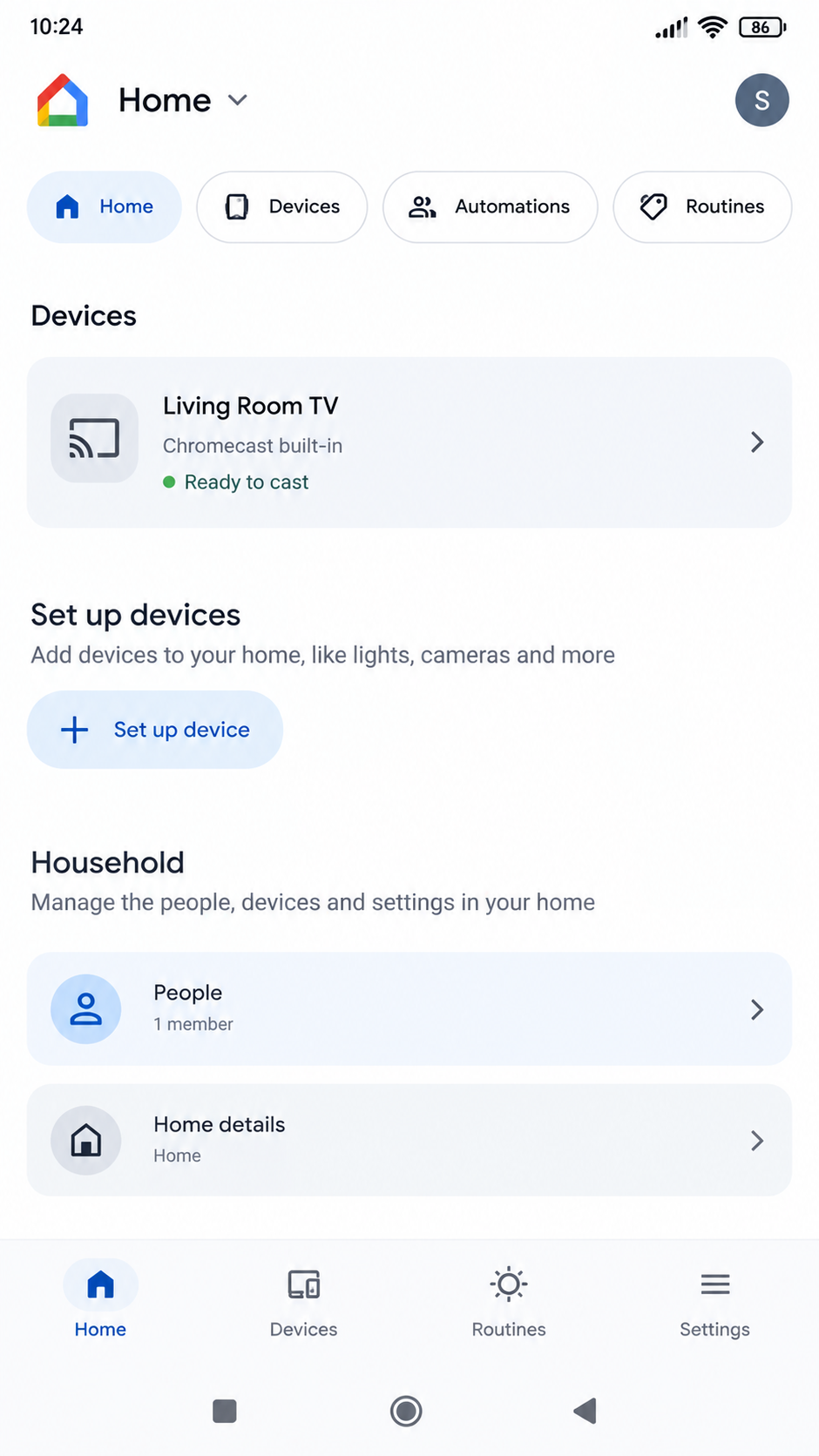
Show the official Google Home listing and current update state. Hide account, household, payment, and device information. - Check Settings > your profile > All services > Privacy & Security > System services > Google Play services. Install any offered update; manufacturer menus vary.
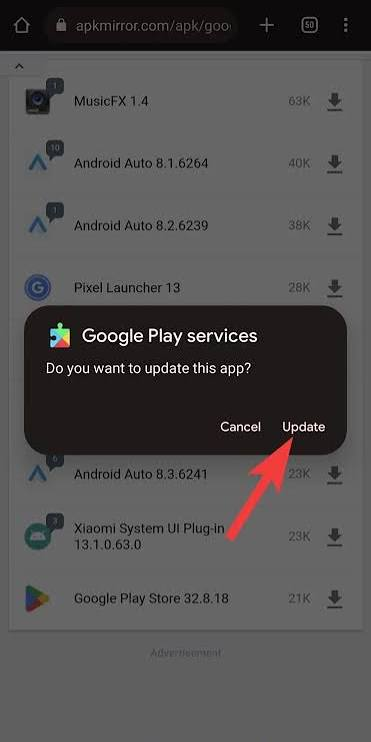
Show the supported system-services update screen or official listing. Hide the Google Account, device identifiers, payment data, and unrelated services. Use the built-in update described above, not the third-party APK page pictured.
- Restart the phone and retest. For a problem confined to one app, optionally try Settings > Apps > the app > Storage & cache > Clear cache.
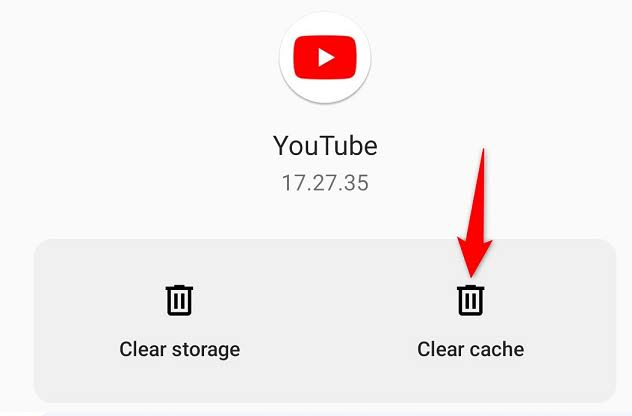
Show Clear cache for the affected app. Do not clear storage, Google Play services data, credentials, downloads, or offline media merely to stage an image.
These updates cannot add casting support that the provider has removed. Leave Clear storage and Google Play services data untouched. Cache clearing may offer only temporary relief; report a recurring failure instead of repeating it.
When Google Home itself cannot discover the device, follow Google’s missing-device checks, including Location permission and Bluetooth during setup. These are not universal requirements for every video app.
5. Restore Chrome’s Cast Toolbar Shortcut
Chrome includes casting without a separate extension. A missing toolbar button does not mean the feature has been removed; the command remains in the browser menu.
- Open More > Help > About Google Chrome. Install any offered update and relaunch.
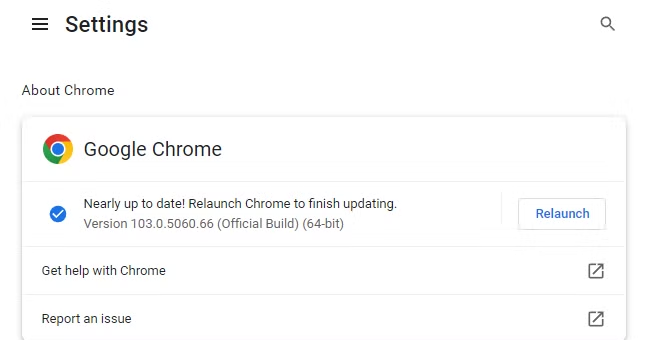
Show only the public Chrome version and current update state. Hide profile names, managed-organization details, extensions, history, and open private tabs. - Select More > Cast, save, and share > Cast. Some versions label the submenu Save and share.
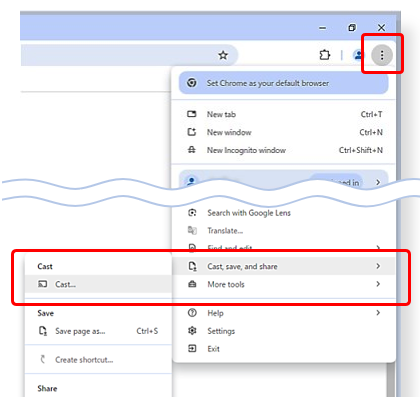
Show More, Cast save and share, and Cast on current desktop Chrome. Hide bookmarks, profiles, history, downloads, extensions, and page content that identifies the user. - Right-click the temporary Cast button beside the address bar. Select Keep in toolbar or Always show icon, depending on your version.
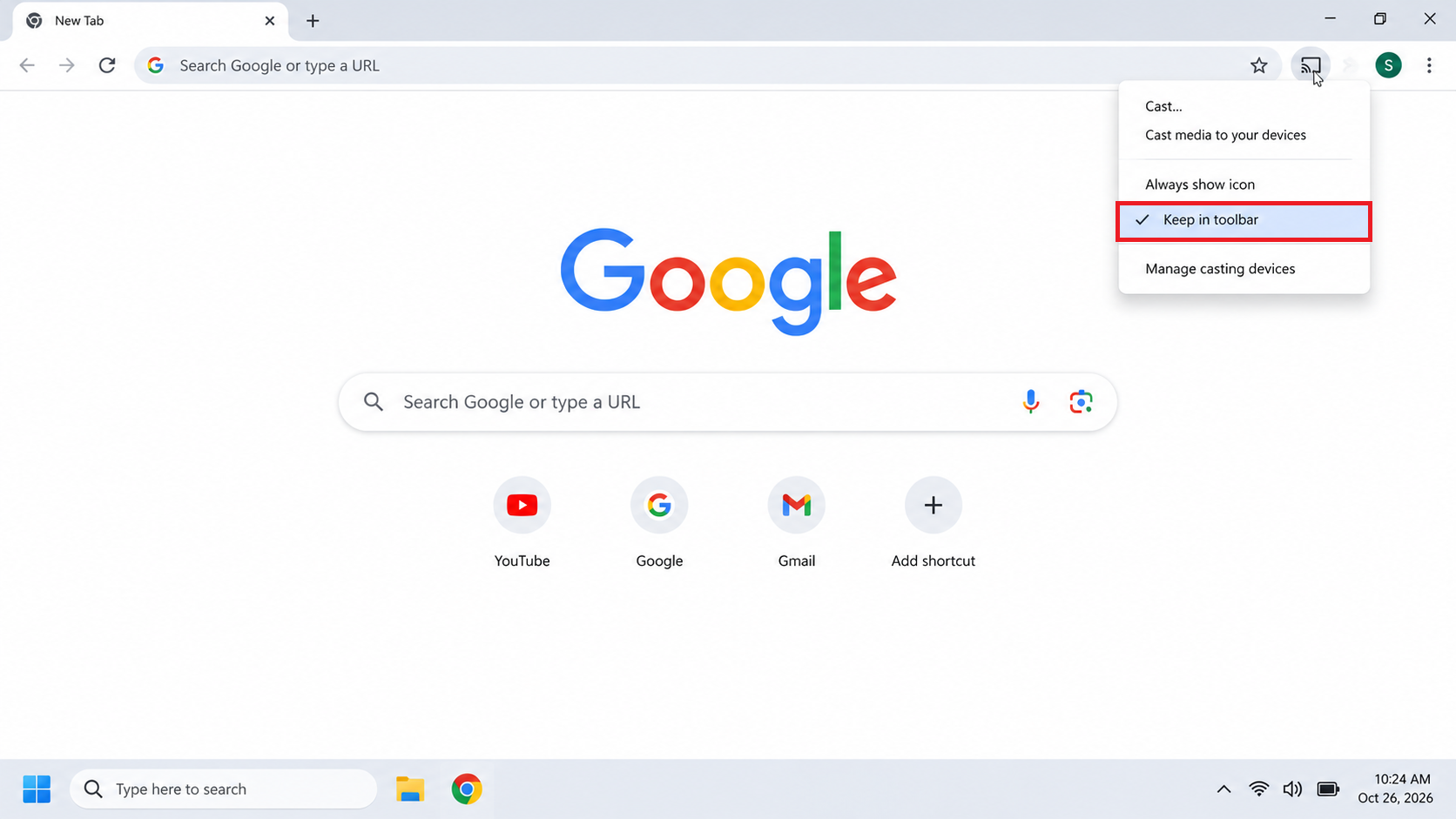
Show the Cast button and Keep in toolbar control. Hide profiles, open tabs, bookmarks, extensions, and private page content.
Pinning the button restores the shortcut, not a missing receiver. An empty list still needs the same-network and Mac permission checks. For Microsoft Edge, use the Edge toolbar menu instructions; registry changes are unnecessary for this check.
If Cast itself is absent on a managed computer, ask its administrator rather than changing browser policies or experimental flags.
6. Restart an Unreachable Receiver
If several supported apps and devices cannot find the same receiver, restart it once. Leave a receiver that works from another phone unchanged while checking the affected app.
- Disconnect the Google streaming device’s power cable for one minute, then reconnect it and wait for startup to finish.
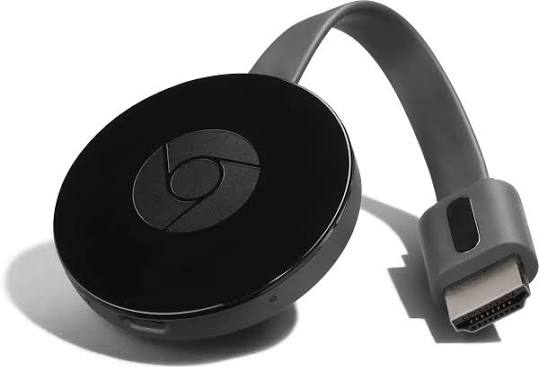
Show an owner-approved power restart with the power cable, not the HDMI cable. Do not expose serial numbers or disconnect shared equipment without authorization. - For a TV with Cast built in, use its normal Restart command. Standby may not fully restart the TV.
- If devices remain unreachable, restart your own router when it will not interrupt others. Wait for Wi-Fi to return, then retest the same apps.
Google’s restart procedure disconnects power, not just HDMI. Avoid interrupting an update. A factory reset erases setup and is not justified by a missing button alone.
For wider receiver failures, the receiver checks in our Chromecast connection guide provide more detail. Leave experimental flags and privacy settings unchanged unless support identifies a specific need.
If Cast Is Still Missing
Contact the affected app’s support team if other apps play successfully on the same TV. Include the app version, phone model, OS version, receiver model and whether Cast is absent or opens an empty list.
When every app fails, give Google or the TV manufacturer those details and the Google Home result. Redact account and network details in screenshots.


