How to Fix Sony Bravia TV YouTube App Frozen, Buffering, or Showing a Black Screen?
YouTube stops at its logo or opens to a black screen on your Sony Bravia TV, but the Home menu still works. Videos may also buffer indefinitely while other streaming apps play normally.
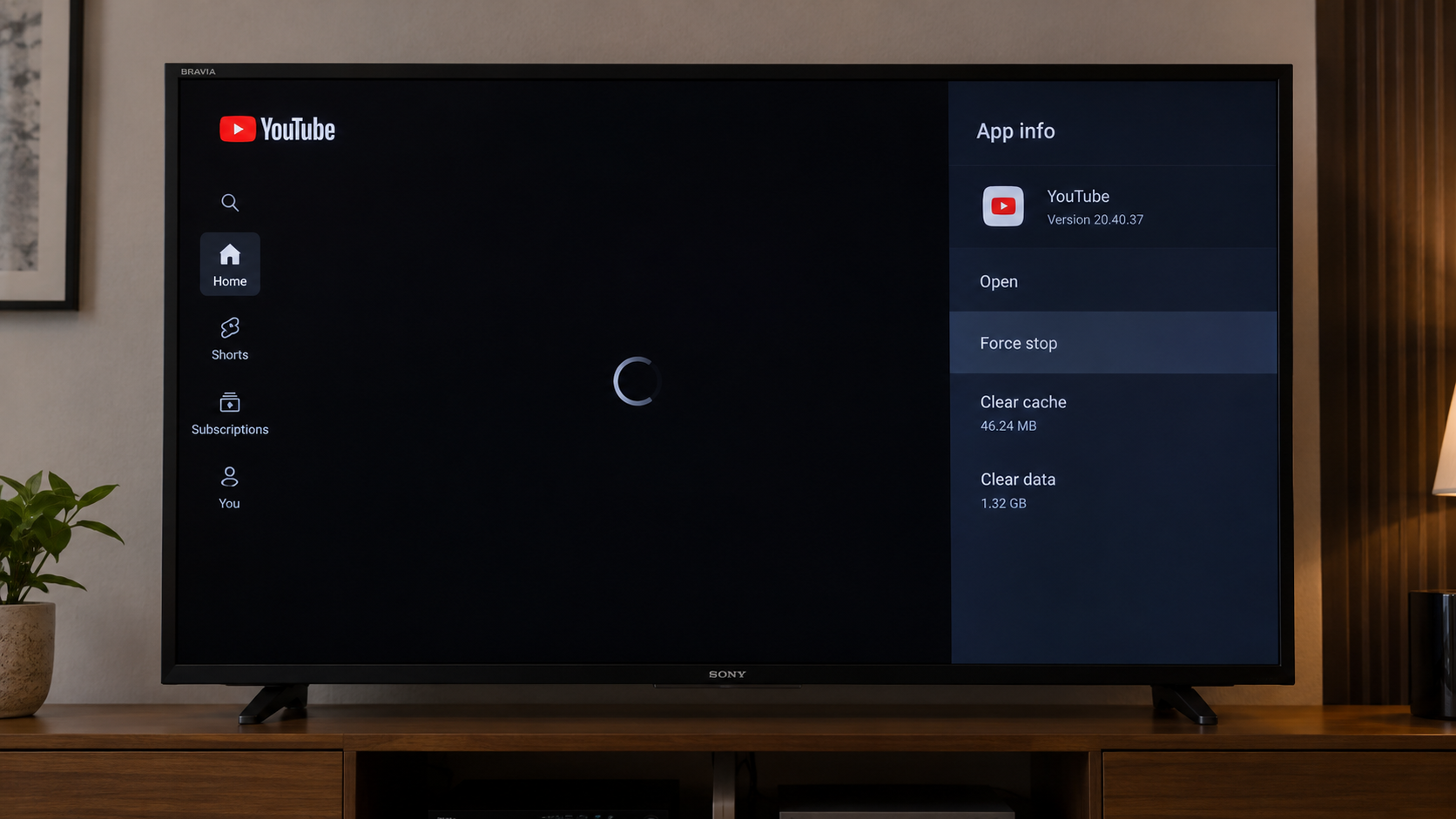
Switching the TV off with the remote does not always restart it, so a frozen app can return unchanged. YouTube can also struggle to reconnect after standby. Even a TV that says it is online may have trouble reaching the service.
Check What Still Works
- Confirm that the affected app is YouTube, not YouTube TV, the separate live-TV service.
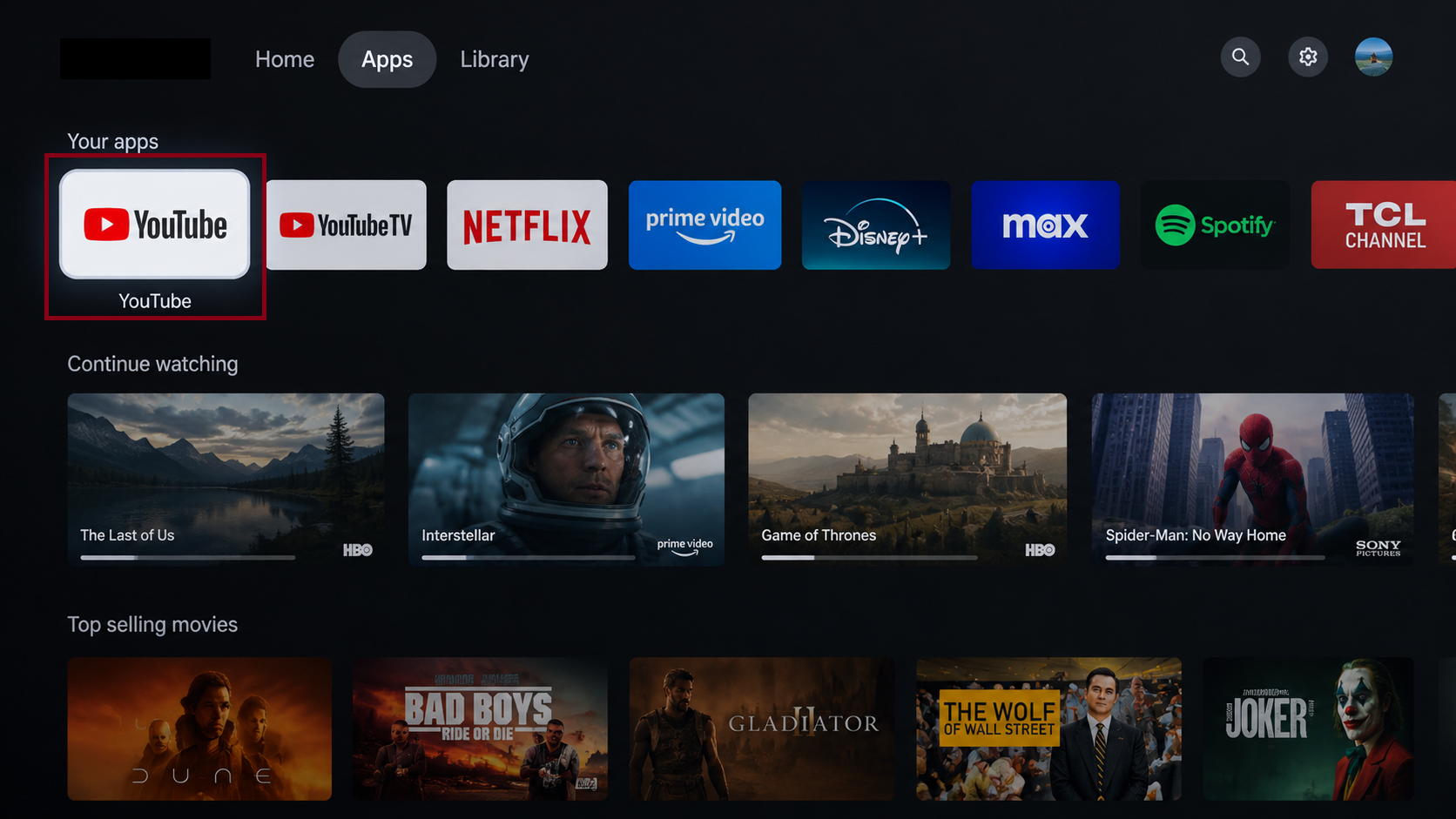
Show the app tile or app info screen clearly enough to distinguish YouTube from YouTube TV. Hide profile names and account avatars. - Try two different YouTube videos, then another streaming app on the TV. A failure limited to one video does not call for resetting the whole app.
- Play the same YouTube video on a phone or computer connected to the same Wi-Fi. Note whether it fails there too.
The paid service has separate YouTube TV black-screen troubleshooting. The app-settings instructions below apply to Google TV and Android TV models; older Bravia models use different controls.
1. Restart the Sony Bravia TV
A quick press of Power usually puts the TV in standby. A full restart reloads its software and gives a frozen YouTube session a fresh start without erasing your accounts or picture settings.
- If the problem appears immediately after waking the TV, exit YouTube, allow a few seconds for the connection to return, then reopen it once.
- Hold the remote’s Power button and choose Restart if a menu appears. Some models restart after you hold the button until Power off appears.
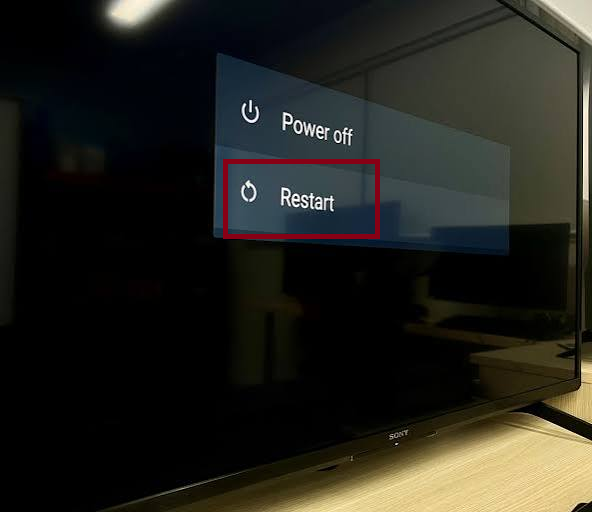
Capture the Restart option opened by holding the remote power button, if the model shows that menu. - If YouTube is still stuck, turn the TV off, unplug it for about two minutes, then reconnect it. Do not disconnect power during a software update.
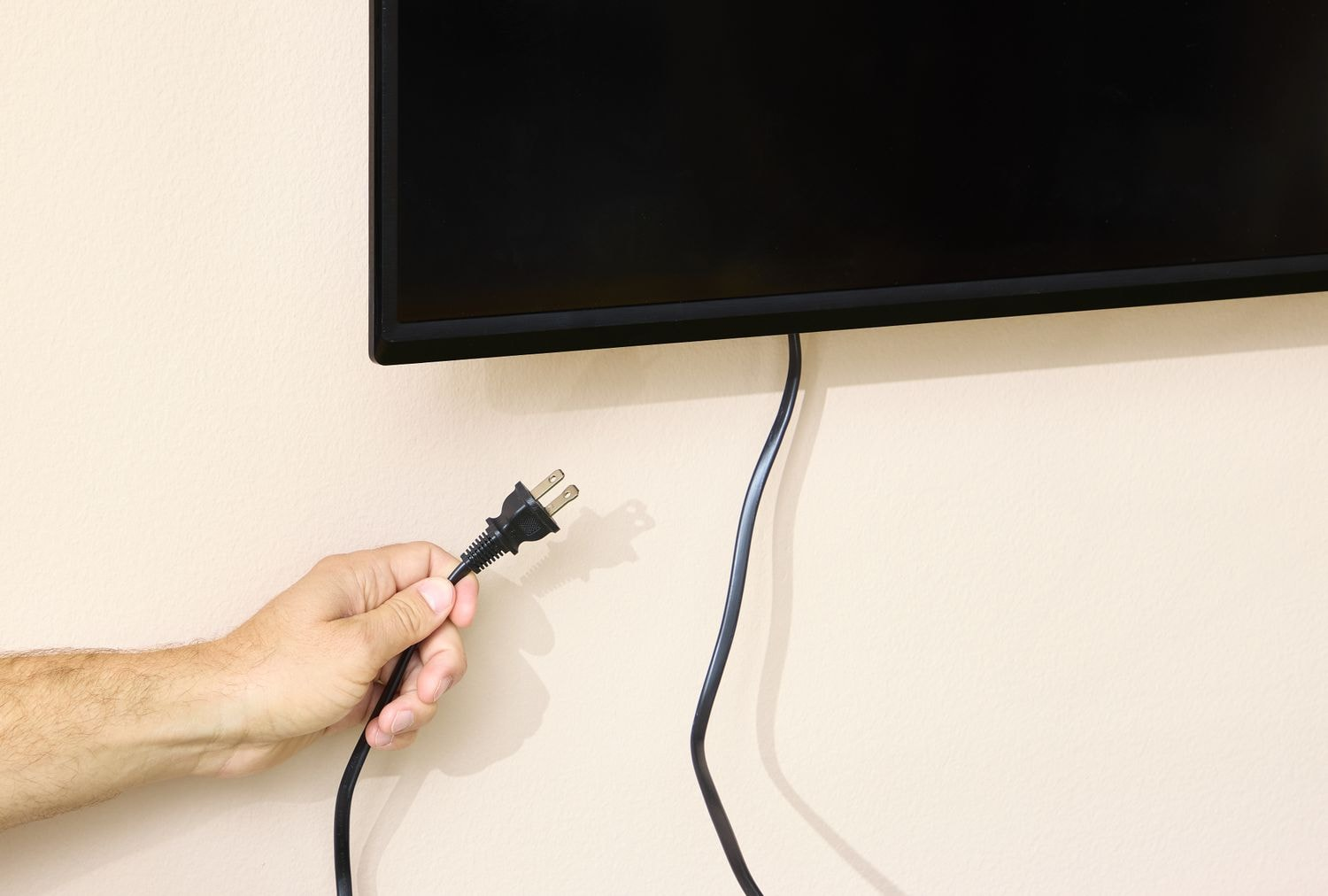
Show the TV power cord or router restart stage without exposing router passwords, IP addresses, or network labels. - Open YouTube from Home and play a video. Check that playback continues, rather than only confirming that the logo disappears.
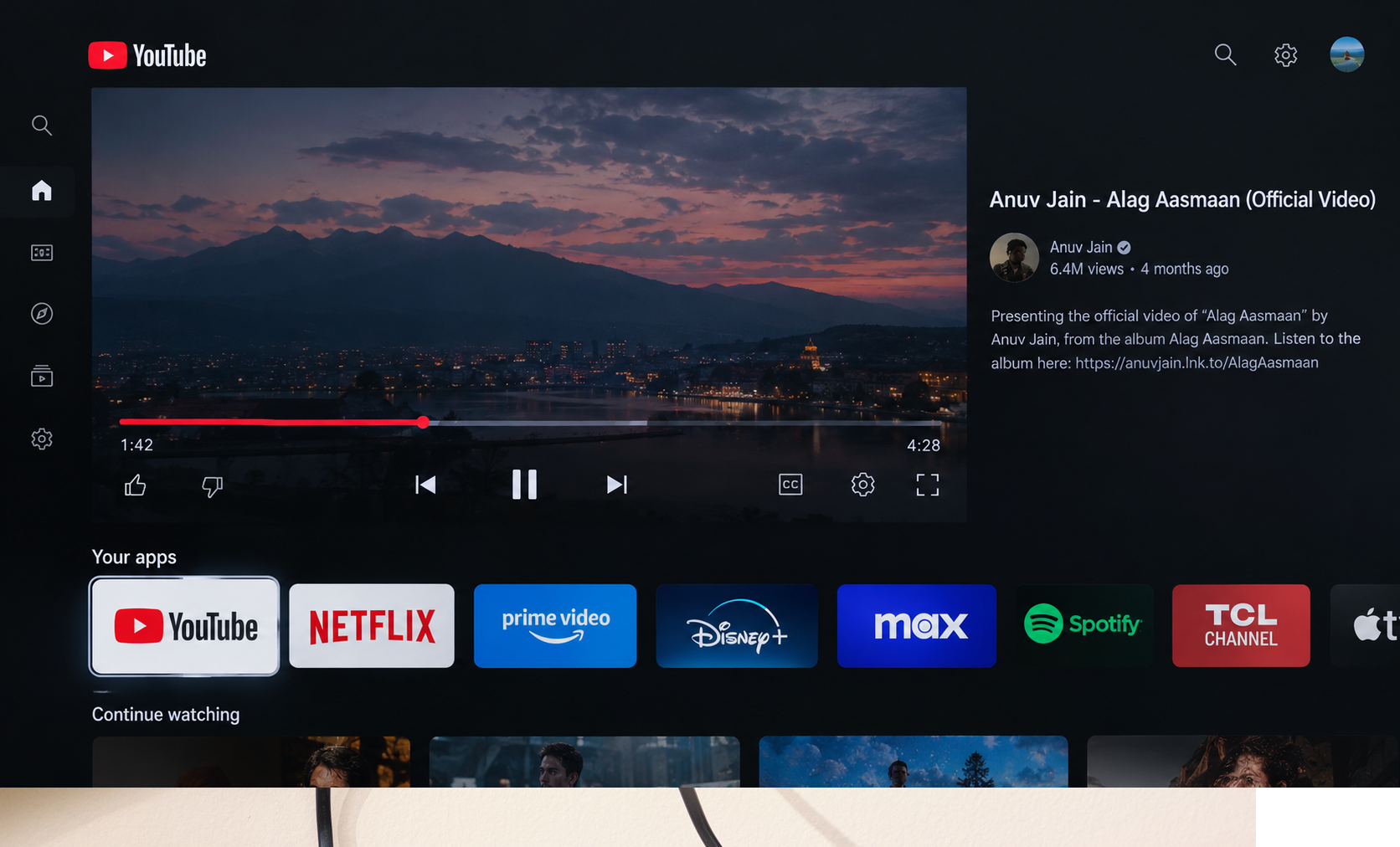
Use a public test video and keep account recommendations, watch history, and personal subscriptions out of view.
If videos now play normally, no app reset is needed. If the freeze returns, refresh YouTube’s saved data below. For buffering or connection errors, also restart the router: unplug it for about 60 seconds and wait for internet service to return.
Restart a separate modem too, if you have one. Use the power connection, not the router’s Reset button, which can erase its configuration.
2. Reset YouTube’s Local App Data
YouTube can keep reopening with damaged or outdated saved data even after a TV restart. Resetting the app removes that local state; it does not require resetting the entire television.
- Press Quick Settings and select Settings, or open Settings from the Home screen.
- Open Apps, then See all apps if that option is shown.
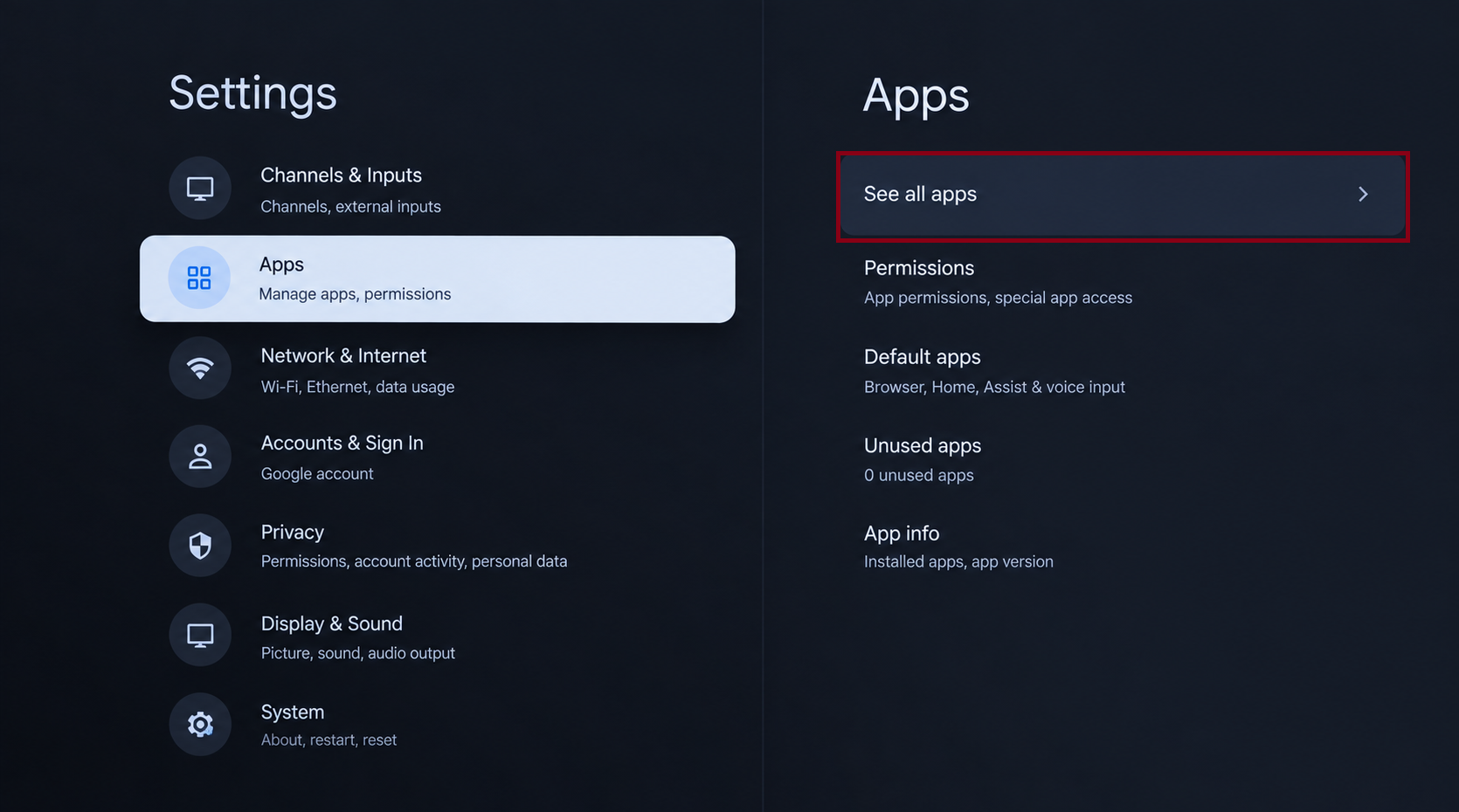
Capture the current Google TV or Android TV menu path for Apps or See all apps on the tested model. - Select YouTube. Try Clear cache and Force stop, then reopen the app. If playback now works, stop here; otherwise return to this screen.
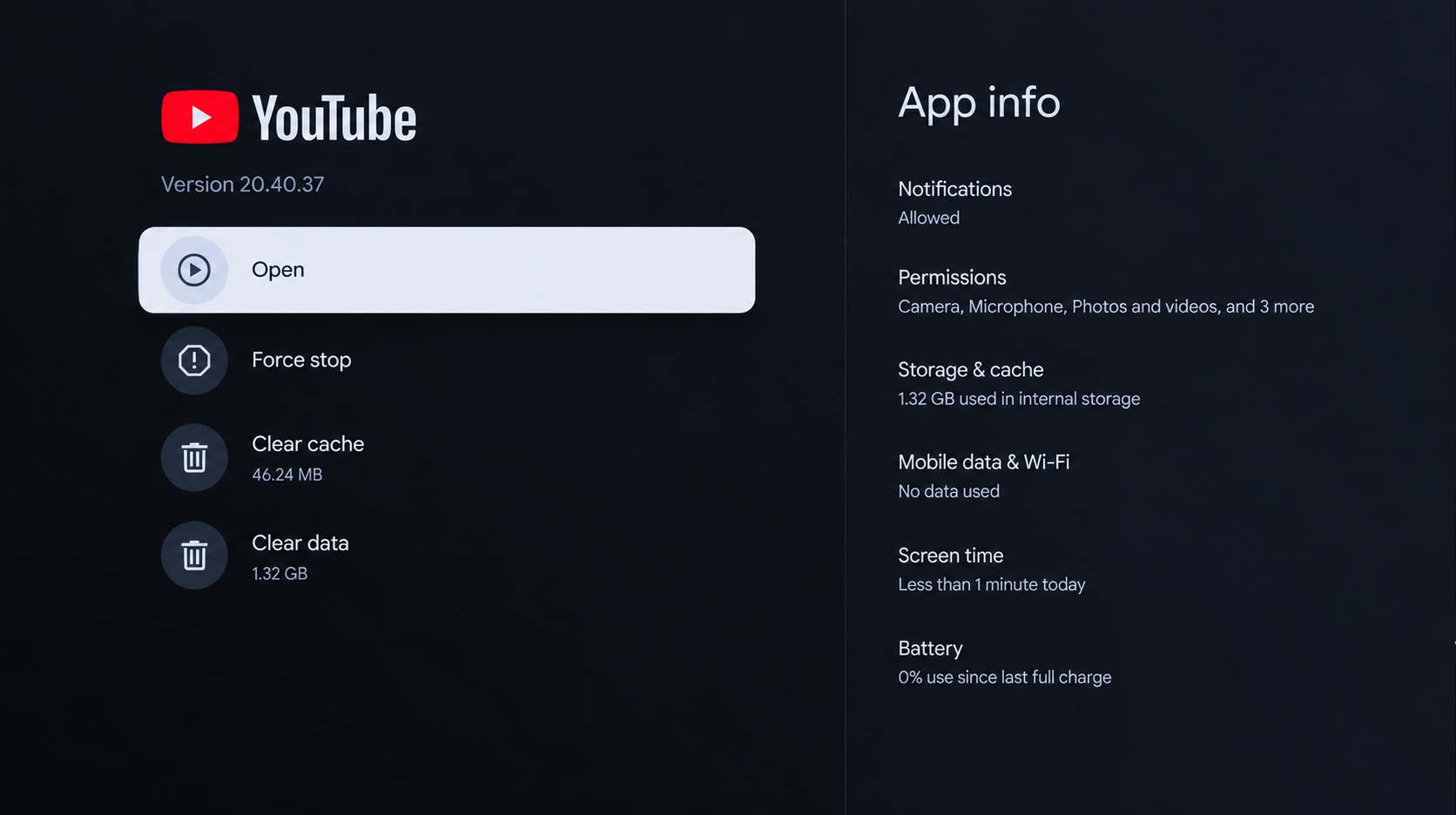
Show the YouTube app selected in the TV app settings. Do not include email addresses or other signed-in account details. - Select Clear data and confirm with OK.
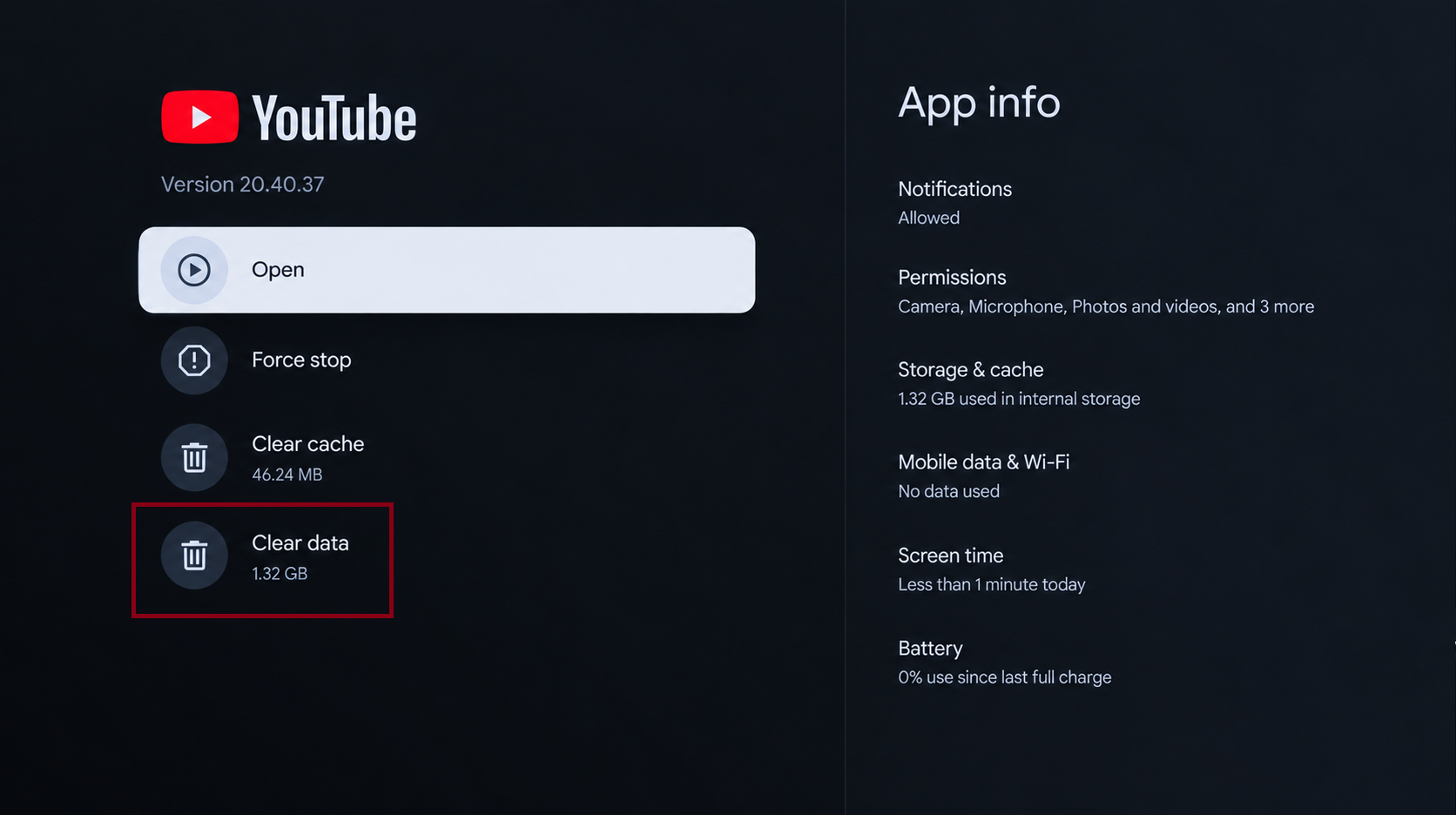
Capture the confirmation before approval when possible. Clearing data can sign the app out and remove local app settings. - Select Clear cache if cached data remains, and confirm if asked.
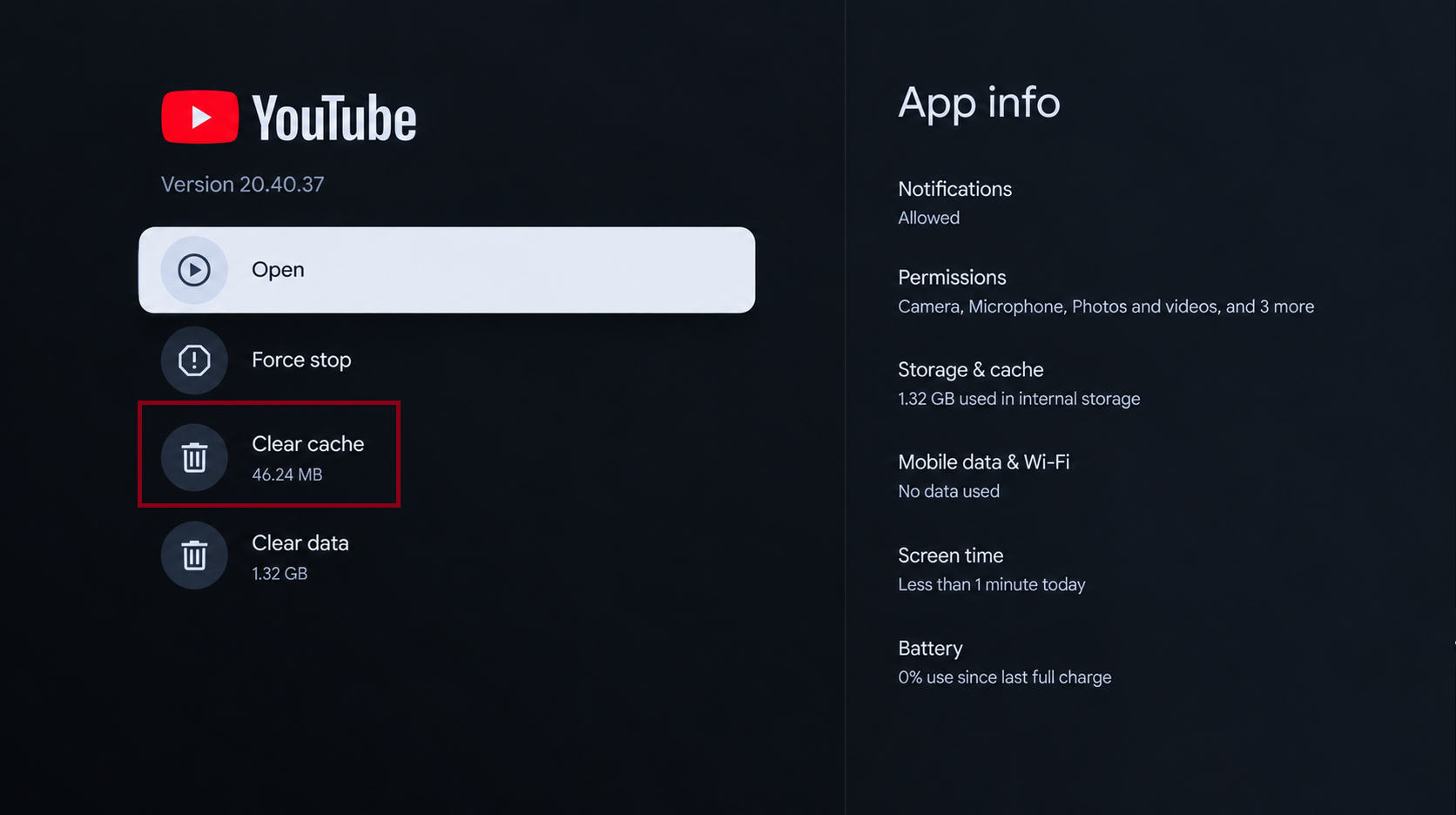
Show the Clear cache control or its completed state on the actual TV model. - Select Force stop, confirm if prompted, then reopen YouTube from Home.
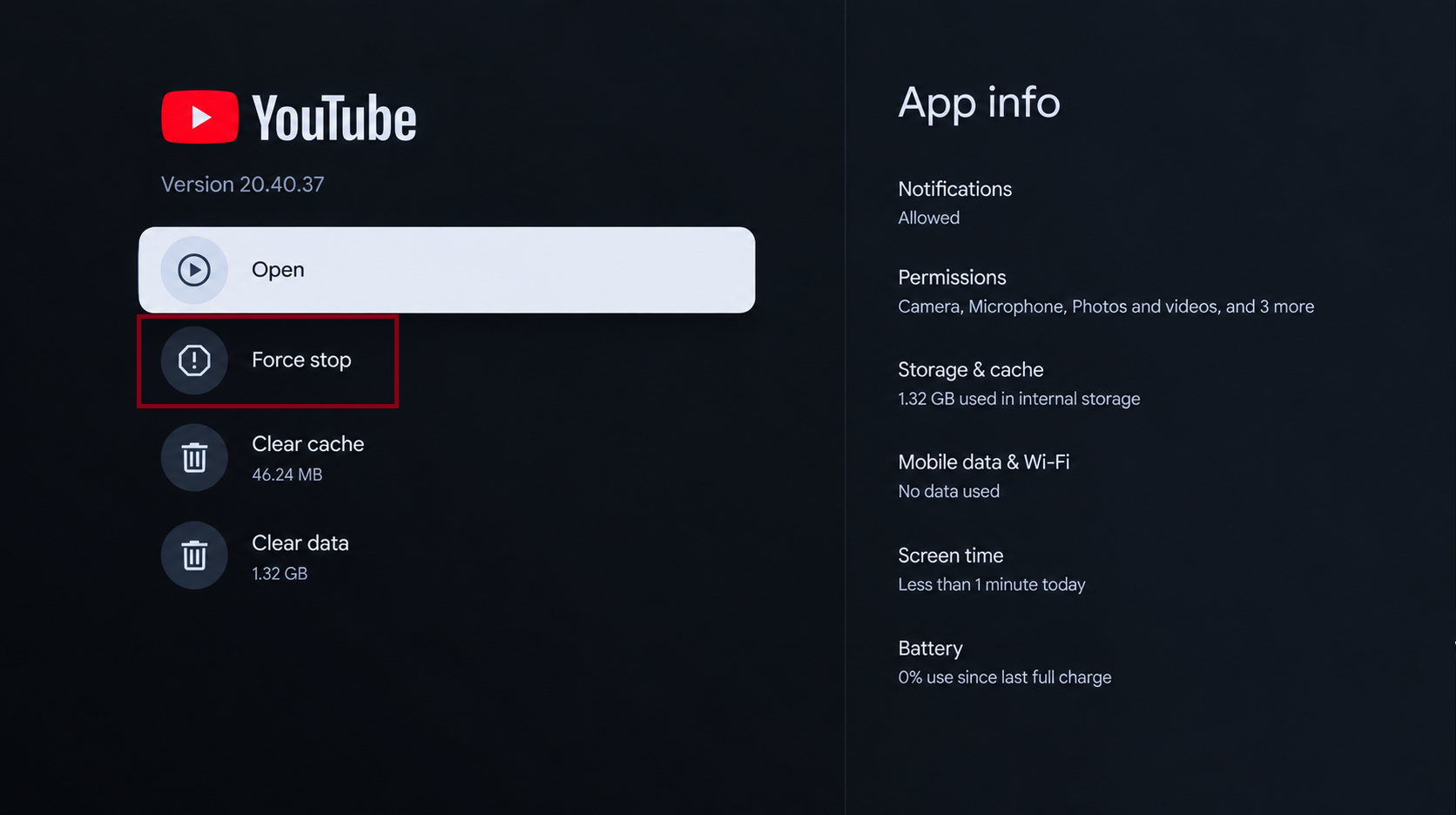
Show the Clear cache control or its completed state on the actual TV model.
Try a public video before signing back in, if YouTube allows it. If playback works while signed out but fails with your account, report that distinction rather than repeating the data reset.
Check YouTube and TV Updates
- Open Google Play Store, select your account icon, then Manage apps & games or Apps and games management. Install any available YouTube update.
- If YouTube still fails, return to Settings > Apps > YouTube. Choose Uninstall updates if available, confirm, then open YouTube once. Reinstall its available updates through Google Play.
On Google TV, the Play Store may not have a visible app tile; try voice search or the Input menu. Sony’s app-management guide explains the variations. Uninstalling YouTube updates restores the preinstalled app, not the TV’s factory settings.
Also check the TV’s software-update screen or Sony’s model-specific downloads. Use only the firmware offered for your exact model and region, and keep power connected until the update finishes.
Once an update or app reset restores stable playback, stop changing settings. If YouTube still shows a connection error or cannot start videos, check the clock and connection next.
3. Check the TV’s Clock and Connection
An incorrect date can prevent streaming services from connecting properly. Other apps working does not rule this out, and it does not guarantee that the TV can reach YouTube reliably.
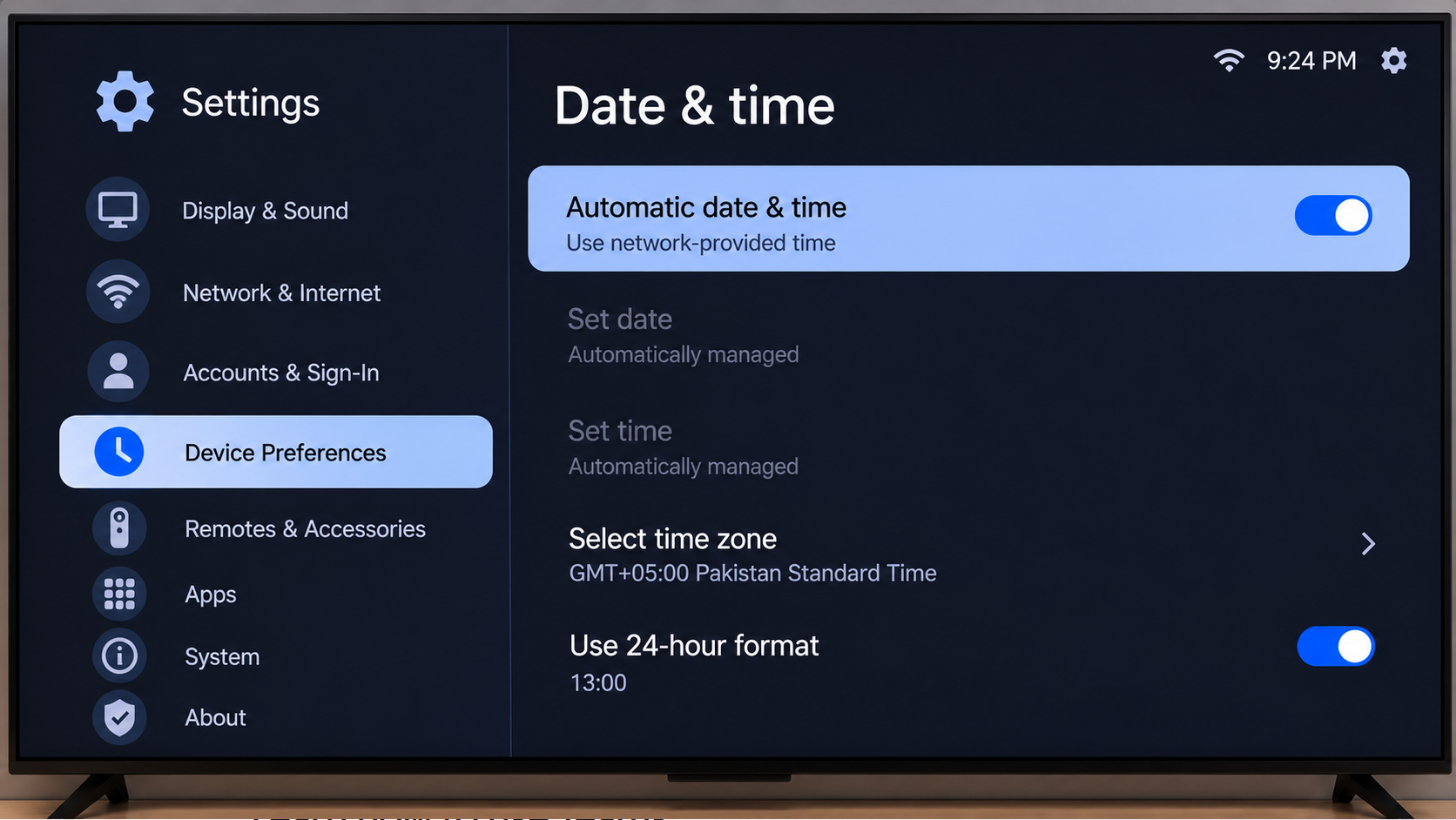
- Open Settings > System > Date & time, or Device Preferences > Date & time. Check that the displayed date and time are correct.
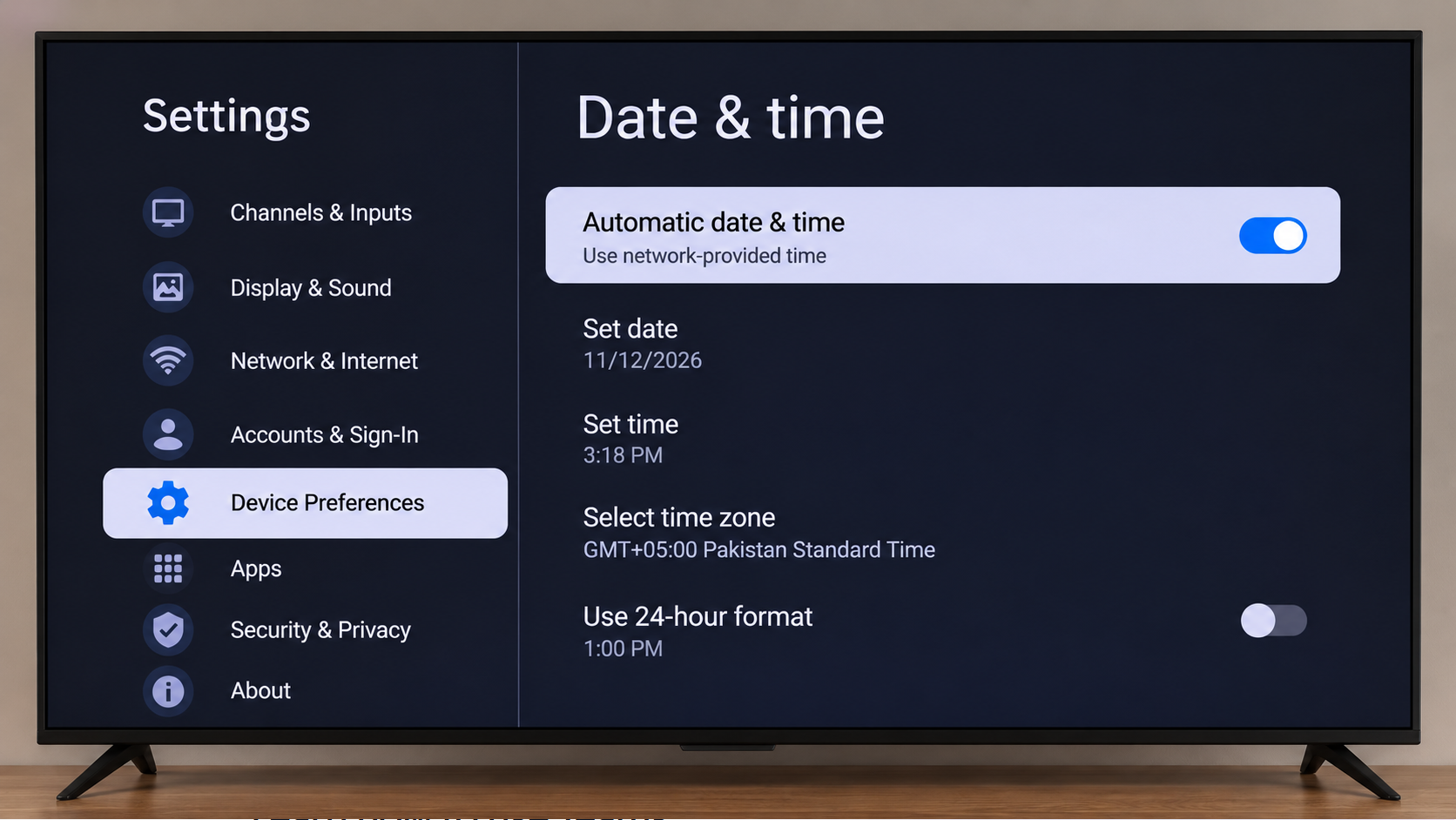
- Enable Automatic date & time, using network-provided time where offered. Check the time zone, then retry YouTube. Sony’s clock instructions cover other menu layouts.
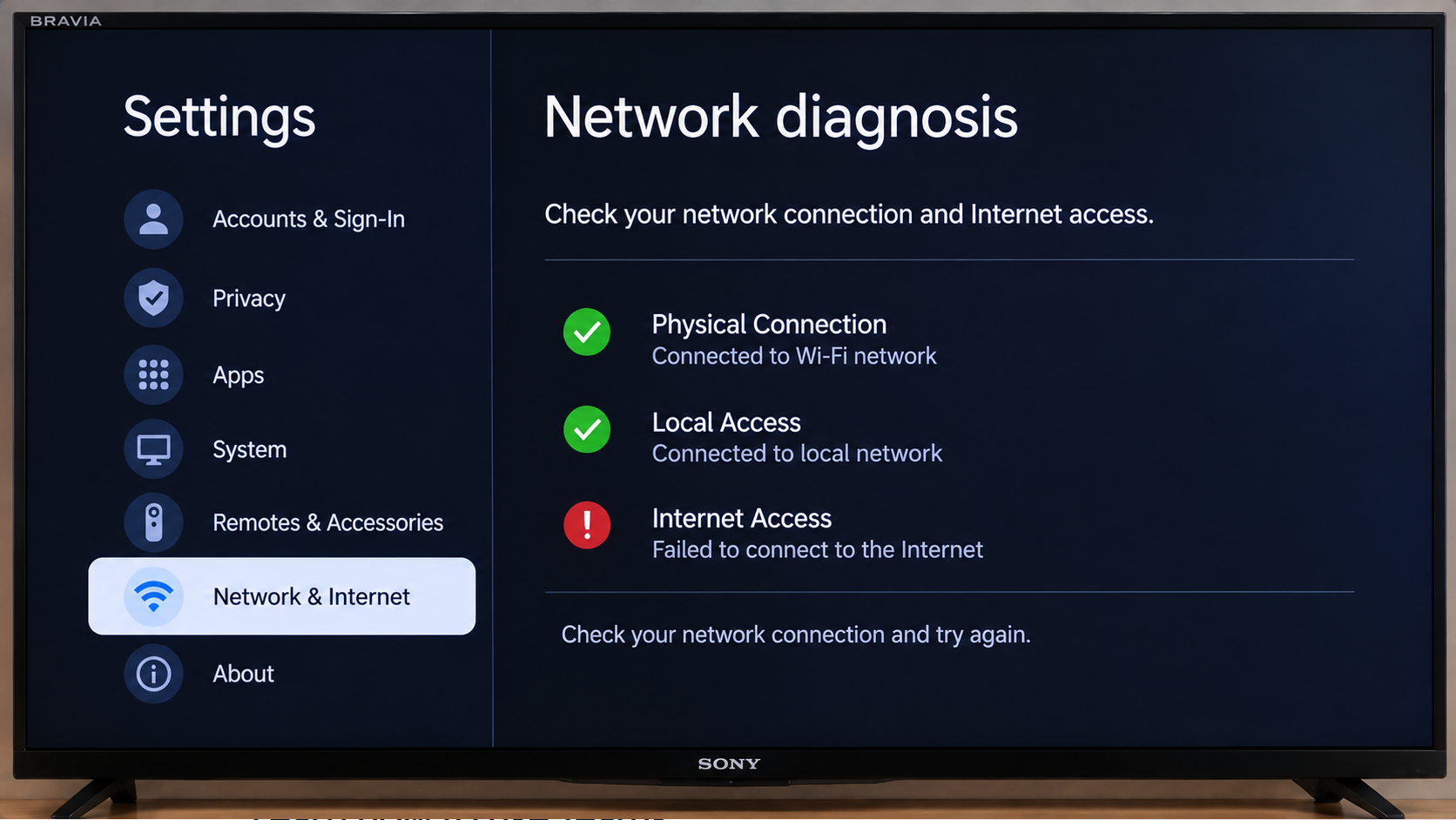
- Run the TV’s Network diagnosis. Follow Sony’s network-diagnosis instructions for your model, including the directions for any failed connection test.
- Optional: Test YouTube on a different trusted connection, such as your phone’s hotspot. Mobile-data charges may apply. Reconnect the TV to its usual network afterward.
If YouTube works on another network, have your router administrator or internet provider check the original connection and any filtering. A successful network diagnosis does not rule out service-specific trouble. Keep workplace, hotel and school restrictions in place.
If your phone also shows the same No Internet Connection or Tap to Retry message, that guide covers the phone-side checks. It is not a substitute for the TV menus above.
Older Bravia Models Without Android TV or Google TV
Do not look for Android app controls on an older non-Android Bravia. Sony’s model-specific YouTube guidance describes Initialize Personal Information, Refresh Internet Content or browser-cookie cleanup for particular models. Read the reset consequences before confirming; these are not interchangeable fixes.
First check whether your exact model appears in Sony’s YouTube service-termination notice. A reset cannot restore a service withdrawn from that model. A supported external streaming device can provide YouTube without replacing an otherwise working TV.
If YouTube Still Will Not Play
| What remains wrong | What to do next |
|---|---|
| Only YouTube fails after the checks above. | Give Sony or YouTube the TV model, firmware and app versions, exact symptom, and whether signed-out playback or another network worked. |
| Several devices suddenly cannot play YouTube. | Check for a wider service or connection problem. If they fail on different networks too, wait before resetting this TV. |
| The picture also disappears in Home or on other inputs. | Have Sony check the TV’s wider picture or hardware problem. YouTube data resets will not address every source going black. |
A factory reset removes accounts and TV settings. Reserve it for model-specific Sony guidance after the app and connection checks, rather than using it repeatedly for one failing app.