How to Fix YouTube “No Internet Connection” / “Tap to Retry”
If YouTube suddenly starts showing No internet connection and a Tap to retry button, the first assumption is usually that Wi-Fi or mobile data dropped. But with this error, that is often not what is actually happening.

A lot of the time, the phone is still connected just fine. The problem is that YouTube cannot use the connection properly from inside the app, which is why other apps may keep loading while YouTube refuses to play anything.
That usually comes down to four areas: blocked cellular-data access, VPN or Private DNS filtering, broken app data, or the current YouTube build itself.
1. Check Whether YouTube Lost Mobile Data Access
One very common version of this problem shows up the moment you leave Wi-Fi. The app works at home, then flips to No internet connection as soon as it has to use cellular data.
When that happens, the phone is usually fine, because the break is not the connection itself. The YouTube app is no longer allowed to use the mobile-data path, so it acts offline even while everything else keeps working.
Skip this if YouTube fails the same way on both Wi-Fi and cellular data; that usually points somewhere else.
- On iPhone, open Settings > Cellular and make sure YouTube is turned on.

If YouTube works on Wi-Fi but not on cellular, app-level data access is the first thing to verify. - On Android, open Settings > Apps > YouTube > Mobile data & Wi-Fi and make sure mobile data access is allowed.

Restricted background or mobile data access can make the app behave as if it is offline. - Reopen YouTube and retry a video once after changing the setting.
If YouTube starts loading again on cellular data, the app-level data restriction was the blocker. If the same error still appears, continue to Method 2.
2. Remove VPN, Private DNS, and Other Network Filters
Sometimes YouTube is not really offline at all. The app is reaching a filtered or broken route, so it throws the retry message even though the phone is connected.
That is why this method matters when the app fails on one network but behaves differently on another. VPNs, filtered DNS paths, ad-blocking network tools, and even one bad home IP can all break the request before the app finishes loading.
This is worth testing when the error seems tied to one Wi-Fi, one carrier path, or one privacy tool. Skip this if the app fails identically everywhere and you are not using any filtering tools at all.
- Turn off any active VPN or proxy on the phone and test YouTube again.

- If you use Private DNS, ad-blocking DNS, or a similar filter on Android, switch it to Automatic or Off for one test.

Filtered DNS paths can make YouTube look offline on one network only. - Retry the same video on Wi-Fi, then switch to mobile data and retry it again.
- If the problem only happens on one home Wi-Fi, restart the router once and test again after it reconnects.
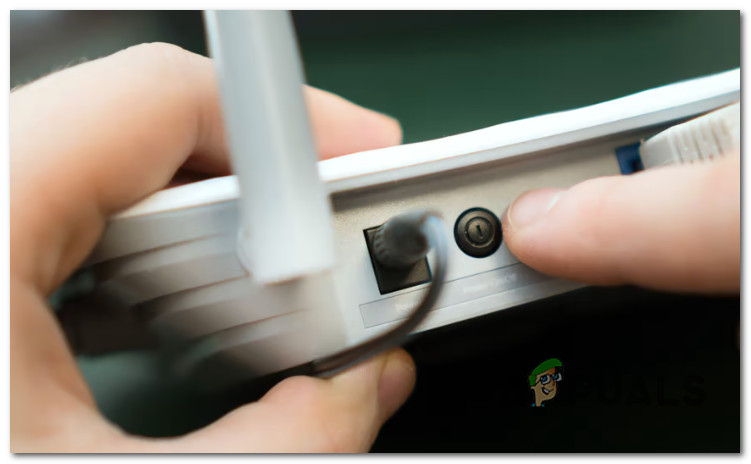
Restart the router
3. Clear the App’s Stuck Session
If the phone is clearly online and the network path looks normal, the next likely culprit is the app itself. YouTube can get stuck in a bad local session and keep showing the offline banner long after the connection is fine again.
The usual cause here is stale cache, stale sign-in state, or local app data that no longer matches the current network or account session.
Use this branch when the browser still works or when the rest of the phone clearly has internet outside the YouTube app.
Skip this if YouTube only breaks on one specific network path, because the route checks above are a better fit.
- On Android, open Settings > Apps > YouTube > Storage and tap Clear Cache.

A stale mobile app session can stop history from syncing cleanly. - If the error still remains, return to the same screen and use Clear Storage or Clear Data, then sign in again.

If cache cleanup is not enough, clearing app storage forces a full local reset. - On iPhone or iPad, delete and reinstall the YouTube app, then sign back in and retry the same video.

Because iPhone does not expose a direct app-cache clear for YouTube, reinstalling is the closest reset path.
4. Reinstall or Reset the Current YouTube Build
Sometimes the problem is not your session and not your network either. The installed YouTube build itself can be the thing that broke.
This usually shows up after an app update goes bad or when the current package is partially corrupted. In that situation, the browser still works, but the installed app keeps looping on the connection message.
This branch is worth doing when the problem started suddenly in the app and you have not already done a clean reinstall today. Avoid this if switching networks or clearing the app state already changed the behavior, because that points to a different layer.
- Open the Play Store or App Store and install any available update for YouTube.

Start by making sure the mobile app itself is not running an outdated build.
- If the app is already up to date and still fails, reinstall it. On some Android devices, the equivalent path is to remove app updates and then update again.

If the current build is corrupted, reinstalling or resetting updates can restore a clean app package.
If the app is crashing, closing, or reopening instead of staying on the retry banner, start with this guide to fixing the crashing YouTube app.
5. Compare the Browser and App to Isolate an Account or Route Problem
If youtube.com loads in your phone browser but the app still says No internet connection, you have already answered the biggest question: the phone is online. What is failing now is more specific than a normal outage.
At that point, the problem usually narrows to one account session, one app-only state issue that survived cleanup, or one network route or IP that the app is handling differently from the browser.
Use this last, after the permission, filter, and app-reset checks above.
Skip this if youtube.com is also failing in the browser on the same phone, because that still points to a broader connection or route problem.
- Open YouTube in your mobile browser on the same phone and the same network, then compare that result with the app.
- If the browser works, test another Google account in the app once to see whether the failure follows the account or only the current session.

This helps separate a local app problem from an account-side or session-side issue.
- If you recently used third-party clients or aggressive network filters on the same connection, disable them, wait a bit, then retry on a fresh route or a fresh IP.
- If the issue still follows one account or one network path, send feedback from the app with the exact time, network type, and app version.
If this exact connection message is only happening on your TV app, use this YouTube TV connection guide instead.
If another account works, or the app starts loading on a different route, you have narrowed it down to that session or path.


