How to Fix YouTube Live Chat Not Loading?
If YouTube Live Chat is blank, keeps spinning, or shows Unable to connect to chat, the failure is usually in one of four places: stream-level restrictions, browser filtering, profile/session corruption, or account-level state.

This feels inconsistent because the video player can load while the chat panel fails. In most cases, the issue is resolved fastest by verifying stream-level chat restrictions first, then checking for extension or browser-profile conflicts.
1. Confirm the Stream Actually Allows Live Chat
Start here when chat is missing on one stream and you have not tested other live streams yet. A one-stream-only failure usually points to stream restrictions, not a local browser fault.
This works because a stream can disable chat by policy, and that looks identical to a local loading bug until you compare another live stream.
- Open another active stream from a different creator and check whether chat loads there.
- If chat works on other streams, return to the original stream and check for signs that chat is restricted.
- If the stream is set as Made for Kids, live chat is disabled by policy.
- If the stream has moderation or policy restrictions, chat may also be turned off.
If only that stream blocks chat, stop here (stream-side restriction). If multiple streams fail, continue to the next method below.
2. Disable Ad Blockers, Script Filters, and YouTube-Specific Extensions
If chat works elsewhere but fails in one extension-heavy profile, this is the right next test. Browser filters can block chat requests even while video playback stays normal.
This works because ad/privacy/script filters can block chat requests while video traffic still passes, so playback looks fine but chat never initializes.
- Open your browser extension page.

Re-enable extensions one at a time to find the exact conflict. - Temporarily disable ad blockers, script blockers, privacy filters, and YouTube helper extensions.

- Refresh the live stream and test chat.
- If chat returns, re-enable extensions one by one until the blocker is identified.
If chat returns after disabling one extension, stop here and keep that extension off for YouTube. If not, continue to the next method below.
3. If You Use Brave, Adjust Shields for YouTube (For Brave Browser)
In Brave-only cases, Shields can over-filter chat endpoints. A per-site YouTube exception often restores chat without lowering browser-wide protection.
- Open a YouTube live stream in Brave.
- Click the Brave Shields icon in the address bar.

- For YouTube only, test lowering Trackers & Ads blocking and refresh.

Use a YouTube-only Shields exception instead of lowering protection globally. - If chat appears, keep a per-site exception only for YouTube.
If chat appears after per-site Shields change, stop here. If not, continue to the next method below.
4. Use a Private Window Test and Then Clean the Affected Profile
If private mode behaves differently, the problem is usually local state, not YouTube platform stability.
This works because private mode starts with a cleaner session. When private works and normal fails, the root cause is usually cached site state, extension behavior, or stale session data.
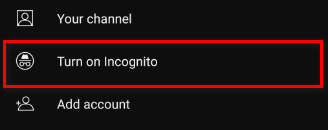
- Open the same stream in a Private/Incognito window.
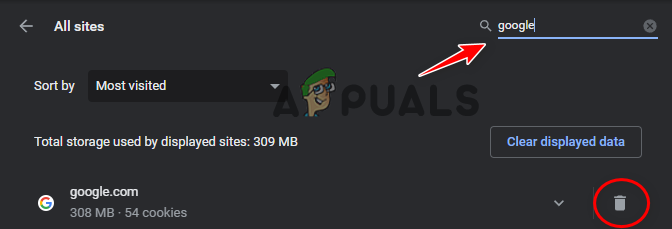
- If chat works there, return to normal mode and clear YouTube site data and cache for that browser profile.
- Sign out of YouTube in that browser profile, then sign back in and re-test.
- Keep extensions disabled until chat is stable, then re-enable gradually.
If private mode works and normal mode recovers after cleanup, the profile path is confirmed. If both modes fail the same way, continue to the next method below.
5. On Mobile Browsers, Switch to Desktop Site (or Use the YouTube App)
If desktop chat works but mobile browser chat does not, the mobile layout may be failing to initialize the chat pane while playback still works.
Switching to Desktop site forces desktop chat rendering, which often restores the panel immediately.
- Open the stream in your mobile browser.
- Open the browser menu and enable Desktop site.

- Reload the stream and check chat.
- If chat is still unavailable in browser mode, test the same stream in the YouTube app.
If Desktop site or the app restores chat, keep that path for live streams on this device. If neither path works, continue to the next method below.
6. If the Issue Is Only on One Account, Treat It as Account-Level
If another account works on the same device/browser but your main account fails, treat this as account-level.
This usually happens when account-state or moderation conditions affect chat behavior on one account only.
- Test the same stream with a different account in the same browser.
- Open YouTube Live chat history and verify whether your messages are being recorded.
- If only one account is affected, collect screenshots and submit to YouTube support/community with stream URL and timestamp.
If account A fails and account B works on the same stream/browser, escalate with account-specific evidence.
If the Issue Still Persists
Run one final isolation check on an active stream in Chrome, Edge, or Firefox with extensions disabled. If chat works there, the issue is profile/configuration-related. If it fails across browsers and accounts at the same time, it is likely temporary platform-side behavior.
When escalating, include browser version, affected stream URL, exact error text, whether private mode works, VPN/proxy state, and whether another account works on the same device.


