How to Fix YouTube History Not Updating?
When YouTube history stops updating, the problem usually gives itself away in a very obvious way: the homepage suddenly says Your watch history is off, watched videos stop appearing in History, or the red progress bars stop matching what you actually finished.

It feels inconsistent because playback can still look completely normal while the part that records your activity quietly fails in the background. That affects resume points, recommendations, and anything else YouTube builds from recent watch activity.
Most of the time, the break happens in one of four places: history saving is paused, the wrong account or channel is active, a browser or app layer is interfering with the write, or a network or account-level restriction is getting in the way.
1. Check Whether Watch History Is Paused
If the homepage is showing Your watch history is off, start here. That message usually means YouTube is not currently allowed to save new watch activity for the account you are using, so no browser or app cleanup will help until that setting is corrected.
Turning history saving back on lets YouTube write fresh watch activity again, which is why the homepage and progress bars start recovering afterward.
- Open YouTube, select your profile picture, then open Your data in YouTube or Manage all history.

The first check is whether the account is still allowed to save watch activity. - Make sure Saving YouTube history is turned on.

History must be actively saved at account level before app-level fixes can work - Make sure Pause watch history is turned off.
- If Auto-delete is enabled, that is fine, but confirm it is not replacing active history saving.
- Play a fresh video for about 30 seconds, then open History and see whether it appears there.

One short test video is enough to confirm whether watch logging is working again.
If the new video appears in History and the homepage banner disappears, you are done here. If the setting was already correct or nothing new records, continue to Method 2.
2. Make Sure You Are Using the Same Account or Channel
This is a very common false alarm on shared devices and on Google accounts that have more than one YouTube channel identity attached to them. You watch on one profile, then check History under another, and it looks like YouTube stopped saving anything.
The quickest way to rule that out is to watch one short test video and check history without switching account or channel in between.
- Open the YouTube account switcher and confirm which Google account is active.

Watching on one account and checking history on another is a common false alarm. - If you use Brand accounts or multiple channel identities, confirm which channel is currently selected before testing.
- Play a short new video for 20 to 30 seconds.
- Open History in that exact same account and channel context.

Do the test without switching account or channel in between. - If needed, switch to your other account or channel and repeat the same quick test once for comparison.
If one profile records the test video and another does not, the issue is account context rather than broken history. If none of them update, move on to the browser or app side.
3. Disable Extensions and Other Browser Filters
If this only happens in a desktop browser, extensions are one of the first real suspects. Ad blockers, privacy filters, script blockers, and YouTube helper add-ons can let the video play normally while silently blocking the request that saves watch activity.
That is why this issue often feels strange: YouTube still loads, videos still play, but history refuses to move.
Use this only if the problem is happening in a desktop browser. If the same account is also failing in the mobile app, treat this as a browser-side test rather than the whole answer.
- Open your browser extension page.

- Temporarily turn off ad blockers, anti-tracking extensions, script filters, and any extension that modifies YouTube pages.

Ad and script filters can block history logging while playback still works. - If you use Brave, test once with Shields relaxed for youtube.com only.

In Brave, a YouTube-only Shields test can expose filtering conflicts quickly. - Hard refresh YouTube, play a fresh video, and check History again.
- Open a private or incognito window and repeat the test once there as well.
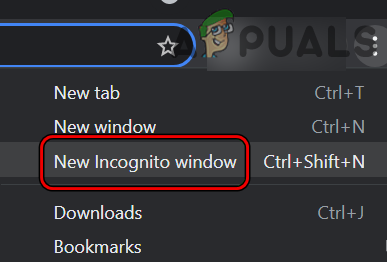
Open New Incognito Mode in Chrome
- If history starts working, turn extensions back on one by one until the exact conflict shows itself.
If history starts updating after one extension or filter is disabled, keep that change in place. If it still fails in both normal and private mode, continue to Method 4.
4. Clear YouTube Site Data in the Affected Browser
If extensions are not the cause and the problem is still limited to one browser profile, stale site data is the next likely culprit. Corrupt cookies or session state can leave YouTube usable on the surface while breaking the part that syncs fresh watch activity.
This is especially worth trying if the problem began after a browser update, a forced sign-out, or a session that started behaving strangely.
Use this only if the failure is tied to one browser or one browser profile. If YouTube is failing the same way on mobile too, this step may help the browser copy but it probably is not the root cause.
- Clear youtube.com site data and cookies in the affected browser profile.

Corrupt local session state can block history writes without breaking video playback. - Close the browser completely, then open it again.
- Sign back in to YouTube.
- Play a new video for about 30 seconds and check whether it appears in History.
- If you use more than one browser profile, test the same account in a clean profile once for comparison.
Checkpoint: If a fresh video logs normally in this browser profile, the reset worked. If the problem still shows up across browser and app, continue to Method 5.
5. Refresh the YouTube App on Android or iPhone
If browser history works but the YouTube app does not, the account itself is usually fine. In that case, the failure is more often inside the app session, cached data, or an update that left the app in a bad state.
This usually happens when the app session or cached app data stops syncing cleanly after an update, sign-in change, or corrupted local state. Refreshing the app forces YouTube to rebuild its local session and request a fresh history sync path.
Use this only if the mobile app is the part acting up. If browser history is already broken too, do not assume reinstalling the app alone will solve the whole problem.
- Update YouTube from the Play Store or App Store.

Start by making sure the mobile app itself is not running an outdated build. - On Android, open the YouTube app info page, clear Cache, then reopen the app. Clear Storage only if needed and only if you can sign back in safely.

A stale mobile app session can stop history from syncing cleanly. - On iPhone or iPad, offload or reinstall YouTube, then sign in again.

Refreshing the app on iPhone or iPad rebuilds the local YouTube session. - Play a new video and check whether it appears in History.
- If the problem started immediately after an app update, reboot once and retest on a stable connection.
If the app is also crashing or closing before you can test history properly, that is a different branch of the problem. In that case, start with this guide to fixing the YouTube app when it keeps crashing.
If watched videos start appearing in History again on the app, this branch is resolved. If it still fails on both phone and browser, continue to Method 6.
6. Test Another Network, Then Treat It as an Account-Side Issue
If the same account fails across web and mobile, you are usually down to two bigger suspects: something on the network is filtering YouTube requests, or the problem is following the account itself across devices.
A common cause at this stage is a VPN, DNS filter, router-level block, or stuck account state interfering with the request before YouTube can save the watch event properly.
This is where comparison testing matters more than extra cleanup. One Wi-Fi versus mobile-data test can reveal more than several reinstall attempts because it shows whether the history write is being blocked before it ever reaches your account.
Use this only if you have already checked account settings and tested at least one browser or app cleanup path.
- Temporarily disable any VPN, proxy, Private DNS, Pi-hole/NextDNS, or router-level ad-blocking profile.

Caption: Network-layer filtering can block history sync endpoints while videos still load.
- Test the same account on Wi-Fi, then test it again on mobile data.

- If history works on mobile data but not on Wi-Fi, keep YouTube excluded from the network filter that is blocking it.
- Test another Google or YouTube account on the same device and browser for comparison.
- If only your main account fails across multiple devices and connections, submit YouTube feedback with screenshots, timestamps, and an example video that failed to log.

If only one account fails across devices, escalate with logs and exact reproduction steps. - Include your device model, app or browser version, and which network you tested on.


