How to Fix Google Meet Couldn’t Connect You to the Video Call?
Google Meet can open a meeting link, then show “Couldn’t connect you to the video call” instead of joining the room. The message confirms that the call failed to connect, but it does not identify the cause.

Your camera preview may still work, and other websites may load normally. Neither confirms that your account can enter that particular meeting or that the network is allowing Meet’s audio and video connection.
| What is failing? | Relevant checks |
|---|---|
| Only one meeting link | Check the invitation and account. |
| Only one browser | Update and restart it; check extensions before clearing data. |
| Only the phone app | Check app permissions and cached data. |
| Direct calls fail, but meeting links work | Check both callers’ apps and accounts. |
| Only the school or work network | Ask the administrator to check Meet access. |
1. Check Meet’s Status and the Meeting Invitation
An outage can prevent several people from joining at once. An incorrect link or restricted account can affect just you. Check these before resetting an otherwise working app.
- Open the Google Workspace Status Dashboard and find Google Meet. Read any active incident before retrying.

A Google-side Meet outage should be ruled out before changing account browser or network settings. - Open the link from the latest invitation. Confirm that Meet shows the Google account that was invited, especially if you use both personal and work accounts.

A wrong account or stale meeting link can look like a connection failure before the call opens. - Ask the organizer whether others can join. Request a fresh link if the code is invalid; ask the host or administrator about admission if access is denied.
- Try another valid meeting link. If that works, focus on the original invitation or admission rather than resetting the device.
Google’s meeting-access rules depend on the organizer and account. A full room needs an available place. During a reported outage, wait for recovery; a clear dashboard does not rule out every service issue.
2. Update Meet and Restart the Affected Browser or App
An older browser or app can fail during call setup. Google supports current Chrome, Edge, Firefox, and Safari versions, not just Chrome.
On a computer
- Try the same link and account in another supported browser already installed on the computer.

- In Chrome, open More > Help > About Google Chrome.

- Finish any update and select Relaunch. Keep Safe Browsing enabled; the disabled setting pictured above is not part of this fix.

Current browser and app builds include fixes that Meet needs for WebRTC video calls.
On a phone
Update Google Meet through Google Play on Android or the App Store on iPhone. If you join through Gmail, update Gmail instead.


Retry after a full restart
Save unfinished work and close duplicate Meet tabs. In Chrome, enter chrome://restart in the address bar. Google recommends this because closing a window may leave microphone-related apps or extensions running.

On a phone, fully close and reopen the app; restart the device if necessary. If another browser works, use it for the meeting while checking the original browser’s extensions and data.
3. Check Camera and Microphone Access in the Preview
When the preview shows a blocked camera or microphone, check permissions. Allowing access lets Meet use the device; it does not override meeting admission rules.
- At meet.google.com, select the site-information icon beside the address. Open Site settings and allow Camera and Microphone for Meet.

Meet may not complete the video call setup when browser or system media permissions are blocked. - On Windows 11, open Settings > Privacy & security > Camera. Enable camera access and access for desktop apps. Repeat under Microphone.
- On Mac, open System Settings > Privacy & Security. Allow the browser under Camera and Microphone.

- Close other apps using those devices. Reload Meet, select the intended camera and microphone, and try joining again.
If the call connects but shows “Your mic is muted by system settings”, troubleshoot that audio warning rather than the connection error.
4. Test Without Interfering Extensions or a Personal VPN
Extensions can alter Meet or block camera access. VPNs and proxies can interfere with calls even when ordinary browsing works.
- Open
chrome://extensionsin Chrome. Temporarily disable nonessential Meet add-ons, ad blockers, and privacy extensions, then restart Chrome and retry.
Meet video calls are sensitive to VPN proxy extension and security tools that inspect or reroute traffic. - On a trusted network, disconnect a personal VPN for one test. Change a personal proxy only if you configured it yourself and can restore its settings.
- If disabling extensions helps, re-enable them individually to find the interfering one. Otherwise, restore them all. Restore any VPN or proxy settings after testing.
When a permission says “Blocked by an extension”, check that extension’s camera/microphone blocking controls. Disconnecting its VPN alone may not release those permissions.
5. Check the Connection and Join Without Video
A good speed-test result does not guarantee a stable call. Downloads, uploads, and weak Wi-Fi can interrupt Meet while websites still load.
- Pause large downloads and cloud uploads. Turn the camera off in Meet’s preview, then try joining with audio.

Turning video off during the join attempt reduces bandwidth while Meet establishes the call. - Close streaming apps and unnecessary video tabs.

- Move closer to the router or connect the computer by Ethernet. Use a LAN port, not the WAN/Internet port shown in this illustration.
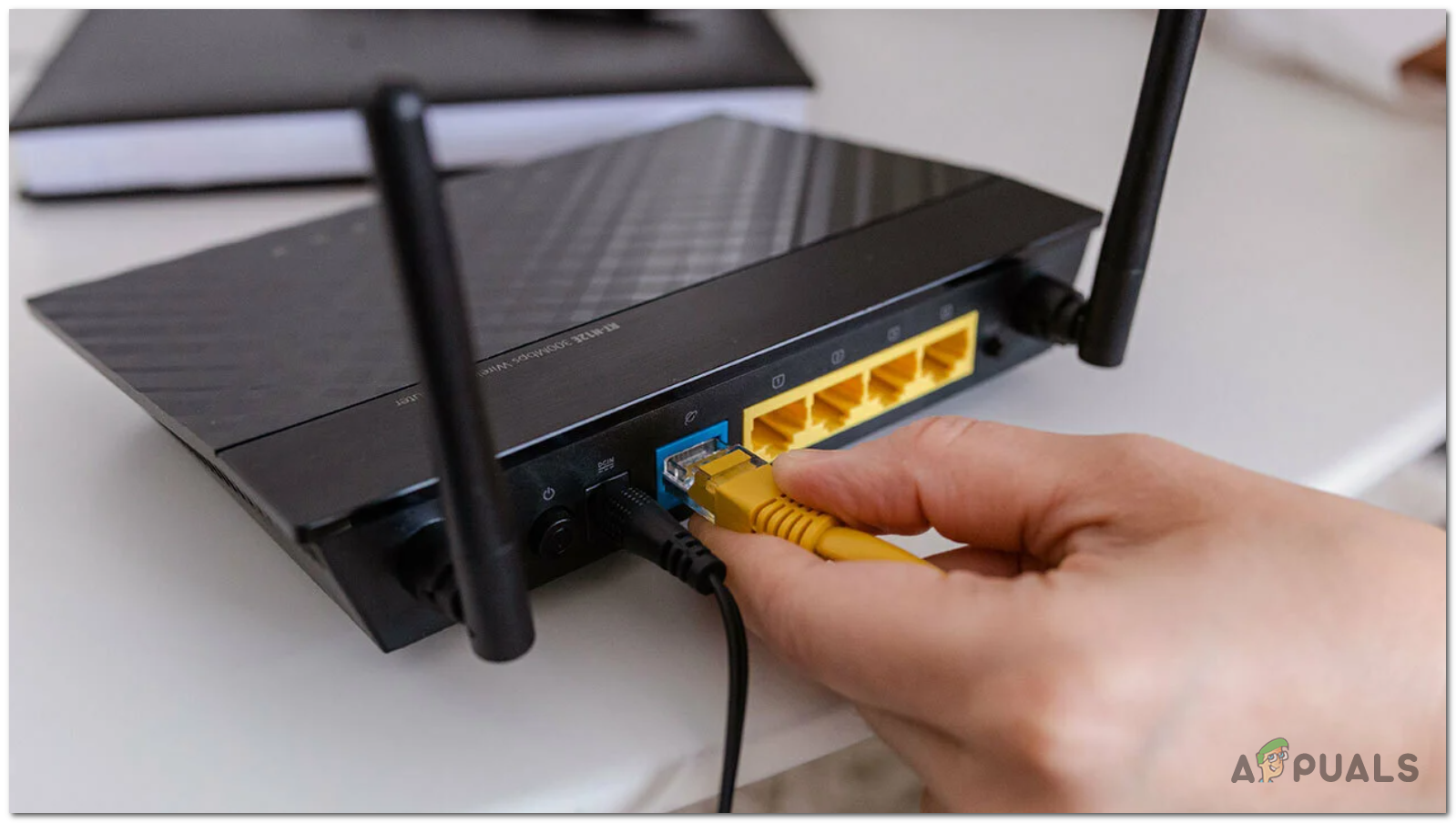
Switching the connection to Ethernet - With permission and an acceptable data allowance, compare the same call on another Wi-Fi network or mobile hotspot.
If another network works, investigate the original connection with its administrator or ISP. Restart your home router if other devices also disconnect; do not factory-reset it. If audio works, keep video off until the connection is stable.
6. Clear Meet’s Site Data, Not All Browser History
Clearing Meet’s stored data can refresh a troublesome session when another browser works. Have your sign-in method available; saved site preferences may be removed.
- In Chrome, open Settings > Privacy and security > Third-party cookies > See all site data and permissions.
- Search for meet.google.com and delete its stored data. Google’s site-specific cookie instructions explain the controls.
- If needed, open More > Delete browsing data. Select Cached images and files, beginning with a recent time range.

Clearing Meet site data removes stale permissions login state and cached call data from the browser. - Leave browsing history, passwords, and unrelated cookies unselected, unlike the history selection pictured. Restart Chrome, confirm the intended account, and retry.
Site-data deletion does not necessarily reset camera permissions. If only this browser still fails, use the working browser and report the affected one.
7. Check Phone Permissions, Then Reset Only the Affected App
Check the app you actually use: Meet or Gmail. Meet’s permissions will not repair a call opened inside Gmail. App settings are worth checking when the account works on another device.
Check access first
- On Android, open Settings > Apps > Meet > Permissions and allow camera and microphone access while using the app. Under Mobile data & Wi-Fi, allow mobile data if cellular calls fail. Menus vary by phone.

A phone can be online while the Meet app itself is restricted by data saver or cellular settings. - On iPhone, check Settings > Privacy & Security > Camera and Microphone, then allow Meet under Settings > Cellular if needed.
Low Data Mode, pictured below, reduces data use but is not an established cause of this error. A failed foreground join is not, by itself, a reason to change background-data settings.

Clear cache before app data
On Android, open Settings > Apps > Meet and tap Force stop. Then open Storage & cache > Clear cache. Reopen Meet and test before choosing Clear storage or Clear data.

If cache clearing fails, consider an Android storage reset or an official-store reinstall on iPhone, then sign in and retest. Avoid repeated resets if the account also fails elsewhere.
8. Check Both Callers When Only Direct Calls Fail
Meet calling has separate account restrictions, so meeting links may work while direct calls fail. Both people need an up-to-date app.
- Update and open Meet on both devices. Confirm the intended Google accounts and the contact’s current email or verified calling number.
- If Meet offers Create and share a link, send that link and join together. Google documents this option for contacts who cannot receive direct calls.
- For work or school accounts, ask whether direct calling is restricted separately from meetings.
Do not delete calling history just to repair a meeting link. The history reset pictured below comes from reports about a different direct-calling error, “Couldn’t connect to the internet.” It is not an established fix for this meeting-join message.

Deleting synced Meet call history is permanent across signed-in devices. Use the working meeting link while reporting the direct-calling problem.
9. Correct an Incorrect Clock and Install Supported System Updates
An incorrect date can stop secure connections. Check the clock especially if Chrome shows “Your clock is ahead/behind” or NET::ERR_CERT_DATE_INVALID, not solely because Meet cannot connect.
- On Windows, open Settings > Time & language > Date & time. Enable Set time automatically and select Sync now.

Meet relies on secure browser and app connections that can fail when time or system components are outdated. - On Mac, use System Settings > General > Date & Time and enable automatic time.

- On a phone, search Settings for Date & time and enable automatic time. Install available system updates, restart, and retry Meet.
If the device cannot run a supported OS or Meet app, use a supported device. Do not bypass certificate warnings or install an unofficial Meet package.
10. Ask IT to Check Meet on a Restricted Network
If the same device and account work on an approved alternative network but fail at work or school, tell IT. That comparison helps narrow the investigation, though it does not identify the exact setting.
- Ask the administrator to confirm that Meet and the required meeting or calling permissions are enabled for your account.
- Send Google’s Meet network requirements. They cover outbound UDP 3478 and 19302-19309 for media, plus outbound UDP/TCP 443 for web traffic and authentication.
- Ask IT to review the required domains, media addresses, and proxy or inspection rules as well, then retest.
These are administrator checks, not instructions to forward router ports or disable the firewall. A network change will not override the host’s admission rules.
Still Unable to Join?
On the Meet homepage, open Support > Report a problem, following Google’s feedback instructions. Include the exact error, time and time zone, app/browser version, and whether another meeting, device, or network worked.
State whether you were joining a link or calling a contact. Review screenshots and diagnostic information before sending, and keep meeting links and account details out of public posts.