How to Fix Error code “TFMR0012” in The Finals?
THE FINALS can find a match but fail to connect you to it, returning TFMR0012 instead. The menus may still work, and other games may connect normally, while this match never loads.
Players have reported TFMR0012 during wider service disruptions, including after updates. Region selection and connection stability are also worth checking, but the code alone does not establish that your files are damaged or your account is banned.
The connection checks below apply broadly; the Windows and Steam repairs are for PC players.
| What happens? | Where to focus |
|---|---|
| Several players suddenly cannot join matches. | Check official service announcements before changing the PC. |
| Solo matchmaking works, but your party cannot connect. | Compare the party leader’s region and recreate the party. |
| Only one mode fails. | Try another available mode and report the affected queue. |
| Only this PC fails, with no reported disruption. | Check the connection and verify game files. A Windows network reset is not a required step. |
1. Check Service Announcements and Restart the Game
A match can be found even when the game cannot connect you to its server. During a wider disruption, reinstalling the client will not restore that server.
- Check the server updates on THE FINALS’ official channels. Embark lists its official Discord as a source of server-status updates.
- When no disruption is reported, close the game, exit Steam completely, and reopen it. Let any pending game update finish before launching.
- Try an available unranked mode on your own. Compare another mode if the first one fails.
If another mode works, report which queue fails rather than resetting Windows. If service problems are acknowledged, wait for recovery before testing again. No announcement does not guarantee that every server is healthy.
A matchmaking suspension with a timer is a separate restriction. Repeated failures to load can trigger one; wait for it to expire rather than repeatedly joining and abandoning matches.
2. Select a Nearby Matchmaking Region
A distant region can add delay, and joining a party can change which region you play in. Embark’s PC connection guidance recommends checking the saved matchmaking region.
- Press Esc and open Settings.
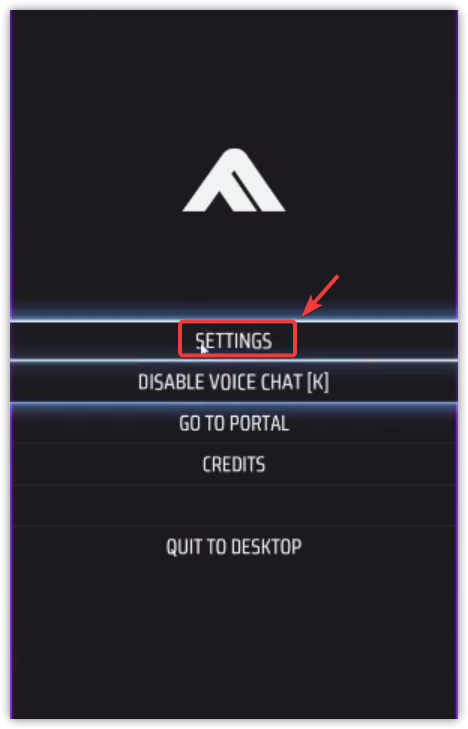
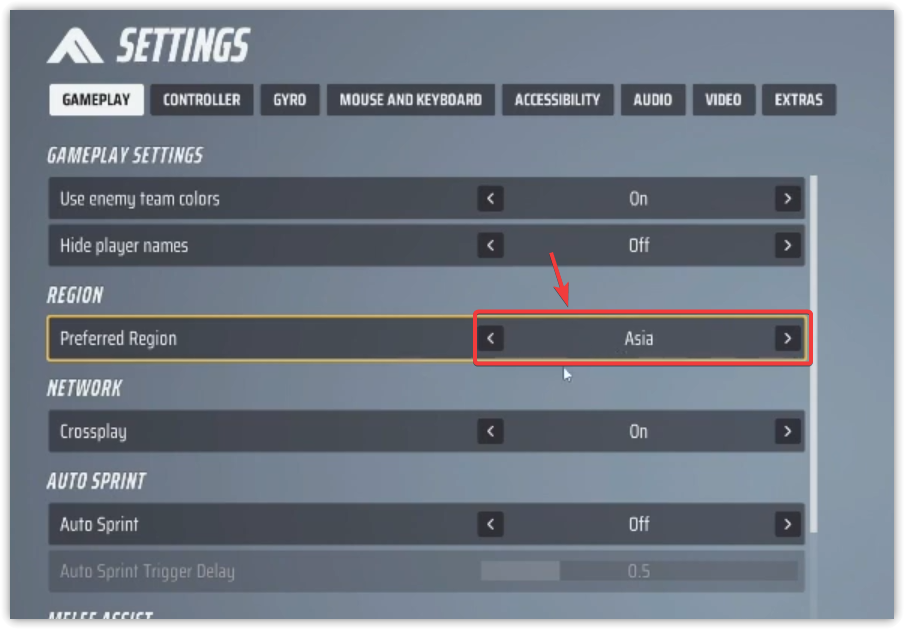
- Open Gameplay > Region > Preferred Region, as pictured. Some layouts label this General > Region or Matchmaking Region.
- Note the original selection. If it is Automatic or a distant region, select the closest appropriate region manually. Asia in the screenshot is an example, not the correct choice for everyone.
- Restart the game and test matchmaking again.
For a party-only failure, have everyone restart and let a player near the desired region create the party. Embark notes that the party leader’s location can determine the party’s region.
Once matches load reliably, keep the nearby region. Restore the previous choice if the change does not help or makes play noticeably slower.
3. Test Without a VPN and Reduce Connection Interruptions
A working browser is not a complete test of the game’s connection. Wireless interruptions, busy uploads, and a VPN can affect the connection to a match even while ordinary websites load.
- Close the game. If possible, connect the PC directly to the router with Ethernet and pause large downloads or uploads.
- Restart your home router normally and wait for internet access to return. Do not press its factory-reset button.
- If you already use a personal VPN, disconnect it for the comparison. The image shows a connected VPN, not the state to use for this test. Leave required work or school networking to its administrator.
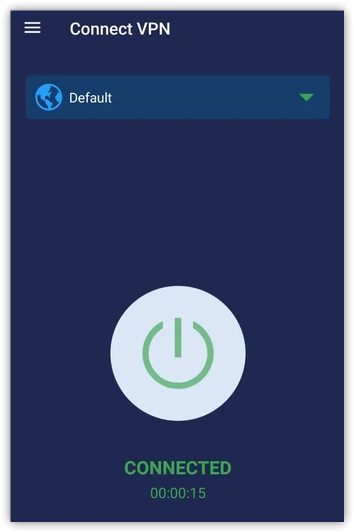
- Reopen the game and confirm that your preferred region is still appropriate. This is the in-game region setting, not a VPN server selector.
- Try matchmaking again with the same account and mode.
When this works, keep the stable connection and restore paused downloads afterward. When it changes nothing, restore any temporary VPN change you need for other tasks. Installing or buying a VPN is not required.
Optionally, compare another trusted internet connection using the same account and mode. A phone hotspot can use mobile data, so avoid downloading updates during that test. If it connects, share that result with your ISP or Embark before considering disruptive repairs.
If Ethernet itself shows Unidentified network, address that Windows Ethernet connection problem before treating it as a game-only error. Keep firewall and antivirus protection enabled.
4. Reserve Network Reset for a Wider Windows Problem
Skip this section when only THE FINALS fails. Microsoft’s Windows connection troubleshooting reserves Network reset for unresolved connectivity problems, not a specific matchmaking code.
Run Windows’ network troubleshooter first. The reset below is for cases where that troubleshooting or your support technician specifically recommends rebuilding the PC’s network settings.
There is no one-click undo. Restoring your recorded settings, and reinstalling any affected networking software, is the recovery procedure.
- On Windows 11, open Settings > Network & internet > Advanced network settings.
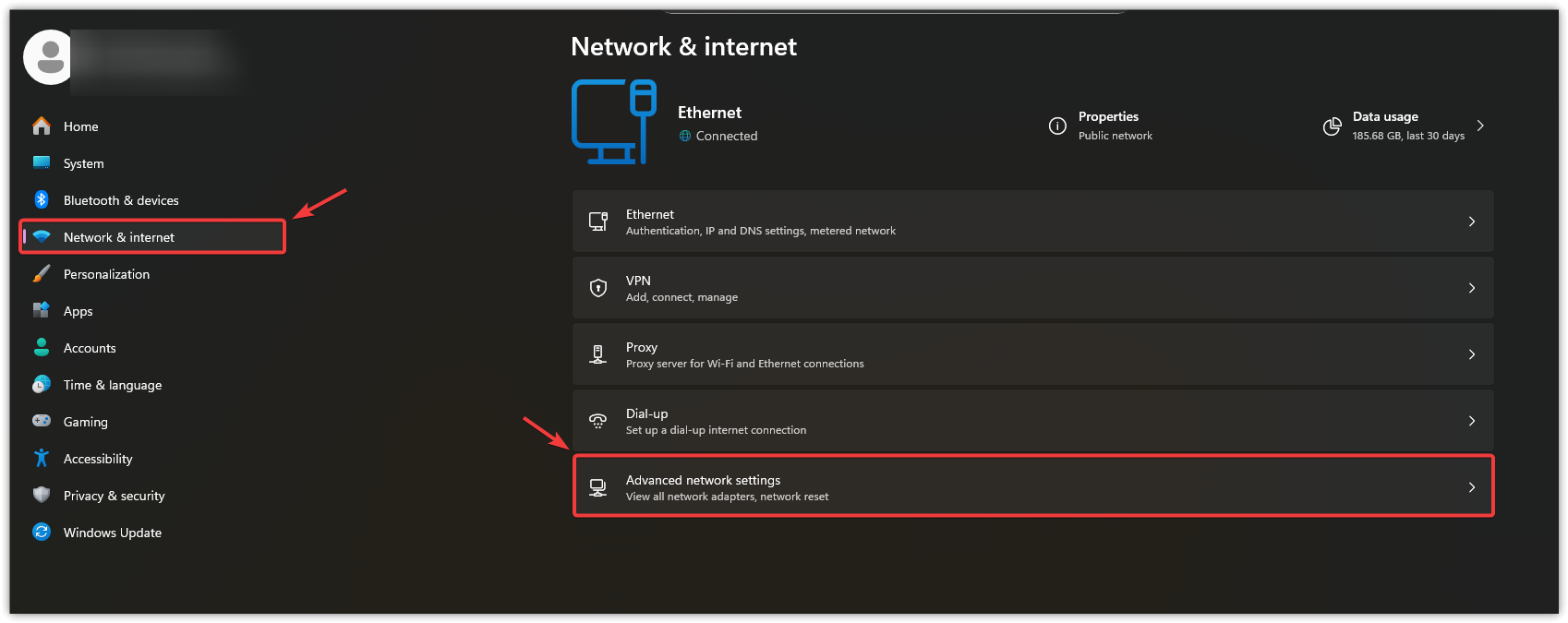
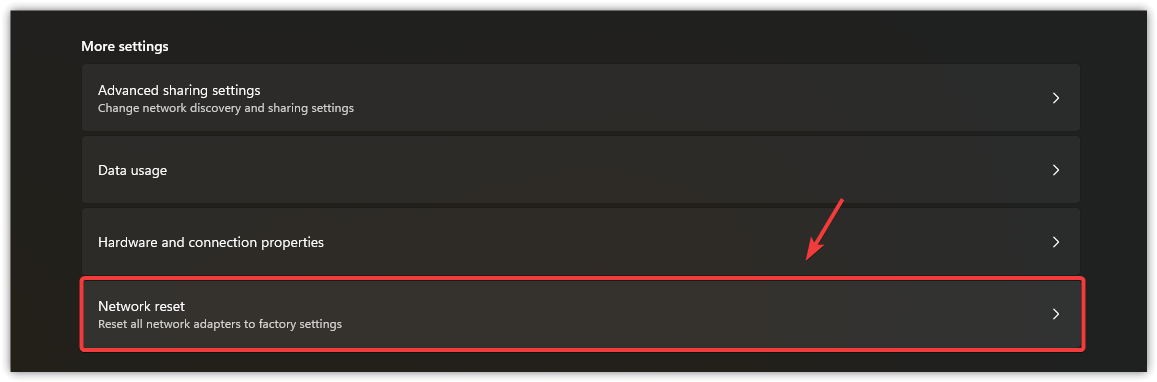
- Select Network reset. On Windows 10, it is under Network & Internet > Status.
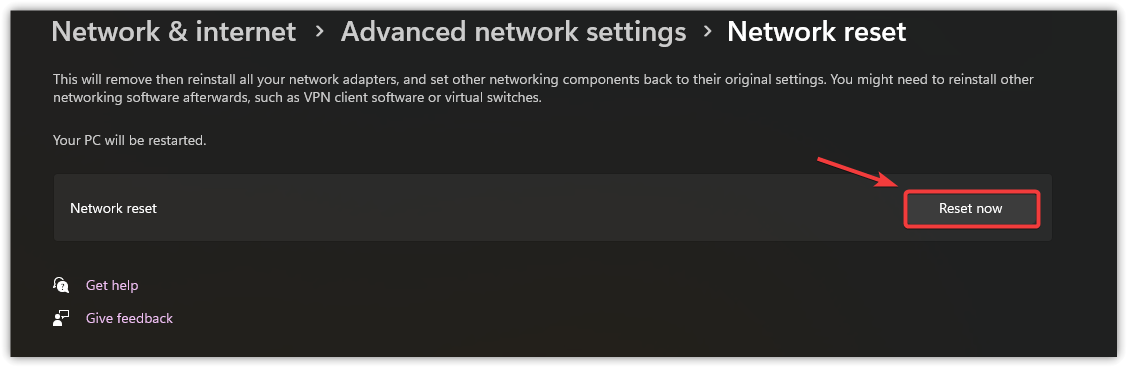
- After recording the settings you will need, select Reset now > Yes and allow Windows to restart.
- Reconnect, restore required network configuration, and check ordinary internet access before opening the game.
If Windows still cannot connect, resolve that with the PC or network support team. If everything else works but TFMR0012 remains, repeating the reset is unlikely to help.
5. Verify the Game Files in Steam
For an error that persists without a reported outage, particularly after an interrupted update, Steam can check and replace missing or damaged installation files. This repairs the client; it cannot repair an unavailable match server.
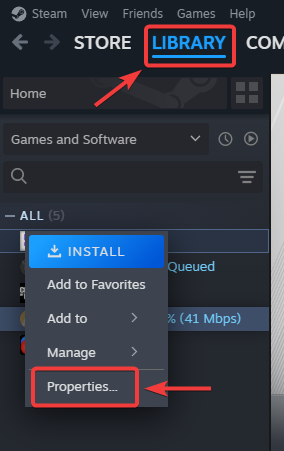
- Close the game. In Steam > Library, right-click THE FINALS and select Properties. The Steam screenshots illustrate the menus; select THE FINALS even where another game is pictured.
- Open Installed Files and select Verify integrity of game files.
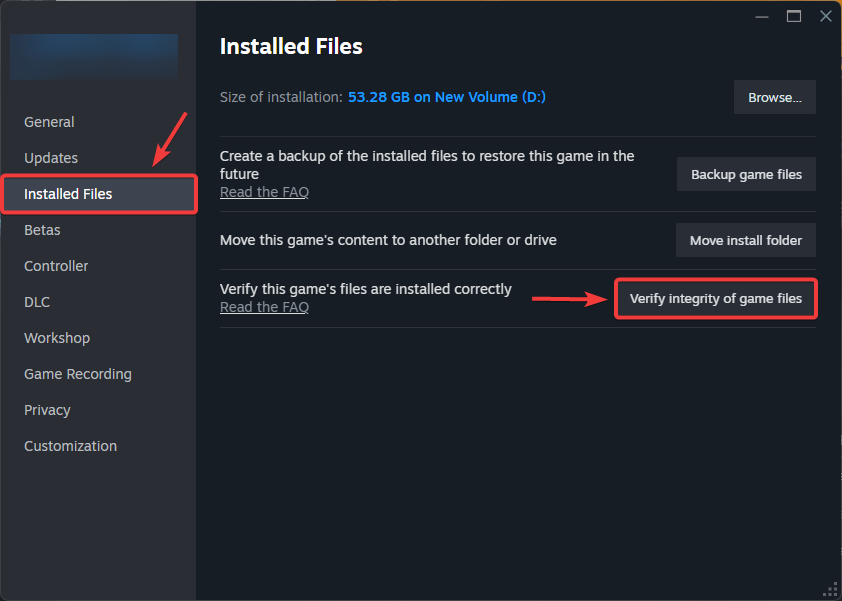
- Wait for the check and any replacement downloads to finish, then launch the game and test the same mode.
These are Steam’s official verification steps; the Appuals game-file verification walkthrough provides additional screenshots. If matchmaking returns, no reinstall is needed.
Steam notes that some local configuration files may fail verification normally. That message alone is not a reason to delete files or reinstall.
6. Reinstall Only When Installation Repair Is Needed
A reinstall replaces installed game content, but does not guarantee that every local setting is reset. Reserve it for persistent installation problems or a request from Embark support. TFMR0012 alone is not a reason to redownload the game.
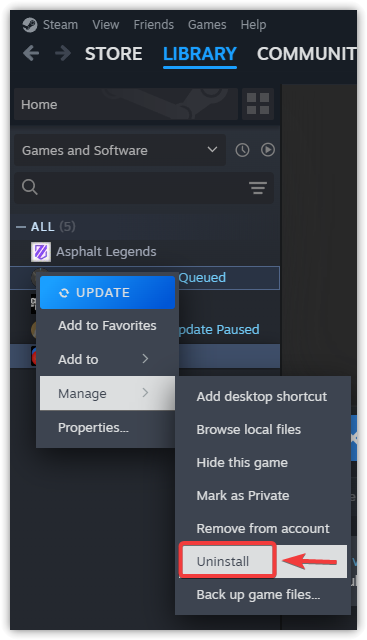
- In Steam > Library, right-click THE FINALS > Manage > Uninstall and confirm.
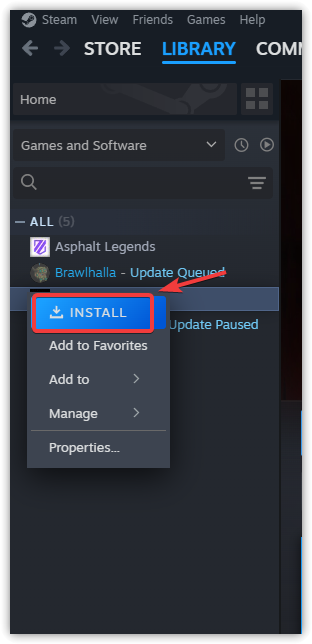
- Select Install for THE FINALS and let the download finish. Keep the same Steam account and Embark ID.
- Launch and test before changing further settings. Do not manually delete shared anti-cheat folders or unlink accounts.
If the same error survives a reinstall, stop repeating it. Contact Embark Support, sign in, and use the available support contact option.
Include the full error screenshot, platform, country, selected region, mode, date/time with time zone, and whether solo or party matchmaking fails. Add the results of the checks you completed. Those details are more useful than another reinstall.