How to Fix “Warning: Camera Failed” on Samsung Galaxy?
On a Samsung Galaxy, “Warning: Camera Failed” can replace the preview as soon as Camera opens. The app may close immediately or work until you switch to the selfie camera or a particular photo or video mode.
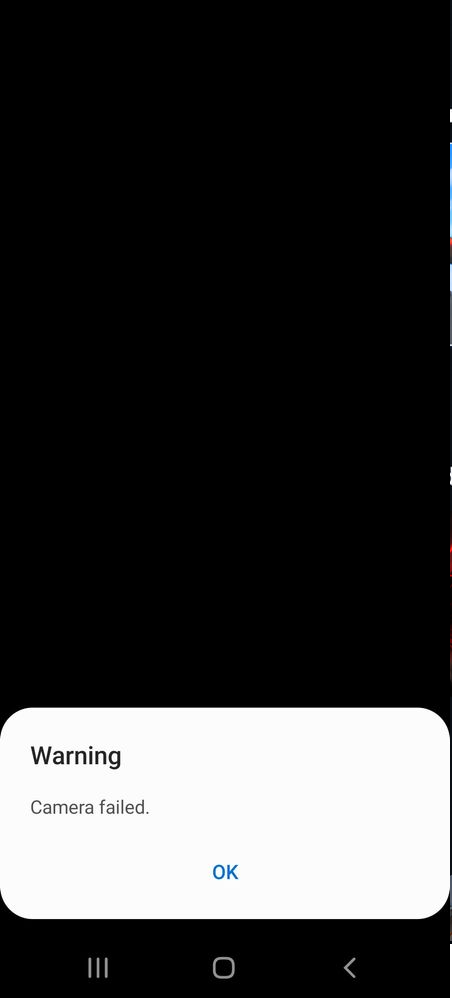
The warning reports that Camera could not start or keep working, not that the hardware is definitely broken. Another app may still take pictures using a different camera or mode, so one working view does not confirm that every camera is healthy.
Before Resetting Camera
Note whether the warning affects the front camera, rear camera or a specific mode, and whether it began after an update. After a drop, liquid exposure or repair, arrange an inspection rather than repeatedly resetting the app.
Security policy restricts use of Camera is a different message. On a work or school phone, ask the administrator to check the restriction; leave management and security controls intact.
If the message says Exit Camera. Battery temperature too high, stop using Camera and let the phone cool before testing again.
1. Restart the Phone and Reset Camera
Camera can keep failing to start even after you close it. A restart clears temporary system errors; resetting the stock Camera app then removes saved preferences that may be causing trouble.
Save open work and make sure you know your unlock PIN or password before restarting.
Open Quick settings by swiping down from the top right on newer One UI versions, or from the top with two fingers on older versions.
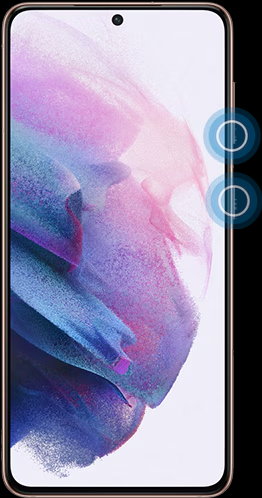
- Open Quick settings, tap its power icon > Restart, then test Camera. For an unresponsive phone, hold Side/Power + Volume Down for more than seven seconds until it restarts. Stop if Camera now works.
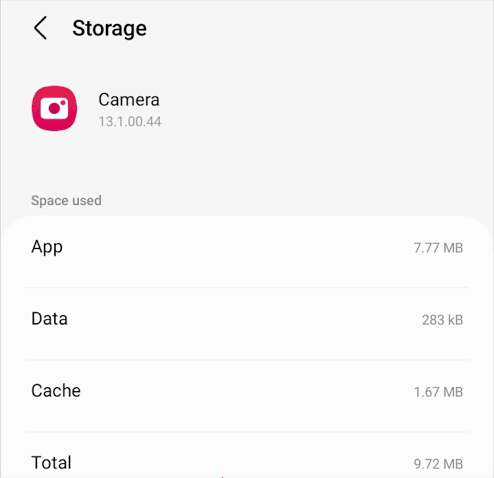
Select Camera itself, rather than Gallery, Google Photos or another system service. - If the warning remains, open Settings > Apps > Camera > Storage. Try Clear cache and reopen Camera before resetting its data. Scroll down if the storage controls are not visible.
Select Camera itself, rather than Gallery, Google Photos or another system service. - If clearing the cache did not help, return to that screen and tap Clear data > Delete, or the equivalent confirmation. Restart once afterward. This is the Camera-data reset documented by Samsung.
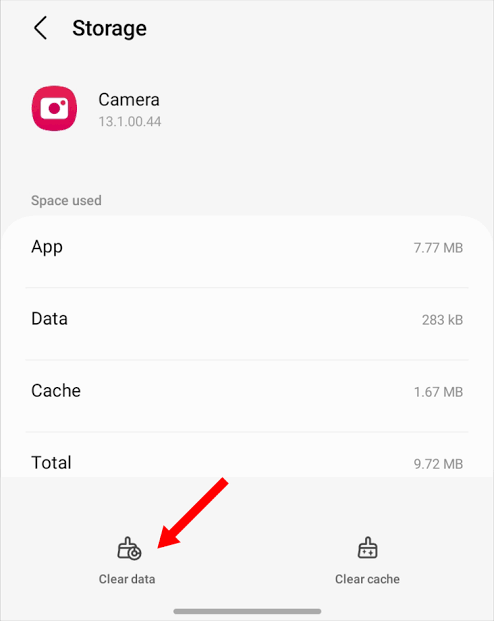
Clearing this app’s data resets its settings; Samsung says saved photos and videos remain. - Open Camera with its default settings. Test the front and rear views and the mode that previously failed. Take and open a test photo, then close and reopen Camera to check whether the warning returns.
If Camera opens and saves normally, restore your preferred settings gradually. A brief recovery followed by the same warning still needs attention; repeated data clearing is unlikely to provide a lasting answer.
Check Offered Software Updates
Open Settings > Software update > Download and install and check for an update. Use a stable Wi-Fi connection and follow the phone’s battery requirements. Restart when prompted, then repeat the same camera test.
If Camera stays open, check its Settings > About Camera > Update, if offered. On One UI 7 and later, tap the four-dot Quick settings button inside Camera to find its settings gear.
Samsung’s Google Play system advisory also documents a compatibility problem affecting the Galaxy A13, A12, A21s, M13, A14, A04s, M12 and XCover 5 after a Google security update.
On an affected model, check Settings > Security and privacy > Updates > Google Play system update. Install an update if offered and complete the requested restart. Search Settings for that update name if the menus differ.
The model list describes that particular issue, not which phones may receive ordinary updates. If the whole Samsung phone keeps restarting, address that problem separately rather than continuing Camera resets.
2. Test in Safe Mode and Check Conflicting Apps
Camera working in Safe mode but failing during normal use suggests interference from a downloaded app. Safe mode temporarily disables downloaded apps; it does not uninstall them or identify a culprit by name.
Have your unlock PIN or password ready. Some wallpapers or themes may revert after Safe mode; note customizations you want to restore. Test the same camera and mode each time.
- Open the Quick settings power menu. Touch and hold Power off until Safe mode appears, then tap it. Unlock after the restart and confirm the Safe mode label appears at the bottom of the screen.
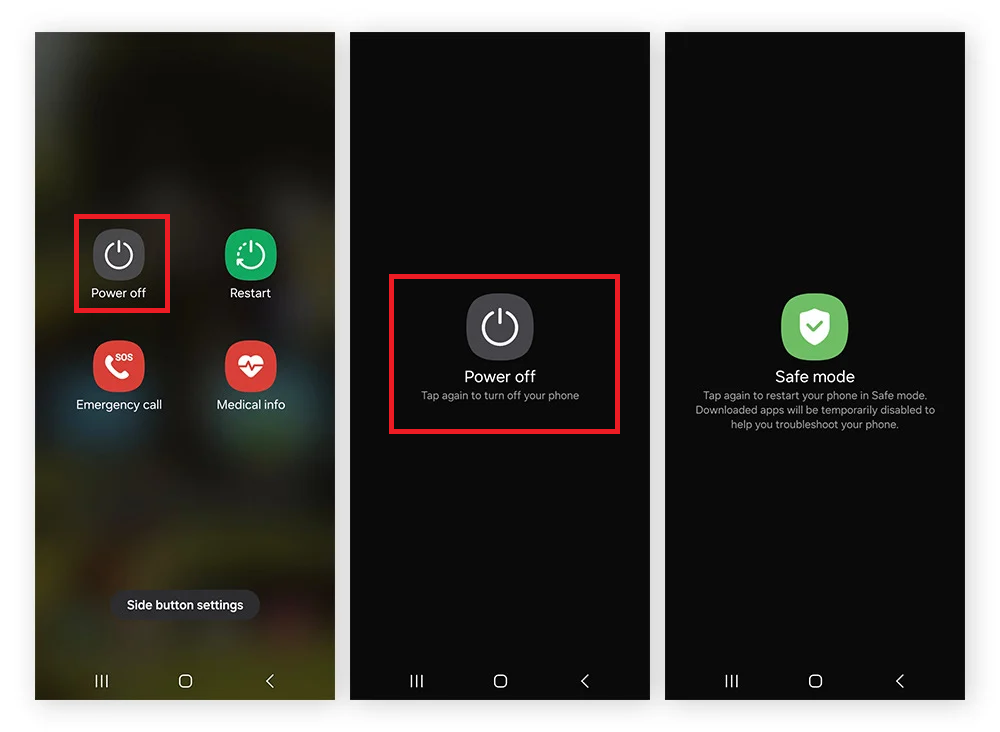
Safe mode temporarily disables downloaded apps; it does not identify the culprit by name. - Open Samsung Camera and repeat the failing action, including a test photo if possible. Then restart normally to leave Safe mode and test again. If it fails in both modes, leave downloaded apps intact and run the diagnostics below.
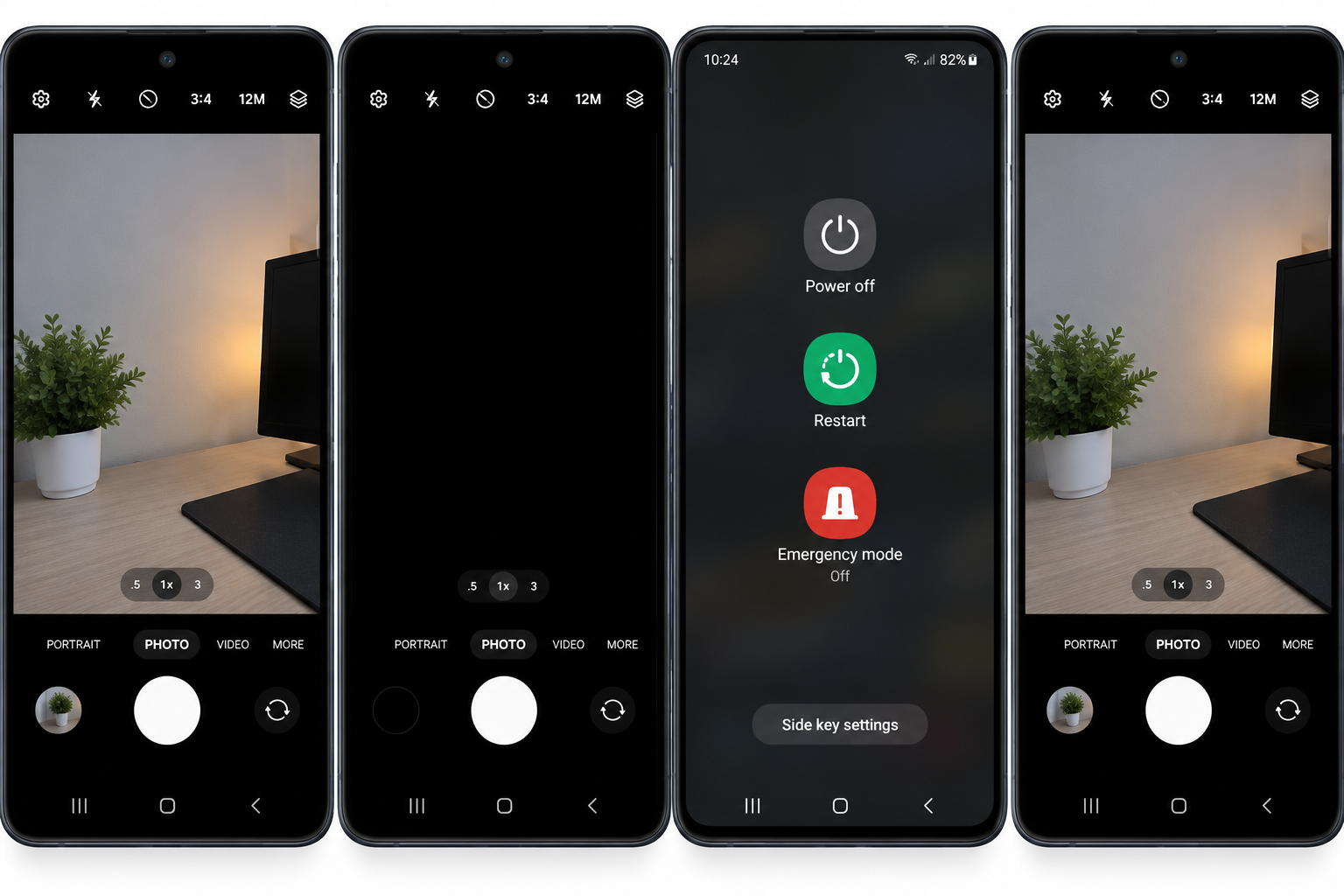
Test the same front or rear camera and mode that failed during normal use.
The following app checks matter when Camera worked in Safe mode but fails again normally.
- Finish active video calls or scans. Pull down the notification panel and tap any green privacy indicator to see the app and sensor in use. Close an unexpected camera-using app, then retry Camera.
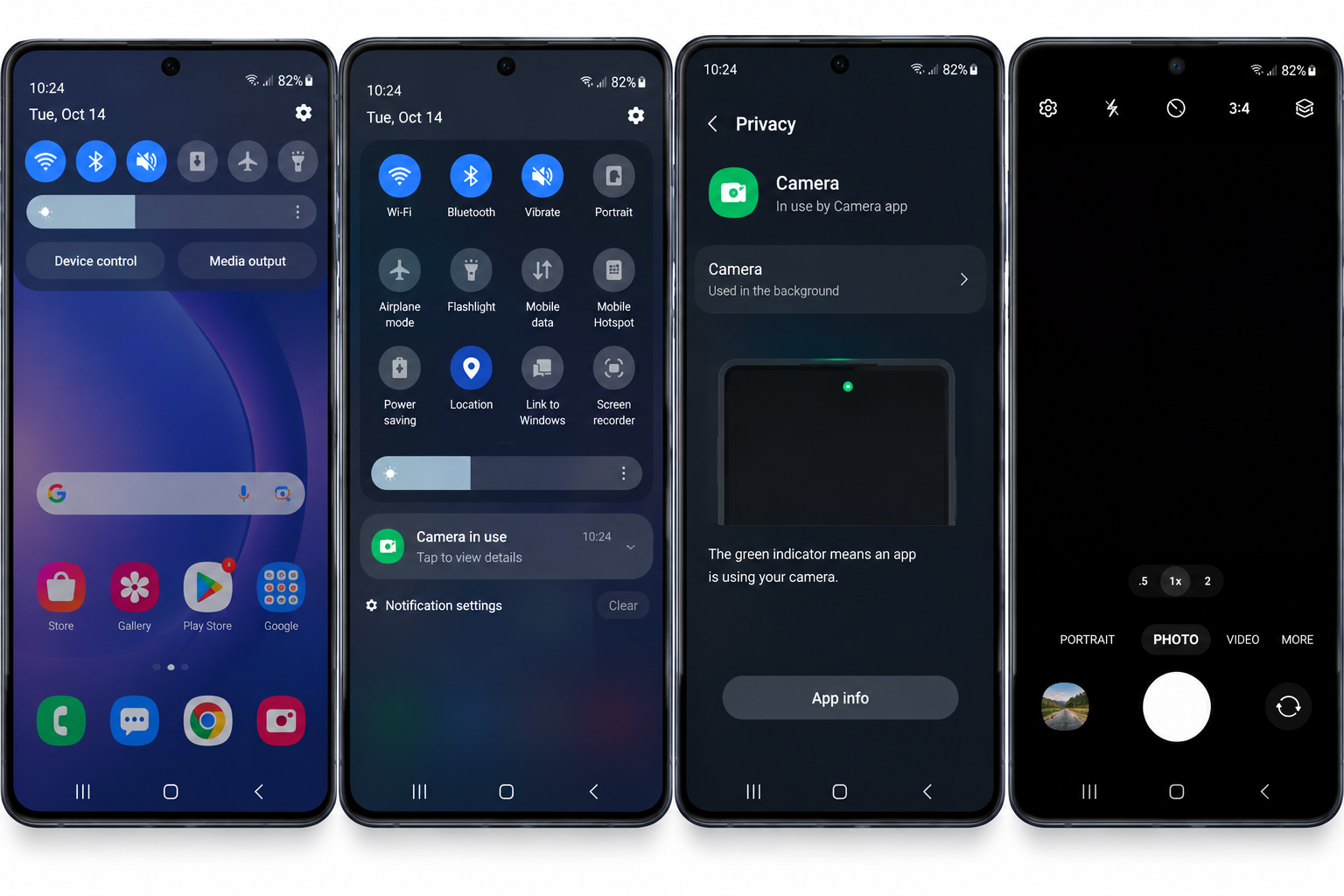
A green indicator may mean camera or microphone use; read the app and sensor details. The indicator shows camera or microphone use. Samsung Camera itself appearing there is expected, not evidence that it should be disabled.
- For the downloaded app you identified, open Settings > Apps > that app > Permissions > Camera. Record its permission, then select Don’t allow for comparison. The pictured app is only an example; leave system apps and managed controls unchanged.
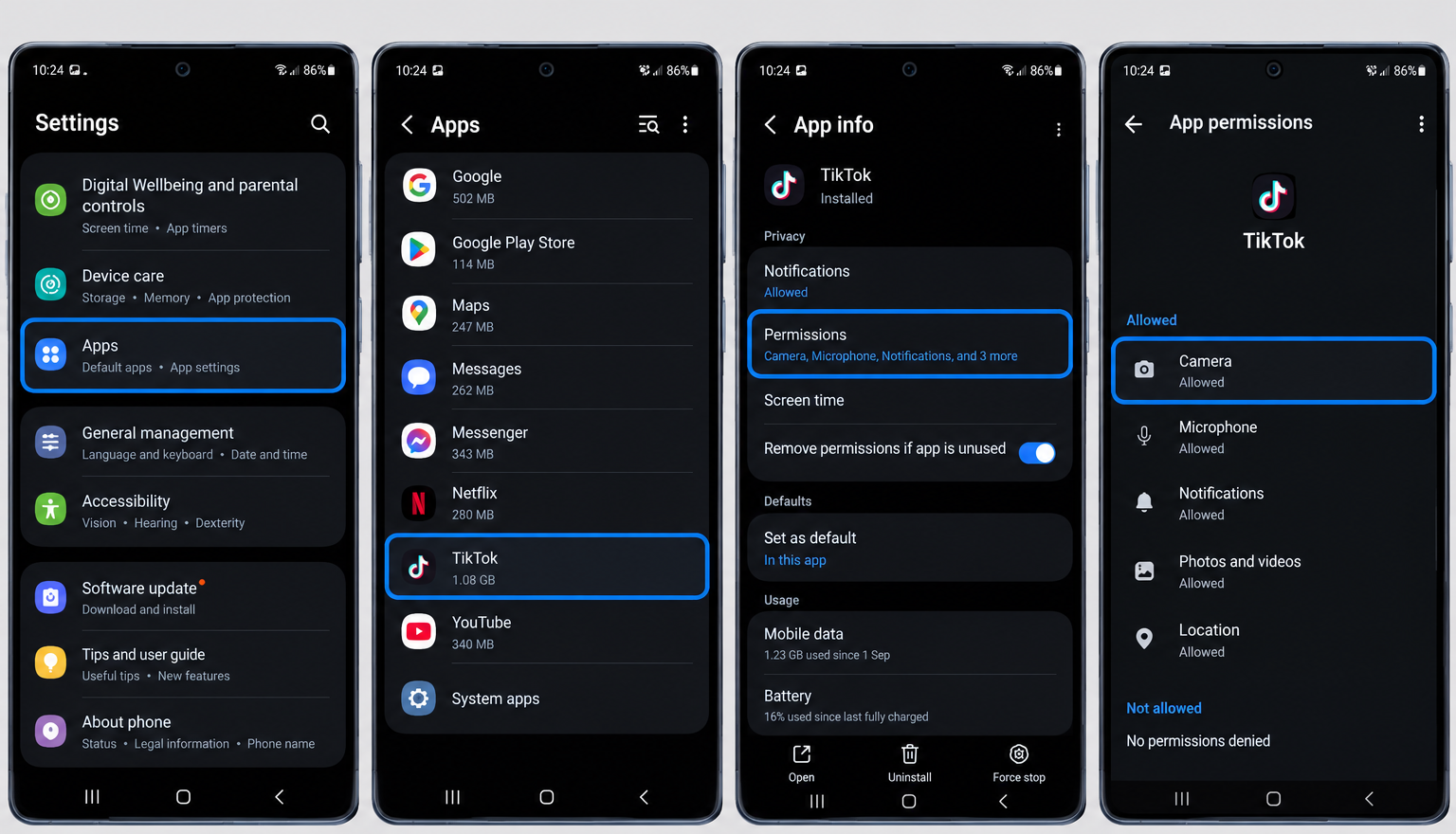
Record the original permission before the comparison and preserve required work or school controls. - Test Samsung Camera again. Restore the other app’s previous permission if nothing improves. If Camera works, update that app or keep its camera access off until resolved. Its scanning, photo and video-call features will not work without permission.
An allowed permission alone does not prove an app is interfering; test one plausible suspect at a time.
If permissions do not explain the Safe mode difference, back up any unsynced app data before uninstalling a recently added or updated app. Test after each removal and reinstall apps that make no difference. A downloaded app can interfere without holding camera permission.
If Camera Still Fails: Samsung Members Diagnostics
Samsung Members can check camera operation, but the test does not repair a fault. Use it to give support a clearer account of which views work and which fail.
If Members is unavailable, your regional Samsung service center can check the camera instead.
- Open Samsung Members > Support > Phone diagnostics > Get started. Other versions may use Get Help or Diagnostics. If a full scan begins, stop it and select an individual test.
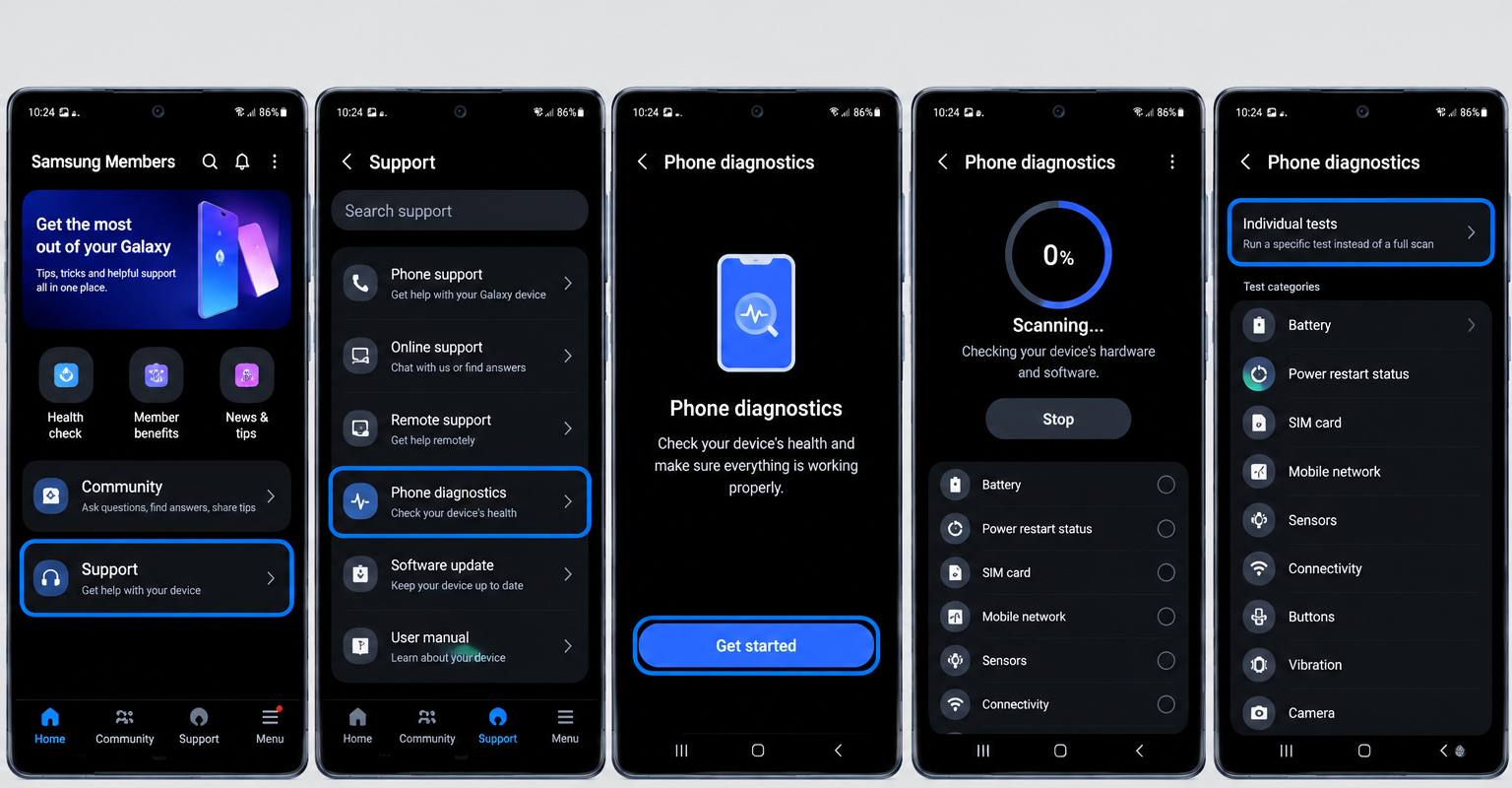
The menu can instead appear under Get Help or Diagnostics on another app version. - Select Camera and follow the prompts. Record the result and any difference between front and rear cameras. Compare it with the same view in the ordinary Camera app.
| Result | What to do |
|---|---|
| A camera test fails, or the problem followed physical damage. | Arrange a professional Samsung inspection through your regional support service. The result does not identify a replacement part by itself. |
| Diagnostics pass, but Camera still shows the warning. | Report both results to Samsung. A passing test does not exclude an intermittent or mode-specific fault. |
For a continuing software error, use Samsung Members > Support > Error reports, sometimes under Send feedback.
Samsung’s error-report instructions recommend reporting soon after the failure and including system logs. Review the sharing prompt and leave Members open while it gathers them.
Include the model, One UI/software version, exact warning, failing view or mode, recent update/repair history, and reset and Safe mode results. Back up important data before service. Avoid hitting, heating or opening the phone, or erasing it just to repeat unsuccessful tests.


