How to Fix Video Toolbox Not Showing in YouTube on Redmi Phones?
YouTube plays normally on your Redmi phone, but the Video Toolbox handle no longer appears along the screen edge. The same panel may still open in another video app.
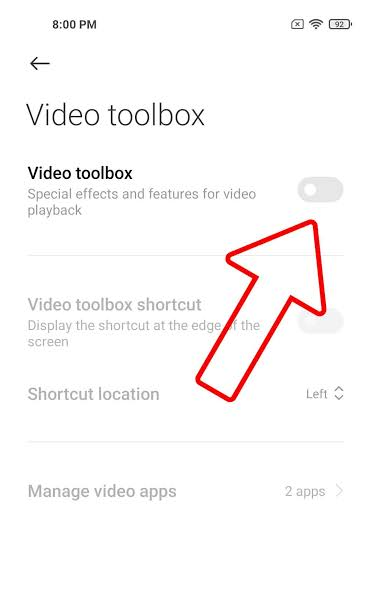
Video Toolbox is a Xiaomi system feature, not a button supplied by YouTube. Its shortcut settings and selected video apps control where it appears. Xiaomi also uses different menu locations across its phones, so an old set of instructions can lead to the wrong place.
What Is Missing?
| What you see | What to check |
|---|---|
| The panel opens in another video app, but not YouTube. | Check YouTube under Manage video apps in Method 2. |
| No handle appears, or the setting is hard to find. | Find the menu below, then check the shortcut switch. |
| The panel opens, but its screen-off playback button is gone. | This is a removed control on affected builds, not a missing toolbox. |
1. Find Video Toolbox in Your Phone’s Settings
The setting is not in the same place on every Redmi. Xiaomi documents a direct menu for the REDMI 13C and a separate Side toolbox layout on other software. Finding the correct page avoids changing unrelated YouTube permissions.
Open Settings and search for Video toolbox, Side toolbox, and Sidebar.
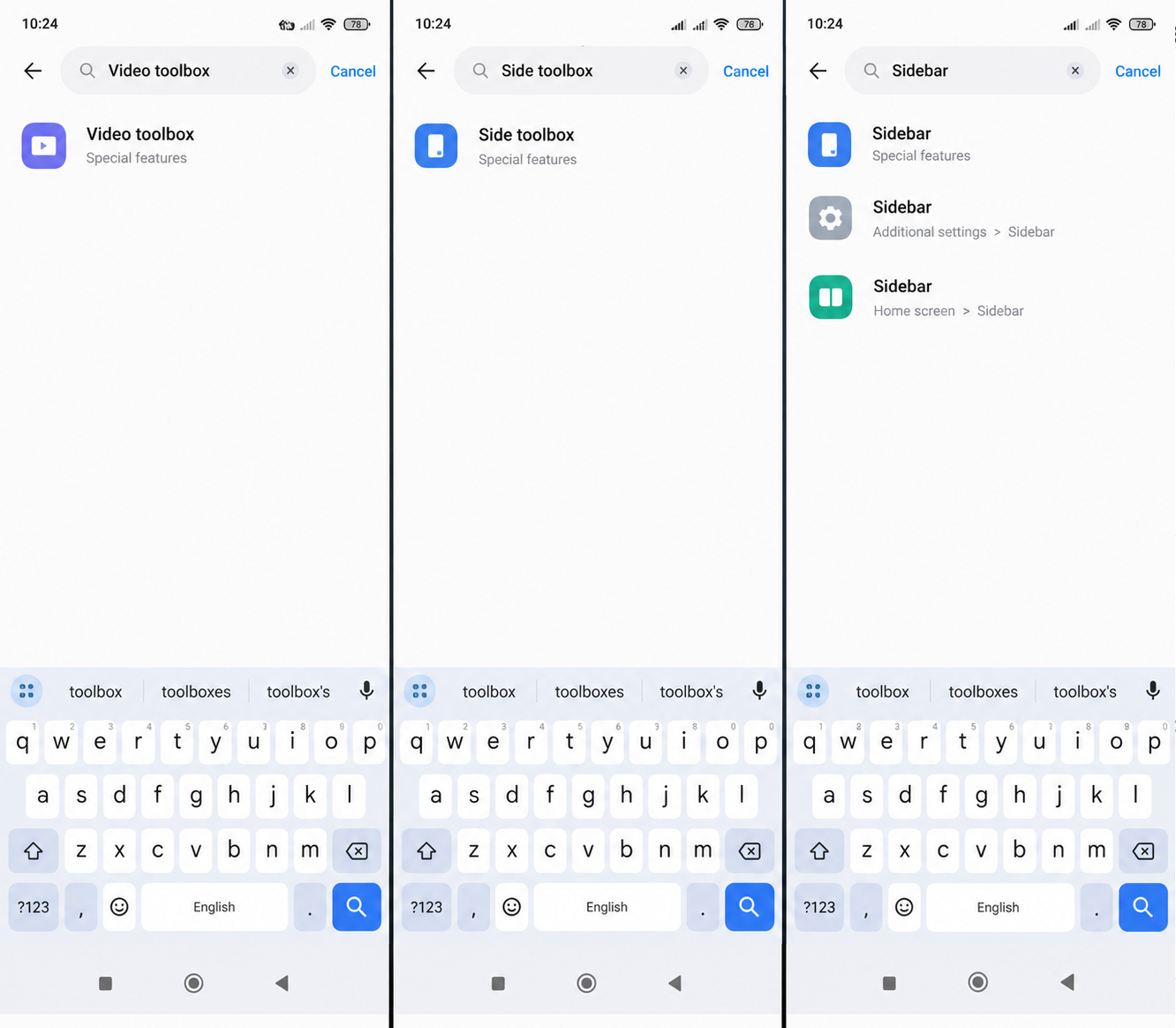
If search does not help, check the route that matches your menus. These are alternatives, not three changes you need to make:
- Direct Video Toolbox menu: Settings > Additional settings > Video toolbox. Xiaomi confirms this route in its REDMI 13C instructions.
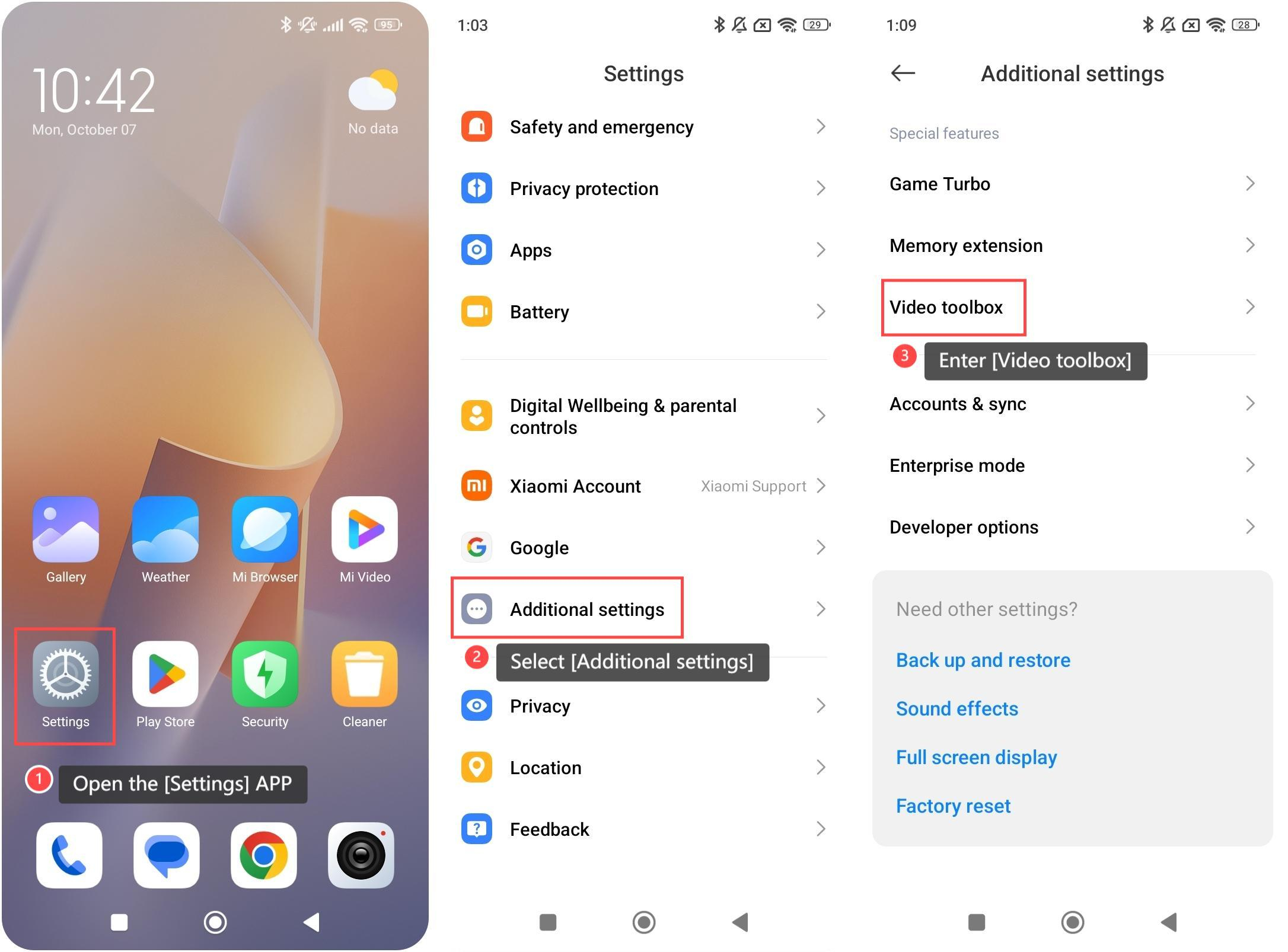
Show Settings and Additional settings with the model’s authentic menu labels. Hide account and device identifiers. - Side toolbox layout: Settings > Additional settings > Floating windows > Side toolbox. Look for Video toolbox there, as shown in Xiaomi’s Sidebar instructions.
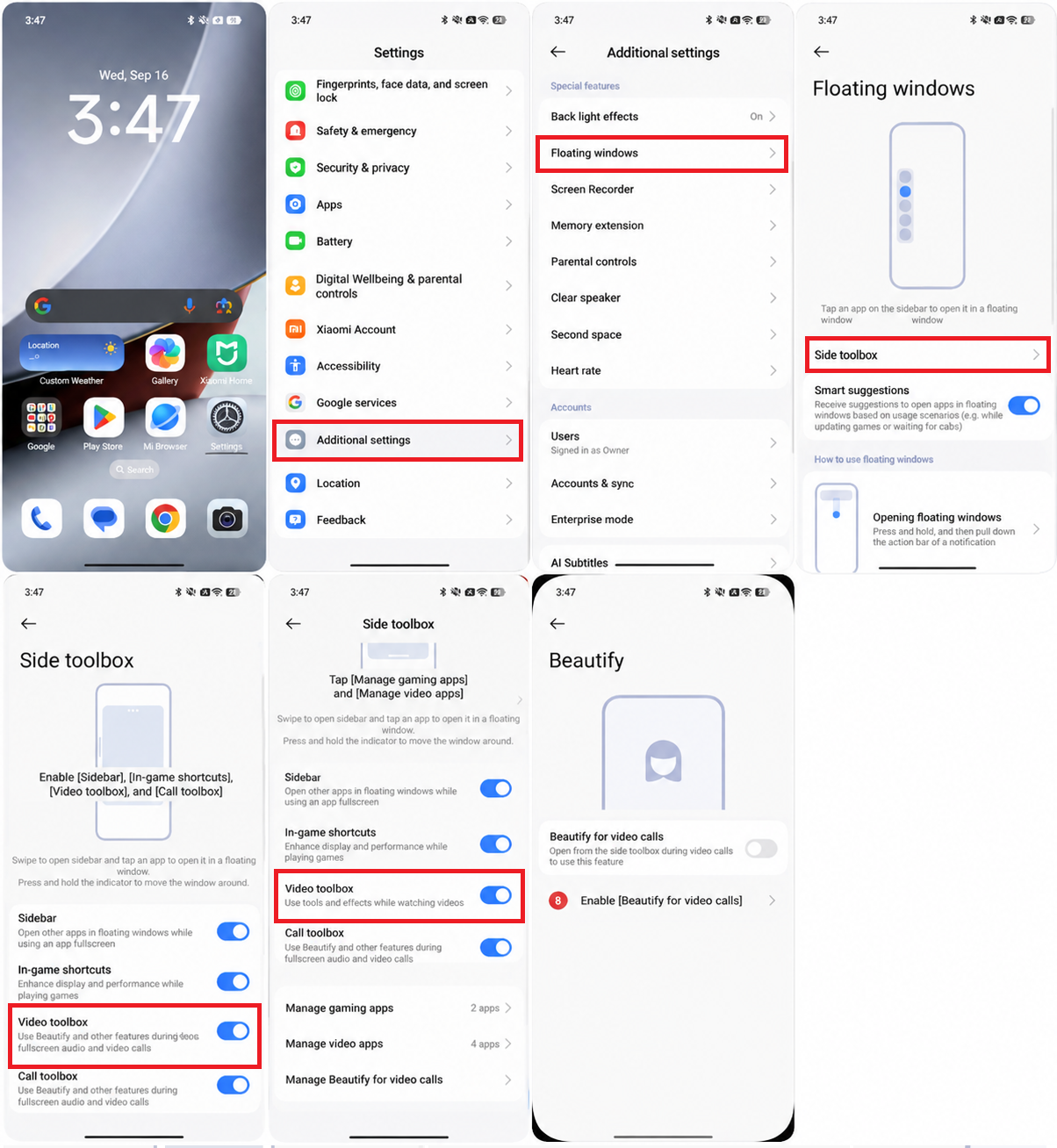
- Older MIUI layout: Settings > Special features > Sidebar, then its video-app controls. Follow this route only when those labels exist on your phone.
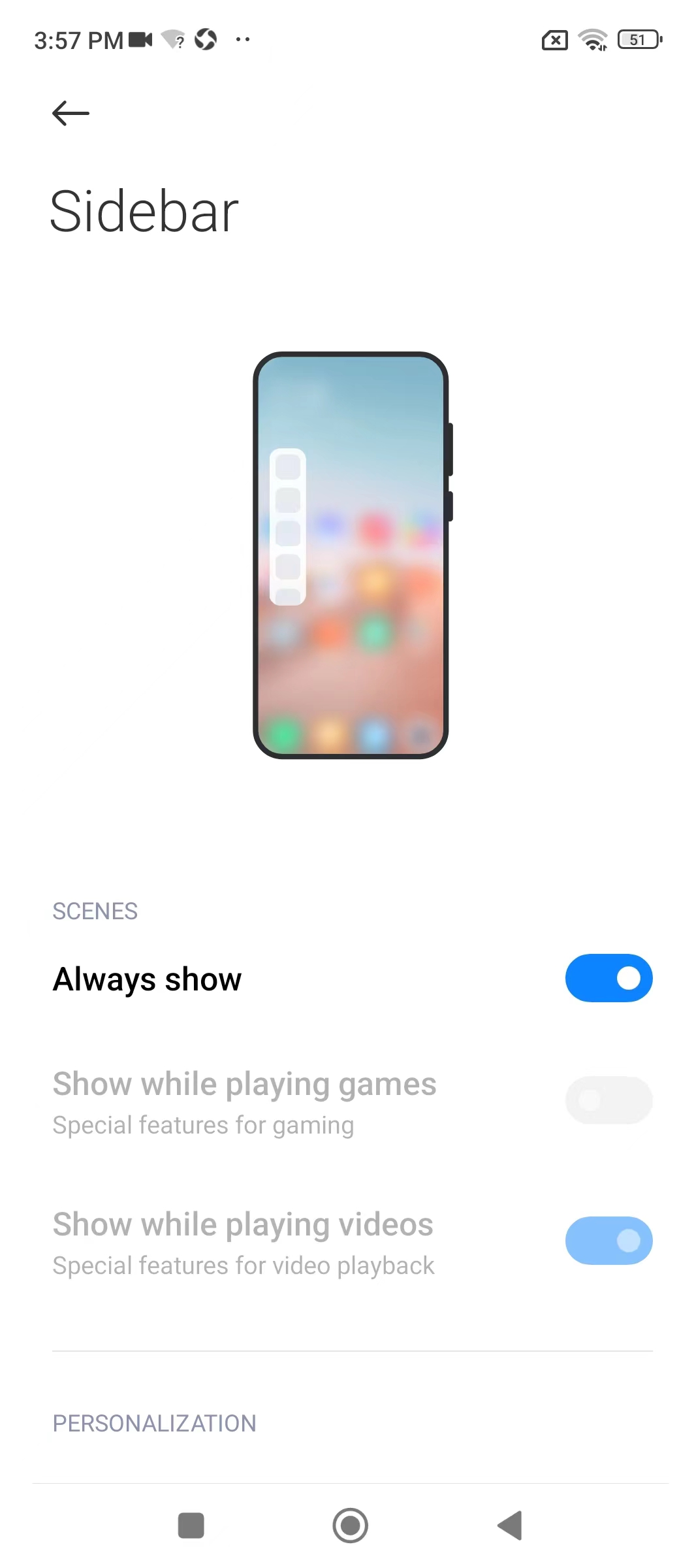
Show Settings and Additional settings with the model’s authentic menu labels. Hide account and device identifiers.
If none appears, note your model and HyperOS or MIUI version under Settings > About phone. Search Xiaomi Support for that model and “Video toolbox” or “Sidebar”. A missing search result alone does not prove the phone lacks the feature.
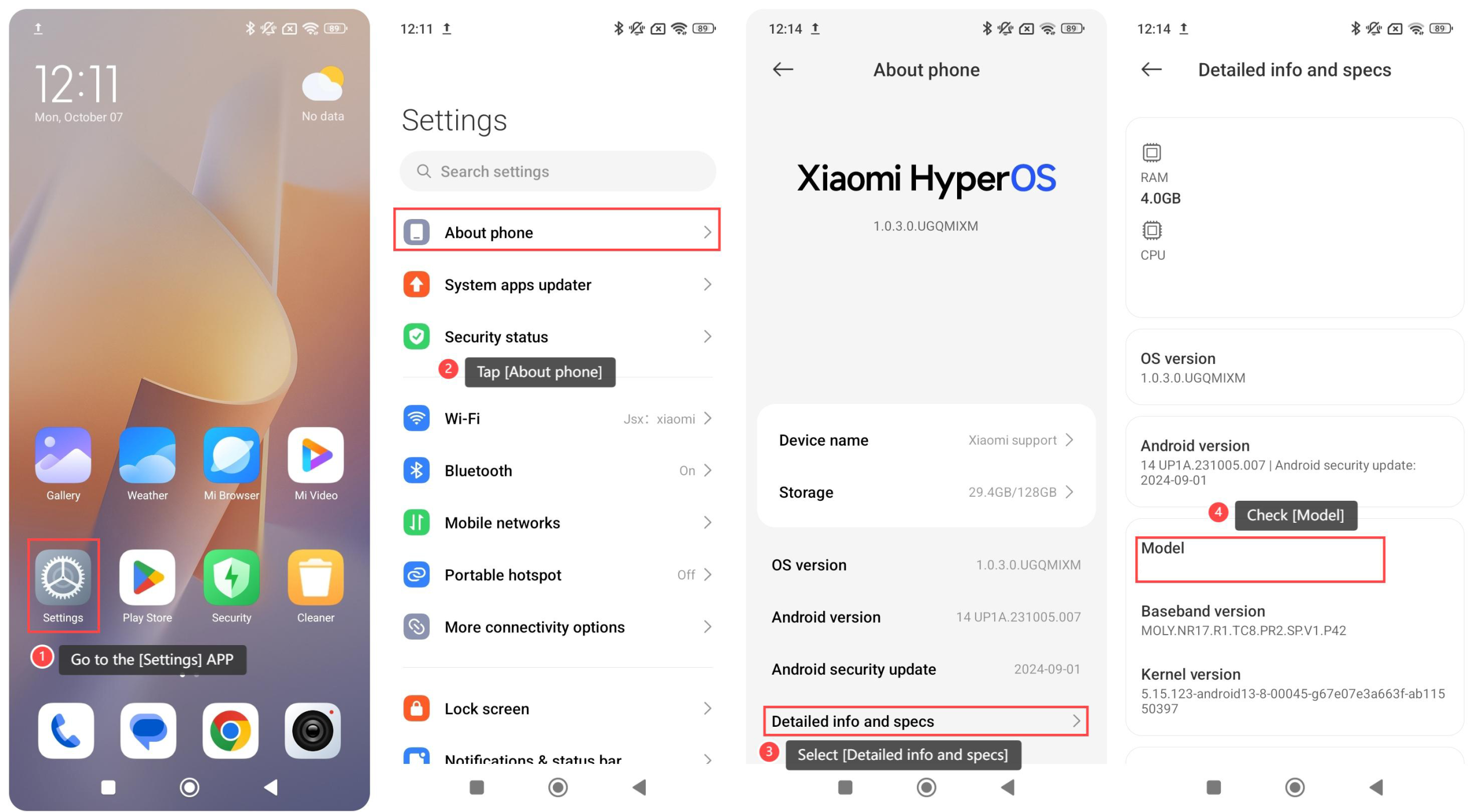
Once you find the page, check its controls below. If Xiaomi confirms your model does not support Video Toolbox, YouTube settings cannot add it. If the feature is documented but its page is absent, continue to the update and feedback section instead.
2. Enable the Handle and Select YouTube
A working toolbox in another app does not automatically enable it in YouTube. The video-app list determines where the panel is available; adding YouTube to the general Sidebar favorites is a different setting.
- Turn on Video toolbox. On a Side toolbox layout, also enable its parent Sidebar switch if present. Leave gaming and call controls unchanged.
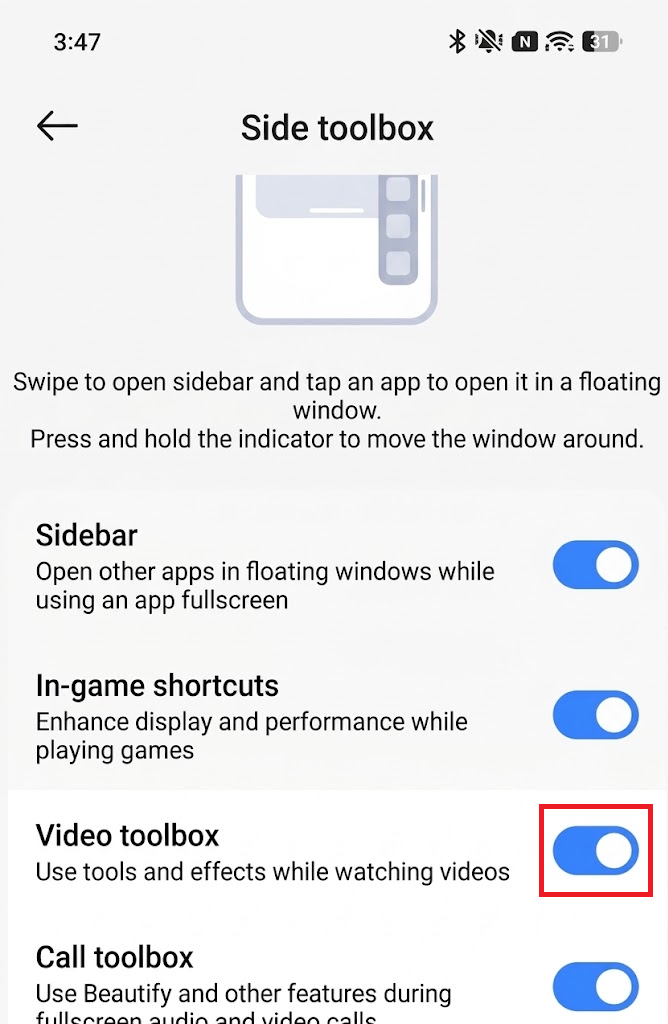
Turn on only the documented toolbox control. Leave unrelated floating-window, game, display, and privacy settings unchanged. - Enable Video toolbox shortcut if your layout has a separate switch. This displays the edge handle.
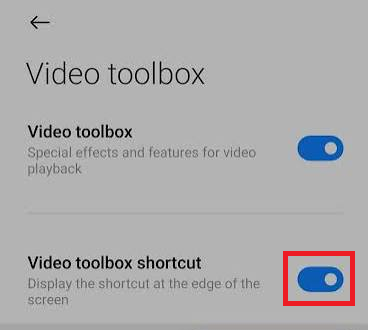
Show the authentic shortcut wording from the current build and its enabled state. - Where offered, open Shortcut location and choose the left or right edge. Remember which side you chose.
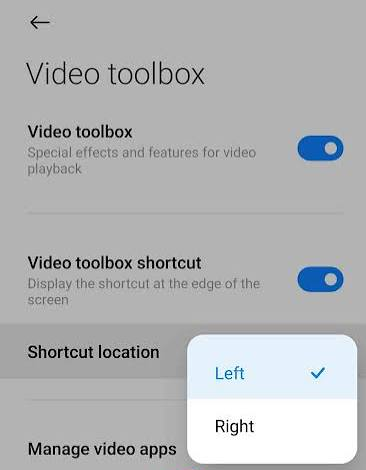
Place the handle on an edge that does not conflict with a case, gesture area, Quick Notes, or another sidebar. - Open Manage video apps or Video apps and select YouTube. Return to the previous page, then check that the selection remains enabled.
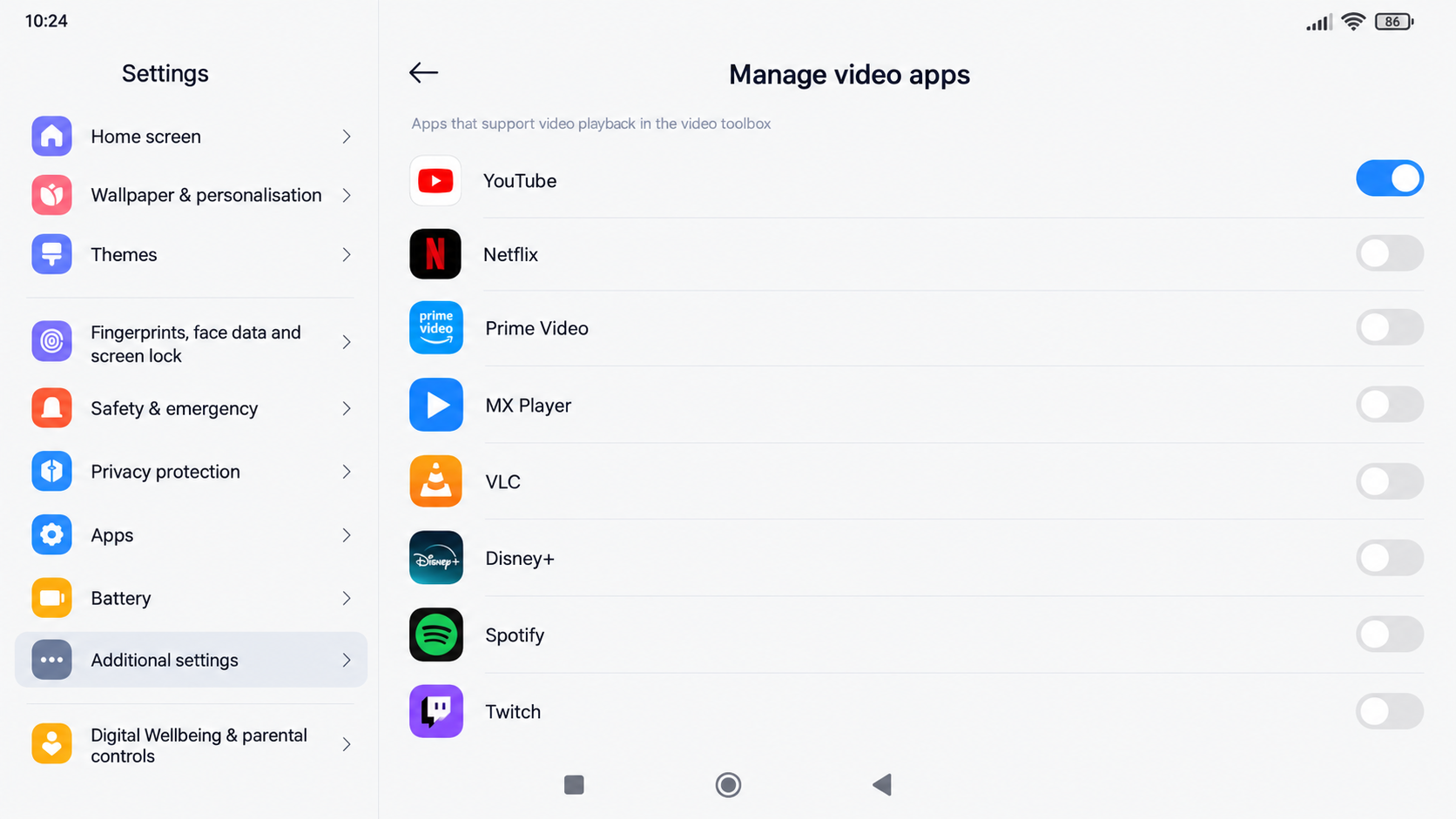
Select the official YouTube package in Manage video apps. Hide the rest of the installed-app list if it reveals private activity.
Open YouTube and play a video. If the handle appears, swipe inward from it to open the panel. If YouTube stays selected but the handle is still missing, try the short check below.
3. Reopen YouTube and Check the Screen Edge
After saving the settings, reopen YouTube to check them during playback. If the handle is still absent, try one normal restart; there is no need to keep repeating it.
- Close YouTube from recent apps and reopen it. If the handle is still absent, save work in other apps and restart the phone normally.
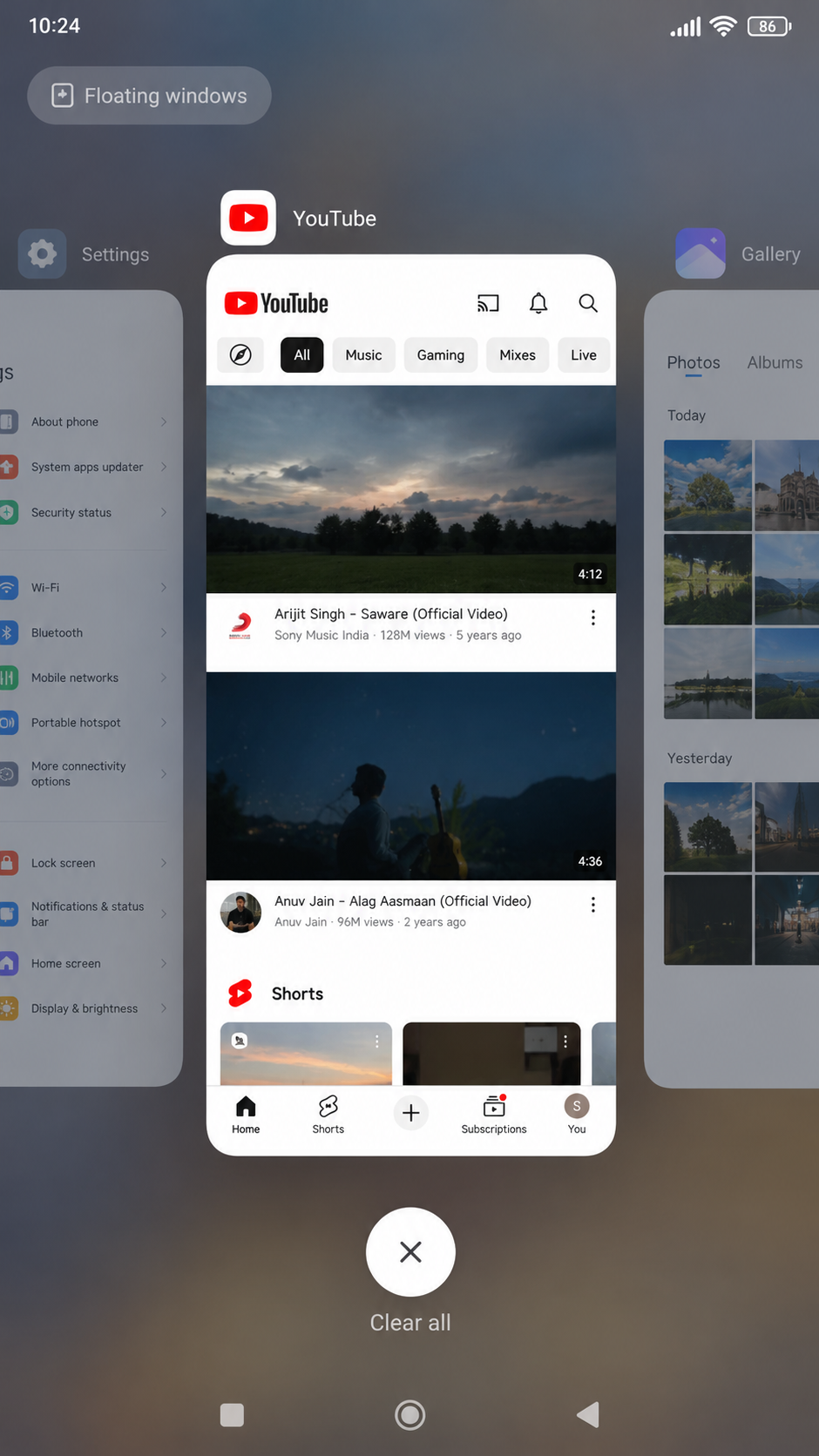
Save work first and use a normal restart. Do not force restart a responsive phone or interrupt a system update. - Confirm YouTube is still selected in the video-app list. Play a regular YouTube video and inspect the configured edge, then check again in full-screen landscape.
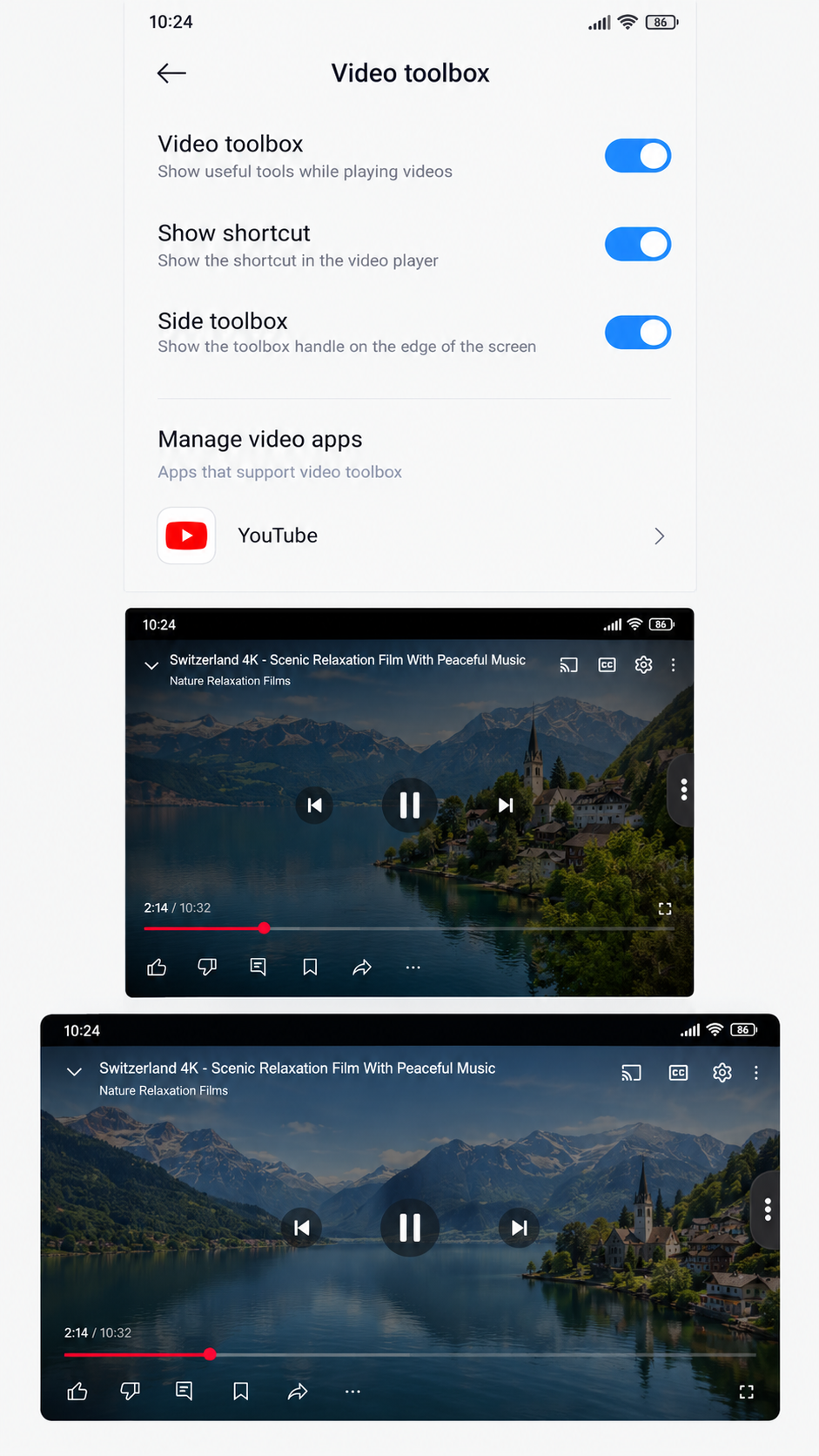
Use a public, non-sensitive test video. Hide the account, recommendations, watch history, notifications, and comments. - Swipe inward from the small handle itself. A swipe elsewhere on the screen will not open the toolbox.
Capture only controls the device genuinely offers. Do not add a removed screen-off control or claim every model has the same audio and picture tools.
Close and reopen YouTube once more. If the handle stays available and the panel opens, no further changes are needed. If it works in another selected video app but not YouTube, include that comparison in your report.
If the Toolbox Is Still Missing
Official updates are the next maintenance check, not a guarantee that a missing or removed feature will return.
- Check the official YouTube listing in Google Play for an update. Use that app for testing rather than a modified or cloned version.
- Open Settings > System app updater and install available official Xiaomi updates. Xiaomi documents this in its System app updater instructions.
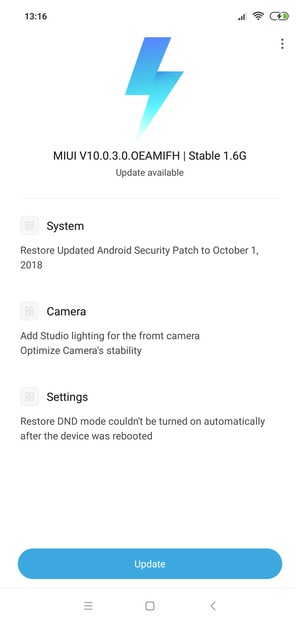
Show only official Xiaomi updates. Do not install an older Security APK or disable automatic security updates. - Under Settings > About phone, open the HyperOS or MIUI updater. Back up important data before installing a stable update offered for your phone.
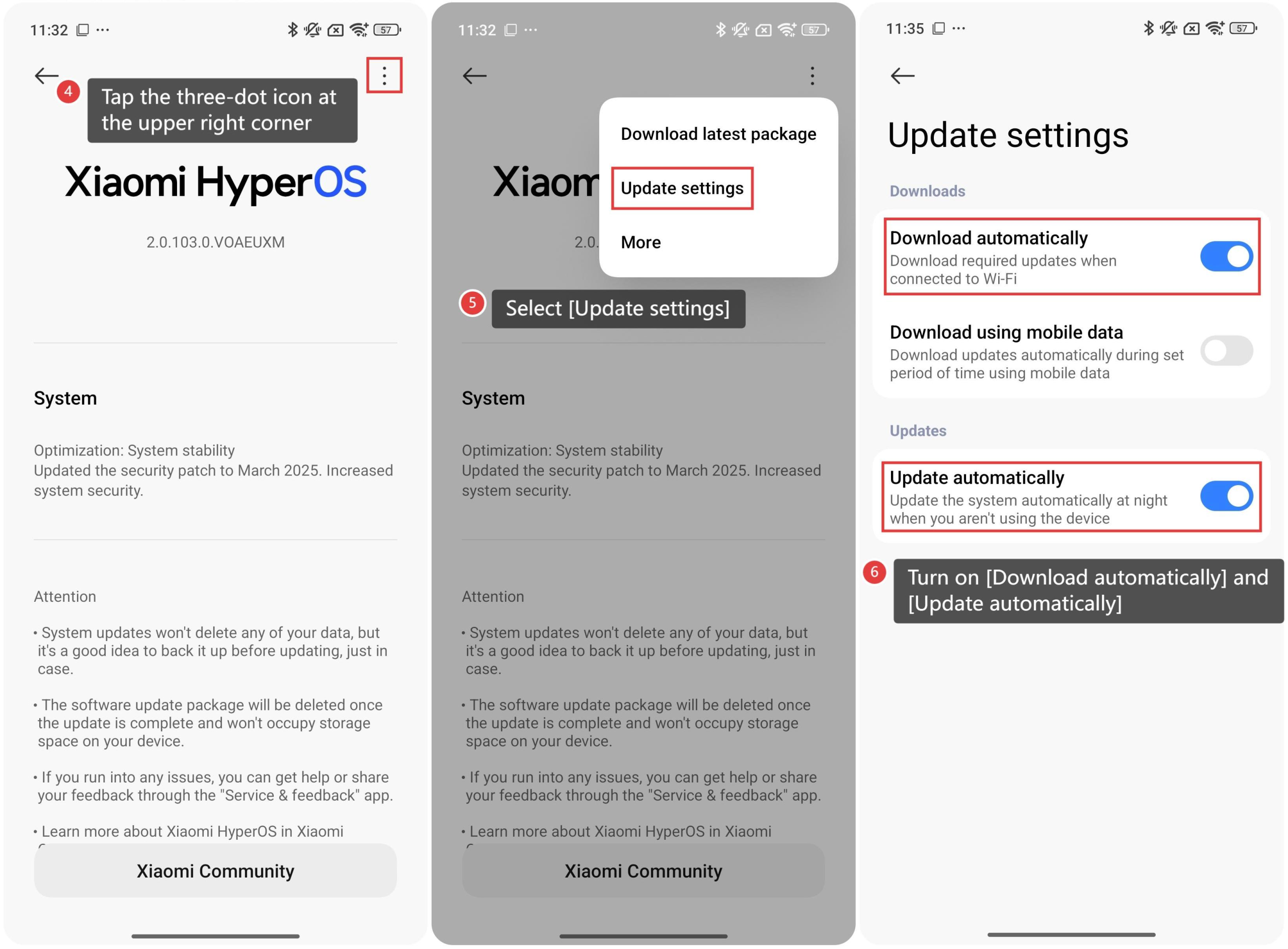
Show the public version and update state. Hide the IMEI, serial number, Android ID, phone number, Xiaomi Account, and beta identifiers. - After any required restart, recheck the toolbox switches and YouTube selection, then repeat the video test.
If it still fails, open Settings > Feedback or Services & feedback, where available. Otherwise, use Xiaomi Support above. Include the model, sales region, system version, YouTube version, whether the setting exists, and whether another selected video app shows the handle.
Attach screenshots with account details and device identifiers hidden. Avoid Security app downgrades, region changes, hidden-settings tools, or a factory reset for this issue: none is needed to follow the documented toolbox setup.
For a floating player outside YouTube, use Picture-in-Picture instead. YouTube’s PiP instructions cover its settings and availability; it does not require Video Toolbox.


