How to Fix Fingerprint Unlock Option Missing on Xiaomi, Redmi, or POCO?
Fingerprint unlock can disappear completely from a Xiaomi, Redmi or POCO phone’s Settings. PIN, pattern or password still works, but there is no longer a menu for managing saved fingerprints or adding another finger.
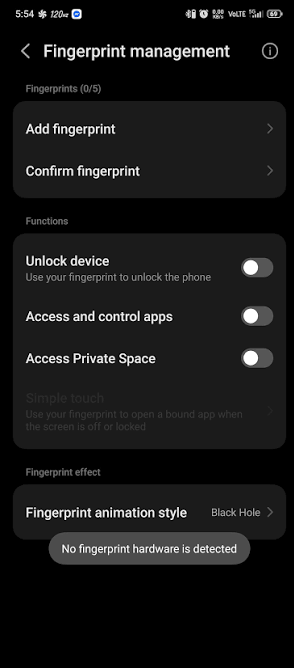
A temporary software problem can make the option disappear. A phone that cannot detect its fingerprint sensor may also lose the setting, so the missing menu alone does not prove that an update caused it or that the sensor needs replacing.
The opening image shows a related “No fingerprint hardware is detected” warning with the menu still present. The checks below focus on the missing Settings entry.
These instructions apply to phones with a fingerprint reader. A hidden lock-screen icon, while Fingerprint unlock remains in Settings, is a different issue.
1. Restart the Phone and Check the Fingerprint Sensor
A normal restart may bring the menu back after a temporary fault. If it stays missing, Xiaomi’s missing-fingerprint guidance recommends the built-in CIT hardware tests to check whether the sensor can be detected and read. Running a test does not repair it.
A damaged power button needs inspection rather than repeated restarts. On a managed work or school phone, ask the administrator whether biometrics are restricted.
- Save open work, open your model’s normal power menu and choose Reboot or Restart. Let the phone finish, then unlock with your existing credential. Do not use a recovery-mode button combination.
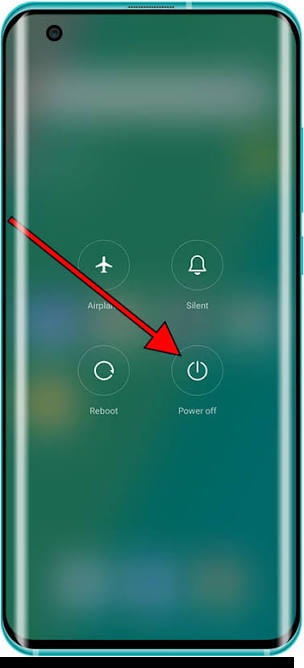
Make sure you know the existing screen-lock credential before restarting. The arrow in this image points to Power off; select the separate Reboot control for this step.
- Open Settings and search for fingerprint. Look under Fingerprints, face data, and screen lock > Fingerprint unlock on HyperOS, or Passwords & security > Fingerprint unlock on older MIUI versions. Labels vary.
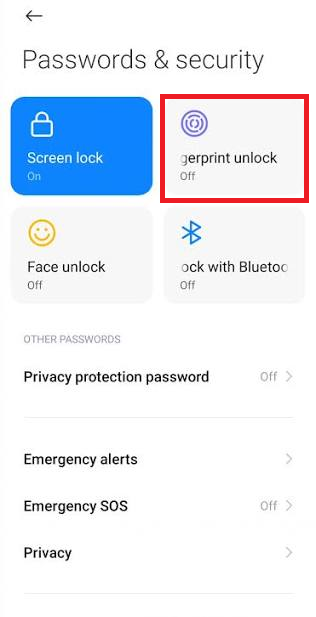
Security-menu names differ between MIUI and HyperOS versions; record the phone’s actual labels. If the entry returns, lock the phone and test fingerprint unlocking. No further changes are needed if it works and stays available.
- If the entry is still absent, open the Phone app’s dial pad and enter
*#*#6484#*#*. On supported models, CIT opens automatically. Do not press Call if nothing happens.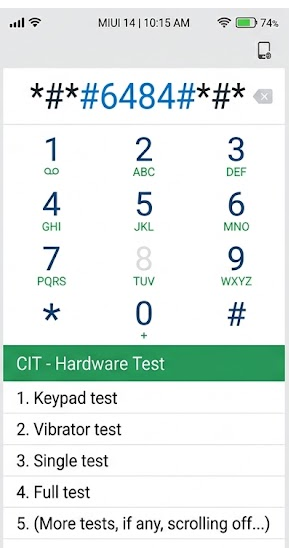
Enter *#*#6484#*#*; do not place a call if the diagnostic screen does not open. - If the code does not open CIT, try Settings > About phone > Detailed info and specs > Kernel version. Older versions may use All specs. Tap Kernel version repeatedly until diagnostics opens; Xiaomi documents four or five taps depending on the model.
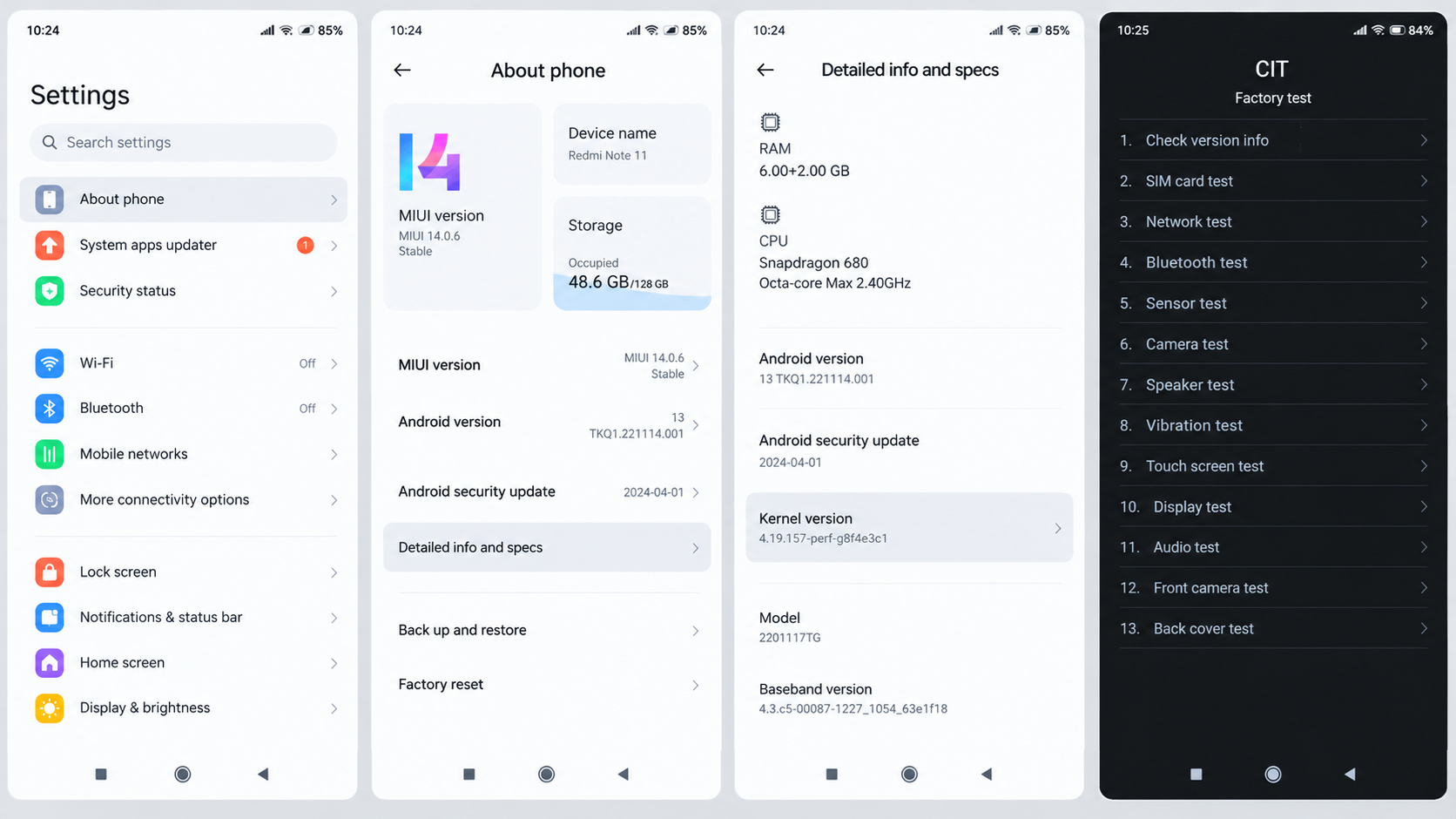
Tap Kernel version repeatedly until CIT opens; supported models differ in the required tap count. The Xiaomi 14T CIT instructions illustrate the five-tap method. If neither option works, record your model and build for support rather than installing an unofficial diagnostics app.
- Find Fingerprint sensor check and Fingerprint input test in CIT. Run the available checks and follow the prompts, touching the sensor when requested. Leave calibration controls unchanged.
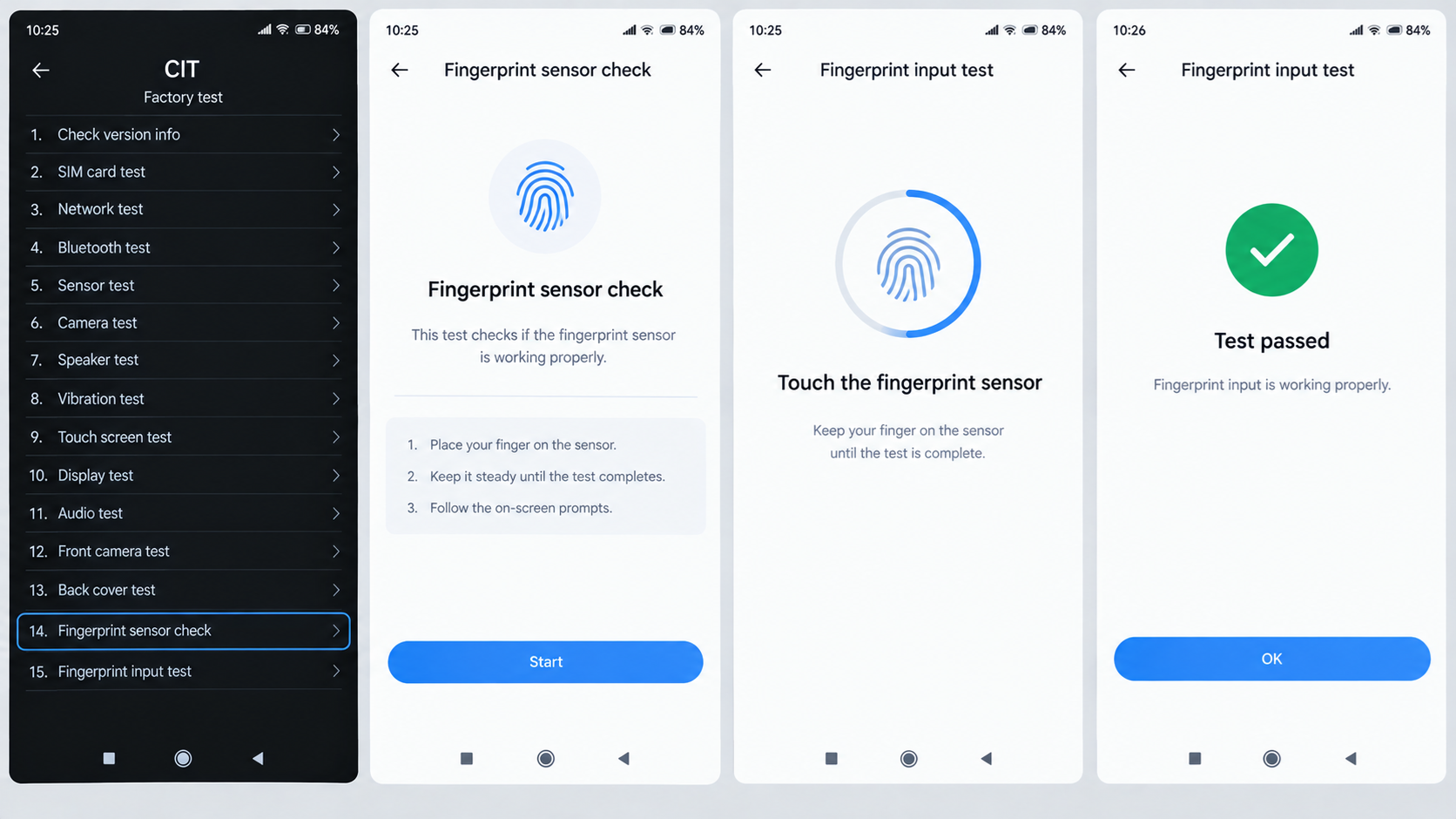
Follow the displayed test instructions; diagnostic availability and names vary by model and build. Record any prerequisite or error message. If the test asks you to remove your screen lock, leave it enabled and ask support about that prompt. Manually choosing Pass is not evidence of a successful test.
- Note the actual detection and input results. Exit CIT, restart normally once, unlock with your credential and check Settings again.
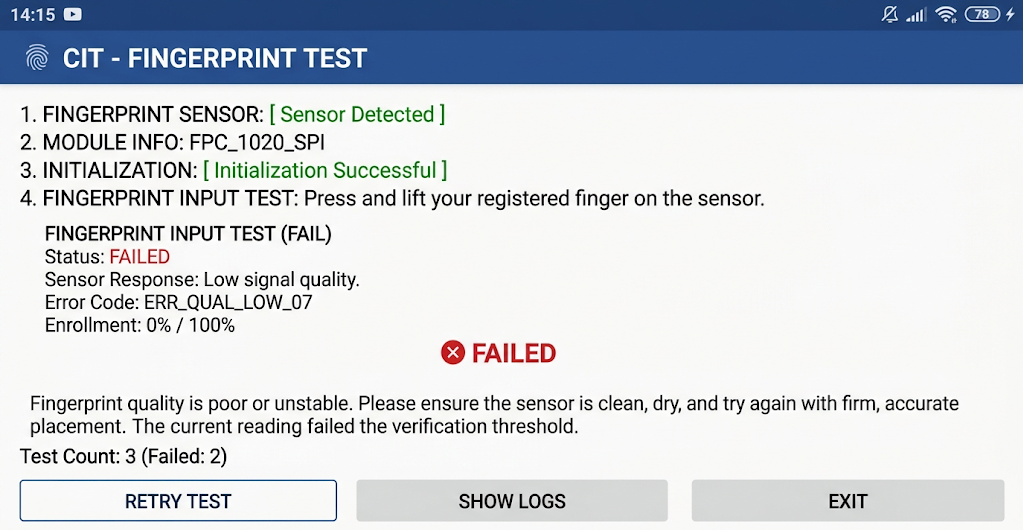
Use the actual result, not a manually selected Pass label; keep any sensor-not-detected message for support.
| What you find | What to do |
|---|---|
| Both checks pass, but the menu stays missing | Check for an offered system update below. A pass shows the sensor responded during testing, not that enrollment or unlocking is reliable. |
| Sensor not detected, or input repeatedly fails | Keep the exact result for Xiaomi or an authorized repair provider. One poor scan is not a hardware diagnosis; follow the test prompts before interpreting a failure. |
| No fingerprint test, or the test cannot complete | Availability and prerequisites vary by model and build. Report the missing test or displayed prompt; do not label it a failed sensor. |
2. Install an Available Official System Update
A sensor can respond in CIT while its Settings menu remains unavailable. Xiaomi recommends updating the system when the hardware checks pass. An offered update may correct a software problem, but it cannot repair a damaged sensor or guarantee the menu will return.
Use the built-in updater, not a downloaded ROM or another region’s firmware. If the phone is also restarting on its own, address that instability before beginning an update.
- Back up important photos, files and supported app data. Check that the backup completed or that copied files open. If a Google backup is blocked by a full quota, resolve the Google account storage problem before relying on it.
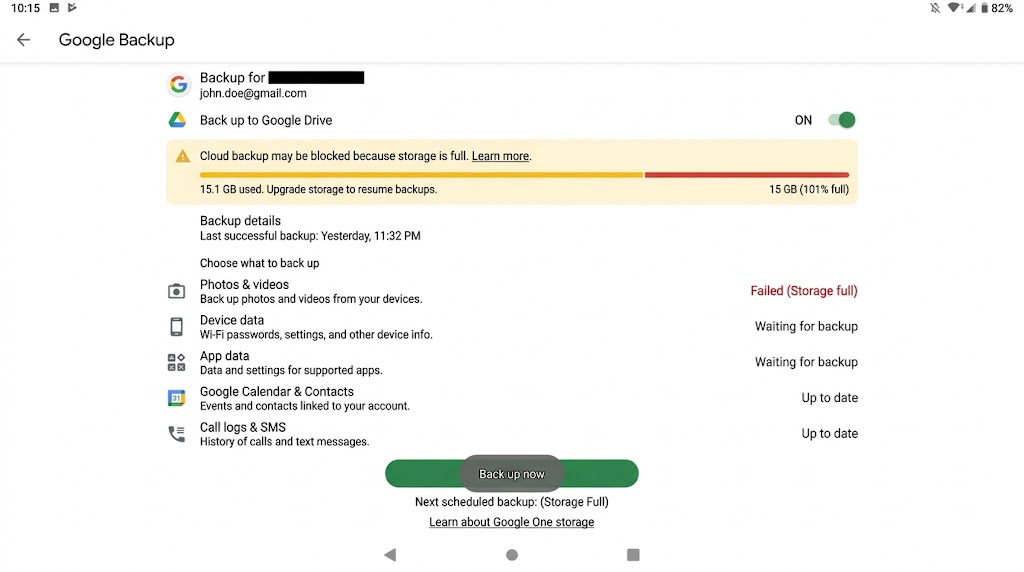
Show a genuine completed backup or verified copied files; a backup toggle alone is not proof of completion. This image shows a blocked backup, not a completed one. An enabled backup switch does not confirm that your files are protected.
- Open Settings > About phone and note the model and full system version. Tap the Xiaomi HyperOS or MIUI version panel to open the system updater.
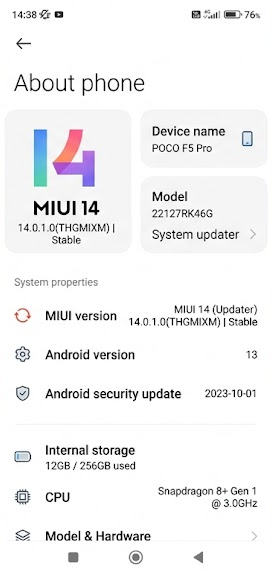
Keep the model and full build in production notes while hiding IMEI and serial numbers - Select Check for updates if shown. Install an official update offered to this phone, using a stable Wi-Fi connection and sufficient battery charge. Follow the updater’s requirements and do not interrupt installation.
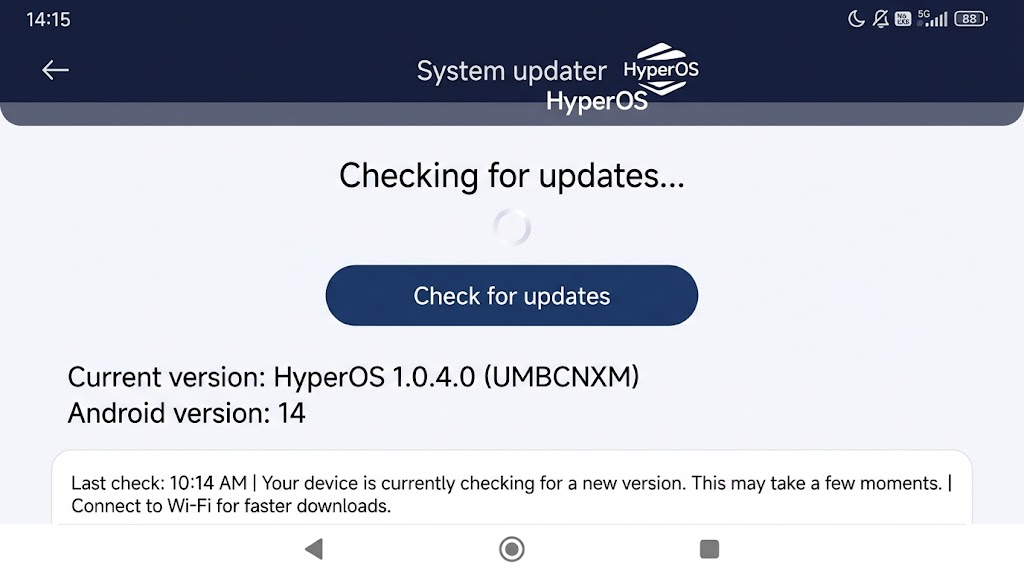
Use the update offered by the phone; do not substitute a package from another model or region. Xiaomi’s HyperOS update instructions show this process on the REDMI 13C 5G. Other models may differ. If no update is offered, leave the region and bootloader unchanged rather than forcing one.
- After the update and restart, unlock with your PIN, pattern or password. Check for Fingerprint unlock again and note the new build number.
- If the menu returns, open it using your existing screen lock. Keep any working saved print; if none is usable, follow the fingerprint enrollment prompts to add one. Lock the phone and test unlocking, then check again during normal use.
The menu returning is only part of the result: fingerprint unlocking should also work consistently. Failed enrollment, unreliable unlocking or a menu that disappears again still needs attention, rather than repeated downloads of the same firmware.
If Fingerprint Unlock Is Still Missing
Contact Xiaomi Support for your country or an authorized repair provider. Give them:
- Your exact model and full HyperOS or MIUI build.
- The CIT detection and input results, including any test that could not run.
- When the option disappeared, whether it returns temporarily, and any recent update, drop, liquid exposure, power-button problem or repair.
A failed detection check warrants inspection; a pass does not rule out an intermittent fault. Sensor placement and repair requirements differ between models, so leave the phone’s casing closed and keep using your existing screen lock.
Back up accessible data before handing over the phone and ask whether service will erase it. Xiaomi also lists a factory reset after unsuccessful software checks, but it erases data and cannot repair damaged hardware. Ask support whether it is appropriate before taking that step.


