How to Fix Google Pixel Left Speaker Not Working?
Google Pixel phones such as the Pixel 7 and Pixel 8 have only one speaker beside the USB-C port. The opening on the other side is a microphone, so it stays silent even while music is playing.
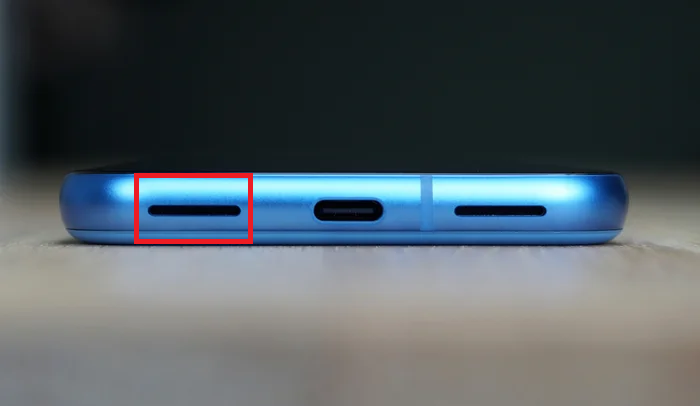
That is different from music suddenly sounding faint because only the upper speaker is playing, or the bottom speaker crackling at moderate volume. Those symptoms need checking. A microphone opening, however, is not supposed to play sound.
1. Identify the Speaker on Your Pixel
The openings can look alike, and their positions vary between models. Google’s Pixel hardware diagrams identify the actual speaker without relying on which side looks like a grille.
- Check your model under Settings > About phone.
- Open the diagram for that exact model and match the Bottom speaker, USB-C port, and Bottom microphone labels to your phone.
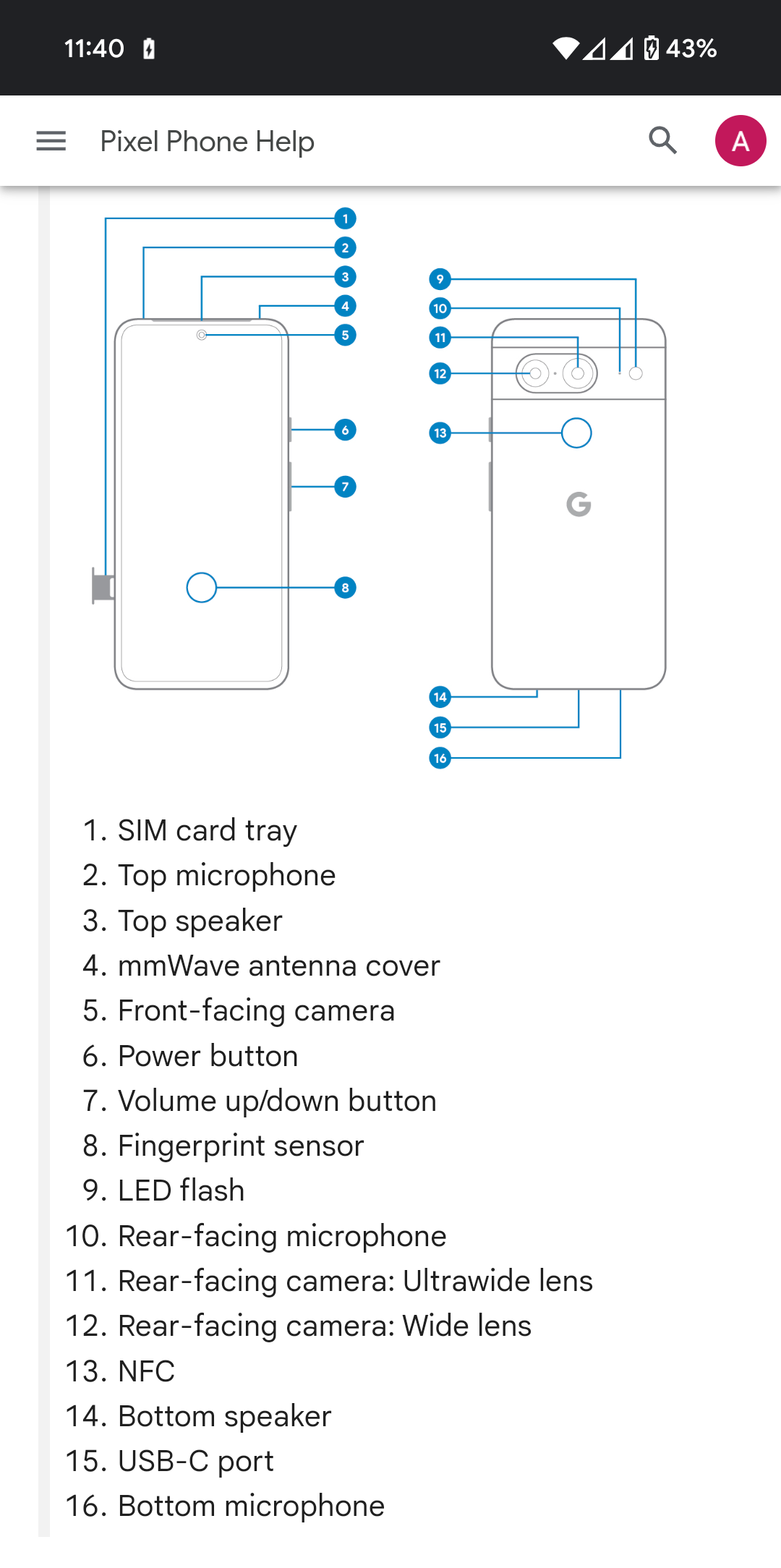
Match your exact model before treating the bottom-left opening as a failed speaker.
If the silent opening is the microphone and playback sounds normal, nothing needs fixing. A recording checks sound pickup, not speaker output, and Pixel uses different microphones for different tasks.
2. Check Media and Speakerphone Sound
A normal call held to your ear does not test the bottom speaker. Google explains that the top speaker handles ear-level calls; the bottom speaker joins when speakerphone is enabled.
During music playback, the bottom speaker is normally louder than the top one. Equal loudness is not the test for a healthy speaker.
- Open Settings > Sound & vibration and raise Media volume to a comfortable level, not maximum. Ring and alarm volume are separate controls.
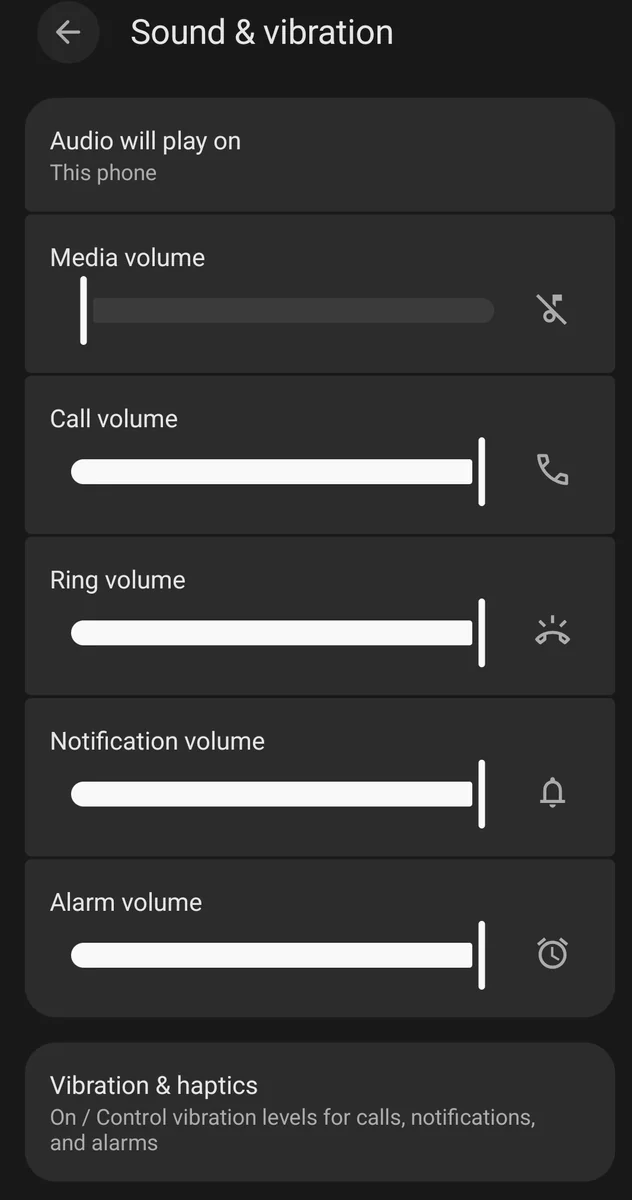
A normal ear call does not prove the bottom speaker is broken because Pixel routes call audio differently. - Play two or three songs or videos from different apps. Include a locally saved video so a poor streaming connection does not confuse the test. Keep your fingers clear of the speaker.
- Make a call and enable Speaker. Adjust the call volume during the call, then compare it with media playback.
- Check Settings > Accessibility > Audio adjustment > Audio balance. If it is off-center, note the original position and briefly center it for comparison. Restore any adjustment you need for your hearing afterward.
| What you hear | What to check |
|---|---|
| Only one file sounds distorted | Try another recording. The file itself may be damaged. |
| Only one app has no sound | Check its mute and playback controls before changing phone-wide settings. |
| The labeled bottom speaker fails across apps and speakerphone | Test without connected audio accessories, then check for an obstruction. |
3. Disconnect Audio Accessories and Restart
A connected headset or car can receive audio while the phone itself stays quiet. Test once with accessories disconnected, then restart separately so you can tell which action made a difference.
- Turn Bluetooth off in Quick Settings. Unplug wired headphones and USB-C audio adapters, then replay the same local video.
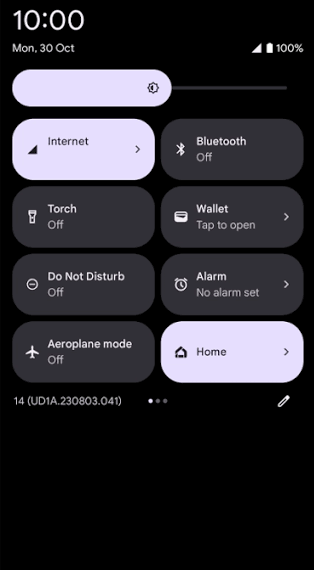
Audio can stay routed to an accessory even when the phone speaker looks like the failed part. - If the bottom speaker is still silent, open the power menu: hold Power + Volume Up on Pixel 6 and later, or Power on Pixel 5a and earlier. Tap Restart.
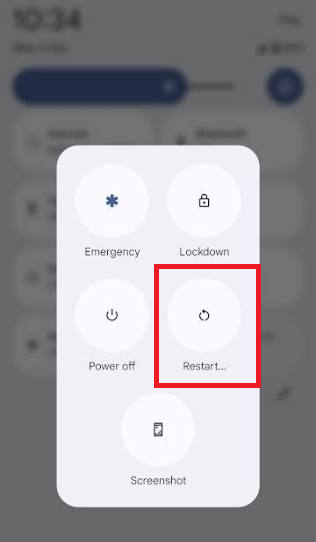
- After restarting, confirm Bluetooth is still off and test again before reconnecting accessories.
Sound returning only after a restart may be temporary. Note whether it stops again after reconnecting an accessory or opening an app.
If the phone sounds clear but a Bluetooth headset crackles, the relevant checks are for Bluetooth static and interference, not the phone’s speaker grille.
4. Remove the Case and Clean the Exterior
A case that covers the opening or dirt on the speaker mesh can make working hardware sound muffled. Removing the case is a useful comparison before attempting any cleaning.
For a wet phone or a “Liquid or debris in USB port” warning: disconnect accessories and follow Google’s liquid/debris instructions. Let a wet phone dry at room temperature rather than continuing playback or charging tests.
- Remove the case and check for anything covering the actual speaker. On a Pixel Fold, leave the inner display’s protective film in place.
- Turn the phone off and unplug it. Gently wipe visible exterior dirt with a soft, dry, lint-free cloth, following Google’s cleaning guidance.
- Keep pins, brushes, and other objects out of the speaker and USB-C openings. Do not spray liquid or compressed air into the phone.
- Turn the phone on and replay the test audio with the case still off.
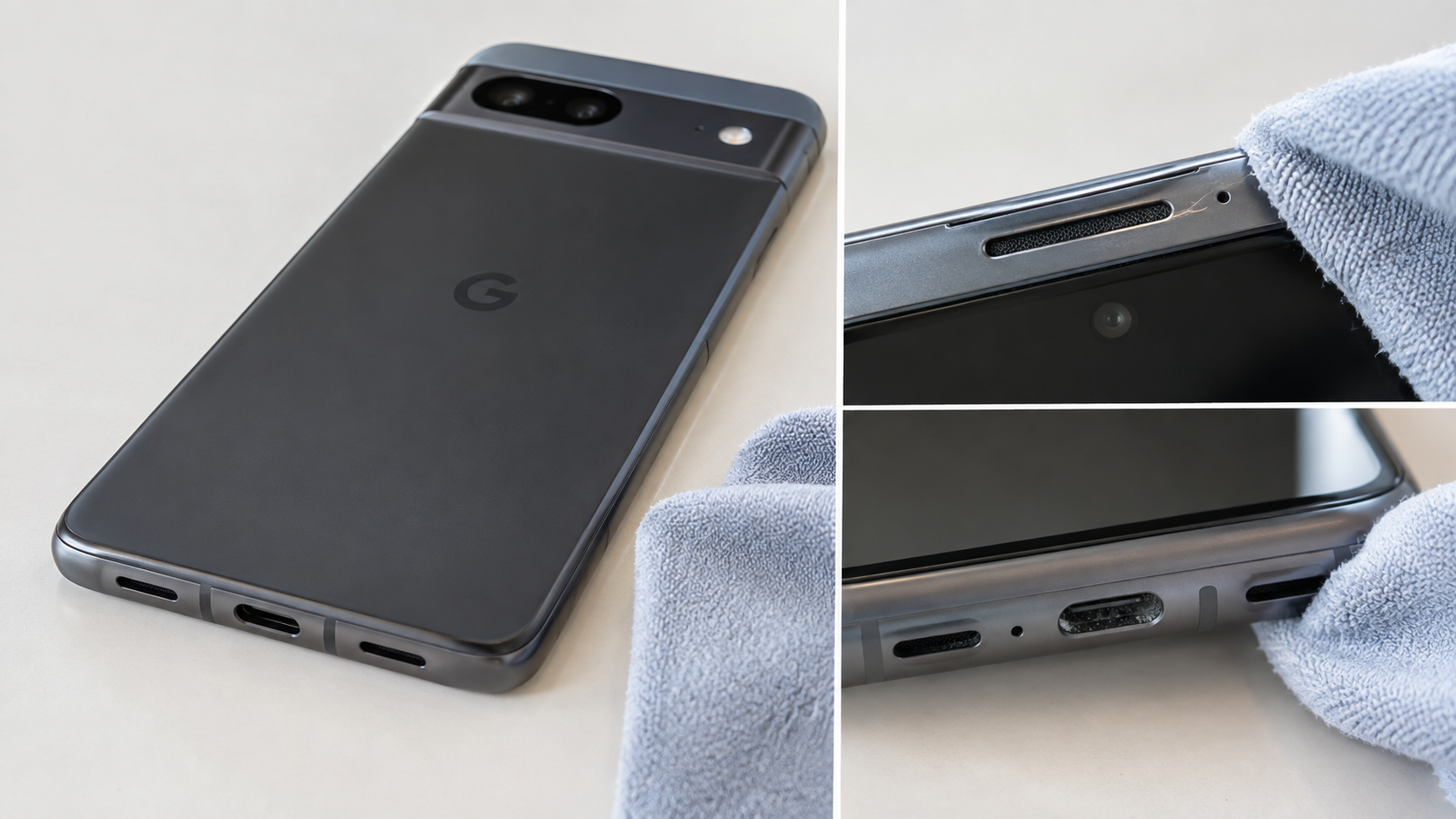
A blocked speaker opening can sound like a dead speaker even when the hardware still works.
If the case was muffling sound, replace it with one that leaves the opening clear. Dirt that will not wipe away safely needs professional attention, not deeper scraping.
5. Test Without Downloaded Apps in Safe Mode
Sound that disappears after an app opens may recover when downloaded apps are disabled. Safe Mode provides that comparison without erasing your data. Screenshot your Home screen first because some widgets may be removed.
- Open the power menu using the buttons described above.
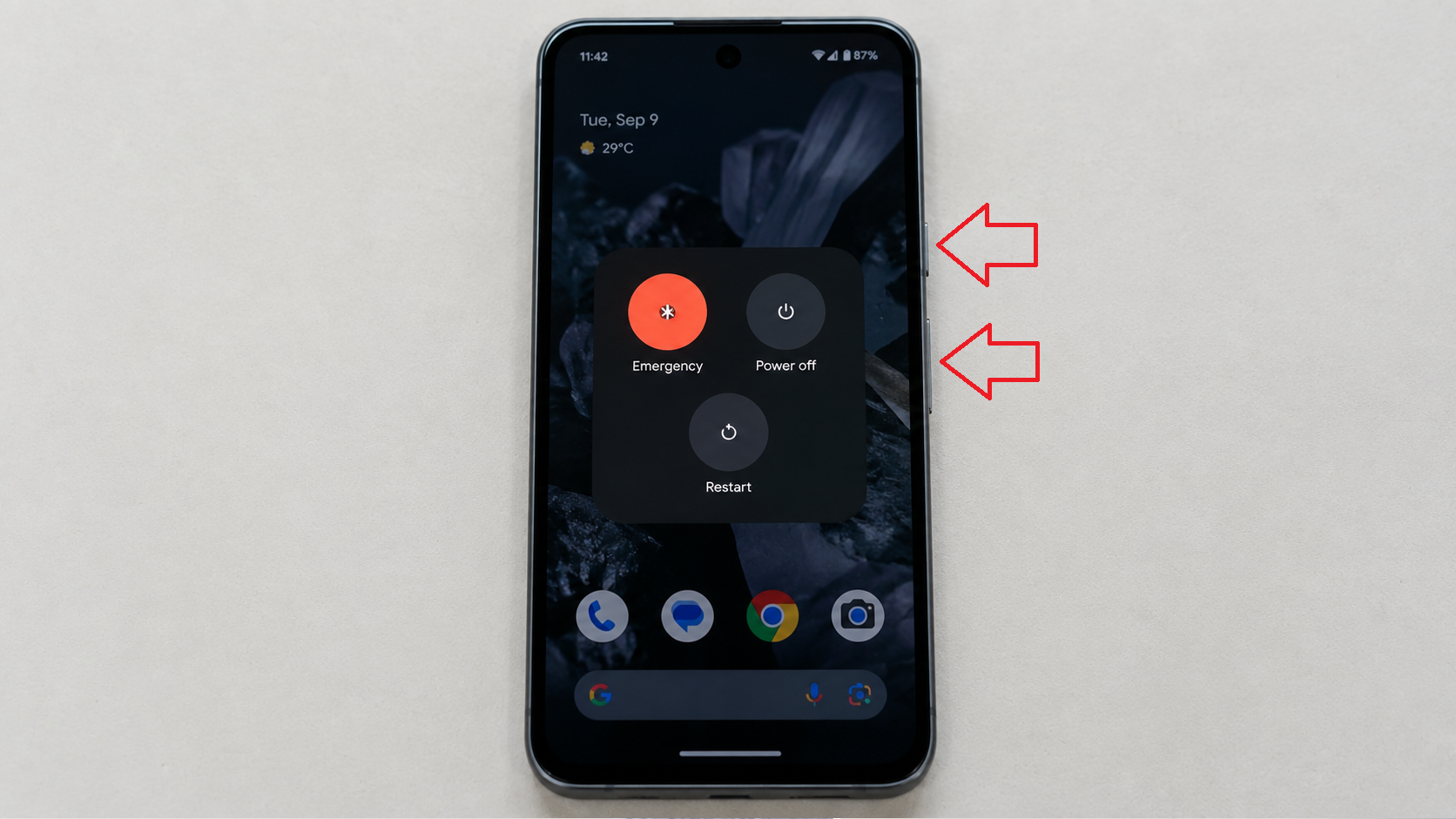
Safe Mode helps separate a hardware failure from an app that is interrupting audio output. - Touch and hold Power off, then tap OK on the Safe Mode prompt.
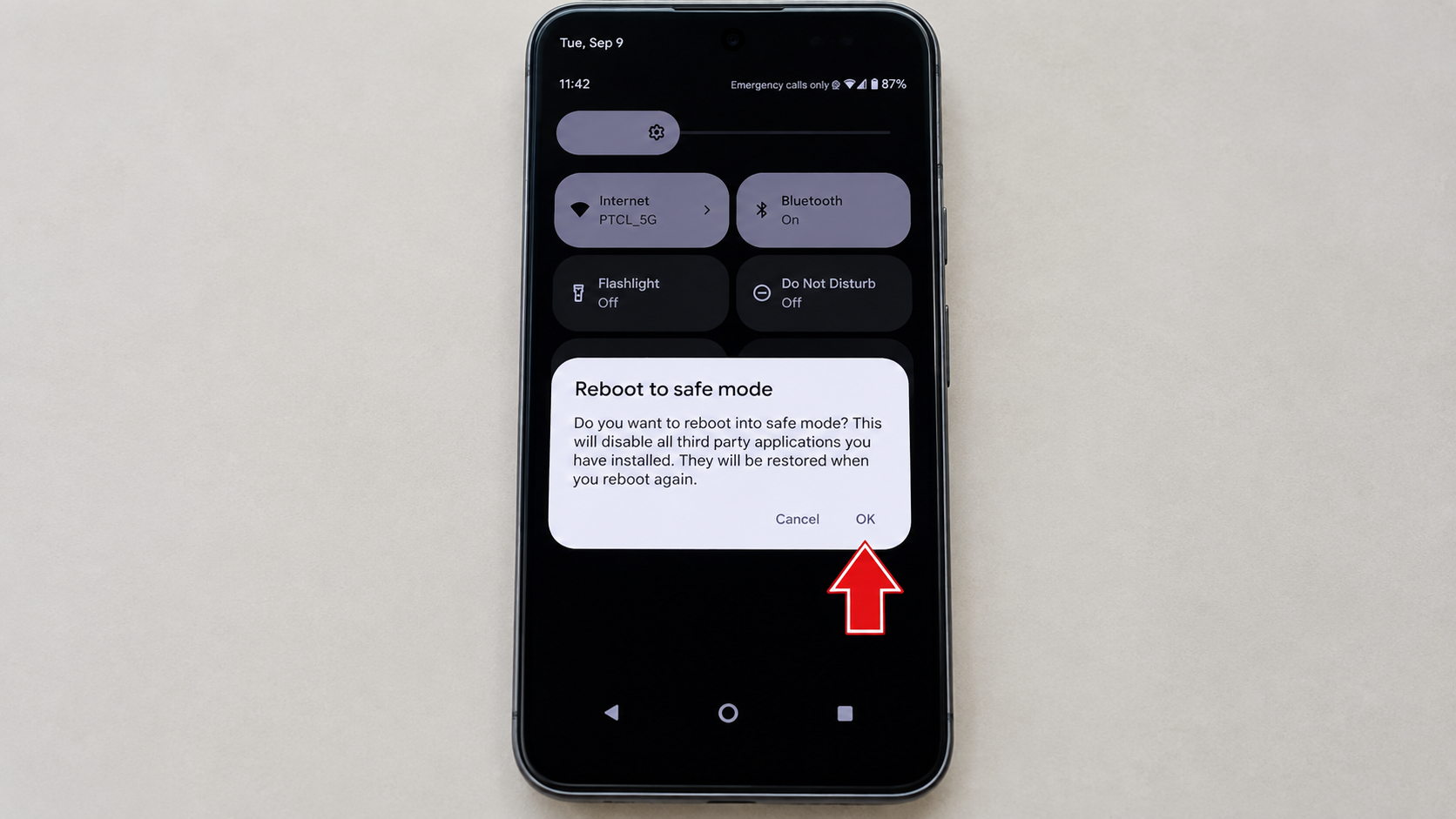
- After the Safe mode label appears, test the local video with an available built-in app. Downloaded players will be unavailable. Airplane Mode turns on automatically; turn it off before testing calls or streaming, but keep Bluetooth off for the speaker test.
- Restart normally to exit. If sound worked in Safe Mode, remove recently installed apps one at a time, saving their local data first. Restart and retest after each removal.
A repeatable improvement makes app interference more likely. Continued silence does not, by itself, prove the speaker is physically broken; Android itself can still be involved.
6. Update Android Before Considering a Factory Reset
A system update may address an audio bug without removing your files. A factory reset is a separate, optional last software test for persistent speaker trouble, not a requirement before asking Google for help.
- Connect to Wi-Fi, charge the phone, and open Settings > System > Software updates (or System update). Install any available update, restart, and test the speaker again.
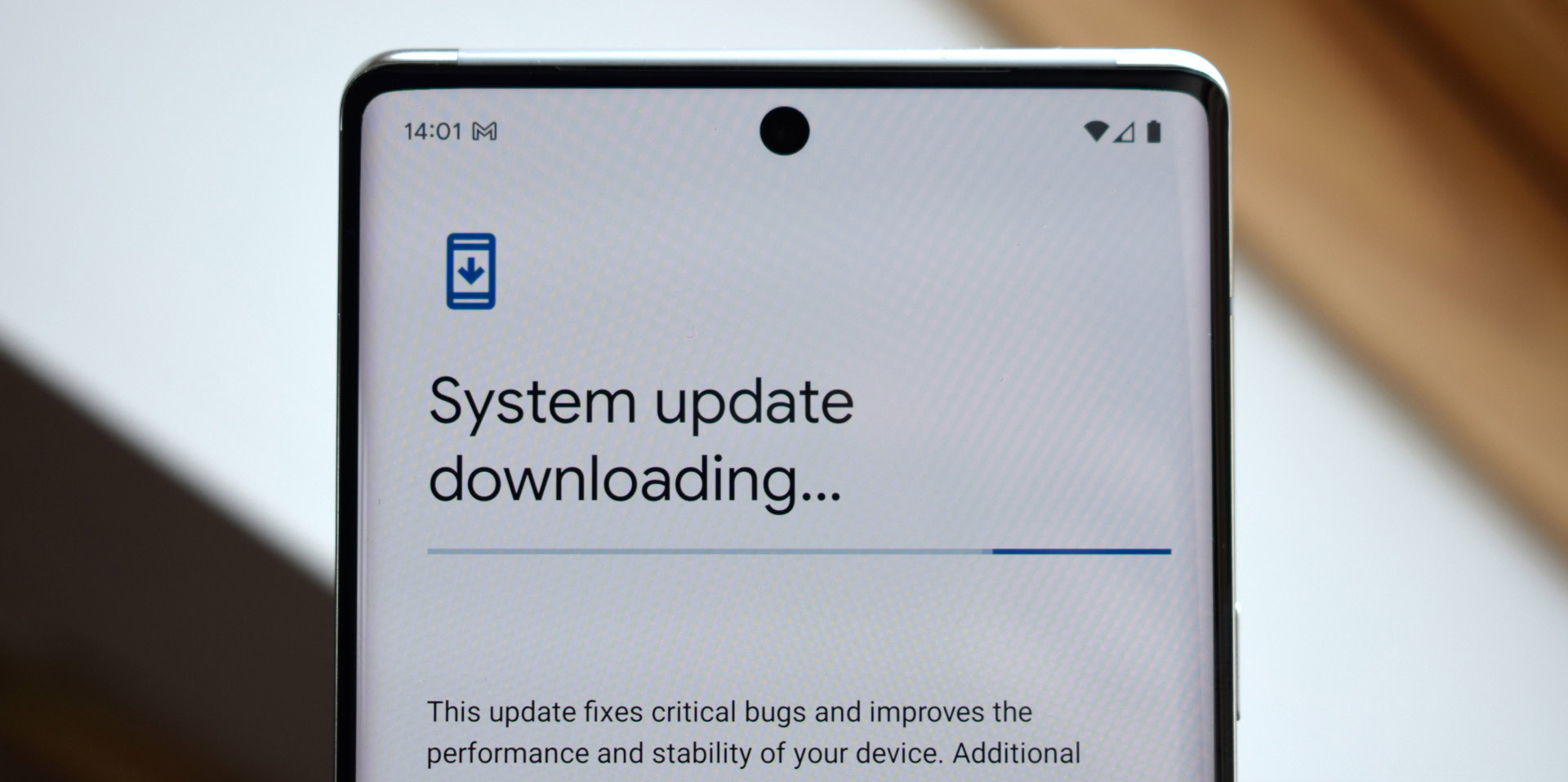
A reset is for confirmed speaker failure across apps and Safe Mode, not for the normal microphone opening.
A reset tests whether saved software settings are involved; it cannot repair damaged speaker hardware.
Optional: Test After a Factory Reset
A factory reset erases the phone’s local data. Confirm your Pixel backup has finished, and separately preserve anything it does not cover, including downloads and authenticator recovery access.
Know your Google Account password and screen-lock code. If you recently reset that password, wait 24 hours. Ask IT first on a work-managed phone.
- If you choose to proceed, follow Google’s factory-reset instructions. Charge to at least 70% and have an internet connection available for setup.
- Open Settings > System > Reset options > Erase all data (factory reset). Read the confirmation before choosing Erase all data.
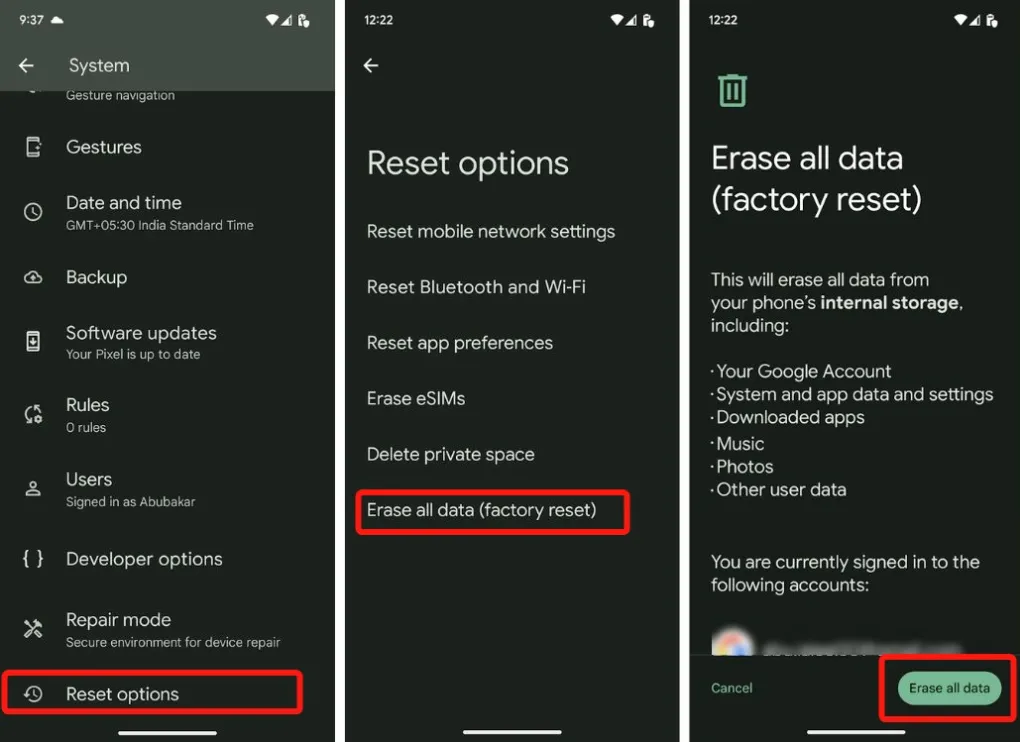
- Complete setup without copying back apps and settings yet, then test playback. If sound returns but fails again after restoration, report that sequence to support rather than repeating resets.
7. Have a Persistent Speaker Fault Assessed
A bottom speaker that remains silent or distorted across these tests needs assessment, especially after a drop or liquid exposure. You can request support without performing the optional reset.
Optional diagnostic: on Pixel 3 and later, Google’s Pixel Repair Diagnostics can help document the problem.
Connect to the internet, enter *#*#7287#*#* in the Phone app’s dial pad, and follow the available audio tests. If it will not open, report that rather than treating it as proof of speaker damage.
- Request service: Google’s Pixel repair page lists authorized options and warranty checks. Availability and charges depend on your location, device, and damage.
- Provide useful details: your model, Android version, which sounds fail, Safe Mode results, and whether restarting helps only briefly. Share diagnostic results privately with support.
Back up before service. Ask whether your device can use Repair Mode; it protects personal data during assessment, but some repairs still require erasing the phone. Do not give the technician your screen-lock code.


