How to Fix Second Space Option Missing on Redmi Phones?
The Second space entry can disappear from a Redmi‘s Settings while the space itself still opens with its own password. Xiaomi lets that Settings shortcut be hidden, so a missing menu does not necessarily mean your separate apps and files were deleted.
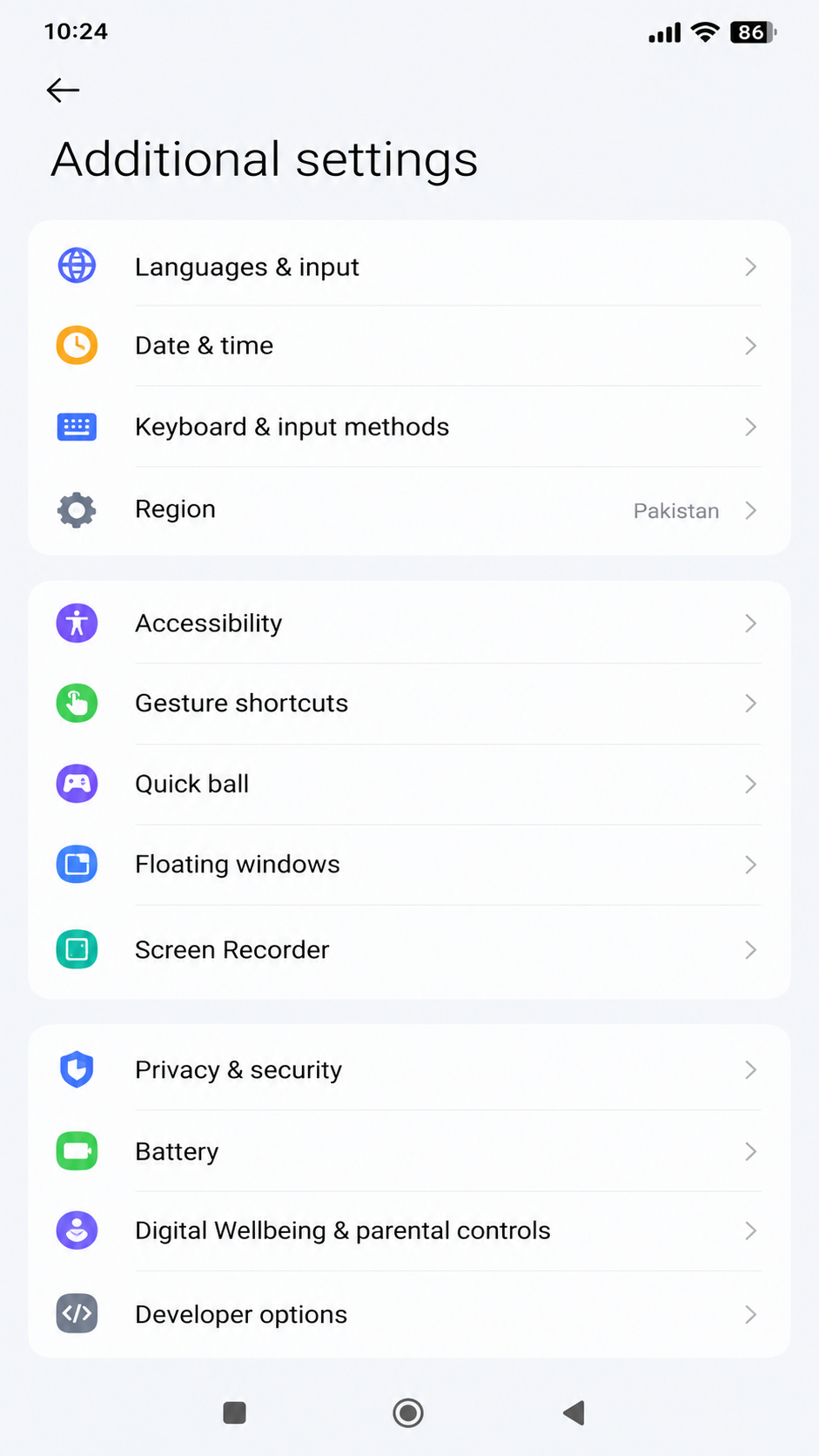
On a phone that has never offered Second space, availability is the first question. Not every Redmi includes it, and installing HyperOS does not automatically add it. On supported phones, the standalone Security app can also provide an entry.
1. Check Support for Your Exact Redmi Model
Similar Redmi names do not guarantee the same features. Identify your phone before following instructions for a different model or region.
- Open Settings > About phone. Check Detailed info and specs or All specs for the model; the editable Device name is not reliable identification.
- Note the full model, including 4G, 5G or Pro, its memory variant, sales region and complete MIUI or HyperOS build. The image below is an older MIUI example.
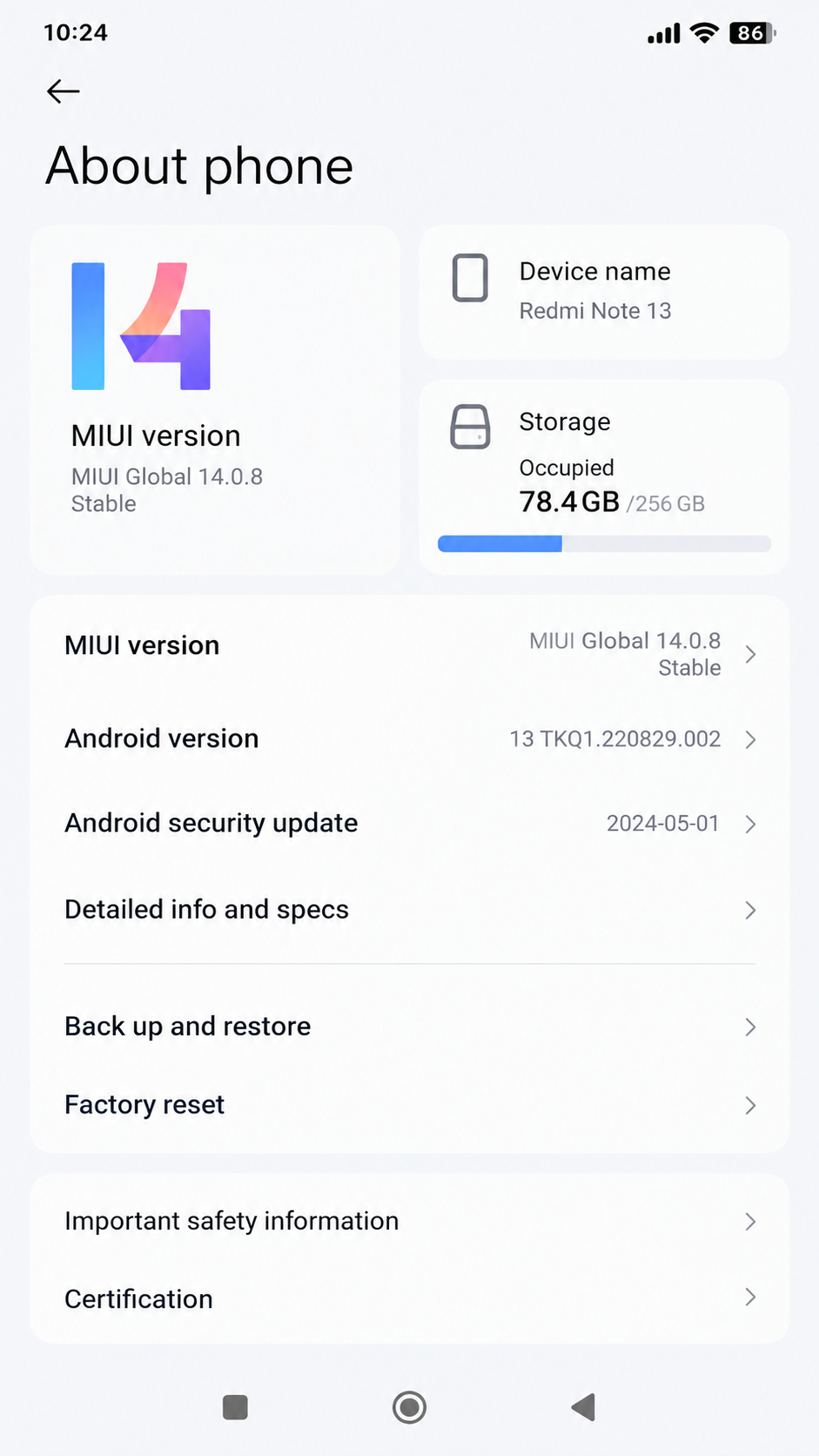
Show the exact model, memory variant, and full HyperOS or MIUI build before checking support. Hide the IMEI, serial number, phone number, Xiaomi Account, and device name. - Search Xiaomi’s official support site for that exact model and Second space. Read the matching model FAQ, not just a search snippet or generic HyperOS guide.
For example, Xiaomi lists Second space on the Redmi Note 14, but says the Redmi 13C does not support it. Neither answer establishes support for a similarly named phone.
No matching FAQ is not an unsupported verdict. Ask Xiaomi with your exact model and build.
The next image shows a software-version screen, not an official support answer. Check your model against Xiaomi’s actual FAQ.
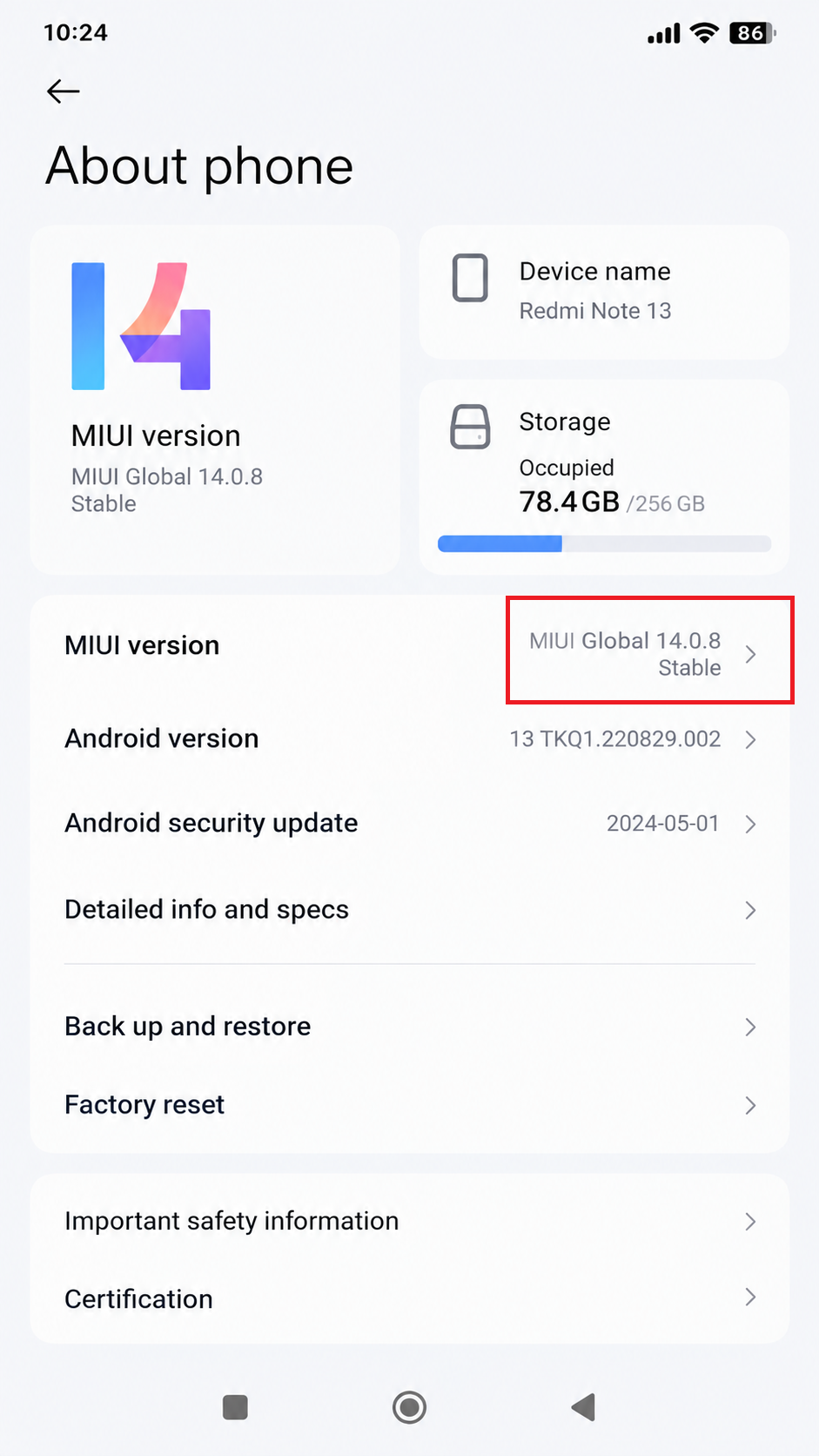
If Xiaomi confirms your phone does not include Second space, there is no supported menu to restore. Per-app account switching or supported Dual apps may meet a two-account need, but Android app-cloning options do not recreate a separate space or recover its files.
If a space already existed, preserve it and try its saved access methods below, even when a current FAQ does not match your experience.
2. Look in Settings and the Security App
Xiaomi documents Additional settings and, on models such as the Redmi Note 13 Pro 5G, a Second space card inside Security. Older instructions may instead call the Settings section Special features.
- Search Settings for Second space. If nothing appears, check Settings > Additional settings manually; check Special features too if your older MIUI build has that section.
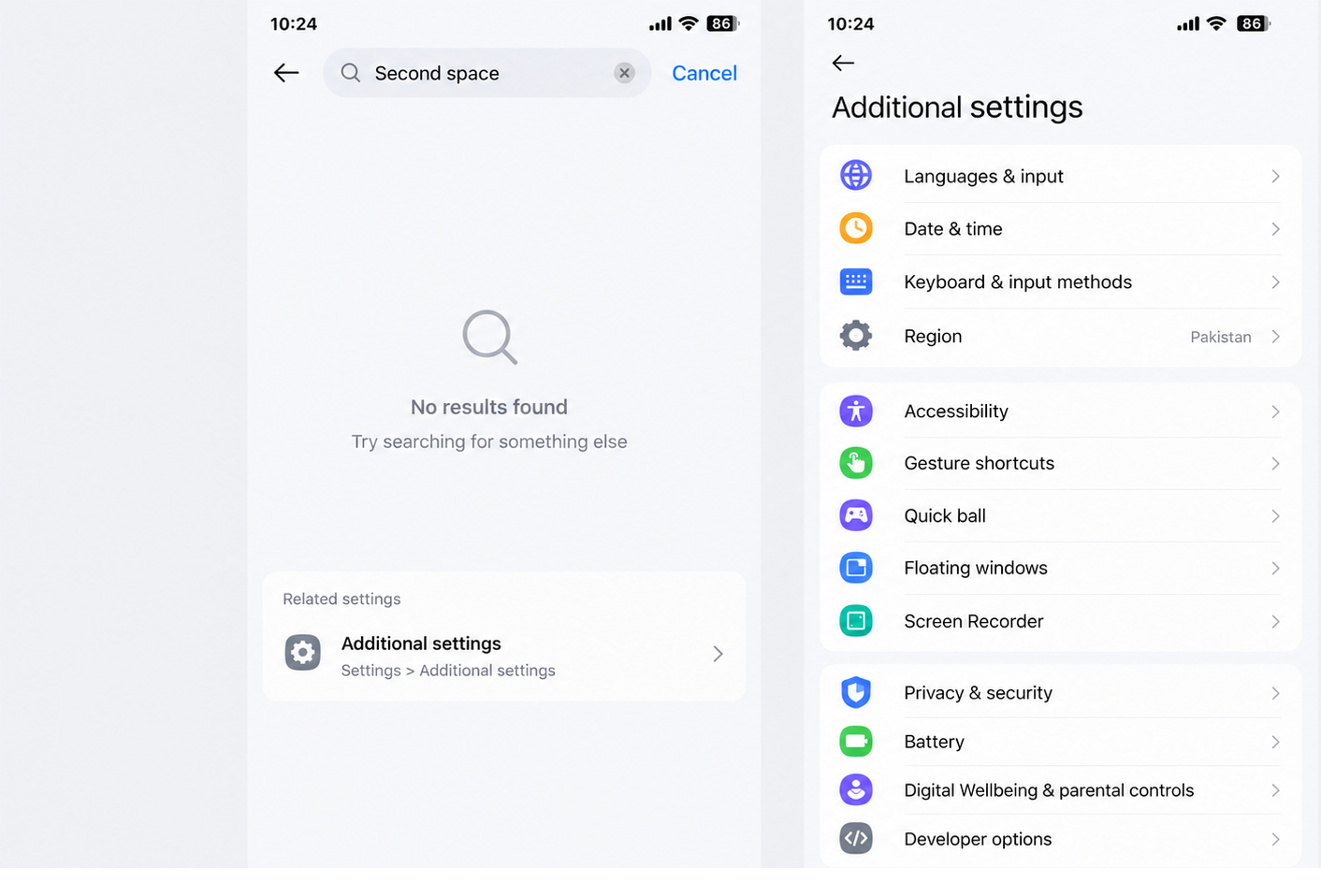
Show Settings search or Settings > Additional settings with Second space visible. Keep the full route in frame because older MIUI instructions may use Special features. - Open the green-shield Security app from Home or the app drawer. This is separate from the security menu inside Settings.
- Scroll to Common features or the toolbox and look for Second space.
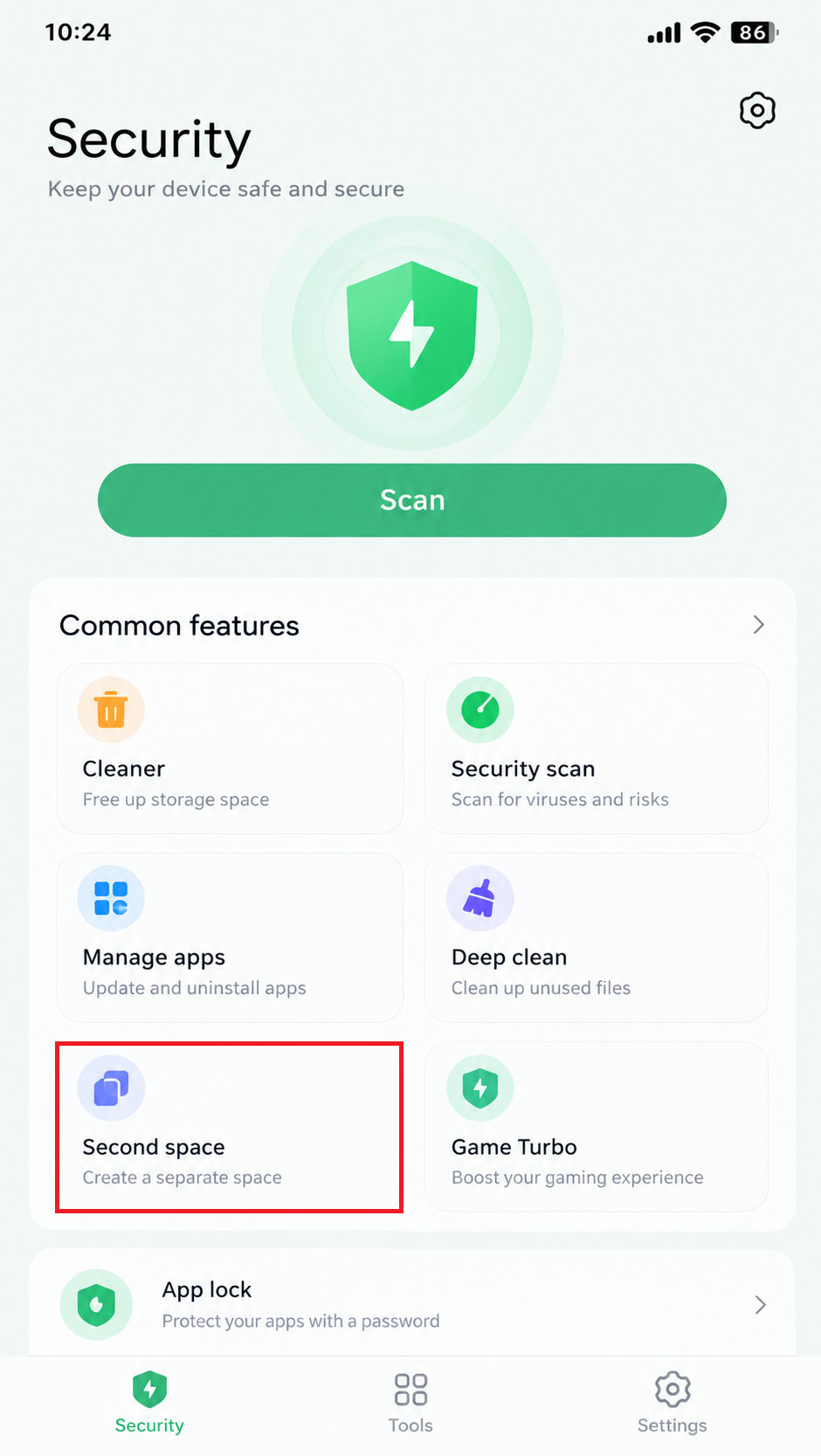
Show the standalone Security app and its Common features area with Second space visible. Do not confuse it with Android Settings, App lock, Dual apps, or Hide apps. - Open the entry if present. Use Go to Second space or Switch for an existing space; create one only if you intend to set up a new space.
The Settings illustration above shows no search result; it does not show a restored entry. Finding the Security card provides another way in, not proof that an update moved the feature.
If both locations are empty on a supported phone, an existing space may still be reachable with its assigned password or Home-screen shortcut.
3. Reopen an Existing Space and Restore Its Settings Shortcut
A working second space can have its Settings entry hidden in the first space. Xiaomi specifically documents Shortcut in the Settings for restoring that entry. This is separate from the Home screen shortcut that creates a Switch icon.
Open the Existing Space
Use either entry you previously set up:
- Lock the phone and unlock with the password or pattern previously assigned to the second space. A fingerprint specifically assigned to it can also work when permitted.
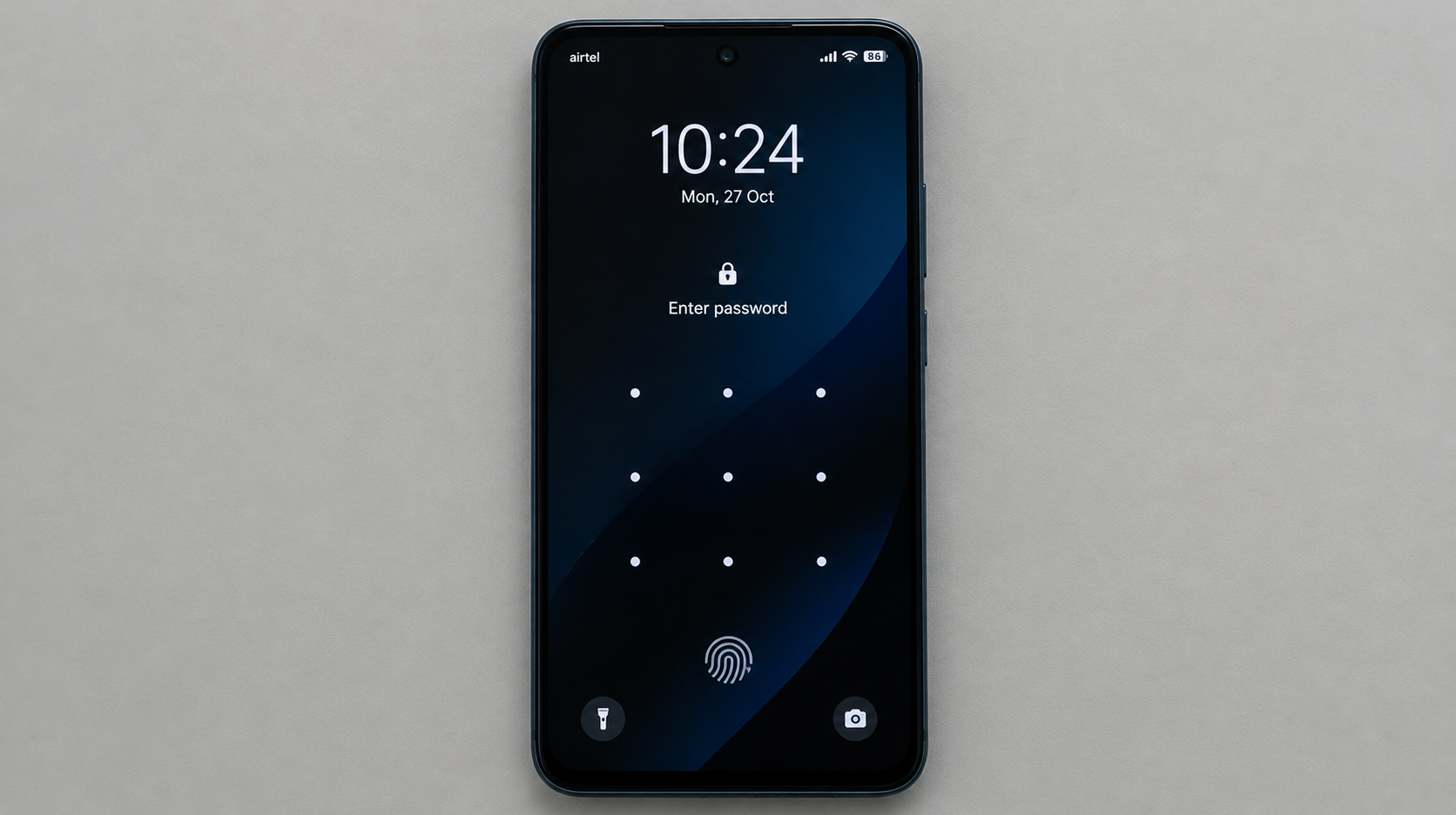
Demonstrate the legitimate second-space credential without exposing the PIN, pattern, password, fingerprint, notifications, wallpaper details, or account information. - Tap an existing Switch icon on Home and authenticate if asked.
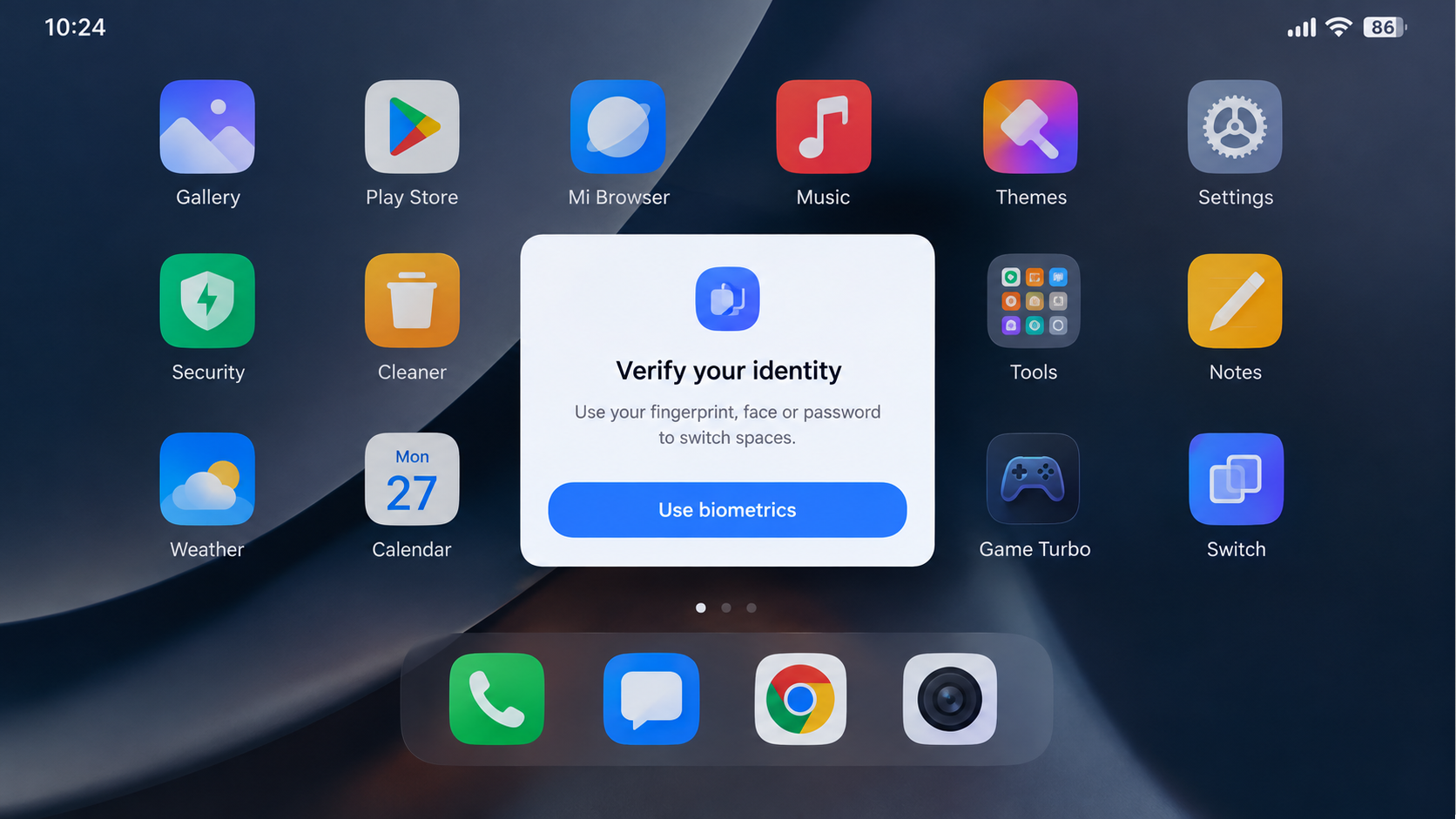
Show the Switch shortcut on an owner-consented test phone. Hide app names, widgets, messages, contacts, calendars, work information, and personal wallpaper content.
Restore the Settings Entry
- Inside the second space, open Settings > Additional settings > Second space.
- Under First space settings, enable Shortcut in the Settings, called Settings shortcut in the illustration.
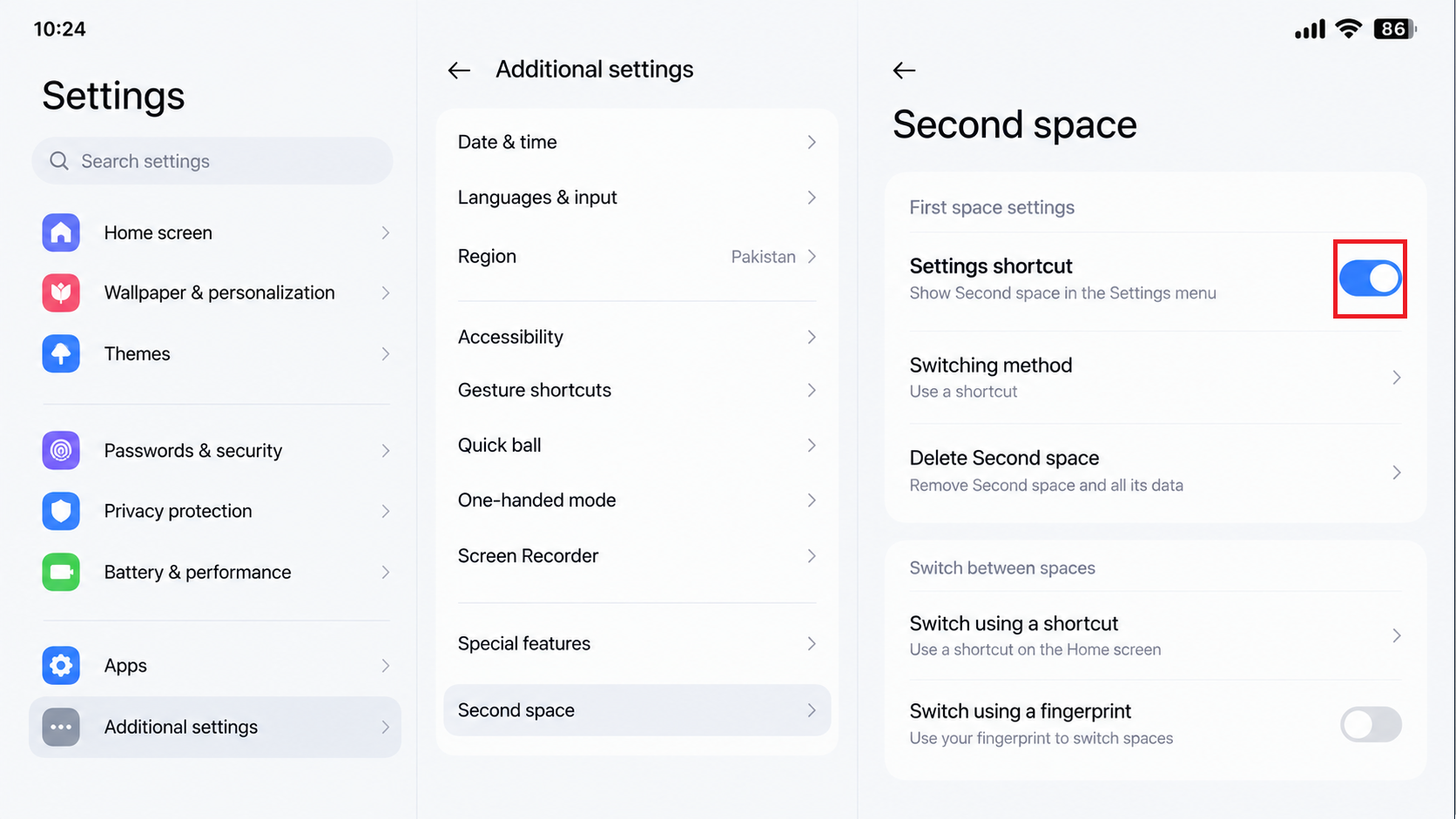
Show Settings > Additional settings > Second space and the first-space Settings shortcut control. Do not delete the second space or expose its accounts, files, apps, or unlock credential. - Switch back to the first space and check for the Second space entry in Settings.
These are Xiaomi’s documented switching and shortcut controls. If the Home icon alone is missing, enable Home screen shortcut for the appropriate space instead.
If the entry returns, no reset is needed. Back up second-space files and app data through their apps’ export or backup controls. Do not assume a first-space backup contains them; verify that copied files open.
Without a working credential or shortcut, ask Xiaomi about your options. Deleting the space is not password recovery, and a fresh empty space will not contain the old files.
If Switching Shows an Unpinning Message
A message such as “Slide up from the bottom of the screen and pause to unpin this app” concerns switching, not the menu’s location. Some HyperOS users have restored access by temporarily disabling screen pinning.
- If an app is actually pinned, follow its unpin prompt and authenticate first. On a managed phone, ask the administrator rather than changing a restriction.
- Search Settings for screen pinning or app pinning. Note its state. If enabled, turn off the main pinning switch temporarily; leave the unlock-password requirement unchanged.
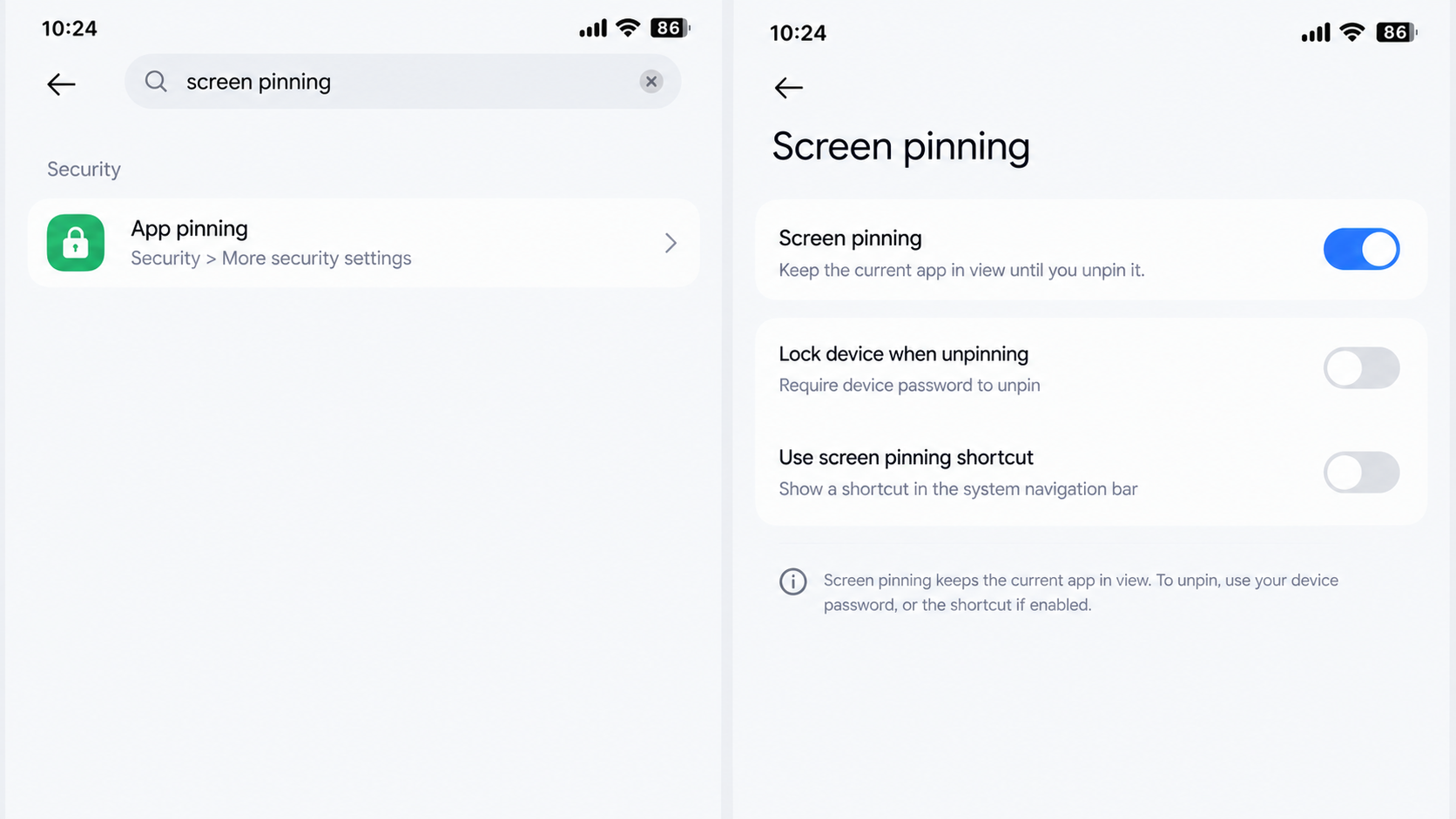
Show the screen-pinning control only when setup displays a pinning message or fails during switching. Record its prior state so the owner can restore it after the test. - The image still shows pinning on. Turn that switch off for this test, then retry Second space through Settings or Security.
If switching works, back up accessible data. Restore pinning afterward if you use it, then test switching again. Report a returning conflict to Xiaomi. If pinning was already off or no setting exists, leave it alone; this workaround cannot add an unsupported feature.
Check Offered Updates Before Reporting a Regression
For a supported phone that previously showed Second space, check normal updates. They may address a software fault, but there is no guarantee an update will restore the menu. A missing entry alone does not prove mismatched system components.
- From the first space, open Settings > System app updater, or search Settings for it. Check for an offered Security update, following Xiaomi’s updater instructions.
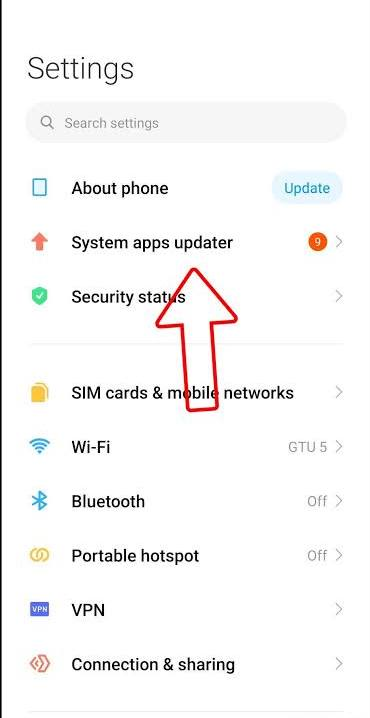
Show only updates delivered through System app updater. Do not sideload Security, Settings, launcher, or system-service APK files from a website merely to create the image. - Back up important data from each accessible space. Open Settings > About phone, tap the HyperOS or MIUI version panel and check for an official system update.
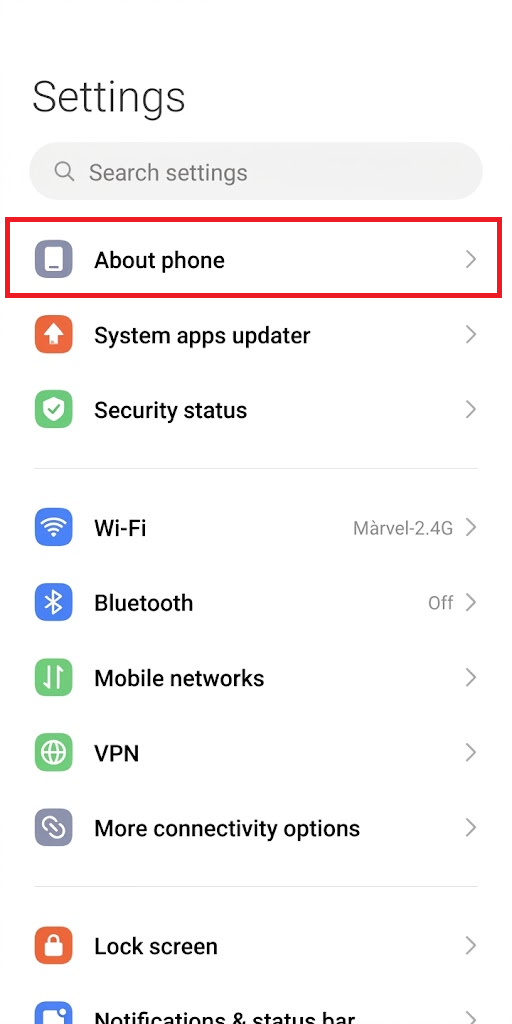
Show the built-in updater and official update state. Hide device identifiers and do not switch region, join a beta, downgrade, unlock the bootloader, or flash another model’s package. - Install an update only if offered to this phone. Follow its battery and Wi-Fi requirements, avoid interrupting installation, then restart and recheck the menus and existing access methods.
The update images show menu entries, not proof of an available package. If System app updater is not responding, treat that as a separate issue; do not erase the phone or roll back system apps just to recover Second space.
If it remains missing, contact Xiaomi Support for your country or use Feedback / Services & feedback. Include:
- The exact model, sales region, full build and whether the feature worked before.
- Whether the existing space still opens, the shortcut setting, and any exact switching message.
- Which Settings and Security locations you checked, and when the option disappeared.
Redact private app names, accounts and device identifiers from screenshots; review logs before sending them. Keep management controls in place. Avoid hidden-activity tools, unofficial system APKs and region changes as substitutes for confirmed model support.


