How to Fix Hidden Apps Option Not Showing on Redmi Phones?
Your Redmi phone still has App lock, but Hide apps or Hidden apps is no longer beside it. Locking an app and hiding its icon are separate settings, so App lock can remain available without showing a hiding switch.
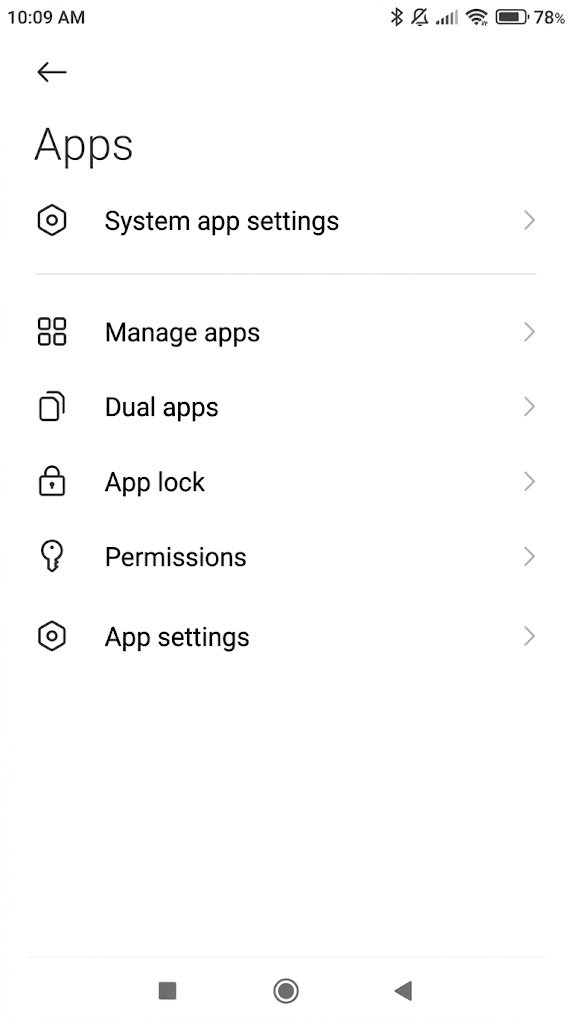
On supported models, Xiaomi places app hiding in the standalone Security app. Its absence from the old App lock menu does not, by itself, mean the feature was removed from your phone.
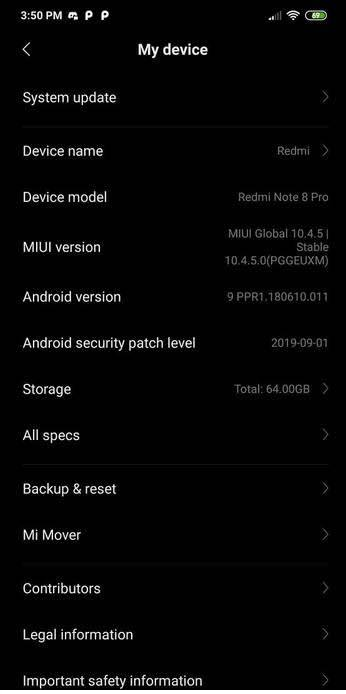
Menu labels differ between MIUI and HyperOS. If the screens do not match, note your model and full software build under Settings > About phone. Use your own version, not the older MIUI example pictured below.
1. Find Hide Apps in the Security App
Xiaomi’s REDMI 13C instructions place Hidden apps farther down the Security screen. Other versions call it Hide apps and group it under Common features or Privacy protection.
- Open the green-shield Security app from Home or the app drawer. This is a separate app, not the Security or Privacy section inside Settings.
- Scroll down. If you see Swipe up to open toolbox, swipe up to reveal the remaining tools. Look for Hide apps or Hidden apps.
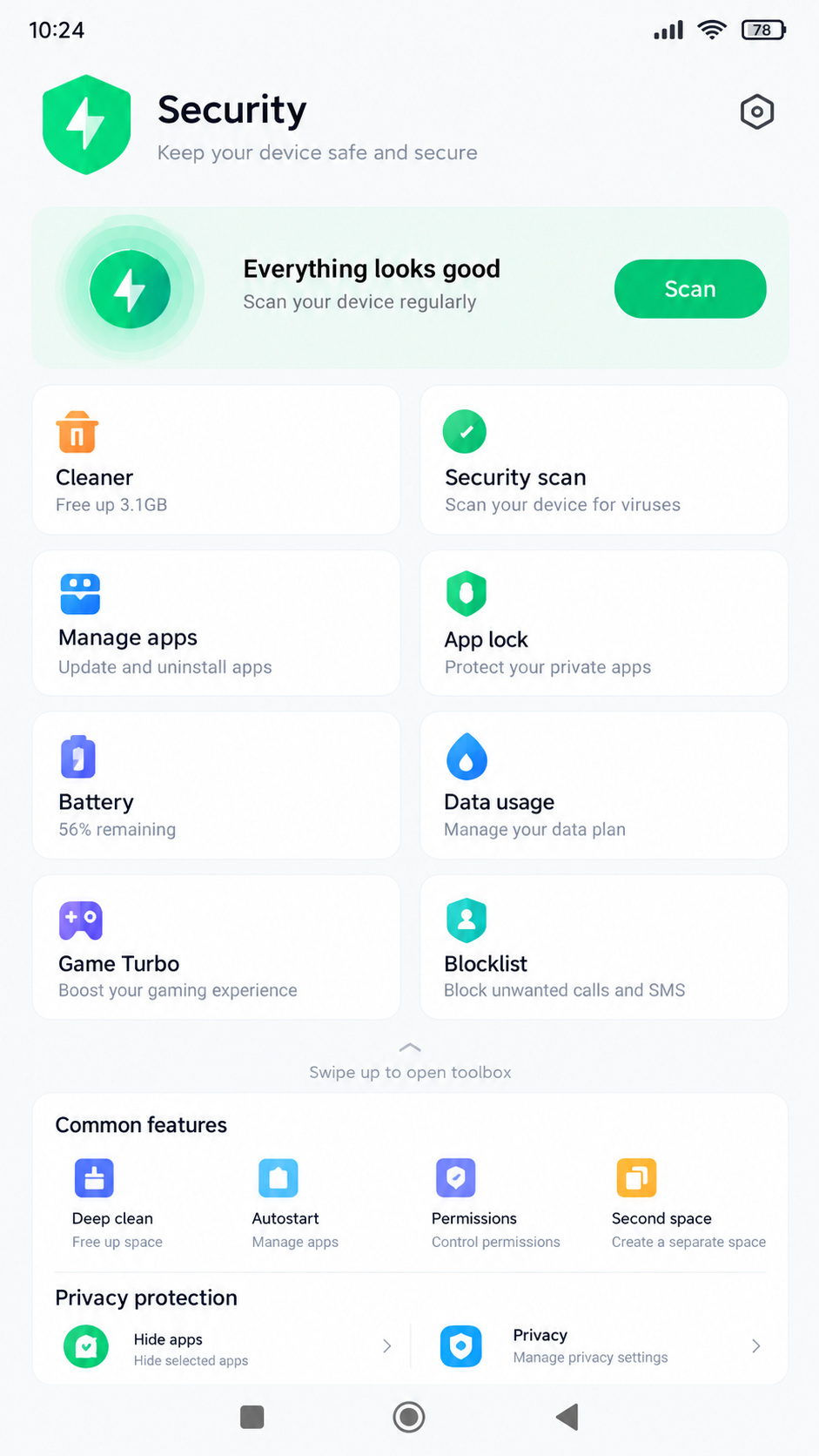
Show the standalone Security app, its Common features or toolbox area, and the Hide apps card. Keep the full route visible so it is not mistaken for Settings > Apps > App lock. - If your version has an Edit or pencil control for Common features, open it. Add Hide apps only if it appears among the available shortcuts, then save the arrangement.
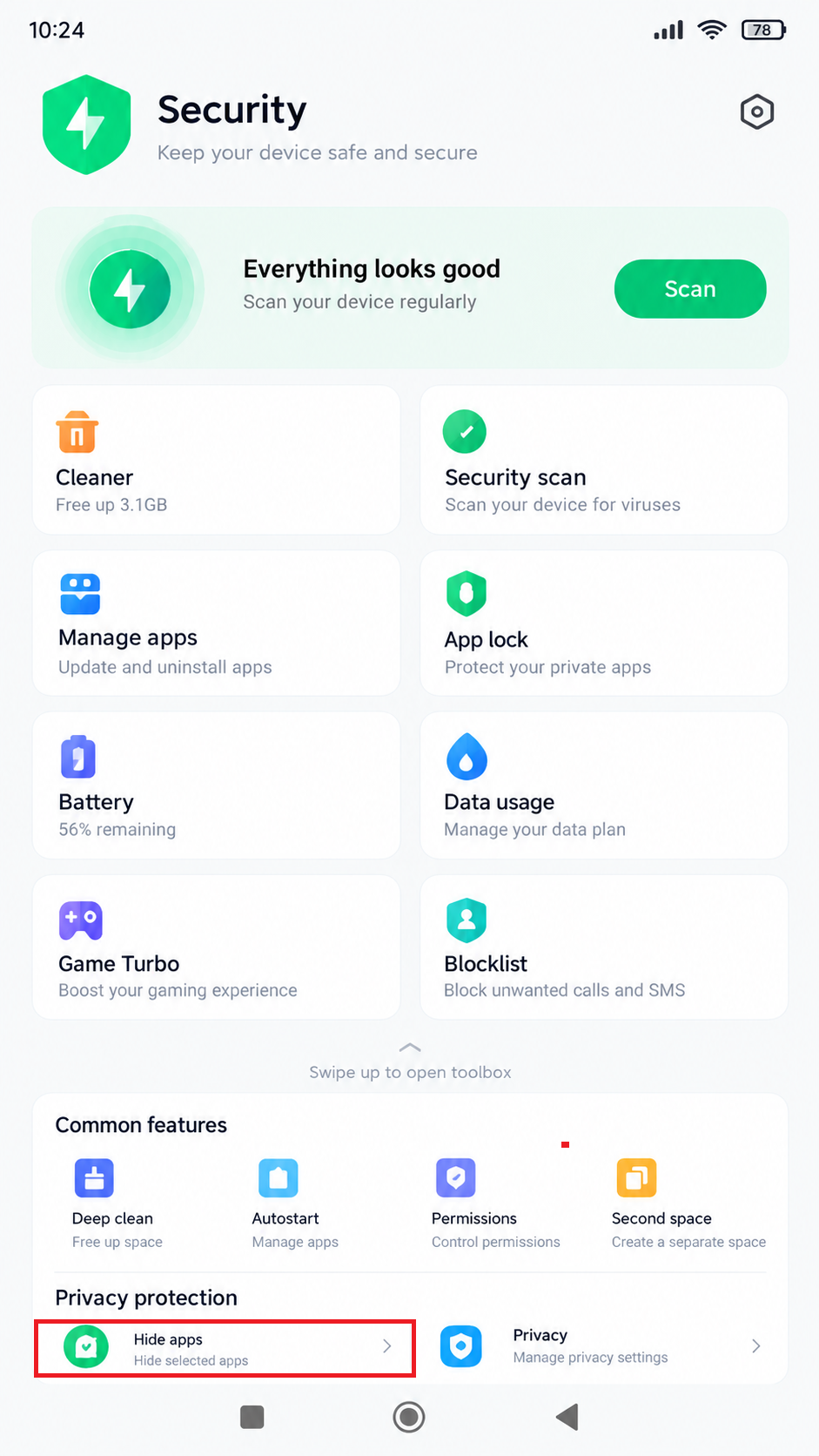
Show the Edit or pencil control and Hide apps being added to the Security app shortcuts. Do not rearrange unrelated security controls solely for the capture. - Open the page to see its app switches. Turning a switch on hides that app’s icon; turning it off unhides it.
A missing shortcut can be added this way; an unavailable feature cannot. If Hide apps is absent from the editor too, repeatedly changing App lock will not create it.
If the page opens but one particular app is not listed, report that app separately. That is different from the entire Hide apps control being missing.
2. Open Apps You Have Already Hidden
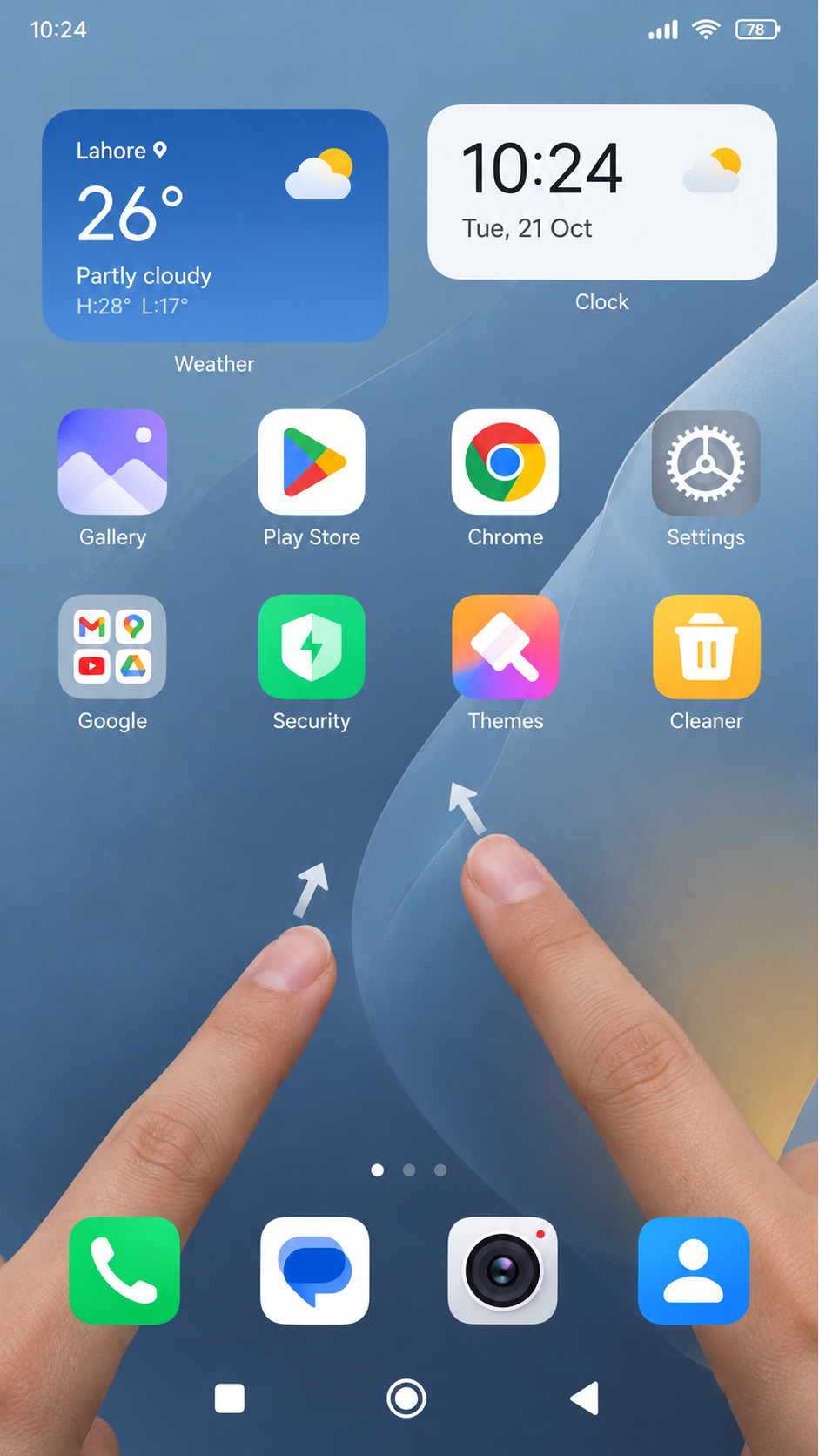
Apps hidden earlier may still be accessible even if you cannot find their settings. Xiaomi documents a two-finger Home-screen gesture for opening them; it does not restore a missing Security card.
- Return to the Home screen, not the app drawer. Put two fingers on an empty area and spread them apart, as though enlarging a photo.
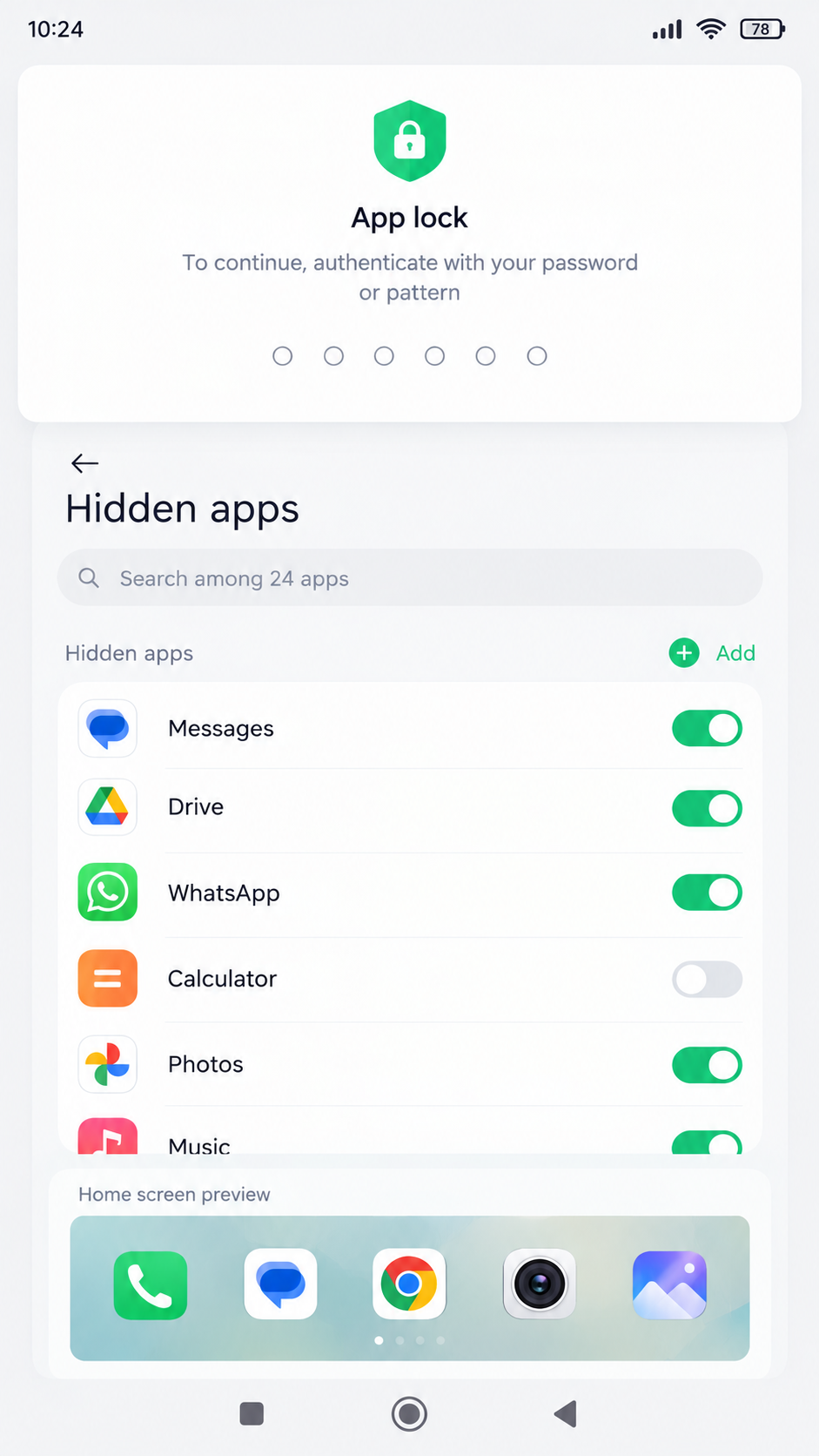
Show the page title and one non-sensitive example app switch. Hide banking, health, authentication, work, dating, messaging, and other private app names. - Enter your existing App lock credential if requested, then open an app in the hidden folder.
If the Home-screen editor opens instead, check the direction: the hidden-app gesture spreads your fingers apart, not inward. No response from the gesture alone does not prove that your phone lacks Hide apps.
Opening the folder does not unhide its contents. To return an icon to Home, turn off its switch in Security > Hide apps. If it is already off but the icon remains missing, check the installed-app shortcut settings.
Hiding an icon is not password protection. Where available, the settings button inside Hide apps offers separate App lock and Hide notifications controls. A password prompt is an access requirement, not evidence that the menu is missing.
Optional: Compare With the Built-in Home App
A launcher is the app that displays your Home screen. Xiaomi’s documented gesture is not guaranteed in a different launcher, such as Nova. If you use one, a temporary comparison can help; it cannot add an unsupported Security feature.
- Search Settings for Default launcher, or check Settings > Home screen > Default launcher. Note the selected app, then choose System launcher if available.
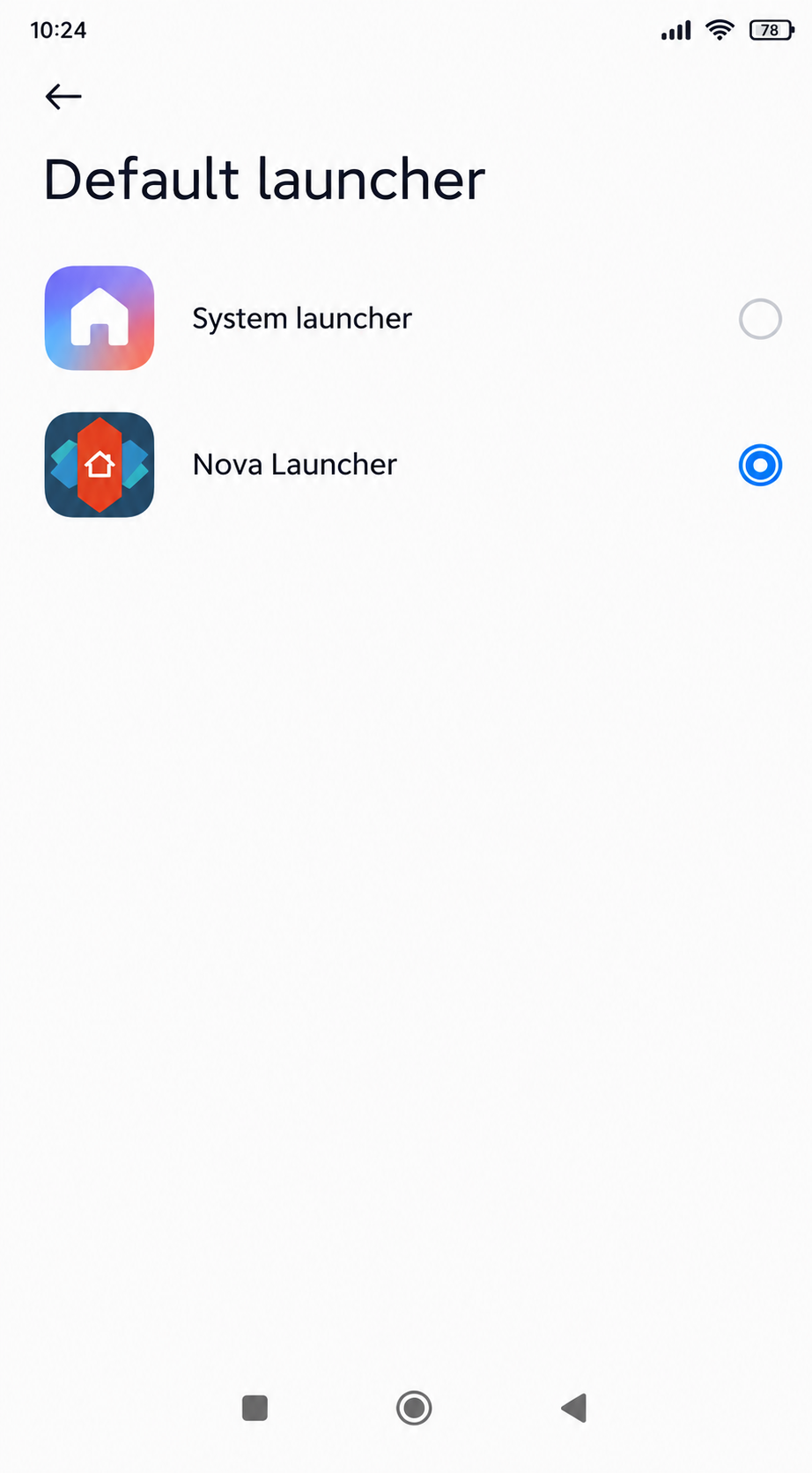
Show the current Default launcher page and System launcher selected for the test. Hide unrelated installed launcher names if they reveal private or managed software. - Return to Home and repeat the outward spread. Note whether the hidden folder opens, then restore your previous launcher from the same setting if preferred.
Leave both launchers installed and their app data intact. If only the built-in Home screen responds, use it to access the folder; that result does not explain a missing Security card.
If Security Still Has No Hide Apps Entry
Xiaomi’s generic HyperOS guide covers features that may not exist on every model. A missing entry therefore needs confirmation for your exact phone, rather than a promise that every Redmi has the same menu.
Check the Updates Offered to Your Phone
This is a software check before reporting the problem, not a guaranteed Hide apps repair. Use Xiaomi’s built-in updaters rather than installing a Security or launcher package intended for another build.
- Open Settings > System app updater, or search Settings for that name. Check for updates offered for Security or System launcher, following Xiaomi’s System app updater instructions.
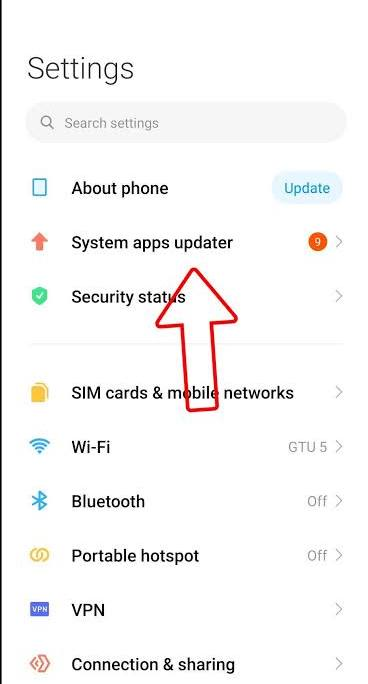
Show only an update delivered through the built-in System app updater. Do not install a Security or launcher APK from a website merely to create the image. - Back up important data. Open Settings > About phone, tap the HyperOS or MIUI version panel and check for an official system update.
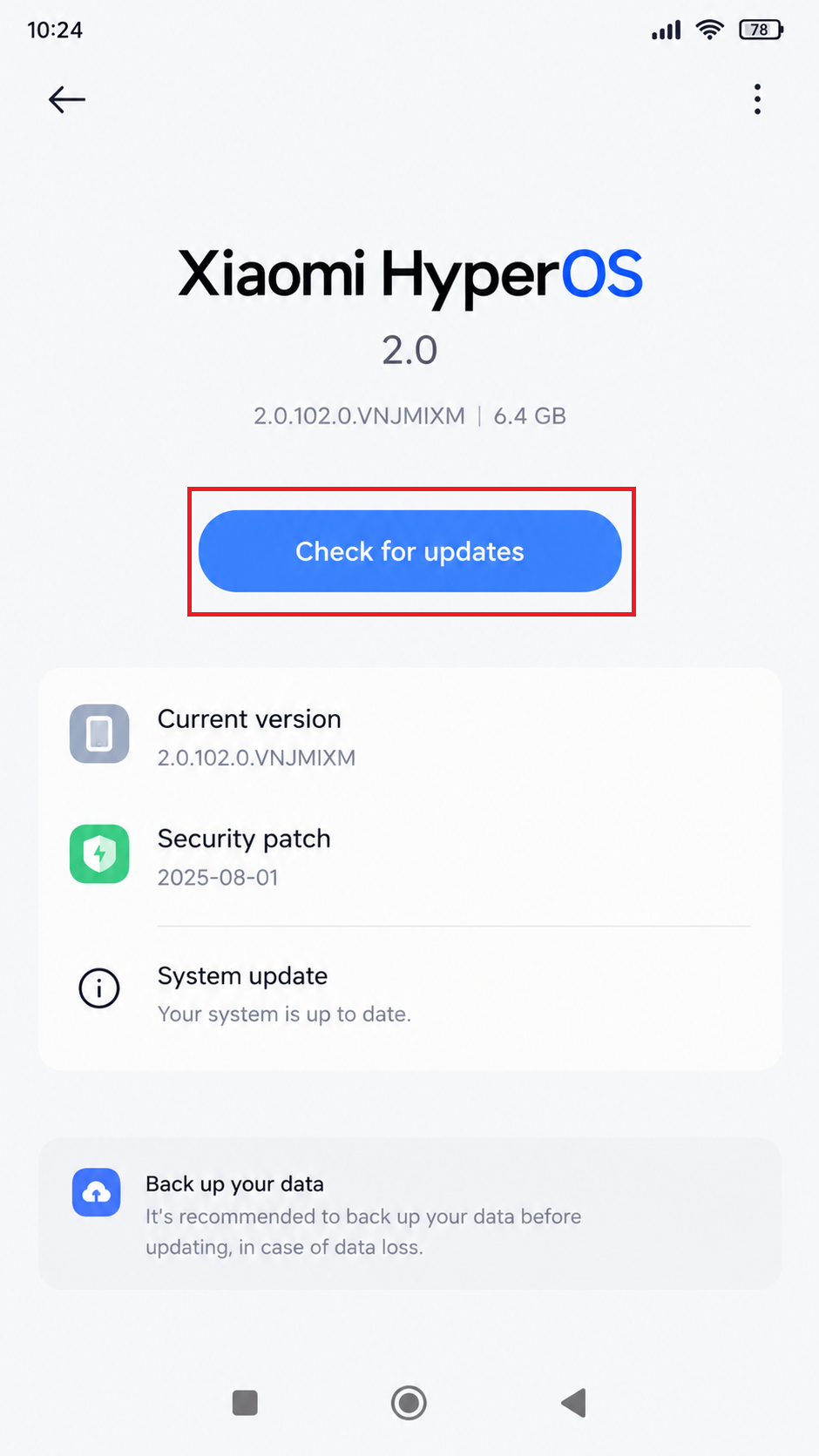
Show the built-in updater, installed build, and official update state. Hide device identifiers and do not switch region, join a beta, or flash another model’s package. - Install only updates offered to this phone. Follow the battery and Wi-Fi requirements, avoid interrupting installation, then restart normally and check Security and the Home-screen gesture again.
A System app updater isn’t responding error is a separate fault, not proof that Hide apps was removed. Do not reset the phone or downgrade Security merely to recover this menu.
Confirm Support for Your Model and Build
If the entry remains absent, open Settings > Feedback or Services & feedback, or contact Xiaomi Support for your country. Include:
- The exact Redmi model, full MIUI or HyperOS build, and sales region.
- Whether Hide apps ever worked, when it disappeared, and whether the hidden folder still opens.
- Your default launcher and, if available in App info, the Security and launcher version numbers.
Ask whether that exact software includes app hiding and where its control should appear. Redact identifiers and private app names from screenshots; a picture of the Security menu is more useful than exposing your hidden folder.
If Xiaomi confirms the feature is unavailable, App lock can still restrict access to apps, but it will not remove their icons. If it should be present, follow support’s build-specific advice rather than reset the phone or reinstall private apps.


