How to Fix Apps Not Showing in Google Play Store?
Google Play search returns similar apps, but the app you searched for is missing. An app you used on your old phone may also be missing from Manage apps & device, even though you are sure you downloaded it.
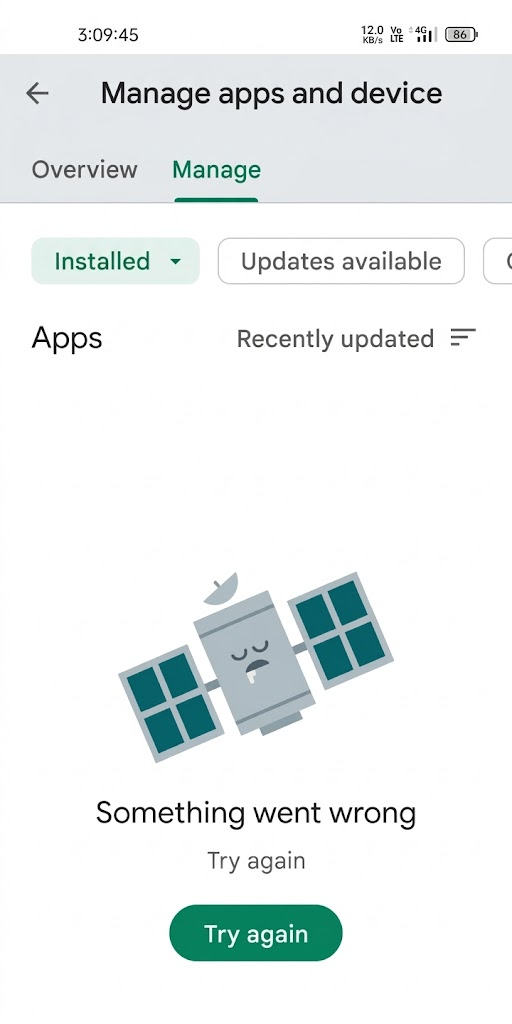
A missing search result does not prove that an app has been removed. Its official Play listing may still open and offer installation. Previous downloads, meanwhile, belong to the Google Account used to download them, not to the phone itself.
These instructions cover Android phones and tablets. If Manage shows “Something went wrong” with no app list, as pictured, address the Play Store loading problem rather than treating it as one missing entry.
1. Open the App’s Official Google Play Link
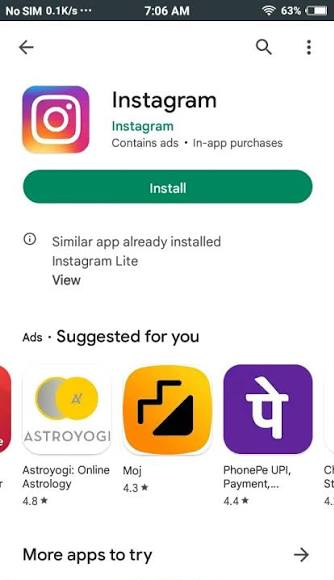
The developer’s download button can open the app’s listing without relying on Play Store search. It can reveal an Install button or explain why the app is unavailable. A direct link does not override device, country or account restrictions.
- Open the app developer’s official website in your browser. Find its Get it on Google Play button or Android download link. Check the provider’s domain before following it.
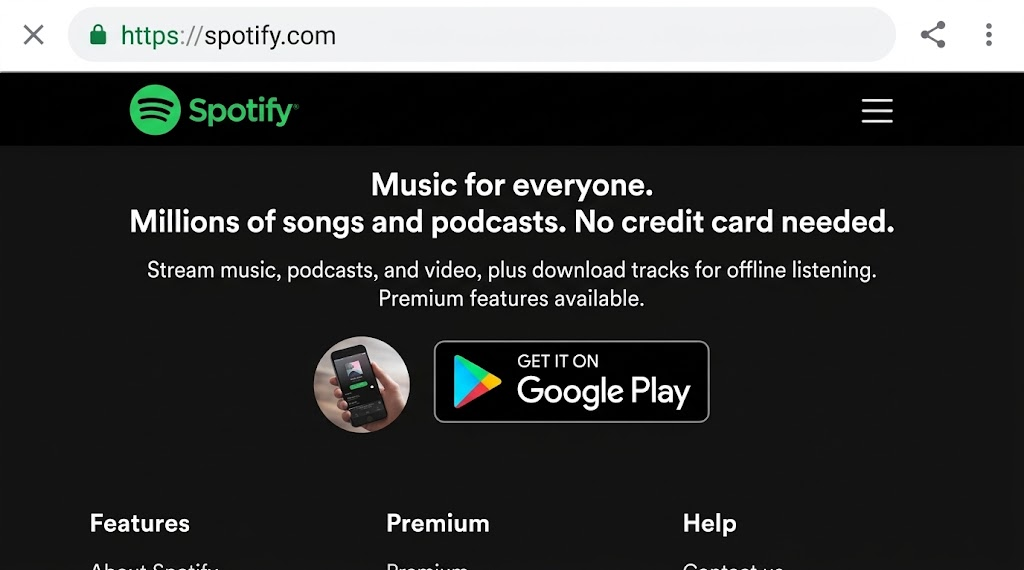
Use the app provider’s genuine website and its current Play listing, not an APK download mirror. - Follow the link and check the app name and developer. The browser destination should be play.google.com, or it may open Play Store directly. Avoid unrelated apps and APK download sites.
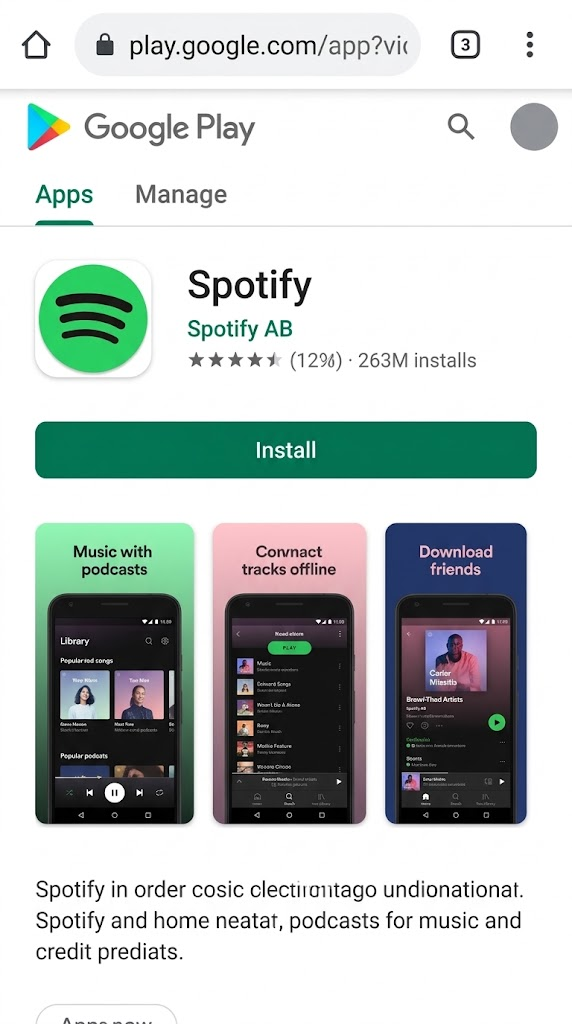
Verify the developer and destination before installing; similarly named apps may be unrelated. - Select Install if available. In a browser, use the Google Account on the intended phone, select that phone when asked, and confirm installation. Keep the phone online to receive the download.
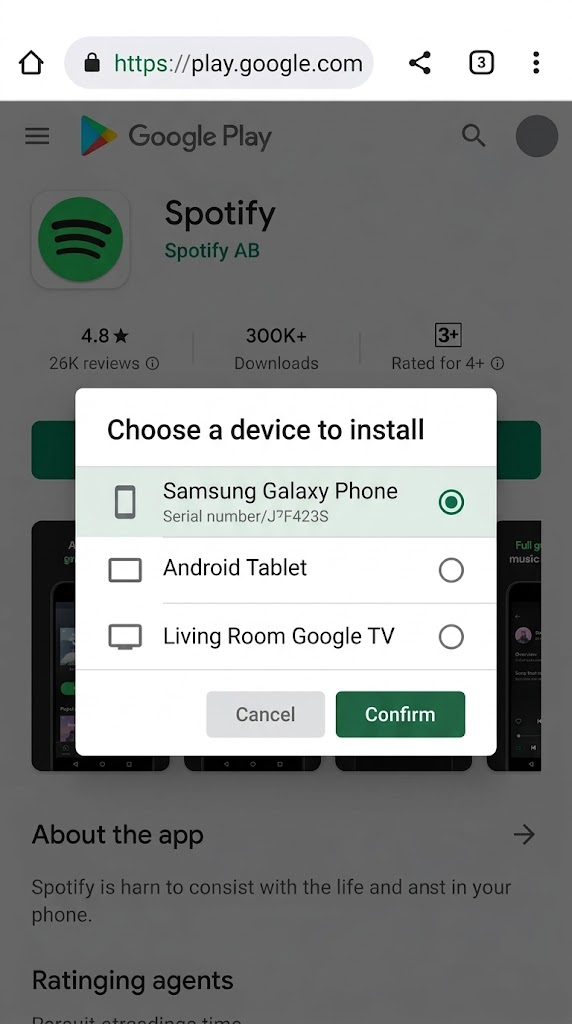
Capture the actual Install control or restriction message; opening the listing does not guarantee eligibility. - Wait for installation to finish on the phone, then select Open. If Open was already available, try it; a working installed app does not need reinstalling.
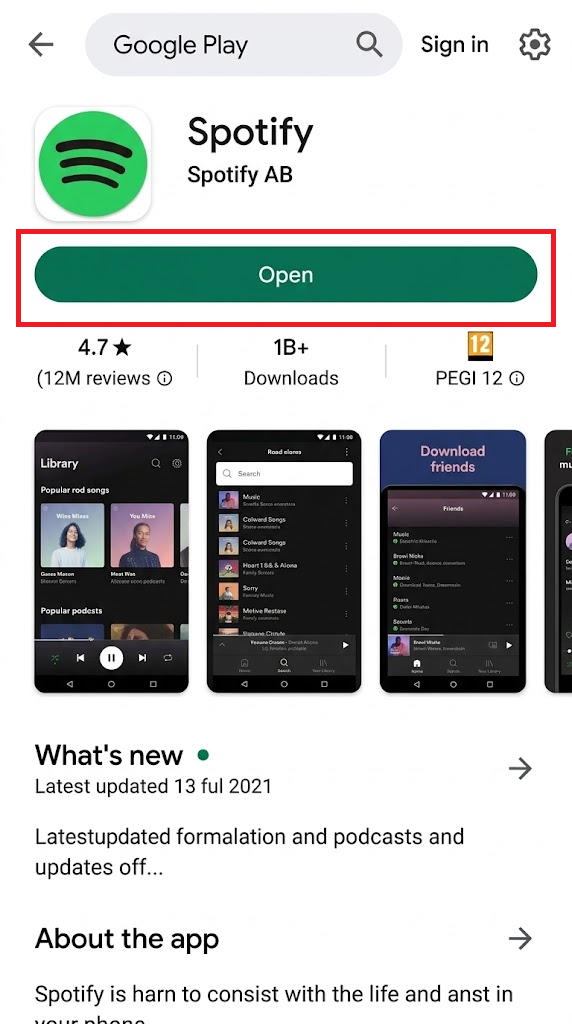
Only show a completed installation if it occurred. Accessing a listing alone does not prove installation or repair search.
Google explains installation from a browser if you need help selecting the device.
If the app opens, you can use it even if search still omits it. For an installed app with no phone shortcut, follow the missing Home screen icon instructions instead.
Already paid for the app? Check the original purchasing account before paying again. If the listing displays a restriction, use its exact wording with the availability checks below.
2. Find Previous Downloads in the Right Account
A new phone or a different Google Account can leave your old apps out of view. Google’s reinstallation instructions use the original account and the Not installed list to find previous downloads.
- Open Google Play Store and tap your profile picture. Check the selected Google Account, especially if you use more than one.
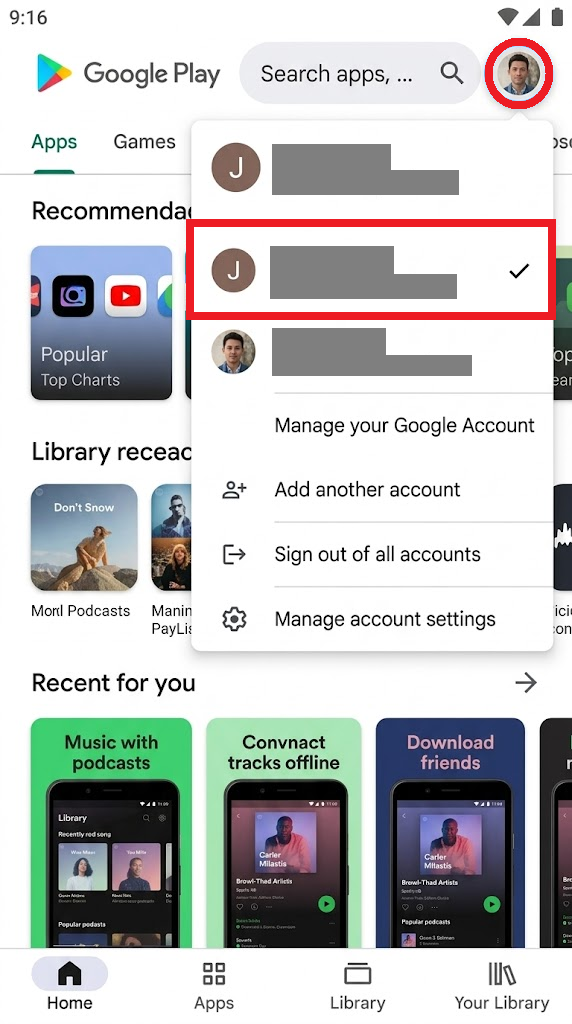
Redact email addresses and account images; previously purchased apps belong to the account that bought them. - Tap the account selector beside the account details and choose the account used for the original download or purchase. Switching accounts does not transfer purchases between them.
- Open Manage apps & device > Manage. The Overview tab mainly shows update and device information, not the full app list.
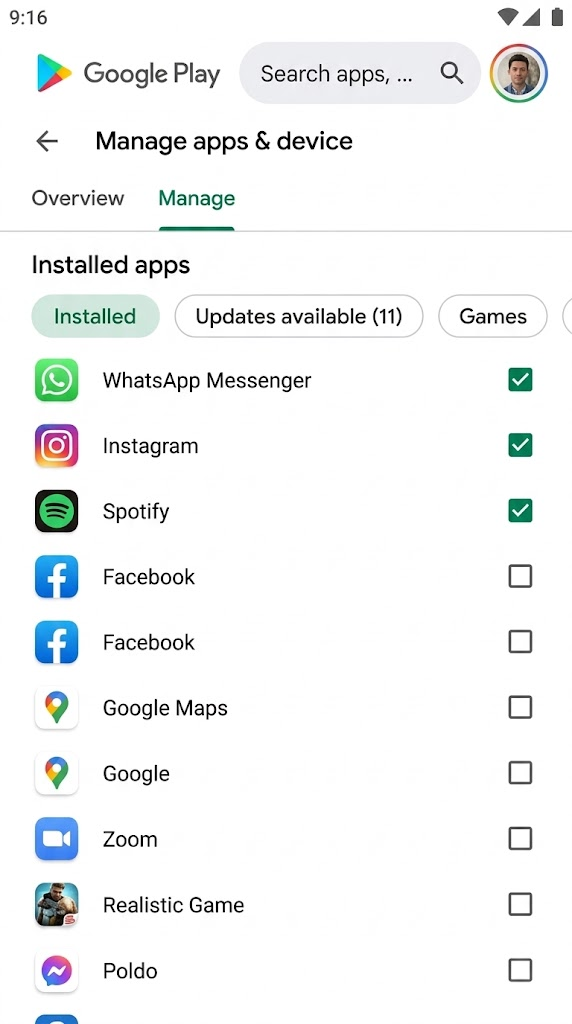
This list is separate from public Play Store search and the overview of available updates. - Tap This device or Installed. Choose Not installed for an app removed from this phone or used on another device. Remove any Games or Updates available filter while looking.
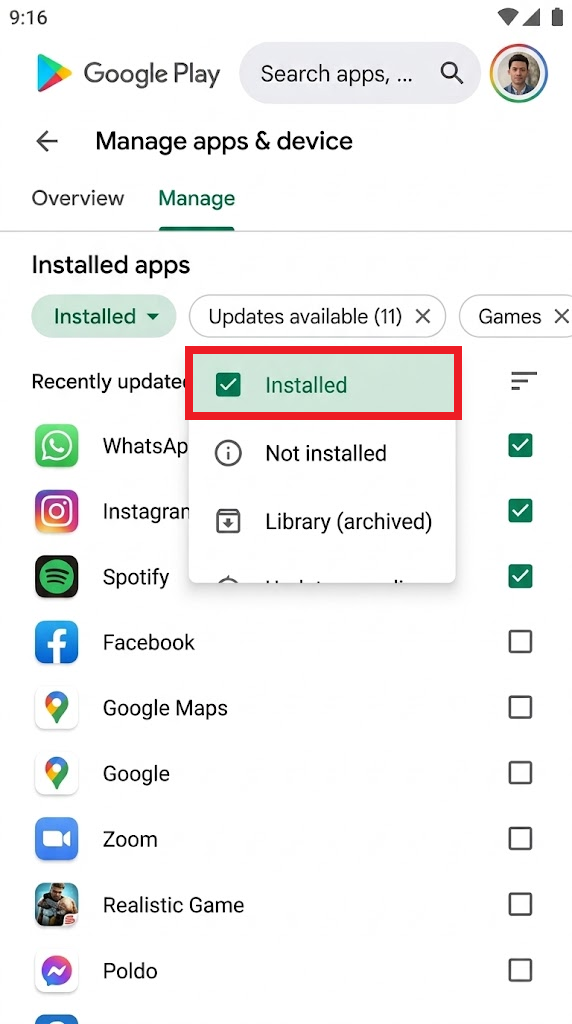
Some versions label the current-device view Installed. Match the image description to the actual UI used for capture. - Find the app and open its entry. Select Install if offered, or Open for an installed app. Check the developer before choosing a similarly named alternative.
A visible entry may still have compatibility or availability limits. Do not uninstall a working app to demonstrate recovery.
For an app still on this phone, keep the current-device view instead of Not installed. An entry found in your library can still be unavailable for download; the listing’s message takes priority.
Apps obtained from other stores or APK files may be absent from this Play download history.
What the App’s Listing Tells You
Google lists compatibility, country and availability limits among the reasons an app cannot be found. Read the message for your selected phone rather than assuming an empty search needs a cache reset.
| What you see | What to check |
|---|---|
| The app is incompatible with this device. | Open About this app where available and check the required Android version and compatible devices. Ask the developer about support for your model; changing the library view cannot add compatibility. |
| The app is unavailable in your country. | Check Settings > General > Account and device preferences > Country and profiles in Play Store, where available. Review Google’s Play country requirements before changing anything. |
| An age restriction or parent-approval message appears. | Ask the parent or account owner to review eligibility and permissions. A direct link does not bypass the age rule or grant approval. |
| The developer’s official link no longer opens an available listing. | Check the developer’s current download or support page. The app could have been renamed, replaced or removed; a missing page alone does not establish the reason. |
Google’s Play content restrictions can prevent downloads while leaving an app visible in search or through a link. Separate age-eligibility rules can hide apps. A missing result alone is not evidence that parental controls are enabled.
For work or school apps, managed Google Play searches the organization’s approved catalog. Ask the administrator about a missing work app rather than substituting a personal copy.
If Search or Your Library Still Omits the App
If the official page works but the app remains missing from search or the correct account’s library, contact Google Play Support. Include the listing URL, phone model, Android and Play Store versions, and whether the page shows Install, Open or an error.
For one unavailable title, the developer is better placed to confirm supported devices or a replacement listing. A phone reset cannot restore an app the developer no longer offers.


