How to Fix Google Maps Not Working in Android Auto?
Google Maps can work on your phone while Android Auto shows a blank map or returns to the app launcher. Music and messages may still work, and sometimes the Maps icon disappears altogether.
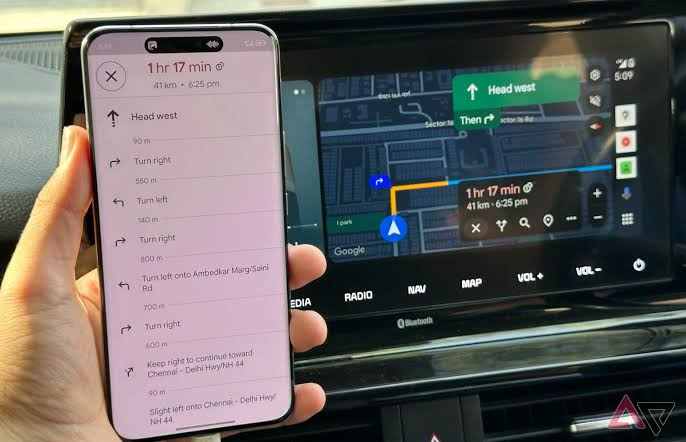
Android Auto uses Maps from the connected Android phone. The app may open manually even when battery settings restrict it in the background.
These steps cover phone-based Android Auto, not Maps built into a car. The opening photo shows an iPhone with working navigation, not this fault.
Check Maps on the Phone First
- Disconnect Android Auto. Open Maps on the phone, search for a public place, and check that its map and route preview load. A route preview alone does not test live GPS tracking.
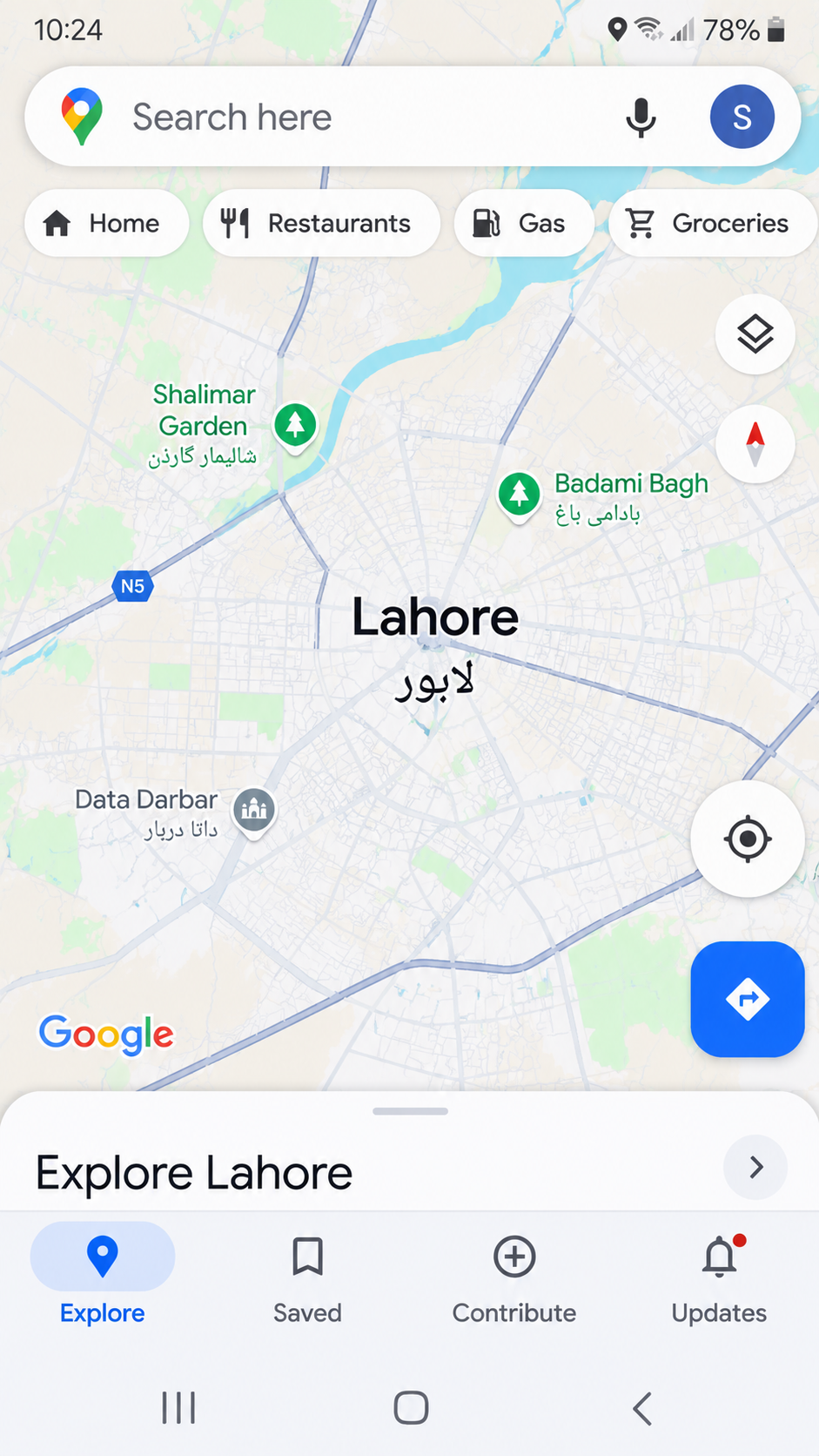
Use a generic public destination while parked. Hide saved places, Timeline, home and work addresses, account details, precise location, and recent searches. - Reconnect and open Maps from the car’s app launcher. Also try another Android Auto app. Working music confirms a connection, but not that Maps has location or data access.
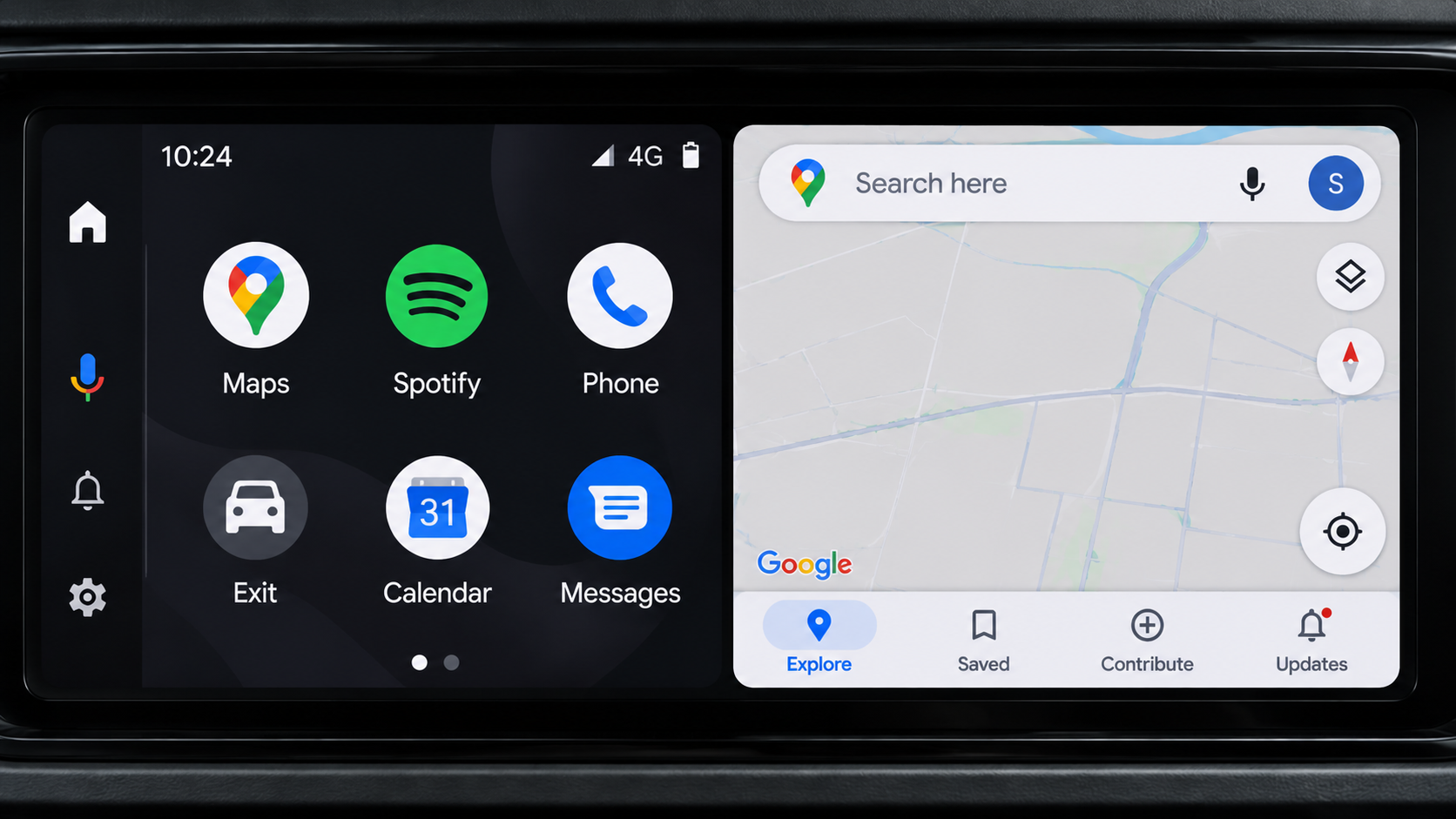
Show only the app launcher or a neutral app state. Hide media history, messages, contacts, notifications, account names, location, and vehicle information.
For a blank map, try waking the phone once while parked. Returning to the car’s own Home screen and reopening Android Auto may also redraw it. If the blank view returns, treat this as temporary relief.
| What remains wrong | Relevant check |
|---|---|
| Maps is missing from the car launcher. | Reactivate Maps and check sleeping apps. |
| Maps closes or stays blank, especially only in the car. | Update and restart, then try the cache-only refresh. |
| The map loads, but the location is missing or inaccurate. | Check Maps’ location access. |
If Maps also fails on the disconnected phone, focus on its updates, location and internet access rather than the receiver. Ask the administrator about any locked work-profile settings.
1. Restore a Missing Maps Icon
A sleeping app can remain visible on a Samsung phone while disappearing from Android Auto. Google’s missing-app guidance recommends opening the app to reactivate it. This check is unnecessary when Maps is already in the car launcher.
- Disconnect Android Auto and open Maps on the phone. If its App info screen shows Enable, tap it first.
- Search phone Settings for Android Auto > Customize launcher. Check whether Maps appears. Enable its visibility only if your version offers an editable checkbox; a selected, locked entry does not need changing.
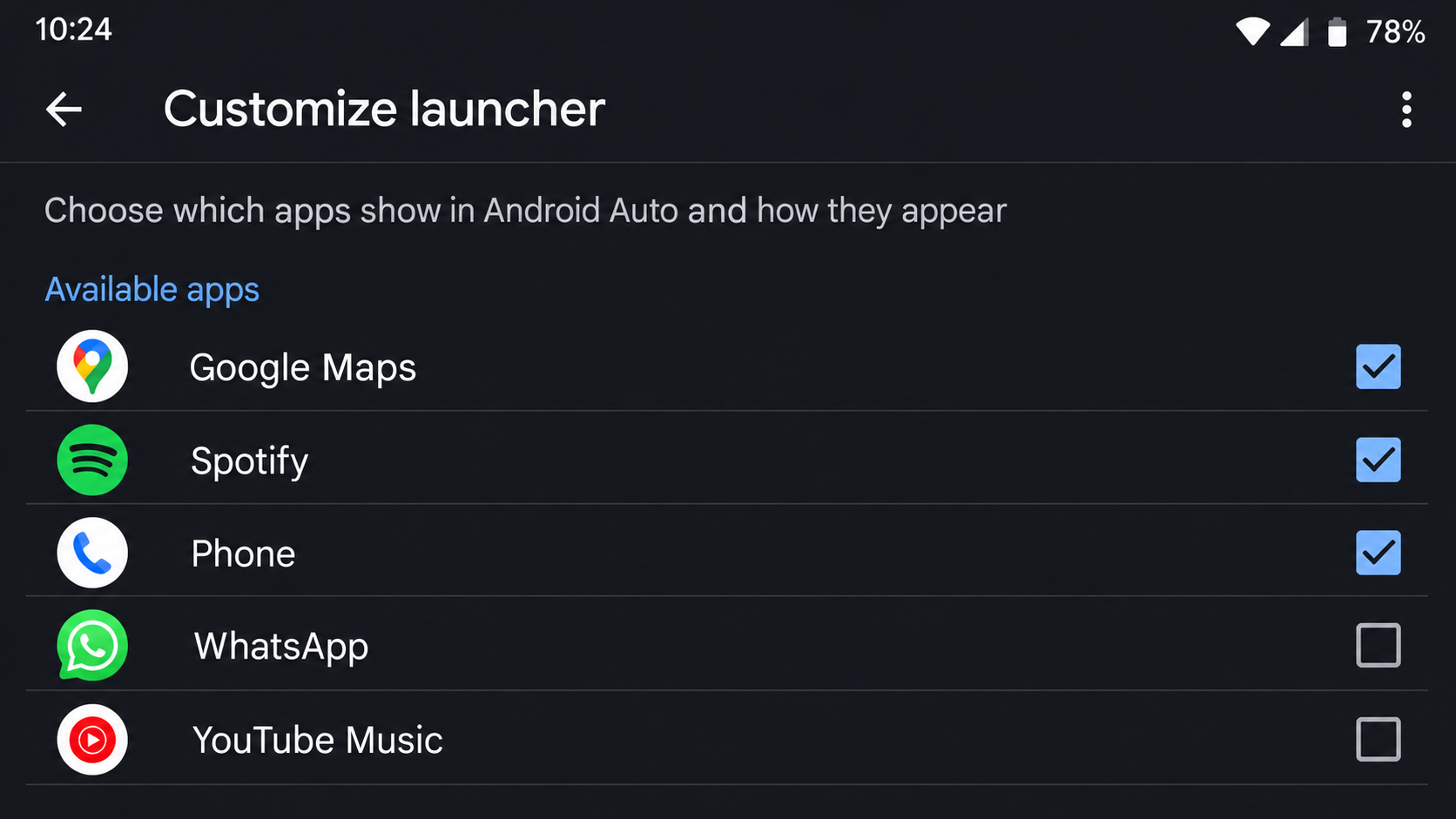
Show the Maps entry and enabled state. Hide other app choices, account details, connected cars, phone identifiers, and notification content. - On Samsung, open Settings > Battery > Background usage limits, sometimes through Battery and device care. Remove Maps from Sleeping apps or Deep sleeping apps if listed. Samsung’s sleeping-app instructions explain those controls.
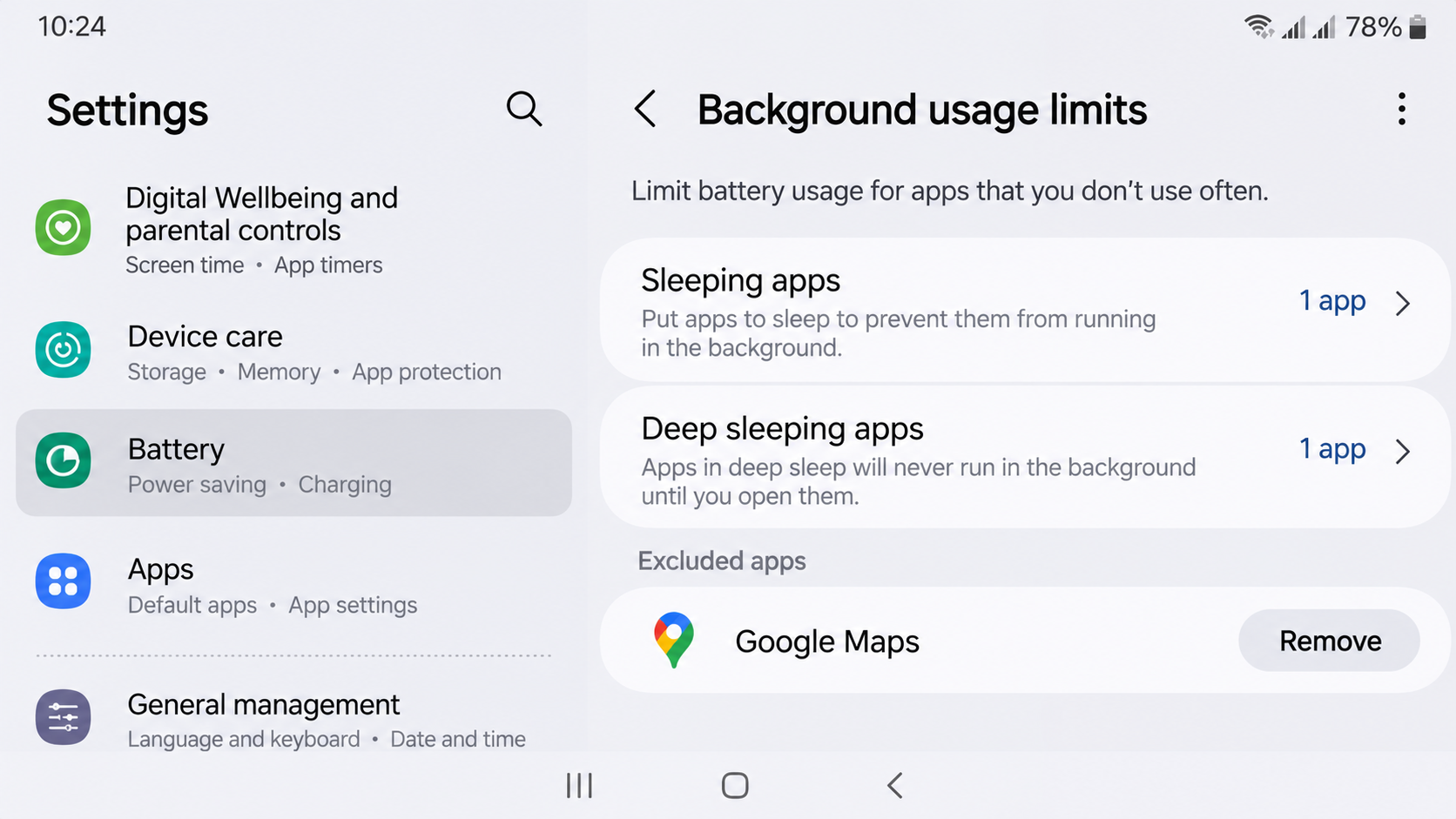
Show only the Maps battery state. Hide usage history, battery percentage, other applications, device identifiers, and work profile information. - If Maps is already under Excluded apps or Never sleeping apps, leave it there. The pictured Remove button would remove that exception, not wake the app.
- Reconnect using the existing connection and check Maps on the car’s launcher. The phone settings pictured below are not confirmation that the Maps icon has returned.
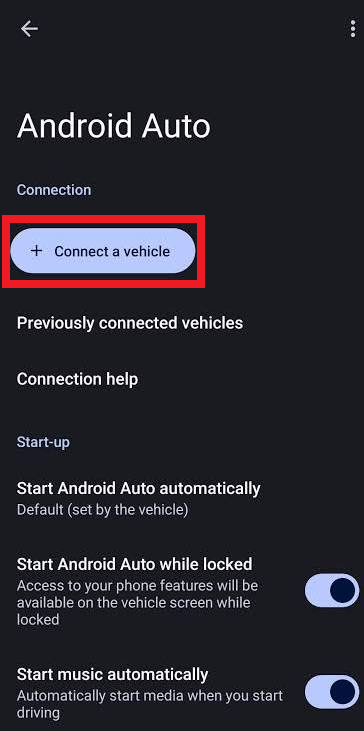
Capture the launcher while parked. Hide destinations, messages, notifications, contacts, account data, precise location, and vehicle identifiers.
If Maps reappears, no connection reset is needed. On other phones, check Maps’ battery setting only if restricted. Try Optimized first, then Unrestricted for a recurring restriction. Restore the earlier setting if it makes no difference.
2. Update Maps and Restart the Connection
When Maps closes as soon as it opens, an app update may contain the needed repair. Updating Maps does not require resetting Android Auto’s saved cars or installing an older APK.
- Open Google Play and install any available Maps update from Google LLC. Let installation finish before reconnecting.
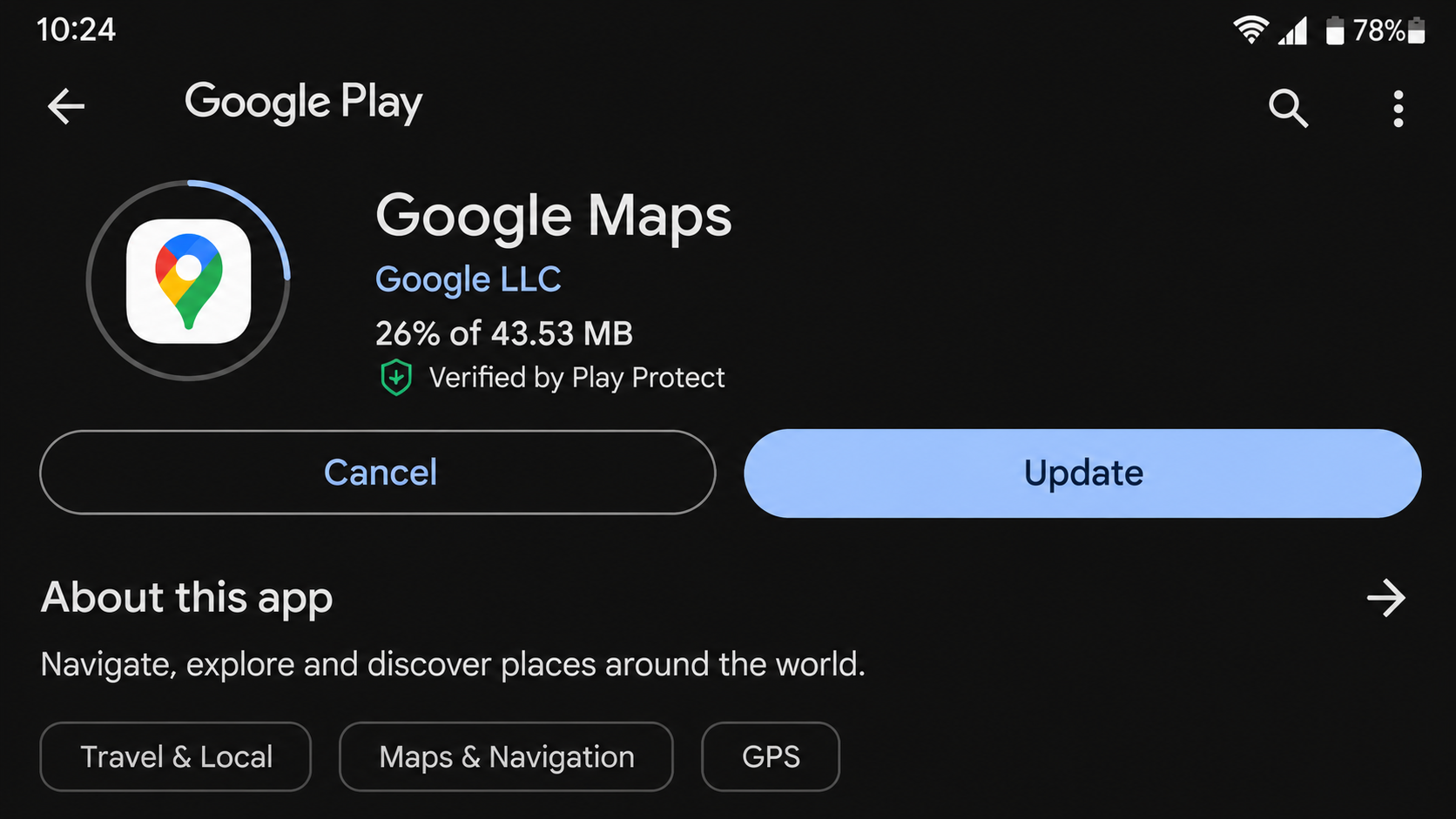
Use a generic public destination while parked. Hide saved places, Timeline, home and work addresses, account details, precise location, and recent searches. - Check Google Play for an Android Auto update. For Google Play services, follow Google’s update instructions and install an offered update. Do not clear its data or try to uninstall it.
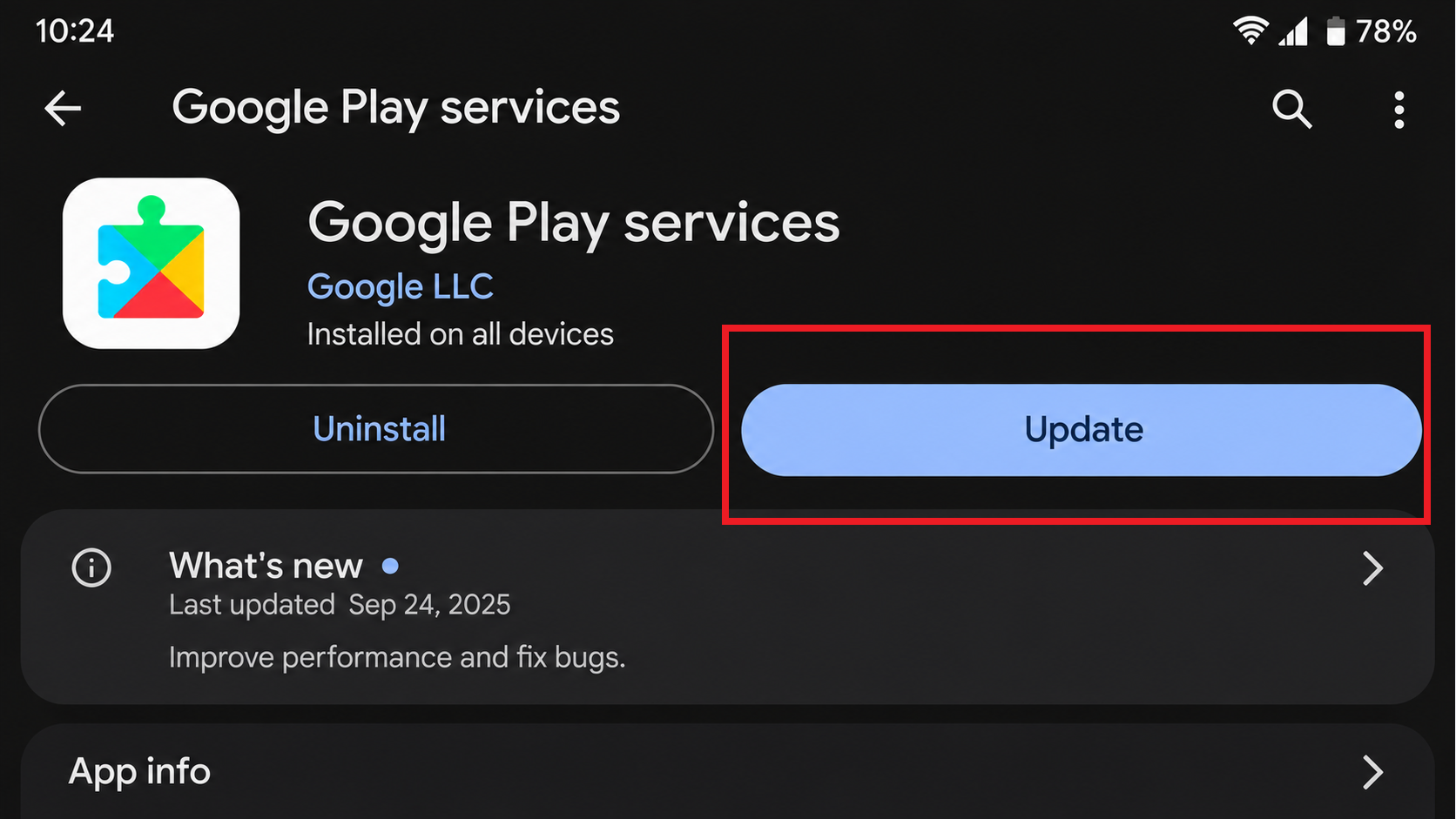
Show only official Google components and version state. Hide account details, device identifiers, payment data, installed-app history, and diagnostics. - Restart the phone. Restart the infotainment system using the vehicle or receiver manual’s normal procedure; do not disconnect the vehicle battery.
- Reconnect Android Auto and reopen Maps. Check both that the map draws and that search responds.
If this began after an update and persists, record the Maps and Android Auto versions for support.
3. Check Maps’ Location and Data Access
A visible map with no current position needs a different check from an app that crashes. Location access helps Maps find you; it does not repair a missing launcher icon.
For a Missing or Incorrect Position
- Turn on phone Settings > Location > Use location. Open Maps App info > Permissions > Location, allow access while using the app, and enable Use precise location where available.
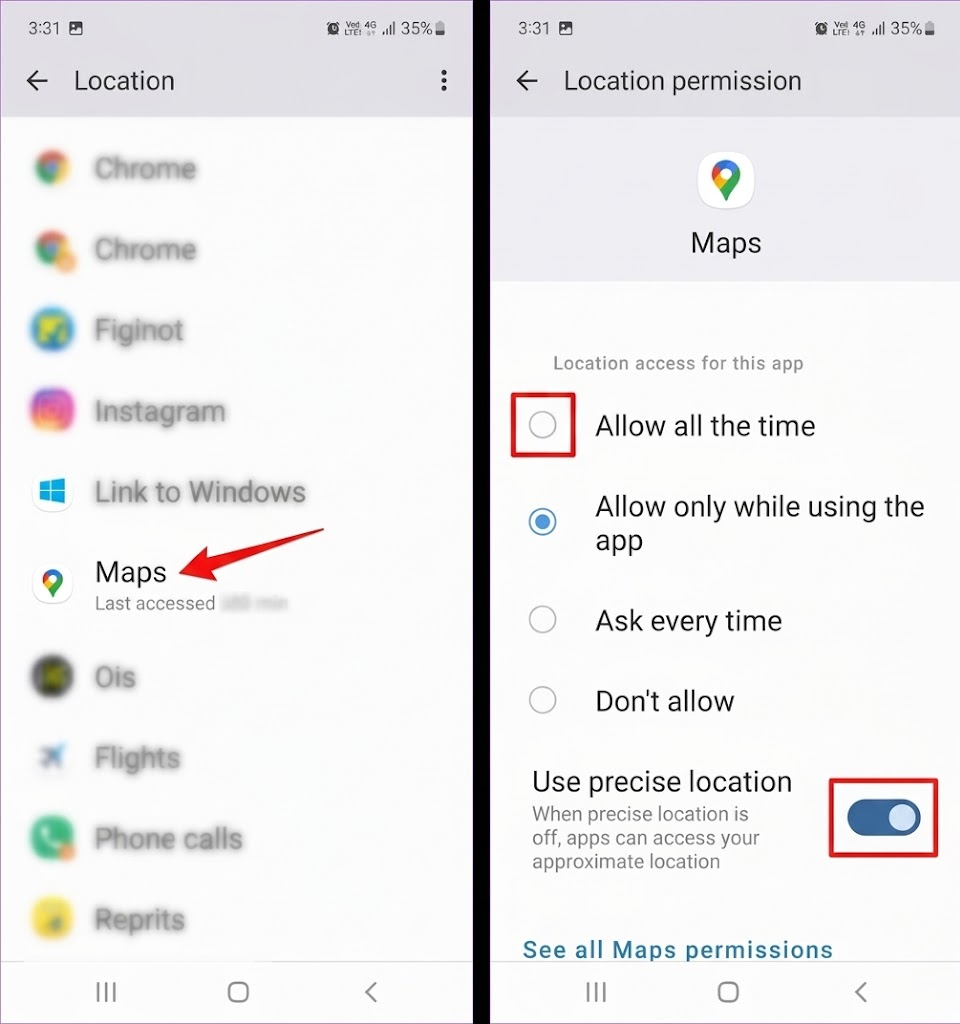
Show only the Location permission and precise-location state. Hide other permissions, account data, usage history, device identifiers, and work profile details. - If location fails specifically after the phone screen turns off, test Allow all the time for Maps only if offered. Restore the earlier choice if it does not help.
- For an inaccurate position, check Settings > Location > Location services > Location Accuracy and try Improve Location Accuracy. Google’s location-accuracy checks explain missing or gray location dots.
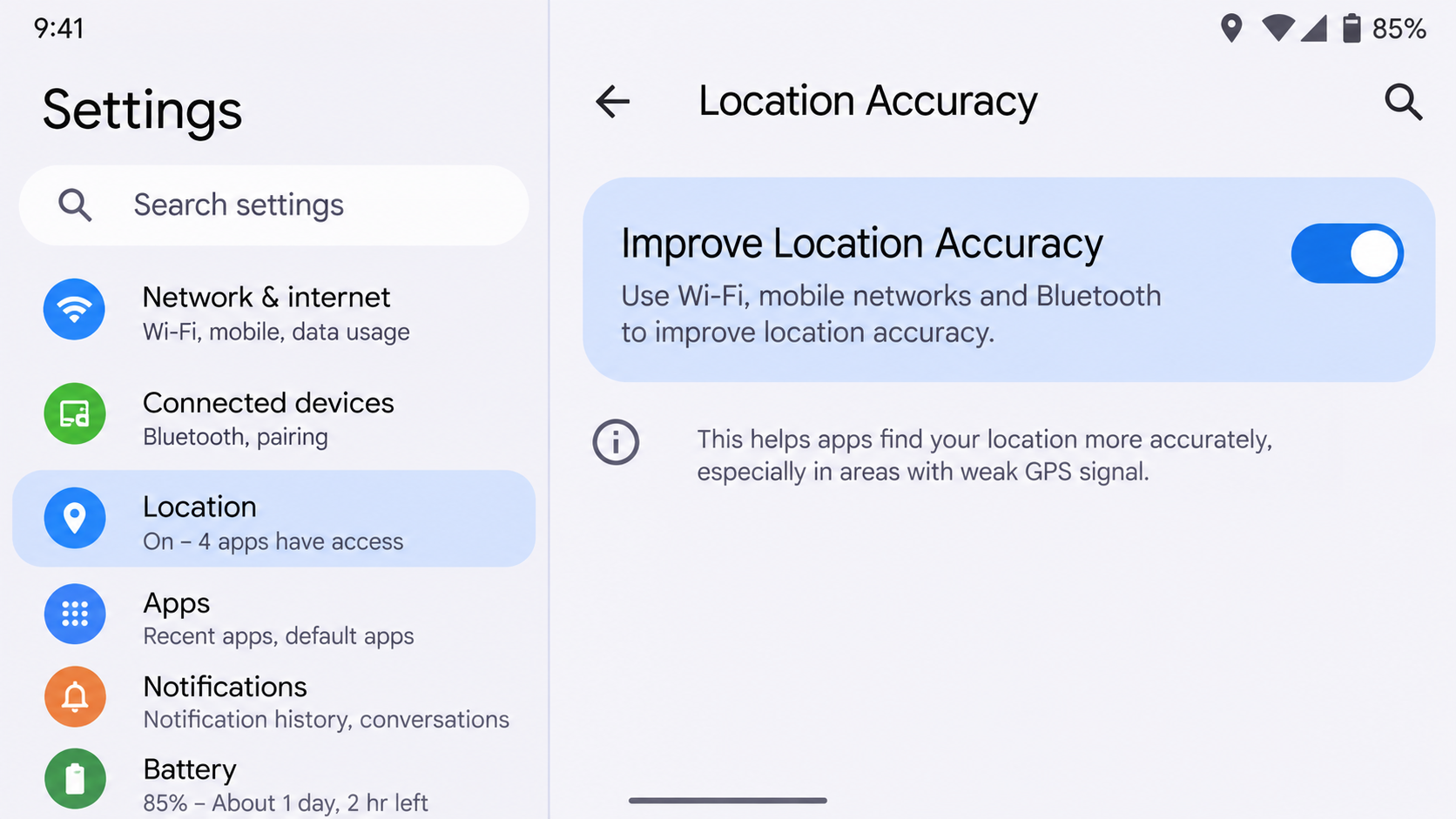
Show the relevant toggles without exposing data usage totals, network names, SIM details, precise location, device identifiers, or other applications.
A stationary arrow while parked is normal. For a continuing Searching for GPS message, the Google Maps GPS signal checks address reception separately. Keep app storage and saved car connections intact.
For Missing Map Areas or Search Results
Confirm Maps can load a new place using the phone’s internet connection. If Data Saver is off, no exception is needed.
With Data Saver on, open Settings > Network & internet > Data Saver > Unrestricted data and allow Maps only. Google’s per-app data instructions explain this exception; it permits extra background mobile-data use.
After each change, reopen Maps in Android Auto and check whether the missing content or position returns.
4. Try a Cache-Only Refresh
Clearing the cache removes temporary files without resetting the app. It may help a blank or unresponsive Maps view. Google’s Maps troubleshooting instructions distinguish this from deleting app data.
- Disconnect Android Auto and end navigation. Open Settings > Apps > Maps > Storage & cache, or Storage.
- Tap Clear cache, not Clear storage or Clear data.
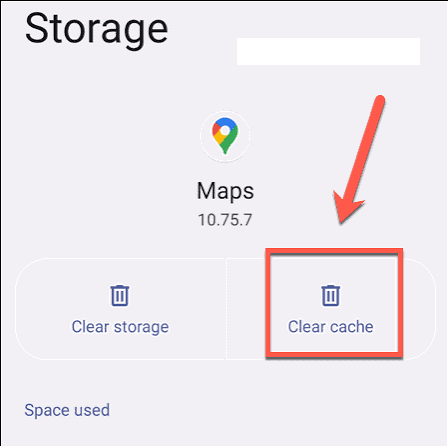
Keep Clear storage or Clear data untouched. Hide storage contents, account details, device identifiers, work profile data, and other applications.Keep Clear storage or Clear data untouched. Hide storage contents, account details, device identifiers, work profile data, and other applications. - For the car-only failure, open Android Auto > Storage & cache in the Apps list and tap Clear cache only.
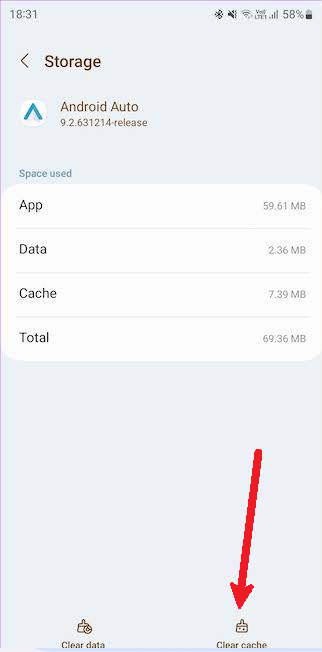
Keep Clear storage or Clear data untouched. Hide connected-car history, device identifiers, other applications, account details, and diagnostic information. - Open Maps again on the phone, then reconnect and retry it in the car.
If the same fault returns, repeated cache clearing is unlikely to provide a lasting repair. Keep offline maps, preferences and car pairings rather than escalating to a data reset.
5. Check the Receiver and Report Persistent Problems
When Maps keeps failing only in the car, report the exact behavior and app versions. If another compatible phone or car is available, a comparison can help support investigate.
- Optional: while parked, test another authorized Android phone in this car, or your phone in another compatible car. Change one at a time. The photo below shows only one pairing, not a completed comparison.
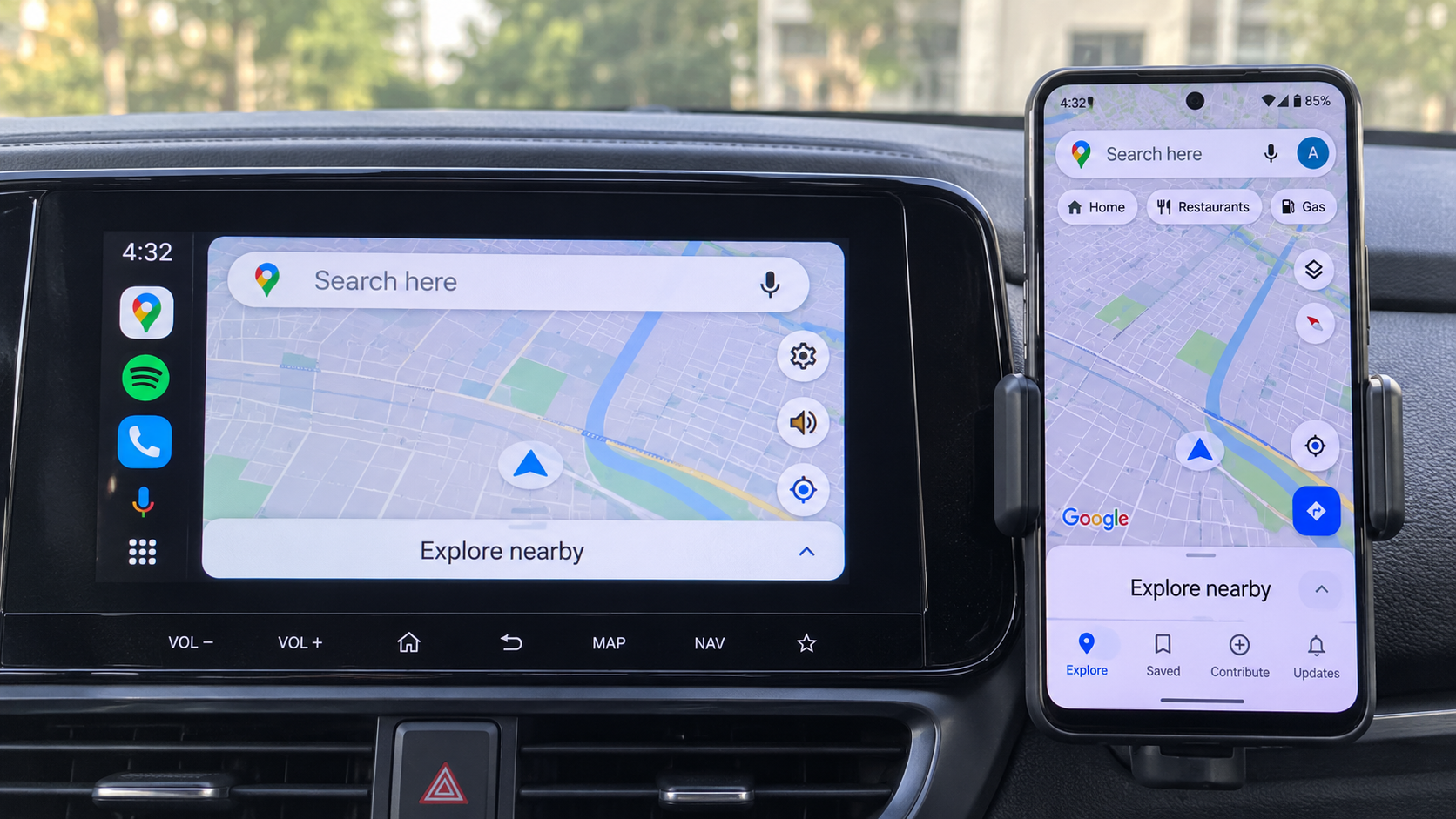
Record only the pass or fail result. Hide paired-device names, phone numbers, accounts, contacts, messages, destinations, precise location, and vehicle identifiers.Record only the pass or fail result. Hide paired-device names, phone numbers, accounts, contacts, messages, destinations, precise location, and vehicle identifiers. - If several phones fail in the same receiver, check its exact model on the manufacturer’s support site. Google’s receiver troubleshooting guidance recommends checking for aftermarket firmware updates. Follow the manufacturer’s power and installation requirements.
- If Maps alone fails, send feedback from Maps. Include the phone, Android, Maps and Android Auto versions, receiver model, wired or wireless connection, and the exact steps that reproduce it.
If the entire session disconnects, the Android Auto connection checks cover cables and pairing rather than Maps alone. A firmware update is not automatically needed just because one phone fails.
If Google Support requests diagnostics, follow its Android Auto bug-report instructions. Prepare them while parked. Logs may contain personal data; use the official submission process, not a public forum attachment.


