How to Fix Roblox Login Not Working on PS5?
Roblox on PS5 can stay on Confirming login after you approve the request on your phone. Sometimes it rejects the sign-in outright or leaves a gray loading screen instead of opening Home, even though the same Roblox account works elsewhere.
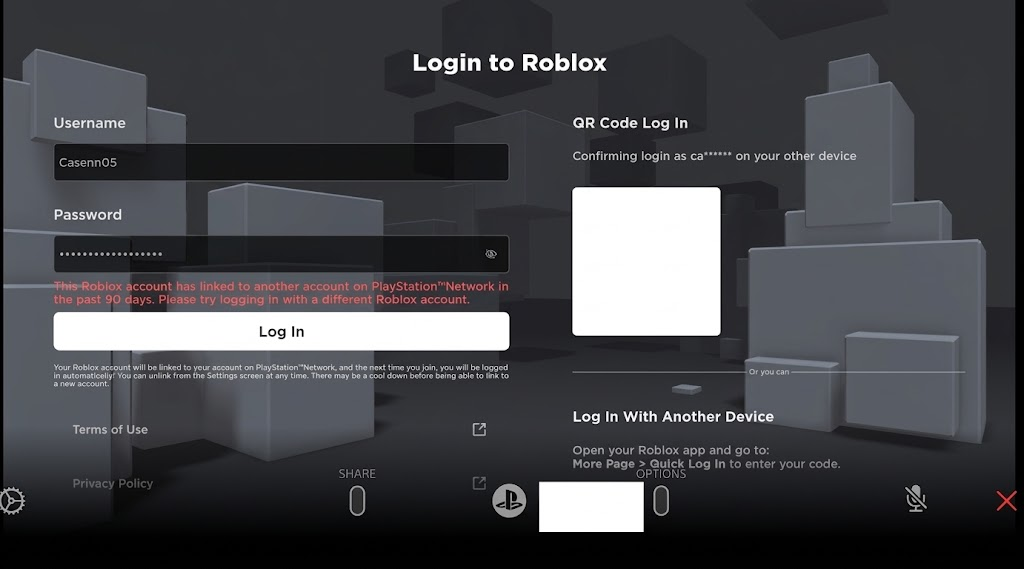
A successful phone login does not complete the PlayStation sign-in. Roblox must also accept the link to the active PlayStation Network (PSN) account. A message mentioning another PlayStation account or the past 90 days is an account-link restriction, not an incorrect password.
Check the Message Before Disconnecting
| What Roblox shows | What to check |
|---|---|
| Another PlayStation account, or a link within the past 90 days. | Use the original linked PSN account. Disconnecting does not remove the waiting period. |
| An expired code or a location mismatch. | Retry Quick Login with a fresh code and nearby devices, as explained below. |
| Approval succeeds, but Home never loads. | Close and reopen Roblox first. Reconnect the same account if the loading problem persists. |
Check Roblox Status and PlayStation Service Status for an incident affecting login. Wait for a matching outage to clear; changing account links will not repair it.
If several games cannot connect to PSN, address that console connection first. Check for Roblox updates and use the PS5 edition offered in PlayStation Store; older screenshots may show the PS4 app.
Under Roblox’s account-link rules, a PSN account can have only one Roblox account linked at a time.
Moving that Roblox account to a different PSN account is blocked until 90 days after its first link to the original PSN account. The original pair can be relinked during that period; reinstalling does not shorten it.
1. Retry Quick Login with the Correct Accounts
A QR scan that does not finish can be replaced with manual code entry. Quick Login uses an account already signed in on a nearby device to approve the PS5. Keep two-step verification enabled.
Confirm access to that account before proceeding. Forgotten credentials need Roblox password recovery, not another console link. Your Roblox username is separate from your PSN name and may differ from your display name.
- Press the PS button and select your profile picture to check the active PSN account. Use Switch User if you need the account originally linked to Roblox. For a first-time link, confirm which PSN account you intend to use.
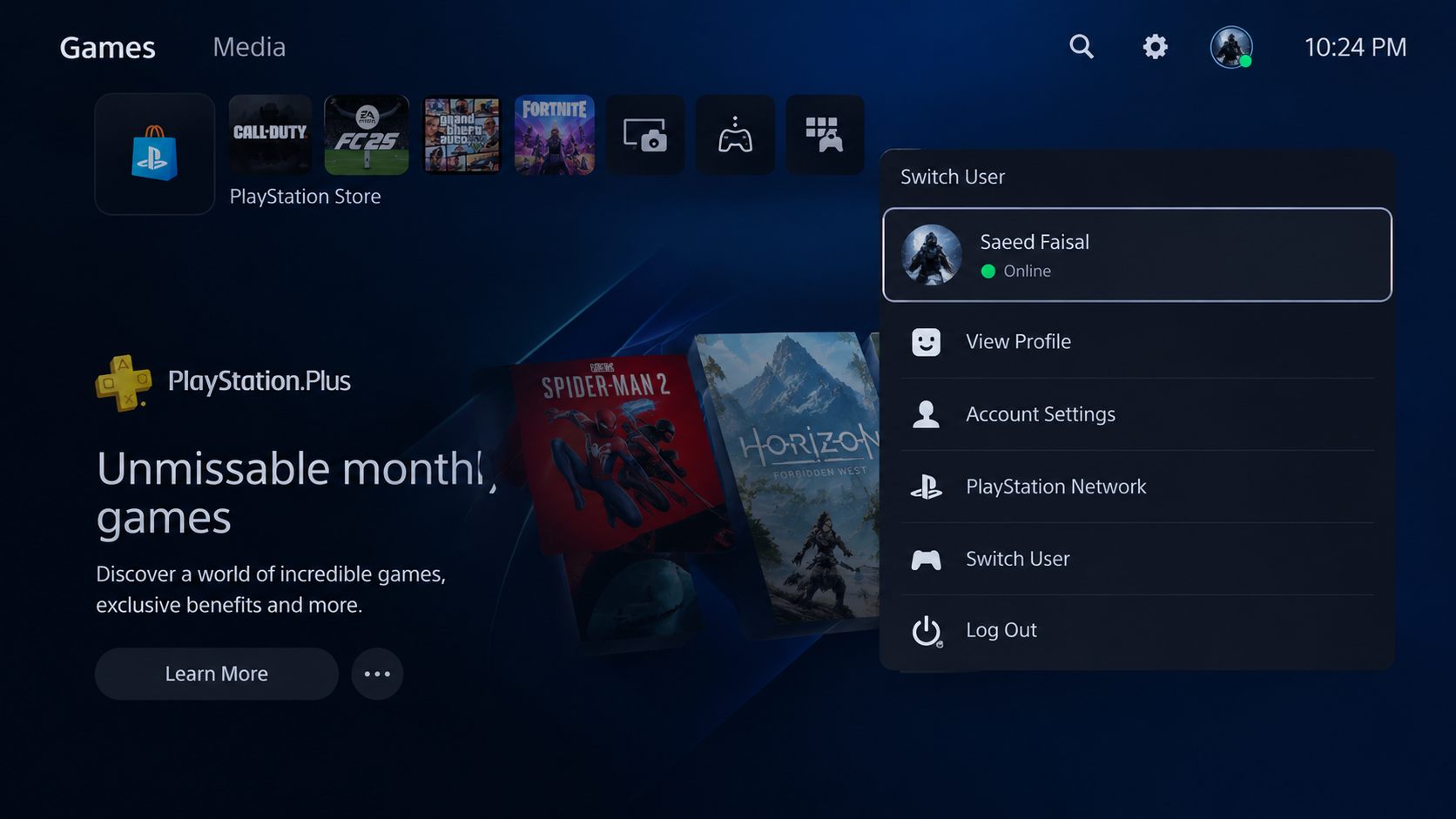
Use the original linked PSN account when returning to an existing Roblox account. - On a nearby phone or computer, sign into the intended Roblox account and check its username. Complete any verification there and keep the session open.
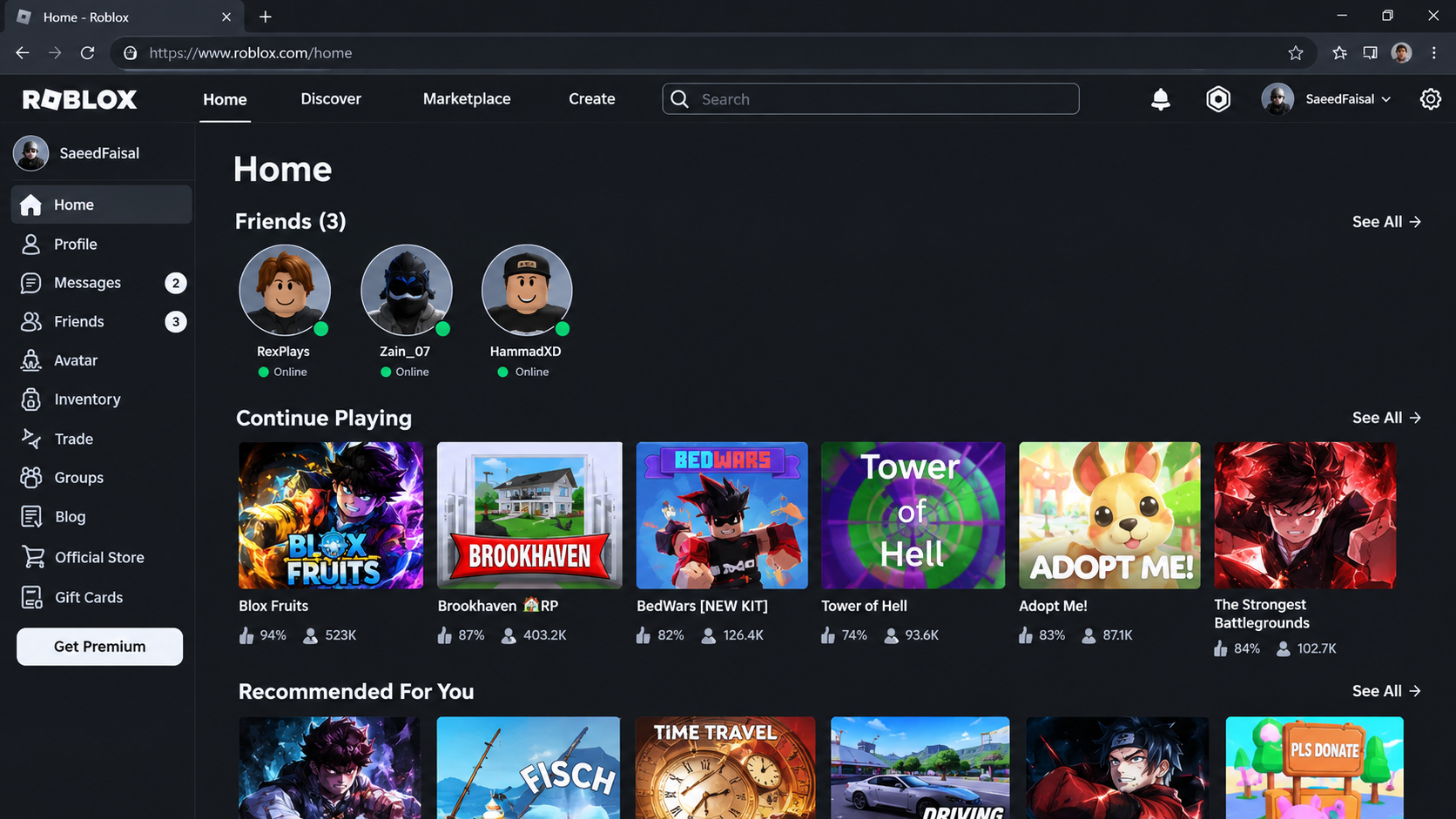
The signed-in account on the phone is the account that Quick Login will authorize. - For a location-mismatch message only: connect the approving device to the PS5’s trusted home network. Temporarily disconnect an optional personal VPN on that device. Leave required work or school VPNs and account-country settings unchanged.
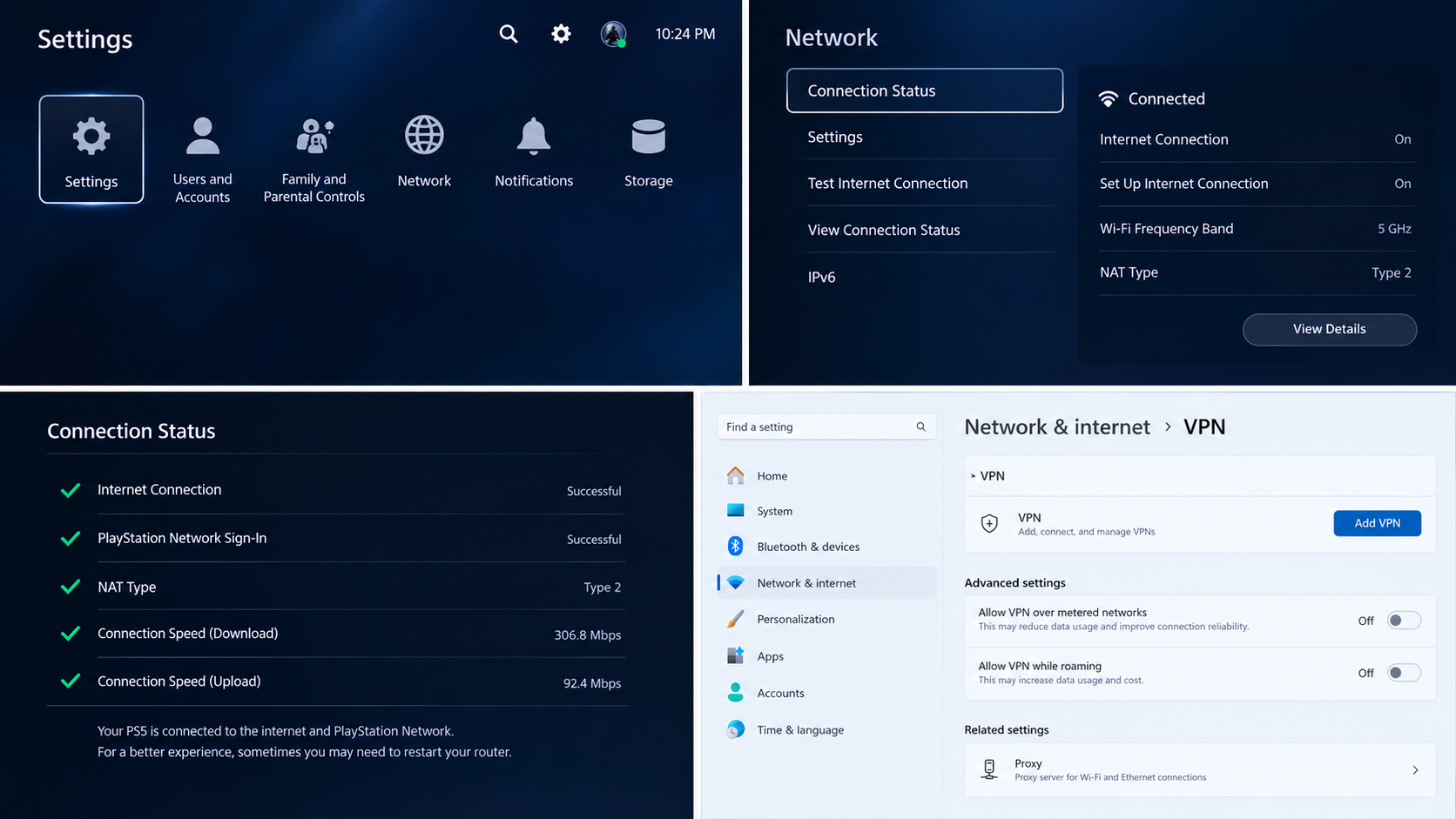
For a location mismatch, use the same trusted network and check for an optional VPN on the approving device. - On the PS5 login screen, select Log In with Another Device, where offered, and request a new code. It is valid for five minutes; use your current code, not the example pictured.
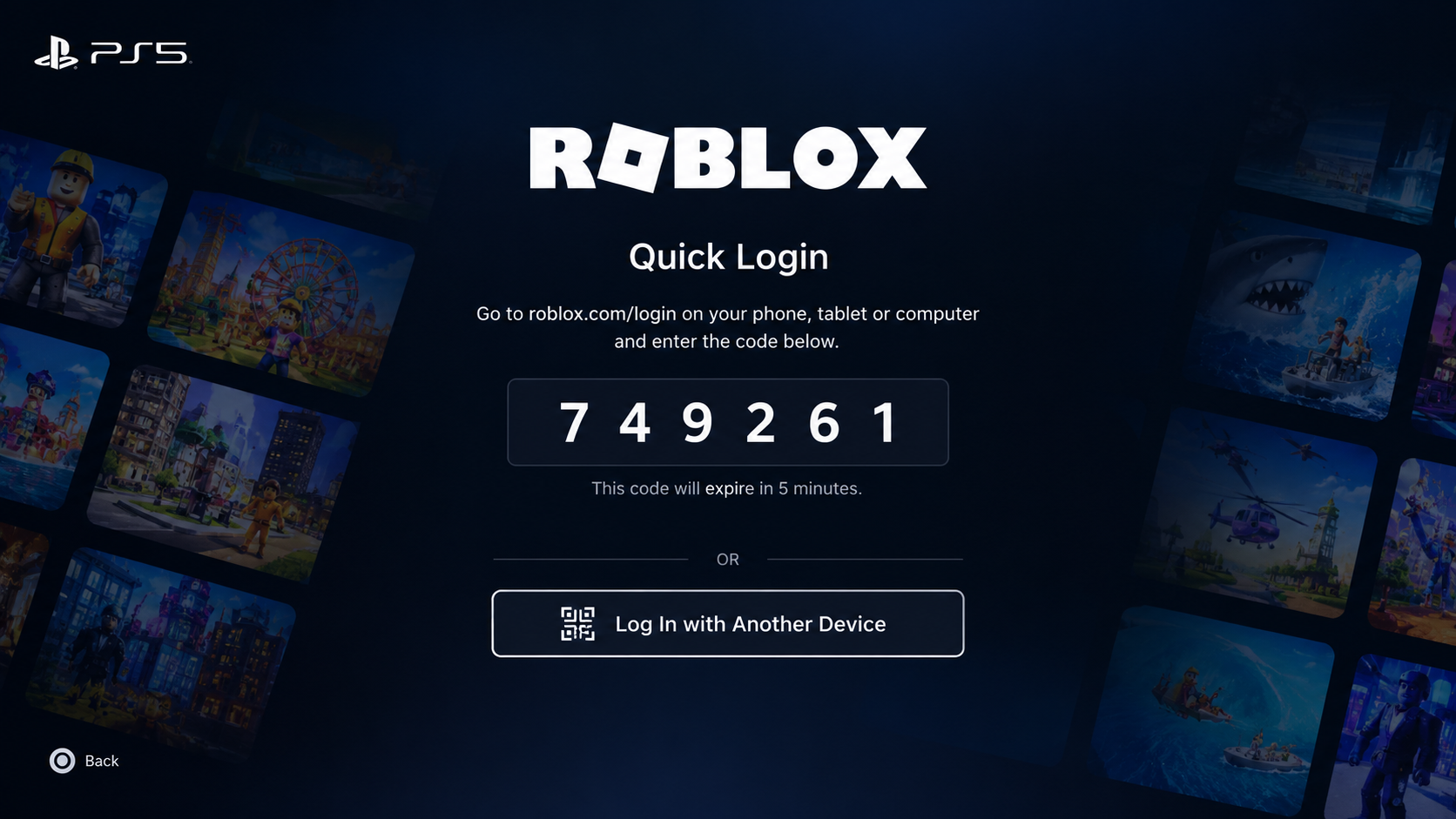
A Quick Login code expires after five minutes; do not publish a usable code or QR image. - On the device already signed into Roblox, open Account Settings > Quick Login. Enter the code from your PS5 and select Enter. The phone or computer approves the console, not the reverse.
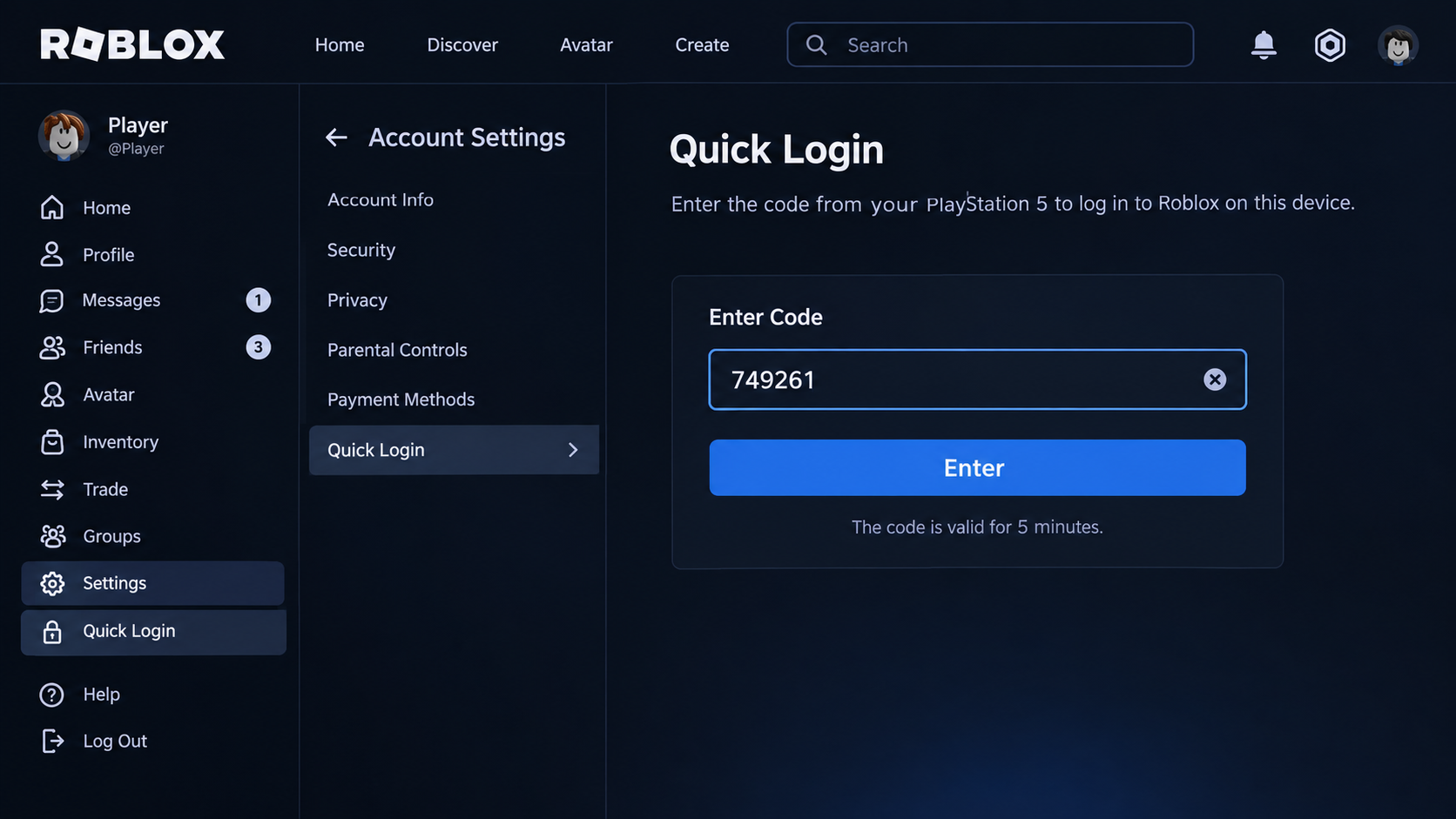
Manual code entry avoids relying on a phone camera that does not open the QR link correctly. - Check the device and account details, then select Grant Full Account Access only for the login you initiated. Confirm that the PS5 opens Home with the correct account.
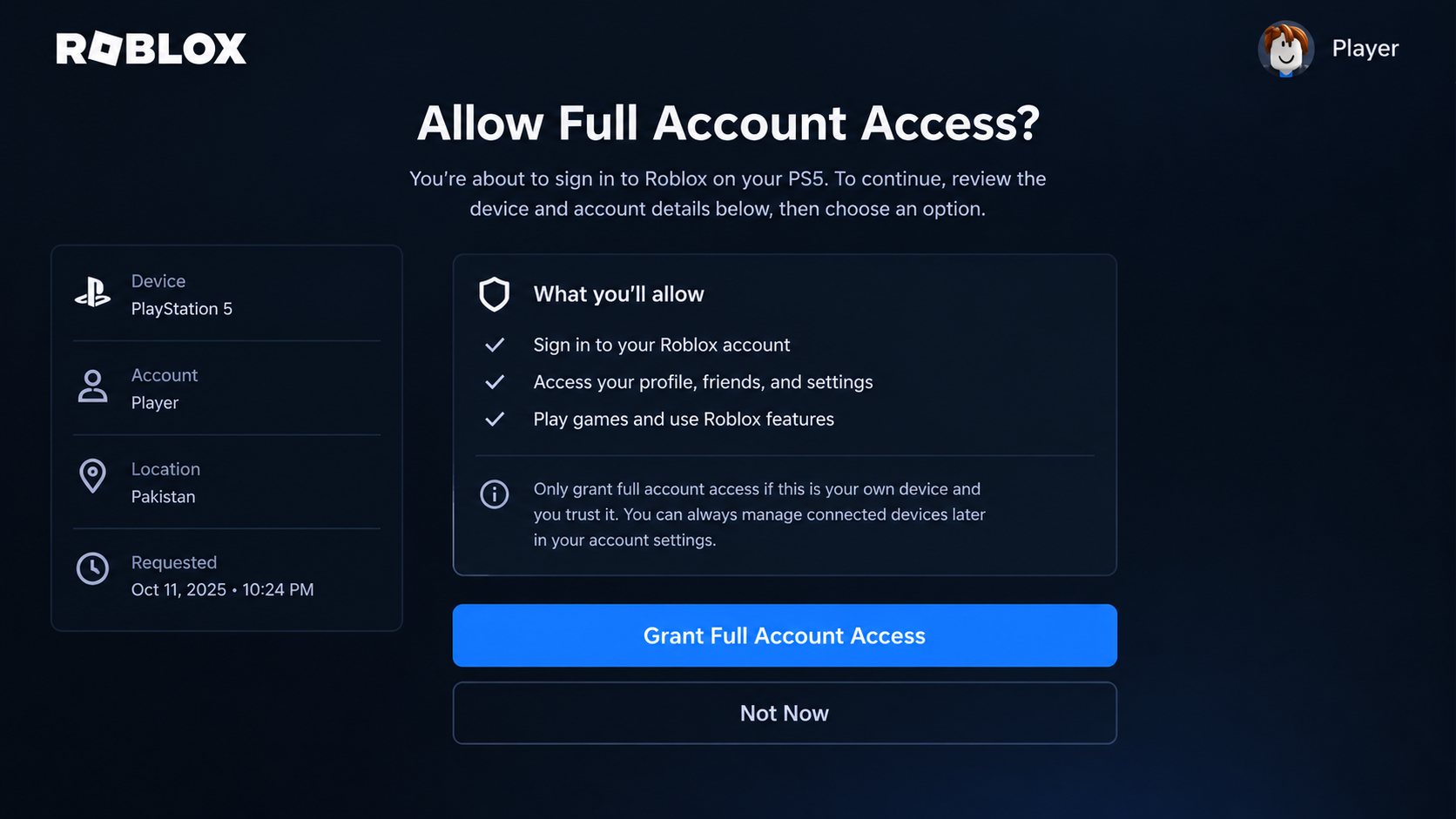
Approve only the login you initiated on your own console and verify the resulting account.
Restore your optional VPN afterward if appropriate. If a Roblox verification code is not arriving on the approving device, resolve that access problem there.
Quick Login cannot recover an account you cannot access anywhere and may not be offered to every player.
Once Home opens, try an available experience. If approval completes but the console keeps loading, reconnecting the existing PlayStation link may help. A 90-day warning still requires the original PSN account or the remaining wait, not more code approvals.
2. Disconnect and Reconnect the Same PlayStation Account
A PS5 stuck loading can remain signed into Roblox without reaching Home. Disconnecting its PlayStation link lets you attempt a fresh sign-in. This can help with a stuck console login, but it is not a guaranteed cure or a way around linking restrictions.
Before disconnecting, try PS button > Switcher > Roblox > Options > Close Game, then reopen Roblox. Restart the PS5 once if it still will not load.
This disconnects the Roblox-PlayStation account link. Proceed only when you can sign into the same Roblox account independently and complete verification.
Keep the same PSN account for reconnection. If the PS5 is your only access to an account you cannot recover, contact support before disconnecting.
- On your phone or computer, open the affected Roblox account’s Settings > Security. Check the username, especially on a device shared with family members.
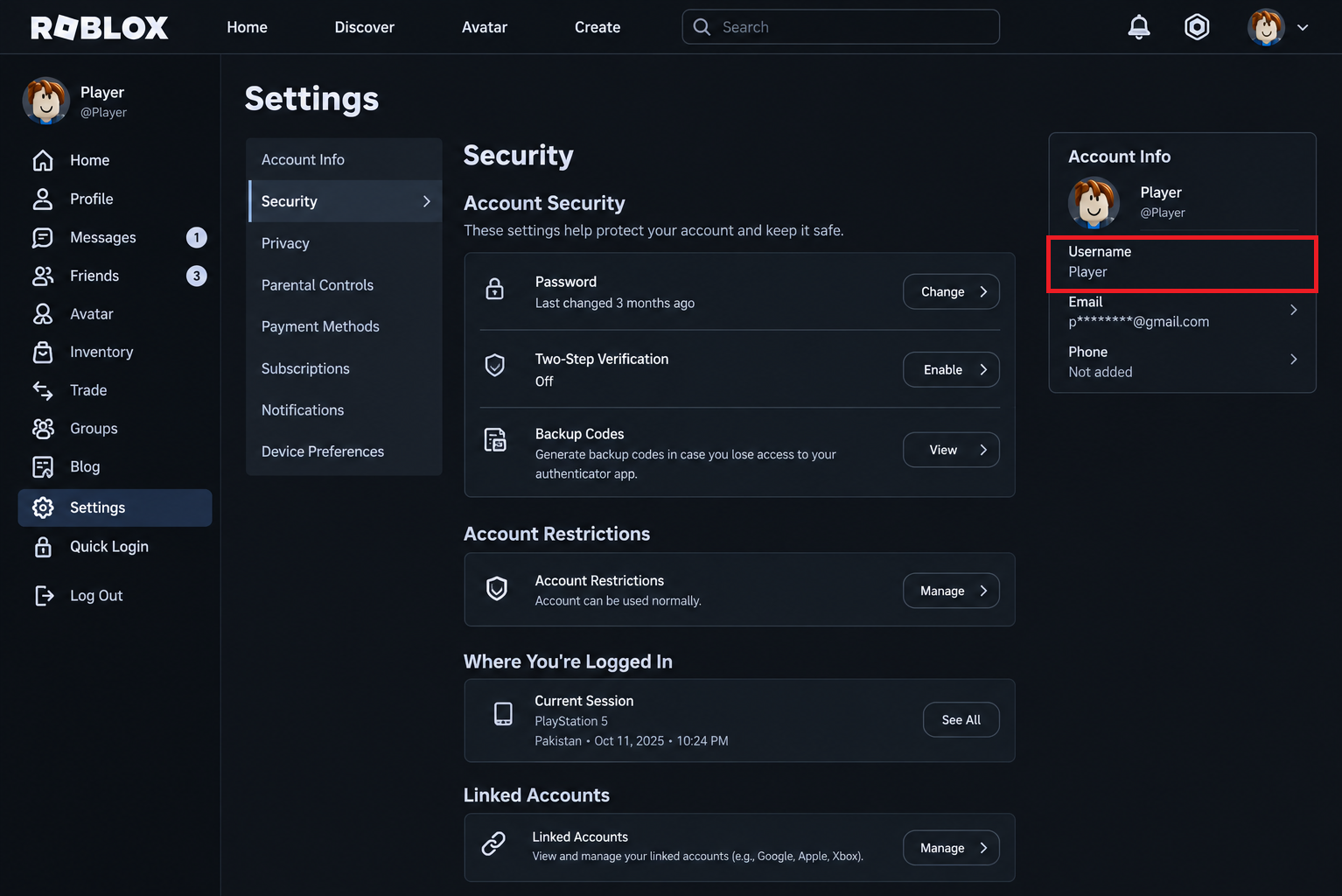
Confirm that you can sign back in and complete verification before disconnecting anything. Leave two-step verification enabled; the Off setting in this example is not part of the fix.
- Under Where You’re Logged In, find Roblox PlayStation App and select its arrow. If it is absent, recheck the Roblox username rather than disconnecting another device.
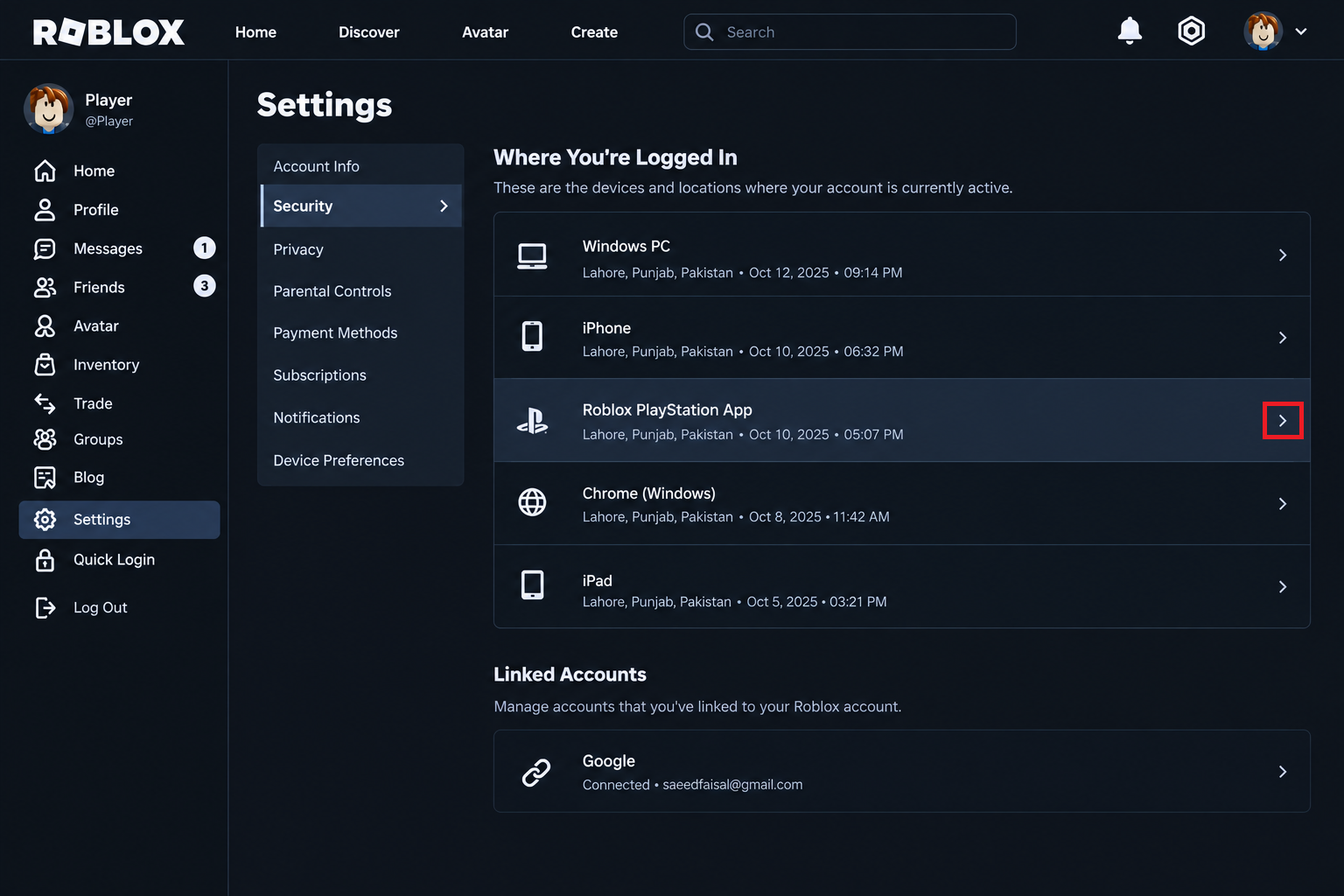
Use the PlayStation entry rather than signing out every other device. - Select Disconnect PlayStation, read the confirmation and proceed only for your intended link. This is the disconnection control documented by Roblox, not Log Out of All Other Sessions.
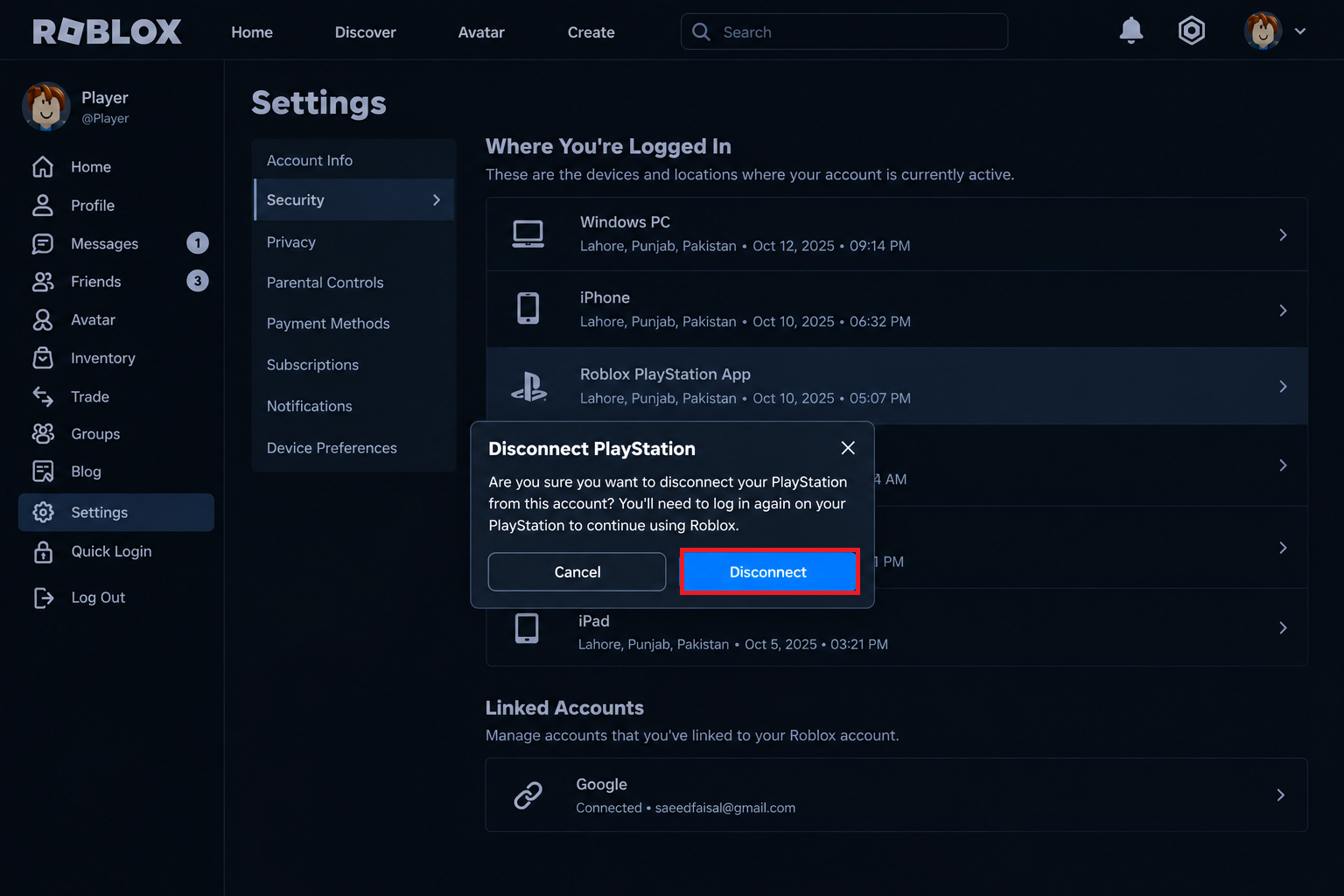
Read the confirmation; this signs the console out and requires linking again. - On PS5, press the PS button > Switcher, highlight Roblox, press Options > Close Game, then reopen it. Keep the same PSN account selected.
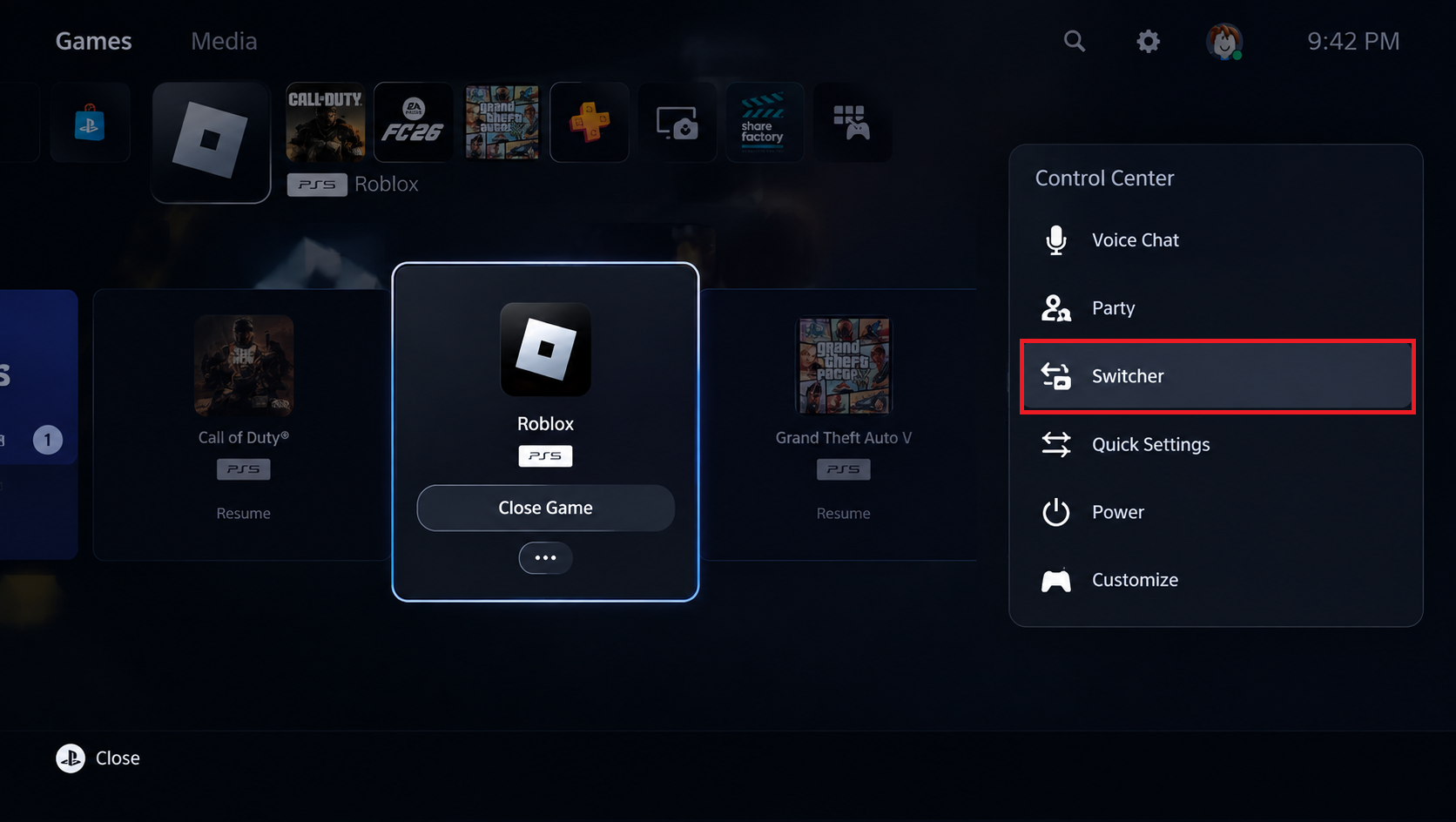
Reopen the current PS5 app under the same intended PSN account. - Sign into the same Roblox account using Quick Login or the password option if it completes normally. Check Home and an available experience, then close and reopen Roblox once to see whether the problem returns.
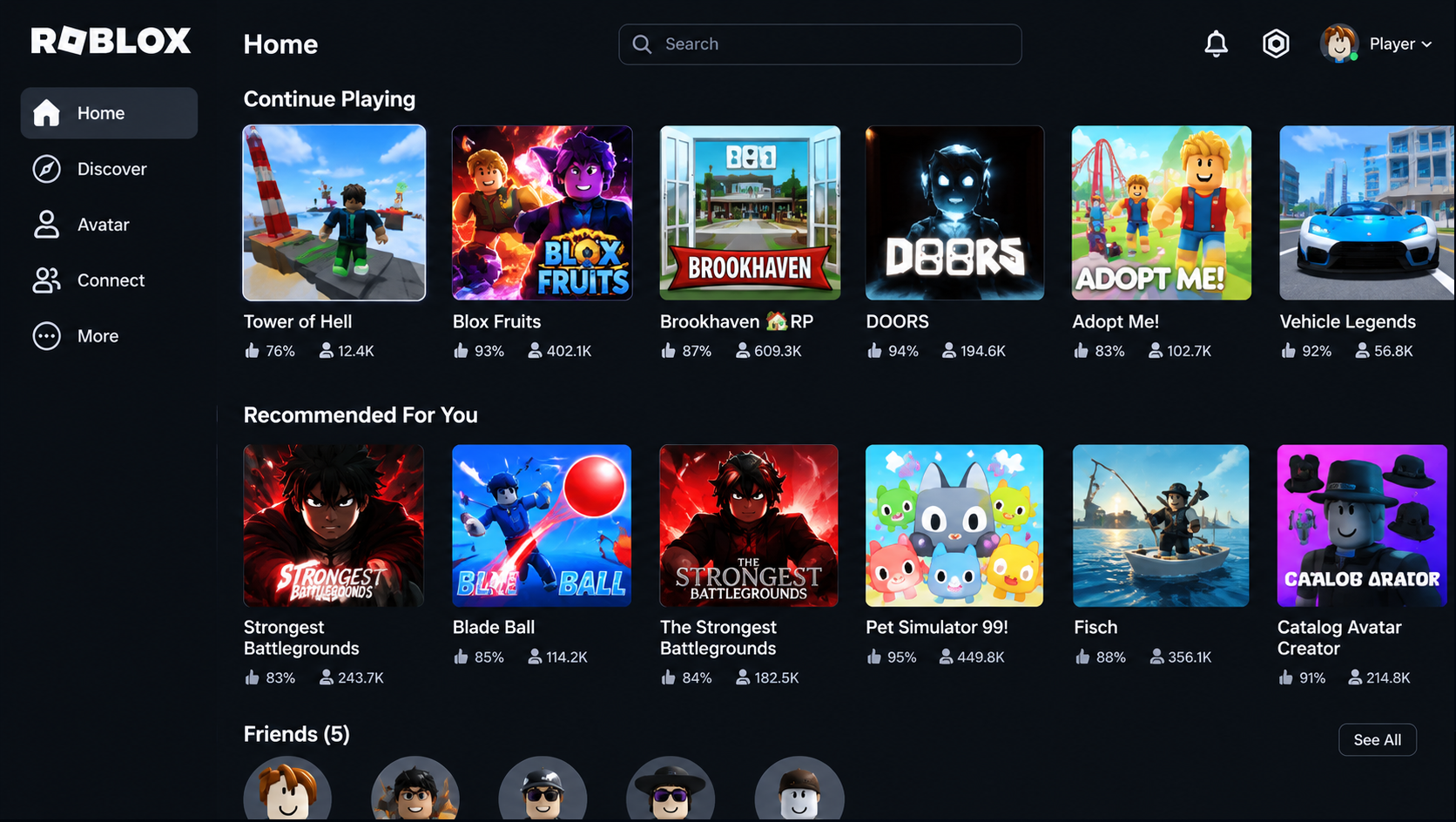
Record the real result and whether the next app launch also succeeds; do not fabricate a recovery.
If Home loads again and the next launch works, the reconnection helped. If it fails again, avoid repeating the disconnect cycle. An absent PlayStation entry, failed disconnect command or unfamiliar account association needs Roblox Support’s attention.
If Roblox Still Will Not Sign In
Contact Roblox Support with your Roblox username, PSN online ID, PS5 app version and exact error text. Include whether the account works on another device, whether Quick Login was approved, and what happened after reconnection.
For an unexpected 90-day warning, explain which PSN account was originally used and any recent account changes. Do not send passwords, backup codes, active login codes or usable QR images.
A family restriction or moderation notice needs its stated review process. If Home opens normally and only one experience fails, sign-in has succeeded; disconnecting the account again is unlikely to help that experience.


