How to Fix the PS5 “Cannot Use Content” Error?
An installed PS5 game can stop opening with “Can’t use this content” or a padlock on its tile, even after working normally. The message concerns permission to play, not whether the game files are present.
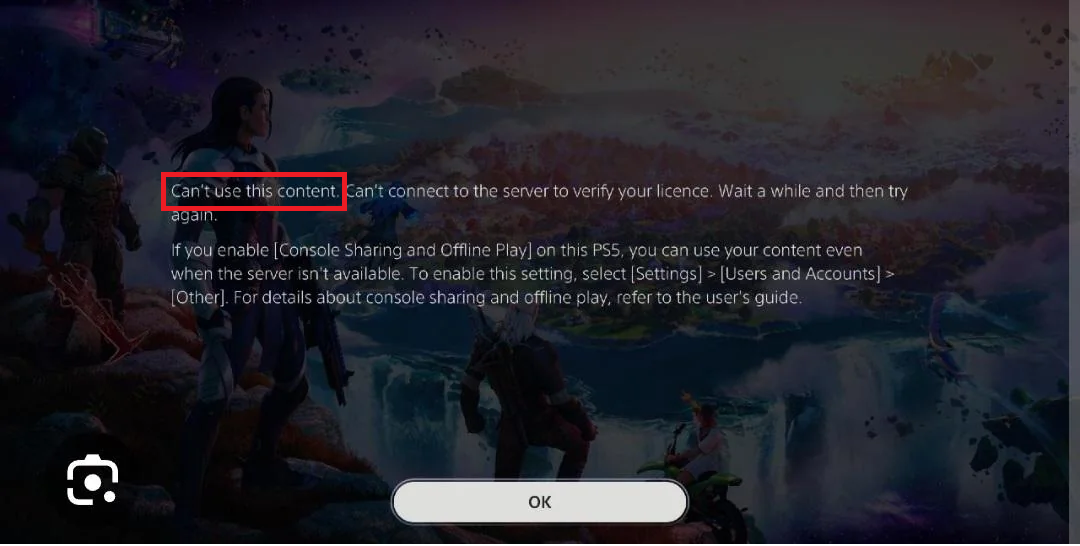
The account that downloaded the game may be different from the profile you play on. A PlayStation Plus game can also remain installed after access ends. Reinstalling it does not restore a purchase, subscription or sharing permission.
Check the Message and Your Game Access
For “Can’t connect to the server to verify your license,” check PlayStation Service Status for your region. Wait for a relevant incident to clear before changing licenses or console sharing.
Open Settings > Network > Connection Status > Test Internet Connection. A failed test needs attention first; our PS5 Wi-Fi troubleshooting covers network testing. PSN can be running normally while your console cannot connect.
| How you got the game | What still needs to be available |
|---|---|
| PlayStation Store purchase | The account that bought the base game and the correct PS4 or PS5 edition. An add-on alone does not include the game. |
| Claimed Monthly Game | An active PlayStation Plus subscription on the account that claimed it. |
| Game Catalog or Classics Catalog | The required subscription tier and a game still included in that catalog. Downloading it does not preserve access after it leaves. |
| Game disc or disc-based PS5 upgrade | The required disc inserted in a PS5 with a compatible disc drive. A downloaded upgrade still needs its original PS4 disc. |
Check your plan under Settings > Users and Accounts > Account > Payment and Subscriptions > Subscriptions. Sony’s PlayStation Plus games page explains the catalog and Monthly Game access rules.
For a PS4-disc upgrade, the disc and account country/region must match. A license restore cannot change upgrade eligibility.
1. Restore Licenses on the Account That Owns the Game
A game you bought can stay locked even with the right account signed in. Restore Licenses refreshes the account’s game licenses without deleting saved data. It cannot renew an expired subscription or create a missing purchase.
Save your progress and restart once with PS button > Power > Restart PS5 if you have not already. Then keep the console online for restoration.
- Press the PS button, select your profile picture > Switch User, and choose the account that bought or claimed the game. Sign into PSN if requested; keep two-step verification enabled.
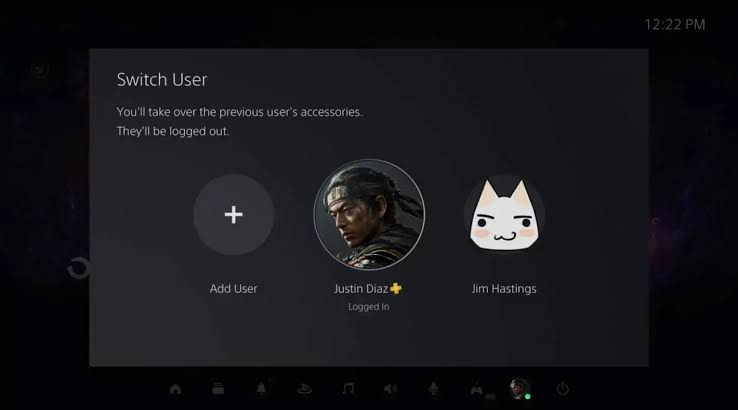
The account that played a game is not necessarily the account that purchased or claimed it. - For a purchase, open Settings > Users and Accounts > Account > Payment and Subscriptions > Transaction History. Select the relevant account and date range. Check that the transaction covers the base game and edition you are launching.
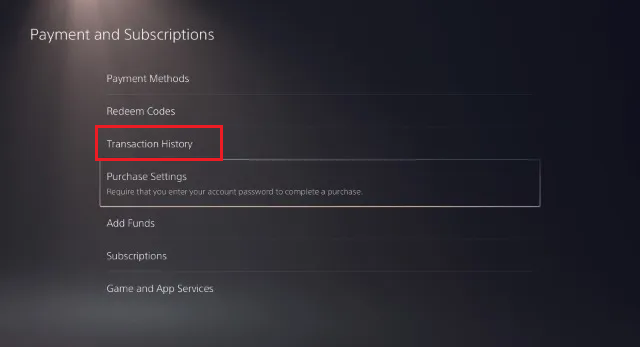
Check an appropriate date range and distinguish the base game from an add-on or upgrade.
A missing transaction needs the original receipt and purchasing account checked, not another purchase to test the error. For subscription games, confirm the access requirements above instead. If PSN sign-in fails, resolve that before restoring licenses.
- Still on the account with valid access, go to Settings > Users and Accounts > Other > Restore Licenses.
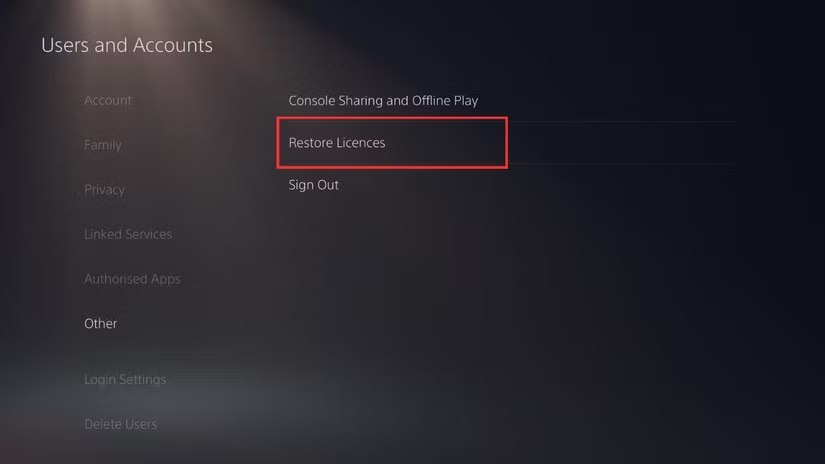
License restoration does not delete saved data or create a missing purchase. - Select the affected game’s license and follow the restoration prompts. Alternatively, highlight the game on Home or in Game Library, press Options, and select Restore License.
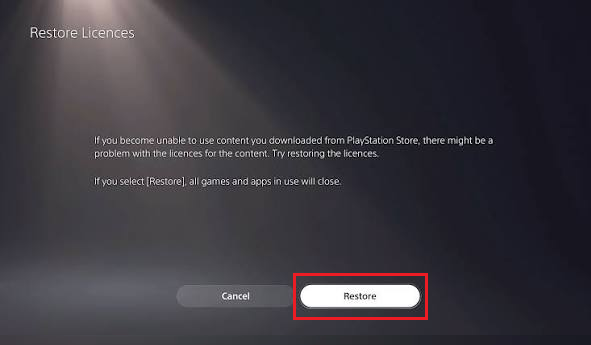
Record the actual completion or error; current software allows selecting licenses. The screenshot shows the older Restore button. Current software allows license selection; follow the options on your console.
- Launch the game on that account. If it reaches the title screen, close it and try the original player’s profile. Keep each player’s saved progress on their own profile.
Once the intended profile can play, no further changes are needed. A game that opens for its owner but stays locked for another user needs its sharing settings checked.
2. Enable Console Sharing on the Correct PS5
A game may open for its owner but stay locked on your usual profile. Console Sharing and Offline Play lets other users on this PS5 play eligible purchases and downloaded Plus games. It also allows offline play where the game supports it.
- On the account that bought or claimed the game, open Settings > Users and Accounts > Other > Console Sharing and Offline Play. Read whether it is enabled on this PS5.
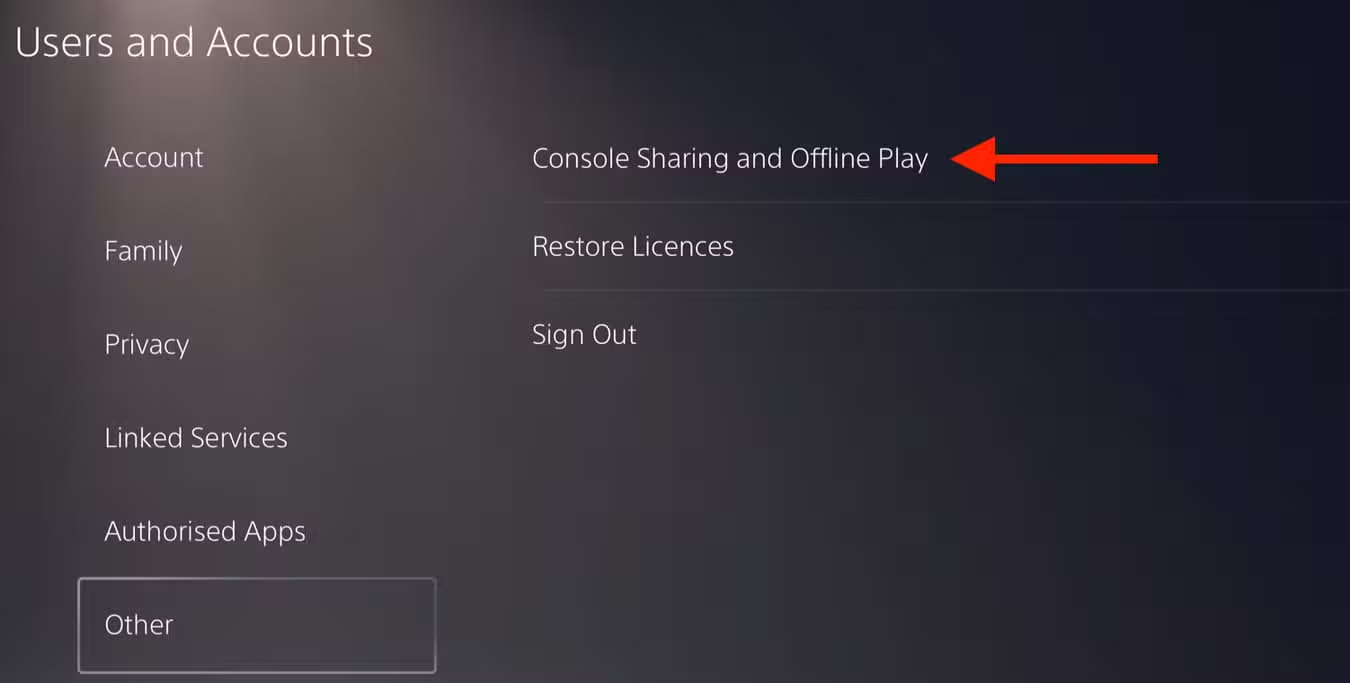
This setting belongs to the signed-in account; select the account that owns the content. - If disabled on the PS5 you intend to share, select Enable. If another PS5 holds that activation, disable it there first only when you intend to move sharing.
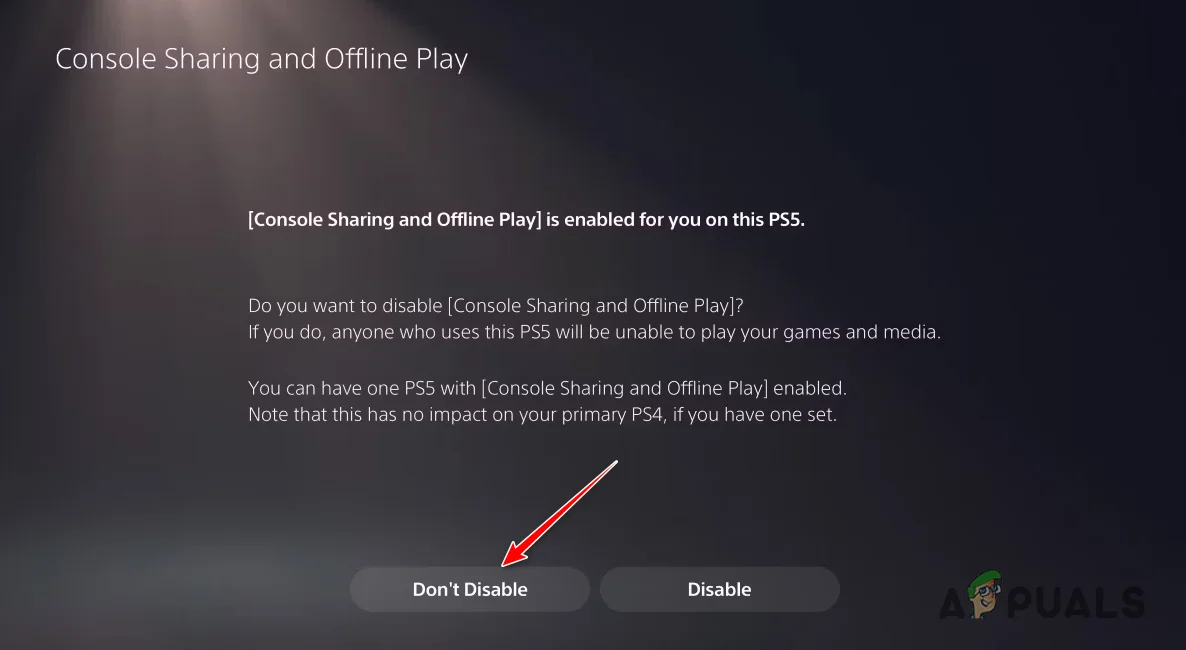
An account can enable this on one PS5 at a time; changing consoles affects other users and offline access. The pictured screen says sharing is already enabled. Don’t Disable keeps it on; it is not an Enable button.
- Optional, if already enabled but access still fails: disable and re-enable sharing once on this same PS5. Shared access stops until you enable it again. Avoid this during a PSN incident.
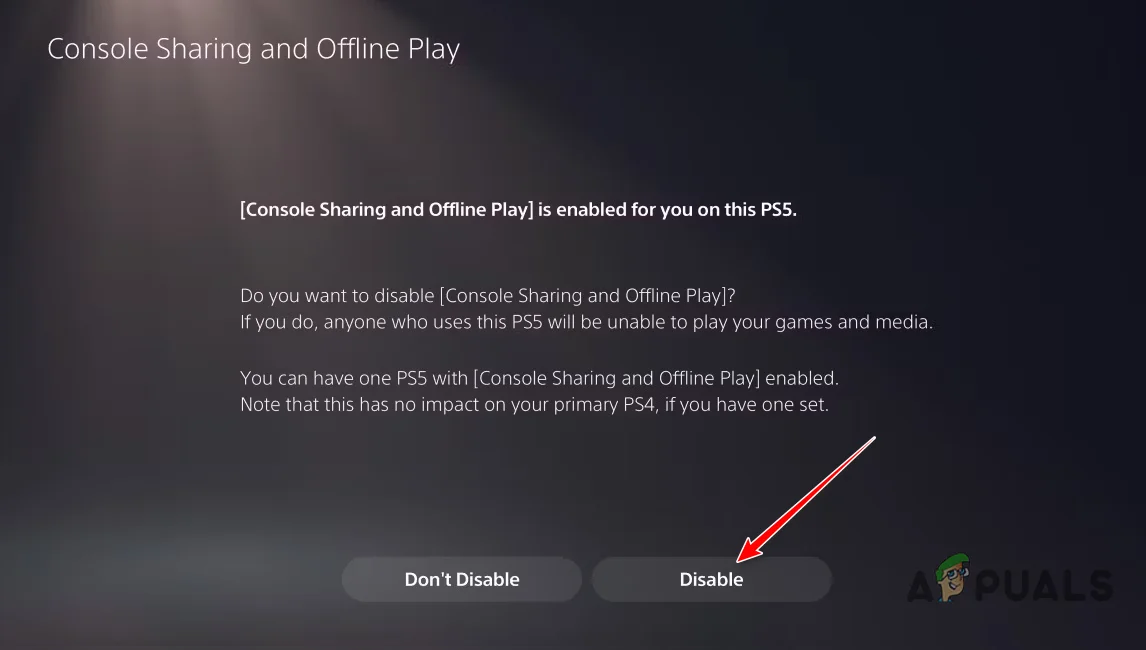
Do this only on the intended sharing console with working PSN access, then re-enable it before testing. - Return to the original player’s profile and launch the game. If it opens, close and reopen it once to confirm access remains available.
Console sharing does not remove a game’s online requirement or transfer the owner’s cloud saves and every Plus benefit. Leave the intended sharing arrangement in place if the test makes no difference.
If a padlock covers the whole game image on a child’s account, ask the family manager to review parental controls. Sharing does not override age restrictions.
“You’re Using This Content on Another Console”
Check whether the purchasing account is being used on another PS5. On the designated sharing console, other players should use their own profiles rather than launch the game through the owner’s account.
If the message asks you to wait, retry later. Sony does not give a universal waiting period in the guidance linked here. Repeatedly moving console sharing can disrupt access elsewhere without resolving the warning.
If you must move activation from a console you cannot access, Sony provides remote deactivation. It affects all consoles, not one selected PS5, and is limited to once every six months. It is not a routine license fix.
If the Game Is Still Locked
Check for an offered update under Settings > System > System Software > System Software Update and Settings. After updating, retry the same game on the account with valid access.
Contact PlayStation Support if a confirmed purchase stays locked, its license is missing, or restoration returns an error. Provide:
- The full message, any error code, game title and PS4/PS5 edition.
- The purchasing account and transaction details, or the subscription/disc supplying access.
- Whether the owner can play, which profiles fail, and which PS5 has sharing enabled.
Send account and receipt details only through official support. Keep saved data and user profiles intact; a factory reset cannot restore an expired subscription or a missing purchase.


