How to Fix Can’t Join Multiplayer Games on Xbox Series X or S?
Xbox Series X and Series S can stay signed in and download games while multiplayer refuses to connect. Matchmaking may stop, invitations may fail, or a game may say your account is not allowed to play online.
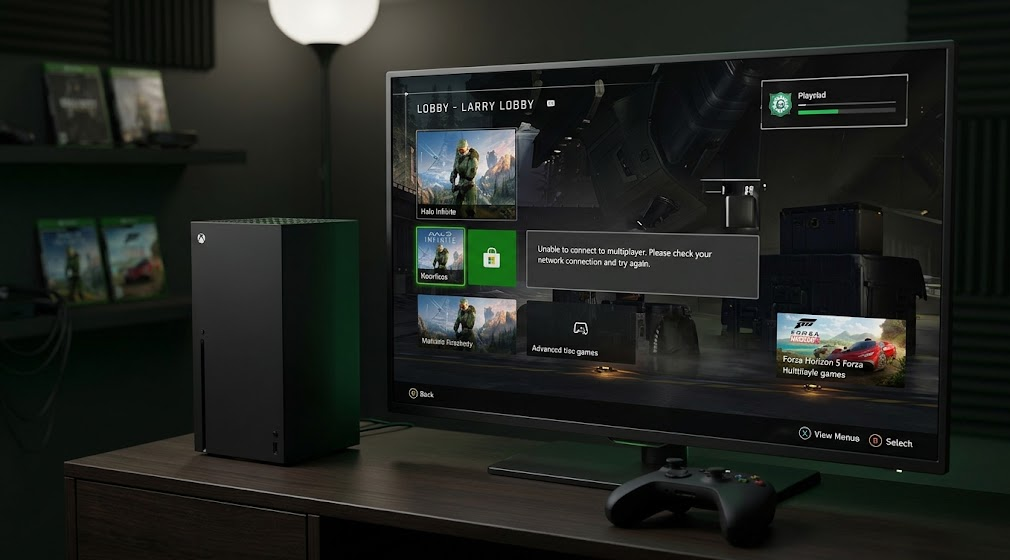
Internet access alone does not confirm multiplayer access. A subscription or privacy restriction can stop a session before it connects, while a resumed game may have lost its server connection. Changing router settings will not resolve those account or game problems.
1. Check Xbox Services and Try Another Game
An outage can affect online play without taking your home internet offline. Check both Xbox and the game’s own service before changing settings.
- Open Xbox Status and check Account & profile, Multiplayer gaming and Games & gaming. Read the live page, not the example’s status colors.
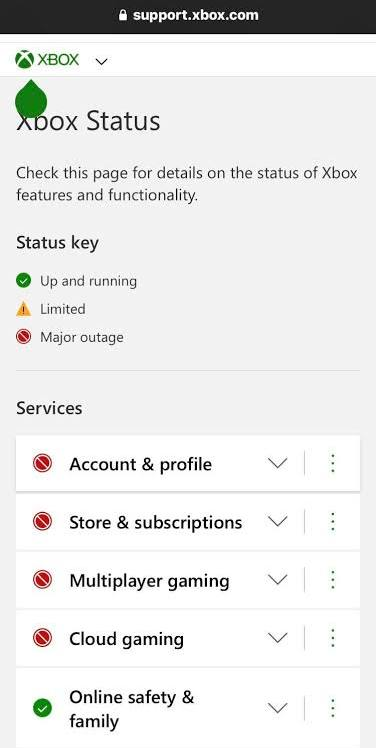
Use the official status page and record the region and time. Do not treat an unlisted game outage as a healthy game service. - Check the publisher’s official status or known-issues page. If a matching incident is active, wait for recovery and retry.
- Try joining multiplayer in another installed game with the same profile. Opening its title screen is not enough; check whether you can actually join.
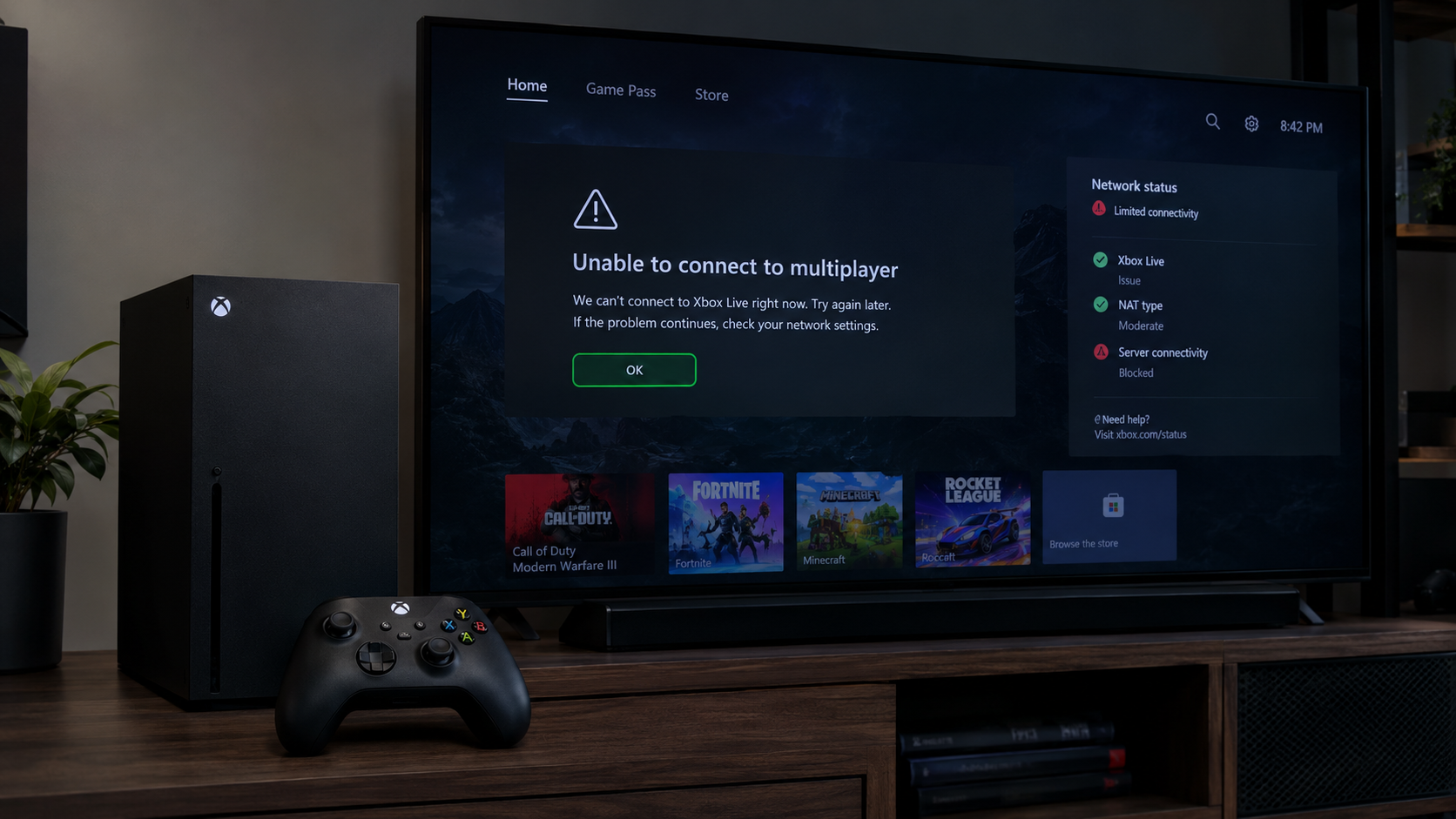
Use an installed title you are entitled to play. Do not purchase or download a large game solely for this comparison.
When only one game fails, check its updates, linked account and supported crossplay or game editions. For one failed invitation, also check lobby availability and the game’s invitation rules.
2. Confirm the Profile Has Multiplayer Access
A subscription prompt needs an account check, not a network repair. Free-to-play multiplayer does not require Game Pass.
- Press the Xbox button > Profile & system. Confirm the intended gamertag is signed in.
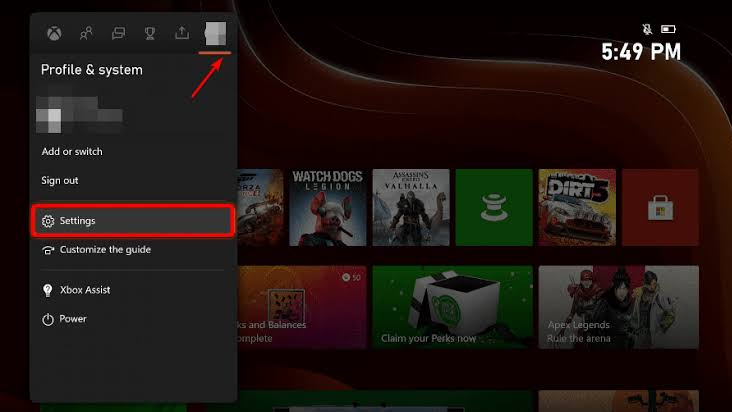
Show only the intended gamertag and hide email addresses, real names, messages, friends, and notifications. - Open Settings > Account > Subscriptions. Check the active plan, not just the menu entry pictured below.
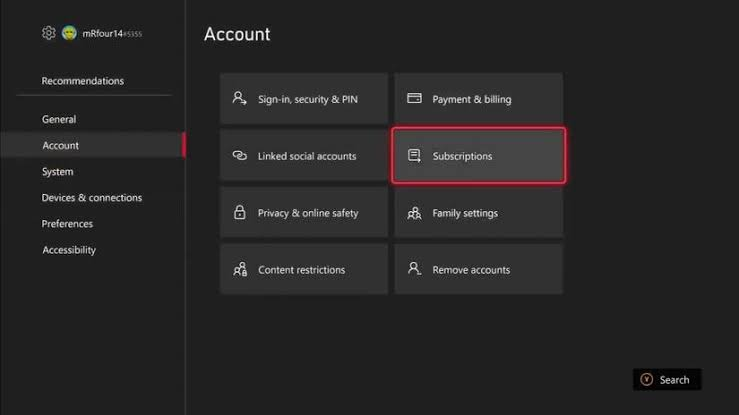
Show the plan name and active status only. Hide billing dates, payment details, order history, and account identifiers.
For paid console multiplayer, Essential, Premium or Ultimate includes access; PC Game Pass alone does not. Xbox’s plan comparison lists the benefits. Owning the game is separate from having multiplayer access.
For existing household sharing, ask the subscriber to check Settings > General > Personalization > My home Xbox. Confirm the intended console; do not spend a limited Home Xbox switch just to test.
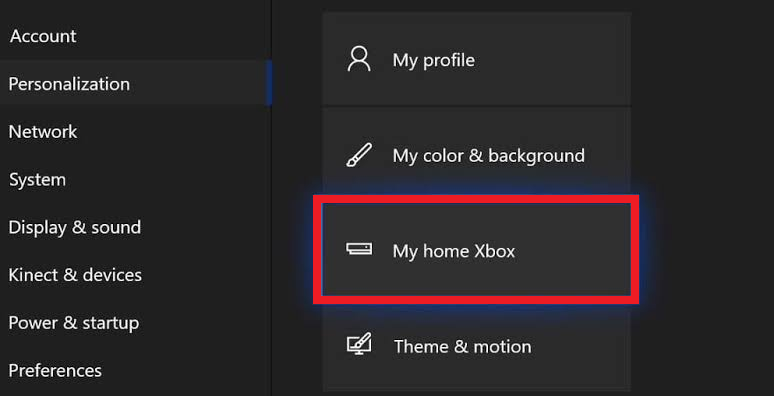
If a qualifying plan is active but the game still requests payment, contact Xbox Support rather than canceling and buying it again.
3. Review Multiplayer and Crossplay Permissions
A message about how your account is set up can appear before matchmaking starts. Change the relevant permission, not the entire privacy profile.
- Open Settings > Account > Privacy & online safety > Xbox privacy > View details & customize > Communication & multiplayer.
- With the account owner’s approval, set You can join multiplayer games to Allow.
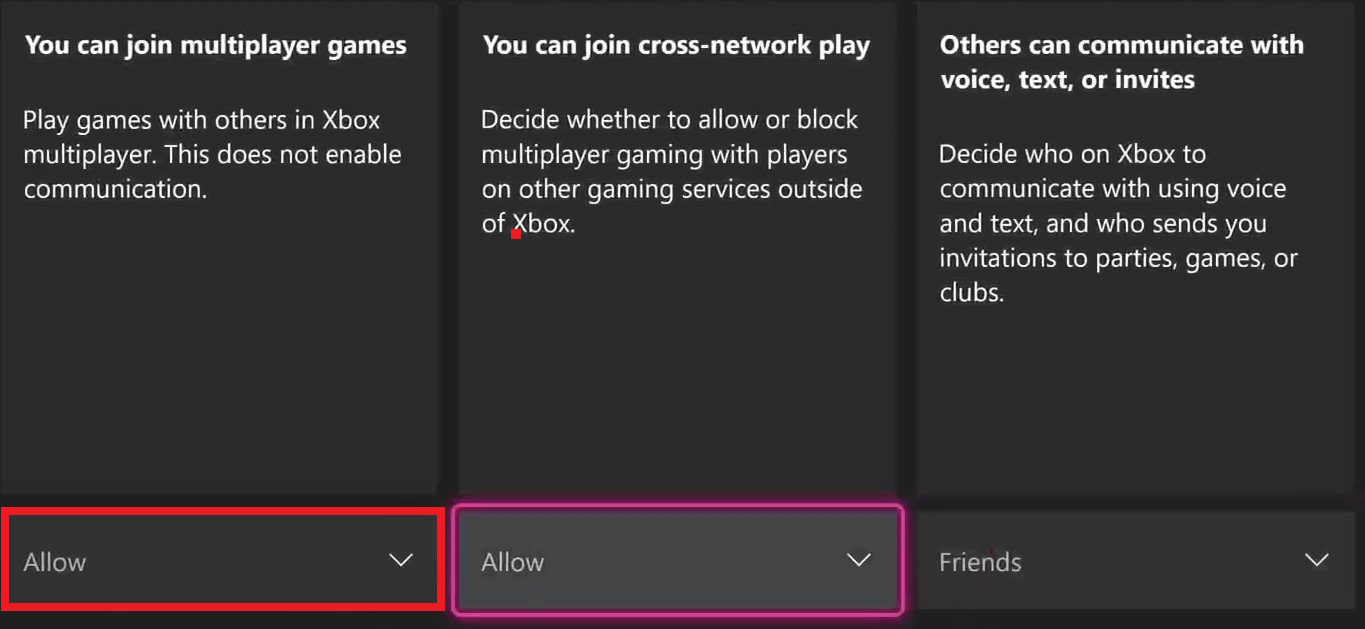
Show the selected profile’s setting. A family organizer must approve changes for a child account. - For supported crossplay, also allow You can join cross-network play and check the game’s own crossplay option.
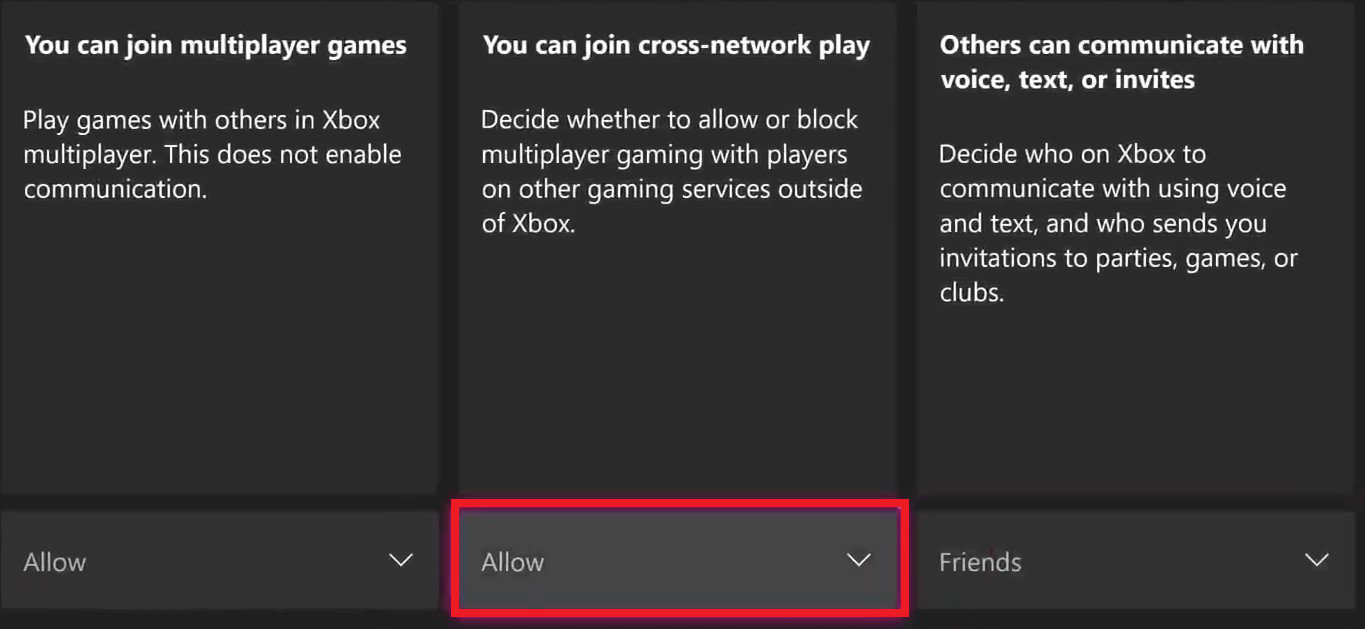
Change this only when the game or party uses other platforms and the account owner or family organizer approves.
A child’s settings need the family organizer. Xbox’s privacy instructions explain selecting the member under Account > Family settings > Manage family members.
After approved changes, sign the affected profile out and back in, then reopen the game. If Allow is already selected but the restriction remains, report that mismatch; do not change the child’s age or remove family controls.
4. Quit the Game Instead of Resuming It
A game restored through Quick Resume may return to an old lobby without reconnecting. A full quit lets it start a new connection. Save first where possible; quitting loses unsaved progress.
- Press the Xbox button shown below to open the guide.
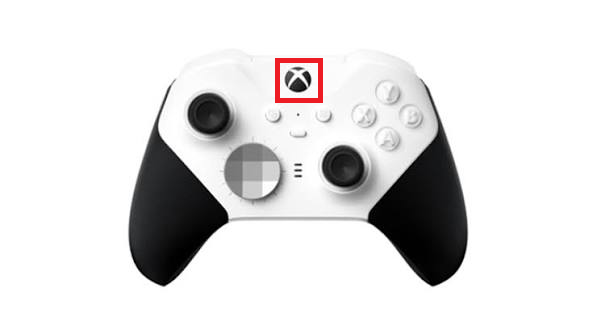
Save first when possible. Quitting can discard unsaved progress but does not uninstall the game. - Highlight the game, press Menu, and select Quit. Reopen it and retry the same join action.
- If fresh launches work but resumes repeatedly fail, open the tile’s Menu > Manage game and add-ons > Quick Resume settings. Check Disable Quick Resume for that game.
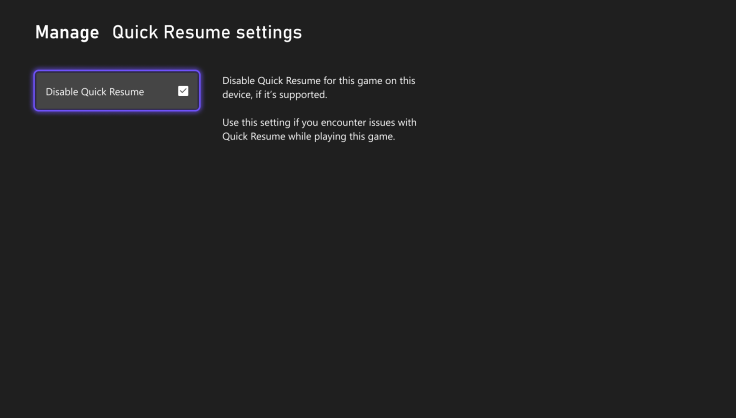
Use the per-game control introduced in the April 2026 console update. Leave Quick Resume enabled for unrelated games.
Xbox documents this per-game Quick Resume control. If it is absent, use Quit for now and check for a console update.
Check game updates under My games & apps > See all > Manage > Updates, and console updates under Settings > System > Updates. Let offered installations finish without disconnecting power, then restart the console and retest.
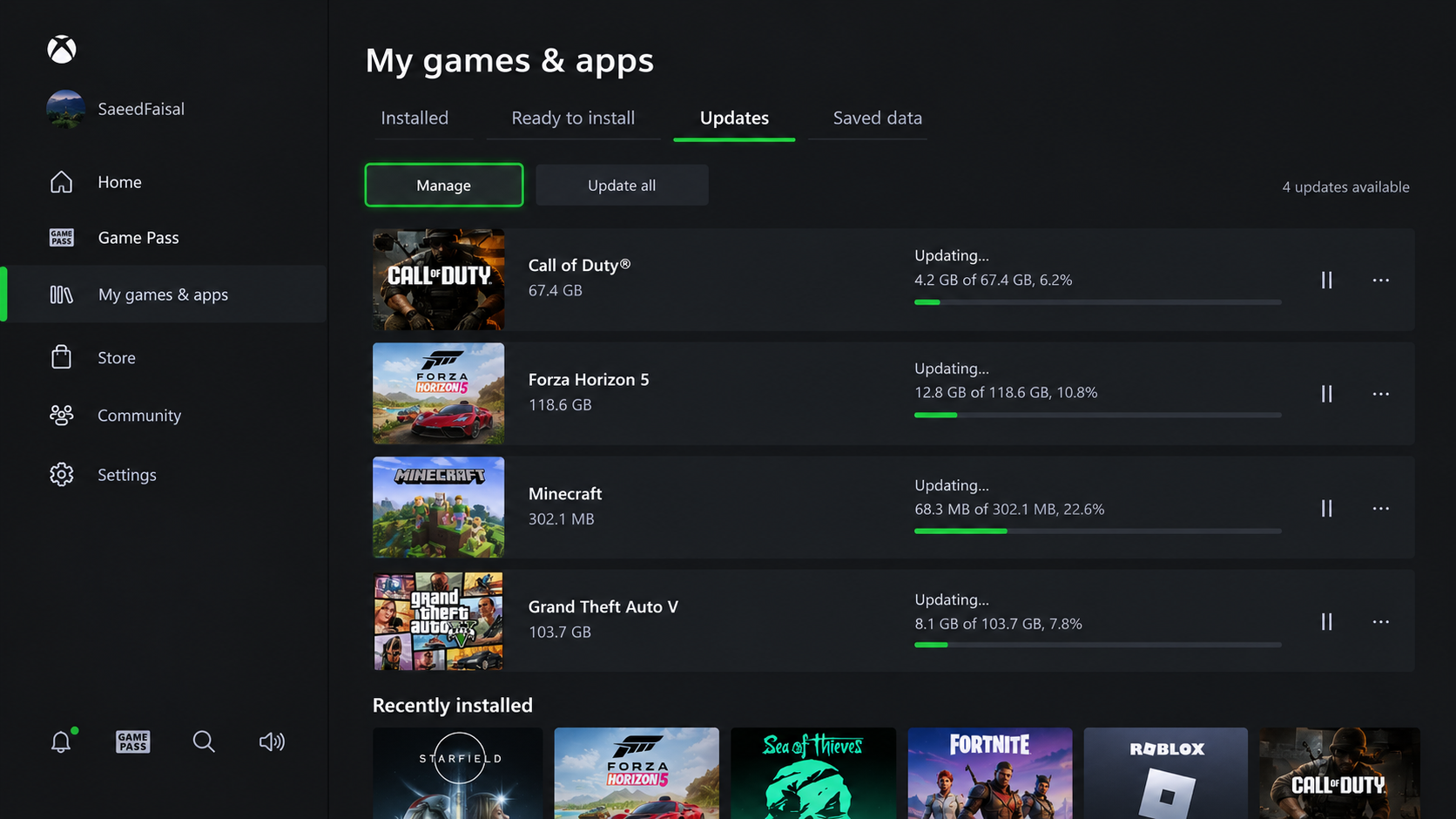
A single game that still fails after a fresh, updated launch needs its publisher’s help, especially when another multiplayer game works.
5. Test the Console’s Network Connection
Several games failing makes the Xbox’s own tests useful. A successful internet test does not guarantee a successful multiplayer connection.
- Open Settings > General > Network settings. Run Test network connection, then Test multiplayer connection where available. Follow a failed basic-connection test’s instructions first.
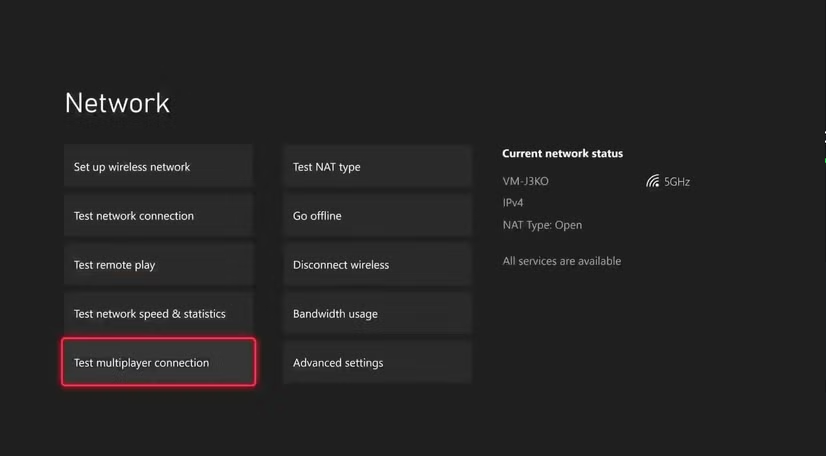
Capture the available tests before changing the network. Hide the wireless name, IP addresses, and hardware addresses. - Note the exact error and NAT type under Current network status. The pictured Moderate/UPnP result is an example, not your test result.
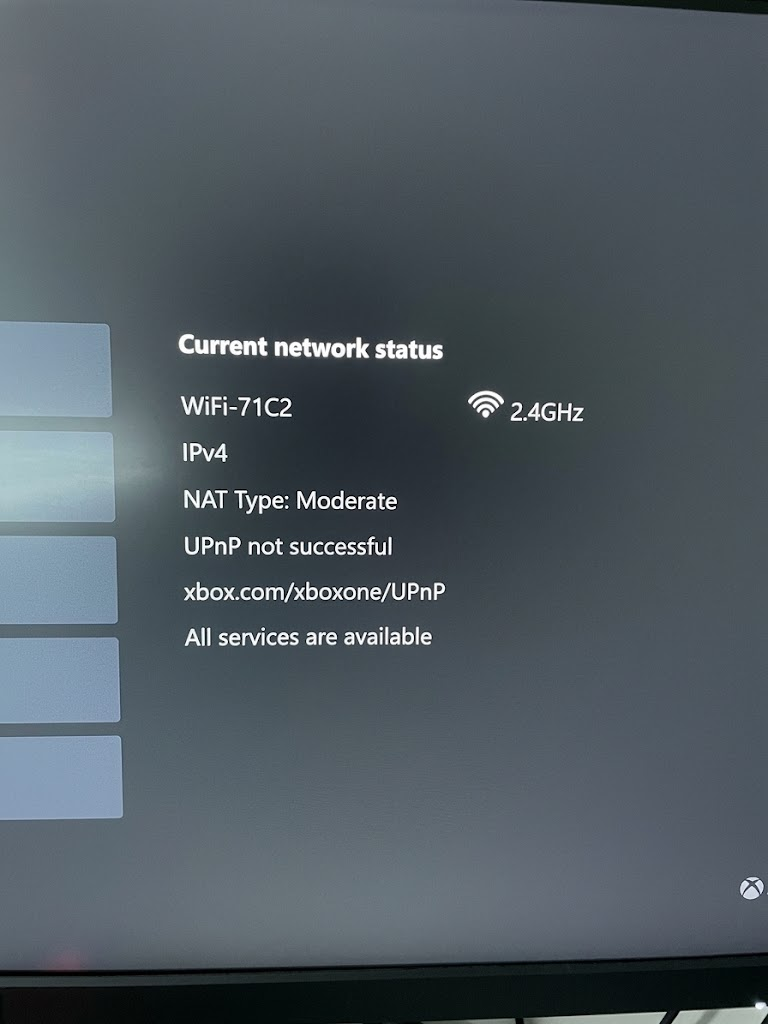
Keep the literal message, NAT type, and time. Redact network names, addresses, and console identifiers. - With the network owner’s approval, restart the modem/router once using its documented procedure. Wait for internet service to return, then rerun the Xbox tests.
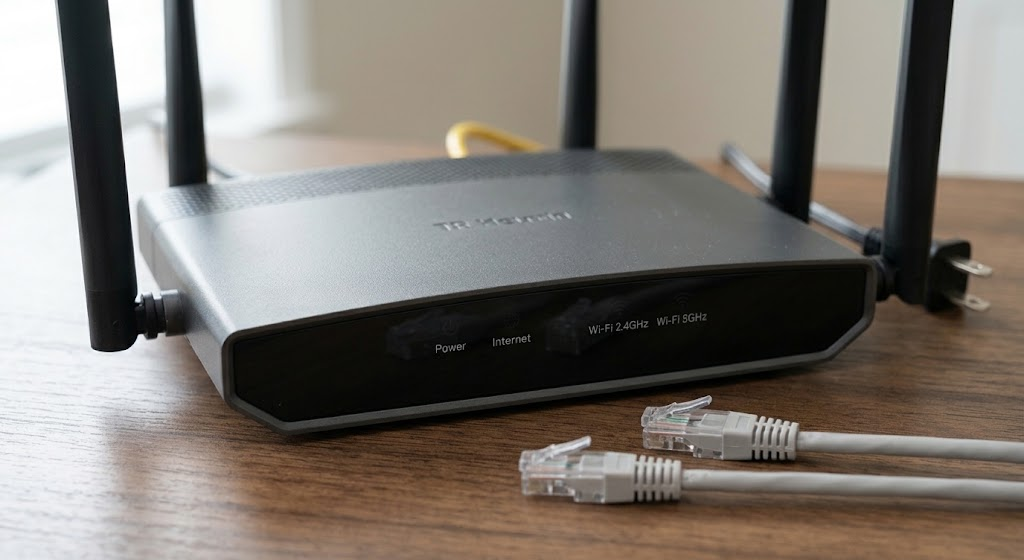
Follow the ISP or router maker’s restart method. Do not interrupt shared work, reset the device, or expose labels and passwords. - Optionally connect Ethernet from the Xbox to a LAN port on the same router, or briefly try another approved internet connection. Retry the same game/profile.
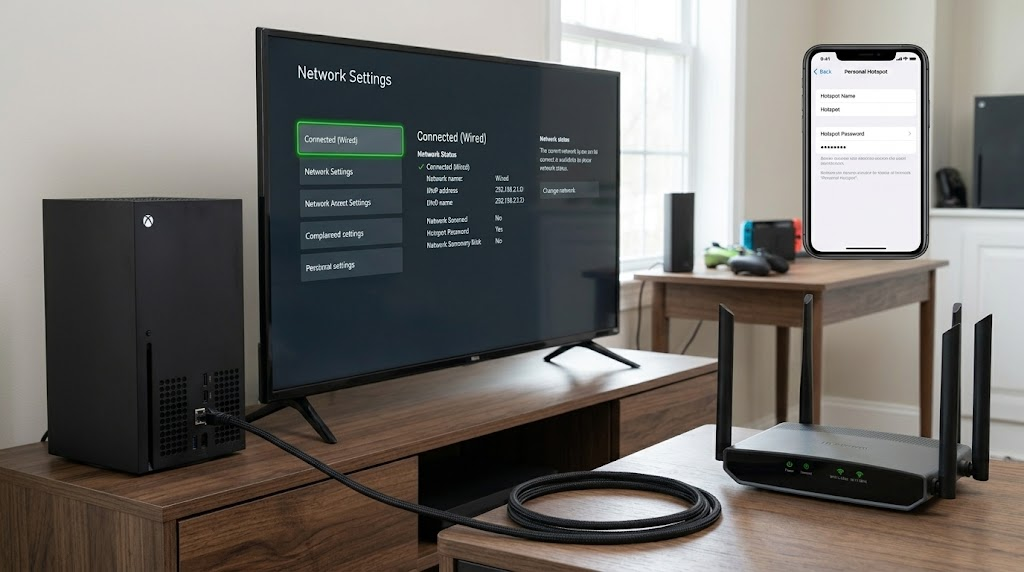
Use a safe Ethernet run or an owner-approved alternate network briefly. Monitor mobile-data charges and hide credentials.
| Comparison result | What it tells you |
|---|---|
| Ethernet works on the same router | Wi-Fi is likely involved. |
| Only another internet connection works | The home network or ISP needs investigation; the router is not necessarily defective. |
A hotspot can have its own NAT restrictions, so a failed test is inconclusive. Watch data charges and avoid game downloads during it.
6. Follow the Specific NAT Warning
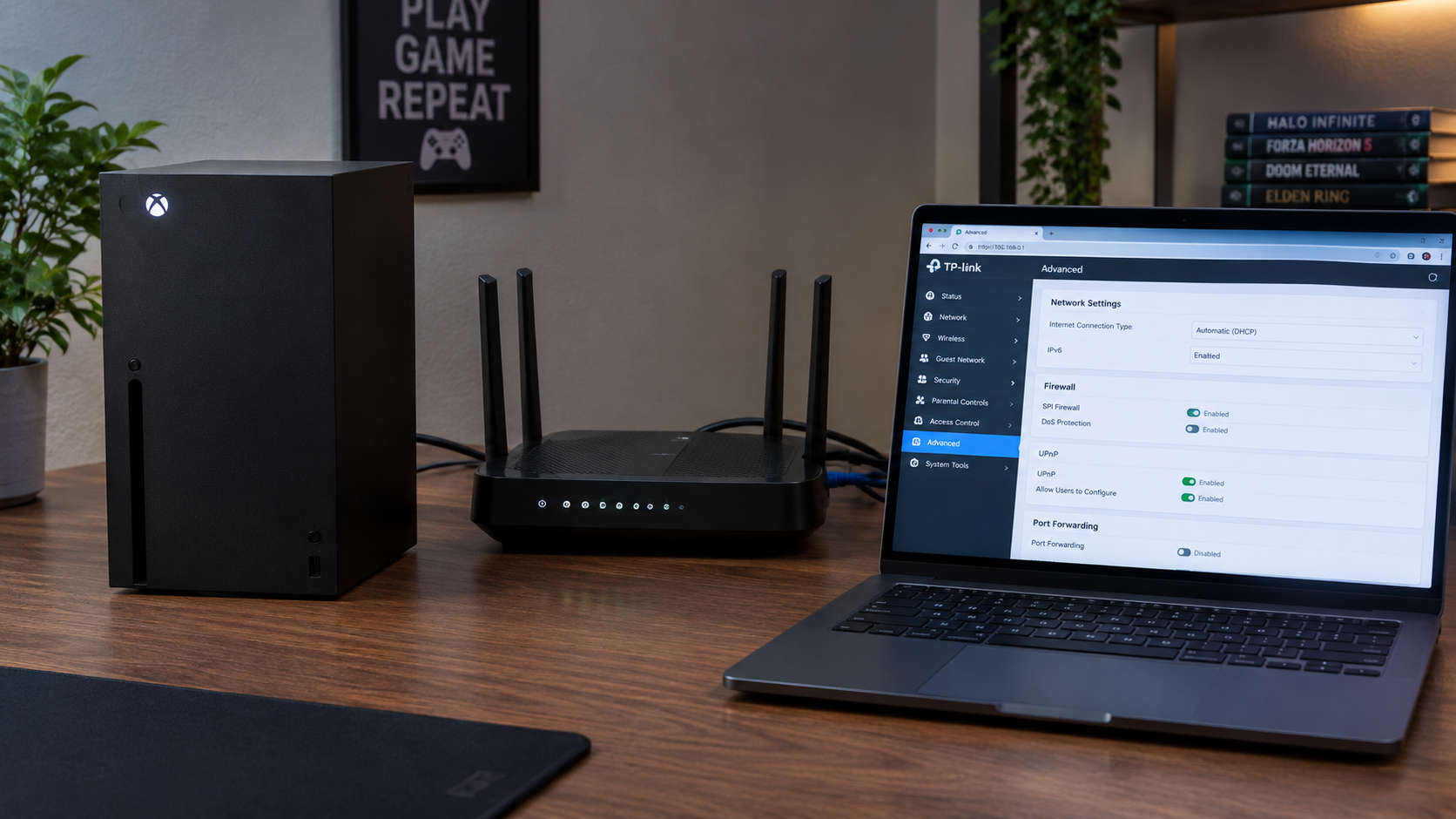
NAT affects which players can connect to one another. It does not explain a subscription prompt or override account permissions. The image below illustrates router controls, not an Xbox warning screen.
| Xbox result | What to do |
|---|---|
| UPnP not successful | Use the router maker’s UPnP enable/refresh procedure. The Appuals UPnP controls walkthrough illustrates where to look. |
| Double NAT detected | Have the owner or ISP check for two routing devices. The Double NAT explanation covers this setup; bridge/AP changes need device-specific instructions. |
| Strict, Unavailable or a Teredo error | Follow the matching section of Xbox’s NAT troubleshooting. Ask the ISP whether its shared-address setup prevents the required connections. |
| Open or Moderate | Moderate can limit some peer connections, but neither label proves the cause. Compare the actual join result and other network-test errors. |
After a documented change, run Test NAT type and retry the original game. A cleared warning matters only if the connection problem is resolved too.
Still Unable to Join?
Give Xbox Support the exact error, game, time/region, subscription and permission results, and network comparisons.
Use the publisher for one-game failures; use the ISP for home-network-only failures. A suspension notice needs account review, not router changes.
Share redacted screenshots, not passwords, recovery codes, payment details or router credentials. There is no need to delete saves or factory-reset the console to collect these results.