How to Fix an Xbox Series X or S That Keeps Crashing or Freezing?
On an Xbox Series X or Series S, a game can freeze on one frame with repeating audio, or close unexpectedly and return to Home. The game stops responding, but the Xbox guide may still work.
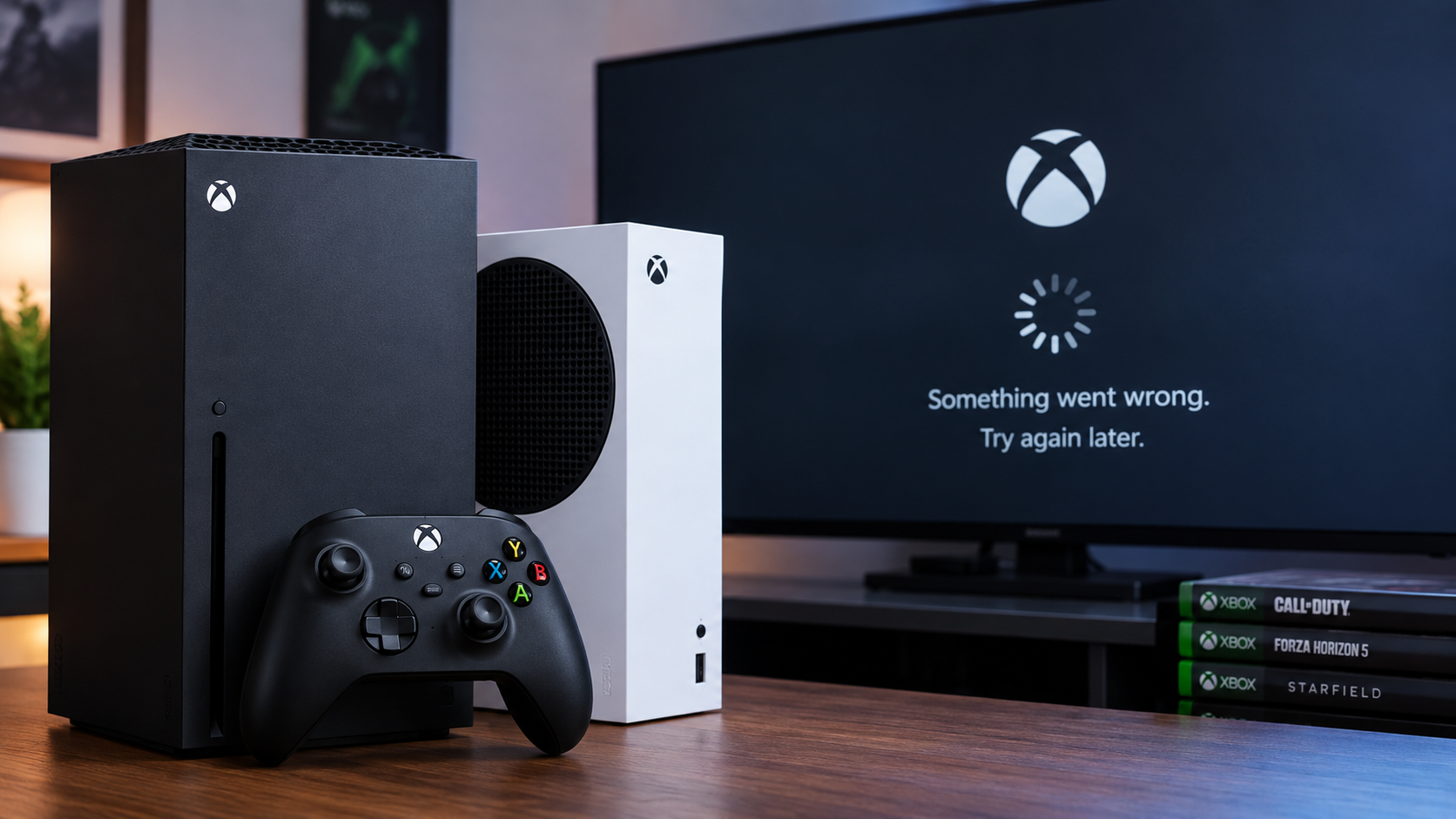
A frozen game does not necessarily mean the console has failed. Quick Resume can bring back a stalled session, while a crash that repeats after a fresh launch needs a different check.
Press the controller’s Xbox button once and check what still responds:
| What happens | What to check |
|---|---|
| The guide opens, but the game is frozen. | Quit the game; check Quick Resume if crashes follow resuming. |
| The guide, Home, or Settings also freezes. | Restart the console, then check for system updates. |
| Several games or menus freeze with USB storage attached. | Compare the console with that drive disconnected. |
| Only one game keeps crashing after fresh launches. | Check its updates and known issues before reinstalling. |
A console that switches itself off or shows a ventilation warning needs a power or cooling check instead; see Xbox shutdown troubleshooting, matching the advice to your model.
For online-only sign-in or loading failures, check Xbox Status and the publisher’s notices. A service outage is not a reason to reset the console.
1. Quit the Game and Check Quick Resume
A game that freezes after returning from another title or an overnight break may be restoring a session that no longer works. Quitting starts it fresh rather than resuming that session.
Save first if possible. Quitting loses progress since the last save.
- Press the Xbox button, highlight the game in the guide, press Menu, and select Quit. No Quit option means it is not running.
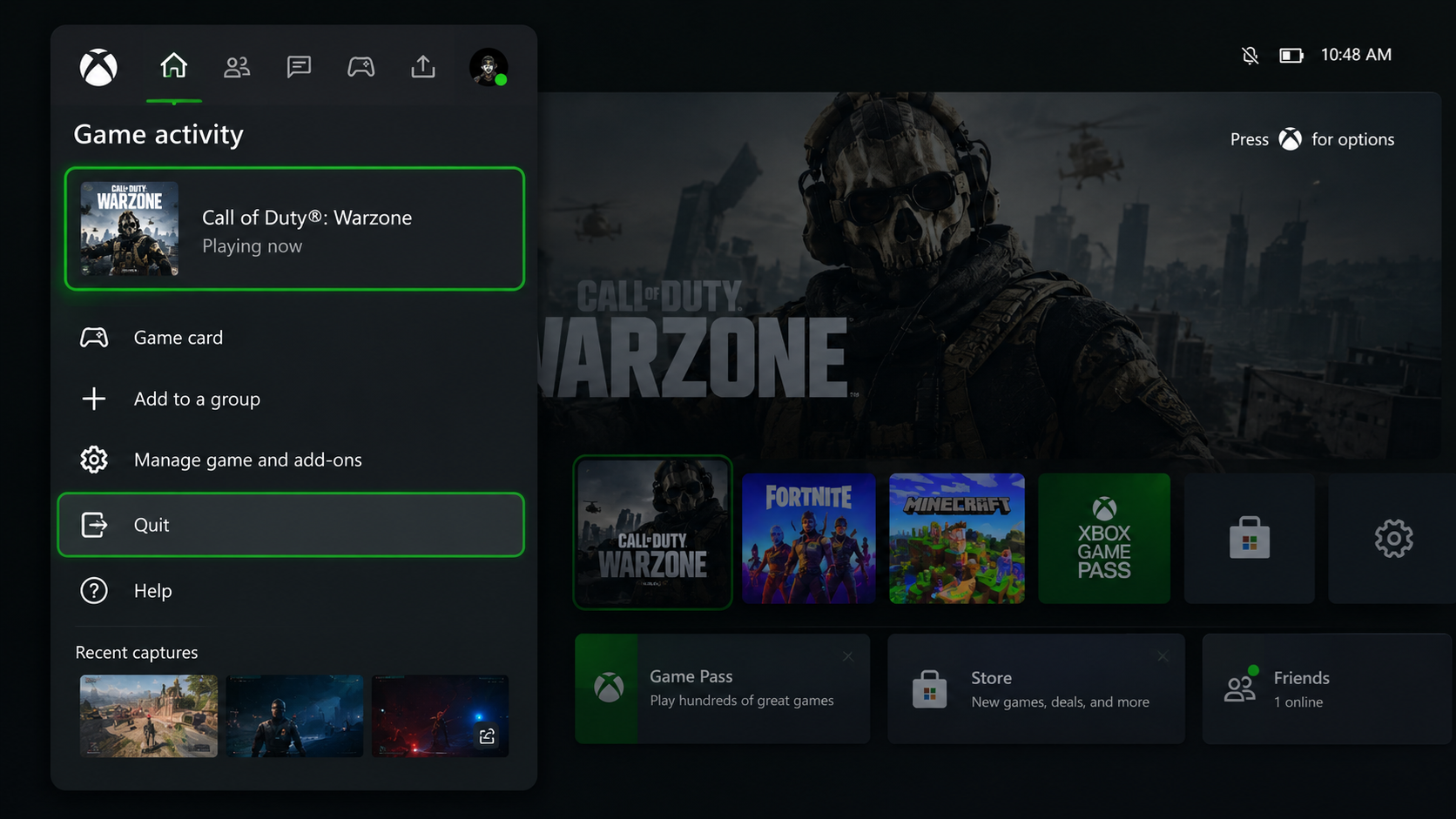
Save first if possible, quitting discards unsaved progress. - Launch the game again and repeat the activity that froze.
- If fresh launches work but Quick Resume repeatedly brings back the problem, highlight the game’s tile and press Menu > Manage game and add-ons > Quick Resume settings.
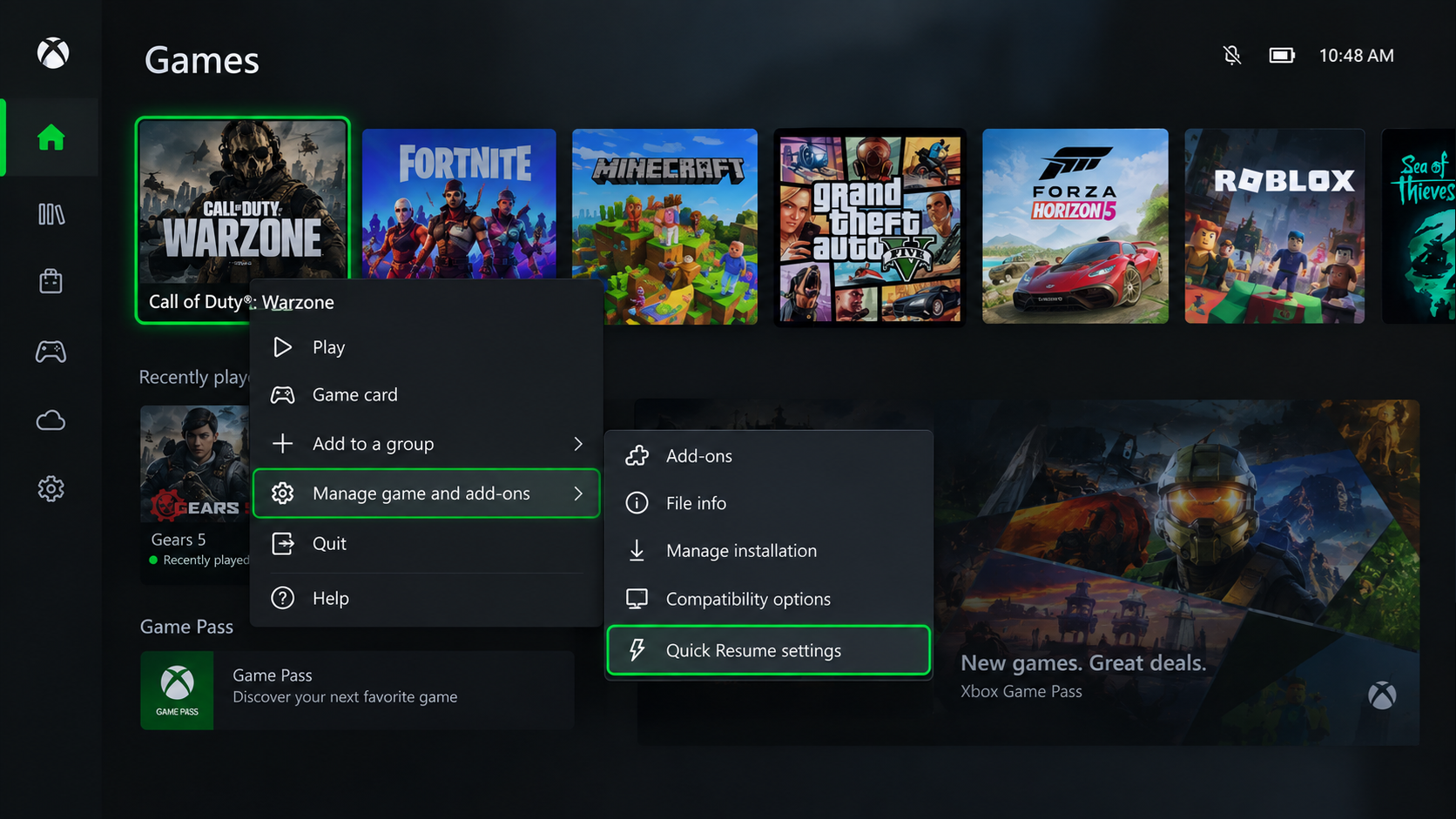
The per-game setting arrived with the April 2026 console update - Check Disable Quick Resume for that game. Xbox documents this per-game Quick Resume control. Follow the setting’s meaning rather than copying the illustration’s Off position: you want Quick Resume disabled.
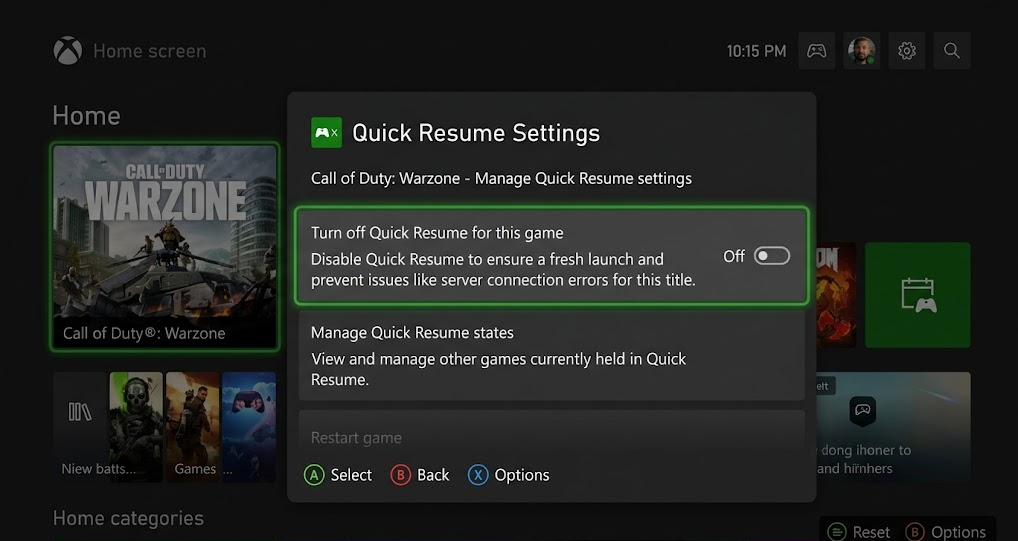
Turn Quick Resume off for the affected title, then compare another play session
If the control is missing, install an offered console update. On an older interface, removing the current Quick Resume session discards that session only; it does not permanently disable the feature.
Leave it disabled if normal launches stay reliable. Crashes during a fresh session need more than a resume-setting change.
2. Restart the Console and Install System Updates
When the guide or dashboard is frozen too, restarting reloads the running system software. It can recover a temporary hang without uninstalling games.
- If the controller’s power menu responds, hold its Xbox button and choose Restart console > Restart. A successful restart makes the unplugging steps unnecessary.
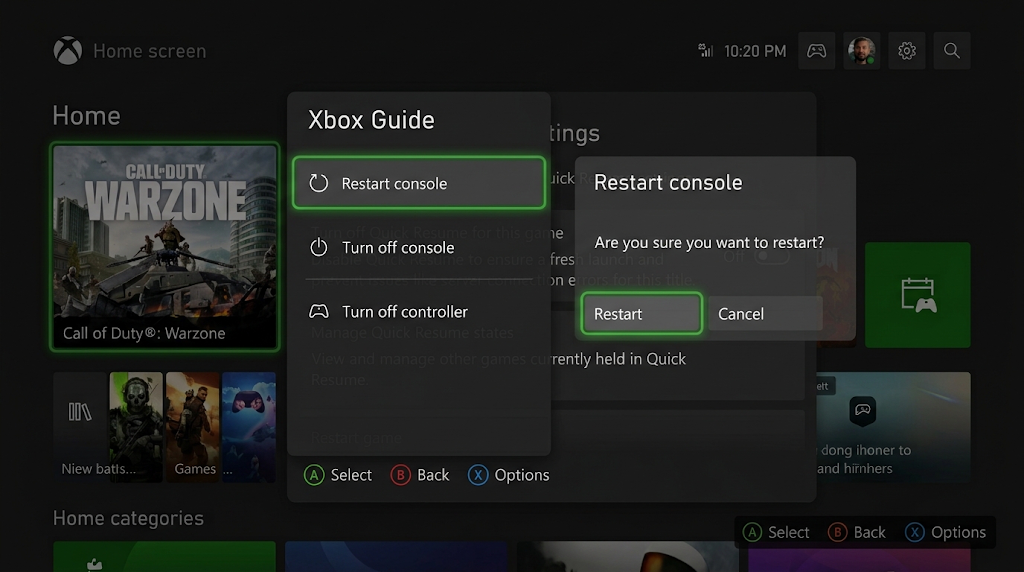
Choose Restart console when the power menu still responds. - If the console remains unresponsive or restarting did not help, hold the Xbox-logo power button on the console itself for at least 10 seconds, until it shuts down. The photo shows an older Xbox; use the power button, not Pair or Eject.
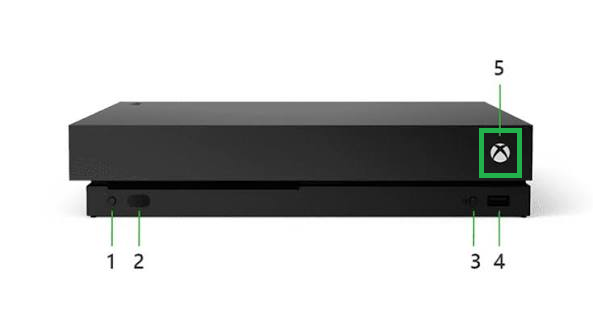
Hold the console’s power button for at least 10 seconds, until it shuts down. - Unplug the power cord, wait at least 10 seconds, reconnect it, and turn the console on. This follows Xbox’s power-cycle instructions.
- Open Profile & system > Settings > System > Updates. Install Console update available if offered. The image below shows a controller update, not this console-update screen.
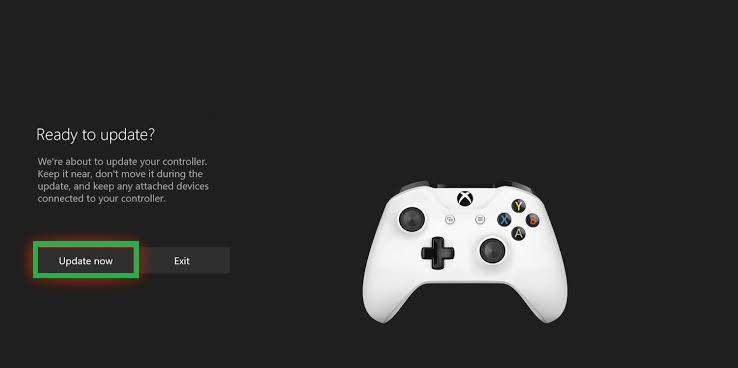
Install an offered update and let it finish before testing again. - After updating, launch the affected game fresh. Compare another installed game and check Home and Settings.
Note which games freeze if it happens again. Repeated forced shutdowns may restore access temporarily, but they do not resolve the recurring fault.
3. Test Without a USB Game Drive
A USB storage problem can affect menus as well as games. Disconnecting the drive for one comparison checks whether the freezes depend on it. This does not apply to the rear Storage Expansion Card.
- Finish downloads and transfers, save and quit, then hold the console’s power button for 10 seconds until it shuts down before disconnecting the USB drive. Do not format it. The photo shows a connected drive, not safe, powered-off removal.
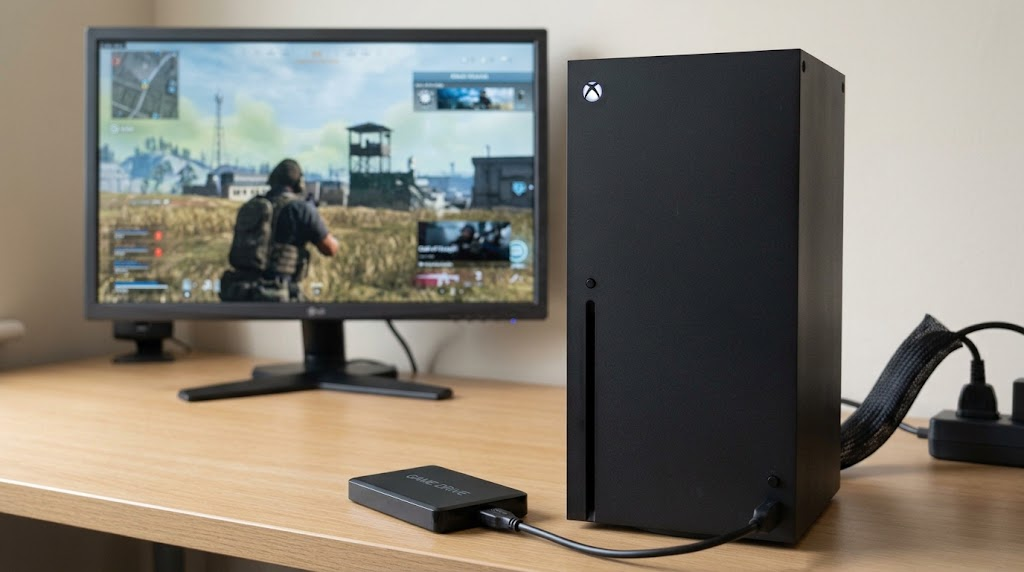
Wait for downloads and transfers to finish, then shut down before disconnecting storage. - Start the Xbox and test Home, Settings, and a game installed on internal storage. Games stored only on the disconnected drive will be unavailable.
- If the console stays stable, shut down again, reconnect the drive, and repeat the comparison. Wait for the storage-ready notification before opening its games.
Freezes that return only with the drive connected justify leaving it disconnected and asking its manufacturer about the drive, cable, or connection. This comparison alone does not prove the drive is defective.
If unplugging makes no difference, the test has not identified USB storage as the cause.
4. Update or Reinstall the Affected Game
One crashing title, with other games and menus working normally, deserves attention before a console reset. A patch can fix a game bug; reinstalling replaces damaged installation files.
- Open My games & apps > See all > Manage > Updates. Install the game’s update and retest. Check the publisher’s known issues before a large download; reinstalling repeatedly will not fix an acknowledged bug.
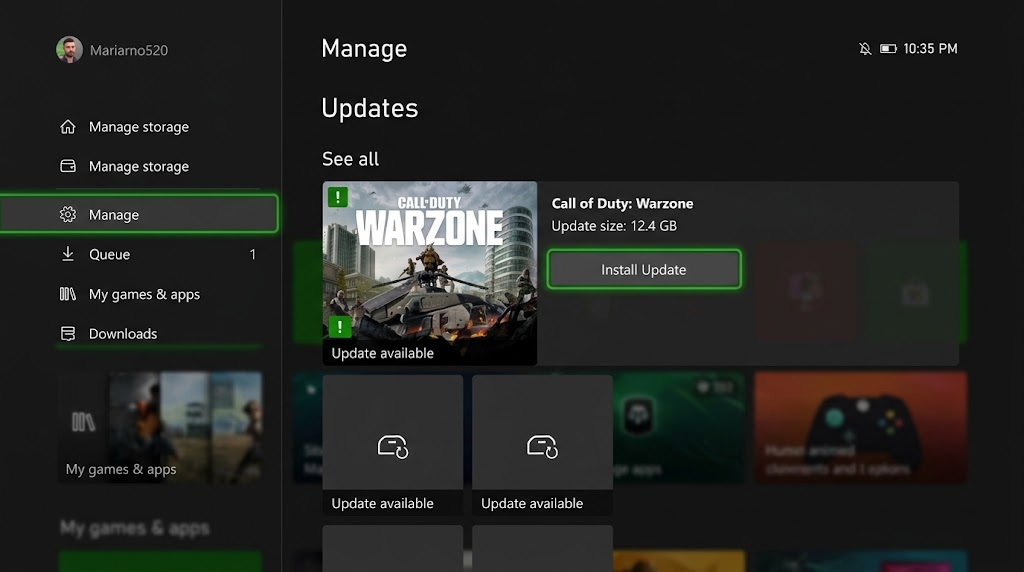
Retest after an available patch before downloading the whole game again. - Before uninstalling, save and quit if possible, connect online, and allow saved-game syncing to finish. Resolve syncing errors first. Confirm reinstall access through the owning account, an eligible subscription, or your disc on a disc-capable console.
- Open My games & apps > See all > Games, highlight the title, and press Menu > Uninstall > Uninstall all. Remove the installation, not Saved data. Do not choose Delete everywhere.
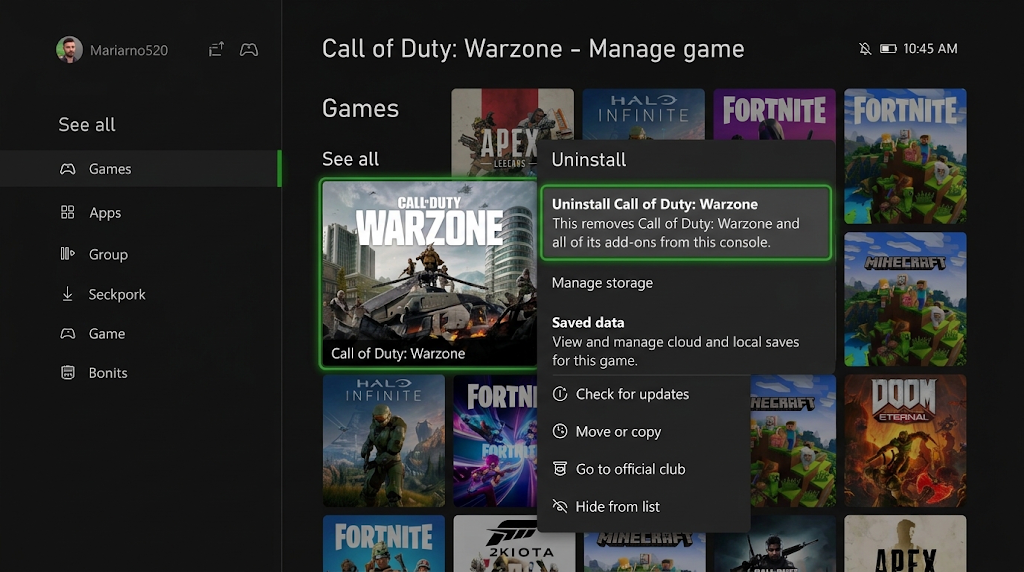
Uninstall the game files, do not choose a saved-data deletion option. - Restart. For an owned digital game, open My games & apps > See all > Full library > Owned games, select it, and choose Install all. Use the subscription library or disc where appropriate.
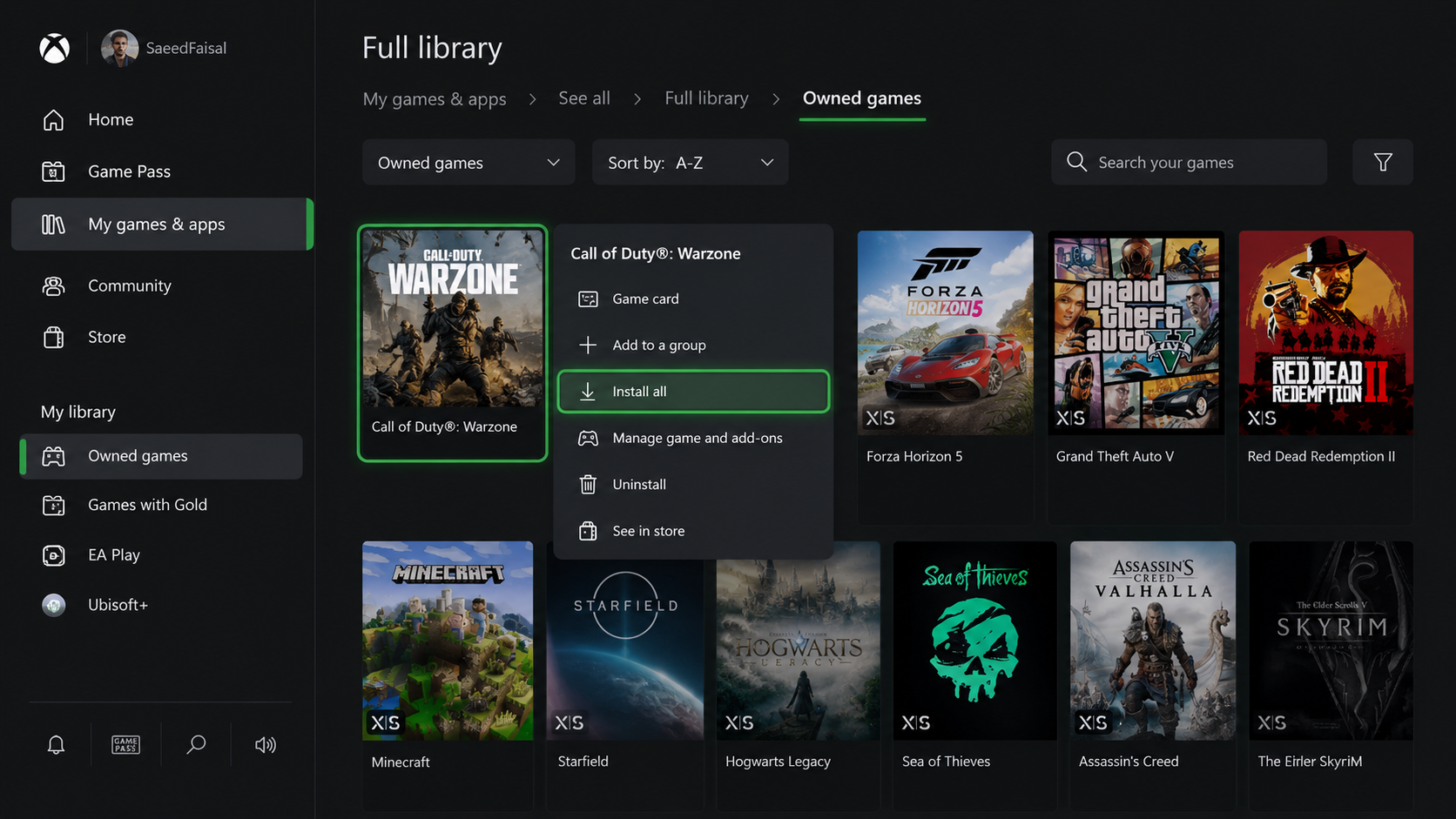
Reinstall the game and required add-ons, then wait for the full installation to finish. - Wait for the full game, add-ons, and updates to finish, not just Ready to start. Allow saved-data syncing to complete, then test the same activity.
Optionally, compare another existing profile already allowed to play the game through Xbox > Profile & system > Add or switch.
If it works there, follow Xbox’s profile and saved-game troubleshooting before resetting. Do not delete saves merely to test.
When only that game still fails, report its version, affected level, and error to the publisher rather than resetting an otherwise working console.
5. Reset While Keeping Installed Games
Persistent freezes across unrelated games or system menus can justify a system reset after the simpler checks. Reset and keep my games & apps rebuilds the operating system without redownloading installed titles. It does not repair faulty hardware.
This reset removes accounts, settings, and Home Xbox associations. Unsynced saves can be lost.
Saved games sync automatically while connected to the Xbox network. Let any syncing message finish; postpone the reset for offline-only progress or syncing errors.
Back up local captures separately and confirm your Microsoft sign-in and verification access. If the console is too unstable to prepare, contact Xbox Support first.
- Open Xbox > Profile & system > Settings > System > Console info.
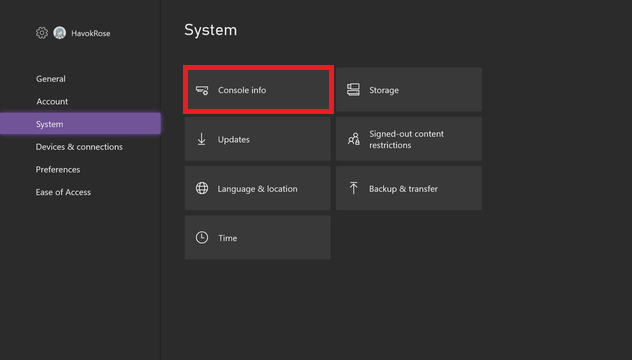
Check cloud saves and account access before reaching the reset confirmation. - Select Reset console > Reset and keep my games & apps, as described in Xbox’s reset instructions. Do not follow the image’s arrow toward Reset and remove everything. Choose Cancel if unprepared.
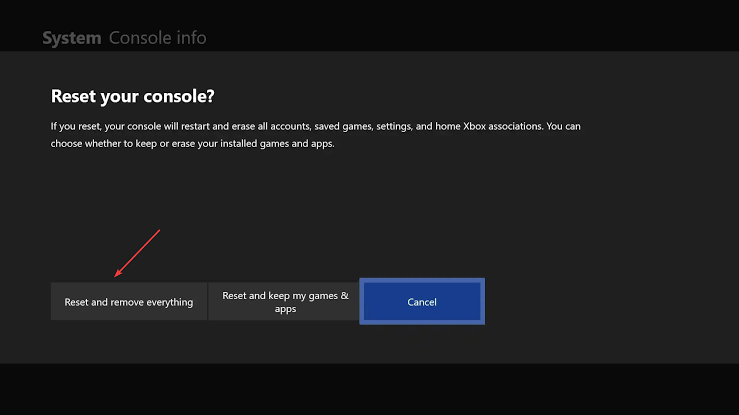
This still resets accounts and settings, data that has not synced can be lost - Keep power connected until the reset finishes. Complete setup with the same Microsoft account, install offered updates, and allow saves to sync when opening games.
- Test two unrelated games and Home before restoring optional preferences.
If widespread freezes continue, contact Xbox Support rather than resetting again. Include the console model, OS version, affected games, and whether disconnecting USB storage changed the behavior.


