How to Fix Old iPhone Not Detected During Quick Start Transfer?
Quick Start on your new iPhone stays on Looking for Nearby Devices, even with the old iPhone beside it. Without the Set Up New iPhone card on the old phone, setup cannot continue automatically.
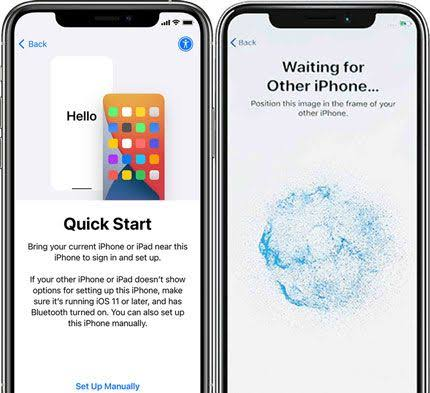
The animation pictured is a later setup step, not the initial nearby-device search.
Nearby-device search is not a transfer-progress screen. The old iPhone needs an active Wi-Fi connection and Bluetooth, and the new one must still be in initial setup.
Keep the old iPhone intact until important data and cellular service work on the new one. Have the old phone’s passcode and your Apple Account password ready.
1. Prepare Both iPhones for Quick Start
Proximity alone does not start setup. Apple’s Quick Start instructions require the old phone to be unlocked, with Wi-Fi and Bluetooth ready.
- On the old iPhone, open Settings > General > About. Automatic setup requires iOS 11 or later.
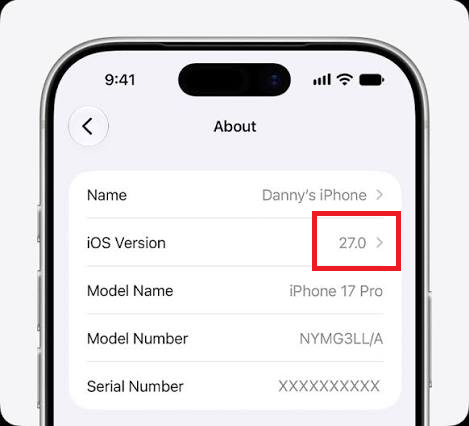
Show only the model name and public iOS version. Hide the device name, serial number, IMEI, EID, carrier details, and network addresses. - On the new iPhone, continue from Hello, choose the language and region, and stop at Quick Start.
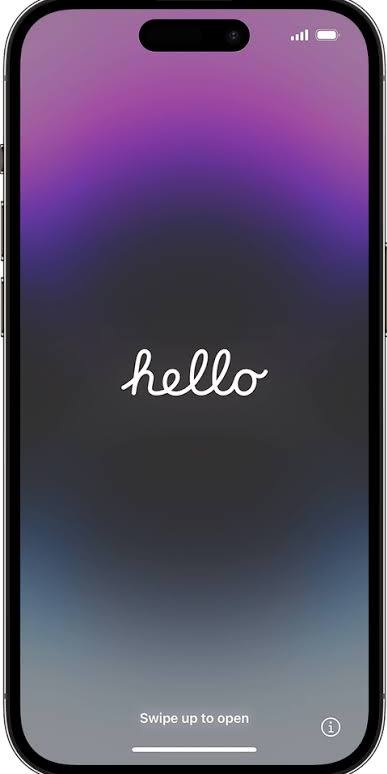
Use a new or safely erased test iPhone with no needed local data. Do not erase a working phone merely to stage this image. - Unlock the old iPhone and leave it on the Home Screen beside the new one.
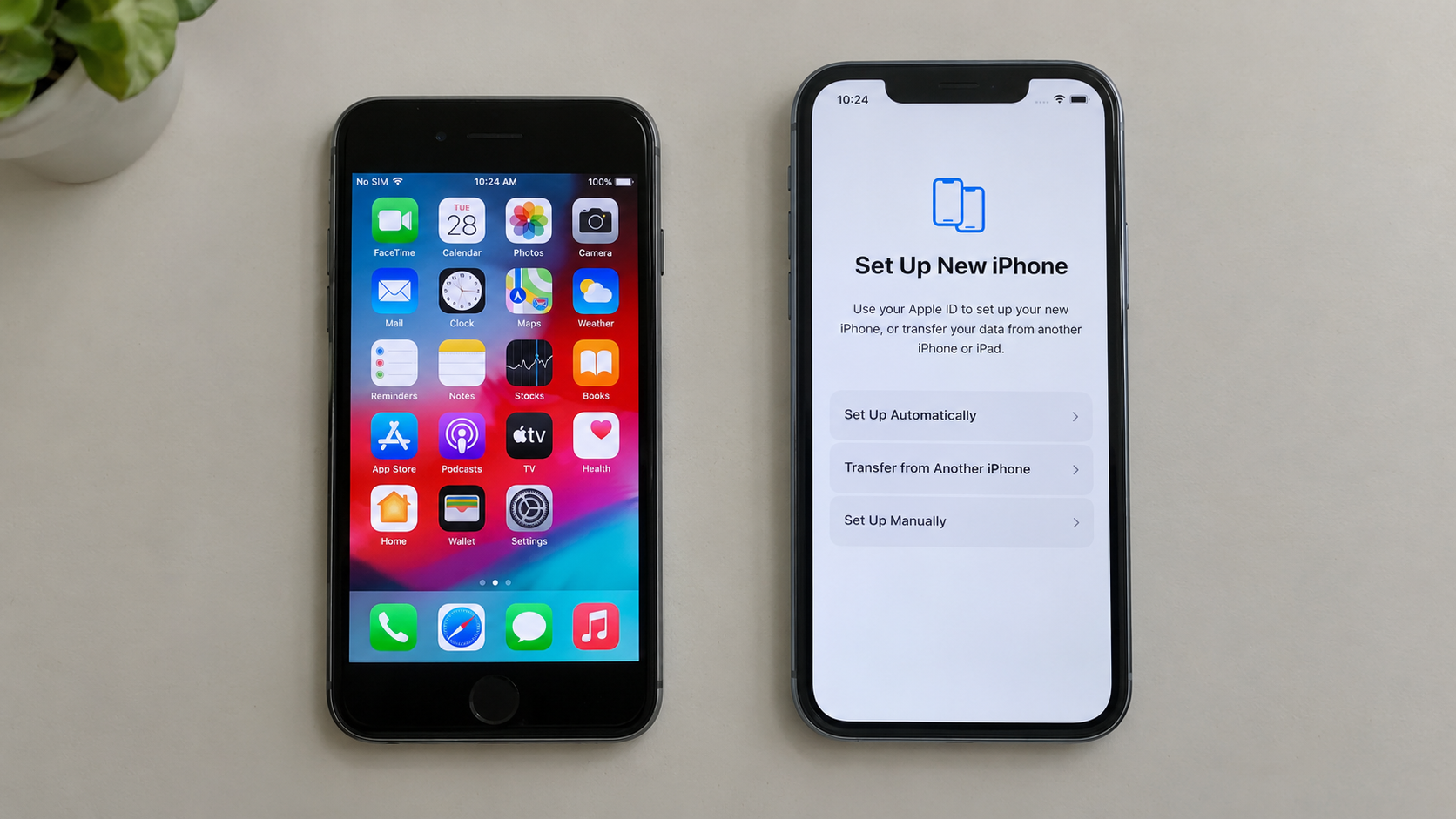
Keep the old iPhone unlocked on its Home Screen. Hide notifications, personal widgets, app badges, photos, and account information. - On the old phone, open Settings > Wi-Fi and join a working network. Look for a connection checkmark, not just a green switch.
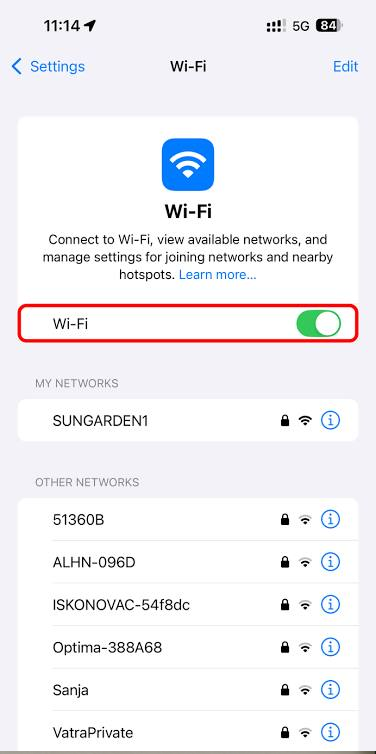
Show that Wi-Fi is on and connected. Blur the network name, nearby networks, device address, passwords, and any private hotspot names. - Open Settings > Bluetooth and turn it on. You do not need to pair the two iPhones manually.
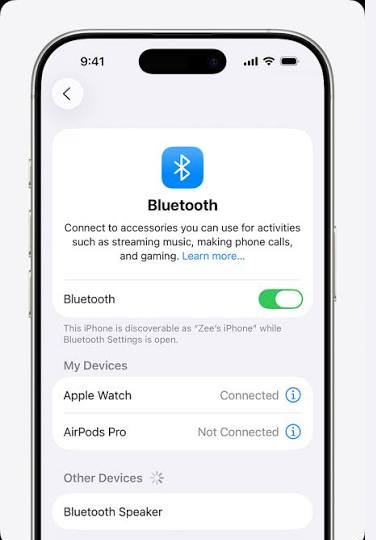
Show the Bluetooth switch enabled. Hide device names that identify the owner, vehicle, home, workplace, or accessories. - Connect both phones to power and keep them next to each other. Watch for Set Up New iPhone on the old phone.
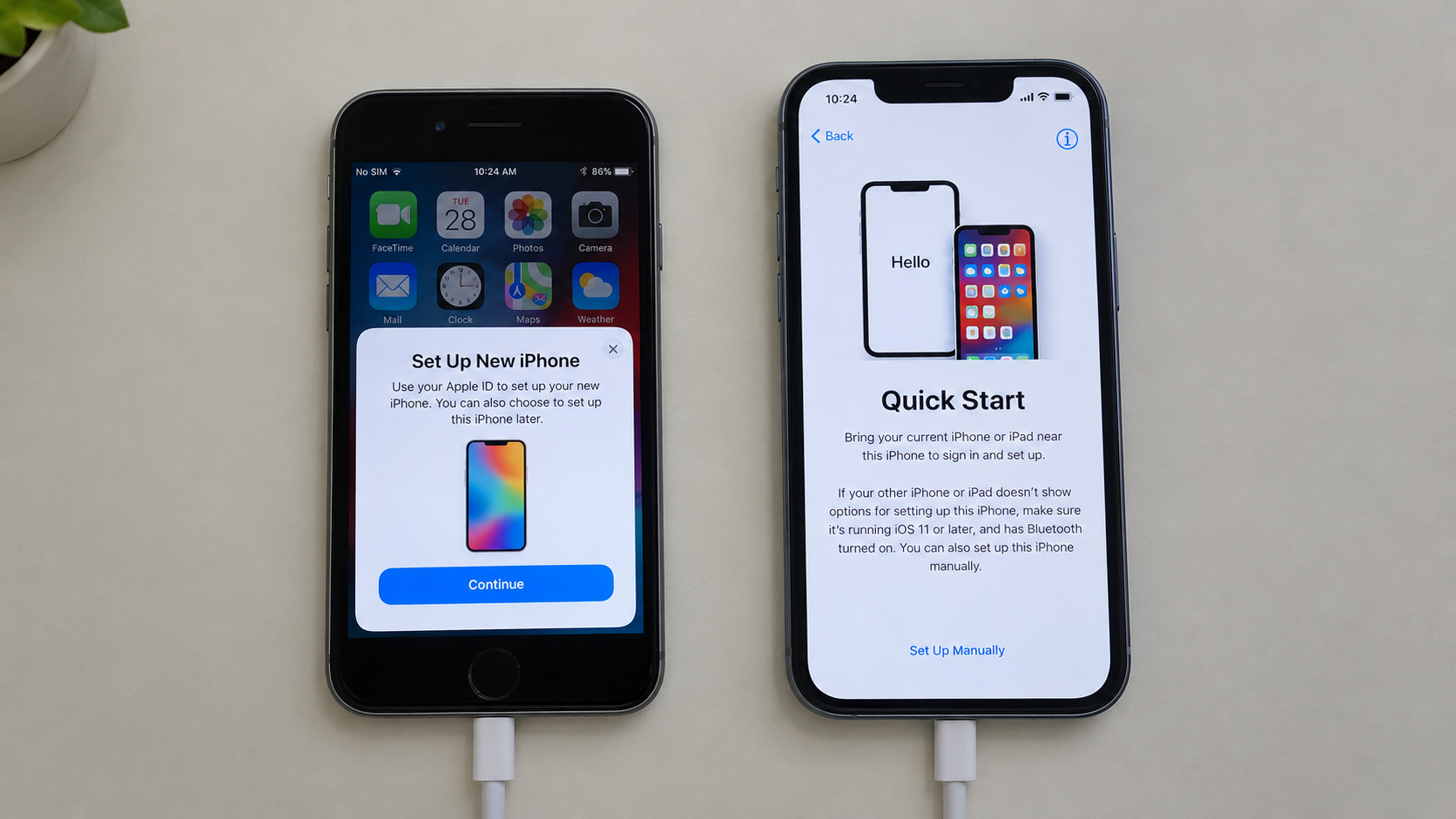
Use safe chargers and keep both phones together for the whole transfer. Do not show private notifications or device identifiers.
Tap Continue when the card appears. Keep both phones nearby and powered throughout transfer. A new phone already at its Home Screen must return to setup first; see Method 4.
Work or school phone: Quick Start migration is unavailable for a new device enrolled in Apple School Manager or Apple Business. Follow its administrator’s setup instructions without removing management profiles.
2. Restart Both iPhones
Apple recommends restarting both phones when the prompt disappears. Wait for any active update or backup to finish first.
- On the old phone, open Settings > General > Shut Down. Drag the slider and wait about 30 seconds.
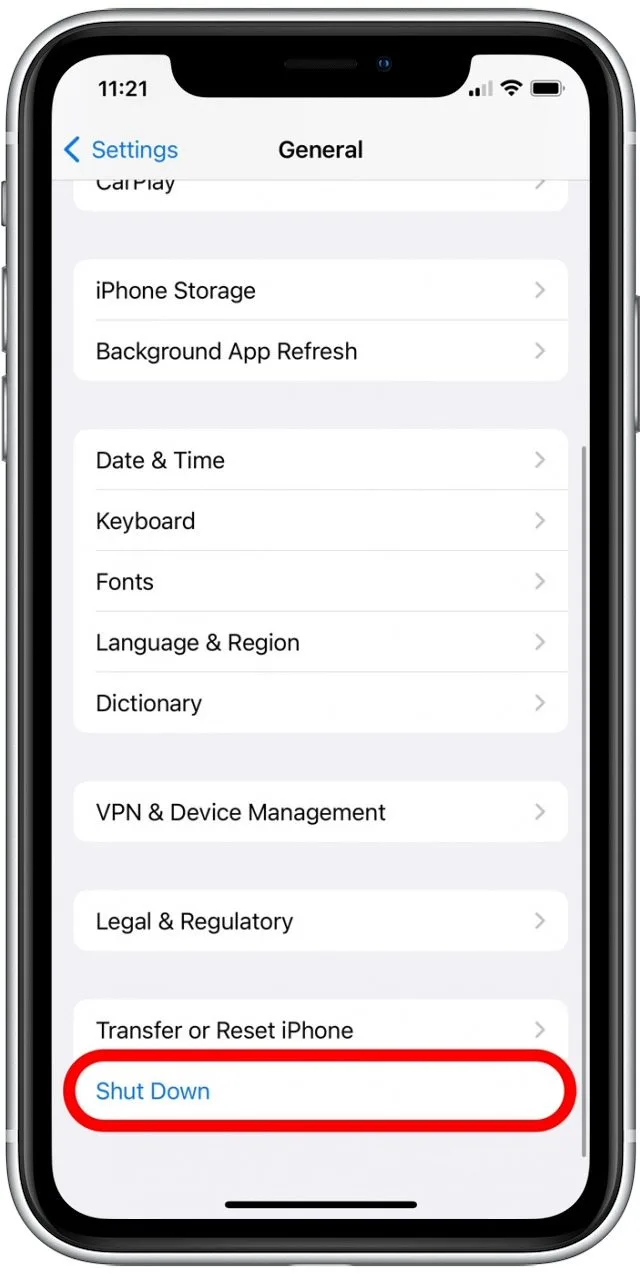
Save open work before shutting down. Use a normal restart on a responsive phone and do not interrupt an update or backup. - Shut down the new phone using its buttons: hold Side + either Volume on Face ID models, or Side/Top on Home-button models, until the slider appears.
- After shutdown, hold each phone’s Side or Top button until the Apple logo appears. Return the new phone to Quick Start.
- Unlock the old phone, confirm Wi-Fi and Bluetooth, and place it nearby. Check the account shown on the setup card before tapping Continue.
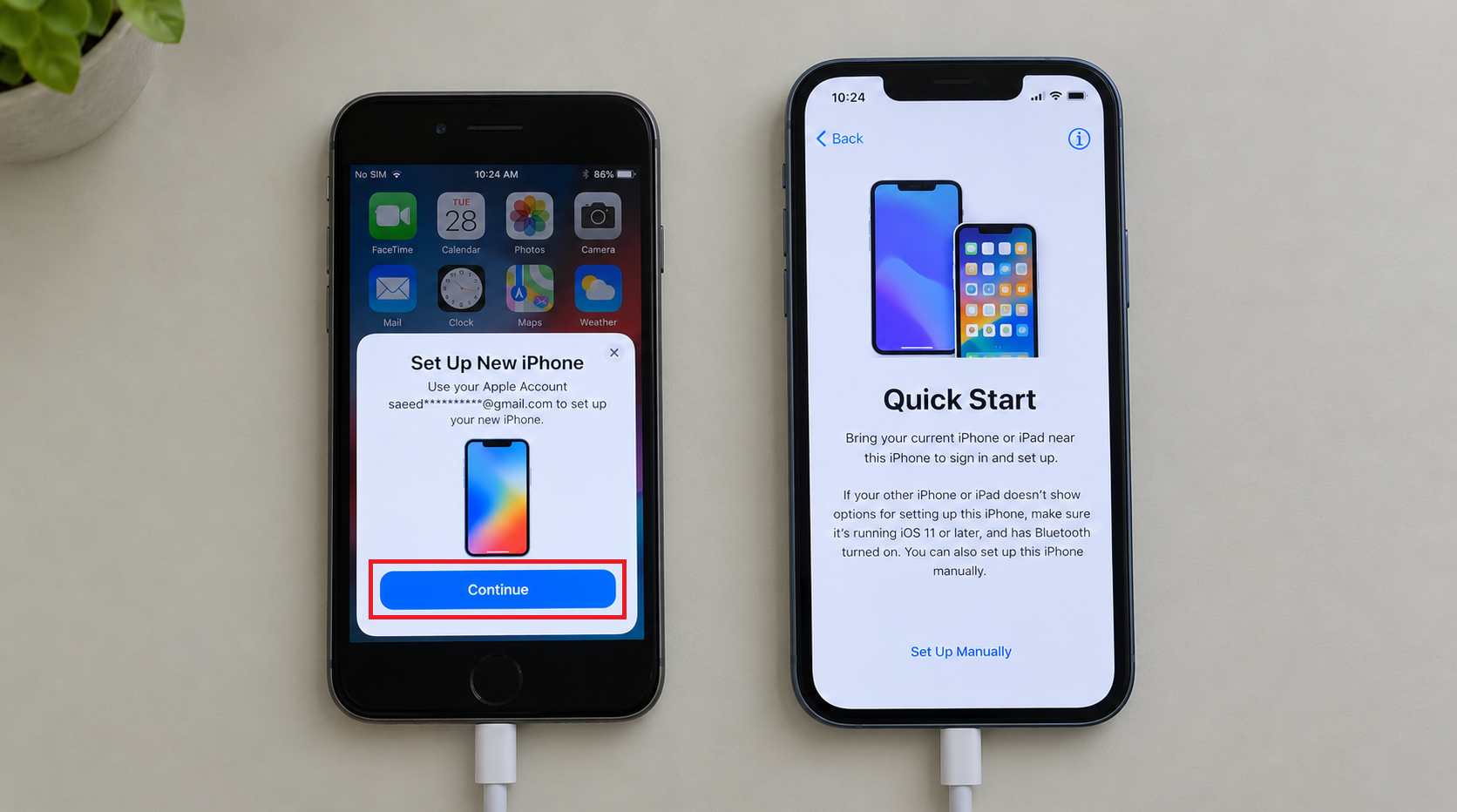
Show the restored prompt without exposing the Apple Account email, device names, verification codes, or setup animation code.
If the card remains absent, check the software below. For Setup Failed (-6753), use the code-specific checks instead.
3. Install Available iOS Updates
A new iPhone can ship with older software. Install each phone’s latest compatible public update; identical version numbers are not required. Back up the old phone first.
- On the old iPhone, open Settings > General > Software Update and install an available update while connected to Wi-Fi and power.
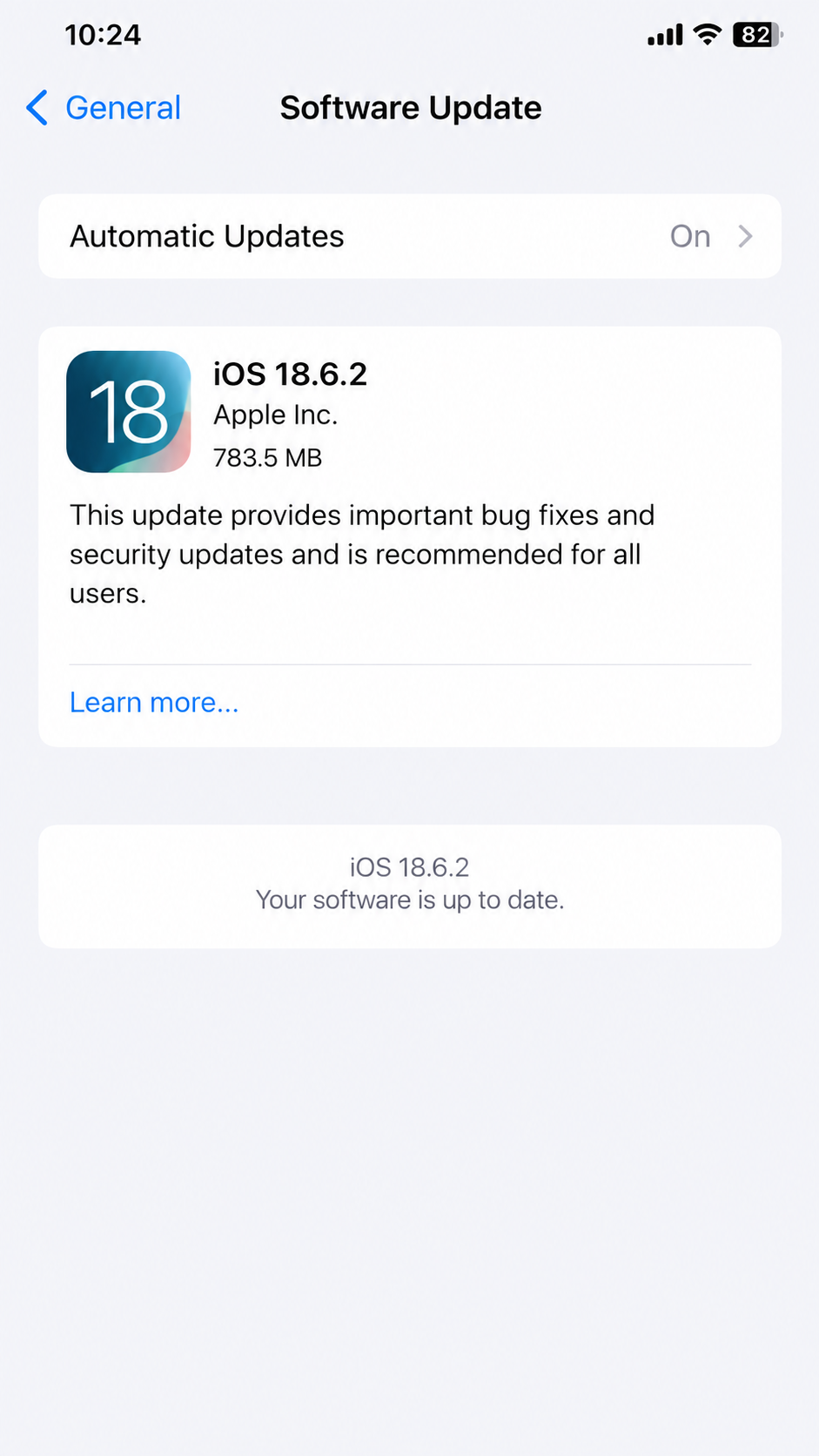
Show the stable public iOS update status. Hide Apple Account information, beta enrollment, device identifiers, and update tracking details. - On the new phone, accept an update offered during setup. Otherwise, you can optionally check for updates through temporary setup using Set Up Without Another Device.
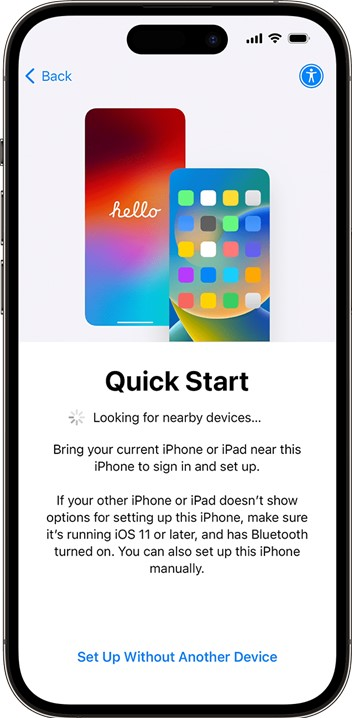
Use this route only when the new iPhone needs a software update before Quick Start can be retried. Do not enter real credentials in a staged image. - If taking that option, choose Don’t Transfer Apps & Data or its equivalent. Skip optional sign-in and personal setup, then open Settings > General > Software Update.
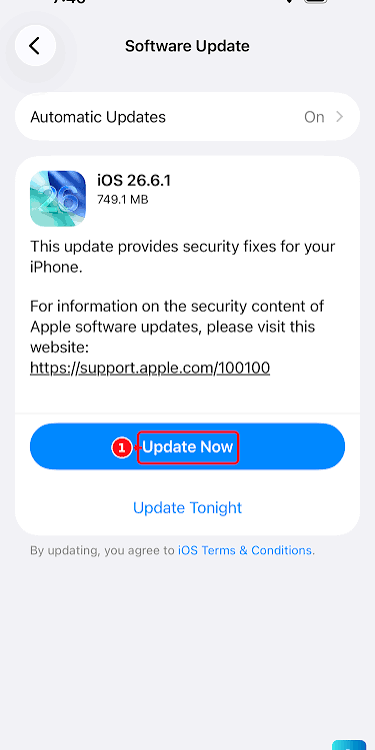
Show the stable public iOS update status. Hide Apple Account information, beta enrollment, device identifiers, and update tracking details.
Pictured versions are examples. Temporary setup requires erasing the new phone afterward to retry Quick Start. Alternatively, choose a cable or backup below.
4. Return Only the New iPhone to the Hello Screen
Erasing returns an already configured new iPhone to initial setup. Skip this section if it is still at Quick Start.
- Confirm you have the new phone’s passcode, any required Apple Account password, and access to verification codes. Let its update finish.
- Open Settings > General > Transfer or Reset iPhone > Erase All Content and Settings on the new phone only.
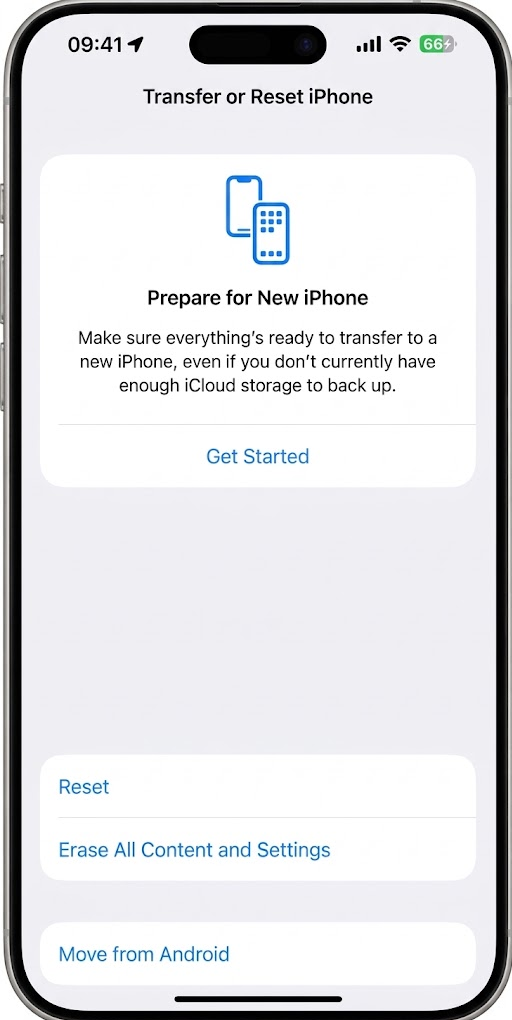
Capture the review screen before confirmation. Proceed only after protecting needed data and understanding Apple Account, Activation Lock, SIM, and eSIM effects. - Review Apple’s erase and eSIM choices. Keep the eSIM if you are keeping that cellular plan; deleting it can require carrier reactivation.
- Complete the erase after protecting needed data. At Hello, begin setup again with the unlocked old phone nearby.
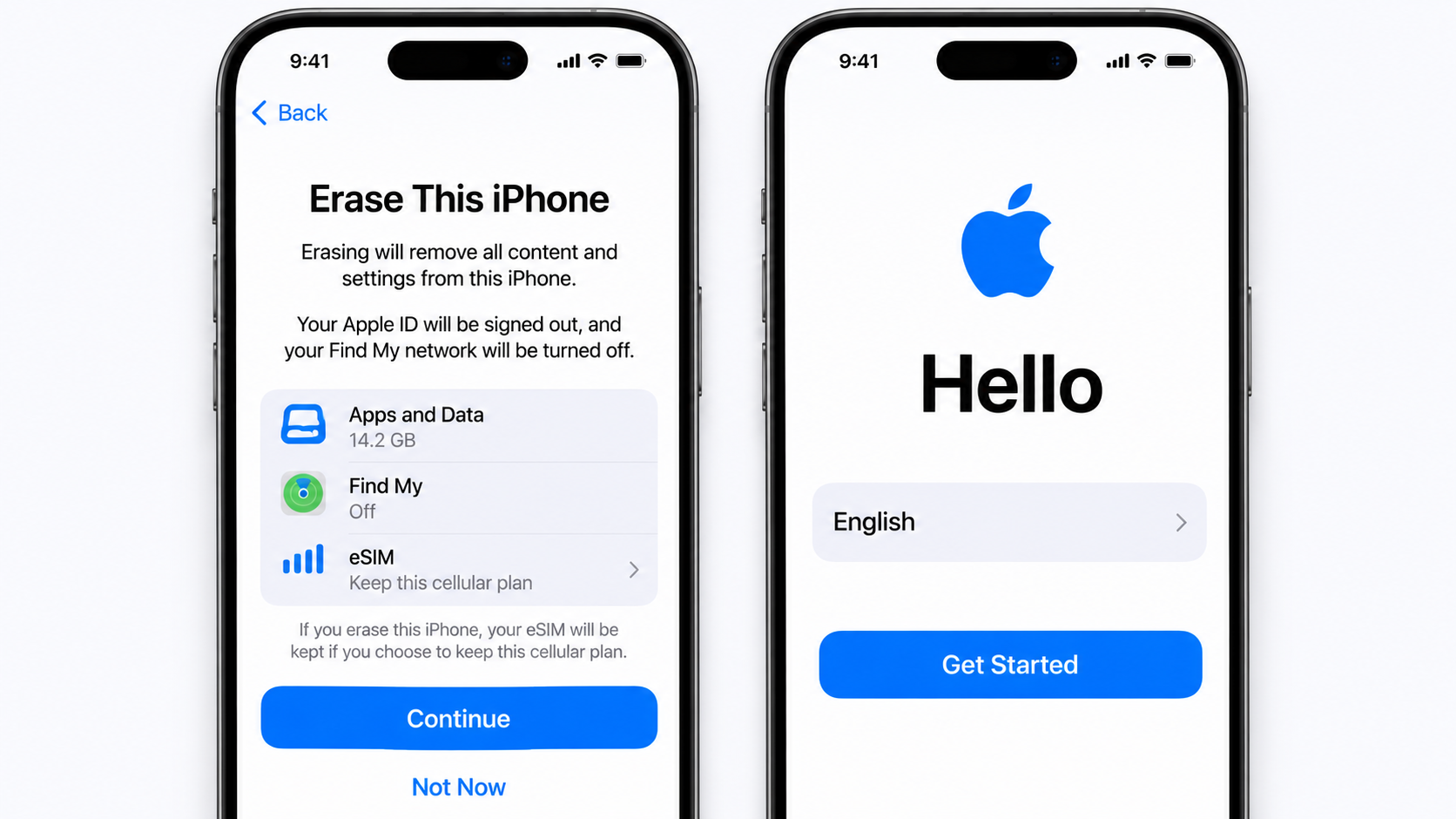
If the next attempt still cannot find the old phone, use a cable or backup rather than repeating erases.
5. Try Apple’s Wired Transfer Option
A cable offers another way to transfer data, but may not resolve every setup failure. Charge both phones first and use Apple’s supported connection:
Begin with the new phone at Hello or Quick Start, not its Home Screen.
| Old phone → new phone | Connection |
|---|---|
| USB-C → USB-C iPhone 15 or later | USB-C Charge Cable supporting data transfer. |
| Lightning → USB-C | USB-C to Lightning Cable. |
| Lightning → Lightning | Lightning to USB 3 Camera Adapter on the old phone, powered by a 12W-or-higher adapter; connect the new phone using a Lightning to USB Cable. |
- Connect the phones as shown in the table before starting another transfer.
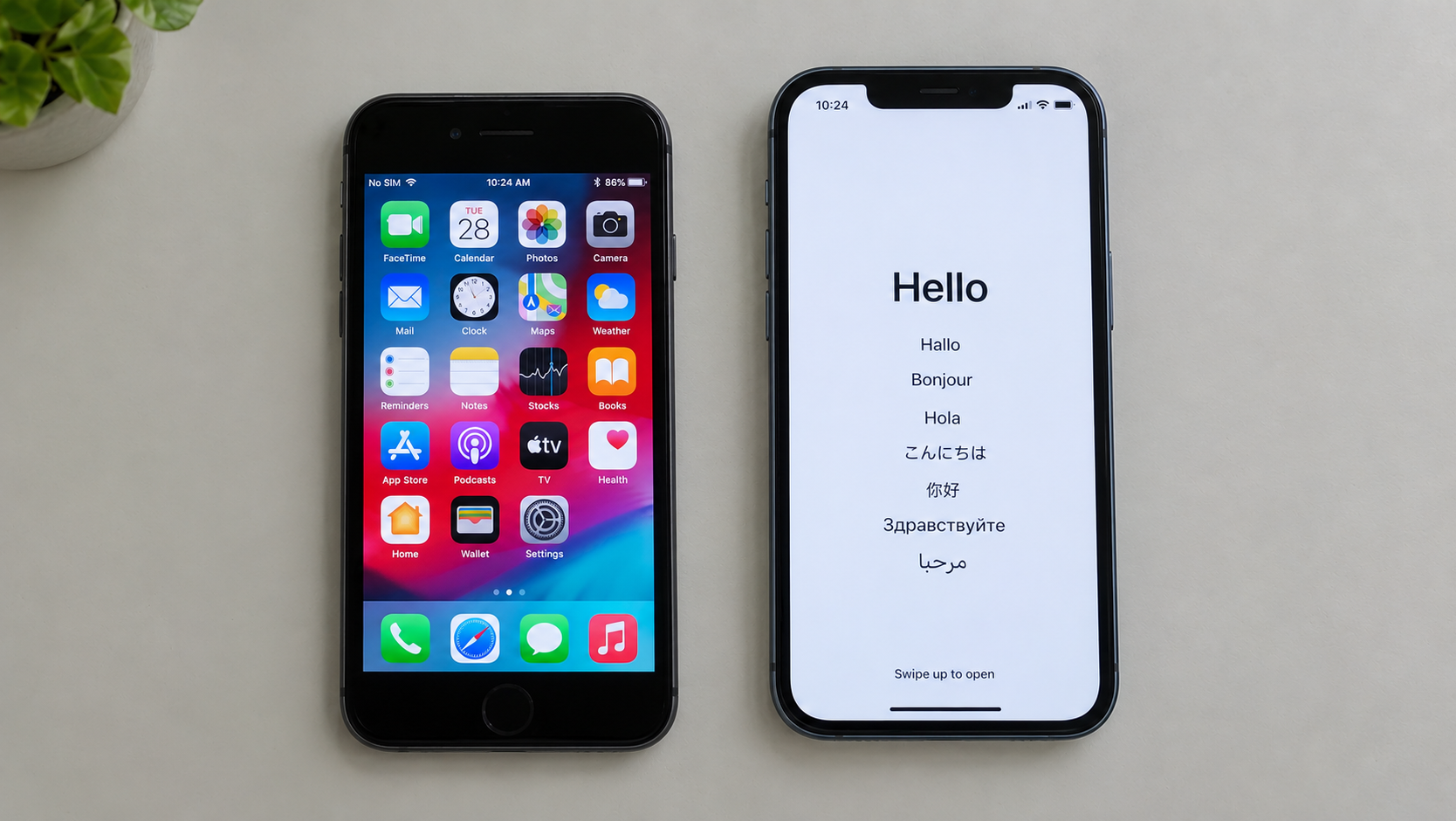
Show the updated new iPhone at Hello. Do not erase the old iPhone, and do not expose passcodes or the Quick Start pairing pattern. This photo shows the phones before connection, not the cable arrangement.
- Follow setup on the new phone and choose direct transfer when offered. It may still need Wi-Fi or cellular service for setup.
- Leave the transfer cable and any required adapter power connected until migration finishes. Do not disconnect the cable to attach separate chargers mid-transfer.
In the USB-C setups above, the cable occupies the charging ports. If transfer fails, restore a backup.
6. Restore a Backup Without Nearby-Device Discovery
An iCloud or computer backup avoids nearby-device discovery. Restore it during setup; a new phone already at its Home Screen needs the data-protection checks in Method 4 first.
- To create a transfer backup, open Settings > General > Transfer or Reset iPhone on the old phone. Under Prepare for New iPhone, tap Get Started, if available.
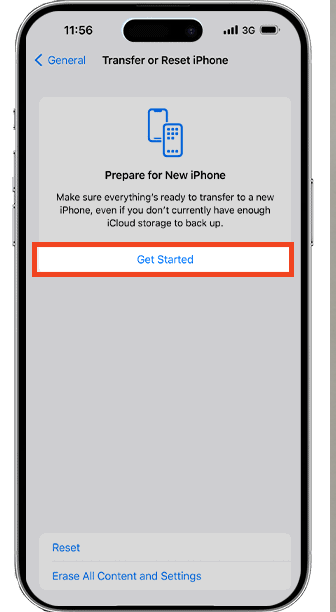
Show the Prepare for New iPhone control before starting the backup. Hide Apple Account details, storage contents, phone numbers, and device identifiers. - Follow the backup prompts and wait for completion. For a normal iCloud backup, use Settings > [your name] > iCloud > iCloud Backup > Back Up Now.
- On the new phone, choose Set Up Without Another Device, then Transfer Your Apps & Data > From iCloud Backup. Sign in and identify the old phone’s completed backup by date and size.
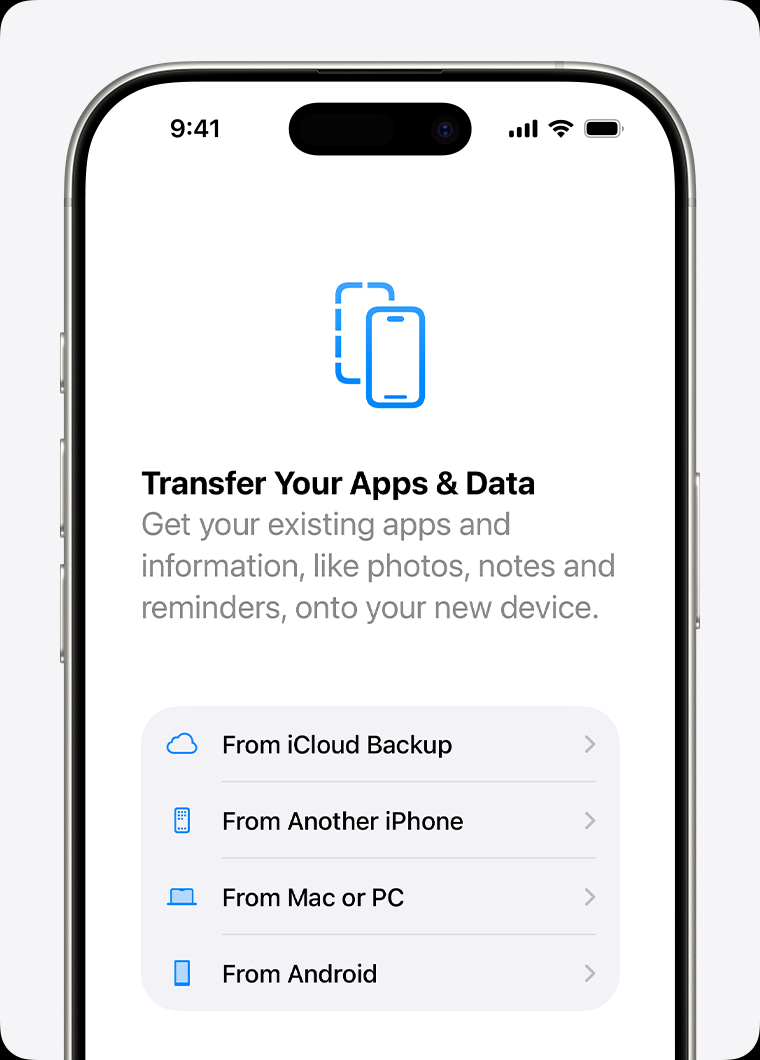
Capture the setup choice before sign-in. Never expose the Apple Account email, password, verification code, backup contents, or recovery contact information.
Eligible new-device buyers with insufficient space can use Apple’s temporary iCloud storage. The temporary backup normally must be restored within 21 days; follow Apple’s extension instructions if you need longer.
For an ordinary backup reporting insufficient space, check the backup size and iCloud storage. Keep your only usable backup until a replacement has completed.
Without iCloud, make an encrypted computer backup of the old phone using Finder on Mac or Apple Devices on Windows. Keep its encryption password, then follow Apple’s computer-backup restore steps on the new phone.
Keep the new phone on Wi-Fi and power while restoring and downloading content. Then check your important data and calls.
If setup fails, contact Apple Support with both models, iOS versions, and the exact screen or error. Leave the old phone intact.


