How to Fix Microphone Access Toggle Missing for iPhone Apps?
An iPhone app asks for microphone access, but the Settings page it opens has no Microphone switch. There is nothing to enable, even though the app cannot record a voice message or start a call.
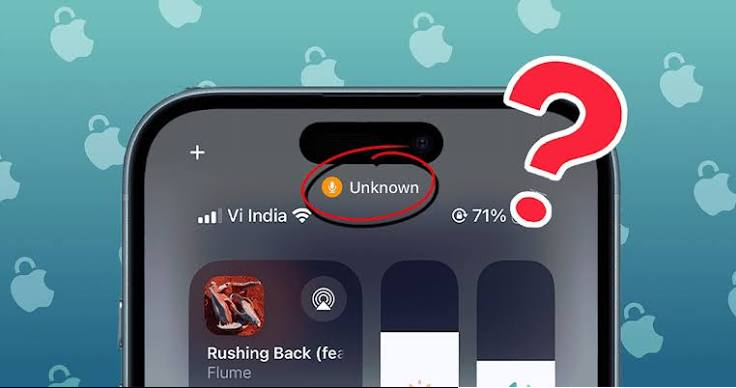
iOS lists an app under Microphone after it requests access. An app’s own warning is not the same as that permission request. If the request never appears, the list can remain empty; Screen Time can also prevent new requests.
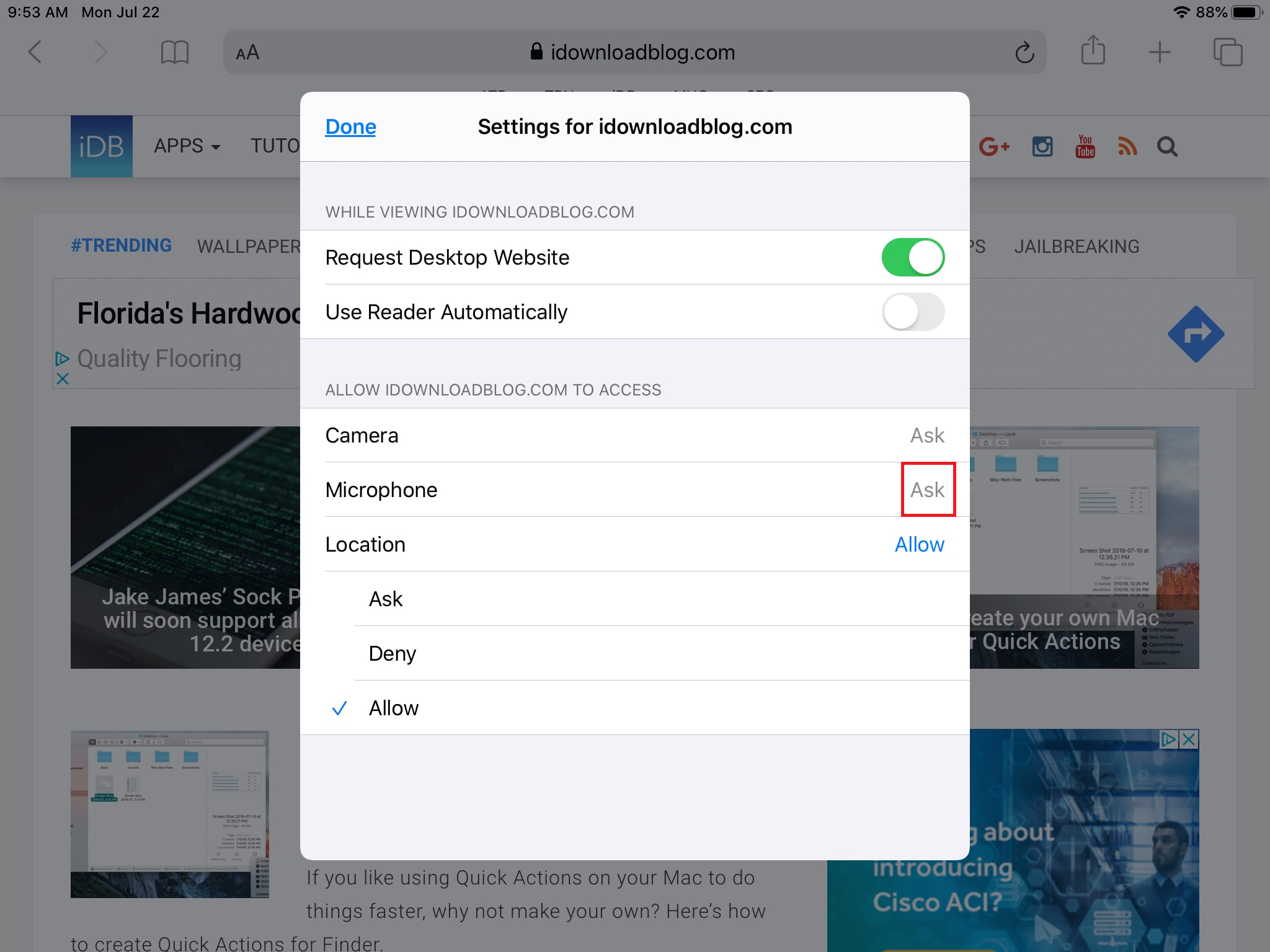
For Safari websites: Check Safari’s website controls, not an app named after the site. Open Settings > Apps > Safari > Microphone and choose Ask. Older iOS layouts put Safari directly in Settings.
For the current site, open Safari’s Page Menu > Website Settings > Microphone and select Ask. Reload the page, try its recording feature again, and approve access only for a site you trust.
1. Check the Central Microphone List
The app’s individual Settings page is not the only place to look. Apple’s central privacy list shows apps that have requested microphone access.
- Open Settings > Privacy & Security > Microphone and find the affected app.
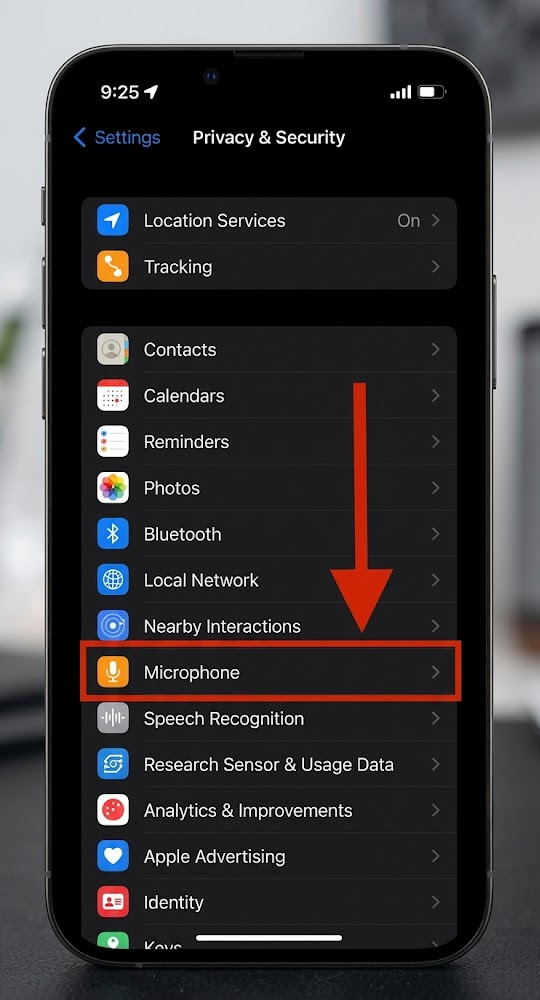
Show the relevant apps and their permission states. Hide unrelated app names where they reveal sensitive activity. - Turn on its switch if it is off. If it is already on, leave it enabled and test the same audio feature.
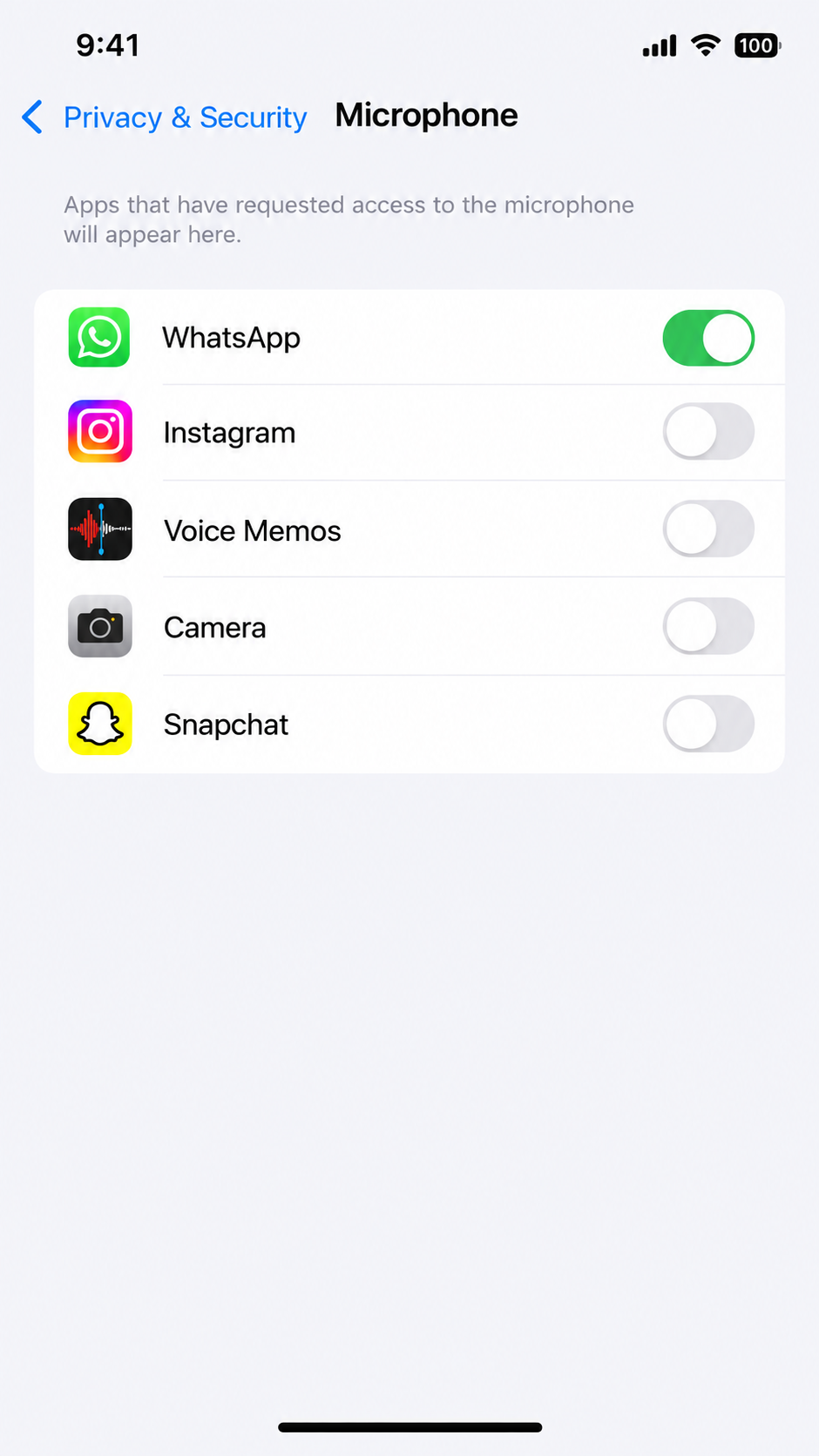
Turn on only the intended app. Do not enable microphone access for unrelated apps merely to create the image.
| What You Find | What to Do |
|---|---|
| The app is missing. | Open its recording feature so it can request access, as described below. You cannot manually add an app to this list. |
| The switch is gray or cannot be changed. | Have the owner or managing parent review Screen Time’s microphone restriction. |
| Access is on, but audio is silent. | Permission is already allowed. Test Voice Memos and Camera too; if those recordings also fail, follow the iPhone microphone checks rather than trying to restore a switch. |
2. Trigger the Permission Request Inside the App
Opening an app does not always make it ask for microphone access. The request may appear only when you use a feature that records audio.
- Reopen the app and open its voice-note, recording or video-capture feature. Use a private, unsent test where available, rather than calling someone just to check permission.
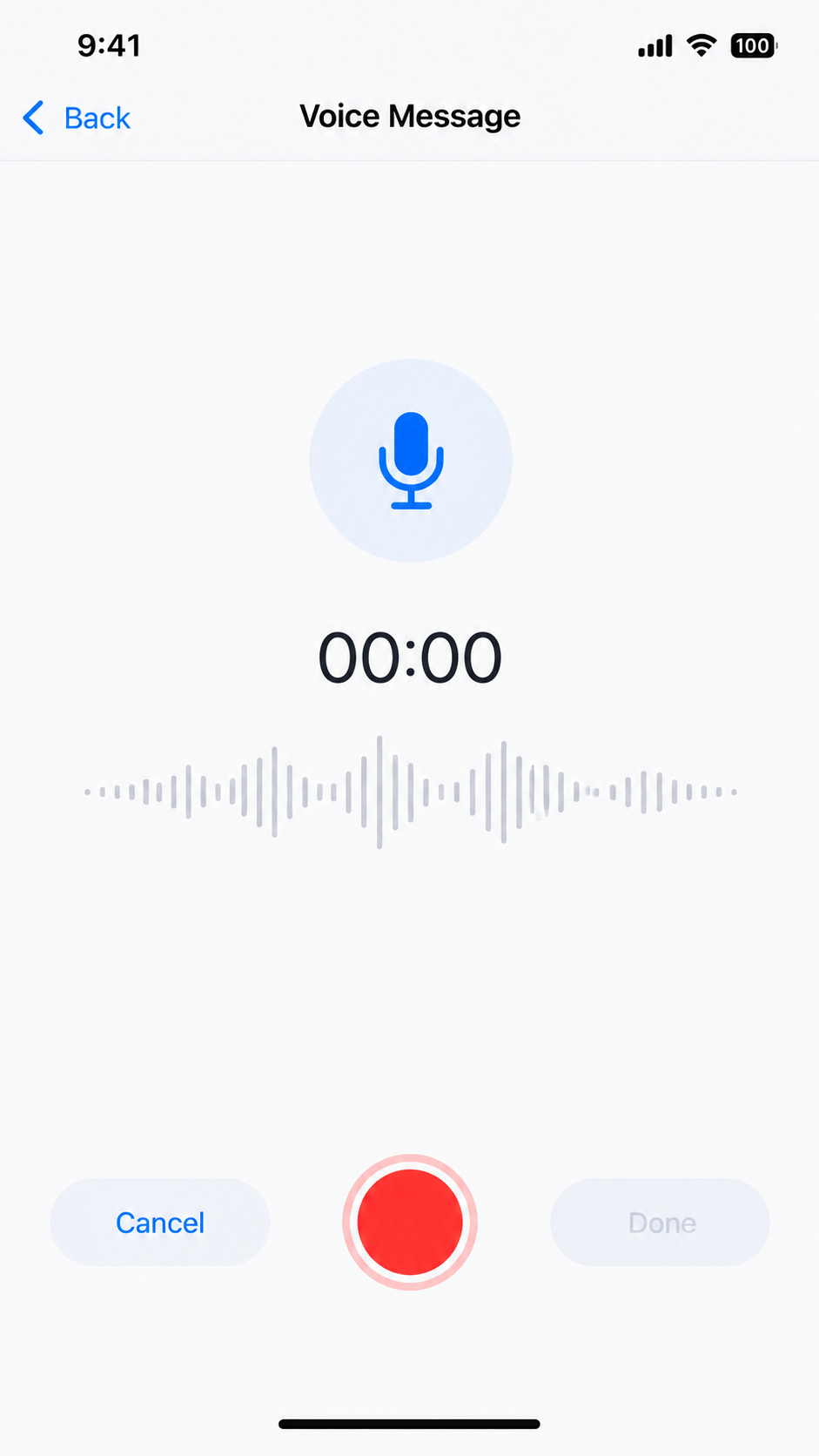
Use a private draft or disposable test inside the app. Do not call, publish, upload, or send a real recording for the screenshot. - Approve the iOS microphone prompt if you want that app to record audio. A custom message telling you to visit Settings is not this prompt.
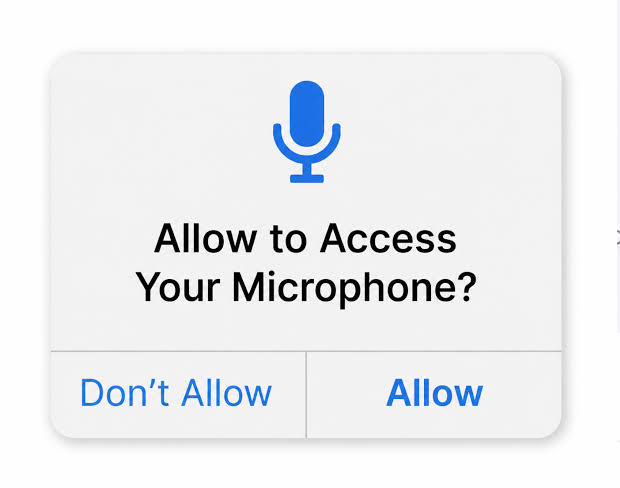
Capture the authentic prompt before choosing Allow. Hide the app account, conversation, contact, room, and notification details. - Check Settings > Privacy & Security > Microphone again. The app should now be listed; confirm that access is enabled and test recording.
If no prompt appears, check restrictions below. When other apps can request access normally but this one cannot, contact its developer; repeatedly opening Settings will not create a missing request.
3. Allow Microphone Permission Changes in Screen Time
Screen Time can prevent apps from requesting microphone access. Allowing changes lets the app ask; it does not grant every app permission. Only the owner or managing parent or guardian should change these controls.
- Open Settings > Screen Time > Content & Privacy Restrictions. If restrictions are off, leave them off and skip this check. Enter the passcode if required.
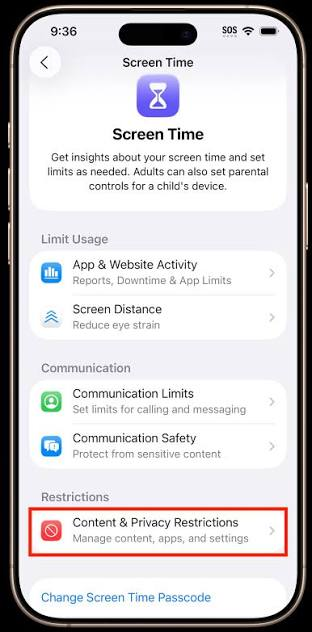
Show the restriction menu on an owner-consented device. Do not reveal a Screen Time passcode, child details, family members, or usage history. - Under Privacy or Privacy Restrictions, open Microphone and permit changes. The choice may be labeled Allow Changes or Allow.
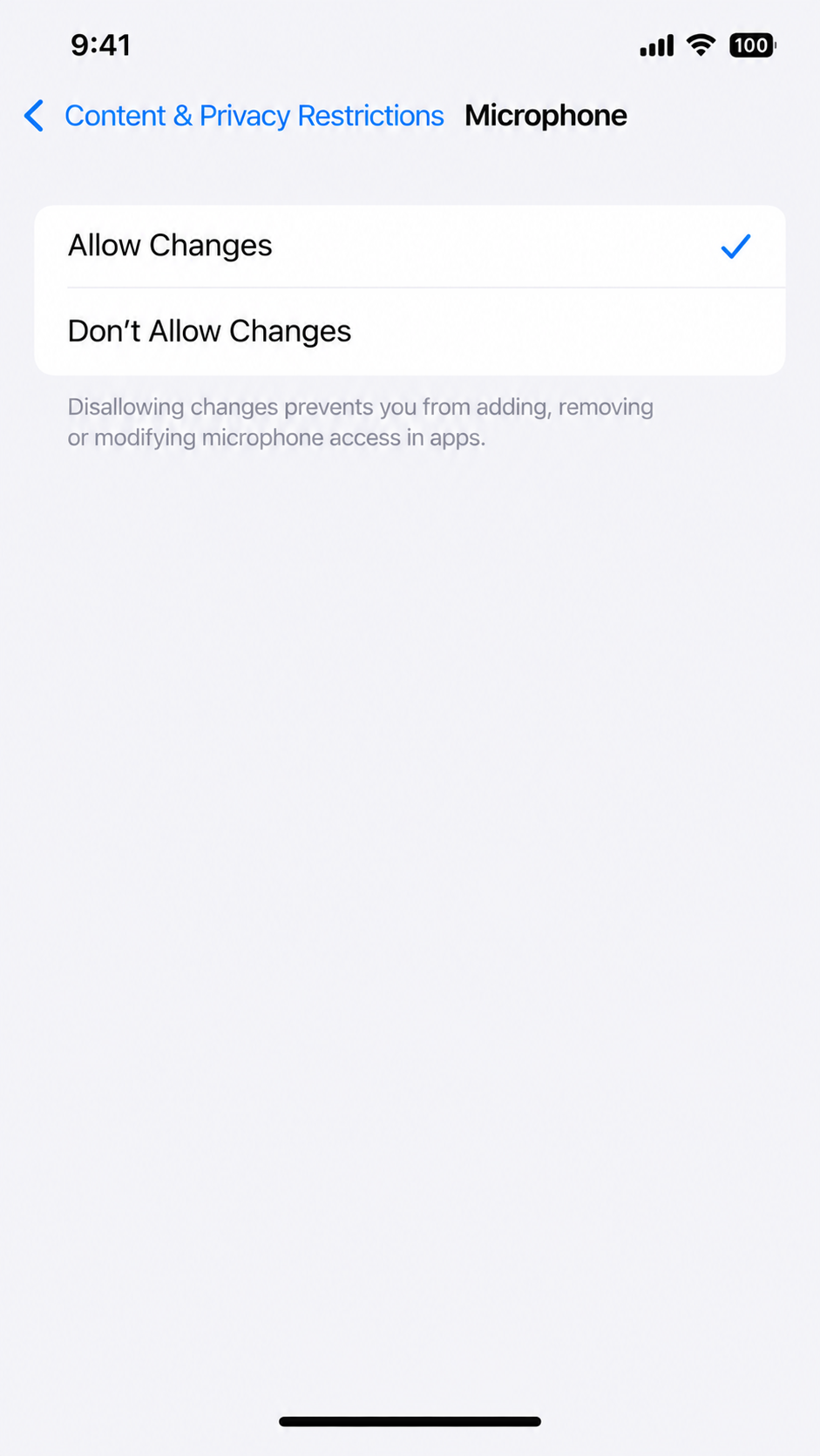
Change this only with the device owner’s or family organizer’s approval. Preserve intentional child-safety and household rules. - Return to the app’s recording feature and approve its microphone request if it appears.
For a child’s iPhone, the managing adult may instead need Settings > Family > [child] > Content & Privacy Restrictions > Privacy Restrictions. Apple’s parental-control instructions cover the current family layout.
When Family Sharing manages Screen Time, the managing adult handles recovery. Our explanation of why Forgot Passcode may be missing covers that case. Use authorized recovery only, not passcode-removal tools.
For a work or school iPhone, check Settings > General > VPN & Device Management. An installed profile does not prove it caused this problem; ask the administrator to check the app and device restrictions. Do not remove the profile.
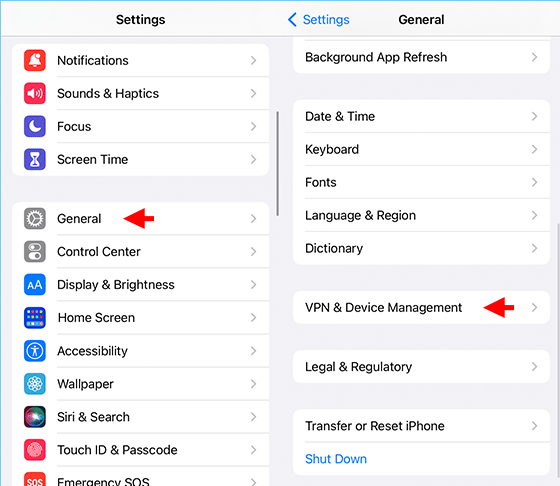
4. Update the App and iOS, Then Restart
A missing prompt can persist after reopening an app. Check available updates and restart before resetting privacy choices for the whole phone. These steps do not require deleting the app.
- Open App Store > account picture > App Updates and update the affected app if offered. Older layouts may show updates directly on the account page.
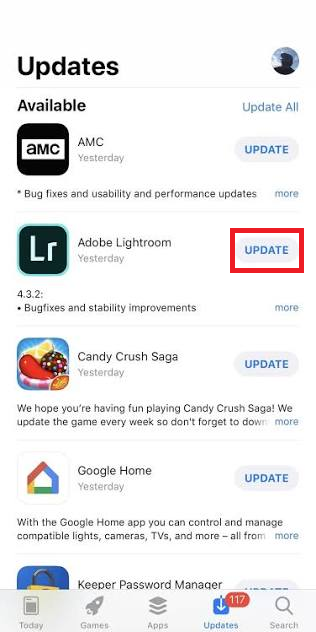
Show the app name and Update control. Hide the Apple Account, purchase history, subscriptions, payment information, and recommendations. - Back up the iPhone, then check Settings > General > Software Update. Install an available compatible public update, not a beta solely for this issue.
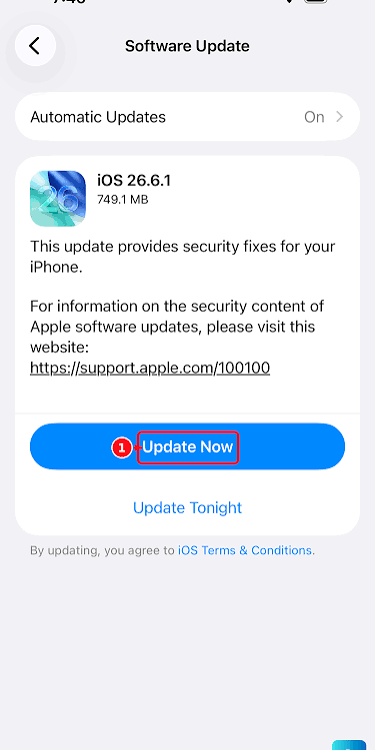
Show the public iOS version and update state. Hide device identifiers, beta profiles, Apple Account details, and notifications. - Save open work. Select Settings > General > Shut Down and drag the slider. Once off, hold the side button to turn the iPhone back on.
Use a normal restart after saving app work. Do not force restart a responsive phone or interrupt an update. - Open the app’s recording feature, respond to any permission prompt and recheck the Microphone list.
If the app now records normally, stop here. Avoid deleting an app that holds unsynced messages, recordings or drafts.
5. Reset Location and Privacy as a Last Resort
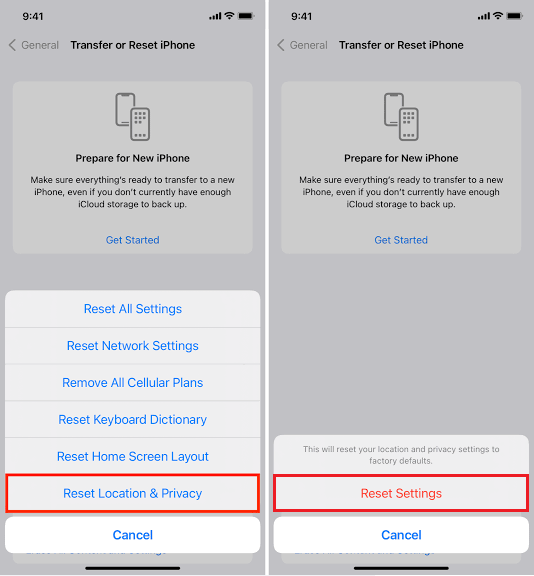
Reset Location & Privacy returns privacy choices to their defaults so apps can request access again. Consider it when several apps remain affected, rather than resetting the phone for one app that never asks.
- Open Settings > General > Transfer or Reset iPhone > Reset > Reset Location & Privacy. Do not choose Reset All Settings or Erase All Content and Settings.
- Review the confirmation, enter the device passcode privately and confirm only if you accept the returning permission prompts. Managed or child devices need the responsible administrator’s or parent’s approval first.
- Reopen the affected audio feature and approve its microphone request. Check that the app appears under Privacy & Security > Microphone, then test recording.
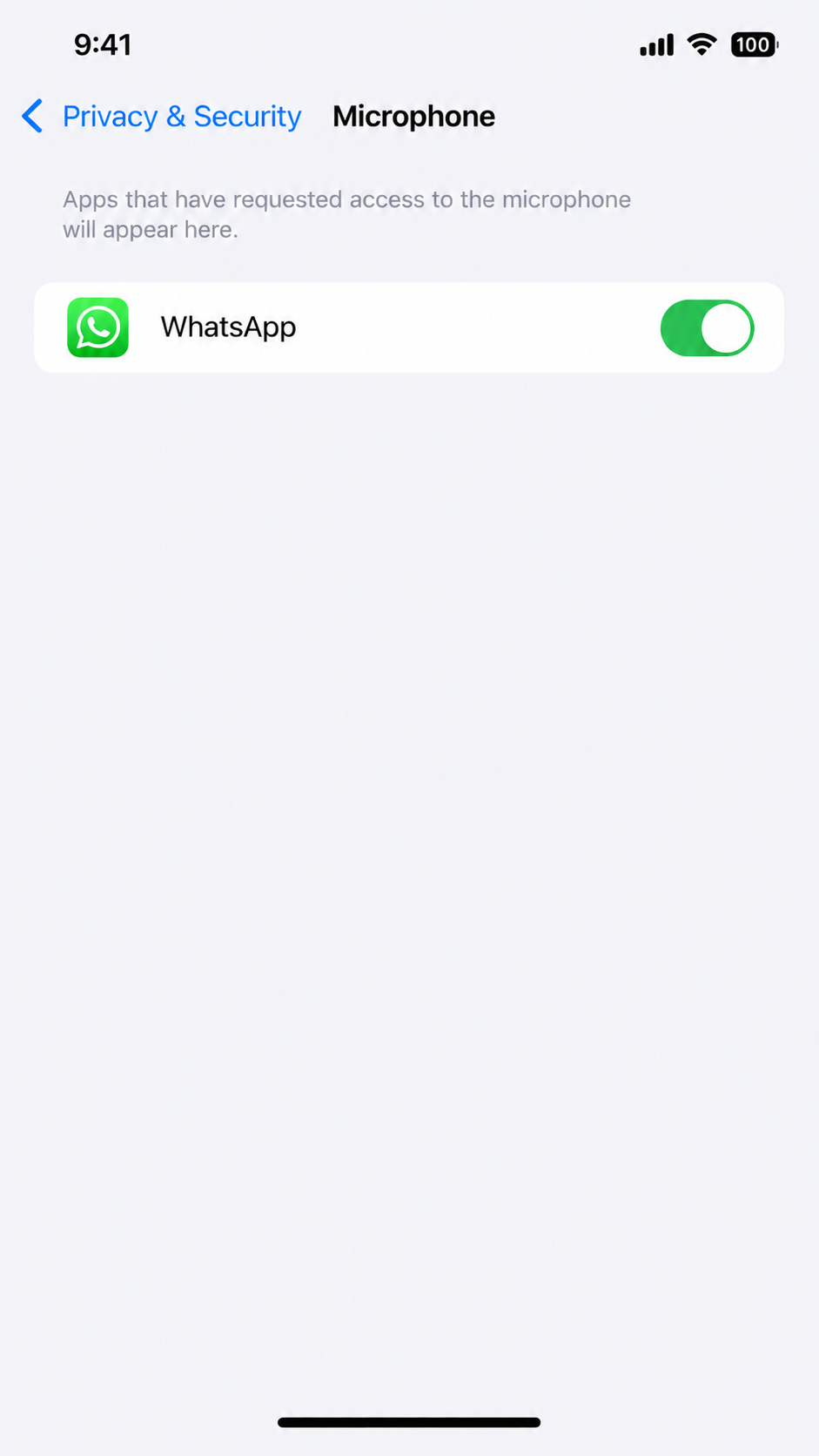
Show the prompt and the app appearing in the central Microphone list. Do not create, send, or publish a real recording merely to prove access.
If the app appears and recording works, no further reset is needed. If nothing changes, leave the remaining settings alone and report the results.
Still Missing?
For one affected app, open its App Store page, scroll to Ratings & Reviews and tap App Support. Apple recommends contacting the developer when the app is not listed or already has microphone permission but still fails.
For several affected apps, contact Apple Support with the iPhone model, iOS and app versions, exact warning, and the restriction, restart, update and reset results. Share redacted screenshots, not passcodes or account details.
There is no need to sign out of your Apple Account, reset network settings or erase the iPhone just to troubleshoot a missing microphone switch.


